
Criar Tagged PDF em Python
Criar um Tagged PDF significa adicionar (ou criar) certos elementos ao documento que permitirão que o documento seja validado de acordo com os requisitos do PDF/UA. Esses elementos são frequentemente chamados de Structure Elements.
Criando Tagged PDF (Cenário Simples)
Para criar elementos de estrutura em um Tagged PDF Document, Aspose.PDF oferece métodos para criar elementos de estrutura usando o ITaggedContent interface. Este exemplo cria um Tagged PDF — um PDF com estrutura semântica, tornando-o mais acessível e compatível com padrões como PDF/UA. O trecho de código a seguir mostra como criar um Tagged PDF que contém 2 elementos: cabeçalho e parágrafo.
import aspose.pdf as ap
import sys
from os import path

def create_tagged_pdf_document_simple(outfile):

    # Create PDF Document
    with ap.Document() as document:
        # Get Content for working with TaggedPdf
        tagged_content = document.tagged_content
        root_element = tagged_content.root_element

        # Set Title and Language for Document
        tagged_content.set_title("Tagged Pdf Document")
        tagged_content.set_language("en-US")
        main_header = tagged_content.create_header_element()
        main_header.set_text("Main Header")
        paragraph_element = tagged_content.create_paragraph_element()
        paragraph_element.set_text(
            "Lorem ipsum dolor sit amet, consectetur adipiscing elit. "
            + "Aenean nec lectus ac sem faucibus imperdiet. Sed ut erat ac magna ullamcorper hendrerit. "
            + "Cras pellentesque libero semper, gravida magna sed, luctus leo. Fusce lectus odio, laoreet "
            + "nec ullamcorper ut, molestie eu elit. Interdum et malesuada fames ac ante ipsum primis in faucibus. "
            + "Aliquam lacinia sit amet elit ac consectetur. Donec cursus condimentum ligula, vitae volutpat "
            + "sem tristique eget. Nulla in consectetur massa. Vestibulum vitae lobortis ante. Nulla ullamcorper "
            + "pellentesque justo rhoncus accumsan. Mauris ornare eu odio non lacinia. Aliquam massa leo, rhoncus "
            + "ac iaculis eget, tempus et magna. Sed non consectetur elit. Sed vulputate, quam sed lacinia luctus, "
            + "ipsum nibh fringilla purus, vitae posuere risus odio id massa. Cras sed venenatis lacus."
        )
        root_element.append_child(main_header, True)
        root_element.append_child(paragraph_element, True)

        # Save Tagged PDF Document
        document.save(outfile)
Criando Tagged PDF (Avançado)
import aspose.pdf as ap
import sys
from os import path

def create_tagged_pdf_document_adv(outfile):
    # Create PDF Document
    with ap.Document() as document:
        # Get Content for working with TaggedPdf
        tagged_content = document.tagged_content
        root_element = tagged_content.root_element

        # Set Title and Language for Document
        tagged_content.set_title("Tagged Pdf Document")
        tagged_content.set_language("en-US")

        # Create Header Level 1
        header1 = tagged_content.create_header_element(1)
        header1.set_text("Header Level 1")

        # Create Paragraph with Quotes
        paragraph_with_quotes = tagged_content.create_paragraph_element()
        paragraph_with_quotes.structure_text_state.font = (
            ap.text.FontRepository.find_font("Arial")
        )
        position_settings = ap.tagged.PositionSettings()
        position_settings.margin = ap.MarginInfo(10, 5, 10, 5)
        paragraph_with_quotes.adjust_position(position_settings)

        # Create Span Element
        span_element1 = tagged_content.create_span_element()
        span_element1.set_text(
            "Lorem ipsum dolor sit amet, consectetur adipiscing elit. Aenean nec lectus ac sem faucibus imperdiet. "
            "Sed ut erat ac magna ullamcorper hendrerit. Cras pellentesque libero semper, gravida magna sed, "
            "luctus leo. Fusce lectus odio, laoreet nec ullamcorper ut, molestie eu elit. Interdum et malesuada "
            "fames ac ante ipsum primis in faucibus. Aliquam lacinia sit amet elit ac consectetur. Donec cursus "
            "condimentum ligula, vitae volutpat sem tristique eget. Nulla in consectetur massa. Vestibulum vitae "
            "lobortis ante. Nulla ullamcorper pellentesque justo rhoncus accumsan. Mauris ornare eu odio non "
            "lacinia. Aliquam massa leo, rhoncus ac iaculis eget, tempus et magna. Sed non consectetur elit."
        )

        # Create Quote Element
        quote_element = tagged_content.create_quote_element()
        quote_element.set_text(
            "Sed vulputate, quam sed lacinia luctus, ipsum nibh fringilla purus, vitae posuere risus odio id massa."
        )
        quote_element.structure_text_state.font_style = (
            ap.text.FontStyles.BOLD | ap.text.FontStyles.ITALIC
        )

        # Create Another Span Element
        span_element2 = tagged_content.create_span_element()
        span_element2.set_text(" Sed non consectetur elit.")

        # Append Children to Paragraph
        paragraph_with_quotes.append_child(span_element1, True)
        paragraph_with_quotes.append_child(quote_element, True)
        paragraph_with_quotes.append_child(span_element2, True)

        # Append Header and Paragraph to Root Element
        root_element.append_child(header1, True)
        root_element.append_child(paragraph_with_quotes, True)

        # Save Tagged PDF Document
        document.save(outfile)
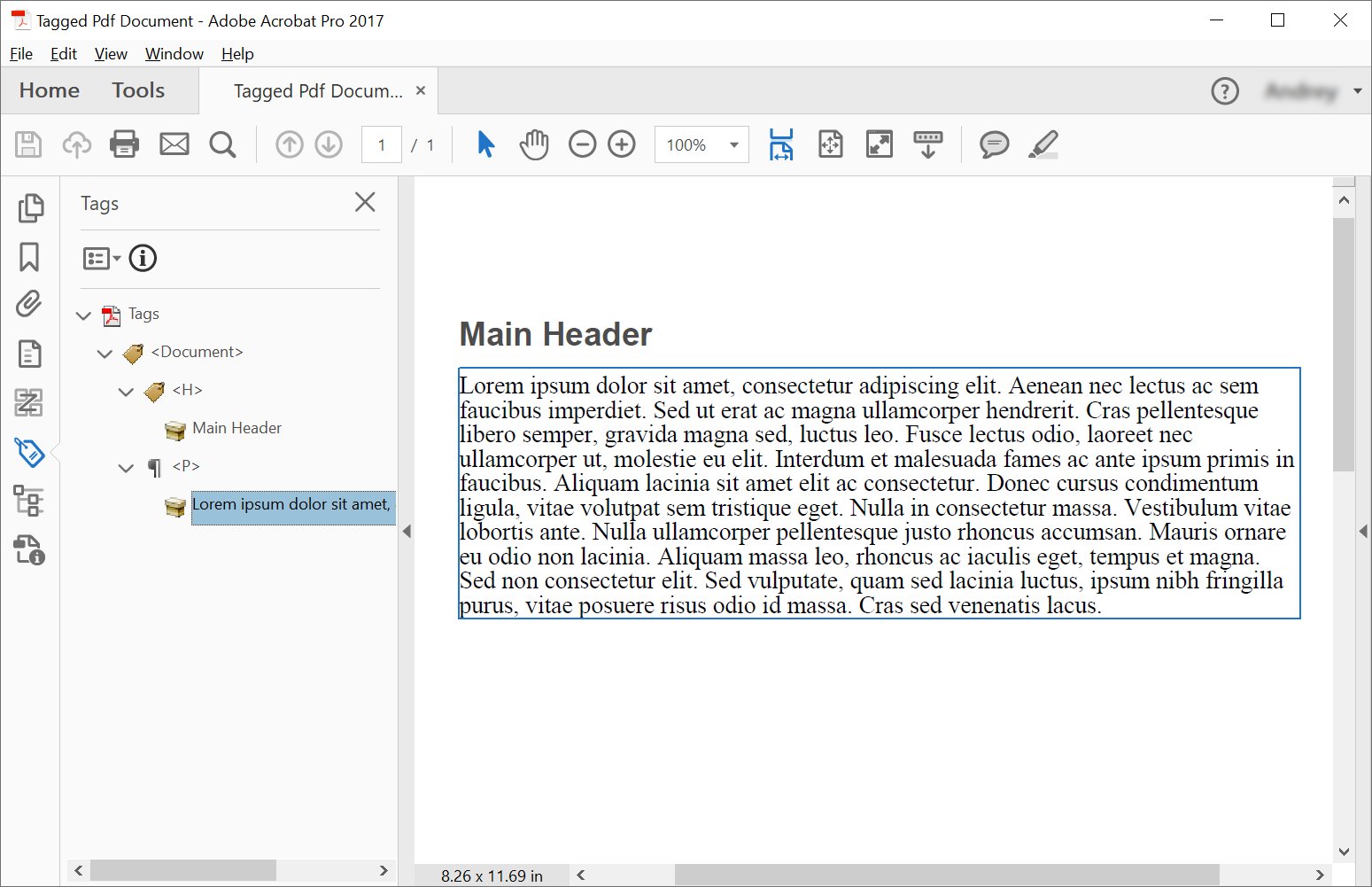
Obteremos o seguinte documento após a criação:
Estilizando a Estrutura de Texto
PDFs marcados são documentos estruturados que fornecem recursos de acessibilidade e significado semântico ao conteúdo.
O exemplo cria um documento PDF com recursos de acessibilidade usando uma estrutura de conteúdo marcado. Ele demonstra como criar um elemento de parágrafo com estilo personalizado e metadados de documento adequados.
import aspose.pdf as ap
import sys
from os import path

def add_style(outfile):

    # Create PDF Document
    with ap.Document() as document:
        # Get Content for work with TaggedPdf
        tagged_content = document.tagged_content

        # Set Title and Language for Document
        tagged_content.set_title("Tagged Pdf Document")
        tagged_content.set_language("en-US")

        paragraph_element = tagged_content.create_paragraph_element()
        tagged_content.root_element.append_child(paragraph_element, True)

        paragraph_element.structure_text_state.font_size = 18.0
        paragraph_element.structure_text_state.foreground_color = ap.Color.red
        paragraph_element.structure_text_state.font_style = ap.text.FontStyles.ITALIC

        paragraph_element.set_text("Red italic text.")

        # Save Tagged PDF Document
        document.save(outfile)
Ilustrando Structure Elements
Os Tagged PDFs são essenciais para a conformidade de acessibilidade e fornecem conteúdo estruturado que pode ser interpretado adequadamente por leitores de tela e outras tecnologias assistivas. O trecho de código a seguir mostra como criar um documento Tagged PDF com uma imagem incorporada:
- Criar PDF marcado com imagem.
- Configurar documento.
- Criar e configurar figura.
- Definir posicionamento.
- Salvar documento.
import aspose.pdf as ap
import sys
from os import path

def illustrate_structure_elements(imagefile, outfile):
    # Create PDF Document
    with ap.Document() as document:
        # Get Content for work with TaggedPdf
        tagged_content = document.tagged_content

        # Set Title and Language for Document
        tagged_content.set_title("Tagged Pdf Document")
        tagged_content.set_language("en-US")
        figure1 = tagged_content.create_figure_element()
        tagged_content.root_element.append_child(figure1, True)
        figure1.alternative_text = "Figure One"
        figure1.title = "Image 1"
        figure1.set_tag("Fig1")
        figure1.set_image(imagefile, 300)
        # Adjust position
        position_settings = ap.tagged.PositionSettings()
        margin_info = ap.MarginInfo()
        margin_info.left = 50
        margin_info.top = 20
        position_settings.margin = margin_info
        figure1.adjust_position(position_settings)

        # Save Tagged PDF Document
        document.save(outfile)
Validar Tagged PDF
O Aspose.PDF for Python via .NET fornece a capacidade de validar um Documento Tagged PDF PDF/UA. O método ‘validate_tagged_pdf’ valida documentos PDF de acordo com o padrão PDF/UA-1, que faz parte da especificação ISO 14289 para documentos PDF acessíveis. Isso garante que os PDFs sejam acessíveis a usuários com deficiências e tecnologias assistivas.
- Document Estrutura. Marcação semântica adequada e estrutura lógica.
- Texto Alternativo. Texto alternativo para imagens e elementos não textuais.
- Ordem de Leitura. Sequência lógica para leitores de tela.
- Cor e Contraste. Razões de contraste suficientes.
- Formulários. Campos de formulário e rótulos acessíveis.
- Navegação. Marcadores adequados e estrutura de navegação.
import aspose.pdf as ap
import sys
from os import path

def validate_tagged_pdf(infile, logfile):
    # Open PDF document
    with ap.Document(infile) as document:
        is_valid = document.validate(logfile, ap.PdfFormat.PDF_UA_1)
    print(f"Is Valid: {is_valid}")
Ajustar posição da Estrutura de Texto
O trecho de código a seguir mostra como ajustar a posição da Estrutura de Texto no documento Tagged PDF:
import aspose.pdf as ap
import sys
from os import path

def adjust_position(outfile):
    # Create PDF Document
    with ap.Document() as document:
        # Get Content for work with TaggedPdf
        tagged_content = document.tagged_content

        # Set Title and Language for Document
        tagged_content.set_title("Tagged Pdf Document")
        tagged_content.set_language("en-US")

        # Create paragraph
        paragraph = tagged_content.create_paragraph_element()
        tagged_content.root_element.append_child(paragraph, True)
        paragraph.set_text("Text.")

        # Adjust position
        position_settings = ap.tagged.PositionSettings()
        margin_info = ap.MarginInfo()
        margin_info.left = 300
        margin_info.top = 20
        margin_info.right = 0
        margin_info.bottom = 0
        position_settings.margin = margin_info
        position_settings.horizontal_alignment = ap.HorizontalAlignment.NONE
        position_settings.vertical_alignment = ap.VerticalAlignment.NONE
        position_settings.is_first_paragraph_in_column = False
        position_settings.is_kept_with_next = False
        position_settings.is_in_new_page = False
        position_settings.is_in_line_paragraph = False
        paragraph.adjust_position(position_settings)

        # Save Tagged PDF Document
        document.save(outfile)
Converter PDF para PDF/UA-1 com Marcação Automática
Este trecho de código explica como converter um PDF padrão em um arquivo compatível com PDF/UA-1 (Acessibilidade Universal) usando Aspose.PDF for Python via .NET.
PDF/UA garante que os documentos sejam acessíveis a usuários com deficiências e compatíveis com tecnologias assistivas, como leitores de tela. Durante a conversão, a biblioteca pode gerar automaticamente a árvore de estrutura lógica e aplicar tags semânticas usando a auto‑tagging incorporada e o reconhecimento de cabeçalhos.
Ao configurar PdfFormatConversionOptions e habilitar AutoTaggingSettings, você pode transformar eficientemente PDFs existentes em documentos acessíveis sem editar manualmente a estrutura.
- Carregue o documento de origem.
- Criar opções de conversão PDF/UA.
- Ativar marcação automática.
- Configurar reconhecimento de títulos.
- Anexe a configuração de marcação às opções de conversão.
- Execute o processo de conversão.
- Salve o PDF acessível.
import aspose.pdf as ap
import sys
from os import path

def convert_to_pdf_ua_with_automatic_tagging(infile, outfile, logfile):
    # Create PDF Document
    with ap.Document(infile) as document:
        # Create conversion options
        options = ap.PdfFormatConversionOptions(
            logfile, ap.PdfFormat.PDF_UA_1, ap.ConvertErrorAction.DELETE
        )
        # Create auto-tagging settings
        # aspose.pdf.AutoTaggingSettings.default may be used to set the same settings as given below
        auto_tagging_settings = ap.AutoTaggingSettings()
        # Enable auto-tagging during the conversion process
        auto_tagging_settings.enable_auto_tagging = True
        # Use the heading recognition strategy that's optimal for the given document structure
        auto_tagging_settings.heading_recognition_strategy = (
            ap.HeadingRecognitionStrategy.AUTO
        )
        # Assign auto-tagging settings to be used during the conversion process
        options.auto_tagging_settings = auto_tagging_settings
        # During the conversion, the document logical structure will be automatically created
        document.convert(options)
        # Save PDF document
        document.save(outfile)
Criar um Tagged PDF com um FormField de Assinatura Acessível
- Crie um novo documento PDF.
- Acesse o conteúdo marcado.
- Criar um campo de Form de assinatura.
- Adicione o campo ao AcroForm.
- Crie um elemento Form na estrutura de tags.
- Vincule o elemento Structure ao campo Form.
- Anexe o elemento Form à árvore de estrutura lógica.
- Salve o documento.
import aspose.pdf as ap
import sys
from os import path

def create_pdf_with_tagged_form_field(outfile):
    # Create PDF document
    with ap.Document() as document:
        document.pages.add()
        # Get Content for work with TaggedPdf
        tagged_content = document.tagged_content
        root_element = tagged_content.root_element
        # Create a visible signature form field (AcroForm)
        signature_field = ap.forms.SignatureField(
            document.pages[1], ap.Rectangle(50, 50, 100, 100, True)
        )
        signature_field.partial_name = "Signature1"
        signature_field.alternate_name = "signature 1"

        # Add the signature field to the document's AcroForm
        document.form.add(signature_field)

        # Create a /Form structure element in the tag tree
        form = tagged_content.create_form_element()
        form.alternative_text = "form 1"

        # Link the /Form tag to the signature field via an /OBJR reference
        form.tag(signature_field)

        # Add the /Form structure element to the document’s logical structure tree
        root_element.append_child(form, True)

        # Save PDF document
        document.save(outfile)
Criar um PDF Tagged com uma página de Sumário (TOC)
Este exemplo demonstra como criar um documento Tagged PDF com uma página de Sumário (TOC) estruturada usando Aspose.PDF for Python via .NET.
- Crie um novo documento PDF.
- Crie uma página de índice dedicada.
- Crie e registre o elemento TOC na árvore de estrutura lógica.
- Adicionar uma página de conteúdo.
- Criar um elemento de cabeçalho.
- Crie um elemento /TOCI.
- Vincule o cabeçalho ao TOC.
- Salve o documento.
import aspose.pdf as ap
import sys
from os import path

def create_pdf_with_toc_page(outfile):
    # Create PDF document
    with ap.Document() as document:
        # Get tagged content for the PDF structure
        content = document.tagged_content
        root_element = content.root_element
        content.set_language("en-US")
        # Add the table of contents (TOC) page
        toc_page = document.pages.add()
        toc_page.toc_info = ap.TocInfo()
        # Create a TOC structure element
        toc_element = content.create_toc_element()
        # Add the TOC element to the document structure tree
        root_element.append_child(toc_element, True)
        # Add a content page
        document.pages.add()
        # Create a header element and set its text
        header = content.create_header_element(1)
        header.set_text("1. Header")
        # Add the header to the document structure
        root_element.append_child(header, True)
        # Create a TOC item (TOCI) element
        toci = content.create_toci_element()
        # Add the TOCI element to the TOC element
        toc_element.append_child(toci, True)
        # Add an entry to the TOC page and link it to the TOCI element
        header.add_entry_to_toc_page(toc_page, toci)
        # Add a logical reference to the header within the TOCI element
        toci.add_ref(header)
        # Save PDF document
        document.save(outfile)
Criar um PDF Tagged avançado com Sumário hierárquico (TOC)
Usando Aspose.PDF for Python via .NET, você pode criar um documento PDF avançado e totalmente marcado com um Sumário estruturado e hierárquico (TOC).
- Crie o documento e habilite o conteúdo marcado.
- Adicionar e configurar a página TOC.
- Crie o elemento de estrutura /TOC.
- Vincule o título da página do TOC a um elemento de cabeçalho.
- Adicionar página de conteúdo principal e primeiro cabeçalho.
- Crie uma entrada de TOC para o cabeçalho.
- Criar subseções aninhadas com estrutura de lista.
- Adicione uma segunda seção de nível superior.
- Salve o documento.
import aspose.pdf as ap
import sys
from os import path

def create_pdf_with_toc_page_advanced(outfile):
    # Create PDF document
    with ap.Document() as document:
        # Get tagged content for the PDF structure
        content = document.tagged_content
        root_element = content.root_element
        content.set_language("en-US")
        # Add the table of contents (TOC) page
        toc_page = document.pages.add()
        toc_page.toc_info = ap.TocInfo()
        toc_page.toc_info.title = ap.text.TextFragment("Table of Contents")
        # Create a TOC structure element
        toc_element = content.create_toc_element()
        # Create a header element for the TOC page title
        header_for_toc_page_title = content.create_header_element(1)
        toc_element.link_toc_page_title_to_header_element(
            toc_page, header_for_toc_page_title
        )
        # Add the TOC page title header and TOC element to the document structure tree
        root_element.append_child(header_for_toc_page_title, True)
        root_element.append_child(toc_element, True)
        # Add a content page
        document.pages.add()
        # Create a header element and set its text
        header = content.create_header_element(1)
        header.set_text("1. Header")
        # Add the header to the document structure
        root_element.append_child(header, True)
        # Create a TOC item (TOCI) element
        toci = content.create_toci_element()
        # Add the TOCI element to the TOC element
        toc_element.append_child(toci, True)
        # Add an entry to the TOC page and link it to the TOCI element
        header.add_entry_to_toc_page(toc_page, toci)
        # Add a logical reference to the header within the TOCI element
        toci.add_ref(header)
        # Create a list element for TOCI subitems
        list_element = content.create_list_element()
        for i in range(1, 4):
            # Create a list item (LI) element
            li = content.create_list_li_element()
            # Add the list item to the list element
            list_element.append_child(li, True)
            # Create a sub-header element and set its properties
            sub_header = content.create_header_element(2)
            sub_header.structure_text_state.font_size = 14
            sub_header.language = "en-US"
            sub_header.set_text(f"1.{i} subheader ")
            # Add an entry to the TOC page and link it to the LI element
            sub_header.add_entry_to_toc_page(toc_page, li)
            # Add a logical reference to the subheader element
            li.add_ref(sub_header)
            # Create a paragraph element and set its text and language
            p = content.create_paragraph_element()
            p.set_text(
                "Lorem ipsum dolor sit amet, consectetur adipiscing elit, sed do eiusmod tempor incididunt ut labore et dolore magna aliqua. Ut enim ad minim veniam, quis nostrud exercitation ullamco laboris nisi ut aliquip ex ea commodo consequat. Duis aute irure dolor in reprehenderit in voluptate velit esse cillum dolore eu fugiat nulla pariatur. Excepteur sint occaecat cupidatat non proident, sunt in culpa qui officia deserunt mollit anim id est laborum."
            )
            p.language = "en-US"
            # Add the sub-header and paragraph to the document structure
            root_element.append_child(sub_header, True)
            root_element.append_child(p, True)
        # Add the list element as a child to the TOCI element
        toci.append_child(list_element, True)
        # --- Additional TOC header example ---
        # Create a second header element (see comments above for header 1)
        header2 = content.create_header_element(1)
        header2.set_text("2. Header")
        root_element.append_child(header2, True)

        toci2 = content.create_toci_element()
        toc_element.append_child(toci2, True)

        header2.add_entry_to_toc_page(toc_page, toci2)
        toci2.add_ref(header2)
        # Save the PDF document
        document.save(outfile)
Tópicos Relacionados ao PDF Marcado
- Extrair Conteúdo Marcado de Tagged PDFs para inspecionar a árvore de estrutura lógica após a criação.
- Definindo Propriedades dos Structure Elements para refinar títulos, idioma, texto alternativo e texto de expansão.
- Trabalhando com Tabela em PDFs Marcados quando seu documento acessível inclui tabelas estruturadas.