
Use FloatingBox for PDF Layout in Python
Basic FloatingBox Usage
The FloatingBox class is a container for placing text and other content on a PDF page. It gives you stronger control over layout, borders, and styling than regular text paragraphs. If content exceeds the box size, clipping behavior is controlled by the box settings.
Use this page when you need structured text containers, multi-column layouts, and precise positioning in PDF documents with Aspose.PDF for Python via .NET.
- Create a new
Document. - Add a
Pageto the document. - Create a
FloatingBox. - Set the box border using
BorderInfoandBorderSide. - Control box repetition with the
is_need_repeatingproperty. - Add text content using
TextFragment. - Add the
FloatingBoxto thePage. - Save the final PDF document using
Document.save().
import aspose.pdf as ap

def create_and_add_floating_box(outfile):
    # Create PDF document
    with ap.Document() as document:
        # Add page to pages collection of PDF
        page = document.pages.add()
        # Create and fill box
        box = ap.FloatingBox(400, 30)
        box.border = ap.BorderInfo(ap.BorderSide.ALL, 1.5, ap.Color.dark_green)
        box.is_need_repeating = False
        phrase = "Lorem ipsum dolor sit amet, consectetur adipiscing elit. Fusce quam odio, sollicitudin ac mauris vel, suscipit pellentesque nisi."
        box.paragraphs.add(ap.text.TextFragment(phrase))
        # Add box
        page.paragraphs.add(box)
        document.save(outfile)
In the example above, the FloatingBox is created with a width of 400 pt and a height of 30 pt.
The text intentionally exceeds the available height, so part of it is clipped.
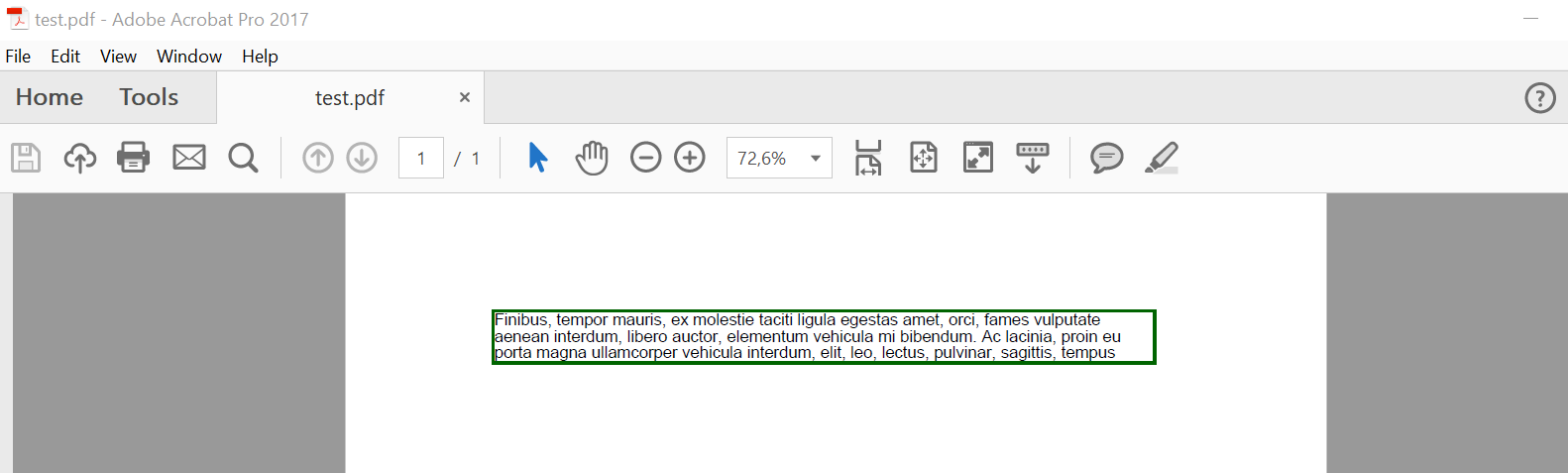
The is_need_repeating property with a value of False limits text rendering to a single page.
If you set this property to True, the text reflows to subsequent pages at the same position.

Advanced FloatingBox Features
Multi-column support
Multi-column layout (simple case)
FloatingBox supports multi-column layout. To create such a layout, you must define the values of the ColumnInfo properties.
column_widthsis a string that defines each column width in points.column_spacingis a string that defines the gap width between columns.column_countis the number of columns.
import sys
import aspose.pdf as ap
from os import path

def multi_column_layout(outfile):
    # Create PDF document
    with ap.Document() as document:
        # Add page to pages collection of PDF
        page = document.pages.add()
        # Set margin settings
        page.page_info.margin = ap.MarginInfo(36, 18, 36, 18)
        column_count = 3
        spacing = 10
        width = (
            page.page_info.width
            - page.page_info.margin.left
            - page.page_info.margin.right
            - (column_count - 1) * spacing
        )
        column_width = width / 3
        # Create FloatingBox
        box = ap.FloatingBox()
        box.is_need_repeating = True
        box.column_info.column_widths = f"{column_width} {column_width} {column_width}"
        box.column_info.column_spacing = f"{spacing}"
        box.column_info.column_count = 3
        phrase = "Lorem ipsum dolor sit amet, consectetur adipiscing elit. Fusce quam odio, sollicitudin ac mauris vel, suscipit pellentesque nisi."
        paragraphs = [
            phrase,
            phrase,
            phrase,
            phrase,
            phrase,
            phrase,
            phrase,
            phrase,
            phrase,
            phrase,
        ]
        for paragraph in paragraphs:
            box.paragraphs.add(ap.text.TextFragment(paragraph))
        # Add a box to a page
        page.paragraphs.add(box)
        # Save PDF document
        document.save(outfile)
The example generates sample paragraphs and places them across three columns. Content continues onto additional pages until all paragraphs are rendered.
Multi-column layout with forced column start
This example uses the same multi-column setup, but forces each added paragraph to start in a new column. To do that, set is_first_paragraph_in_column = True on each TextFragment before adding it to the FloatingBox.
import sys
import aspose.pdf as ap
from os import path

def multi_column_layout_2(outfile):
    # Create PDF document
    with ap.Document() as document:
        # Add page to pages collection of PDF
        page = document.pages.add()
        # Set margin settings
        page.page_info.margin = ap.MarginInfo(36, 18, 36, 18)
        column_count = 3
        spacing = 10
        width = (
            page.page_info.width
            - page.page_info.margin.left
            - page.page_info.margin.right
            - (column_count - 1) * spacing
        )
        column_width = width / 3
        # Create FloatingBox
        box = ap.FloatingBox()
        box.is_need_repeating = True
        box.column_info.column_widths = f"{column_width} {column_width} {column_width}"
        box.column_info.column_spacing = f"{spacing}"
        box.column_info.column_count = 3
        phrase = "Lorem ipsum dolor sit amet, consectetur adipiscing elit. Fusce quam odio, sollicitudin ac mauris vel, suscipit pellentesque nisi."
        paragraphs = [
            phrase,
            phrase,
            phrase,
            phrase,
            phrase,
            phrase,
            phrase,
            phrase,
            phrase,
            phrase,
        ]
        for paragraph in paragraphs:
            text = ap.text.TextFragment(paragraph)
            text.is_first_paragraph_in_column = True
            box.paragraphs.add(text)
        # Add a box to a page
        page.paragraphs.add(box)
        # Save PDF document
        document.save(outfile)
Background support
Apply a background color to a FloatingBox in a PDF document using Aspose.PDF for Python via .NET.
By assigning a Color to background_color, you can highlight content for headers, callouts, or styled sections.
This code snippet shows how to create a simple light green text box with sample content.
import sys
import aspose.pdf as ap
from os import path

def background_support(outfile):
    # Create PDF document
    with ap.Document() as document:
        # Add page to pages collection of PDF
        page = document.pages.add()
        # Create and fill box
        box = ap.FloatingBox(400, 30)
        box.background_color = ap.Color.light_green
        box.is_need_repeating = False
        box.paragraphs.add(ap.text.TextFragment("text example"))
        # Add box
        page.paragraphs.add(box)
        # Save PDF document
        document.save(outfile)
Positioning support
The position of a FloatingBox on the page is controlled by positioning_mode, left, and top.
When positioning_mode is:
ParagraphPositioningMode.DEFAULT(default)
The location depends on previously added elements. Adding a new paragraph affects the flow of subsequent elements. If left or top are non-zero, they are also applied.
The location is fixed by left and top; it does not depend on earlier elements and does not affect the flow of later ones.
import sys
import aspose.pdf as ap
from os import path

def offset_support(outfile):
    # Create PDF document
    with ap.Document() as document:
        # Add page to pages collection of PDF
        page = document.pages.add()
        # Create and fill box
        box = ap.FloatingBox(400, 30)
        box.top = 45
        box.left = 15
        box.positioning_mode = ap.ParagraphPositioningMode.ABSOLUTE
        box.border = ap.BorderInfo(ap.BorderSide.ALL, 1.5, ap.Color.dark_green)
        box.paragraphs.add(ap.text.TextFragment("text example 1"))
        page.paragraphs.add(ap.text.TextFragment("text example 2"))
        # Add the box to the page
        page.paragraphs.add(box)
        page.paragraphs.add(ap.text.TextFragment("text example 3"))
        document.save(outfile)
Align Floating Boxes with Vertical and Horizontal Alignment in PDF
Align FloatingBox elements on a PDF page using VerticalAlignment and HorizontalAlignment in Aspose.PDF for Python via .NET. This helps you place floating containers at top, center, or bottom positions for page layouts, header/footer blocks, or side notes.
- Create a new PDF document.
- Add a page to the document.
- Add the first
FloatingBoxwith bottom-right alignment. - Add the second
FloatingBoxwith center-right alignment. - Add the third
FloatingBoxwith top-right alignment. - Save the document.
import sys
import aspose.pdf as ap
from os import path

def align_text_to_float(outfile):
    # Create PDF document
    with ap.Document() as document:
        # Add page to pages collection of PDF
        page = document.pages.add()

        # Create float box
        float_box = ap.FloatingBox(100, 100)
        # Set settings to float box
        float_box.vertical_alignment = ap.VerticalAlignment.BOTTOM
        float_box.horizontal_alignment = ap.HorizontalAlignment.RIGHT
        float_box.paragraphs.add(ap.text.TextFragment("FloatingBox_bottom"))
        float_box.border = ap.BorderInfo(ap.BorderSide.ALL, ap.Color.blue)
        # Add float box
        page.paragraphs.add(float_box)

        # Create float box
        float_box_2 = ap.FloatingBox(100, 100)
        # Set settings to float box
        float_box_2.vertical_alignment = ap.VerticalAlignment.CENTER
        float_box_2.horizontal_alignment = ap.HorizontalAlignment.RIGHT
        float_box_2.paragraphs.add(ap.text.TextFragment("FloatingBox_center"))
        float_box_2.border = ap.BorderInfo(ap.BorderSide.ALL, ap.Color.blue)
        # Add float box
        page.paragraphs.add(float_box_2)

        # Create float box
        float_box_3 = ap.FloatingBox(100, 100)
        # Set settings to float box
        float_box_3.vertical_alignment = ap.VerticalAlignment.TOP
        float_box_3.horizontal_alignment = ap.HorizontalAlignment.RIGHT
        float_box_3.paragraphs.add(ap.text.TextFragment("FloatingBox_top"))
        float_box_3.border = ap.BorderInfo(ap.BorderSide.ALL, ap.Color.blue)
        # Add float box
        page.paragraphs.add(float_box_3)

        # Save the document
        document.save(outfile)