
एंड्रॉइड पर प्रस्तुति ज़ूम प्रबंधित करें
परिचय
PowerPoint में ज़ूम आपको प्रस्तुति की विशिष्ट स्लाइड्स, सेक्शन, और हिस्सों के बीच कूदने की अनुमति देता है। जब आप प्रस्तुति दे रहे हों, तो सामग्री के माध्यम से तेज़ी से नेविगेट करने की यह क्षमता बहुत उपयोगी सिद्ध हो सकती है।
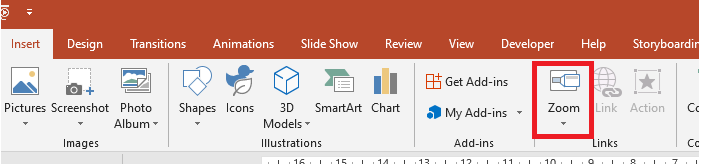
- किसी पूरी प्रस्तुति को एक स्लाइड पर सारांशित करने के लिए, एक सारांश ज़ूम का उपयोग करें.
- केवल चयनित स्लाइड्स को दिखाने के लिए, एक स्लाइड ज़ूम का उपयोग करें.
- केवल एक सेक्शन को दिखाने के लिए, एक सेक्शन ज़ूम का उपयोग करें.
स्लाइड ज़ूम
एक स्लाइड ज़ूम आपके प्रस्तुतीकरण को अधिक गतिशील बना सकता है, जिससे आप अपनी पसंद के क्रम में स्लाइड्स के बीच स्वतंत्र रूप से नेविगेट कर सकते हैं बिना प्रस्तुति के प्रवाह को बाधित किए। स्लाइड ज़ूम छोटे प्रस्तुतियों के लिए उपयुक्त हैं जिनमें कई सेक्शन नहीं होते, लेकिन आप इन्हें विभिन्न प्रस्तुति परिदृश्यों में भी उपयोग कर सकते हैं।
स्लाइड ज़ूम आपको कई सूचनाओं में गहराई से प्रवेश करने में मदद करते हैं जबकि आप ऐसा महसूस करते हैं कि आप एक ही कैनवास पर हैं।

For slide zoom objects, Aspose.Slides provides the ZoomImageType enumeration, the IZoomFrame interface, and some methods under the IShapeCollection interface.
ज़ूम फ्रेम बनाएं
आप स्लाइड पर ज़ूम फ्रेम इस प्रकार जोड़ सकते हैं:
- Create an instance of the Presentation class.
- Create new slides to which you intend to link the zoom frames.
- Add an identification text and background to the created slides.
- Add zoom frames (containing the references to created slides) to the first slide.
- Write the modified presentation as a PPTX file.
Presentation pres = new Presentation();
try {
    //प्रस्तुति में नई स्लाइड्स जोड़ता है
    ISlide slide2 = pres.getSlides().addEmptySlide(pres.getSlides().get_Item(0).getLayoutSlide());
    ISlide slide3 = pres.getSlides().addEmptySlide(pres.getSlides().get_Item(0).getLayoutSlide());

    //दूसरी स्लाइड के लिए पृष्ठभूमि बनाता है
    slide2.getBackground().setType(BackgroundType.OwnBackground);
    slide2.getBackground().getFillFormat().setFillType(FillType.Solid);
    slide2.getBackground().getFillFormat().getSolidFillColor().setColor(Color.cyan);

    //दूसरी स्लाइड के लिए टेक्स्ट बॉक्स बनाता है
    IAutoShape autoshape = slide2.getShapes().addAutoShape(ShapeType.Rectangle, 100, 200, 500, 200);
    autoshape.getTextFrame().setText("Second Slide");

    //तीसरी स्लाइड के लिए पृष्ठभूमि बनाता है
    slide3.getBackground().setType(BackgroundType.OwnBackground);
    slide3.getBackground().getFillFormat().setFillType(FillType.Solid);
    slide3.getBackground().getFillFormat().getSolidFillColor().setColor(Color.darkGray);

    //तीसरी स्लाइड के लिए टेक्स्ट बॉक्स बनाता है
    autoshape = slide3.getShapes().addAutoShape(ShapeType.Rectangle, 100, 200, 500, 200);
    autoshape.getTextFrame().setText("Trird Slide");

    //ZoomFrame ऑब्जेक्ट्स जोड़ता है
    pres.getSlides().get_Item(0).getShapes().addZoomFrame(20, 20, 250, 200, slide2);
    pres.getSlides().get_Item(0).getShapes().addZoomFrame(200, 250, 250, 200, slide3);

    //प्रस्तुति को सहेजता है
    pres.save("presentation.pptx", SaveFormat.Pptx);
} finally {
    if (pres != null) pres.dispose();
}
कस्टम इमेज के साथ ज़ूम फ्रेम बनाएं
With Aspose.Slides for Android via Java, you can create a zoom frame with a different slide preview image this way:
- Create an instance of the Presentation class.
- Create a new slide to which you intend to link the zoom frame.
- Add an identification text and background to the slide.
- Create an IPPImage object by adding an image to the Images collection associated with the Presentation object that will be used to fill the frame.
- Add zoom frames (containing the reference to created slide) to the first slide.
- Write the modified presentation as a PPTX file.
Presentation pres = new Presentation();
try {
    //प्रस्तुति में नई स्लाइड जोड़ता है
    ISlide slide = pres.getSlides().addEmptySlide(pres.getSlides().get_Item(0).getLayoutSlide());

    // दूसरी स्लाइड के लिए पृष्ठभूमि बनाता है
    slide.getBackground().setType(BackgroundType.OwnBackground);
    slide.getBackground().getFillFormat().setFillType(FillType.Solid);
    slide.getBackground().getFillFormat().getSolidFillColor().setColor(Color.cyan);

    // तीसरी स्लाइड के लिए टेक्स्ट बॉक्स बनाता है
    IAutoShape autoshape = slide.getShapes().addAutoShape(ShapeType.Rectangle, 100, 200, 500, 200);
    autoshape.getTextFrame().setText("Second Slide");

    // ज़ूम ऑब्जेक्ट के लिए नई छवि बनाता है
    IPPImage picture;
        IImage image = Images.fromFile("image.png");
        try {
            picture = pres.getImages().addImage(image);
        } finally {
            if (image != null) image.dispose();
        }
    //ZoomFrame ऑब्जेक्ट जोड़ता है
    pres.getSlides().get_Item(0).getShapes().addZoomFrame(20, 20, 300, 200, slide, picture);

    // प्रस्तुति को सहेजता है
    pres.save("presentation.pptx", SaveFormat.Pptx);
} catch(IOException e) {
} finally {
    if (pres != null) pres.dispose();
}
ज़ूम फ्रेम का फॉर्मेटिंग करें
In the previous sections, we showed you how to create simple zoom frames. To create more complicated zoom frames, you have to alter a simple frame’s formatting. There are several formatting options you can apply to a zoom frame.
You can control a zoom frame’s formatting on a slide this way:
- Create an instance of the Presentation class.
- Create new slides to link to which you intend to link the zoom frame.
- Add some identification text and background to the created slides.
- Add zoom frames (containing the references to the created slides) to the first slide.
- Create an IPPImage object by adding an image to the Images collection associated with the Presentation object that will be used to fill the frame. 6.Set a custom image for the first zoom frame object. 7.Change the line format for the second zoom frame object. 8.Remove the background from an image of the second zoom frame object. 9.Write the modified presentation as a PPTX file.
Presentation pres = new Presentation();
try {
    //प्रस्तुति में नई स्लाइड्स जोड़ता है
    ISlide slide2 = pres.getSlides().addEmptySlide(pres.getSlides().get_Item(0).getLayoutSlide());
    ISlide slide3 = pres.getSlides().addEmptySlide(pres.getSlides().get_Item(0).getLayoutSlide());

    // दूसरी स्लाइड के लिए पृष्ठभूमि बनाता है
    slide2.getBackground().setType(BackgroundType.OwnBackground);
    slide2.getBackground().getFillFormat().setFillType(FillType.Solid);
    slide2.getBackground().getFillFormat().getSolidFillColor().setColor(Color.cyan);

    // दूसरी स्लाइड के लिए टेक्स्ट बॉक्स बनाता है
    IAutoShape autoshape = slide2.getShapes().addAutoShape(ShapeType.Rectangle, 100, 200, 500, 200);
    autoshape.getTextFrame().setText("Second Slide");

    // तीसरी स्लाइड के लिए पृष्ठभूमि बनाता है
    slide3.getBackground().setType(BackgroundType.OwnBackground);
    slide3.getBackground().getFillFormat().setFillType(FillType.Solid);
    slide3.getBackground().getFillFormat().getSolidFillColor().setColor(Color.darkGray);

    // तीसरी स्लाइड के लिए टेक्स्ट बॉक्स बनाता है
    autoshape = slide3.getShapes().addAutoShape(ShapeType.Rectangle, 100, 200, 500, 200);
    autoshape.getTextFrame().setText("Trird Slide");

    //ZoomFrame ऑब्जेक्ट्स जोड़ता है
    IZoomFrame zoomFrame1 = pres.getSlides().get_Item(0).getShapes().addZoomFrame(20, 20, 250, 200, slide2);
    IZoomFrame zoomFrame2 = pres.getSlides().get_Item(0).getShapes().addZoomFrame(200, 250, 250, 200, slide3);

    // ज़ूम ऑब्जेक्ट के लिए नई छवि बनाता है
    IPPImage picture;
        IImage image = Images.fromFile("image.png");
        try {
            picture = pres.getImages().addImage(image);
        } finally {
            if (image != null) image.dispose();
        }
    // zoomFrame1 ऑब्जेक्ट के लिए कस्टम इमेज सेट करता है
    zoomFrame1.setImage(picture);

    // zoomFrame2 ऑब्जेक्ट के लिए ज़ूम फ्रेम फ़ॉर्मेट सेट करता है
    zoomFrame2.getLineFormat().setWidth(5);
    zoomFrame2.getLineFormat().getFillFormat().setFillType(FillType.Solid);
    zoomFrame2.getLineFormat().getFillFormat().getSolidFillColor().setColor(Color.pink);
    zoomFrame2.getLineFormat().setDashStyle(LineDashStyle.DashDot);

    // zoomFrame2 ऑब्जेक्ट के लिए पृष्ठभूमि न दिखाने की सेटिंग
    zoomFrame2.setShowBackground(false);

    // प्रस्तुति को सहेजता है
    pres.save("presentation.pptx", SaveFormat.Pptx);
} catch(IOException e) {
} finally {
    if (pres != null) pres.dispose();
}
सेक्शन ज़ूम
एक सेक्शन ज़ूम आपके प्रस्तुति में किसी सेक्शन का लिंक होता है। आप सेक्शन ज़ूम का उपयोग उन सेक्शनों को वापस जाने के लिए कर सकते हैं जिन्हें आप वास्तव में उजागर करना चाहते हैं। या आप उनका उपयोग इस बात को उजागर करने के लिए कर सकते हैं कि आपके प्रस्तुति के विभिन्न हिस्से कैसे जुड़ते हैं।
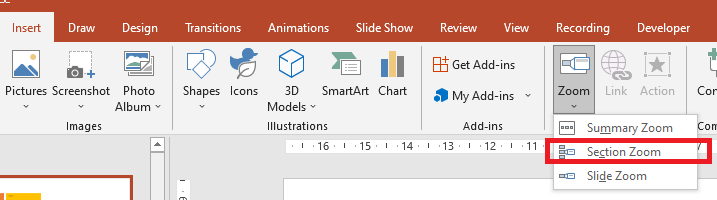
For section zoom objects, Aspose.Slides provides the ISectionZoomFrame interface and some methods under the IShapeCollection interface.
सेक्शन ज़ूम फ्रेम बनाएं
You can add a section zoom frame to a slide this way:
- Create an instance of the Presentation class.
- Create a new slide.
- Add an identification background to the created slide.
- Create a new section to which you intend to link the zoom frame.
- Add a section zoom frame (containing references to the created section) to the first slide. 6.Write the modified presentation as a PPTX file.
Presentation pres = new Presentation();
try {
    //प्रस्तुति में नई स्लाइड जोड़ता है
    ISlide slide = pres.getSlides().addEmptySlide(pres.getSlides().get_Item(0).getLayoutSlide());
    slide.getBackground().getFillFormat().setFillType(FillType.Solid);
    slide.getBackground().getFillFormat().getSolidFillColor().setColor(Color.yellow);
    slide.getBackground().setType(BackgroundType.OwnBackground);

    //प्रस्तुति में नया सेक्शन जोड़ता है
    pres.getSections().addSection("Section 1", slide);

    //SectionZoomFrame ऑब्जेक्ट जोड़ता है
    ISectionZoomFrame sectionZoomFrame = pres.getSlides().get_Item(0).getShapes().addSectionZoomFrame(20, 20, 300, 200, pres.getSections().get_Item(1));

    //प्रस्तुति को सहेजता है
    pres.save("presentation.pptx", SaveFormat.Pptx);
} finally {
    if (pres != null) pres.dispose();
}
कस्टम इमेज के साथ सेक्शन ज़ूम फ्रेम बनाएं
Using Aspose.Slides for Android via Java, you can create a section zoom frame with a different slide preview image this way:
- Create an instance of the Presentation class.
- Create a new slide.
- Add an identification background to created slide.
- Create a new section to which you intend to link the zoom frame.
- Create an IPPImage object by adding an image to the Images collection associated with the Presentation object that will be used to fill the frame. 6.Add a section zoom frame (containing a reference to the created section) to the first slide. 7.Write the modified presentation as a PPTX file.
Presentation pres = new Presentation();
try {
    //प्रस्तुति में नई स्लाइड जोड़ता है
    ISlide slide = pres.getSlides().addEmptySlide(pres.getSlides().get_Item(0).getLayoutSlide());
    slide.getBackground().getFillFormat().setFillType(FillType.Solid);
    slide.getBackground().getFillFormat().getSolidFillColor().setColor(Color.yellow);
    slide.getBackground().setType(BackgroundType.OwnBackground);

    //प्रस्तुति में नया सेक्शन जोड़ता है
    pres.getSections().addSection("Section 1", slide);

    //ज़ूम ऑब्जेक्ट के लिए नई छवि बनाता है
    IPPImage picture;
    IImage image = Images.fromFile("image.png");
    try {
        picture = pres.getImages().addImage(image);
    } finally {
        if (image != null) image.dispose();
    }

    //SectionZoomFrame ऑब्जेक्ट जोड़ता है
    ISectionZoomFrame sectionZoomFrame = pres.getSlides().get_Item(0).getShapes().addSectionZoomFrame(20, 20, 300, 200, pres.getSections().get_Item(1), picture);

    //प्रस्तुति को सहेजता है
    pres.save("presentation.pptx", SaveFormat.Pptx);
} catch(IOException e) {
} finally {
    if (pres != null) pres.dispose();
}
सेक्शन ज़ूम फ्रेम का फॉर्मेटिंग करें
To create more complicated section zoom frames, you have to alter a simple frame’s formatting. There are several formatting options you can apply to a section zoom frame.
You can control a section zoom frame’s formatting on a slide this way:
- Create an instance of the Presentation class.
- Create a new slide.
- Add identification background to created slide.
- Create a new section to which you intend to link the zoom frame.
- Add a section zoom frame (containing references to created section) to the first slide. 6.Change the size and position for the created section zoom object. 7.Create an IPPImage object by adding an image to the Images collection associated with the Presentation object that will be used to fill the frame. 8.Set a custom image for the created section zoom frame object. 9.Set the return to the original slide from the linked section ability. 10.Remove the background from an image of the section zoom frame object. 11.Change the line format for the second zoom frame object. 12.Change the transition duration. 13.Write the modified presentation as a PPTX file.
Presentation pres = new Presentation();
try {
    //प्रस्तुति में नई स्लाइड जोड़ता है
    ISlide slide = pres.getSlides().addEmptySlide(pres.getSlides().get_Item(0).getLayoutSlide());
    slide.getBackground().getFillFormat().setFillType(FillType.Solid);
    slide.getBackground().getFillFormat().getSolidFillColor().setColor(Color.yellow);
    slide.getBackground().setType(BackgroundType.OwnBackground);

    // प्रस्तुति में नया सेक्शन जोड़ता है
    pres.getSections().addSection("Section 1", slide);

    // SectionZoomFrame ऑब्जेक्ट जोड़ता है
    ISectionZoomFrame sectionZoomFrame = pres.getSlides().get_Item(0).getShapes().addSectionZoomFrame(20, 20, 300, 200, pres.getSections().get_Item(1));

    // SectionZoomFrame के लिए स्वरूपण
    sectionZoomFrame.setX(100);
    sectionZoomFrame.setY(300);
    sectionZoomFrame.setWidth(100);
    sectionZoomFrame.setHeight(75);

    IPPImage picture;
    IImage image = Images.fromFile("image.png");
    try {
         picture = pres.getImages().addImage(image);
     } finally {
        if (image != null) image.dispose();
     }
    sectionZoomFrame.setImage(picture);

    sectionZoomFrame.setReturnToParent(true);
    sectionZoomFrame.setShowBackground(false);

    sectionZoomFrame.getLineFormat().getFillFormat().setFillType(FillType.Solid);
    sectionZoomFrame.getLineFormat().getFillFormat().getSolidFillColor().setColor(Color.gray);
    sectionZoomFrame.getLineFormat().setDashStyle(LineDashStyle.DashDot);
    sectionZoomFrame.getLineFormat().setWidth(2.5f);

    sectionZoomFrame.setTransitionDuration(1.5f);

    // प्रस्तुति को सहेजता है
    pres.save("presentation.pptx", SaveFormat.Pptx);
} catch(IOException e) {
} finally {
    if (pres != null) pres.dispose();
}
सारांश ज़ूम
एक सारांश ज़ूम एक लैंडिंग पेज की तरह है जहाँ आपके प्रस्तुति के सभी हिस्से एक साथ दिखाए जाते हैं। जब आप प्रस्तुति दे रहे हों, तो आप ज़ूम का उपयोग करके प्रस्तुति के एक हिस्से से दूसरे हिस्से में किसी भी क्रम में जा सकते हैं। आप रचनात्मक हो सकते हैं, आगे छलांग लगा सकते हैं, या अपने स्लाइड शो के टुकड़े पुनः देख सकते हैं बिना प्रवाह को बाधित किए।
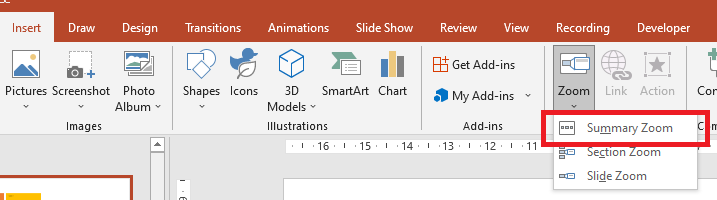
For summary zoom objects, Aspose.Slides provides the ISummaryZoomFrame, ISummaryZoomSection, and ISummaryZoomSectionCollection interfaces and some methods under the IShapeCollection interface.
सारांश ज़ूम बनाएं
You can add a summary zoom frame to a slide this way:
- Create an instance of the Presentation class.
- Create new slides with identification background and new sections for created slides.
- Add the summary zoom frame to the first slide. 4.Write the modified presentation as a PPTX file.
Presentation pres = new Presentation();
try {
    //प्रस्तुति में नई स्लाइड जोड़ता है
    ISlide slide = pres.getSlides().addEmptySlide(pres.getSlides().get_Item(0).getLayoutSlide());
    slide.getBackground().getFillFormat().setFillType(FillType.Solid);
    slide.getBackground().getFillFormat().getSolidFillColor().setColor(Color.gray);
    slide.getBackground().setType(BackgroundType.OwnBackground);

    // नया सेक्शन जोड़ता है
    pres.getSections().addSection("Section 1", slide);

    //प्रस्तुति में नई स्लाइड जोड़ता है
    slide = pres.getSlides().addEmptySlide(pres.getSlides().get_Item(0).getLayoutSlide());
    slide.getBackground().getFillFormat().setFillType(FillType.Solid);
    slide.getBackground().getFillFormat().getSolidFillColor().setColor(Color.cyan);
    slide.getBackground().setType(BackgroundType.OwnBackground);

    // नया सेक्शन जोड़ता है
    pres.getSections().addSection("Section 2", slide);

    //प्रस्तुति में नई स्लाइड जोड़ता है
    slide = pres.getSlides().addEmptySlide(pres.getSlides().get_Item(0).getLayoutSlide());
    slide.getBackground().getFillFormat().setFillType(FillType.Solid);
    slide.getBackground().getFillFormat().getSolidFillColor().setColor(Color.magenta);
    slide.getBackground().setType(BackgroundType.OwnBackground);

    // नया सेक्शन जोड़ता है
    pres.getSections().addSection("Section 3", slide);

    //प्रस्तुति में नई स्लाइड जोड़ता है
    slide = pres.getSlides().addEmptySlide(pres.getSlides().get_Item(0).getLayoutSlide());
    slide.getBackground().getFillFormat().setFillType(FillType.Solid);
    slide.getBackground().getFillFormat().getSolidFillColor().setColor(Color.green);
    slide.getBackground().setType(BackgroundType.OwnBackground);

    // नया सेक्शन जोड़ता है
    pres.getSections().addSection("Section 4", slide);

    // SummaryZoomFrame ऑब्जेक्ट जोड़ता है
    ISummaryZoomFrame summaryZoomFrame = pres.getSlides().get_Item(0).getShapes().addSummaryZoomFrame(150, 50, 300, 200);

    // प्रस्तुति को सहेजता है
    pres.save("presentation.pptx", SaveFormat.Pptx);
} finally {
    if (pres != null) pres.dispose();
}
सारांश ज़ूम सेक्शन जोड़ें और हटाएं
All sections in a summary zoom frame are represented by ISummaryZoomSection objects, which are stored in the ISummaryZoomSectionCollection object. You can add or remove a summary zoom section object through the ISummaryZoomSectionCollection interface this way:
- Create an instance of the Presentation class.
- Create new slides with identification background and new sections for created slides.
- Add a summary zoom frame into the first slide. 4.Add a new slide and section to the presentation. 5.Add the created section to the summary zoom frame. 6.Remove the first section from the summary zoom frame. 7.Write the modified presentation as a PPTX file.
Presentation pres = new Presentation();
try {
    //प्रस्तुति में नई स्लाइड जोड़ता है
    ISlide slide = pres.getSlides().addEmptySlide(pres.getSlides().get_Item(0).getLayoutSlide());
    slide.getBackground().getFillFormat().setFillType(FillType.Solid);
    slide.getBackground().getFillFormat().getSolidFillColor().setColor(Color.gray);
    slide.getBackground().setType(BackgroundType.OwnBackground);

    // प्रस्तुति में नया सेक्शन जोड़ता है
    pres.getSections().addSection("Section 1", slide);

    //प्रस्तुति में नई स्लाइड जोड़ता है
    slide = pres.getSlides().addEmptySlide(pres.getSlides().get_Item(0).getLayoutSlide());
    slide.getBackground().getFillFormat().setFillType(FillType.Solid);
    slide.getBackground().getFillFormat().getSolidFillColor().setColor(Color.cyan);
    slide.getBackground().setType(BackgroundType.OwnBackground);

    // प्रस्तुति में नया सेक्शन जोड़ता है
    pres.getSections().addSection("Section 2", slide);

    // SummaryZoomFrame ऑब्जेक्ट जोड़ता है
    ISummaryZoomFrame summaryZoomFrame = pres.getSlides().get_Item(0).getShapes().addSummaryZoomFrame(150, 50, 300, 200);

    //प्रस्तुति में नई स्लाइड जोड़ता है
    slide = pres.getSlides().addEmptySlide(pres.getSlides().get_Item(0).getLayoutSlide());
    slide.getBackground().getFillFormat().setFillType(FillType.Solid);
    slide.getBackground().getFillFormat().getSolidFillColor().setColor(Color.magenta);
    slide.getBackground().setType(BackgroundType.OwnBackground);

    // प्रस्तुति में नया सेक्शन जोड़ता है
    ISection section3 = pres.getSections().addSection("Section 3", slide);

    // Summary Zoom में सेक्शन जोड़ता है
    summaryZoomFrame.getSummaryZoomCollection().addSummaryZoomSection(section3);

    // Summary Zoom से सेक्शन हटाता है
    summaryZoomFrame.getSummaryZoomCollection().removeSummaryZoomSection(pres.getSections().get_Item(1));

    // प्रस्तुति को सहेजता है
    pres.save("presentation.pptx", SaveFormat.Pptx);
} finally {
    if (pres != null) pres.dispose();
}
सारांश ज़ूम सेक्शन का फॉर्मेटिंग करें
To create more complicated summary zoom section objects, you have to alter a simple frame’s formatting. There are several formatting options you can apply to a summary zoom section object.
You can control the formatting for a summary zoom section object in a summary zoom frame this way:
- Create an instance of the Presentation class.
- Create new slides with identification background and new sections for created slides.
- Add a summary zoom frame to the first slide.
4.Get a summary zoom section object for the first object from the
ISummaryZoomSectionCollection. 5.Create an IPPImage object by adding an image to the images collection associated with the Presentation object that will be used to fill the frame. 6.Set a custom image for the created section zoom frame object. 7.Set the return to the original slide from the linked section ability. 8.Change the line format for the second zoom frame object. 9.Change the transition duration. 10.Write the modified presentation as a PPTX file.
Presentation pres = new Presentation();
try {
    // प्रस्तुति में नई स्लाइड जोड़ता है
    ISlide slide = pres.getSlides().addEmptySlide(pres.getSlides().get_Item(0).getLayoutSlide());
    slide.getBackground().getFillFormat().setFillType(FillType.Solid);
    slide.getBackground().getFillFormat().getSolidFillColor().setColor(Color.gray);
    slide.getBackground().setType(BackgroundType.OwnBackground);

    // प्रस्तुति में नया सेक्शन जोड़ता है
    pres.getSections().addSection("Section 1", slide);

    // प्रस्तुति में नई स्लाइड जोड़ता है
    slide = pres.getSlides().addEmptySlide(pres.getSlides().get_Item(0).getLayoutSlide());
    slide.getBackground().getFillFormat().setFillType(FillType.Solid);
    slide.getBackground().getFillFormat().getSolidFillColor().setColor(Color.cyan);
    slide.getBackground().setType(BackgroundType.OwnBackground);

    // प्रस्तुति में नया सेक्शन जोड़ता है
    pres.getSections().addSection("Section 2", slide);

    // SummaryZoomFrame ऑब्जेक्ट जोड़ता है
    ISummaryZoomFrame summaryZoomFrame = pres.getSlides().get_Item(0).getShapes().addSummaryZoomFrame(150, 50, 300, 200);

    // पहला SummaryZoomSection ऑब्जेक्ट प्राप्त करता है
    ISummaryZoomSection summarySection = summaryZoomFrame.getSummaryZoomCollection().get_Item(0);

    // SummaryZoomSection ऑब्जेक्ट के लिए स्वरूपण
    IPPImage picture;
    IImage image = Images.fromFile("image.png");
    try {
    picture = pres.getImages().addImage(picture);
    } finally {
          if (image != null) image.dispose();
    }
    summarySection.setImage(picture);

    summarySection.setReturnToParent(false);

    summarySection.getLineFormat().getFillFormat().setFillType(FillType.Solid);
    summarySection.getLineFormat().getFillFormat().getSolidFillColor().setColor(Color.black);
    summarySection.getLineFormat().setDashStyle(LineDashStyle.DashDot);
    summarySection.getLineFormat().setWidth(1.5f);

    summarySection.setTransitionDuration(1.5f);

    // प्रस्तुति को सहेजता है
    pres.save("presentation.pptx", SaveFormat.Pptx);
} catch(IOException e) {
} finally {
    if (pres != null) pres.dispose();
}
अक्सर पूछे जाने वाले प्रश्न
क्या मैं लक्ष्य दिखाने के बाद ‘पैरेंट’ स्लाइड पर लौटने को नियंत्रित कर सकता हूँ?
Yes. The Zoom frame or section has a return-to-parent behavior that, when enabled, sends viewers back to the originating slide after they visit the target content.
क्या मैं ज़ूम ट्रांज़िशन की ‘स्पीड’ या अवधि को समायोजित कर सकता हूँ?
Yes. Zoom supports setting a transition duration so you can control how long the jump animation takes.
क्या प्रस्तुति में ज़ूम ऑब्जेक्ट की संख्या पर कोई सीमा है?
There is no hard API limit documented. Practical limits depend on overall presentation complexity and the viewer’s performance. You can add many Zoom frames, but consider file size and rendering time.