
JavaScript でプレゼンテーションチャートにトレンドラインを追加する
概要
この記事では、Aspose.Slides を使用してプレゼンテーションのチャートにトレンドラインを追加する方法を説明します。チャートの作成、チャート系列へのトレンドラインの追加、指数、線形、対数、移動平均、多項式、べき乗の各トレンドラインタイプの操作方法を示します。
また、ラインシェイプを挿入してチャートにカスタムラインを追加する方法と、トレンドラインの前方・後方投影値や PDF や SVG へのエクスポート、画像としてレンダリングした際にトレンドラインが保持されるかについての簡単な FAQ も掲載しています。
トレンドラインの追加
TrendlineCollection.add を使用してチャート系列にトレンドラインを追加し、TrendlineType でタイプを選択します。この例では、デフォルトデータのクラスター化柱状グラフを作成し、3 つの系列それぞれに 2 本ずつトレンドラインを追加しています。
指数トレンドラインは setDisplayEquation と setDisplayRSquaredValue により方程式と決定係数を非表示にし、線形トレンドラインは赤色で表示されます。対数トレンドラインはカスタムラベルのために addTextFrameForOverriding を使用します。移動平均はデータポイント 3 つを期間として setPeriod を設定し、カスタム名は setTrendlineName で指定します。
多項式トレンドラインは setOrder を 3 に設定し、setForward により 1 カテゴリ前方に伸ばします。べき乗トレンドラインは setBackward を使用して 1 カテゴリ後方に伸ばします。
const aspose = { slides: require("aspose.slides.via.java") };
const java = require("java");

const red = java.getStaticFieldValue("java.awt.Color", "RED");

const presentation = new aspose.slides.Presentation();
try {
    const slide = presentation.getSlides().get_Item(0);

    const chart = slide.getShapes().addChart(aspose.slides.ChartType.ClusteredColumn, 20, 20, 500, 400);

    const firstSeries = chart.getChartData().getSeries().get_Item(0);

    const exponentialTrendline = firstSeries.getTrendLines().add(aspose.slides.TrendlineType.Exponential);
    exponentialTrendline.setDisplayEquation(false);
    exponentialTrendline.setDisplayRSquaredValue(false);

    const linearTrendline = firstSeries.getTrendLines().add(aspose.slides.TrendlineType.Linear);
    linearTrendline.getFormat().getLine().getFillFormat().setFillType(java.newByte(aspose.slides.FillType.Solid));
    linearTrendline.getFormat().getLine().getFillFormat().getSolidFillColor().setColor(red);

    const secondSeries = chart.getChartData().getSeries().get_Item(1);

    const logarithmicTrendline = secondSeries.getTrendLines().add(aspose.slides.TrendlineType.Logarithmic);
    logarithmicTrendline.addTextFrameForOverriding("New log trend line");

    const movingAverageTrendline = secondSeries.getTrendLines().add(aspose.slides.TrendlineType.MovingAverage);
    movingAverageTrendline.setPeriod(java.newByte(3));
    movingAverageTrendline.setTrendlineName("New TrendLine Name");

    const thirdSeries = chart.getChartData().getSeries().get_Item(2);

    const polynomialTrendline = thirdSeries.getTrendLines().add(aspose.slides.TrendlineType.Polynomial);
    polynomialTrendline.setForward(1);
    polynomialTrendline.setOrder(java.newByte(3));

    const powerTrendline = thirdSeries.getTrendLines().add(aspose.slides.TrendlineType.Power);
    powerTrendline.setBackward(1);

    presentation.save("ChartTrendLines.pptx", aspose.slides.SaveFormat.Pptx);
} finally {
    presentation.dispose();
}
トレンドラインの切片の設定
setIntercept を使用して、X = 0 のときのトレンドラインの Y 値を固定できます。この設定は線形、指数、多項式トレンドラインでサポートされています。
たとえば、生産コストモデルで既知の固定費 100 があり、非ゼロの生産量で測定されたデータが別のベースラインを示す場合に使用します。線形トレンドラインの場合、切片を固定すると方程式 y = ax + b が b = 100 に制約され、傾きはその制約の下でデータにフィットします。これは既にフィットした線を単に移動させるものではありません。軸の交差設定はチャート軸の交点を制御し、フィットしたトレンドラインの係数を変更するものではありません。
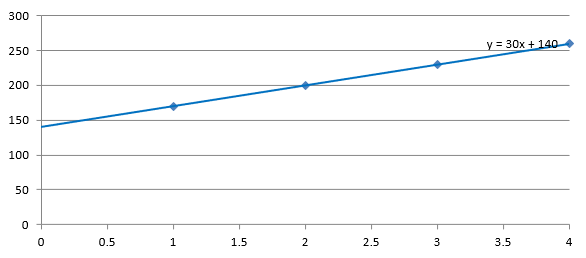
次の例では、製造量 1〜4 とコスト 170、200、230、260 の散布 (XY) チャートを作成し、デフォルトの自動切片で保存した後、切片を 100 に設定して 2 番目の PPTX を保存します。2 つのファイルは切片設定のみが異なります。トレンドラインは方程式を表示し、X = 0 まで遡ります。
const aspose = { slides: require("aspose.slides.via.java") };

const presentation = new aspose.slides.Presentation();
try {
    const slide = presentation.getSlides().get_Item(0);

    const chart = slide.getShapes().addChart(aspose.slides.ChartType.ScatterWithMarkers, 20, 20, 480, 210);
    chart.setLegend(false);

    chart.getChartData().getSeries().clear();
    chart.getChartData().getCategories().clear();

    const workbook = chart.getChartData().getChartDataWorkbook();
    workbook.clear(0);

    const nameCell = workbook.getCell(0, 0, 1, "Production cost");
    const series = chart.getChartData().getSeries().add(nameCell, aspose.slides.ChartType.ScatterWithMarkers);
    const costs = [170, 200, 230, 260];

    for (let i = 0; i < costs.length; i++) {
        const xCell = workbook.getCell(0, i + 1, 0, i + 1);
        const yCell = workbook.getCell(0, i + 1, 1, costs[i]);
        series.getDataPoints().addDataPointForScatterSeries(xCell, yCell);
    }

    const trendline = series.getTrendLines().add(aspose.slides.TrendlineType.Linear);
    trendline.setDisplayEquation(true);
    trendline.setBackward(1);

    presentation.save("AutomaticIntercept.pptx", aspose.slides.SaveFormat.Pptx);

    trendline.setIntercept(100);
    presentation.save("FixedIntercept.pptx", aspose.slides.SaveFormat.Pptx);
} finally {
    presentation.dispose();
}
自動計算の場合、これらのデータは y = 30x + 140 を生成します。切片を 100 に設定すると、約 y = 43.33x + 100 となり、ゼロでのフィット値が既知のベースラインと一致し、線はすべてのデータポイントを通過しなくなります。
| 自動切片 | 切片 100 の固定 |
|---|---|
 |
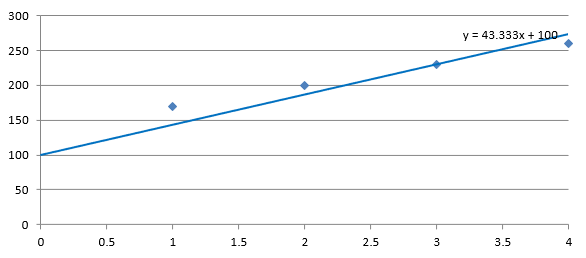 |
両画像は同じデータと軸スケールを使用しています。トレンドラインは X = 0 まで遡って切片を示しています。
既定では、getIntercept は NaN を返します。これは切片が未指定であることを示し、ゼロではありません。その後、切片はデータから自動的に計算されます。
カスタムラインの追加
カスタムラインは系列データから計算されたトレンドラインではなく、チャート上に描画されたシェイプです。この例では、ShapeCollection.addAutoShape を使用してスライド上のチャートに水平線を追加します。線の位置はスライド座標(ポイント単位)で指定され、チャート左端から開始し、チャートの高さのちょうど中間に配置されます。幅はチャート全体の幅に合わせます。getLineFormat を使用して線を実線の赤色に設定します。
const aspose = { slides: require("aspose.slides.via.java") };
const java = require("java");

const red = java.getStaticFieldValue("java.awt.Color", "RED");

const presentation = new aspose.slides.Presentation();
try {
    const slide = presentation.getSlides().get_Item(0);

    const chart = slide.getShapes().addChart(aspose.slides.ChartType.ClusteredColumn, 100, 100, 500, 400);

    const line = slide.getShapes().addAutoShape(aspose.slides.ShapeType.Line, chart.getX(), chart.getY() + chart.getHeight() / 2, chart.getWidth(), 0);
    line.getLineFormat().getFillFormat().setFillType(java.newByte(aspose.slides.FillType.Solid));
    line.getLineFormat().getFillFormat().getSolidFillColor().setColor(red);

    presentation.save("AddCustomLines.pptx", aspose.slides.SaveFormat.Pptx);
} finally {
    presentation.dispose();
}
FAQ
トレンドラインの「forward」および「backward」は何を意味しますか?
前方/後方に投影されたトレンドラインの長さを表します。散布 (XY) チャートの場合は軸単位、非散布チャートの場合はカテゴリ数で表されます。負の値は許可されません。
プレゼンテーションを PDF や SVG にエクスポートしたり、スライドを画像としてレンダリングしたりしたときにトレンドラインは保持されますか?
はい。Aspose.Slides はプレゼンテーションを PDF や SVG に変換し、チャートを画像としてレンダリングします。トレンドラインはチャートの一部としてこれらの操作中に保持されます。また、チャート自体の画像を エクスポート するメソッドも利用可能です。