
JavaScript를 사용하여 PowerPoint 테이블의 행 및 열 관리
소개
Aspose.Slides for Node.js via Java를 사용하면 PowerPoint 프레젠테이션에서 테이블 구조와 서식을 Table 클래스를 통해 관리할 수 있습니다. 머리글 행을 지정하고, 행과 열을 복제하거나 제거하며, 전체 행이나 열에 텍스트 서식을 적용할 수 있습니다.
이 기사에서는 이러한 작업을 JavaScript 예제로 설명합니다. 또한 테이블의 스타일 프리셋을 검색하여 재사용하는 방법을 보여줍니다. 테이블 행 및 열 인덱스는 0부터 시작합니다.
행 높이 제어
Row.setMinimalHeight을 사용하여 행의 최소 높이를 포인트 단위로 설정합니다. 이는 하한값이며 고정 높이가 아닙니다. Row.getHeight은 실제 높이를 반환합니다. 행은 Table.getRows을 통해 접근합니다.
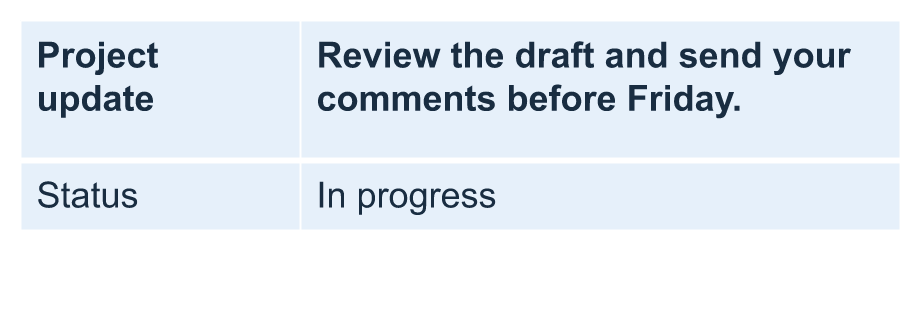
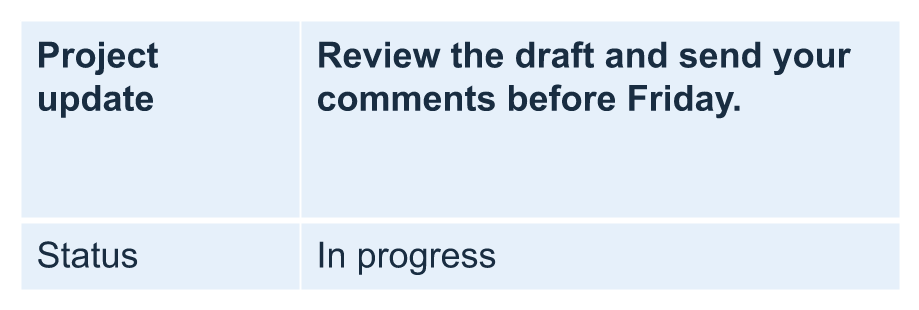
예제는 첫 번째 슬라이드의 첫 번째 도형으로 테이블이 포함된 row-height-input.pptx를 로드합니다. 첫 번째 행은 70 포인트에서 시작합니다. 셀은 18포인트 Arial 텍스트, 자동 줄바꿈, 상하 6포인트 여백을 사용합니다; 두 번째 열의 더 긴 텍스트는 여러 줄로 자동 줄바꿈됩니다. 예제는 최소값을 100 포인트로 증가시켰다가 20 포인트로 감소시키고, 각 변경 후 실제 높이를 출력한 뒤 두 결과를 저장합니다.
const slides = require("aspose.slides.via.java");

const presentation = new slides.Presentation("row-height-input.pptx");
try {
    const slide = presentation.getSlides().get_Item(0);

    const table = slide.getShapes().get_Item(0);
    const row = table.getRows().get_Item(0);

    row.setMinimalHeight(100);
    console.log("Increased: minimum = " + row.getMinimalHeight().toFixed(1) + ", actual = " + row.getHeight().toFixed(1) + " pt");
    presentation.save("row-height-increased.pptx", slides.SaveFormat.Pptx);

    row.setMinimalHeight(20);
    console.log("Decreased: minimum = " + row.getMinimalHeight().toFixed(1) + ", actual = " + row.getHeight().toFixed(1) + " pt");
    presentation.save("row-height-decreased.pptx", slides.SaveFormat.Pptx);
} finally {
    presentation.dispose();
}
제공된 프레젠테이션에서 최소값을 늘리면 행에 공간이 추가됩니다. 최소값을 줄이면 그 추가 공간이 사라지지만, 실제 높이는 텍스트와 셀 여백 때문에 20 포인트보다 크게 유지됩니다. 최소값만 낮추어서는 내용이 요구하는 공간 이하로 행을 강제로 줄일 수 없습니다.
실제 높이에 영향을 주는 여러 요인:
- 텍스트 및 글꼴 크기: 긴 텍스트, 명시적인 줄바꿈 또는 큰 글꼴은 더 많은 수직 공간을 필요로 할 수 있습니다.
- 줄바꿈 및 열 너비: 줄바꿈이 활성화된 상태에서 Column.setWidth로 열 너비를 줄이면 더 많은 줄이 생성됩니다. 넓은 열은 수직 공간을 줄일 수 있습니다.
- 셀 여백: Cell.setMarginTop와 Cell.setMarginBottom은 수직 여백을 추가합니다. Cell.setMarginLeft와 Cell.setMarginRight는 텍스트에 사용할 너비를 감소시켜 추가 줄바꿈을 유발할 수 있습니다.
병합된 셀이 없는 이 테이블에서는 가장 많은 수직 공간을 필요로 하는 셀이 전체 행의 내용 기반 하한을 결정합니다. 행을 더 짧게 만들려면 텍스트를 줄이거나, 글꼴 크기 또는 여백을 감소시키거나, 열을 넓혀야 할 수도 있습니다.
아래 이미지들은 동일한 스케일의 동일 테이블을 보여줍니다. 결과에 표시된 실제 높이는 각각 70, 100 및 55.2 포인트이며, 최종 행은 20 포인트 최소값보다 높게 유지되었습니다. 정확한 텍스트 측정값은 환경에 설치된 글꼴에 따라 달라질 수 있습니다. 저장된 결과를 다운로드하세요: increased minimum 및 decreased minimum.
| Original: minimum 70 pt, actual 70 pt | Increased: minimum 100 pt, actual 100 pt | Decreased: minimum 20 pt, actual 55.2 pt |
|---|---|---|
 |
 |
 |
첫 번째 행을 머리글로 설정
setFirstRow 메서드를 사용하여 첫 번째 행을 머리글 서식으로 표시합니다. 머리글의 모양은 테이블에 적용된 테이블 스타일에 따라 달라집니다.
- Presentation 클래스를 사용하여 프레젠테이션을 로드합니다.
- 첫 번째 슬라이드에 접근합니다.
- 슬라이드의 첫 번째 도형으로 저장된 테이블에 접근합니다.
- 첫 번째 행에 머리글 서식을 활성화합니다.
- 수정된 프레젠테이션을 저장합니다.
예제는 첫 번째 슬라이드의 첫 번째 도형으로 테이블이 포함된 table.pptx가 필요합니다. 첫 번째 행에 머리글 서식을 적용하고 First_row_header.pptx로 저장합니다.
const slides = require("aspose.slides.via.java");

const presentation = new slides.Presentation("table.pptx");
try {
    const slide = presentation.getSlides().get_Item(0);

    const table = slide.getShapes().get_Item(0);
    table.setFirstRow(true);

    presentation.save("First_row_header.pptx", slides.SaveFormat.Pptx);
} finally {
    presentation.dispose();
}
테이블 행 또는 열 복제
행이나 열을 복제하여 내용과 서식을 재사용할 수 있습니다. 복제본을 테이블 끝에 추가하거나 특정 위치에 삽입할 수 있습니다.
- Presentation 클래스를 사용하여 프레젠테이션을 로드합니다.
- 첫 번째 슬라이드에 접근합니다.
- 열 너비와 행 높이를 정의합니다.
- addTable 메서드로 테이블을 추가합니다.
- 필요한 행을 복제합니다.
- 필요한 열을 복제합니다.
- 수정된 프레젠테이션을 저장합니다.
예제는 최소 하나의 슬라이드가 있는 Test.pptx가 필요합니다. 세 개 열과 다섯 개 행을 가진 테이블을 만들고, 지정된 포인트 크기로 차원을 설정합니다. 첫 번째 행과 열의 복제본을 추가한 뒤, 두 번째 행과 열의 복제본을 인덱스 3(네 번째 위치)에 삽입합니다. 결과 테이블은 7행 5열이 됩니다. false 인자는 인접한 병합된 행이나 열에 대한 복제를 비활성화합니다; 이 테이블에는 병합된 셀이 없습니다.
const slides = require("aspose.slides.via.java");
const java = require("java");

const presentation = new slides.Presentation("Test.pptx");
try {
    const slide = presentation.getSlides().get_Item(0);

    const columnWidths = java.newArray("double", [50, 50, 50]);
    const rowHeights = java.newArray("double", [50, 30, 30, 30, 30]);
    const table = slide.getShapes().addTable(100, 50, columnWidths, rowHeights);

    table.get_Item(0, 0).getTextFrame().setText("Row 1 Cell 1");
    table.get_Item(1, 0).getTextFrame().setText("Row 1 Cell 2");
    table.getRows().addClone(table.getRows().get_Item(0), false);

    table.get_Item(0, 1).getTextFrame().setText("Row 2 Cell 1");
    table.get_Item(1, 1).getTextFrame().setText("Row 2 Cell 2");
    table.getRows().insertClone(3, table.getRows().get_Item(1), false);

    table.getColumns().addClone(table.getColumns().get_Item(0), false);
    table.getColumns().insertClone(3, table.getColumns().get_Item(1), false);

    presentation.save("table_out.pptx", slides.SaveFormat.Pptx);
} finally {
    presentation.dispose();
}
테이블에서 행 또는 열 제거
더 이상 필요하지 않은 행이나 열을 테이블에서 제거합니다. 항목을 제거하면 그 뒤에 있는 행 또는 열의 인덱스가 이동합니다.
- Presentation 클래스를 사용하여 프레젠테이션을 생성합니다.
- 첫 번째 슬라이드에 접근합니다.
- 열 너비와 행 높이를 정의합니다.
- addTable 메서드로 테이블을 추가합니다.
- 두 번째 행과 두 번째 열을 제거합니다.
- 수정된 프레젠테이션을 저장합니다.
이 예제는 3×3 테이블을 만든 뒤 인덱스 1에 있는 행과 열을 제거하여 TestTable_out.pptx에 2×2 테이블을 남깁니다. 차원은 포인트 단위이며, false 인자는 인접한 병합된 행이나 열의 제거를 비활성화합니다; 이 테이블에도 병합된 셀이 없습니다.
const slides = require("aspose.slides.via.java");
const java = require("java");

const presentation = new slides.Presentation();
try {
    const slide = presentation.getSlides().get_Item(0);

    const columnWidths = java.newArray("double", [100, 50, 30]);
    const rowHeights = java.newArray("double", [30, 50, 30]);
    const table = slide.getShapes().addTable(100, 100, columnWidths, rowHeights);

    table.getRows().removeAt(1, false);
    table.getColumns().removeAt(1, false);

    presentation.save("TestTable_out.pptx", slides.SaveFormat.Pptx);
} finally {
    presentation.dispose();
}
테이블 행 수준에서 텍스트 서식 설정
전체 행에 텍스트 서식을 적용하여 셀 간 일관성을 유지합니다. 각 셀을 개별적으로 서식 지정하지 않고도 글꼴 속성, 단락 서식 및 텍스트 방향을 설정할 수 있습니다.
- Presentation 클래스를 사용하여 프레젠테이션을 로드합니다.
- 첫 번째 슬라이드의 테이블에 접근합니다.
- 첫 번째 행에 대해 setFontHeight를 사용합니다.
- 첫 번째 행에 대해 setAlignment와 setMarginRight를 사용합니다.
- 두 번째 행에 대해 setTextVerticalType를 사용합니다.
- 수정된 프레젠테이션을 저장합니다.
예제는 첫 번째 슬라이드의 첫 번째 도형으로 테이블이 포함된 table.pptx와 최소 두 행이 필요합니다. 첫 번째 행에 25포인트 텍스트, 오른쪽 정렬 및 20포인트 오른쪽 단락 여백을 적용하고, 두 번째 행에 수직 텍스트를 설정합니다.
const slides = require("aspose.slides.via.java");
const java = require("java");

const presentation = new slides.Presentation("table.pptx");
try {
    const slide = presentation.getSlides().get_Item(0);

    const table = slide.getShapes().get_Item(0);

    const portionFormat = new slides.PortionFormat();
    portionFormat.setFontHeight(25);
    table.getRows().get_Item(0).setTextFormat(portionFormat);

    const paragraphFormat = new slides.ParagraphFormat();
    paragraphFormat.setAlignment(slides.TextAlignment.Right);
    paragraphFormat.setMarginRight(20);
    table.getRows().get_Item(0).setTextFormat(paragraphFormat);

    const textFrameFormat = new slides.TextFrameFormat();
    textFrameFormat.setTextVerticalType(java.newByte(slides.TextVerticalType.Vertical));
    table.getRows().get_Item(1).setTextFormat(textFrameFormat);

    presentation.save("row_formatting.pptx", slides.SaveFormat.Pptx);
} finally {
    presentation.dispose();
}
테이블 열 수준에서 텍스트 서식 설정
전체 열에 텍스트 서식을 적용하여 셀 간 일관성을 유지합니다. 각 셀을 개별적으로 서식 지정하지 않고도 글꼴 속성, 단락 서식 및 텍스트 방향을 설정할 수 있습니다.
- Presentation 클래스를 사용하여 프레젠테이션을 로드합니다.
- 첫 번째 슬라이드의 테이블에 접근합니다.
- 첫 번째 열에 대해 setFontHeight를 사용합니다.
- 첫 번째 열에 대해 setAlignment와 setMarginRight를 사용합니다.
- 두 번째 열에 대해 setTextVerticalType를 사용합니다.
- 수정된 프레젠테이션을 저장합니다.
예제는 첫 번째 슬라이드의 첫 번째 도형으로 테이블이 포함된 table.pptx와 최소 두 열이 필요합니다. 첫 번째 열에 25포인트 텍스트, 오른쪽 정렬 및 20포인트 오른쪽 단락 여백을 적용하고, 두 번째 열에 수직 텍스트를 설정합니다.
const slides = require("aspose.slides.via.java");
const java = require("java");

const presentation = new slides.Presentation("table.pptx");
try {
    const slide = presentation.getSlides().get_Item(0);

    const table = slide.getShapes().get_Item(0);

    const portionFormat = new slides.PortionFormat();
    portionFormat.setFontHeight(25);
    table.getColumns().get_Item(0).setTextFormat(portionFormat);

    const paragraphFormat = new slides.ParagraphFormat();
    paragraphFormat.setAlignment(slides.TextAlignment.Right);
    paragraphFormat.setMarginRight(20);
    table.getColumns().get_Item(0).setTextFormat(paragraphFormat);

    const textFrameFormat = new slides.TextFrameFormat();
    textFrameFormat.setTextVerticalType(java.newByte(slides.TextVerticalType.Vertical));
    table.getColumns().get_Item(1).setTextFormat(textFrameFormat);

    presentation.save("column_formatting.pptx", slides.SaveFormat.Pptx);
} finally {
    presentation.dispose();
}
테이블 스타일 속성 가져오기
getStylePreset 메서드를 사용하면 테이블에 적용된 프리셋을 가져와 다른 테이블에 재사용할 수 있습니다. 이는 개별 셀 서식 재정의가 아닌 프리셋 자체를 식별합니다.
예제는 테이블을 만든 뒤 TableStylePreset.DarkStyle1을 적용하고 프리셋을 다시 읽어옵니다. DarkStyle1에 해당하는 정수 값을 출력하고 테이블을 table.pptx에 저장합니다.
const slides = require("aspose.slides.via.java");
const java = require("java");

const presentation = new slides.Presentation();
try {
    const slide = presentation.getSlides().get_Item(0);

    const columnWidths = java.newArray("double", [100, 150]);
    const rowHeights = java.newArray("double", [5, 5, 5]);
    const table = slide.getShapes().addTable(10, 10, columnWidths, rowHeights);
    table.setStylePreset(slides.TableStylePreset.DarkStyle1);

    const stylePreset = table.getStylePreset();
    console.log(stylePreset);

    presentation.save("table.pptx", slides.SaveFormat.Pptx);
} finally {
    presentation.dispose();
}
FAQ
이미 만든 테이블에 PowerPoint 테마/스타일을 적용할 수 있나요?
예. 테이블은 슬라이드/레이아웃/마스터 테마를 상속받으며, 그 위에 채우기, 테두리 및 텍스트 색을 별도로 오버라이드할 수 있습니다.
Excel처럼 테이블 행을 정렬할 수 있나요?
아니요. Aspose.Slides 테이블에는 내장된 정렬이나 필터 기능이 없습니다. 먼저 메모리에서 데이터를 정렬한 뒤 해당 순서대로 테이블 행을 다시 채워야 합니다.
특정 셀에 사용자 지정 색상을 유지하면서 줄무늬(밴드) 열을 사용할 수 있나요?
예. 밴드 열을 활성화한 뒤 특정 셀에 로컬 서식을 오버라이드하면, 셀 수준 서식이 테이블 스타일보다 우선합니다.