
Master Slide
Master slides form the top level of the slide inheritance hierarchy in PowerPoint. A master slide defines common design elements such as backgrounds, logos, and text formatting. Layout slides inherit from master slides, and normal slides inherit from layout slides.
This article demonstrates how to create, modify, and manage master slides using Aspose.Slides for .NET.
Copy a C# block into Program.cs in a .NET project with Aspose.Slides.NET6.CrossPlatform installed. Each block is a complete program. Run one block at a time. The ZIP contains the IDE-ready project and its verification checks. The copied code runs in evaluation mode. For licensed output, apply your license before creating a presentation, as described in the licensing guide.
Download and run
Download the complete project, extract it, and open Example.sln or run:
dotnet restore Example.sln
dotnet run --project Example.csproj -- --mode evaluation
The download includes every case below, its fixture helpers and inputs. Program.cs runs all cases; use --action block-001 to run one independently. Outputs and an action report are written to the printed output directory. No previous example or working-directory setup is required. Evaluation adds a watermark and can truncate read-back text; the short fixtures still have explicit structural checks. For full text and no watermark, use --mode licensed --license PATH with your own valid license. See the setup guide for supported SDKs and native prerequisites.
Add a Master Slide
This example shows how to create a new master slide by cloning the default one. It adds an Acme banner to the cloned master, assigns that master to a layout, and applies the layout to the first slide.
using Aspose.Slides.Export;
using Aspose.Slides;
using System.Drawing;

using var presentation = new Presentation();

// Clone the default master slide.
var defaultMasterSlide = presentation.Masters[0];
var newMasterSlide = presentation.Masters.AddClone(defaultMasterSlide);

// Add a banner with company name to the top of the master slide.
var banner = newMasterSlide.Shapes.AddAutoShape(ShapeType.Rectangle, x: 0, y: 0, width: 720, height: 25);
banner.TextFrame.Text = "Acme";
var textFill = banner.TextFrame.Paragraphs[0].ParagraphFormat.DefaultPortionFormat.FillFormat;
textFill.FillType = FillType.Solid;
textFill.SolidFillColor.Color = Color.Black;
banner.FillFormat.FillType = FillType.NoFill;

// Assign the new master slide to a layout slide.
var layoutSlide = presentation.LayoutSlides[0];
layoutSlide.MasterSlide = newMasterSlide;

// Assign the layout slide to the first slide in the presentation.
presentation.Slides[0].LayoutSlide = layoutSlide;

presentation.Save("master-slide-01.pptx", SaveFormat.Pptx);
💡 Note 1: Master slides provide a way to apply consistent branding or shared design elements across all slides. Any changes made to the master will automatically reflect on dependent layout and normal slides.
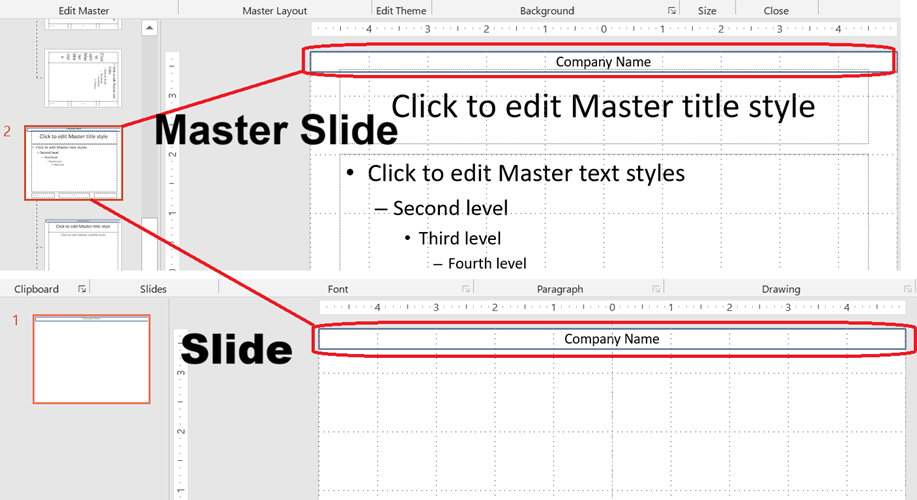
💡 Note 2: Any shapes or formatting added to a master slide are inherited by layout slides and, in turn, all normal slides using those layouts. The image below illustrates how a text box added on a master slide is automatically rendered on the final slide.
Access a Master Slide
You can access master slides using the Presentation.Masters collection. This program reports the first master’s index and layout count, then edits its background type:
using System;
using Aspose.Slides.Export;
using Aspose.Slides;

using var presentation = new Presentation();

// Access the first master slide.
var firstMasterSlide = presentation.Masters[0];
Console.WriteLine($"Master index: 0; layouts: {firstMasterSlide.LayoutSlides.Count}");

// Change the background type.
firstMasterSlide.Background.Type = BackgroundType.OwnBackground;

presentation.Save("master-slide-02.pptx", SaveFormat.Pptx);
Remove a Master Slide
Master slides can be removed either by index or by reference.
using Aspose.Slides.Export;
using Aspose.Slides;

using var presentation = new Presentation();

using var donor = new Presentation();
donor.Masters[0].Name = "Unused1";
presentation.Masters.AddClone(donor.Masters[0]);
donor.Masters[0].Name = "Unused2";
var secondUnusedMaster = presentation.Masters.AddClone(donor.Masters[0]);


// Remove the first explicitly unused master by index.
presentation.Masters.RemoveAt(1);

// Remove a master slide by reference.
presentation.Masters.Remove(secondUnusedMaster);

presentation.Save("master-slide-03.pptx", SaveFormat.Pptx);
Remove Unused Master Slides
Remove masters that no slide uses. Setting ignorePreserveField to true also removes unused masters marked Preserve; it does not remove the master used by the first slide.
using Aspose.Slides.Export;
using Aspose.Slides;

using var presentation = new Presentation();

presentation.Masters.AddClone(presentation.Masters[0]).Name = "Unused";

// Remove all unused master slides (even those marked as Preserve).
presentation.Masters.RemoveUnused(ignorePreserveField: true);

presentation.Save("master-slide-04.pptx", SaveFormat.Pptx);