
Optimize Image Management in Presentations Using PHP
Introduction
Aspose.Slides for PHP via Java provides several ways to work with images, and each one serves a different purpose. You can store an image in a presentation, display it in a picture frame, use it as a slide background, link to an external image, replace a shared image resource, or convert SVG content into editable shapes.
This article focuses on image resources and how they are used across a presentation. For cropping, transparency, effects, stretching, and other formatting applied to an individual picture frame, see Picture Frame.
Understand the Image Model
The following API concepts are closely related but not interchangeable:
- The presentation image collection stores image resources used by the presentation. Use ImageCollection::addImage to add image data and obtain a PPImage resource.
- A picture frame is a shape that displays an image on a slide, layout, or master. Use ShapeCollection::addPictureFrame to place an image resource on a slide.
- A slide background uses an image as part of the slide fill rather than as a shape. It therefore does not behave like a picture frame.
- PPImage::replaceImage replaces an image resource. If several presentation elements use that resource, they all use the replacement.
- Converting an SVG to shapes creates editable slide shapes. After conversion, the content is no longer managed as one picture resource.
A typical workflow is therefore: add image data to the image collection, receive a PPImage, and then use that resource in one or more picture frames or fills.
Add an Embedded Image
To insert a local image, load the file, add it to the image collection, and create a picture frame that uses the returned PPImage.
use aspose\slides\Images;
use aspose\slides\Presentation;
use aspose\slides\SaveFormat;
use aspose\slides\ShapeType;

$presentation = new Presentation();
try {
    $image = Images::fromFile("photo.png");
    try {
        $ppImage = $presentation->getImages()->addImage($image);
    } finally {
        if (!java_is_null($image)) {
            $image->dispose();
        }
    }

    $slide = $presentation->getSlides()->get_Item(0);
    $slide->getShapes()->addPictureFrame(ShapeType::Rectangle, 20, 20, 320, 180, $ppImage);

    $presentation->save("presentation.pptx", SaveFormat::Pptx);
} finally {
    $presentation->dispose();
}
The image added this way is embedded in the presentation, so the resulting file does not depend on the original image file remaining available.
Add an Image from the Web
When an image is available through HTTP or HTTPS, download its bytes, add them to the presentation image collection, and use the returned image resource in the same way as a local image.
use aspose\slides\Presentation;
use aspose\slides\SaveFormat;
use aspose\slides\ShapeType;

$presentation = new Presentation();
try {
    $imageUrl = new Java("java.net.URL", "https://example.com/image.png");
    $connection = $imageUrl->openConnection();
    $connection->setConnectTimeout(10000);
    $connection->setReadTimeout(10000);

    $inputStream = $connection->getInputStream();
    $outputStream = new Java("java.io.ByteArrayOutputStream");
    $Array = new JavaClass("java.lang.reflect.Array");
    $Byte = (new JavaClass("java.lang.Byte"))->TYPE;

    try {
        $buffer = $Array->newInstance($Byte, 8192);
        $bufferLength = $Array->getLength($buffer);

        while (($bytesRead = java_values($inputStream->read($buffer, 0, $bufferLength))) != -1) {
            $outputStream->write($buffer, 0, $bytesRead);
        }

        $ppImage = $presentation->getImages()->addImage($outputStream->toByteArray());
        $slide = $presentation->getSlides()->get_Item(0);
        $slide->getShapes()->addPictureFrame(ShapeType::Rectangle, 20, 20, 320, 180, $ppImage);
    } finally {
        if (!java_is_null($inputStream)) {
            $inputStream->close();
        }
        $outputStream->close();
    }

    $presentation->save("presentation-from-web.pptx", SaveFormat::Pptx);
} finally {
    $presentation->dispose();
}
In long-running applications, reuse an HTTP client or connection-management strategy appropriate to the application rather than repeatedly creating unnecessary networking infrastructure. Also validate remote URLs, response sizes, and content types when the source is not trusted.
Reuse Images Across Slides
If the same image is needed more than once, add it to the presentation once and reuse the returned PPImage when creating additional picture frames. This avoids repeatedly loading the same source data and makes the relationship between the shared image resource and its uses explicit.
For graphics that should appear automatically on many slides, such as a company logo, consider placing the picture frame on a slide master or layout instead of adding an equivalent shape to every slide.
Use an Image as a Slide Background
A background image is assigned to the slide fill; it is not added as a picture-frame shape. This is useful when the picture should cover the slide background and should not be manipulated as a normal slide object.
use aspose\slides\BackgroundType;
use aspose\slides\FillType;
use aspose\slides\Images;
use aspose\slides\PictureFillMode;
use aspose\slides\Presentation;
use aspose\slides\SaveFormat;

$presentation = new Presentation();
try {
    $slide = $presentation->getSlides()->get_Item(0);

    $image = Images::fromFile("background.jpg");
    try {
        $ppImage = $presentation->getImages()->addImage($image);
    } finally {
        if (!java_is_null($image)) {
            $image->dispose();
        }
    }

    $slide->getBackground()->setType(BackgroundType::OwnBackground);
    $slide->getBackground()->getFillFormat()->setFillType(FillType::Picture);
    $slide->getBackground()->getFillFormat()->getPictureFillFormat()->setPictureFillMode(PictureFillMode::Stretch);
    $slide->getBackground()->getFillFormat()->getPictureFillFormat()->getPicture()->setImage($ppImage);

    $presentation->save("background-image.pptx", SaveFormat::Pptx);
} finally {
    $presentation->dispose();
}
For additional background options, including master and layout backgrounds, see Presentation Background.
Embedded Images and Linked Images
Embedded and linked images have different portability and file-size tradeoffs:
- Embedded image: the image data is stored inside the presentation. The presentation is self-contained, but the file size includes the image data.
- Linked image: the presentation stores a path or URL to an external image. This can reduce the presentation size, but the external resource must remain accessible when the presentation is opened or rendered.
A linked picture can be created by assigning the external path or URL through Picture::setLinkPathLong rather than embedding the image data.
use aspose\slides\Presentation;
use aspose\slides\SaveFormat;
use aspose\slides\ShapeType;

$presentation = new Presentation();
try {
    $slide = $presentation->getSlides()->get_Item(0);
    $pictureFrame = $slide->getShapes()->addPictureFrame(ShapeType::Rectangle, 20, 20, 320, 180, null);
    $pictureFrame->getPictureFormat()->getPicture()->setLinkPathLong("https://example.com/image.png");

    $presentation->save("linked-image.pptx", SaveFormat::Pptx);
} finally {
    $presentation->dispose();
}
Use linked images only when the deployment environment can reliably access the external resource. For presentations that must work offline or be moved between systems, embedded images are usually safer.
Work with SVG Images
SVG is a vector format, so it can be useful for icons, diagrams, and other graphics that should scale without the same loss of detail as raster images. Aspose.Slides supports SVG both as an image resource and as a source for editable slide shapes.
Add an SVG as an Image
Create a SvgImage, add it to the image collection, and place the resulting image resource in a picture frame.
use aspose\slides\Presentation;
use aspose\slides\SaveFormat;
use aspose\slides\ShapeType;
use aspose\slides\SvgImage;

$presentation = new Presentation();
try {
    $svgContent = file_get_contents("icon.svg");
    $svgImage = new SvgImage($svgContent);

    $ppImage = $presentation->getImages()->addImage($svgImage);
    $slide = $presentation->getSlides()->get_Item(0);
    $slide->getShapes()->addPictureFrame(ShapeType::Rectangle, 20, 20, 200, 200, $ppImage);

    $presentation->save("svg-image.pptx", SaveFormat::Pptx);
} finally {
    $presentation->dispose();
}
SVG Files with External Resources
An SVG can reference external images, stylesheets, or fonts. For these cases, SvgImage provides constructors that accept an ExternalResourceResolver and a base URI. The resolver can map a relative URI to an allowed absolute URI and return a stream for the requested resource.
The resolver makes external resources available while Aspose.Slides processes the SVG, but it does not rewrite the SVG into a self-contained document. If the SVG must remain portable, embed its required resources in the SVG itself, for example by using data: URIs for linked images.
When SVG files come from untrusted sources, restrict the schemes, file locations, and hosts that the resolver can access. Network resolvers should also apply timeouts, response-size limits, and content validation.
Convert SVG to Editable Shapes
Aspose.Slides can convert an SVG into a group of editable slide shapes, similar to the corresponding PowerPoint command.
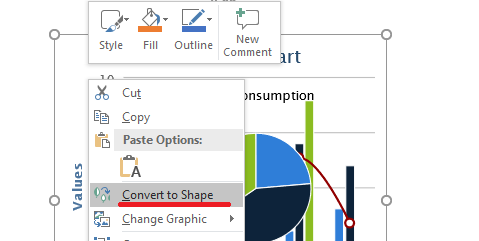
Use the ShapeCollection::addGroupShape overload that accepts a SvgImage to perform the conversion.
use aspose\slides\Presentation;
use aspose\slides\SaveFormat;
use aspose\slides\SvgImage;

$presentation = new Presentation();
try {
    $svgContent = file_get_contents("diagram.svg");
    $svgImage = new SvgImage($svgContent);

    $slideSize = $presentation->getSlideSize()->getSize();
    $slide = $presentation->getSlides()->get_Item(0);
    $slide->getShapes()->addGroupShape($svgImage, 0, 0, $slideSize->getWidth(), $slideSize->getHeight());

    $presentation->save("editable-svg-shapes.pptx", SaveFormat::Pptx);
} finally {
    $presentation->dispose();
}
Use SVG-to-shapes conversion when individual vector elements need to be edited as PowerPoint shapes. If the SVG only needs to be displayed, keeping it as an image is simpler and avoids creating many separate shapes.
Replace an Existing Image Resource
Use PPImage::replaceImage when you want to replace an existing image resource. This is especially useful for shared graphics such as logos.
use aspose\slides\Images;
use aspose\slides\Presentation;
use aspose\slides\SaveFormat;

$presentation = new Presentation("input.pptx");
try {
    $imageToReplace = $presentation->getImages()->get_Item(0);

    $replacementImage = Images::fromFile("new-logo.png");
    try {
        $imageToReplace->replaceImage($replacementImage);
    } finally {
        if (!java_is_null($replacementImage)) {
            $replacementImage->dispose();
        }
    }

    $presentation->save("output.pptx", SaveFormat::Pptx);
} finally {
    $presentation->dispose();
}
If multiple picture frames, backgrounds, masters, or layouts use the same image resource, replacing that resource updates all of those uses. If only one picture frame should change, assign a different image to that frame instead of replacing the shared resource.
PPImage::replaceImage also provides overloads that accept a byte array or another PPImage.
Practical Image Management Guidance
Control Presentation Size
Large raster images can make a presentation unnecessarily large. Use source images with dimensions appropriate for their intended display size, reuse shared image resources where possible, and avoid embedding repeated copies of the same full-resolution graphic.
For raster pictures that have already been placed in picture frames, PictureFillFormat::compressImage can reduce image data according to the selected resolution and crop settings. This is picture-frame processing rather than image-collection management, so see Picture Frame for related formatting operations.
Choose Between Embedded and Linked Content
Embedding makes the presentation portable because all required image data travels with the file. Linking can reduce file size, but it introduces an external dependency. Use links only when that dependency is acceptable and stable.
Reuse Shared Branding
For repeated logos, watermarks, or decorative graphics, use one image resource and reuse it. If the graphic belongs to the presentation design rather than slide content, place it on a master or layout so it is inherited by the appropriate slides.
Keep SVG Resources Portable
A self-contained SVG is easier to move and render consistently than an SVG that depends on external files or network resources. When possible, embed required resources before importing the SVG. Convert SVG to shapes only when the individual vector elements need to be edited.
Use the Modern Cross-Platform Image API
For new PHP via Java code, use the Aspose.Slides IImage and Images APIs instead of the legacy public API based on java.awt.image.BufferedImage. See Modern API for migration guidance.
WMF and EMF require special consideration. When these formats are passed through an IImage, ImageCollection::addImage converts the metafile to a raster PNG representation before insertion. If preserving the metafile data is important, use a stream-based ImageCollection::addImage overload instead. Generating EMF content from spreadsheets or other products is a separate integration workflow and is outside the scope of this article.
FAQ
What is the difference between the image collection and a picture frame?
The image collection stores reusable image resources. A picture frame is a slide shape that displays one of those resources and provides picture-specific formatting such as cropping and effects.
What is the best way to replace the same logo everywhere?
If the logo is already shared as one image resource, replace that resource with PPImage::replaceImage. For presentation-wide branding, placing the logo on a master or layout can also reduce duplicated slide content.
Why does a linked image disappear on another computer?
A linked picture depends on its external file or URL. If that resource cannot be reached from the other computer, the linked image may be unavailable. Embed the image when the presentation must be self-contained.
Can an inserted SVG be edited as PowerPoint shapes?
Yes. Convert the SVG with ShapeCollection::addGroupShape; the resulting group contains editable slide shapes rather than one SVG picture.
How can I keep presentations with many images smaller?
Reuse shared image resources, avoid unnecessarily large raster sources, compress suitable raster pictures when appropriate, keep repeated branding on masters or layouts, and use linked images only when an external dependency is acceptable.