
Apply Shape Animations in Presentations Using PHP
Overview
To work with the individual behaviors inside an effect or edit motion-path segments, see Custom Animation.
Aspose.Slides for PHP via Java represents slide animations as effects in a slide timeline. An effect has a target shape, an animation type and subtype, a trigger, timing settings, and optional properties such as sound or after-animation behavior.
The timeline contains two kinds of sequences:
- The main sequence plays as the slide advances.
- An interactive sequence starts when its trigger shape is clicked.
Because text boxes, pictures, charts, tables, and other slide objects are shapes, you use the same Sequence::addEffect method for most slide content. The available effects are listed in the EffectType class.
Add Shape Animations
To add an animation, get the slide’s main sequence and call Sequence::addEffect with the target shape, effect type, subtype, and trigger. For an effect that starts when another shape is clicked, create an interactive sequence whose trigger is that other shape.
The following example creates both types of animation and saves the result to shape-animations.pptx.
use aspose\slides\EffectSubtype;
use aspose\slides\EffectTriggerType;
use aspose\slides\EffectType;
use aspose\slides\Presentation;
use aspose\slides\SaveFormat;
use aspose\slides\ShapeType;

$presentation = new Presentation();
try {
    $slide = $presentation->getSlides()->get_Item(0);

    $targetShape = $slide->getShapes()->addAutoShape(ShapeType::RoundCornerRectangle, 120, 100, 320, 80);
    $targetShape->addTextFrame("Click to animate this shape");

    $mainSequence = $slide->getTimeline()->getMainSequence();
    $entranceEffect = $mainSequence->addEffect($targetShape, EffectType::Fade, EffectSubtype::None, EffectTriggerType::OnClick);
    $entranceEffect->getTiming()->setDuration(1.5);

    $triggerShape = $slide->getShapes()->addAutoShape(ShapeType::Bevel, 20, 20, 100, 40);
    $triggerShape->addTextFrame("Move");

    $interactiveSequence = $slide->getTimeline()->getInteractiveSequences()->add($triggerShape);
    $interactiveSequence->addEffect($targetShape, EffectType::PathFootball, EffectSubtype::None, EffectTriggerType::OnClick);

    $presentation->save("shape-animations.pptx", SaveFormat::Pptx);
} finally {
    $presentation->dispose();
}
The trigger controls when an effect starts:
- EffectTriggerType::OnClick waits for a click in the main sequence, or for a click on the trigger shape in an interactive sequence.
- EffectTriggerType::WithPrevious starts with the preceding effect.
- EffectTriggerType::AfterPrevious starts when the preceding effect finishes.
To animate a picture, chart, or another shape type, pass that object to Sequence::addEffect instead of $targetShape. For chart-specific grouping options, see Animated Charts.
Read Shape Animations
Use Sequence::getEffectsByShape when you know the target shape. To inspect every effect, enumerate the main sequence and every interactive sequence. Enumeration avoids assuming that a sequence contains an effect at index 0.
The following example creates a shape with main-sequence and interactive effects, gets the effects that target the shape, and then enumerates every sequence on the slide.
use aspose\slides\EffectSubtype;
use aspose\slides\EffectTriggerType;
use aspose\slides\EffectType;
use aspose\slides\Presentation;
use aspose\slides\ShapeType;

function printSequence($label, $sequence)
{
    $effectCount = java_values($sequence->getCount());

    echo "  " . $label . ": " . $effectCount . " effect(s)" . PHP_EOL;

    for ($effectIndex = 0; $effectIndex < $effectCount; $effectIndex++) {
        $effect = $sequence->get_Item($effectIndex);
        $targetShape = $effect->getTargetShape();
        $targetName = java_is_null($targetShape) ? "unknown" : java_values($targetShape->getName());
        $effectType = java_values($effect->getType());
        $effectSubtype = java_values($effect->getSubtype());
        $triggerType = java_values($effect->getTiming()->getTriggerType());
        echo "    type: " . $effectType . "; subtype: " . $effectSubtype . "; target: " . $targetName . "; trigger: " . $triggerType . PHP_EOL;
    }
}

$presentation = new Presentation();
try {
    $slide = $presentation->getSlides()->get_Item(0);
    $targetShape = $slide->getShapes()->addAutoShape(ShapeType::Rectangle, 120, 100, 320, 80);
    $targetShape->addTextFrame("Animated shape");

    $mainSequence = $slide->getTimeline()->getMainSequence();
    $mainSequence->addEffect($targetShape, EffectType::Fade, EffectSubtype::None, EffectTriggerType::OnClick);

    $triggerShape = $slide->getShapes()->addAutoShape(ShapeType::Bevel, 20, 20, 100, 40);
    $triggerShape->addTextFrame("Move");

    $interactiveSequence = $slide->getTimeline()->getInteractiveSequences()->add($triggerShape);
    $interactiveSequence->addEffect($targetShape, EffectType::PathFootball, EffectSubtype::None, EffectTriggerType::OnClick);

    $targetEffects = $mainSequence->getEffectsByShape($targetShape);
    $Array = new JavaClass("java.lang.reflect.Array");
    echo "The main sequence contains " . java_values($Array->getLength($targetEffects)) . " effect(s) for " . java_values($targetShape->getName()) . "." . PHP_EOL;

    printSequence("Main sequence", $mainSequence);

    $interactiveSequences = $slide->getTimeline()->getInteractiveSequences();
    $interactiveCount = java_values($interactiveSequences->getCount());
    for ($interactiveIndex = 0; $interactiveIndex < $interactiveCount; $interactiveIndex++) {
        $sequence = $interactiveSequences->get_Item($interactiveIndex);
        $sequenceTrigger = $sequence->getTriggerShape();
        $triggerName = java_is_null($sequenceTrigger) ? "unknown" : java_values($sequenceTrigger->getName());
        printSequence("Interactive sequence " . ($interactiveIndex + 1) . ", trigger: " . $triggerName, $sequence);
    }
} finally {
    $presentation->dispose();
}
If you only need the effects for one shape, first identify the shape by name, placeholder type, or another stable property; then call Sequence::getEffectsByShape. Do not assume that ShapeCollection::get_Item at index 0 is always the intended object.
Work with Inherited Placeholder Effects
A placeholder on a normal slide can inherit animation behavior from the corresponding placeholder on its layout slide and master slide. Shape::getBasePlaceholder returns that parent placeholder, or null when no parent exists.
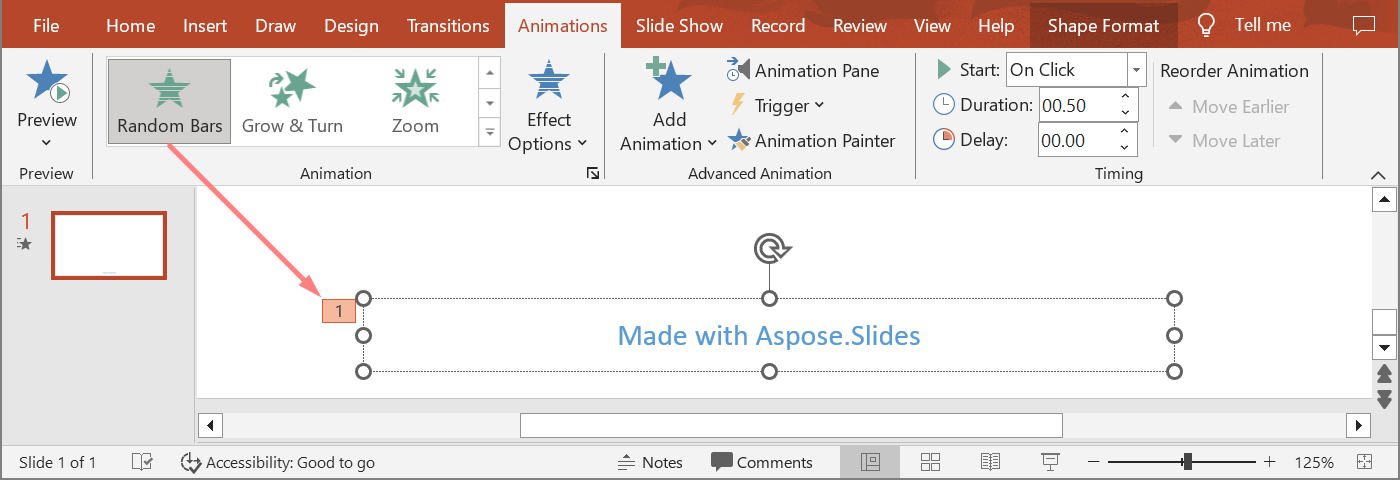
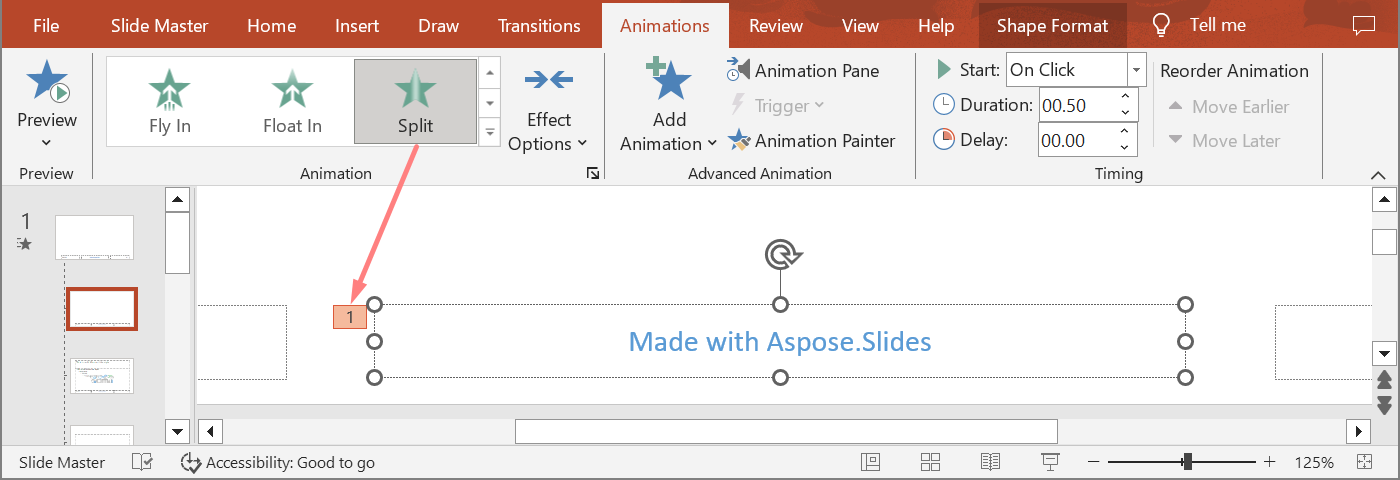
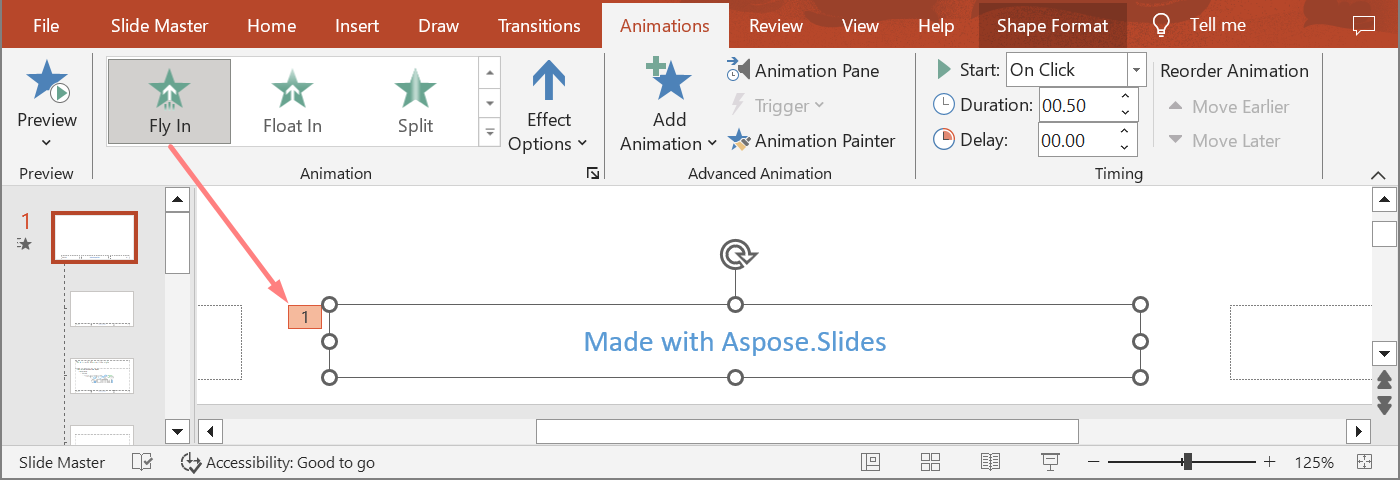
In the following example presentation, the footer has Random Bars on the normal slide, Split on the layout slide, and Fly In on the master slide.
The next example uses a placeholder hierarchy from a new presentation. It adds effects to a master placeholder, a layout placeholder, and the corresponding placeholder on a normal slide. Every call to Shape::getBasePlaceholder is checked before the returned shape is used.
use aspose\slides\EffectSubtype;
use aspose\slides\EffectTriggerType;
use aspose\slides\EffectType;
use aspose\slides\Presentation;
use aspose\slides\SaveFormat;
use aspose\slides\SlideLayoutType;

function findLayoutPlaceholderWithBase($layoutSlide)
{
    $shapes = $layoutSlide->getShapes();
    $shapeCount = java_values($shapes->size());
    for ($shapeIndex = 0; $shapeIndex < $shapeCount; $shapeIndex++) {
        $shape = $shapes->get_Item($shapeIndex);
        if (!java_is_null($shape->getBasePlaceholder())) {
            return $shape;
        }
    }

    return null;
}

function findSlidePlaceholderWithBase($slide, $expectedBase)
{
    $shapes = $slide->getShapes();
    $shapeCount = java_values($shapes->size());
    for ($shapeIndex = 0; $shapeIndex < $shapeCount; $shapeIndex++) {
        $shape = $shapes->get_Item($shapeIndex);
        $basePlaceholder = $shape->getBasePlaceholder();
        if (!java_is_null($basePlaceholder) && java_values($basePlaceholder->equals($expectedBase))) {
            return $shape;
        }
    }

    return null;
}

function printEffects($source, $effects)
{
    $Array = new JavaClass("java.lang.reflect.Array");
    echo $source . ": " . java_values($Array->getLength($effects)) . " effect(s)" . PHP_EOL;

    foreach ($effects as $effect) {
        echo "  type: " . java_values($effect->getType()) . "; subtype: " . java_values($effect->getSubtype()) . PHP_EOL;
    }
}

$presentation = new Presentation();
try {
    $layoutSlide = $presentation->getLayoutSlides()->getByType(SlideLayoutType::TitleAndObject);
    $layoutPlaceholder = findLayoutPlaceholderWithBase($layoutSlide);

    if ($layoutPlaceholder === null) {
        throw new RuntimeException("The layout slide does not contain a placeholder linked to its master slide.");
    }

    $masterPlaceholder = $layoutPlaceholder->getBasePlaceholder();
    $layoutSlide->getMasterSlide()->getTimeline()->getMainSequence()->addEffect($masterPlaceholder, EffectType::Fly, EffectSubtype::Bottom, EffectTriggerType::OnClick);
    $layoutSlide->getTimeline()->getMainSequence()->addEffect($layoutPlaceholder, EffectType::Split, EffectSubtype::VerticalIn, EffectTriggerType::OnClick);

    $slide = $presentation->getSlides()->addEmptySlide($layoutSlide);
    $slidePlaceholder = findSlidePlaceholderWithBase($slide, $layoutPlaceholder);

    if ($slidePlaceholder === null) {
        throw new RuntimeException("The slide does not contain a placeholder linked to its layout slide.");
    }

    $slide->getTimeline()->getMainSequence()->addEffect($slidePlaceholder, EffectType::RandomBars, EffectSubtype::Horizontal, EffectTriggerType::OnClick);
    printEffects("Normal slide", $slide->getTimeline()->getMainSequence()->getEffectsByShape($slidePlaceholder));

    $baseLayoutPlaceholder = $slidePlaceholder->getBasePlaceholder();
    if (!java_is_null($baseLayoutPlaceholder)) {
        printEffects("Layout slide", $layoutSlide->getTimeline()->getMainSequence()->getEffectsByShape($baseLayoutPlaceholder));

        $baseMasterPlaceholder = $baseLayoutPlaceholder->getBasePlaceholder();
        if (!java_is_null($baseMasterPlaceholder)) {
            printEffects("Master slide", $layoutSlide->getMasterSlide()->getTimeline()->getMainSequence()->getEffectsByShape($baseMasterPlaceholder));
        }
    }

    $presentation->save("placeholder-animations.pptx", SaveFormat::Pptx);
} finally {
    $presentation->dispose();
}
Change Animation Timing
The PowerPoint Timing dialog maps to the properties of Timing.
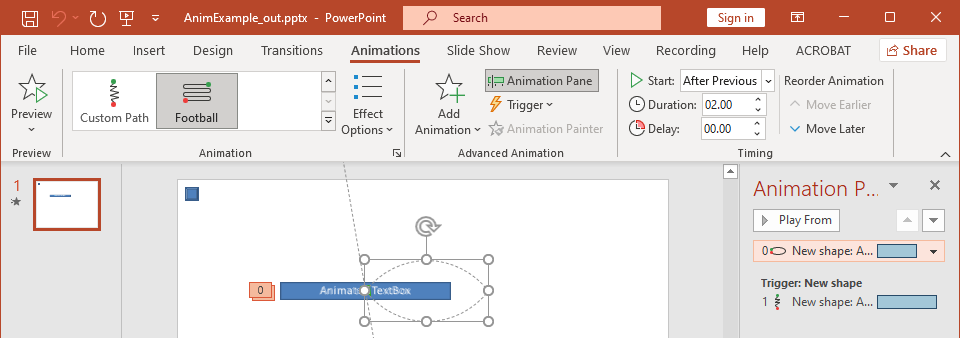
- Start maps to Timing::getTriggerType.
- Duration maps to Timing::getDuration, in seconds.
- Delay maps to Timing::getTriggerDelayTime, in seconds.
- Repeat maps to Timing::getRepeatCount, Timing::getRepeatUntilNextClick, or Timing::getRepeatUntilEndSlide.
- Rewind when done playing maps to Timing::getRewind.
This independent example adds an effect, changes its timing through the object returned by Sequence::addEffect, and saves the result. Keeping the returned Effect reference avoids an unnecessary collection index.
use aspose\slides\EffectSubtype;
use aspose\slides\EffectTriggerType;
use aspose\slides\EffectType;
use aspose\slides\Presentation;
use aspose\slides\SaveFormat;
use aspose\slides\ShapeType;

$presentation = new Presentation();
try {
    $slide = $presentation->getSlides()->get_Item(0);
    $shape = $slide->getShapes()->addAutoShape(ShapeType::Rectangle, 120, 100, 320, 80);
    $shape->addTextFrame("Timed animation");

    $effect = $slide->getTimeline()->getMainSequence()->addEffect($shape, EffectType::Fade, EffectSubtype::None, EffectTriggerType::OnClick);
    $effect->getTiming()->setTriggerType(EffectTriggerType::OnClick);
    $effect->getTiming()->setDuration(2.0);
    $effect->getTiming()->setTriggerDelayTime(0.5);
    $effect->getTiming()->setRepeatUntilNextClick(false);
    $effect->getTiming()->setRepeatUntilEndSlide(false);
    $effect->getTiming()->setRepeatCount(2.0);
    $effect->getTiming()->setRewind(true);

    $presentation->save("shape-animation-timing.pptx", SaveFormat::Pptx);
} finally {
    $presentation->dispose();
}
Use one repeat mode intentionally. Combining a repeat count with an “until” flag can produce confusing results in different viewers. When changing repeat modes, set Timing::setRepeatUntilNextClick and Timing::setRepeatUntilEndSlide before Timing::setRepeatCount, because setting either flag also changes the active repeat mode.
Add and Extract Animation Sounds
An animation effect can reference embedded audio through Effect::getSound. Effect::setStopPreviousSound tells an effect to stop audio started by an earlier effect.
Add a Sound to an Effect
The following example expects a local audio file named animation-sound.wav. It creates two effects, embeds that file as the sound for the first effect, and configures the second effect to stop the sound. It uses the objects returned by Sequence::addEffect, so no sequence index is required.
use aspose\slides\EffectSubtype;
use aspose\slides\EffectTriggerType;
use aspose\slides\EffectType;
use aspose\slides\Presentation;
use aspose\slides\SaveFormat;
use aspose\slides\ShapeType;

$Files = new JavaClass("java.nio.file.Files");

$presentation = new Presentation();
try {
    $slide = $presentation->getSlides()->get_Item(0);
    $firstShape = $slide->getShapes()->addAutoShape(ShapeType::Rectangle, 80, 100, 240, 80);
    $secondShape = $slide->getShapes()->addAutoShape(ShapeType::Rectangle, 400, 100, 240, 80);
    $firstShape->addTextFrame("Starts sound");
    $secondShape->addTextFrame("Stops sound");

    $sequence = $slide->getTimeline()->getMainSequence();
    $firstEffect = $sequence->addEffect($firstShape, EffectType::Fade, EffectSubtype::None, EffectTriggerType::OnClick);
    $secondEffect = $sequence->addEffect($secondShape, EffectType::Fade, EffectSubtype::None, EffectTriggerType::OnClick);

    $baseDirectory = getcwd();
    $audioPath = (new Java("java.io.File", $baseDirectory . DIRECTORY_SEPARATOR . "animation-sound.wav"))->toPath();
    $audioData = $Files->readAllBytes($audioPath);
    $effectSound = $presentation->getAudios()->addAudio($audioData);
    $firstEffect->setSound($effectSound);
    $secondEffect->setStopPreviousSound(true);

    $presentation->save($baseDirectory . DIRECTORY_SEPARATOR . "shape-animation-sound.pptx", SaveFormat::Pptx);
} finally {
    $presentation->dispose();
}
Extract Embedded Effect Sounds
The following example expects a local presentation named presentation-with-animation-sounds.pptx. It scans both main and interactive sequences and writes every embedded effect sound to the extracted-animation-sounds directory. The extension is selected from the audio MIME type exposed by Audio::getContentType.
use aspose\slides\Presentation;

function getAudioExtension($contentType)
{
    $normalizedType = strtolower($contentType === null ? "" : java_values($contentType));

    if ($normalizedType === "audio/mpeg") {
        return ".mp3";
    }

    if ($normalizedType === "audio/mp4") {
        return ".m4a";
    }

    if ($normalizedType === "audio/ogg") {
        return ".ogg";
    }

    if ($normalizedType === "audio/wav" || $normalizedType === "audio/x-wav") {
        return ".wav";
    }

    return ".bin";
}

function saveSounds($sequence, $outputDirectory, $soundIndex)
{
    $effectCount = java_values($sequence->getCount());
    for ($effectIndex = 0; $effectIndex < $effectCount; $effectIndex++) {
        $effect = $sequence->get_Item($effectIndex);
        $sound = $effect->getSound();
        if (java_is_null($sound)) {
            continue;
        }

        $extension = getAudioExtension($sound->getContentType());
        $outputPath = $outputDirectory->resolve("effect-sound-" . $soundIndex . $extension);
        $outputStream = new Java("java.io.FileOutputStream", $outputPath->toFile());
        try {
            $outputStream->write($sound->getBinaryData());
        } finally {
            $outputStream->close();
        }
        $soundIndex++;
    }

    return $soundIndex;
}

$baseDirectory = getcwd();
$inputPath = (new Java("java.io.File", $baseDirectory . DIRECTORY_SEPARATOR . "presentation-with-animation-sounds.pptx"))->toPath();
$outputDirectoryName = $baseDirectory . DIRECTORY_SEPARATOR . "extracted-animation-sounds";
if (!is_dir($outputDirectoryName)) {
    mkdir($outputDirectoryName, 0777, true);
}
$outputDirectory = (new Java("java.io.File", $outputDirectoryName))->toPath();

$presentation = new Presentation($inputPath->toString());
try {
    $soundIndex = 1;

    $slides = $presentation->getSlides();
    $slideCount = java_values($slides->size());
    for ($slideIndex = 0; $slideIndex < $slideCount; $slideIndex++) {
        $slide = $slides->get_Item($slideIndex);
        $soundIndex = saveSounds($slide->getTimeline()->getMainSequence(), $outputDirectory, $soundIndex);

        $interactiveSequences = $slide->getTimeline()->getInteractiveSequences();
        $interactiveCount = java_values($interactiveSequences->getCount());
        for ($sequenceIndex = 0; $sequenceIndex < $interactiveCount; $sequenceIndex++) {
            $sequence = $interactiveSequences->get_Item($sequenceIndex);
            $soundIndex = saveSounds($sequence, $outputDirectory, $soundIndex);
        }
    }

    echo "Extracted " . ($soundIndex - 1) . " sound file(s) to " . java_values($outputDirectory->toAbsolutePath()->toString()) . "." . PHP_EOL;
} finally {
    $presentation->dispose();
}
For large audio objects, use Audio::getStream and copy the stream to a file instead of loading the entire object into a byte array.
Set After-Animation Behavior
The After animation option controls what happens to a shape after its effect finishes.
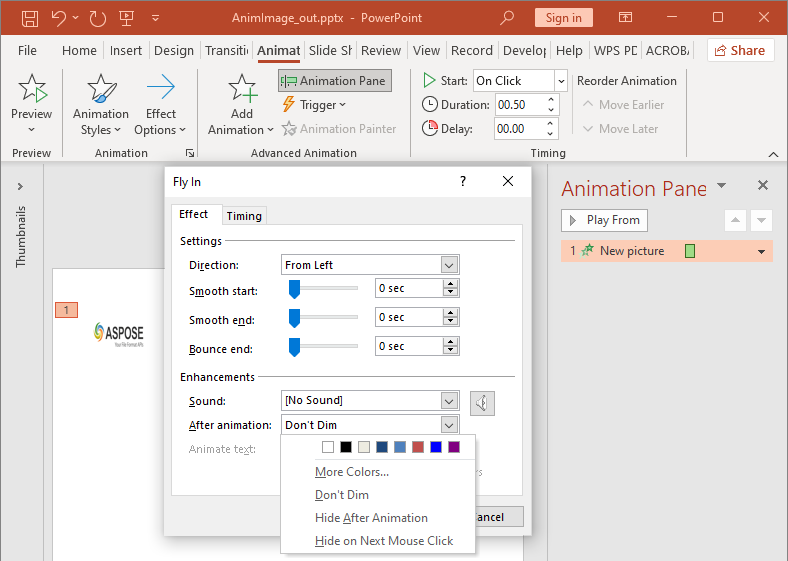
The AfterAnimationType class supports leaving the shape unchanged, changing its color, hiding it after the animation, or hiding it on the next click. When the type is AfterAnimationType::Color, set Effect::getAfterAnimationColor as well.
This independent example creates an effect, sets its after-animation behavior through the returned effect object, and saves the result.
use aspose\slides\AfterAnimationType;
use aspose\slides\EffectSubtype;
use aspose\slides\EffectTriggerType;
use aspose\slides\EffectType;
use aspose\slides\Presentation;
use aspose\slides\SaveFormat;
use aspose\slides\ShapeType;

$presentation = new Presentation();
try {
    $slide = $presentation->getSlides()->get_Item(0);
    $shape = $slide->getShapes()->addAutoShape(ShapeType::Rectangle, 120, 100, 320, 80);
    $shape->addTextFrame("Dim after animation");

    $effect = $slide->getTimeline()->getMainSequence()->addEffect($shape, EffectType::Fade, EffectSubtype::None, EffectTriggerType::OnClick);
    $effect->setAfterAnimationType(AfterAnimationType::Color);
    $effect->getAfterAnimationColor()->setColor(java("java.awt.Color")->LIGHT_GRAY);

    $presentation->save("shape-animation-after-effect.pptx", SaveFormat::Pptx);
} finally {
    $presentation->dispose();
}
Changing the type away from AfterAnimationType::Color clears the after-animation color setting.
Animate Text
Text animation has two related controls:
- TextAnimation::getBuildType controls whether paragraphs appear together or by paragraph level.
- Effect::getAnimateTextType controls whether text appears all at once, by word, or by letter. Effect::getDelayBetweenTextParts sets the delay between words or letters. A positive value is a percentage of the effect duration; a negative value is a delay in seconds.
The following independent example animates the words in a text box. BuildType::AsOneObject disables paragraph-by-paragraph building so that the word setting applies to the entire text frame.
use aspose\slides\AnimateTextType;
use aspose\slides\BuildType;
use aspose\slides\EffectSubtype;
use aspose\slides\EffectTriggerType;
use aspose\slides\EffectType;
use aspose\slides\Presentation;
use aspose\slides\SaveFormat;
use aspose\slides\ShapeType;

$presentation = new Presentation();
try {
    $slide = $presentation->getSlides()->get_Item(0);
    $textBox = $slide->getShapes()->addAutoShape(ShapeType::Rectangle, 80, 80, 560, 100);
    $textBox->addTextFrame("Aspose.Slides animates this sentence word by word.");

    $effect = $slide->getTimeline()->getMainSequence()->addEffect($textBox, EffectType::Fade, EffectSubtype::None, EffectTriggerType::OnClick);
    $effect->getTextAnimation()->setBuildType(BuildType::AsOneObject);
    $effect->setAnimateTextType(AnimateTextType::ByWord);
    $effect->setDelayBetweenTextParts(20.0);

    $presentation->save("animated-text.pptx", SaveFormat::Pptx);
} finally {
    $presentation->dispose();
}
To build a text box by paragraph, set BuildType::ByLevelParagraphs1 (or another paragraph level). To target a single paragraph with its own effect, use the Sequence::addEffect overload that accepts a Paragraph. See Animated Text for paragraph-level examples.
Export and Compatibility Notes
- Saving to PPT or PPTX preserves the animation model, but the final playback is controlled by the presentation viewer.
- PDF and static images do not play animations. Use HTML5 export, animated GIF, or video conversion when the output must show motion.
- For HTML5, enable Html5Options::setAnimateShapes and, when needed, Html5Options::setAnimateTransitions.
- Video rendering supports many common entrance, emphasis, exit, and motion-path effects, but not every PowerPoint effect is supported. Check the current supported animations and effects and test critical presentations with your target Aspose.Slides version.
- Advanced custom effects and effects imported from other presentation formats may be preserved in the file but render differently in PowerPoint, HTML5, or video. Validate the exported result rather than relying only on the effect name.
FAQ
Why does an animation appear in PowerPoint but not in a PDF?
PDF is a static format, so animations and slide transitions do not play. Export to HTML5, animated GIF, or video when motion must be preserved.
Why does an effect play differently in a video?
Video export renders animations rather than storing the original PowerPoint behavior. Some advanced effects are unsupported or approximated. Review the supported-effects table and test the actual presentation before production use.
Does moving a shape forward or backward change its animation order?
No. Shape z-order controls overlap, while sequence order and triggers control animation playback. Change the timeline if you need a different playback order.