
Convert Presentations to HTML5 in Python via Java
Overview
This article explains how to convert PowerPoint presentations to HTML5 using Aspose.Slides for Python via Java. It covers basic export, control of shape animations and slide transitions, and comment layout. It also compares HTML5 output with the SVG-based output of standard HTML export.
The examples require Aspose.Slides for Python via Java and a compatible Java runtime. Place the input presentations in the current working directory. Each example starts the JVM only if it is not already running.
Export PowerPoint to HTML5
The following example loads a presentation from the working directory and saves it in HTML5 format. It uses the default export settings; the next example shows how to control animation playback explicitly. Replace the input path with the path to your presentation.
import jpype
import asposeslides

if not jpype.isJVMStarted():
    jpype.startJVM()

from asposeslides.api import Presentation, SaveFormat

presentation = Presentation("pres.pptx")
try:
    presentation.save("pres.html", SaveFormat.Html5)
finally:
    presentation.dispose()
Note
Besides the HTML document, the export writes supporting CSS and JavaScript files for slide styling, animations, effects, and navigation. Keep these files with the HTML document when moving or publishing the output. The generated page also loads jQuery and Anime.js from public CDNs; without them, slide navigation and animations do not run.To export without playing shape animations or slide transitions, pass False to setAnimateShapes and setAnimateTransitions in Html5Options. These settings are independent, so you can enable one while disabling the other. The example exports the presentation with both types of animation disabled in the generated page.
import jpype
import asposeslides

if not jpype.isJVMStarted():
    jpype.startJVM()

from asposeslides.api import Html5Options, Presentation, SaveFormat

html5_options = Html5Options()
html5_options.setAnimateShapes(False)
html5_options.setAnimateTransitions(False)

presentation = Presentation("pres.pptx")
try:
    presentation.save("pres5.html", SaveFormat.Html5, html5_options)
finally:
    presentation.dispose()
Export PowerPoint to HTML
The standard HTML export uses a different rendering approach: slide content is represented by SVG inside an HTML page. The following example converts a presentation to an HTML document using this rendering approach.
import jpype
import asposeslides

if not jpype.isJVMStarted():
    jpype.startJVM()

from asposeslides.api import Presentation, SaveFormat

presentation = Presentation("pres.pptx")
try:
    presentation.save("pres.html", SaveFormat.Html)
finally:
    presentation.dispose()
The simplified markup below illustrates the structure of the generated page. The SVG element contains the rendered slide content; the placeholder text represents that content and is not literal export output.
<body>
<div class="slide" name="slide" id="slideslideIface1">
     <svg version="1.1">
         <g> THE SLIDE CONTENT GOES HERE </g>
     </svg>
</div>
</body>
Warning
The SVG-based export does not expose PowerPoint shapes as individual HTML elements. Use HTML5 export when you need the shape-animation and slide-transition options demonstrated in this article.Export PowerPoint to HTML5 Slide View
HTML5 export produces a page for viewing and navigating the presentation slides in a browser. This example enables both setAnimateShapes and setAnimateTransitions so that the exported slide view can play effects from the source presentation.
Use a presentation that already contains shape animations and slide transitions to see the effect of these settings. Enabling them does not add new effects to slides that have none. After export, open the generated HTML5 document in a browser with its supporting files available.
import jpype
import asposeslides

if not jpype.isJVMStarted():
    jpype.startJVM()

from asposeslides.api import Html5Options, Presentation, SaveFormat

html5_options = Html5Options()
html5_options.setAnimateShapes(True)
html5_options.setAnimateTransitions(True)

presentation = Presentation("pres.pptx")
try:
    presentation.save("HTML5-slide-view.html", SaveFormat.Html5, html5_options)
finally:
    presentation.dispose()
Convert a Presentation to an HTML5 Document with Comments
You can include existing slide comments in HTML5 output so that readers can see feedback alongside the slide content. The example in this section expects the source presentation to contain comments, as illustrated below. It exports those comments; it does not create new ones.
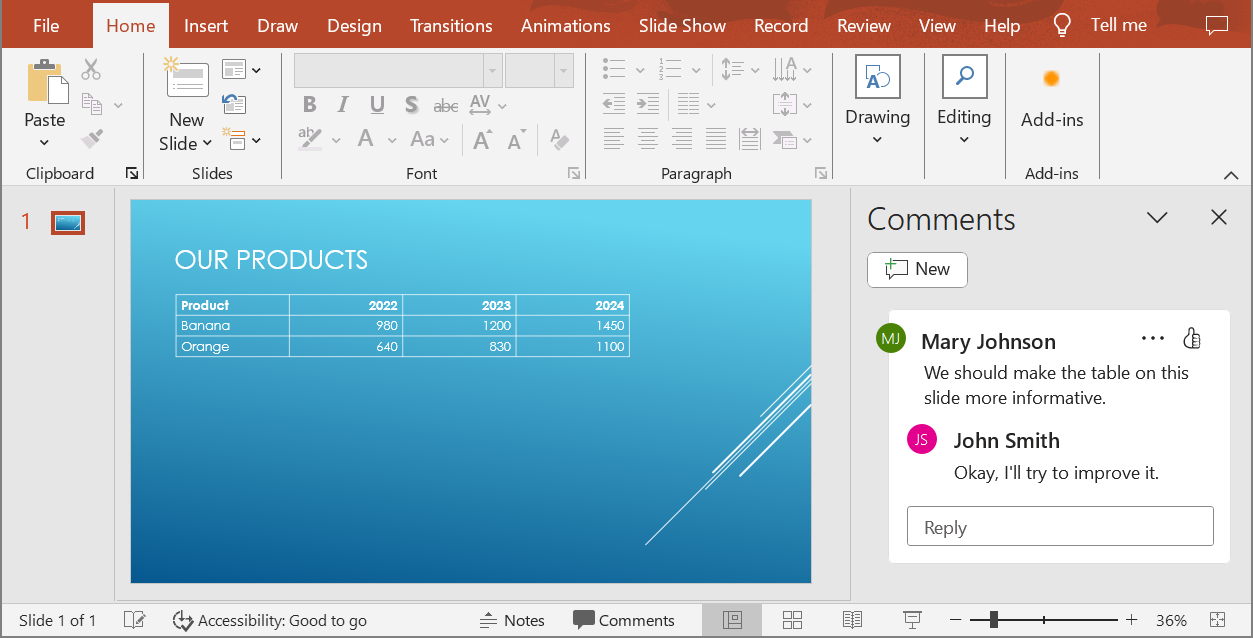
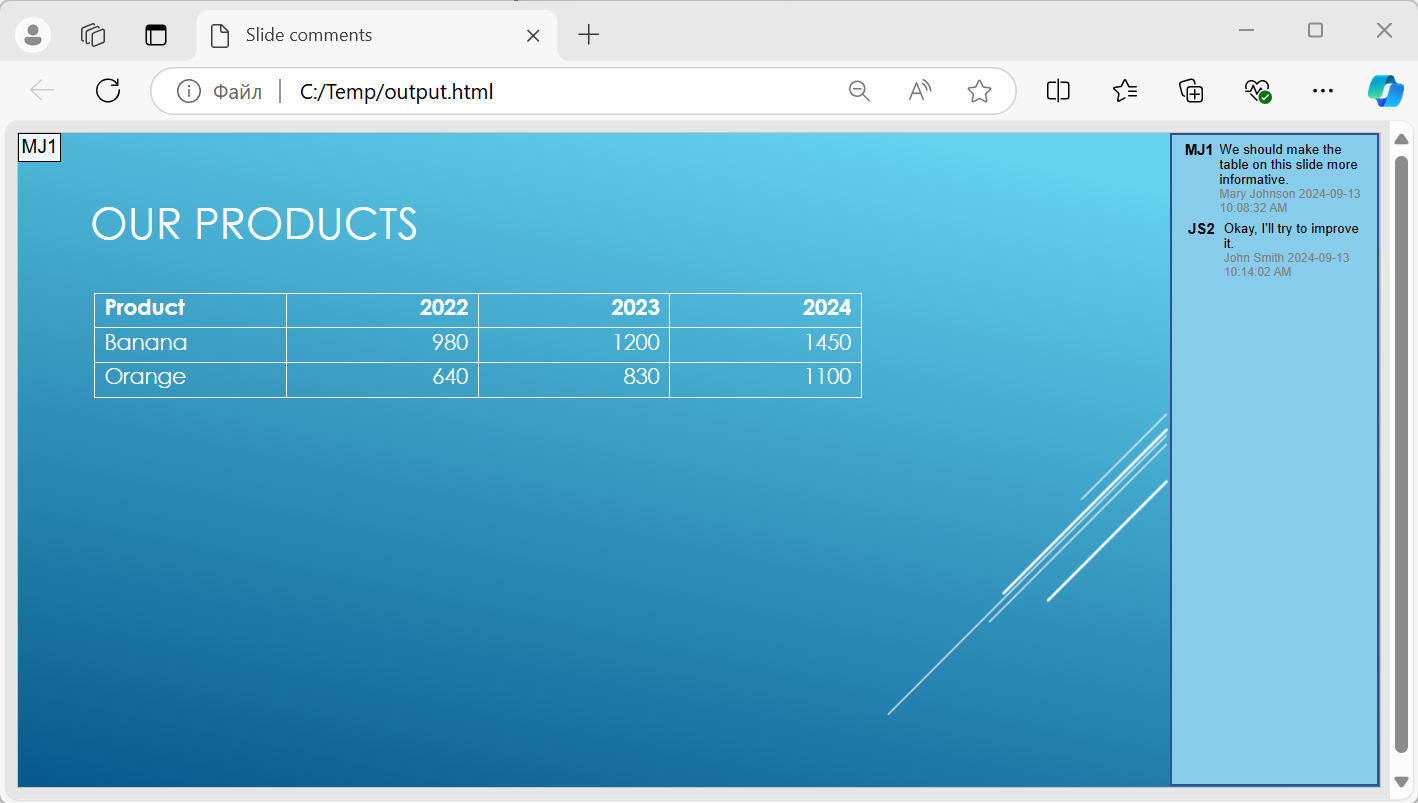
Pass a NotesCommentsLayoutingOptions object to the setSlidesLayoutOptions method of Html5Options. Use setCommentsPosition to select Right from the CommentsPositions enumeration to place the comments to the right of each slide.
The following example exports the presentation to HTML5 with this comment layout. A presentation without comments will have no comment text to display.
import jpype
import asposeslides

if not jpype.isJVMStarted():
    jpype.startJVM()

from asposeslides.api import CommentsPositions, Html5Options, NotesCommentsLayoutingOptions, Presentation, SaveFormat

layout_options = NotesCommentsLayoutingOptions()
layout_options.setCommentsPosition(CommentsPositions.Right)

html5_options = Html5Options()
html5_options.setSlidesLayoutOptions(layout_options)

presentation = Presentation("sample.pptx")
try:
    presentation.save("output.html", SaveFormat.Html5, html5_options)
finally:
    presentation.dispose()
The image below shows the exported HTML5 document with the comments displayed beside the slide.
Exclude JavaScript Hyperlinks During Export
Suppose hyperlinks.pptx contains linked text with a javascript:alert('Hello') target and an ordinary https://example.com/ link. To exclude the JavaScript hyperlink during export, pass True to SaveOptions.setSkipJavaScriptLinks. The default is False, so these links are not filtered unless you enable the option.
The following example loads the presentation from the working directory and exports it using Html5Options:
import jpype
import asposeslides

if not jpype.isJVMStarted():
    jpype.startJVM()

from asposeslides.api import Html5Options, Presentation, SaveFormat

html5_options = Html5Options()
html5_options.setSkipJavaScriptLinks(True)

presentation = Presentation("hyperlinks.pptx")
try:
    presentation.save("filtered-html5.html", SaveFormat.Html5, html5_options)
finally:
    presentation.dispose()
The exported file omits the JavaScript hyperlink while retaining its text and the ordinary HTTPS link. The source presentation is unchanged.
This option filters JavaScript hyperlinks; it does not remove all scripts or other active content, nor does it guarantee CSP compliance. For example, HTML5 output still includes scripts for slide navigation and animations.
FAQ
Can I control whether object animations and slide transitions will play in HTML5?
Yes, HTML5 export provides separate options to enable or disable shape animations and slide transitions.
Are comments supported, and where can they be placed relative to the slide?
Yes, existing comments can be included in HTML5 output and positioned (for example, to the right of the slide) through layout settings for notes and comments.
Can I skip links that invoke JavaScript for security or CSP reasons?
Yes, the setSkipJavaScriptLinks setting allows you to skip hyperlinks with JavaScript calls during saving. The default is False. See Exclude JavaScript Hyperlinks During Export for an HTML5 export example and the scope of the filter. This setting does not remove the JavaScript used by the HTML5 viewer for navigation and animations.