
แปลงการนำเสนอเป็น HTML5 ด้วย Python ผ่าน Java
ภาพรวม
บทความนี้อธิบายวิธีแปลงงานนำเสนอ PowerPoint ไปเป็น HTML5 โดยใช้ Aspose.Slides สำหรับ Python ผ่าน Java. ครอบคลุมการส่งออกพื้นฐาน การควบคุมแอนิเมชันรูปแบบและการเปลี่ยนสไลด์ รวมถึงการจัดเค้าโครงความคิดเห็น. อีกทั้งยังเปรียบเทียบผลลัพธ์ HTML5 กับผลลัพธ์แบบ SVG ของการส่งออก HTML มาตรฐาน.
ตัวอย่างต้องใช้ Aspose.Slides สำหรับ Python ผ่าน Java และ Java runtime ที่เข้ากันได้. วางไฟล์งานนำเสนอที่ต้องการแปลงในไดเรกทอรีทำงานปัจจุบัน. ตัวอย่างแต่ละอันจะเริ่ม JVM ก็ต่อเมื่อยังไม่ได้ทำงาน.
ส่งออก PowerPoint เป็น HTML5
ตัวอย่างต่อไปนี้โหลดงานนำเสนอจากไดเรกทอรีทำงานและบันทึกเป็นรูปแบบ HTML5. มันใช้การตั้งค่าสส่งออกค่าเริ่มต้น; ตัวอย่างต่อไปจะแสดงวิธีควบคุมการเล่นแอนิเมชันอย่างชัดเจน. แทนที่เส้นทางไฟล์เข้าโดยใช้เส้นทางไปยังงานนำเสนอของคุณ.
import jpype
import asposeslides

if not jpype.isJVMStarted():
    jpype.startJVM()

from asposeslides.api import Presentation, SaveFormat

presentation = Presentation("pres.pptx")
try:
    presentation.save("pres.html", SaveFormat.Html5)
finally:
    presentation.dispose()
Note
นอกจากเอกสาร HTML แล้ว การส่งออกยังเขียนไฟล์ CSS และ JavaScript ที่สนับสนุนสำหรับการจัดรูปแบบสไลด์ แอนิเมชัน เอฟเฟ็กต์ และการนำทาง. เก็บไฟล์เหล่านี้ไว้พร้อมกับเอกสาร HTML เมื่อย้ายหรือเผยแพร่ผลลัพธ์. หน้าเว็บที่สร้างขึ้นยังโหลด jQuery และ Anime.js จาก CDN สาธารณะ; หากไม่มีไฟล์เหล่านี้ การนำทางสไลด์และแอนิเมชันจะไม่ทำงาน.เพื่อส่งออกโดยไม่เล่นแอนิเมชันรูปแบบหรือการเปลี่ยนสไลด์ ให้ส่งค่า False ไปยัง setAnimateShapes และ setAnimateTransitions ใน Html5Options. การตั้งค่าเหล่านี้เป็นอิสระกัน ดังนั้นคุณสามารถเปิดใช้งานอันหนึ่งในขณะปิดอีกอันได้. ตัวอย่างจะส่งออกงานนำเสนอโดยปิดแอนิเมชันทั้งสองแบบในหน้าที่สร้างขึ้น.
import jpype
import asposeslides

if not jpype.isJVMStarted():
    jpype.startJVM()

from asposeslides.api import Html5Options, Presentation, SaveFormat

html5_options = Html5Options()
html5_options.setAnimateShapes(False)
html5_options.setAnimateTransitions(False)

presentation = Presentation("pres.pptx")
try:
    presentation.save("pres5.html", SaveFormat.Html5, html5_options)
finally:
    presentation.dispose()
ส่งออก PowerPoint เป็น HTML
การส่งออก HTML มาตรฐานใช้วิธีการเรนเดอร์ที่แตกต่าง: เนื้อหาสไลด์จะแสดงด้วย SVG ภายในหน้า HTML. ตัวอย่างต่อไปนี้จะแปลงงานนำเสนอเป็นเอกสาร HTML ด้วยวิธีการเรนเดอร์นี้.
import jpype
import asposeslides

if not jpype.isJVMStarted():
    jpype.startJVM()

from asposeslides.api import Presentation, SaveFormat

presentation = Presentation("pres.pptx")
try:
    presentation.save("pres.html", SaveFormat.Html)
finally:
    presentation.dispose()
มาร์กอัปแบบง่ายด้านล่างแสดงโครงสร้างของหน้าที่สร้างขึ้น. อิลิเมนต์ SVG ประกอบด้วยเนื้อหาสไลด์ที่เรนเดอร์; ข้อความตัวแทนเป็นเพียงข้อความแทนที่และไม่ใช่ผลลัพธ์การส่งออกจริง.
<body>
<div class="slide" name="slide" id="slideslideIface1">
     <svg version="1.1">
         <g> THE SLIDE CONTENT GOES HERE </g>
     </svg>
</div>
</body>
Warning
การส่งออกแบบใช้ SVG ไม่แสดงรูปแบบ PowerPoint เป็นอิลิเมนต์ HTML อย่างแยกส่วน. ใช้การส่งออก HTML5 เมื่อคุณต้องการตัวเลือกแอนิเมชันรูปแบบและการเปลี่ยนสไลด์ที่แสดงในบทความนี้.ส่งออก PowerPoint เป็นมุมมองสไลด์ HTML5
การส่งออก HTML5 จะสร้างหน้าเพื่อดูและนำทางสไลด์ของงานนำเสนอในเบราว์เซอร์. ตัวอย่างนี้เปิดใช้งานทั้ง setAnimateShapes และ setAnimateTransitions เพื่อให้มุมมองสไลด์ที่ส่งออกสามารถเล่นเอฟเฟ็กต์จากงานนำแหล่งได้.
ใช้งานนำเสนอที่มีแอนิเมชันรูปแบบและการเปลี่ยนสไลด์อยู่แล้วเพื่อดูผลของการตั้งค่าเหล่านี้. การเปิดใช้งานจะไม่เพิ่มเอฟเฟ็กต์ใหม่ให้สไลด์ที่ไม่มี. หลังการส่งออก ให้เปิดเอกสาร HTML5 ที่สร้างขึ้นในเบราว์เซอร์พร้อมไฟล์สนับสนุนที่พร้อมใช้งาน.
import jpype
import asposeslides

if not jpype.isJVMStarted():
    jpype.startJVM()

from asposeslides.api import Html5Options, Presentation, SaveFormat

html5_options = Html5Options()
html5_options.setAnimateShapes(True)
html5_options.setAnimateTransitions(True)

presentation = Presentation("pres.pptx")
try:
    presentation.save("HTML5-slide-view.html", SaveFormat.Html5, html5_options)
finally:
    presentation.dispose()
แปลงงานนำเสนอเป็นเอกสาร HTML5 พร้อมความคิดเห็น
คุณสามารถรวมความคิดเห็นสไลด์ที่มีอยู่ในผลลัพธ์ HTML5 เพื่อให้ผู้อ่านเห็นข้อเสนอแนะพร้อมกับเนื้อหาสไลด์. ตัวอย่างในส่วนนี้คาดว่างานนำแหล่งมีความคิดเห็นตามที่แสดงด้านล่าง. มันจะส่งออกความคิดเห็นเหล่านั้น; ไม่ได้สร้างใหม่.
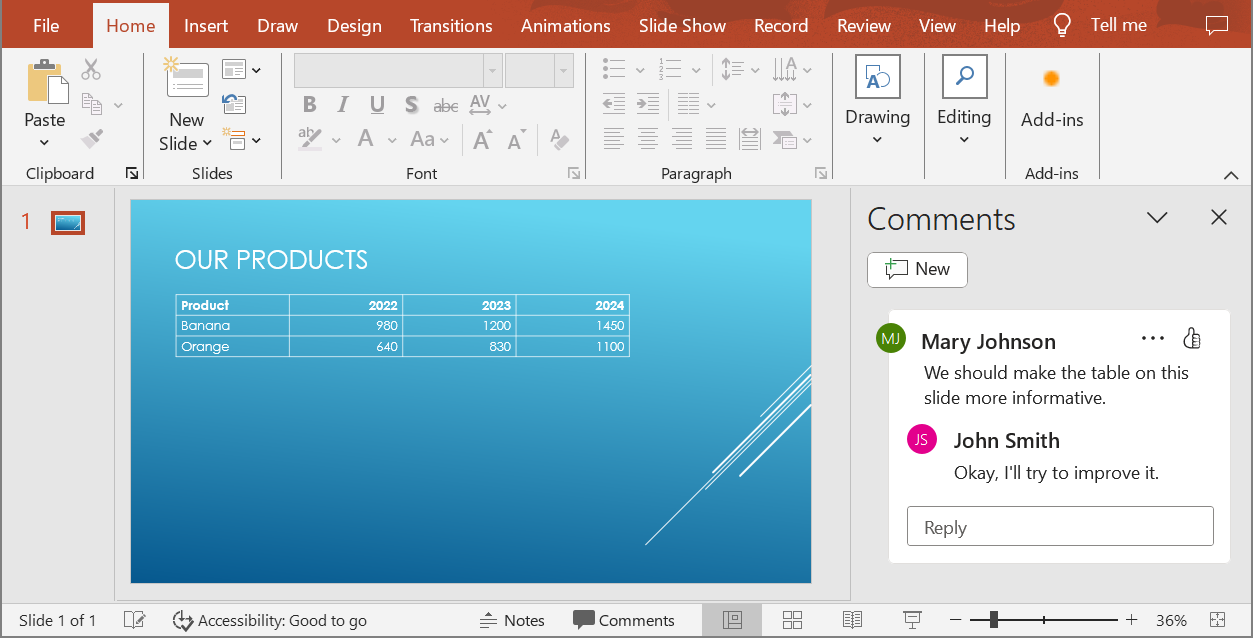
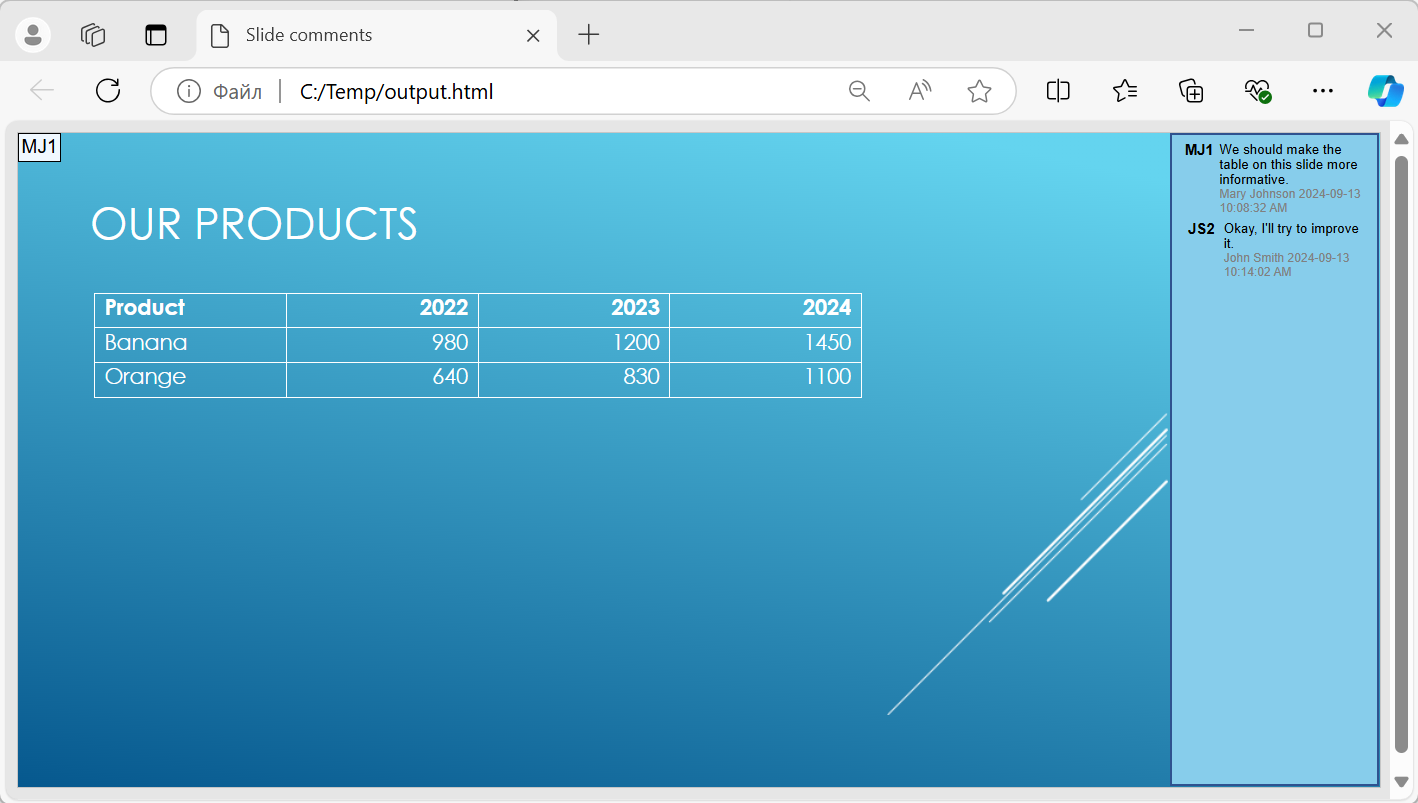
ส่งออบเจ็กต์ NotesCommentsLayoutingOptions ไปยังเมธอด setSlidesLayoutOptions ของ Html5Options. ใช้ setCommentsPosition เพื่อเลือก Right จาก enum CommentsPositions เพื่อตำแหน่งความคิดเห็นทางด้านขวาของแต่ละสไลด์.
ตัวอย่างต่อไปนี้ส่งออกงานนำเสนอเป็น HTML5 ด้วยการจัดวางความคิดเห็นนี้. งานนำเสนอที่ไม่มีความคิดเห็นจะไม่มีข้อความแสดง.
import jpype
import asposeslides

if not jpype.isJVMStarted():
    jpype.startJVM()

from asposeslides.api import CommentsPositions, Html5Options, NotesCommentsLayoutingOptions, Presentation, SaveFormat

layout_options = NotesCommentsLayoutingOptions()
layout_options.setCommentsPosition(CommentsPositions.Right)

html5_options = Html5Options()
html5_options.setSlidesLayoutOptions(layout_options)

presentation = Presentation("sample.pptx")
try:
    presentation.save("output.html", SaveFormat.Html5, html5_options)
finally:
    presentation.dispose()
ยกเว้นไฮเปอร์ลิงก์ JavaScript ระหว่างการส่งออก
สมมติว่า hyperlinks.pptx มีข้อความเชื่อมโยงที่มีเป้าหมาย javascript:alert('Hello') และลิงก์ทั่วไป https://example.com/. เพื่อยกเว้นไฮเปอร์ลิงก์ JavaScript ระหว่างการส่งออก ให้ส่งค่า True ไปยัง SaveOptions.setSkipJavaScriptLinks. ค่าเริ่มต้นคือ False ดังนั้นลิงก์เหล่านี้จะไม่ถูกกรองเว้นแต่คุณเปิดใช้งานตัวเลือก.
ตัวอย่างต่อไปนี้โหลดงานนำเสนอจากไดเรกทอรีทำงานและส่งออกโดยใช้ Html5Options:
import jpype
import asposeslides

if not jpype.isJVMStarted():
    jpype.startJVM()

from asposeslides.api import Html5Options, Presentation, SaveFormat

html5_options = Html5Options()
html5_options.setSkipJavaScriptLinks(True)

presentation = Presentation("hyperlinks.pptx")
try:
    presentation.save("filtered-html5.html", SaveFormat.Html5, html5_options)
finally:
    presentation.dispose()
ไฟล์ที่ส่งออกจะละเว้นไฮเปอร์ลิงก์ JavaScript แต่คงข้อความและลิงก์ HTTPS ปกติไว้. งานนำแหล่งจะไม่ถูกเปลี่ยนแปลง.
ตัวเลือกนี้กรองไฮเปอร์ลิงก์ JavaScript; ไม่ได้ลบสคริปต์ทั้งหมดหรือเนื้อหาเชิงโต้ตอบอื่น ๆ และไม่รับประกันการปฏิบัติตาม CSP. ตัวอย่างเช่น ผลลัพธ์ HTML5 ยังรวมสคริปต์สำหรับการนำทางสไลด์และแอนิเมชัน.
คำถามที่พบบ่อย
ฉันสามารถควบคุมว่าแอนิเมชันวัตถุและการเปลี่ยนสไลด์จะเล่นใน HTML5 หรือไม่?
ใช่, การส่งออก HTML5 มีตัวเลือกแยกต่างหากเพื่อเปิดหรือปิด shape animations และ slide transitions.
ความคิดเห็นได้รับการสนับสนุนหรือไม่ และสามารถวางไว้ตำแหน่งใดสัมพันธ์กับสไลด์?
ใช่, ความคิดเห็นที่มีอยู่สามารถรวมในผลลัพธ์ HTML5 และกำหนดตำแหน่ง (เช่น ทางด้านขวาของสไลด์) ผ่าน layout settings สำหรับโน้ตและความคิดเห็น.
ฉันสามารถละเว้นลิงก์ที่เรียกใช้งาน JavaScript เพื่อความปลอดภัยหรือเหตุผลของ CSP ได้หรือไม่?
ใช่, การตั้งค่า setSkipJavaScriptLinks จะให้คุณละเว้นไฮเปอร์ลิงก์ที่มีการเรียก JavaScript ระหว่างการบันทึก. ค่าเริ่มต้นคือ False. ดูที่ ยกเว้นไฮเปอร์ลิงก์ JavaScript ระหว่างการส่งออก สำหรับตัวอย่างการส่งออก HTML5 และขอบเขตของตัวกรอง. การตั้งค่านี้ไม่ลบ JavaScript ที่ใช้โดยตัวดู HTML5 สำหรับการนำทางและแอนิเมชัน.