
สร้างเอฟเฟกต์ 3 มิติในงานนำเสนอด้วย Python
ภาพรวม
Aspose.Slides for Python via Java สามารถสร้าง แก้ไข รักษา และเรนเดอร์การจัดรูปแบบ 3 มิติแบบ PowerPoint สำหรับรูปร่างและข้อความได้ บทความนี้ครอบคลุมเอฟเฟกต์ 3 มิติ เช่น การหมุน การดันออก การทำ bevel การให้แสง วัสดุ การไล่ระดับสีหรือการเติมภาพ และข้อความ 3 มิติ
Note
บทความนี้เกี่ยวกับเอฟเฟกต์การจัดรูปแบบ 3 มิติบนรูปร่างและข้อความของ PowerPoint ไม่ได้เกี่ยวกับการแทรกหรือแก้ไขไฟล์โมเดล 3 มิติแบบสแตนด์อโลน เมื่อคุณส่งออกสไลด์เป็นภาพ PDF หรือ HTML Aspose.Slides จะเรนเดอร์เอฟเฟกต์ 3 มิติเหล่านั้นลงในผลลัพธ์ 2 มิติที่ส่งออกแนวคิดการจัดรูปแบบ 3 มิติ
ใช้เมธอด Shape.getThreeDFormat เพื่อใช้การจัดรูปแบบ 3 มิติกับรูปร่าง เมธอดจะคืนค่า ThreeDFormat ซึ่งควบคุมฉาก 3 มิติสำหรับรูปร่างนั้น
สำหรับข้อความ ใช้เมธอด TextFrameFormat.getThreeDFormat วิธีนี้จะใช้การจัดรูปแบบ 3 มิติกับเฟรมข้อความแทนร่างกายของรูปร่าง
สมาชิก API ที่สำคัญที่สุดมีดังนี้:
| สมาชิก API | สิ่งที่ควบคุม | เมื่อควรใช้ |
|---|---|---|
| getCamera | มุมมอง ประเภทกล้องที่ตั้งไว้ การหมุน การซูม และมุมมองเชิงลึก | หมุนวัตถุในพื้นที่ 3 มิติหรือใช้การตั้งค่าการหมุน 3 มิติของ PowerPoint |
| getLightRig | การตั้งค่าแสง ทิศทางและการหมุนแสง | เปลี่ยนวิธีการแสดงไฮไลท์และเงาบนพื้นผิว 3 มิติ |
| getMaterial และ setMaterial | วัสดุผิว เช่น แบน แมตต์ พลาสติก หรือโลหะ | ทำให้รูปร่างเดียวกันดูแบนนุ่ม เงางาม หรือเป็นโลหะ |
| getExtrusionHeight และ setExtrusionHeight | ความลึกที่รูปร่างยื่นออกจากหน้าหน้า | แปลงรูปร่างแบนให้เป็นวัตถุ 3 มิติที่มองเห็นความหนา |
| getExtrusionColor | สีของด้านที่ยื่นออก | ทำให้ความลึกมองเห็นได้หรือประสานสีด้านกับการเติมหน้าหน้า |
| getDepth และ setDepth | ความลึก 3 มิติเพิ่มเติมที่ PowerPoint ใช้ | ปรับความลึกอย่างละเอียดสำหรับรูปร่างหรือข้อความ โดยเฉพาะร่วมกับการตั้งค่า bevel และ material |
| getBevelTop และ getBevelBottom | ขอบยกหรือโค้งมนบนด้านหน้าและด้านหลัง | เพิ่มขอบที่อ่อนหรือทำเป็นรูปแบบแทนหน้าที่ยืนตรง |
| getContourColor และ getContourWidth และ setContourWidth | เส้นขอบรอบวัตถุ 3 มิติ | เน้นขอบวัตถุในผลลัพธ์ที่เรนเดอร์ |
สร้างรูปร่าง 3 มิติ
โดยปกติรูปร่างจะต้องมีการตั้งสี่ประเภทก่อนที่จะดูเหมือน 3 มิติอย่างน่าเชื่อถือ:
- การตั้งค่ากล้อง เพราะมุมมองหน้าตรงค่าเริ่มต้นอาจซ่อนการดันออก
- การตั้งค่าแสง เพราะแสงทำให้หน้ากับด้านข้างอ่านได้
- การตั้งค่าเนื้อวัสดุ เพราะพื้นผิวส่งผลต่อการเรนเดอร์แสง
- การตั้งค่าการดันออกหรือความลึก เพราะรูปร่างแบนต้องการความหนา
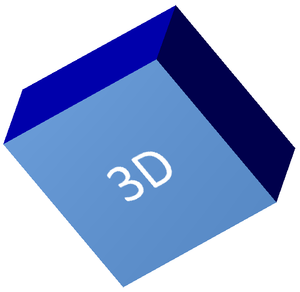
ตัวอย่างต่อไปนี้สร้างสี่เหลี่ยม เพิ่มข้อความบนหน้าหน้า และใช้การจัดรูปแบบ 3 มิติ ค่า rotation ของกล้องเป็นองศาและความสูงการดันออกคือ 100 จุด ตัวอย่างจะเรนเดอร์สไลด์เป็นภาพ PNG ที่สองเท่าของขนาดเริ่มต้นและบันทึกพรีเซนเทชันเป็น PPTX
import jpype
import asposeslides

if not jpype.isJVMStarted():
    jpype.startJVM()

from asposeslides.api import CameraPresetType, FillType, ImageFormat, LightRigPresetType, LightingDirection, MaterialPresetType, Presentation, SaveFormat, ShapeType
from java.awt import Color

image_scale = 2.0

presentation = Presentation()
try:
    slide = presentation.getSlides().get_Item(0)

    shape = slide.getShapes().addAutoShape(ShapeType.Rectangle, 200, 150, 200, 200)
    shape.getTextFrame().setText("3D")
    shape.getTextFrame().getParagraphs().get_Item(0).getParagraphFormat().getDefaultPortionFormat().setFontHeight(64)

    shape.getFillFormat().setFillType(FillType.Solid)
    shape.getFillFormat().getSolidFillColor().setColor(Color(100, 149, 237))

    shape.getThreeDFormat().getCamera().setCameraType(CameraPresetType.OrthographicFront)
    shape.getThreeDFormat().getCamera().setRotation(20, 30, 40)
    shape.getThreeDFormat().getLightRig().setLightType(LightRigPresetType.Flat)
    shape.getThreeDFormat().getLightRig().setDirection(LightingDirection.Top)
    shape.getThreeDFormat().setMaterial(MaterialPresetType.Flat)
    shape.getThreeDFormat().setExtrusionHeight(100)
    shape.getThreeDFormat().getExtrusionColor().setColor(Color.BLUE)

    thumbnail = slide.getImage(image_scale, image_scale)
    try:
        thumbnail.save("shape_3d.png", ImageFormat.Png)
    finally:
        thumbnail.dispose()

    presentation.save("shape_3d.pptx", SaveFormat.Pptx)
finally:
    presentation.dispose()
ภาพสไลด์ที่เรนเดอร์จะแสดงสี่เหลี่ยมเป็นบล็อก 3 มิติหนา:
หมุนรูปร่างด้วยกล้อง
ใน PowerPoint การหมุน 3 มิติกำหนดจากแผง 3‑D Rotation ค่าการหมุน X, Y, Z สอดคล้องกับการตั้งค่าที่คุณกำหนดผ่าน API ของกล้อง
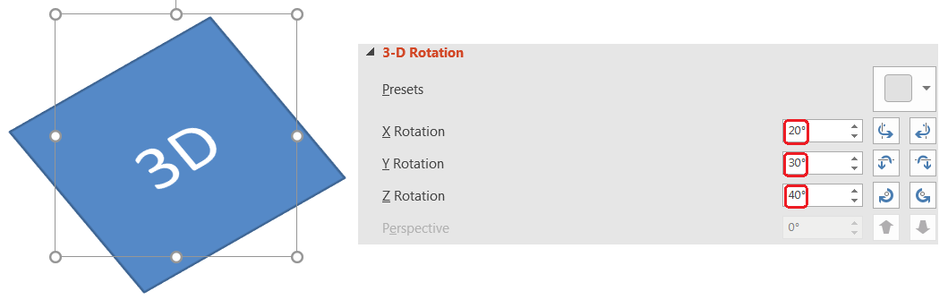
ใน Aspose.Slides ให้เข้าถึงกล้องผ่านเมธอด ThreeDFormat.getCamera ตัวอย่างนี้สร้างสี่เหลี่ยม เลือกมุมมองหน้ารูปภาพแบบออร์โธกราฟิก และตั้งค่าการหมุน X, Y, Z ไปที่ 20, 30, 40 องศาตามลำดับ โดยกำหนดรูปร่างในหน่วยความจำโดยไม่บันทึกไฟล์:
import jpype
import asposeslides

if not jpype.isJVMStarted():
    jpype.startJVM()

from asposeslides.api import CameraPresetType, Presentation, ShapeType

presentation = Presentation()
try:
    slide = presentation.getSlides().get_Item(0)

    shape = slide.getShapes().addAutoShape(ShapeType.Rectangle, 200, 150, 200, 200)

    shape.getThreeDFormat().getCamera().setCameraType(CameraPresetType.OrthographicFront)
    shape.getThreeDFormat().getCamera().setRotation(20, 30, 40)
finally:
    presentation.dispose()
ใช้กล้องเมื่อคุณต้องการเปลี่ยนวิธีที่ผู้ชมมองวัตถุ ไม่ได้เปลี่ยนรูปเรขาคณิต 2 มิติของรูปร่างบนสไลด์ แต่เปลี่ยนมุมมอง 3 มิติที่ PowerPoint และ Aspose.Slides ใช้เมื่อเรนเดอร์
เพิ่มการดันออกและความลึก
การดันออกทำให้รูปร่างดูหนาด้วยการยืดออกจากหน้าหน้า ใน PowerPoint การควบคุมความลึกตั้งความหนาที่มองเห็นได้และการควบคุมสีตั้งสีของด้านข้าง
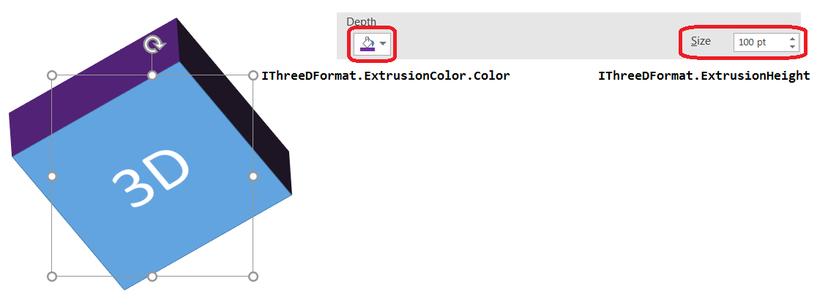
ใช้เมธอด ThreeDFormat.setExtrusionHeight เพื่อกำหนดความหนาและ ThreeDFormat.getExtrusionColor เพื่อเข้าถึงสีด้าน ตัวอย่างนี้ให้สี่เหลี่ยมดันออก 100 จุดด้วยด้านสีม่วงและหมุนกล้องเพื่อเปิดเผยความหนา โดยกำหนดรูปร่างในหน่วยความจำโดยไม่บันทึกไฟล์:
import jpype
import asposeslides

if not jpype.isJVMStarted():
    jpype.startJVM()

from asposeslides.api import CameraPresetType, LightRigPresetType, LightingDirection, MaterialPresetType, Presentation, ShapeType
from java.awt import Color

presentation = Presentation()
try:
    slide = presentation.getSlides().get_Item(0)

    shape = slide.getShapes().addAutoShape(ShapeType.Rectangle, 200, 150, 200, 200)

    extrusion_color = Color(128, 0, 128)

    shape.getThreeDFormat().getCamera().setCameraType(CameraPresetType.OrthographicFront)
    shape.getThreeDFormat().getCamera().setRotation(20, 30, 40)
    shape.getThreeDFormat().getLightRig().setLightType(LightRigPresetType.Flat)
    shape.getThreeDFormat().getLightRig().setDirection(LightingDirection.Top)
    shape.getThreeDFormat().setMaterial(MaterialPresetType.Flat)
    shape.getThreeDFormat().setExtrusionHeight(100)
    shape.getThreeDFormat().getExtrusionColor().setColor(extrusion_color)
finally:
    presentation.dispose()
เมธอด ThreeDFormat.setDepth ตั้งค่าความลึกของรูปร่าง 3 มิติ เมธอด setExtrusionHeight ควบคุมความสูงของเอฟเฟกต์การดันออก ตามที่แสดงในตัวอย่างนี้
ใช้การไล่ระดับสีหรือการเติมภาพกับเอฟเฟกต์ 3 มิติ
การจัดรูปแบบ 3 มิติทำงานแยกจากการเติมรูปทรง คุณสามารถเติมสีทึบ ไล่ระดับสี แพทเทิร์น หรือภาพบนหน้าหน้าและยังคงใช้การตั้งค่ากล้อง แสง วัสดุ และการดันออกเดียวกันได้
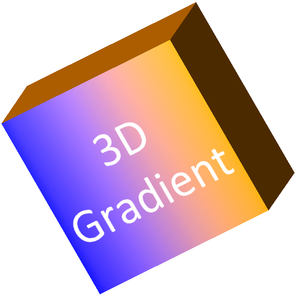
ตัวอย่างนี้ใช้ไล่ระดับสีจากสีน้ำเงินไปสียวส้มบนหน้าหน้าและสีส้มเข้มสำหรับการดันออก 150 จุด จุดไล่ระดับสีที่ 0 และ 100 เป็นตำแหน่งเริ่มต้นและสิ้นสุดของไล่ระดับ สีการหมุนของกล้องเป็นองศา สไลด์จะเรนเดอร์เป็นภาพ PNG ที่สองเท่าของขนาดเริ่มต้น:
import jpype
import asposeslides

if not jpype.isJVMStarted():
    jpype.startJVM()

from asposeslides.api import CameraPresetType, FillType, ImageFormat, LightRigPresetType, LightingDirection, MaterialPresetType, Presentation, ShapeType
from java.awt import Color

image_scale = 2.0

presentation = Presentation()
try:
    slide = presentation.getSlides().get_Item(0)

    shape = slide.getShapes().addAutoShape(ShapeType.Rectangle, 200, 150, 250, 250)
    shape.getTextFrame().setText("3D Gradient")
    shape.getTextFrame().getParagraphs().get_Item(0).getParagraphFormat().getDefaultPortionFormat().setFontHeight(64)

    shape.getFillFormat().setFillType(FillType.Gradient)
    shape.getFillFormat().getGradientFormat().getGradientStops().add(0, Color.BLUE)
    shape.getFillFormat().getGradientFormat().getGradientStops().add(100, Color(255, 165, 0))

    shape.getThreeDFormat().getCamera().setCameraType(CameraPresetType.OrthographicFront)
    shape.getThreeDFormat().getCamera().setRotation(10, 20, 30)
    shape.getThreeDFormat().getLightRig().setLightType(LightRigPresetType.Flat)
    shape.getThreeDFormat().getLightRig().setDirection(LightingDirection.Top)
    shape.getThreeDFormat().setMaterial(MaterialPresetType.Flat)
    extrusion_color = Color(255, 140, 0)
    shape.getThreeDFormat().setExtrusionHeight(150)
    shape.getThreeDFormat().getExtrusionColor().setColor(extrusion_color)

    thumbnail = slide.getImage(image_scale, image_scale)
    try:
        thumbnail.save("gradient_3d.png", ImageFormat.Png)
    finally:
        thumbnail.dispose()
finally:
    presentation.dispose()
ผลลัพธ์ที่เรนเดอร์ยังคงไล่ระดับสีบนหน้าหน้าและเรนเดอร์การดันออกแยกต่างหาก:
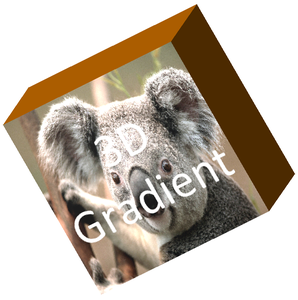
หากต้องการใช้การเติมภาพ ให้เพิ่มไฟล์ภาพลงในพรีเซนเทชันและกำหนดเป็นการเติมรูปทรง ตัวอย่างนี้ต้องมีไฟล์ที่ชื่อ “image.jpg” อยู่ในไดเรกทอรีทำงาน มันยืดภาพให้เติมสี่เหลี่ยม ใช้การดันออก 150 จุด และตั้งค่าการหมุนกล้องเป็นองศา โดยกำหนดรูปร่างในหน่วยความจำโดยไม่บันทึกหรือเรนเดอร์ไฟล์:
import jpype
import asposeslides

if not jpype.isJVMStarted():
    jpype.startJVM()

from asposeslides.api import CameraPresetType, FillType, LightRigPresetType, LightingDirection, MaterialPresetType, PictureFillMode, Presentation, ShapeType
from java.awt import Color
from pathlib import Path

presentation = Presentation()
try:
    slide = presentation.getSlides().get_Item(0)

    shape = slide.getShapes().addAutoShape(ShapeType.Rectangle, 200, 150, 250, 250)

    image_data = Path("image.jpg").read_bytes()
    java_image_data = jpype.JArray(jpype.JByte)(image_data)
    image = presentation.getImages().addImage(java_image_data)

    shape.getFillFormat().setFillType(FillType.Picture)
    shape.getFillFormat().getPictureFillFormat().getPicture().setImage(image)
    shape.getFillFormat().getPictureFillFormat().setPictureFillMode(PictureFillMode.Stretch)

    extrusion_color = Color(255, 140, 0)
    shape.getThreeDFormat().getCamera().setCameraType(CameraPresetType.OrthographicFront)
    shape.getThreeDFormat().getCamera().setRotation(10, 20, 30)
    shape.getThreeDFormat().getLightRig().setLightType(LightRigPresetType.Flat)
    shape.getThreeDFormat().getLightRig().setDirection(LightingDirection.Top)
    shape.getThreeDFormat().setMaterial(MaterialPresetType.Flat)
    shape.getThreeDFormat().setExtrusionHeight(150)
    shape.getThreeDFormat().getExtrusionColor().setColor(extrusion_color)
finally:
    presentation.dispose()
ภาพจะเรนเดอร์บนหน้าหน้า ส่วนการดันออกจะเรนเดอร์เป็นพื้นผิวด้านข้าง 3 มิติ:
ใช้การจัดรูปแบบ 3 มิติกับข้อความ
การจัดรูปแบบ 3 มิติของรูปร่างมีผลต่อร่างกายของรูปร่าง ส่วนการจัดรูปแบบ 3 มิติของข้อความมีผลต่อเฟรมข้อความ ซึ่งมีประโยชน์สำหรับเอฟเฟกต์คล้าย WordArt ที่ต้องการให้ตัวอักษรเองมีการดันออก, วัสดุ, แสงและการตั้งค่ากล้อง
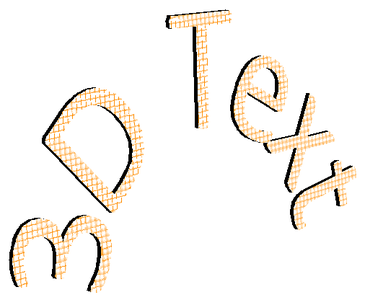
ตัวอย่างต่อไปนี้สร้างข้อความที่มีแพทเทิร์นกริดสีส้ม‑ขาว ใช้การโค้งขึ้นในแนวโค้ง และกำหนดค่าการ 3 มิติผ่านเมธอด TextFrameFormat.getThreeDFormat ความสูงการดันออกและความลึกเป็นจุด และการหมุนแสงเป็นองศา การเติมสีและเส้นขอบของรูปร่างถูกซ่อนไว้เพื่อให้เห็นเฉพาะข้อความ ตัวอย่างเรนเดอร์ภาพ PNG ที่สองเท่าของขนาดสไลด์เริ่มต้นและบันทึกพรีเซนเทชันเป็น PPTX:
import jpype
import asposeslides

if not jpype.isJVMStarted():
    jpype.startJVM()

from asposeslides.api import CameraPresetType, FillType, ImageFormat, LightRigPresetType, LightingDirection, MaterialPresetType, PatternStyle, Presentation, SaveFormat, ShapeType, TextShapeType
from java.awt import Color

image_scale = 2.0

presentation = Presentation()
try:
    slide = presentation.getSlides().get_Item(0)

    shape = slide.getShapes().addAutoShape(ShapeType.Rectangle, 200, 150, 250, 250)
    shape.getFillFormat().setFillType(FillType.NoFill)
    shape.getLineFormat().getFillFormat().setFillType(FillType.NoFill)
    shape.getTextFrame().setText("3D Text")

    portion = shape.getTextFrame().getParagraphs().get_Item(0).getPortions().get_Item(0)
    portion.getPortionFormat().getFillFormat().setFillType(FillType.Pattern)
    pattern_color = Color(255, 140, 0)
    portion.getPortionFormat().getFillFormat().getPatternFormat().getForeColor().setColor(pattern_color)
    portion.getPortionFormat().getFillFormat().getPatternFormat().getBackColor().setColor(Color.WHITE)
    portion.getPortionFormat().getFillFormat().getPatternFormat().setPatternStyle(PatternStyle.LargeGrid)

    shape.getTextFrame().getParagraphs().get_Item(0).getParagraphFormat().getDefaultPortionFormat().setFontHeight(128)

    text_frame_format = shape.getTextFrame().getTextFrameFormat()
    text_frame_format.setTransform(TextShapeType.ArchUp)
    text_frame_format.getThreeDFormat().setExtrusionHeight(3.5)
    text_frame_format.getThreeDFormat().setDepth(3)
    text_frame_format.getThreeDFormat().setMaterial(MaterialPresetType.Plastic)
    text_frame_format.getThreeDFormat().getLightRig().setDirection(LightingDirection.Top)
    text_frame_format.getThreeDFormat().getLightRig().setLightType(LightRigPresetType.Balanced)
    text_frame_format.getThreeDFormat().getLightRig().setRotation(0, 0, 40)
    text_frame_format.getThreeDFormat().getCamera().setCameraType(CameraPresetType.PerspectiveContrastingRightFacing)

    thumbnail = slide.getImage(image_scale, image_scale)
    try:
        thumbnail.save("text_3d.png", ImageFormat.Png)
    finally:
        thumbnail.dispose()

    presentation.save("text_3d.pptx", SaveFormat.Pptx)
finally:
    presentation.dispose()
ข้อความถูกเรนเดอร์เป็นตัวอักษร 3 มิติที่โค้งและดันออก:
คงข้อความให้แบนบนรูปร่าง 3 มิติ
เพื่อให้ข้อความอ่านง่ายในขณะที่รักษาลักษณะ 3 มิติของรูปร่าง ให้เรียกเมธอด TextFrameFormat.setKeepTextFlat ผ่าน TextFrame.getTextFrameFormat เมื่อค่าตั้งเป็น True ข้อความจะอยู่ภายนอกฉาก 3 มิติ เมื่อเป็น False ข้อความจะเข้าร่วมในฉากและตามแนวทิศ 3 มิติของวัตถุ
การตั้งค่านี้ไม่ได้ลบการจัดรูปแบบ 3 มิติของรูปร่าง: กล้อง, แสง, วัสดุ, การดันออกยังคงตั้งค่าผ่าน Shape.getThreeDFormat อีกทั้งยังแตกต่างจากการหมุนทั่วไป Shape.setRotation หมุนรูปร่างในระนาบสไลด์ ขณะที่ TextFrameFormat.setRotationAngle ควบคุมการหมุนแบบกำหนดเองของข้อความภายในกรอบ การคงข้อความให้อยู่นอกฉาก 3 มิติไม่ได้รีเซ็ตมุมใดๆ เหล่านี้
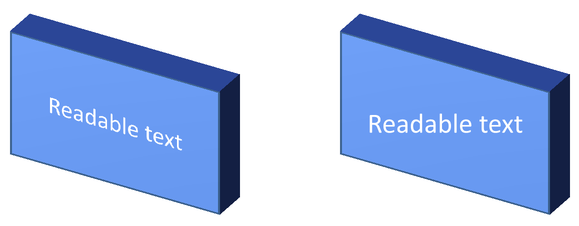
ตัวอย่างต่อไปนี้สร้างสี่เหลี่ยมสีน้ำเงินพร้อมข้อความและคัดลอกเป็นอีกอันข้างๆ ทั้งสองรูปร่างมีการจัดรูปแบบ 3 มิติเดียวกัน; เพียงการตั้งค่าข้อความที่ต่างกัน: False ด้านซ้ายและ True ด้านขวา มุมกล้องเป็นองศาและความสูงการดันออกคือ 40 จุด ตัวอย่างบันทึกพรีเซนเทชันเป็น PPTX และเรนเดอร์สไลด์เปรียบเทียบเป็น PNG ที่สองเท่าของขนาดเริ่มต้น
import jpype
import asposeslides

if not jpype.isJVMStarted():
    jpype.startJVM()

from asposeslides.api import CameraPresetType, FillType, ImageFormat, LightRigPresetType, LightingDirection, MaterialPresetType, Presentation, SaveFormat, ShapeType, TextAlignment, TextAnchorType
from java.awt import Color

presentation = Presentation()
try:
    slide = presentation.getSlides().get_Item(0)

    shape = slide.getShapes().addAutoShape(ShapeType.Rectangle, 70, 160, 240, 140)

    shape.getTextFrame().setText("Readable text")
    shape.getTextFrame().getParagraphs().get_Item(0).getParagraphFormat().getDefaultPortionFormat().setFontHeight(28)
    shape.getTextFrame().getParagraphs().get_Item(0).getParagraphFormat().setAlignment(TextAlignment.Center)
    shape.getTextFrame().getTextFrameFormat().setAnchoringType(TextAnchorType.Center)
    shape.getFillFormat().setFillType(FillType.Solid)
    shape.getFillFormat().getSolidFillColor().setColor(Color(100, 149, 237))

    shape.getThreeDFormat().getCamera().setCameraType(CameraPresetType.OrthographicFront)
    shape.getThreeDFormat().getCamera().setRotation(30, 30, 0)
    shape.getThreeDFormat().getLightRig().setLightType(LightRigPresetType.Flat)
    shape.getThreeDFormat().getLightRig().setDirection(LightingDirection.Top)
    shape.getThreeDFormat().setMaterial(MaterialPresetType.Flat)
    shape.getThreeDFormat().setExtrusionHeight(40)
    shape.getThreeDFormat().getExtrusionColor().setColor(Color(65, 105, 225))
    shape.getTextFrame().getTextFrameFormat().setKeepTextFlat(False)

    flat_text_shape = slide.getShapes().addClone(shape, 400, 160)
    flat_text_shape.getTextFrame().getTextFrameFormat().setKeepTextFlat(True)

    presentation.save("keep_text_flat.pptx", SaveFormat.Pptx)
    image = slide.getImage(2, 2)
    try:
        image.save("keep_text_flat.png", ImageFormat.Png)
    finally:
        image.dispose()
finally:
    presentation.dispose()
ด้านซ้ายข้อความตามแนวทิศ 3 มิติ ด้านขวาข้อความคงแบนและอ่านง่าย ทั้งสองสี่เหลี่ยมยังคงแสดงการดันออกและแนวทิศ 3 มิติที่เห็นได้เหมือนกัน
พฤติกรรมการส่งออกและการเรนเดอร์
Aspose.Slides รักษาการจัดรูปแบบ 3 มิติเมื่อบันทึกเป็นรูปแบบ PowerPoint เช่น PPTX เมื่อเรนเดอร์หรือส่งออกเป็นรูปแบบ Fixed‑layout ฉาก 3 มิติจะถูกแปลงเป็น raster หรือวาดลงในผลลัพธ์เป็น 2 มิติ นี้ใช้เมื่อคุณเรนเดอร์สไลด์เป็น PNG, ส่งออกเป็น PDF, ส่งออกเป็น HTML, หรือสร้างเฟรมสำหรับ video conversion
ควรจำไว้:
- ภาพและ PDF ที่ส่งออกไม่เป็น interactive วัตถุไม่สามารถหมุนโดยผู้ชมหลังการส่งออก
- ลักษณะสุดท้ายขึ้นอยู่กับการผสมผสานของกล้อง, light rig, material, extrusion, fill, และการสเกลสไลด์
- หากต้องการตรวจสอบค่าการจัดรูปแบบที่สืบทอดหรือมาจากธีม ให้อ่าน effective shape properties
- รูปแบบผลลัพธ์บางอย่างไม่สามารถเก็บการจัดรูปแบบ 3 มิติของ PowerPoint ที่แก้ไขได้ ในรูปแบบเหล่านั้นผลลัพธ์จะถูกเรนเดอร์แทนที่จะเก็บเป็นการตั้งค่า 3 มิติที่แก้ไขได้
FAQ
Aspose.Slides สามารถสร้างงานนำเสนอ 3 มิติแบบ interactive ได้หรือไม่?
Aspose.Slides สร้างและเรนเดอร์เอฟเฟ็กต์ 3 มิติของ PowerPoint สำหรับรูปร่างและข้อความ ไม่ทำให้ภาพ, PDF หรือหน้า HTML ที่ส่งออกเป็นฉาก 3 มิติ interactive ที่ผู้ชมสามารถหมุนได้ ใน PPTX การจัดรูปแบบ 3 มิติยังคงแก้ไขได้ใน PowerPoint ที่รองรับฟอร์แมตนั้น
ความแตกต่างระหว่าง 3D model กับ 3D effect คืออะไร?
3D model คือวัตถุ 3 มิติแยกที่แทรกเข้าสู่พรีเซนเทชัน ส่วน 3D effect คือการจัดรูปแบบที่ใช้กับรูปร่างหรือข้อความของ PowerPoint ปกติ เช่น การหมุน, การดันออก, bevel, แสง, และวัสดุ บทความนี้ครอบคลุม 3D effect
ต้องตั้งค่าอะไรบ้างเพื่อให้รูปร่าง 3 มิติมองเห็นได้?
ขั้นต่ำต้องตั้งค่าการหมุนกล้องและอย่างน้อยหนึ่งอย่างระหว่างการดันออกหรือความลึก ในทางปฏิบัติมักตั้งค่า light rig และ material ด้วยเพื่อให้หน้าต่างแสงและเงาชัดเจน
ฉันสามารถใช้เอฟเฟกต์ 3 มิติได้กับรูปร่างและข้อความหรือไม่?
ใช่ ใช้ Shape.getThreeDFormat สำหรับร่างกายของรูปร่างและ TextFrameFormat.getThreeDFormat สำหรับข้อความ
เอฟเฟกต์ 3 มิติจะปรากฏเมื่อส่งออกเป็นรูปภาพ, PDF, HTML หรือเฟรมวิดีโอหรือไม่?
ใช่ Aspose.Slides เรนเดอร์เอฟเฟกต์ 3 มิติเมื่อสร้างภาพสไลด์, PDF, HTML หรือเฟรมที่ใช้สำหรับการแปลงวิดีโอ ผลลัพธ์ที่ส่งออกจะมีลักษณะที่เรนเดอร์แล้ว ไม่ใช่วัตถุ 3 มิติที่แก้ไขได้
ฉันสามารถอ่านค่าการจัดรูปแบบ 3 มิติสุดท้ายหลังจากการสืบทอดและการตั้งค่าธีมได้หรือไม่?
ได้ ใช้ API การจัดรูปแบบที่มีประสิทธิภาพที่อธิบายใน Shape Effective Properties เพื่ออ่านค่ากล้อง, light rig, bevel, และค่าการจัดรูปแบบ 3 มิติที่เกี่ยวข้องทั้งหมด.