
在 Android 上使用 PowerPoint 表格管理行和列
简介
Aspose.Slides for Android via Java 允许您通过 Table 类和 ITable 接口管理 PowerPoint 演示文稿中的表格结构和格式。您可以指定标题行,克隆或删除行和列,并对整行或整列应用文本格式。
本文通过 Java 示例说明这些操作。同时展示如何获取表格的样式预设以便复用。表格的行列索引从零开始。
控制行高
使用 IRow.setMinimalHeight 以点为单位设置行的最小高度。这是下限,而不是固定高度。 IRow.getHeight 返回实际高度。通过 ITable.getRows 访问行。
示例加载 row-height-input.pptx,该文件在第一页幻灯片的第一个形状中包含一个表格。其第一行起始高度为 70 点。单元格使用 18 点 Arial 字体、自动换行,并且上下边距为 6 点;第二列的较长文本会换行成多行。示例将最小高度提升至 100 点,然后降低到 20 点,在每次更改后输出实际高度,并保存两种结果。
import com.aspose.slides.*;

Presentation presentation = new Presentation("row-height-input.pptx");
try {
    ISlide slide = presentation.getSlides().get_Item(0);

    ITable table = (ITable)slide.getShapes().get_Item(0);
    IRow row = table.getRows().get_Item(0);

    row.setMinimalHeight(100);
    System.out.printf("Increased: minimum = %.1f, actual = %.1f pt%n", row.getMinimalHeight(), row.getHeight());
    presentation.save("row-height-increased.pptx", SaveFormat.Pptx);

    row.setMinimalHeight(20);
    System.out.printf("Decreased: minimum = %.1f, actual = %.1f pt%n", row.getMinimalHeight(), row.getHeight());
    presentation.save("row-height-decreased.pptx", SaveFormat.Pptx);
} finally {
    presentation.dispose();
}
使用提供的演示文稿,增加最小值会为行添加空间。降低最小值会去除这些额外空间,但实际高度仍大于 20 点,因为文本和单元格边距需要更多空间。仅仅降低最小值无法将行的高度压低到内容所需空间以下。
以下因素会影响实际高度:
- 文本和字体大小: 较长的文本、显式换行或更大的字体可能需要更多垂直空间。
- 自动换行和列宽度: 启用自动换行后,使用 IColumn.setWidth 减小列宽会产生更多行。更宽的列可以减少垂直所需空间。
- 单元格边距: ICell.setMarginTop 和 ICell.setMarginBottom 会增加垂直空间。ICell.setMarginLeft 和 ICell.setMarginRight 会缩小文本可用宽度,可能导致额外换行。
对于此未合并单元格的表格,所需垂直空间最多的单元格决定整行的内容驱动下限。要使行更短,可能还需要缩短文本、减小字体大小或边距,或加宽列宽。
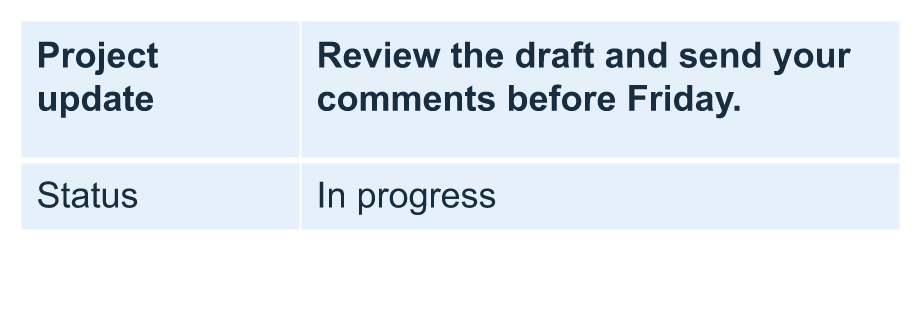
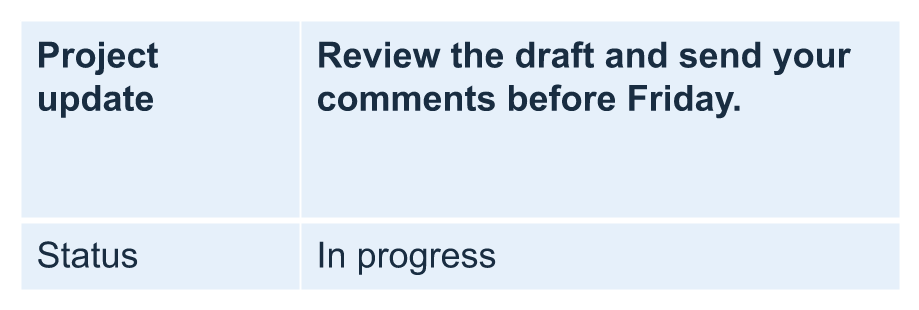
下图展示了相同表格在相同比例下的效果。在图示结果中,实际高度分别为 70、100 和 55.2 点:最终行仍高于其 20 点的最小值。文本的精确测量会因环境中的字体而异。下载保存的结果:increased minimum 和 decreased minimum。
| 原始:最小 70 pt,实际 70 pt | 增加:最小 100 pt,实际 100 pt | 减少:最小 20 pt,实际 55.2 pt |
|---|---|---|
 |
 |
 |
将首行设为标题
使用 setFirstRow 方法将第一行标记为标题格式。其外观取决于表格所应用的表格样式。
- 使用 Presentation 类加载演示文稿。
- 访问第一张幻灯片。
- 获取存放在幻灯片第一个形状中的表格。
- 为其第一行启用标题格式。
- 保存修改后的演示文稿。
示例需要 table.pptx,其中第一张幻灯片的第一个形状为表格。它为第一行启用标题格式并保存为 First_row_header.pptx.
import com.aspose.slides.*;

Presentation presentation = new Presentation("table.pptx");
try {
    ISlide slide = presentation.getSlides().get_Item(0);

    ITable table = (ITable)slide.getShapes().get_Item(0);
    table.setFirstRow(true);

    presentation.save("First_row_header.pptx", SaveFormat.Pptx);
} finally {
    presentation.dispose();
}
克隆表格行或列
克隆行或列以复用其内容和格式。可以将副本追加到表格末尾或插入到指定位置。
- 使用 Presentation 类加载演示文稿。
- 访问第一张幻灯片。
- 定义列宽和行高。
- 使用 addTable 方法添加表格。
- 克隆所需的行。
- 克隆所需的列。
- 保存修改后的演示文稿。
示例需要 Test.pptx,其中第一张幻灯片的第一个形状为表格。它创建一个三列五行的表格,尺寸以点为单位。随后追加第一行和第一列的副本,再在索引 3(第四个位置)插入第二行和第二列的副本。最终表格拥有七行五列。false 参数禁止克隆到相邻的合并行或列;此表格没有合并单元格。
import com.aspose.slides.*;

Presentation presentation = new Presentation("Test.pptx");
try {
    ISlide slide = presentation.getSlides().get_Item(0);

    double[] columnWidths = new double[] { 50, 50, 50 };
    double[] rowHeights = new double[] { 50, 30, 30, 30, 30 };
    ITable table = slide.getShapes().addTable(100, 50, columnWidths, rowHeights);

    table.get_Item(0, 0).getTextFrame().setText("Row 1 Cell 1");
    table.get_Item(1, 0).getTextFrame().setText("Row 1 Cell 2");
    table.getRows().addClone(table.getRows().get_Item(0), false);

    table.get_Item(0, 1).getTextFrame().setText("Row 2 Cell 1");
    table.get_Item(1, 1).getTextFrame().setText("Row 2 Cell 2");
    table.getRows().insertClone(3, table.getRows().get_Item(1), false);

    table.getColumns().addClone(table.getColumns().get_Item(0), false);
    table.getColumns().insertClone(3, table.getColumns().get_Item(1), false);

    presentation.save("table_out.pptx", SaveFormat.Pptx);
} finally {
    presentation.dispose();
}
从表格中删除行或列
删除表格中不再需要的行或列。删除项目后,后续行或列的索引会随之移动。
- 使用 Presentation 类创建演示文稿。
- 访问第一张幻灯片。
- 定义列宽和行高。
- 使用 addTable 方法添加表格。
- 删除第二行和第二列。
- 保存修改后的演示文稿。
本示例创建一个 3×3 表格,并删除索引为 1 的行和列,得到一个 2×2 表格,保存为 TestTable_out.pptx。尺寸以点为单位。false 参数禁止删除相邻的合并行或列;此表格没有合并单元格。
import com.aspose.slides.*;

Presentation presentation = new Presentation();
try {
    ISlide slide = presentation.getSlides().get_Item(0);

    double[] columnWidths = new double[] { 100, 50, 30 };
    double[] rowHeights = new double[] { 30, 50, 30 };
    ITable table = slide.getShapes().addTable(100, 100, columnWidths, rowHeights);

    table.getRows().removeAt(1, false);
    table.getColumns().removeAt(1, false);

    presentation.save("TestTable_out.pptx", SaveFormat.Pptx);
} finally {
    presentation.dispose();
}
在表格行级别设置文本格式
对整行应用文本格式,以保持单元格的一致性。可设置字体属性、段落格式和文字方向,而无需对每个单元格单独格式化。
- 使用 Presentation 类加载演示文稿。
- 访问第一张幻灯片上的表格。
- 对第一行使用 setFontHeight。
- 对第一行使用 setAlignment 和 setMarginRight。
- 对第二行使用 setTextVerticalType。
- 保存修改后的演示文稿。
示例需要 table.pptx,其中第一张幻灯片的第一个形状为表格,并且至少有两行。它对第一行应用 25 点文字、右对齐以及 20 点的右段落边距,然后对第二行设置垂直文本。
import com.aspose.slides.*;

Presentation presentation = new Presentation("table.pptx");
try {
    ISlide slide = presentation.getSlides().get_Item(0);

    ITable table = (ITable)slide.getShapes().get_Item(0);

    PortionFormat portionFormat = new PortionFormat();
    portionFormat.setFontHeight(25);
    table.getRows().get_Item(0).setTextFormat(portionFormat);

    ParagraphFormat paragraphFormat = new ParagraphFormat();
    paragraphFormat.setAlignment(TextAlignment.Right);
    paragraphFormat.setMarginRight(20);
    table.getRows().get_Item(0).setTextFormat(paragraphFormat);

    TextFrameFormat textFrameFormat = new TextFrameFormat();
    textFrameFormat.setTextVerticalType(TextVerticalType.Vertical);
    table.getRows().get_Item(1).setTextFormat(textFrameFormat);

    presentation.save("row_formatting.pptx", SaveFormat.Pptx);
} finally {
    presentation.dispose();
}
在表格列级别设置文本格式
对整列应用文本格式,以保持单元格的一致性。可设置字体属性、段落格式和文字方向,而无需对每个单元格单独格式化。
- 使用 Presentation 类加载演示文稿。
- 访问第一张幻灯片上的表格。
- 对第一列使用 setFontHeight。
- 对第一列使用 setAlignment 和 setMarginRight。
- 对第二列使用 setTextVerticalType。
- 保存修改后的演示文稿。
示例需要 table.pptx,其中第一张幻灯片的第一个形状为表格,并且至少有两列。它对第一列应用 25 点文字、右对齐以及 20 点的右段落边距,然后对第二列设置垂直文本。
import com.aspose.slides.*;

Presentation presentation = new Presentation("table.pptx");
try {
    ISlide slide = presentation.getSlides().get_Item(0);

    ITable table = (ITable)slide.getShapes().get_Item(0);

    PortionFormat portionFormat = new PortionFormat();
    portionFormat.setFontHeight(25);
    table.getColumns().get_Item(0).setTextFormat(portionFormat);

    ParagraphFormat paragraphFormat = new ParagraphFormat();
    paragraphFormat.setAlignment(TextAlignment.Right);
    paragraphFormat.setMarginRight(20);
    table.getColumns().get_Item(0).setTextFormat(paragraphFormat);

    TextFrameFormat textFrameFormat = new TextFrameFormat();
    textFrameFormat.setTextVerticalType(TextVerticalType.Vertical);
    table.getColumns().get_Item(1).setTextFormat(textFrameFormat);

    presentation.save("column_formatting.pptx", SaveFormat.Pptx);
} finally {
    presentation.dispose();
}
获取表格样式属性
使用 getStylePreset 方法获取表格所应用的预设样式,并在另一表格上复用。它标识的是预设,而非各单元格的格式覆盖。
示例创建表格,应用 TableStylePreset.DarkStyle1,并读取该预设。它输出对应于 DarkStyle1 的整数值,并将表格保存为 table.pptx。
import com.aspose.slides.*;

Presentation presentation = new Presentation();
try {
    ISlide slide = presentation.getSlides().get_Item(0);

    double[] columnWidths = new double[] { 100, 150 };
    double[] rowHeights = new double[] { 5, 5, 5 };
    ITable table = slide.getShapes().addTable(10, 10, columnWidths, rowHeights);
    table.setStylePreset(TableStylePreset.DarkStyle1);

    int stylePreset = table.getStylePreset();
    System.out.println(stylePreset);

    presentation.save("table.pptx", SaveFormat.Pptx);
} finally {
    presentation.dispose();
}
常见问题
我可以对已经创建的表格应用 PowerPoint 主题/样式吗?
可以。表格会继承幻灯片/版面/母版的主题,您仍然可以在此基础上覆盖填充、边框和文字颜色。
我能像在 Excel 中那样对表格行进行排序吗?
不能,Aspose.Slides 表格不具备内置的排序或筛选功能。请先在内存中对数据进行排序,然后按该顺序重新填充表格行。
我能在保持特定单元格自定义颜色的同时使用条纹列吗?
可以。开启条纹列后,对特定单元格进行局部格式覆盖;单元格级别的格式会优先于表格样式。