
在 Android 上向 PowerPoint 演示文稿添加数学公式
概述
PowerPoint 将公式存储为 Office Math Markup Language(OMML)。使用 Aspose.Slides for Android via Java,您可以以编程方式创建相同类型的数学内容:分数、根式、函数、极限、N 元运算符、矩阵、数组以及格式化的数学块。
在 PowerPoint 中,用户通常通过 插入 > 公式 添加公式:
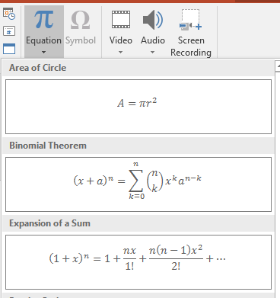
结果是在幻灯片上显示可编辑的数学文本:

Aspose.Slides 通过三个主要对象构建该数学文本:
- 使用 addMathShape 创建的数学形状,是包含公式的形状。
- MathPortion 将数学内容存储在形状的文本框中。
- MathParagraph 包含一个或多个 MathBlock 对象。
下面的大多数示例使用 MathematicalText 和来自 IMathElement 的流式方法,以保持代码简洁易读。
有关 MathML 导出场景,请参阅 Export Math Equations from Presentations on Android。
创建公式
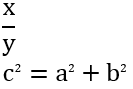
此示例创建一个数学形状并添加勾股定理:
Presentation presentation = new Presentation();
try {
    ISlide slide = presentation.getSlides().get_Item(0);

    IAutoShape mathShape = slide.getShapes().addMathShape(20, 20, 700, 120);
    IMathParagraph mathParagraph = ((MathPortion) mathShape.getTextFrame().getParagraphs()
            .get_Item(0).getPortions().get_Item(0)).getMathParagraph();

    IMathBlock equation = new MathematicalText("c")
            .setSuperscript("2")
            .join("=")
            .join(new MathematicalText("a").setSuperscript("2"))
            .join("+")
            .join(new MathematicalText("b").setSuperscript("2"));

    mathParagraph.add(equation);

    presentation.save("pythagorean-theorem.pptx", SaveFormat.Pptx);
} finally {
    presentation.dispose();
}
addMathShape 创建的形状已包含一个数学段落。访问第一个 MathPortion,获取其 MathParagraph,然后向其中添加数学块或数学元素。
添加分数
使用 divide 创建分数。您可以通过 MathFractionTypes 选择分数样式。

Presentation presentation = new Presentation();
try {
    ISlide slide = presentation.getSlides().get_Item(0);

    IAutoShape mathShape = slide.getShapes().addMathShape(20, 20, 700, 100);
    IMathParagraph mathParagraph = ((MathPortion) mathShape.getTextFrame().getParagraphs()
            .get_Item(0).getPortions().get_Item(0)).getMathParagraph();

    IMathFraction fraction = new MathematicalText("1")
            .divide("x", MathFractionTypes.Skewed);

    mathParagraph.add(new MathBlock(fraction));

    presentation.save("fraction.pptx", SaveFormat.Pptx);
} finally {
    presentation.dispose();
}
对于堆叠式分数,使用 MathFractionTypes.Bar:
IMathFraction stackedFraction = new MathematicalText("x + 1").divide("y - 1", MathFractionTypes.Bar);
添加根式
使用 radical 创建平方根、立方根或其他根式。当前元素成为底数,参数成为指数。

Presentation presentation = new Presentation();
try {
    ISlide slide = presentation.getSlides().get_Item(0);

    IAutoShape mathShape = slide.getShapes().addMathShape(20, 20, 700, 100);
    IMathParagraph mathParagraph = ((MathPortion) mathShape.getTextFrame().getParagraphs()
            .get_Item(0).getPortions().get_Item(0)).getMathParagraph();

    IMathRadical radical = new MathematicalText("x")
            .radical("n");

    mathParagraph.add(new MathBlock(radical));

    presentation.save("radical.pptx", SaveFormat.Pptx);
} finally {
    presentation.dispose();
}
添加函数和极限
使用 asArgumentOfFunction 或 function 处理如 sin(x)、log(x) 或自定义函数名的函数。对于极限,在 MathLimit 中放置 lim 或使用 setLowerLimit。

Presentation presentation = new Presentation();
try {
    ISlide slide = presentation.getSlides().get_Item(0);

    IAutoShape mathShape = slide.getShapes().addMathShape(20, 20, 700, 100);
    IMathParagraph mathParagraph = ((MathPortion) mathShape.getTextFrame().getParagraphs()
            .get_Item(0).getPortions().get_Item(0)).getMathParagraph();

    IMathFunction limit = new MathematicalText("lim")
            .setLowerLimit("x→∞")
            .function("x");

    mathParagraph.add(new MathBlock(limit));

    presentation.save("functions-and-limits.pptx", SaveFormat.Pptx);
} finally {
    presentation.dispose();
}
对于自定义函数名,将函数名设为当前元素:
IMathFunction customFunction = new MathematicalText("f").function("x + 1");
添加 N 元运算符和积分
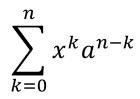
使用 nary 处理求和、并集、交集等大型运算符。使用 integral 处理积分。两者均可设置上下限。
Presentation presentation = new Presentation();
try {
    ISlide slide = presentation.getSlides().get_Item(0);

    IAutoShape mathShape = slide.getShapes().addMathShape(20, 20, 700, 120);
    IMathParagraph mathParagraph = ((MathPortion) mathShape.getTextFrame().getParagraphs()
            .get_Item(0).getPortions().get_Item(0)).getMathParagraph();

    IMathBlock summationBase = new MathematicalText("x")
            .setSuperscript("k")
            .join(new MathematicalText("a").setSuperscript("n-k"));

    IMathNaryOperator summation = summationBase.nary(MathNaryOperatorTypes.Summation, "k=0", "n");

    mathParagraph.add(new MathBlock(summation));

    presentation.save("nary-operators.pptx", SaveFormat.Pptx);
} finally {
    presentation.dispose();
}
N 元运算符用于带可选上下限的大型运算符。类似 +、-、= 的简单运算符通常通过 MathematicalText 添加并直接拼接到表达式中。
对于积分,使用 integral:
IMathBlock integralBase = new MathematicalText("x").join(new MathematicalText("dx").toBox());
IMathNaryOperator integral = integralBase.integral(MathIntegralTypes.Simple, "0", "1");
添加矩阵
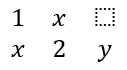
使用 MathMatrix 定义行列。矩阵默认不带括号,如需圆括号、方括号或大括号,请自行包裹。
Presentation presentation = new Presentation();
try {
    ISlide slide = presentation.getSlides().get_Item(0);

    IAutoShape mathShape = slide.getShapes().addMathShape(20, 20, 700, 120);
    IMathParagraph mathParagraph = ((MathPortion) mathShape.getTextFrame().getParagraphs()
            .get_Item(0).getPortions().get_Item(0)).getMathParagraph();

    MathMatrix matrix = new MathMatrix(2, 3);
    matrix.set_Item(0, 0, new MathematicalText("1"));
    matrix.set_Item(0, 1, new MathematicalText("x"));
    matrix.set_Item(1, 0, new MathematicalText("x"));
    matrix.set_Item(1, 1, new MathematicalText("2"));
    matrix.set_Item(1, 2, new MathematicalText("y"));

    mathParagraph.add(new MathBlock(matrix));

    presentation.save("matrix.pptx", SaveFormat.Pptx);
} finally {
    presentation.dispose();
}
添加公式数组
当需要对齐公式或垂直堆叠表达式时,使用 toMathArray。

Presentation presentation = new Presentation();
try {
    ISlide slide = presentation.getSlides().get_Item(0);

    IAutoShape mathShape = slide.getShapes().addMathShape(20, 20, 700, 140);
    IMathParagraph mathParagraph = ((MathPortion) mathShape.getTextFrame().getParagraphs()
            .get_Item(0).getPortions().get_Item(0)).getMathParagraph();

    IMathArray equationArray = new MathematicalText("x")
            .join("y")
            .toMathArray();

    mathParagraph.add(new MathBlock(equationArray));

    presentation.save("equation-array.pptx", SaveFormat.Pptx);
} finally {
    presentation.dispose();
}
添加三角函数
当参数为当前元素且函数名已知时,使用 asArgumentOfFunction。

Presentation presentation = new Presentation();
try {
    ISlide slide = presentation.getSlides().get_Item(0);

    IAutoShape mathShape = slide.getShapes().addMathShape(20, 20, 700, 100);
    IMathParagraph mathParagraph = ((MathPortion) mathShape.getTextFrame().getParagraphs()
            .get_Item(0).getPortions().get_Item(0)).getMathParagraph();

    IMathFunction cosine = new MathematicalText("2x")
            .asArgumentOfFunction(MathFunctionsOfOneArgument.Cos);

    mathParagraph.add(new MathBlock(cosine));

    presentation.save("trigonometric-function.pptx", SaveFormat.Pptx);
} finally {
    presentation.dispose();
}
添加下标和上标
使用下标和上标助手添加索引和幂。当索引需位于基数左侧时,使用 setSubSuperscriptOnTheLeft。

Presentation presentation = new Presentation();
try {
    ISlide slide = presentation.getSlides().get_Item(0);

    IAutoShape mathShape = slide.getShapes().addMathShape(20, 20, 700, 100);
    IMathParagraph mathParagraph = ((MathPortion) mathShape.getTextFrame().getParagraphs()
            .get_Item(0).getPortions().get_Item(0)).getMathParagraph();

    IMathLeftSubSuperscriptElement scripts = new MathematicalText("Y")
            .setSubSuperscriptOnTheLeft("1", "n");

    mathParagraph.add(new MathBlock(scripts));

    presentation.save("subscript-superscript.pptx", SaveFormat.Pptx);
} finally {
    presentation.dispose();
}
添加分界符
使用 enclose 将表达式放入分界符中。对于包含多个元素的分界符表达式,还可以设置分隔符字符。

Presentation presentation = new Presentation();
try {
    ISlide slide = presentation.getSlides().get_Item(0);

    IAutoShape mathShape = slide.getShapes().addMathShape(20, 20, 700, 100);
    IMathParagraph mathParagraph = ((MathPortion) mathShape.getTextFrame().getParagraphs()
            .get_Item(0).getPortions().get_Item(0)).getMathParagraph();

    IMathDelimiter delimiter = new MathematicalText("x")
            .join("y")
            .join("z")
            .enclose('<', '>');
    delimiter.setSeparatorCharacter('|');

    mathParagraph.add(new MathBlock(delimiter));

    presentation.save("delimiters.pptx", SaveFormat.Pptx);
} finally {
    presentation.dispose();
}
添加边框框
使用 toBorderBox 为公式添加边框。
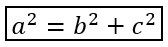
Presentation presentation = new Presentation();
try {
    ISlide slide = presentation.getSlides().get_Item(0);

    IAutoShape mathShape = slide.getShapes().addMathShape(20, 20, 700, 100);
    IMathParagraph mathParagraph = ((MathPortion) mathShape.getTextFrame().getParagraphs()
            .get_Item(0).getPortions().get_Item(0)).getMathParagraph();

    IMathBorderBox boxedEquation = new MathematicalText("a")
            .setSuperscript("2")
            .join("=")
            .join(new MathematicalText("b").setSuperscript("2"))
            .join("+")
            .join(new MathematicalText("c").setSuperscript("2"))
            .toBorderBox();

    mathParagraph.add(new MathBlock(boxedEquation));

    presentation.save("border-box.pptx", SaveFormat.Pptx);
} finally {
    presentation.dispose();
}
分组项
使用 group 在表达式上方或下方放置分组符号。可添加极限为分组项标注。

Presentation presentation = new Presentation();
try {
    ISlide slide = presentation.getSlides().get_Item(0);

    IAutoShape mathShape = slide.getShapes().addMathShape(20, 20, 700, 120);
    IMathParagraph mathParagraph = ((MathPortion) mathShape.getTextFrame().getParagraphs()
            .get_Item(0).getPortions().get_Item(0)).getMathParagraph();

    IMathLimit grouped = new MathematicalText("x + y")
            .group('\u23DF', MathTopBotPositions.Bottom, MathTopBotPositions.Top)
            .setLowerLimit("any text");

    mathParagraph.add(new MathBlock(grouped));

    presentation.save("grouped-terms.pptx", SaveFormat.Pptx);
} finally {
    presentation.dispose();
}
格式化数学元素
仅在能提升公式可读性时使用格式化助手。例如,overbar 为数学元素加上上划线。

Presentation presentation = new Presentation();
try {
    ISlide slide = presentation.getSlides().get_Item(0);

    IAutoShape mathShape = slide.getShapes().addMathShape(20, 20, 700, 100);
    IMathParagraph mathParagraph = ((MathPortion) mathShape.getTextFrame().getParagraphs()
            .get_Item(0).getPortions().get_Item(0)).getMathParagraph();

    IMathBar overbar = new MathematicalText("ABC").overbar();

    mathParagraph.add(new MathBlock(overbar));

    presentation.save("overbar.pptx", SaveFormat.Pptx);
} finally {
    presentation.dispose();
}
快捷参考
| 任务 | 主要 API |
|---|---|
| 创建数学文本 | MathematicalText |
| 组合元素 | IMathElement.join |
| 创建分数 | IMathElement.divide |
| 添加上标或下标 | setSuperscript, setSubscript |
| 添加函数 | function, asArgumentOfFunction |
| 添加根式 | IMathElement.radical |
| 添加极限 | setLowerLimit, setUpperLimit |
| 添加左侧脚本 | setSubSuperscriptOnTheLeft |
| 添加求和和积分 | nary, integral |
| 添加矩阵 | MathMatrix |
| 添加公式数组 | toMathArray |
| 添加分界符 | enclose |
| 添加横线和边框 | overbar, toBorderBox |
| 分组项 | group |
常见问题
我可以编辑已有的 PowerPoint 公式吗?
可以。打开演示文稿,找到包含 MathPortion 的形状,获取其 MathParagraph,并更新该段落中的数学块。
公式会以可编辑的 PowerPoint 数学形式保存吗?
会。保存为 PPTX 时,Aspose.Slides 会将公式写入可编辑的 Office 数学内容。
我能将公式导出为 LaTeX 吗?
可以。从其 IMathPortion 获取公式的 IMathParagraph,然后调用 IMathParagraph.toLatex 直接导出。完整示例请参阅 Export Math Equations from Presentations in Android via Java。