

Analyzing your prompt, please hold on...
An error occurred while retrieving the results. Please refresh the page and try again.
This page explains how Mail Merge and reporting features work in Aspose.Words and shows how to generate documents from data sources.
Mail Merge is a popular feature for quickly and easily creating documentssuch as letters, labels, and envelopes. Aspose.Wordsenables you togenerate documents from templates with Mail Merge fields.
A Mail Merge field is a field that you can insert into amail merge template to include specific values from a data source record in output documents. For example, you can insert amerge field in an email template so that the greeting will have the recipient’s first name rather than a generic “Hello!”. Aspose.Words places data from an external source, such as a database or file, into these fields and formats them. The resulting document is saved in the specified folder.
Aspose.Words takes the standard Mail Merge functionality and advances it many steps ahead, turning it into a full-fledged reporting solution that allows you to create even more complex documents such as reports, catalogs, inventories, and invoices.Here are a few advantages of the Aspose.Words reporting solution:
Aspose.Words provides the ability toloaddocuments in varioussupportedformats and then allows users to perform a Mail Merge operation.
Usually,a loaded document allows you to store merge fields, for example, a document in DOCX format. But there are formats that do not store such fields, for example, TXT. If Aspose.Words supports loading such file formats, you can add the merge fields directly to the document model, save the document in a convenientsupported format, and perform the Mail Merge operation.
The Mail Merge operation will merge yourmail merge templateand yourdata sourceto generate individualmerged documents.
The goal of applying a mailmerge operationusing a merge template is to simplify theprocess of creating a document.
There are several ways to create and design a merge template.You can use Microsoft Word, andthe merge template does not have to be aMicrosoft Word template,that is a documentin the DOT or DOTX format,it can bea regular document in the DOC or DOCX format.You need to insert some special fields called merge fields into this template in places where you want data from your data source to be later inserted.Or you can programmatically create a merge template using the DocumentBuilder class.
Themerge template contains the main text, whichshould be the same in all output documents after you perform the Mail Merge operation. You can use any formatfor your template ifthere is an ability to add merge fields to it. All merge fields withinyour template will be filled in from your data source during the Mail Merge operation.
Aspose.Words Mail Merge accepts various data sources. This can be either a DataTable, DataView, DataSet, IDataReader, an array of values supported by ADO .NET, or customdata sources represented byIMailMergeDataSource implementations.
The data source contains all the information that is pulled during the Mail Merge operationin order to personalize individual emails and documents. Data sources can be created manuallyor generated by reporting from an existing database or application. If you have data in XML format, you can load and merge it with the DataSet. The Mail Merge operation will go through all the data sourcerecords and insert them into Mail Merge fields in the document. You can implement somemail merge interfaces such asIMailMergeDataSourceRoot to merge data from any data source, including a LINQ query, an XML file, or business objects.
The following code example shows how to load a data table as the data source for the Mail Merge operation:
A merged document isthe result of the Mail Merge operationwhen you merge the template with the data source. Allmerge fieldswithin the merged document are replaced with actual data from your data source.
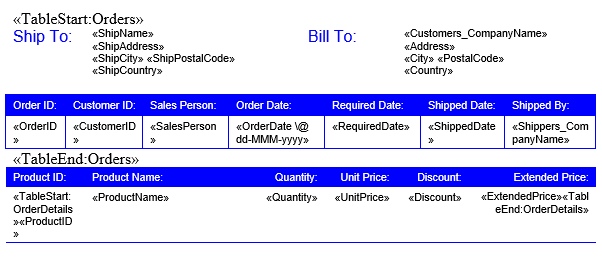
The following image shows an example of themerge template with merged fields before performing the Mail Merge operation.
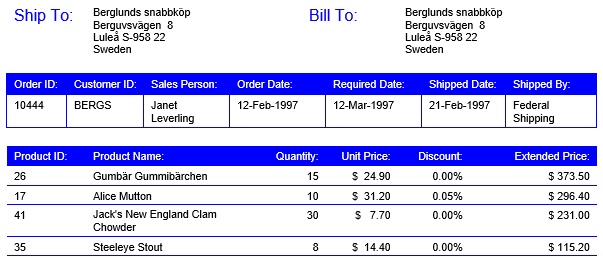
The following image shows an example ofthe output merged document as a result of performing the Mail Merge operation.

Analyzing your prompt, please hold on...
An error occurred while retrieving the results. Please refresh the page and try again.