
Convert PDF to EPUB, TeX, Text, XPS in Go
Convert PDF to EPUB
EPUB is a free and open e-book standard from the International Digital Publishing Forum (IDPF). Files use the .epub extension, and the format is designed for reflowable content so readers can adapt the text layout to different devices and screen sizes.
The following example shows how to convert a PDF document to EPUB. Use this method when you need to repurpose PDF content for e-book readers, mobile reading applications, or digital publishing workflows.
- Use the Open method to load the source PDF file and create a
Documentinstance for processing. - Call the SaveEpub method to convert the opened PDF document to EPUB format and write the result to the target file.
- Use the Close method after conversion to release the resources associated with the opened PDF document.
    package main

    import "github.com/aspose-pdf/aspose-pdf-go-cpp"
    import "log"

    func main() {
      // Open(filename string) opens a PDF-document with filename
      pdf, err := asposepdf.Open("sample.pdf")
      if err != nil {
        log.Fatal(err)
      }
      // Close() releases allocated resources for PDF-document
      defer pdf.Close()
      // SaveEpub(filename string) saves previously opened PDF-document as Epub-document with filename
      err = pdf.SaveEpub("sample.epub")
      if err != nil {
        log.Fatal(err)
      }
    }
Try to convert PDF to EPUB online
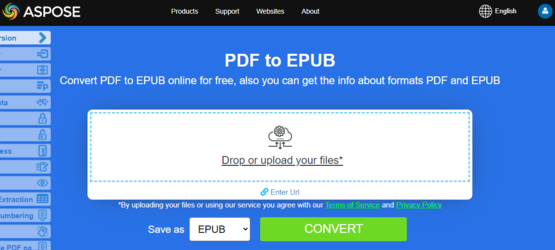
Aspose.PDF for Go presents you online free application “PDF to EPUB”, where you may try to investigate the functionality and quality it works.
Convert PDF to TeX
TeX and LaTeX are text-based formats used in high-quality typesetting systems. Use PDF-to-TeX conversion when you need to move PDF content into publishing or technical documentation workflows that depend on TeX-compatible source files.
The following example shows how to convert a PDF document to TeX format with Aspose.PDF for Go via C++.
- Use the Open method to load the input PDF document from disk.
- Call the SaveTeX method to convert the opened PDF document and save the exported TeX file.
- Use the Close method after processing to release the native PDF resources.
    package main

    import "github.com/aspose-pdf/aspose-pdf-go-cpp"
    import "log"

    func main() {
      // Open(filename string) opens a PDF-document with filename
      pdf, err := asposepdf.Open("sample.pdf")
      if err != nil {
        log.Fatal(err)
      }
      // Close() releases allocated resources for PDF-document
      defer pdf.Close()
      // SaveTeX(filename string) saves previously opened PDF-document as TeX-document with filename
      err = pdf.SaveTeX("sample.tex")
      if err != nil {
        log.Fatal(err)
      }
    }
Try to convert PDF to LaTeX/TeX online
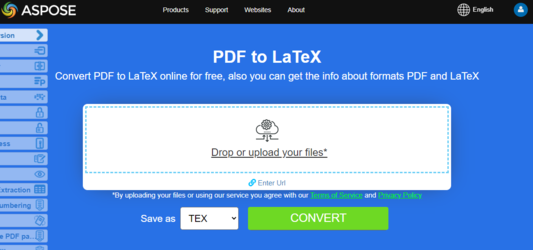
Aspose.PDF for Go presents you online free application “PDF to LaTeX”, where you may try to investigate the functionality and quality it works.
Convert PDF to TXT
Plain text output is useful when you need to extract readable content from a PDF for search indexing, text processing pipelines, data cleanup, or lightweight export scenarios.
The following example shows how to convert a PDF document to TXT format.
- Use the Open method to load the source PDF file.
- Call the SaveTxt method to export the opened PDF document as a plain text file.
- Use the Close method after conversion to release the
Documentresources.
    package main

    import "github.com/aspose-pdf/aspose-pdf-go-cpp"
    import "log"

    func main() {
      // Open(filename string) opens a PDF-document with filename
      pdf, err := asposepdf.Open("sample.pdf")
      if err != nil {
        log.Fatal(err)
      }
      // Close() releases allocated resources for PDF-document
      defer pdf.Close()
      // SaveTxt(filename string) saves previously opened PDF-document as Txt-document with filename
      err = pdf.SaveTxt("sample.txt")
      if err != nil {
        log.Fatal(err)
      }
    }
Try to convert PDF to Text online
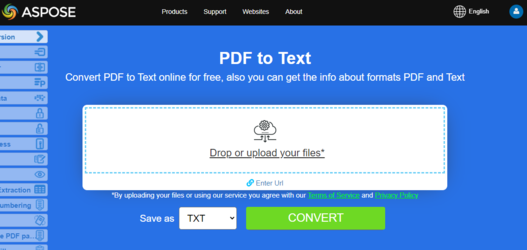
Aspose.PDF for Go presents you online free application “PDF to Text”, where you may try to investigate the functionality and quality it works.
Convert PDF to XPS
The XPS file type is associated with the XML Paper Specification developed by Microsoft. Use this format when you need a fixed-layout output for Windows-centric document distribution or print-oriented workflows.
The following example shows how to convert a PDF document to XPS format with Go.
- Use the Open method to load the source PDF document.
- Call the SaveXps method to convert the opened PDF file and save it as an XPS document.
- Use the Close method when processing is complete to release the PDF resources.
    package main

    import "github.com/aspose-pdf/aspose-pdf-go-cpp"
    import "log"

    func main() {
      // Open(filename string) opens a PDF-document with filename
      pdf, err := asposepdf.Open("sample.pdf")
      if err != nil {
        log.Fatal(err)
      }
      // Close() releases allocated resources for PDF-document
      defer pdf.Close()
      // SaveXps(filename string) saves previously opened PDF-document as Xps-document with filename
      err = pdf.SaveXps("sample.xps")
      if err != nil {
        log.Fatal(err)
      }
    }
Try to convert PDF to XPS online
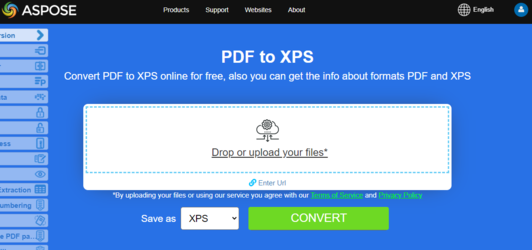
Aspose.PDF for Go presents you online free application “PDF to XPS”, where you may try to investigate the functionality and quality it works.
Convert PDF to Grayscale PDF
Grayscale conversion is useful when you need to reduce color complexity for printing, archival storage, monochrome workflows, or output normalization before further document processing.
The following examples show two grayscale workflows. Use PageGrayscale when you want to convert only a specific page, or use Grayscale when you need to convert the entire document. In both cases, you can write the updated PDF with the SaveAs method.
- Use the Open method to load the source PDF document.
- Call either PageGrayscale for one page or Grayscale for the full document, depending on the scope of the conversion you need.
- Use the SaveAs method to write the updated grayscale PDF to a new file.
- Use the Close method after saving to release the PDF resources.
This example converts a specific page of your PDF to grayscale:
    package main

    import "github.com/aspose-pdf/aspose-pdf-go-cpp"
    import "log"

    func main() {
      // Open(filename string) opens a PDF-document with filename
      pdf, err := asposepdf.Open("sample.pdf")
      if err != nil {
        log.Fatal(err)
      }
      // Close() releases allocated resources for PDF-document
      defer pdf.Close()
      // PageGrayscale(num int32) converts page to black and white
      err = pdf.PageGrayscale(1)
      if err != nil {
        log.Fatal(err)
      }
      // SaveAs(filename string) saves previously opened PDF-document with new filename
      err = pdf.SaveAs("sample_page1_Grayscale.pdf")
      if err != nil {
        log.Fatal(err)
      }
    }
This example converts the entire PDF document to grayscale:
    package main

    import "github.com/aspose-pdf/aspose-pdf-go-cpp"
    import "log"

    func main() {
      // Open(filename string) opens a PDF-document with filename
      pdf, err := asposepdf.Open("sample.pdf")
      if err != nil {
        log.Fatal(err)
      }
      // Close() releases allocated resources for PDF-document
      defer pdf.Close()
      // Grayscale() converts PDF-document to black and white
      err = pdf.Grayscale()
      if err != nil {
        log.Fatal(err)
      }
      // SaveAs(filename string) saves previously opened PDF-document with new filename
      err = pdf.SaveAs("sample_Grayscale.pdf")
      if err != nil {
        log.Fatal(err)
      }
    }