
Convert Image Formats to PDF in Python
Related conversions
- Convert PDF to image formats when you need the reverse workflow.
- Convert HTML to PDF for web content and MHTML sources.
- Convert other file formats to PDF for EPUB, XPS, text, and other non-image inputs.
Python Images to PDF Conversions
Aspose.PDF for Python via .NET allows you to convert different formats of images to PDF files. Our library demonstrates code snippets for converting the most popular image formats, such as - BMP, CGM, DICOM, EMF, JPG, PNG, SVG and TIFF formats.
Convert BMP to PDF
Convert BMP files to PDF document using Aspose.PDF for Python via .NET library.
BMP images are Files having extension. BMP represent Bitmap Image files that are used to store bitmap digital images. These images are independent of graphics adapter and are also called device independent bitmap (DIB) file format.
You can convert BMP to PDF files with Aspose.PDF for Python via .NET API. Therefore, you can follow the following steps to convert BMP images:
Steps to Convert BMP to PDF in Python:
- Create an empty PDF document.
- Create the page you need, for example, we created A4, but you can specify your own format.
- Places the image (from infile) inside the page using the defined rectangle.
- Save the document as PDF.
So the following code snippet follows these steps and shows how to convert BMP to PDF using Python:
import aspose.pdf as ap
from os import path
import sys

def convert_BMP_to_PDF(infile, outfile):
    document = ap.Document()
    page = document.pages.add()
    rectangle = ap.Rectangle(0, 0, 595, 842, True)  # A4 size in points
    page.add_image(infile, rectangle)
    document.save(outfile)

    print(infile + " converted into " + outfile)
Try to convert BMP to PDF online
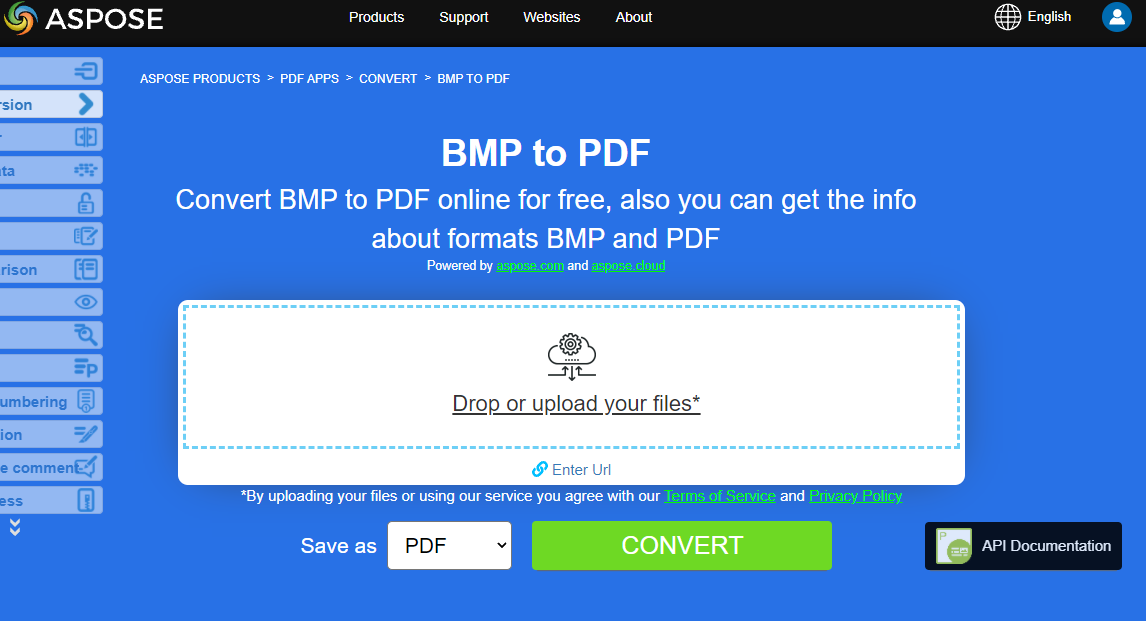
Aspose presents you online application “BMP to PDF”, where you may try to investigate the functionality and quality it works.
Convert CGM to PDF
Convert a CGM (Computer Graphics Metafile) into PDF (or another supported format) using Aspose.PDF for Python via .NET.
CGM is a file extension for a Computer Graphics Metafile format commonly used in CAD (computer-aided design) and presentation graphics applications. CGM is a vector graphics format that supports three different encoding methods: binary (best for program read speed), character-based (produces the smallest file size and allows for faster data transfers) or cleartext encoding (allows users to read and modify the file with a text editor).
Check next code snippet for converting CGM files to PDF format.
Steps to Convert CGM to PDF in Python:
- Define File Paths
- Set Load Options for CGM.
- Convert CGM to PDF
- Print Conversion Message
import aspose.pdf as ap
from os import path
import sys

def convert_CGM_to_PDF(infile, outfile):
    options = ap.CgmLoadOptions()
    document = ap.Document(infile, options)
    document.save(outfile)

    print(infile + " converted into " + outfile)
Convert DICOM to PDF
DICOM format is the medical industry standard for the creation, storage, transmission, and visualization of digital medical images and documents of examined patients.
Aspose.PDF for Python allows you to convert DICOM and SVG images, but for technical reasons to add images you need to specify the type of file to be added to PDF.
The following code snippet shows how to convert DICOM files to PDF format with Aspose.PDF. You should load DICOM image, place the image on a page in a PDF file and save the output as PDF. We use the additional pydicom library to set the dimensions of this image. If you want to position the image on the page, you can skip this code snippet.
- Load the DICOM file.
- Extract image dimensions.
- Print image size.
- Create a new PDF document.
- Prepare the DICOM image for PDF.
- Set PDF page size and margins.
- Add the image to the page.
- Save the PDF.
- Print Conversion Message.
import aspose.pdf as ap
from os import path
import sys

def convert_DICOM_to_PDF(infile, outfile):
    # Load the DICOM file
    import pydicom

    dicom_file = pydicom.dcmread(infile)

    # Get the dimensions of the image
    rows = dicom_file.Rows
    columns = dicom_file.Columns

    # Print the dimensions
    print(f"DICOM image size: {rows} x {columns} pixels")

    # Initialize new Document
    document = ap.Document()
    page = document.pages.add()
    image = ap.Image()
    image.file_type = ap.ImageFileType.DICOM
    image.file = infile

    # Set page dimensions
    page.page_info.height = rows
    page.page_info.width = columns
    page.page_info.margin.bottom = 0
    page.page_info.margin.top = 0
    page.page_info.margin.right = 0
    page.page_info.margin.left = 0
    page.paragraphs.add(image)

    document.save(outfile)
    print(infile + " converted into " + outfile)
Try to convert DICOM to PDF online
Aspose presents you online application “DICOM to PDF”, where you may try to investigate the functionality and quality it works.

Convert EMF to PDF
EMF stores graphical images device-independently. Metafiles of EMF comprises of variable-length records in chronological order that can render the stored image after parsing on any output device.
The following code snippet shows how to convert an EMF to PDF with Python:
import aspose.pdf as ap
from os import path
import sys

def convert_EMF_to_PDF(infile, outfile):
    document = ap.Document()
    page = document.pages.add()
    rectangle = ap.Rectangle(0, 0, 595, 842, True)  # A4 size in points
    # add image to new pdf page
    page.add_image(infile, rectangle)

    # Save the file into PDF format
    document.save(outfile)
    print(infile + " converted into " + outfile)
Try to convert EMF to PDF online
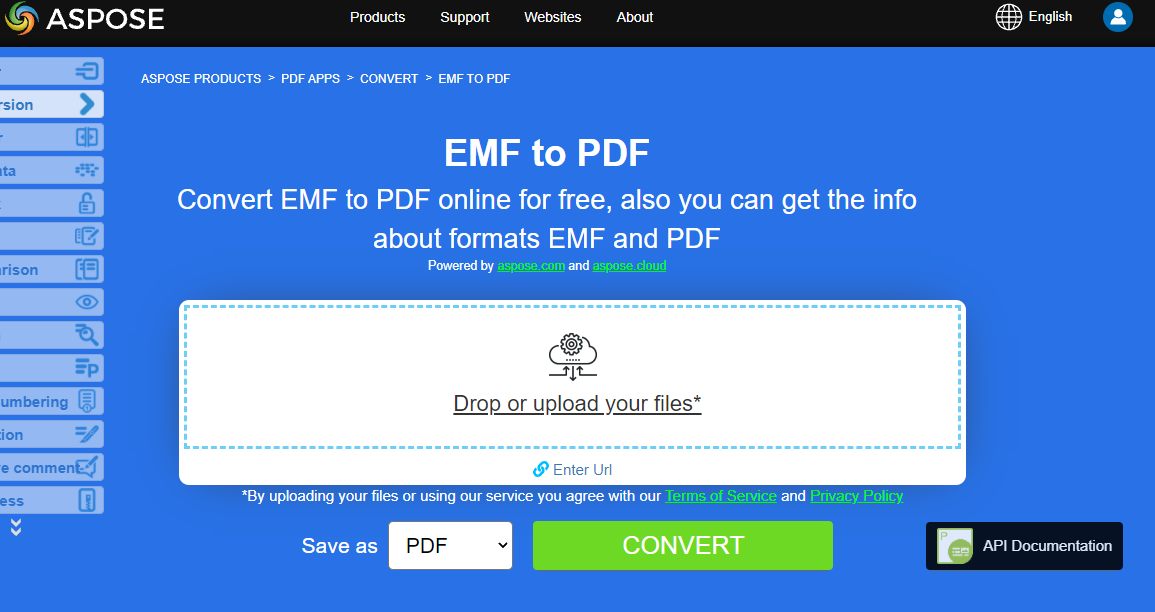
Aspose presents you online application “EMF to PDF”, where you may try to investigate the functionality and quality it works.
Convert GIF to PDF
Convert GIF files to PDF document using Aspose.PDF for Python via .NET library.
GIF is able to store compressed data without loss of quality in a format of no more than 256 colors. The hardware-independent GIF format was developed in 1987 (GIF87a) by CompuServe for transmitting bitmap images over networks.
So the following code snippet follows these steps and shows how to convert BMP to PDF using Python:
import aspose.pdf as ap
from os import path
import sys

def convert_GIF_to_PDF(infile, outfile):
    document = ap.Document()
    page = document.pages.add()
    rectangle = ap.Rectangle(0, 0, 595, 842, True)  # A4 size in points
    page.add_image(infile, rectangle)

    document.save(outfile)
    print(infile + " converted into " + outfile)
Try to convert GIF to PDF online
Aspose presents you online application “GIF to PDF”, where you may try to investigate the functionality and quality it works.
Convert PNG to PDF
Aspose.PDF for Python via .NET support feature to convert PNG images to PDF format. Check the next code snippet for realizing you task.
PNG refers to a type of raster image file format that use loseless compression, that makes it popular among its users.
You can convert PNG to PDF image using the below steps:
- Create a New PDF Document.
- Define Image Placement.
- Save the PDF.
- Print Conversion Message.
Moreover, the code snippet below shows how to convert PNG to PDF with Python:
import aspose.pdf as ap
from os import path
import sys

def convert_PNG_to_PDF(infile, outfile):
    document = ap.Document()
    page = document.pages.add()
    rectangle = ap.Rectangle(0, 0, 595, 842, True)  # A4 size in points
    page.add_image(infile, rectangle)
    document.save(outfile)

    print(infile + " converted into " + outfile)
Try to convert PNG to PDF online
Aspose presents you online application “PNG to PDF”, where you may try to investigate the functionality and quality it works.

Convert SVG to PDF
Aspose.PDF for Python via .NET explains how to convert SVG images to PDF format and how to get dimensions of the source SVG file.
Scalable Vector Graphics (SVG) is a family of specifications of an XML-based file format for two-dimensional vector graphics, both static and dynamic (interactive or animated). The SVG specification is an open standard that has been under development by the World Wide Web Consortium (W3C) since 1999.
SVG images and their behaviors are defined in XML text files. This means that they can be searched, indexed, scripted, and if required, compressed. As XML files, SVG images can be created and edited with any text editor, but it is often more convenient to create them with drawing programs such as Inkscape.
Try to convert SVG format to PDF online
Aspose.PDF for Python via .NET presents you online application “SVG to PDF”, where you may try to investigate the functionality and quality it works.

The following code snippet shows the process of converting SVG file into PDF format with Aspose.PDF for Python.
import aspose.pdf as ap
from os import path
import sys

def convert_SVG_to_PDF(infile, outfile):
    load_options = ap.SvgLoadOptions()
    document = ap.Document(infile, load_options)
    document.save(outfile)

    print(infile + " converted into " + outfile)
Convert TIFF to PDF
Aspose.PDF file format supported, be it a single frame or multi-frame TIFF image. It means that you can convert the TIFF image to PDF.
TIFF or TIF, Tagged Image File Format, represents raster images that are meant for usage on a variety of devices that comply with this file format standard. TIFF image can contain several frames with different images. Aspose.PDF file format is also supported, be it a single frame or multi-frame TIFF image.
You can convert TIFF to PDF in the same manner as the rest raster file formats graphics:
import aspose.pdf as ap
from os import path
import sys

def convert_TIFF_to_PDF(infile, outfile):
    document = ap.Document()
    page = document.pages.add()
    rectangle = ap.Rectangle(0, 0, 595, 842, True)  # A4 size in points
    page.add_image(infile, rectangle)
    document.save(outfile)

    print(infile + " converted into " + outfile)
Convert CDR to PDF
Following code snippet shows how to load a CorelDRAW (CDR) file and save it as a PDF using ‘CdrLoadOptions’ in Aspose.PDF for Python via .NET.
- Create ‘CdrLoadOptions()’ to configure how the CDR file should be loaded.
- Initialize a Document object with the CDR file and load options.
- Save the document as a PDF.
import aspose.pdf as ap
from os import path
import sys

def convert_CDR_to_PDF(infile, outfile):
    load_options = ap.CdrLoadOptions()
    document = ap.Document(infile, load_options)
    document.save(outfile)

    print(infile + " converted into " + outfile)
Convert JPEG to PDF
This example shows how to convert JPEG to PDF file using Aspose.PDF for Python via .NET.
- Create a new PDF document.
- Add a new page.
- Define the placement rectangle (A4 size: 595x842 points).
- Insert the image into the page.
- Save the PDF.
import aspose.pdf as ap
from os import path
import sys

def convert_JPEG_to_PDF(infile, outfile):
    document = ap.Document()
    page = document.pages.add()
    rectangle = ap.Rectangle(0, 0, 595, 842, True)  # A4 size in points
    page.add_image(infile, rectangle)

    document.save(outfile)
    print(infile + " converted into " + outfile)