
Convert PDF to PDF/A, PDF/E, and PDF/X in Python
PDF to PDF/x format means the ability to convert PDF to additional formats, namely PDF/A, PDF/E and PDF/X.
Convert PDF to PDF/A
Aspose.PDF for Python allows you to convert a PDF file to a PDF/A compliant PDF file. Before doing so, the file must be validated. This topic explains how.
Convert the file using the Document class Convert method. Before converting the PDF to PDF/A compliant file, validate the PDF using the Validate method. The validation result is stored in an XML file and then this result is also passed to the Convert method. You can also specify the action for the elements which cannot be converted using the ConvertErrorAction enumeration.
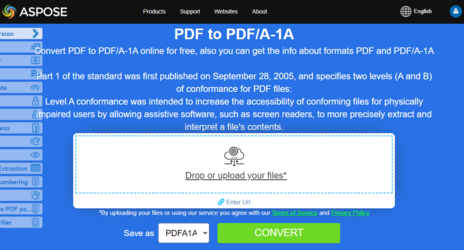
Try to convert PDF to PDF/A online
Aspose.PDF for Python presents you online application “PDF to PDF/A-1A”, where you may try to investigate the functionality and quality it works.
The ‘document.validate()’ method validates whether a PDF file conforms to the PDF/A-1B standard (an ISO-standardized version of PDF designed for long-term archiving). The validation results are saved in a log file.
Convert PDF to PDF/A-1B
The following code snippet shows how to convert PDF files to PDF/A-1B format:
- Load the PDF document using ‘ap.Document’.
- Call the convert method with the following parameters:
- Log file path - stores the details of the conversion process and compliance checks.
- Target format - ‘ap.PdfFormat.PDF_A_1B’ (archival standard).
- Error action - ‘ap.ConvertErrorAction.DELETE’ — automatically removes elements that prevent compliance.
- Save the converted PDF/A-compliant file to the output path.
import aspose.pdf as ap
from os import path
import sys

def convert_PDF_to_PDFA(infile, outfile):
    """Convert PDF to PDF/A-1B format."""

    document = ap.Document(infile)
    document.convert(
        outfile.replace(".pdf", "-log.xml"),
        ap.PdfFormat.PDF_A_1B,
        ap.ConvertErrorAction.DELETE,
    )
    document.save(outfile)
    print(infile + " converted into " + outfile)
Convert PDF to PDF 2.0 and PDF/A-4
This example demonstrates how to convert a PDF document into newer standardized formats: PDF 2.0 and PDF/A-4. Both conversions help ensure compliance with modern specifications and archival requirements.
- Load the input document using ap.Document.
- Perform the first conversion to PDF 2.0 by calling document.convert with:
- Log file path for conversion details.
- Target format - ‘ap.PdfFormat.V_2_0’.
- Error action - ‘ap.ConvertErrorAction.DELETE’ to remove non-compliant elements.
- Perform a second conversion to PDF/A-4 using the same method, ensuring the file is also compliant with archival standards.
- Save the resulting document in the specified output path.
import aspose.pdf as ap
from os import path
import sys

def convert_PDF_to_PDFA4(infile, outfile):
    logfile = outfile.replace(".pdf", "_log.xml")

    document = ap.Document(infile)
    document.convert(logfile, ap.PdfFormat.V_2_0, ap.ConvertErrorAction.DELETE)
    document.convert(logfile, ap.PdfFormat.PDF_A_4, ap.ConvertErrorAction.DELETE)
    document.save(outfile)
Convert PDF to PDF/A-3A with Embedded Files
Next code snippet demonstrates how to embed external files into a PDF and then convert the PDF into PDF/A-3A format, which supports attachments and is suitable for long-term archival with embedded content.
- Load the input PDF using ‘ap.Document’.
- Create a ‘FileSpecification’ object pointing to the file to embed (e.g., “aspose-logo.jpg”) with a description.
- Add the file specification to the PDF’s ’embedded_files’ collection.
- Convert the document to PDF/A-3A using ‘document.convert’, specifying:
- Log file path.
- Target format - ‘ap.PdfFormat.PDF_A_3A’.
- Error action - ‘ap.ConvertErrorAction.DELETE’ to remove non-compliant elements.
- Save the converted PDF to the output path.
- Print a confirmation message.
import aspose.pdf as ap
from os import path
import sys

def convert_PDF_to_PDFA_with_attachment(infile, attachement_file, outfile):
    logfile = outfile.replace(".pdf", "-log.xml")
    document = ap.Document(infile)

    fileSpecification = ap.FileSpecification(attachement_file, "Large Image file")
    document.embedded_files.add(fileSpecification)
    document.convert(
        logfile, ap.PdfFormat.PdfFormat.PDF_A_3A, ap.ConvertErrorAction.DELETE
    )
    document.save(outfile)
Convert PDF to PDF/A-1B with Font Substitution
This function converts a PDF into PDF/A-1B format while handling missing fonts by substituting them with available ones. This ensures the converted PDF remains visually consistent and compliant with archival standards.
- Load the PDF using ‘ap.Document’.
- Convert the PDF to PDF/A-1B using ‘document.convert’, specifying:
- Log file path.
- Target format - ‘ap.PdfFormat.PDF_A_1B’.
- Error action - ‘ap.ConvertErrorAction.DELETE’ to remove non-compliant elements.
- Save the converted PDF to the output path.
- Print a confirmation message.
import aspose.pdf as ap
from os import path
import sys

def convert_PDF_to_PDFA_replace_missing_fonts(infile, outfile):
    logfile = outfile.replace(".pdf", "-log.xml")
    try:
        ap.text.FontRepository.find_font("AgencyFB")

    except ap.FontNotFoundException:
        font_substitution = ap.text.SimpleFontSubstitution("AgencyFB", "Arial")
        ap.text.FontRepository.Substitutions.append(font_substitution)

    document = ap.Document(infile)
    document.convert(logfile, ap.PdfFormat.PDF_A_1B, ap.ConvertErrorAction.DELETE)
    document.save(outfile)
Convert PDF to PDF/A-1B with Automatic Tagging
This function converts a PDF document into PDF/A-1B format while automatically tagging the content for accessibility and structural consistency. Automatic tagging improves document usability for screen readers and ensures proper semantic structure.
- Load the PDF using ‘ap.Document’.
- Create ‘PdfFormatConversionOptions’ specifying:
- Log file path.
- Target format - ‘ap.PdfFormat.PDF_A_1B’.
- Error action - ‘ap.ConvertErrorAction.DELETE’ to remove non-compliant elements.
- Configure ‘AutoTaggingSettings’:
- Enable ’enable_auto_tagging = True’.
- Set ‘heading_recognition_strategy = AUTO’ to automatically detect headings.
- Assign the auto-tagging settings to the conversion options.
- Convert the PDF using ‘document.convert(options)’.
- Save the converted PDF to the output path.
- Print a confirmation message.
import aspose.pdf as ap
from os import path
import sys

def convert_PDF_to_PDFA_with_automatic_tagging(infile, outfile):
    logfile = outfile.replace(".pdf", "-log.xml")

    document = ap.Document(infile)
    options = ap.PdfFormatConversionOptions(
        logfile, ap.PdfFormat.PDF_A_1B, ap.ConvertErrorAction.DELETE
    )

    auto_tagging_settings = ap.AutoTaggingSettings()
    auto_tagging_settings.enable_auto_tagging = True

    auto_tagging_settings.heading_recognition_strategy = (
        ap.HeadingRecognitionStrategy.AUTO
    )

    options.auto_tagging_settings = auto_tagging_settings
    document.convert(options)
    document.save(outfile)
    print(infile + " converted into " + outfile)
Convert PDF to PDF/E
This code snippet demonstrates how to convert a PDF document into PDF/E-1 format, which is an ISO standard tailored for engineering and technical documentation. This format preserves precise layout, graphics, and metadata required for engineering workflows.
- Load the source PDF using ‘ap.Document’.
- Create ‘PdfFormatConversionOptions’ specifying:
- Log file path for tracking conversion issues.
- Target format - ‘ap.PdfFormat.PDF_E_1’.
- Error action - ‘ap.ConvertErrorAction.DELETE’ to remove non-compliant elements.
- Convert the PDF using ‘document.convert(options)’.
- Save the converted PDF to the specified output path.
- Print a confirmation message.
import aspose.pdf as ap
from os import path
import sys

def convert_PDF_to_PDF_E(infile, outfile):
    logfile = outfile.replace(".pdf", "-log.xml")

    document = ap.Document(infile)
    options = ap.PdfFormatConversionOptions(
        logfile, ap.PdfFormat.PDF_E_1, ap.ConvertErrorAction.DELETE
    )

    document.convert(options)

    # Save PDF document
    document.save(outfile)
    print(infile + " converted into " + outfile)
Convert PDF to PDF/X
Next code snippet converts a PDF document into PDF/X-4 format, which is an ISO standard commonly used in the printing and publishing industry. PDF/X-4 ensures color accuracy, maintains transparency, and embeds ICC profiles for consistent output across devices.
- Load the source PDF using ‘ap.Document’.
- Create ‘PdfFormatConversionOptions’ specifying:
- Log file path.
- Target format - ‘ap.PdfFormat.PDF_X_4’.
- Error action - ‘ap.ConvertErrorAction.DELETE’ to remove non-compliant elements.
- Provide the ICC profile file for color management via ‘icc_profile_file_name’.
- Specify an OutputIntent with a condition identifier (e.g., “FOGRA39”) for printing requirements.
- Convert the PDF using ‘document.convert()’.
- Save the converted PDF to the specified output path.
- Print a confirmation message.
import aspose.pdf as ap
from os import path
import sys

def convert_PDF_to_PDF_X(infile, outfile):
    logfile = outfile.replace(".pdf", "-log.xml")

    document = ap.Document(infile)
    options = ap.PdfFormatConversionOptions(
        logfile, ap.PdfFormat.PDF_X_4, ap.ConvertErrorAction.DELETE
    )

    # Provide the name of the external ICC profile file (optional)
    options.icc_profile_file_name = path.join(
        path.dirname(infile), "ISOcoated_v2_eci.icc"
    )
    # Provide an output condition identifier and other necessary OutputIntent properties (optional)
    options.output_intent = ap.OutputIntent("FOGRA39")

    document.convert(options)

    # Save PDF document
    document.save(outfile)
    print(infile + " converted into " + outfile)
Related conversions
- Convert PDF to Word for editable content workflows after standards validation.
- Convert PDF to HTML when your target output is web-ready rather than standards-based PDF.