
Manage Presentation Properties in .NET
Introduction
Aspose.Slides for .NET supports two types of document properties: Built-in and Custom. Both of these property types can easily be accessed and managed using the Aspose.Slides for .NET API.
Aspose.Slides allows you to work with presentation document properties through the IDocumentProperties interface. An instance of this interface is returned by IPresentation.DocumentProperties. The following examples show how to read, modify, and manage these properties.
Note
Please note that the Application and Producer fields cannot be modified, as these fields will always display “Aspose Ltd.” and “Aspose.Slides for .NET x.x.x”.Manage Presentation Properties
Microsoft PowerPoint provides a feature for adding properties to presentation files. These document properties allow useful information to be stored along with the files. There are two types of document properties:
- System-defined (built-in) properties
- User-defined (custom) properties
Built-in properties contain general information about the document, such as the document title, author’s name, document statistics, and more.
Custom properties are defined by users as Name/Value pairs, where both the name and the value are user-specified.
Using Aspose.Slides for .NET, developers can access and modify both built-in and custom properties.
Microsoft PowerPoint allows users to manage document properties by clicking the Office icon, then selecting File → Info → Properties. After choosing Advanced Properties, a dialog appears where you can manage all document properties of the presentation file.
In the Properties dialog, there are several tabs, such as General, Summary, Statistics, Contents, and Custom. Each tab provides options for configuring specific types of information related to the PowerPoint file. The Custom tab is used to manage user-defined properties.
Read Public Properties from an Encrypted Presentation
An opening password normally protects both presentation content and document properties. When a presentation is encrypted with IProtectionManager.EncryptDocumentProperties set to false, its document properties remain public. An application can then set LoadOptions.OnlyLoadDocumentProperties to true and read the public metadata without supplying the opening password.
OnlyLoadDocumentProperties controls what Aspose.Slides loads; it does not decrypt anything. If the properties were included in encryption, loading them without the password fails. If the presentation is not encrypted, the option is ignored and the complete presentation is loaded.
The following example verifies the loading mode through IProtectionManager.IsOnlyDocumentPropertiesLoaded and then reads built-in properties through IPresentation.DocumentProperties:
using System;
using Aspose.Slides;

var loadOptions = new LoadOptions { OnlyLoadDocumentProperties = true };
using var presentation = new Presentation("public-properties-encrypted.pptx", loadOptions);

if (presentation.ProtectionManager.IsOnlyDocumentPropertiesLoaded)
{
    var properties = presentation.DocumentProperties;

    Console.WriteLine("Author: " + properties.Author);
    Console.WriteLine("Title: " + properties.Title);
    Console.WriteLine("Keywords: " + properties.Keywords);
}
else
{
    Console.WriteLine("The presentation was not loaded in document-properties-only mode.");
}
In this mode, slide content is not loaded. Slides, masters, layouts, shapes, media, and other presentation objects are unavailable. Applications should always check IsOnlyDocumentPropertiesLoaded before performing an operation that requires the complete presentation object model.
Security
Public metadata may expose author names, titles, subjects, keywords, company information, comments, and custom values. Encrypt sensitive properties together with the presentation. Leave them public only when indexing, classification, search, or document-management systems have a specific requirement to access them without a password.Update Properties of an Encrypted Presentation
For an encrypted PPTX file, a presentation loaded with OnlyLoadDocumentProperties is intended for reading public metadata. Aspose.Slides cannot save changed properties from that metadata-only object because the public properties must remain consistent with the corresponding data inside the encrypted presentation. Updating them therefore requires the correct opening password and a complete load.
The following example opens the presentation with LoadOptions.Password, updates public built-in properties, and saves the result. It then uses IPresentationInfo.IsEncrypted to verify that encryption is preserved and reopens the public metadata without a password to verify the new values:
using System;
using Aspose.Slides;
using Aspose.Slides.Export;

const string inputPath = "public-properties-encrypted.pptx";
const string outputPath = "updated-public-properties-encrypted.pptx";

{
    var loadOptions = new LoadOptions { Password = "open_password" };
    using var presentation = new Presentation(inputPath, loadOptions);

    presentation.DocumentProperties.Title = "Updated Product Roadmap";
    presentation.DocumentProperties.Keywords = "roadmap, planning, indexed";
    presentation.Save(outputPath, SaveFormat.Pptx);
}

var presentationInfo = PresentationFactory.Instance.GetPresentationInfo(outputPath);
Console.WriteLine("The presentation is encrypted: " + presentationInfo.IsEncrypted);

var metadataLoadOptions = new LoadOptions { OnlyLoadDocumentProperties = true };
using var metadataPresentation = new Presentation(outputPath, metadataLoadOptions);

if (metadataPresentation.ProtectionManager.IsOnlyDocumentPropertiesLoaded)
{
    Console.WriteLine("Title: " + metadataPresentation.DocumentProperties.Title);
    Console.WriteLine("Keywords: " + metadataPresentation.DocumentProperties.Keywords);
}
else
{
    Console.WriteLine("The presentation was not loaded in document-properties-only mode.");
}
If an application is not allowed to decrypt or load the presentation content, it must treat public properties of an encrypted PPTX file as read-only.
Access Built-in Properties
These properties, as exposed by the IDocumentProperties interface, include: Creator (Author), Description, Keywords, Created (Creation Date), Modified (Modification Date), Printed (Last Print Date), LastModifiedBy, SharedDoc (indicates whether the document is shared between different producers), PresentationFormat, Subject, Title, and more.
using Aspose.Slides;

// Instantiate the Presentation class that represents a presentation file.
using Presentation presentation = new Presentation("AccessBuiltInProperties.pptx");

// Get a reference to the object of type IDocumentProperties associated with the presentation.
IDocumentProperties documentProperties = presentation.DocumentProperties;

// Display the Built-in properties.
Console.WriteLine("Category : " + documentProperties.Category);
Console.WriteLine("Content status : " + documentProperties.ContentStatus);
Console.WriteLine("Creation date : " + documentProperties.CreatedTime);
Console.WriteLine("Author : " + documentProperties.Author);
Console.WriteLine("Comments : " + documentProperties.Comments);
Console.WriteLine("Key words : " + documentProperties.Keywords);
Console.WriteLine("Last modified by : " + documentProperties.LastSavedBy);
Console.WriteLine("Manager : " + documentProperties.Manager);
Console.WriteLine("Modified date : " + documentProperties.LastSavedTime);
Console.WriteLine("Presentation format : " + documentProperties.PresentationFormat);
Console.WriteLine("Last print date : " + documentProperties.LastPrinted);
Console.WriteLine("Is shared between producers : " + documentProperties.SharedDoc);
Console.WriteLine("Subject : " + documentProperties.Subject);
Console.WriteLine("Title : " + documentProperties.Title);
Modify Built-in Properties
Modifying the built-in properties of presentation files is just as easy as accessing them. You can simply assign a string value to any desired property, and the property’s value will be updated. In the example below, we demonstrate how to modify the built-in document properties of a presentation file.
using Aspose.Slides;
using Aspose.Slides.Export;

// Instantiate the Presentation class that represents the a presentation file.
using Presentation presentation = new Presentation("ModifyBuiltInProperties.pptx");

// Get a reference to the object of type IDocumentProperties associated with the presentation.
IDocumentProperties documentProperties = presentation.DocumentProperties;

// Set the Built-in properties.
documentProperties.Author = "Aspose.Slides for .NET";
documentProperties.Title = "Manage PowerPoint Presentation Properties";
documentProperties.Subject = "Modify Built-in Properties";
documentProperties.Comments = "Aspose description";
documentProperties.Manager = "Aspose manager";

// Save the presentation to a file.
presentation.Save("DocumentProperties_output.pptx", SaveFormat.Pptx);
Add Custom Presentation Properties
Custom presentation properties enable developers to store additional metadata or specific information within a presentation file. Aspose.Slides makes it easy to create and manage these custom properties programmatically. The following examples demonstrate how to add custom properties to your presentations.
using Aspose.Slides;
using Aspose.Slides.Export;

// Instantiate the Presentation class.
using Presentation presentation = new Presentation();

// Get a reference to the object of type IDocumentProperties associated with the presentation.
IDocumentProperties documentProperties = presentation.DocumentProperties;

// Add custom properties.
documentProperties["Reviewed by"] = "John Smith";
documentProperties["Confidentiality level"] = "Internal";
documentProperties["Document version"] = 2;

// Save the presentation to a file.
presentation.Save("CustomDocumentProperties_output.pptx", SaveFormat.Pptx);
Access and Modify Custom Properties
Aspose.Slides also allows developers to access existing custom properties and modify their values easily. This functionality helps maintain accurate metadata and supports dynamic updates based on user input or business logic. The examples below illustrate how to retrieve and update custom property values within a presentation.
using Aspose.Slides;
using Aspose.Slides.Export;

// Instantiate the Presentation class that represents a PPTX file.
using Presentation presentation = new Presentation("AccessAndModifyProperties.pptx");

// Get a reference to the object of type IDocumentProperties associated with the presentation.
IDocumentProperties documentProperties = presentation.DocumentProperties;

// Access and modify the custom properties.
for (int i = 0; i < documentProperties.CountOfCustomProperties; i++)
{
    string propertyName = documentProperties.GetCustomPropertyName(i);
    object propertyValue = documentProperties[propertyName];

    // Display the name and value of the custom property.
    Console.WriteLine("Custom property name : " + propertyName);
    Console.WriteLine("Custom property value : " + propertyValue);

    // Modify the value of the custom property.
    documentProperties[propertyName] = "New Value " + (i + 1);
}

// Save the presentation to a file.
presentation.Save("CustomProperties_output.pptx", SaveFormat.Pptx);
Live Example
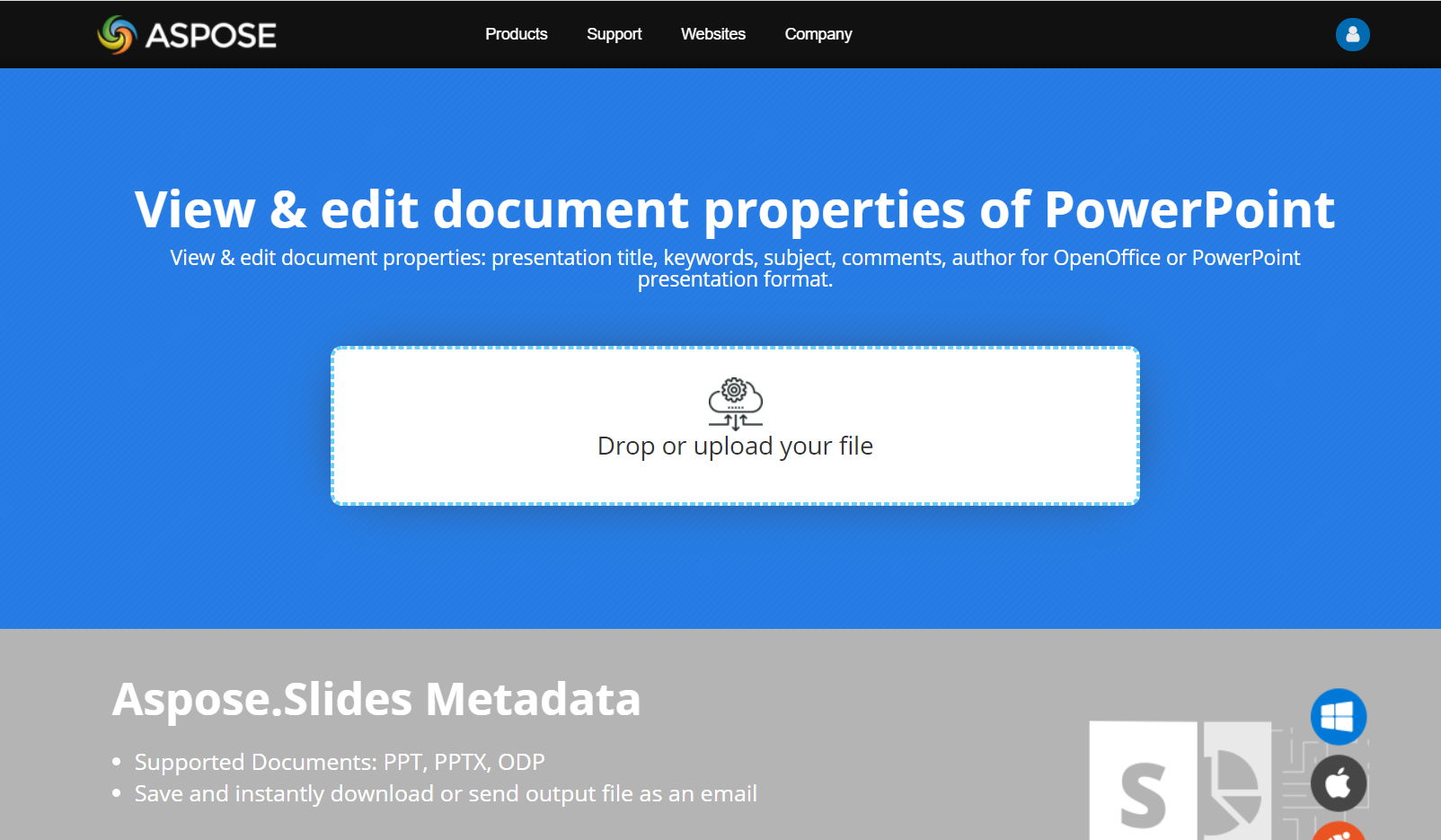
Try the View & Edit PowerPoint Metadata online app to see how to work with document properties using the Aspose.Slides API:
FAQ
How can I remove a built-in property from a presentation?
Built-in properties are an integral part of the presentation and cannot be removed entirely. However, you can either change their values or set them to empty if allowed by the specific property.
What happens if I add a custom property that already exists?
If you add a custom property that already exists, its existing value will be overwritten with the new one. You do not need to remove or check the property beforehand, as Aspose.Slides automatically updates the property’s value.
Can I access presentation properties without fully loading the presentation?
Yes. Use PresentationFactory.GetPresentationInfo and then IPresentationInfo.ReadDocumentProperties to read stored document metadata without creating a Presentation instance. See Build a Lightweight Presentation Inventory for a complete reporting example and format-specific limitations.
Can I read public properties of an encrypted presentation without its opening password?
Yes. The presentation must have been encrypted with EncryptDocumentProperties set to false, and it must be loaded with OnlyLoadDocumentProperties set to true.
Can I update an encrypted PPTX file in document-properties-only mode?
No. Public and encrypted property data must remain consistent, so updating an encrypted PPTX file requires loading the complete presentation with the correct opening password.