
在 .NET 中建立與套用 WordArt 效果
概覽
WordArt 效果允許您在 PowerPoint 簡報中加入視覺上吸引人、具風格的文字。使用 Aspose.Slides for .NET,開發人員可以以程式方式建立、客製化與管理 WordArt,就像在 Microsoft PowerPoint 中一樣——無需安裝 Office。本文概述了在 .NET 中使用 WordArt 的方法,包含如何套用文字變形、填色樣式、輪廓、陰影以及其他格式設定,以使簡報內容更具表現力與吸引力。WordArt 允許您將文字視為圖形物件。它由套用於文字的效果或特殊修改構成,使文字更具吸引力或顯眼。
建立簡易 WordArt 範本並套用至文字
在本節中,我們將探討如何使用 Aspose.Slides for .NET 建立簡易 WordArt 範本並將其套用至文字。WordArt 提供簡便的方式,透過醒目的視覺效果與樣式增強文字外觀。學會建立與使用 WordArt 的基本步驟後,您可以輕鬆將這些技巧套用到任何專案,使簡報更具活力與記憶點。
首先,我們使用以下 C# 程式碼建立簡單的文字:
using (Presentation presentation = new Presentation())
{
    ISlide slide = presentation.Slides[0];

    IAutoShape autoShape = slide.Shapes.AddAutoShape(ShapeType.Rectangle, 20, 20, 400, 200);
    ITextFrame textFrame = autoShape.TextFrame;

    IPortion portion = textFrame.Paragraphs[0].Portions[0];
    portion.Text = "Aspose.Slides";
}
現在,我們將文字的字型高度設定為較大的值,以使效果更明顯,使用以下程式碼:
    portion.PortionFormat.LatinFont = new FontData("Arial Black");
    portion.PortionFormat.FontHeight = 36;
在此,我們對文字套用 SmallGrid 圖樣填色,並使用以下程式碼加入寬度為 1 的黑色文字邊框:
    portion.PortionFormat.FillFormat.FillType = FillType.Pattern;
    portion.PortionFormat.FillFormat.PatternFormat.ForeColor.Color = Color.DarkOrange;
    portion.PortionFormat.FillFormat.PatternFormat.BackColor.Color = Color.White;
    portion.PortionFormat.FillFormat.PatternFormat.PatternStyle = PatternStyle.SmallGrid;

    portion.PortionFormat.LineFormat.FillFormat.FillType = FillType.Solid;
    portion.PortionFormat.LineFormat.FillFormat.SolidFillColor.Color = Color.Black;
產生的文字:

套用其他 WordArt 效果
除了基本變形外,Aspose.Slides for .NET 還讓您套用各種進階 WordArt 效果,以提升文字的外觀。這些效果包括輪廓、填色、陰影、反射與發光。透過結合這些功能,您可以建立在簡報中脫穎而出的引人注目文字樣式。本節示範如何以簡潔的程式碼範例以程式方式套用這些效果。
套用外部陰影效果
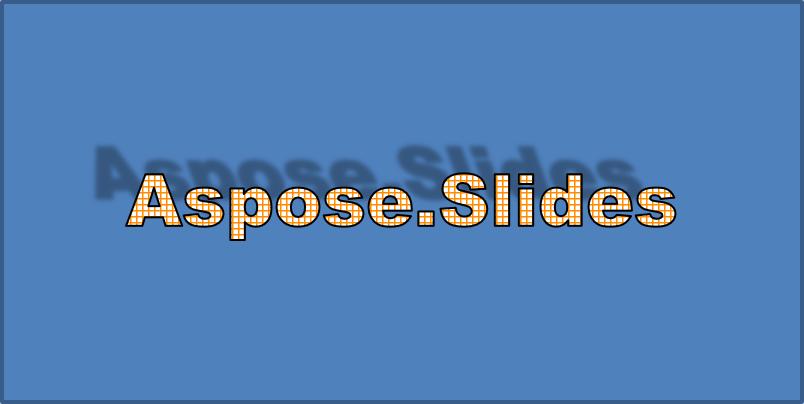
外部陰影效果透過在文字輪廓後方加入陰影,使文字更突出,產生深度與與背景分離的感覺。Aspose.Slides for .NET 讓您輕鬆在 WordArt 文字上套用與自訂外部陰影。在本節中,您將學習設定陰影顏色、方向、距離、模糊半徑等,以達成期望的視覺衝擊。
以下 C# 程式碼片段為上述文字套用陰影效果。
    portion.PortionFormat.EffectFormat.EnableOuterShadowEffect();
    portion.PortionFormat.EffectFormat.OuterShadowEffect.ShadowColor.Color = Color.Black;
    portion.PortionFormat.EffectFormat.OuterShadowEffect.ScaleHorizontal = 100;
    portion.PortionFormat.EffectFormat.OuterShadowEffect.ScaleVertical = 100;
    portion.PortionFormat.EffectFormat.OuterShadowEffect.BlurRadius = 4;
    portion.PortionFormat.EffectFormat.OuterShadowEffect.Direction = 230;
    portion.PortionFormat.EffectFormat.OuterShadowEffect.Distance = 30;
    portion.PortionFormat.EffectFormat.OuterShadowEffect.SkewHorizontal = 20;
    portion.PortionFormat.EffectFormat.OuterShadowEffect.SkewVertical = 0;
    portion.PortionFormat.EffectFormat.OuterShadowEffect.ShadowColor.ColorTransform.Add(ColorTransformOperation.SetAlpha, 0.32f);
產生的文字:
- 當同時使用 OuterShadow 與 PresetShadow 時,只會套用 OuterShadow 效果。
- 如果同時使用 OuterShadow 與 InnerShadow,結果效果取決於 PowerPoint 版本。例如,在 PowerPoint 2013 中,效果會加倍,而在 PowerPoint 2007 中,只會套用 OuterShadow 效果。
套用反射效果
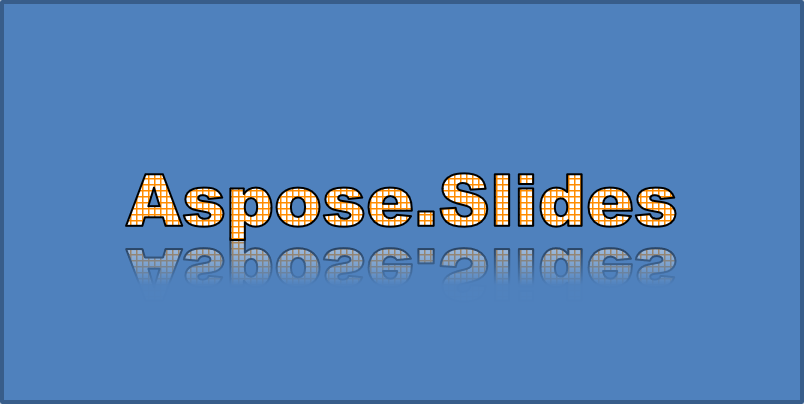
在本節中,我們將探討如何在投影片中使用 Aspose.Slides for .NET 套用反射效果。反射效果能為文字或圖形營造時尚且現代的外觀,協助關鍵元素突顯,同時為簡報增添深度。了解套用與自訂這些效果的流程後,您可以輕鬆依設計需求與品牌要求調整。
使用以下 C# 程式碼範例為文字加入反射效果:
    portion.PortionFormat.EffectFormat.EnableReflectionEffect();
    portion.PortionFormat.EffectFormat.ReflectionEffect.BlurRadius = 0.5;
    portion.PortionFormat.EffectFormat.ReflectionEffect.Distance = 4.72;
    portion.PortionFormat.EffectFormat.ReflectionEffect.StartPosAlpha = 0f;
    portion.PortionFormat.EffectFormat.ReflectionEffect.EndPosAlpha = 60f;
    portion.PortionFormat.EffectFormat.ReflectionEffect.Direction = 90;
    portion.PortionFormat.EffectFormat.ReflectionEffect.ScaleHorizontal = 100;
    portion.PortionFormat.EffectFormat.ReflectionEffect.ScaleVertical = -100;
    portion.PortionFormat.EffectFormat.ReflectionEffect.StartReflectionOpacity = 60f;
    portion.PortionFormat.EffectFormat.ReflectionEffect.EndReflectionOpacity = 0.9f;
    portion.PortionFormat.EffectFormat.ReflectionEffect.RectangleAlign = RectangleAlignment.BottomLeft;
產生的文字:
套用發光效果
在本節中,我們將探討如何使用 Aspose.Slides for .NET 為文字套用發光效果。發光效果可讓文字以發光輪廓突出,提升投影片的視覺吸引力。透過調整顏色與強度等設定,您可以輕鬆將發光調整至符合設計與品牌需求,確保簡報中的重點能抓住觀眾注意。
使用以下程式碼為文字套用發光效果,使其閃耀或突出:
    portion.PortionFormat.EffectFormat.EnableGlowEffect();
    portion.PortionFormat.EffectFormat.GlowEffect.Color.R = 255;
    portion.PortionFormat.EffectFormat.GlowEffect.Color.ColorTransform.Add(ColorTransformOperation.SetAlpha, 0.54f);
    portion.PortionFormat.EffectFormat.GlowEffect.Radius = 7;
產生的文字:

套用 WordArt 變形
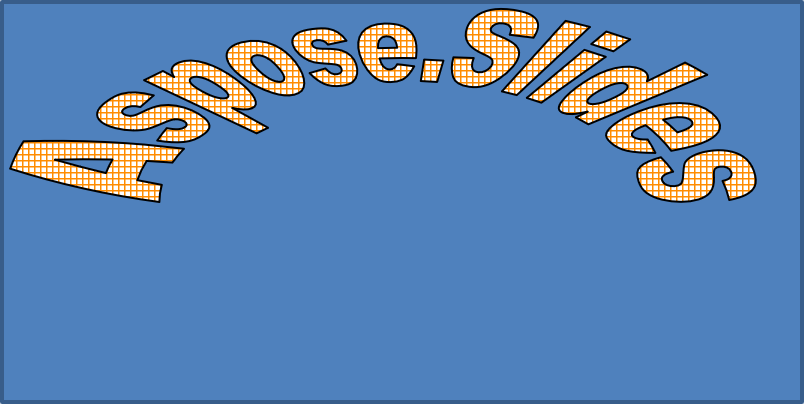
在本節中,我們將探討如何在 Aspose.Slides for .NET 中使用 WordArt 變形。變形允許您彎曲、拉伸或扭曲文字,產生獨特且視覺上引人注目的效果。熟練掌握這些技術後,您能輕鬆將文字形狀與樣式調整至符合品牌或創意願景,打造引人入勝且精緻的簡報。
使用以下程式碼套用 Transform 屬性(適用於整個文字區塊):
textFrame.TextFrameFormat.Transform = TextShapeType.ArchUpPour;
產生的文字:
套用 3D 效果至圖形與文字
建立逼真且引人注目的視覺效果能顯著提升簡報的衝擊力。於本節中,我們將探討如何使用 Aspose.Slides for .NET 為圖形套用三維(3D)效果。透過操作深度、角度與光照等參數,您可產生即時吸引觀眾目光的 3D 變形。無論是微妙的強調或戲劇性的幻覺,這些功能皆提供彈性方式提升設計,讓概念以更具吸引力的方式傳達。
使用以下範例程式碼為圖形設定 3D 效果:
    autoShape.ThreeDFormat.BevelBottom.BevelType = BevelPresetType.Circle;
    autoShape.ThreeDFormat.BevelBottom.Height = 10.5;
    autoShape.ThreeDFormat.BevelBottom.Width = 10.5;

    autoShape.ThreeDFormat.BevelTop.BevelType = BevelPresetType.Circle;
    autoShape.ThreeDFormat.BevelTop.Height = 12.5;
    autoShape.ThreeDFormat.BevelTop.Width = 11;

    autoShape.ThreeDFormat.ExtrusionColor.Color = Color.Orange;
    autoShape.ThreeDFormat.ExtrusionHeight = 6;

    autoShape.ThreeDFormat.ContourColor.Color = Color.DarkRed;
    autoShape.ThreeDFormat.ContourWidth = 1.5;

    autoShape.ThreeDFormat.Depth = 3;

    autoShape.ThreeDFormat.Material = MaterialPresetType.Plastic;

    autoShape.ThreeDFormat.LightRig.Direction = LightingDirection.Top;
    autoShape.ThreeDFormat.LightRig.LightType = LightRigPresetType.Balanced;
    autoShape.ThreeDFormat.LightRig.SetRotation(0, 0, 40);

    autoShape.ThreeDFormat.Camera.CameraType = CameraPresetType.PerspectiveContrastingRightFacing;
產生的圖形:

使用以下範例程式碼為文字設定 3D 效果:
    textFrame.TextFrameFormat.ThreeDFormat.BevelBottom.BevelType = BevelPresetType.Circle;
    textFrame.TextFrameFormat.ThreeDFormat.BevelBottom.Height = 3.5;
    textFrame.TextFrameFormat.ThreeDFormat.BevelBottom.Width = 3.5;

    textFrame.TextFrameFormat.ThreeDFormat.BevelTop.BevelType = BevelPresetType.Circle;
    textFrame.TextFrameFormat.ThreeDFormat.BevelTop.Height = 4;
    textFrame.TextFrameFormat.ThreeDFormat.BevelTop.Width = 4;

    textFrame.TextFrameFormat.ThreeDFormat.ExtrusionColor.Color = Color.Orange;
    textFrame.TextFrameFormat.ThreeDFormat.ExtrusionHeight= 6;

    textFrame.TextFrameFormat.ThreeDFormat.ContourColor.Color = Color.DarkRed;
    textFrame.TextFrameFormat.ThreeDFormat.ContourWidth = 1.5;

    textFrame.TextFrameFormat.ThreeDFormat.Depth= 3;

    textFrame.TextFrameFormat.ThreeDFormat.Material = MaterialPresetType.Plastic;

    textFrame.TextFrameFormat.ThreeDFormat.LightRig.Direction = LightingDirection.Top;
    textFrame.TextFrameFormat.ThreeDFormat.LightRig.LightType = LightRigPresetType.Balanced;
    textFrame.TextFrameFormat.ThreeDFormat.LightRig.SetRotation(0, 0, 40);

    textFrame.TextFrameFormat.ThreeDFormat.Camera.CameraType = CameraPresetType.PerspectiveContrastingRightFacing;
產生的文字:

對文字或其圖形套用 3D 效果,以及這些效果之間的交互,受到特定規則的限制。考慮同時存在文字及包含該文字的圖形之場景。3D 效果包含物件的 3D 表示與其所置放的場景。
- 如果同時為圖形與文字設定場景,則以圖形的場景為優先,文字的場景將被忽略。
- 如果圖形沒有自己的場景但具有 3D 表示,則使用文字的場景。
- 如果圖形根本沒有 3D 效果,則視為平面,僅將 3D 效果套用於文字。
這些行為與 ThreeDFormat.LightRig 以及 ThreeDFormat.Camera 屬性相關。
常見問題
我可以在不同字型或文字系統(例如阿拉伯文、中文)中使用 WordArt 效果嗎?
是的,Aspose.Slides for .NET 支援 Unicode,且可與所有主要字型與文字系統一起使用。無論使用何種語言,都可以套用 WordArt 效果,如陰影、填色與輪廓,儘管字型可用性與渲染可能取決於系統字型。
我可以將 WordArt 效果套用到投影片母片元素嗎?
是的,您可以將 WordArt 效果套用到母片投影片上的圖形,包括標題佔位符、頁腳或背景文字。對母版版面所做的變更會反映到所有相關投影片上。
WordArt 效果會影響簡報檔案大小嗎?
會略微影響。陰影、發光與漸層填色等 WordArt 效果可能會因為額外的格式資訊而稍微增加檔案大小,但差異通常可以忽略不計。
我可以在未儲存簡報的情況下預覽 WordArt 效果的結果嗎?
可以,您可以使用 IShape 或 ISlide 介面的 GetImage 方法,將含有 WordArt 的投影片渲染為影像(例如 PNG、JPEG),從而在記憶體中或螢幕上即時預覽結果,而不必儲存或匯出完整的簡報。