
新 HTML 匯出系統 - Aspose.Slides.WebExtensions
簡介
- 在舊版 Aspose.Slides API 中,將 PowerPoint 匯出為 HTML 時,產生的 HTML 以 SVG 標記結合 HTML 形式呈現。每張投影片會匯出為一個 SVG 容器。
- 在新版 Aspose.Slides 中,使用 WebExtensions 系統匯出 PowerPoint 簡報為 HTML 時,您可以自訂 HTML 匯出設定,以取得最佳效果。
使用新的 WebExtensions 系統,您可以將整個簡報匯出為 HTML,並套用一組 CSS 類別與 JavaScript 動畫(不使用 SVG)。新匯出系統亦提供無限制的選項與方法,以定義匯出流程。
以下情況與事件會使用新的 WebExtensions 系統從簡報產生 HTML:
- 使用自訂 CSS 樣式或動畫;覆寫特定形狀類型的標記。
- 覆寫文件結構,例如使用自訂頁面間的導覽。
- 將 .html、.css、.js 檔案儲存至具自訂階層的資料夾,並將特定檔案類型放入不同資料夾。例如,依據章節名稱將投影片匯出至資料夾。
- 預設將 CSS 與 JS 檔案儲存於分離的資料夾,然後在 HTML 檔案中引用。圖像與內嵌字型亦會儲存為獨立檔案,但可嵌入 HTML(以 base64 形式)。您可以將部分資源保存為檔案,另一些資源以 base64 方式嵌入 HTML。
您可以在 GitHub 上的 Aspose.Slides.WebExtensions 專案 中瀏覽 PowerPoint 轉 HTML 的範例。本專案包含兩個部分:Examples\SinglePageApp 與 Examples\MultiPageApp。本文使用的其他範例亦可在 GitHub 倉庫中取得。
模板
為了進一步擴充 HTML 匯出的功能,我們建議使用 ASP.NET Razor 模板系統。Presentation 類別實例可以與一組模板一起使用,以取得 HTML 文件作為匯出結果。
示範
在此範例中,我們將把簡報中的文字匯出為 HTML。首先,建立模板:
<!DOCTYPE html>
<body>
    @foreach (Slide slide in Model.Object.Slides)
    {
        foreach (Shape shape in slide.Shapes)
        {
            if(shape is AutoShape)
            {
                ITextFrame textFrame = ((AutoShape)shape).TextFrame;
                <div class="text">@textFrame.Text</div>
            }
        }
    }
</body>
</html>
此模板會以「shape-template-hello-world.html」儲存於磁碟,接下來的步驟將會使用它。
在此模板中,我們會遍歷簡報形狀中的文字框以顯示文字。使用 WebDocument 產生 HTML 檔案,然後將 Presentation 匯出至該檔案:
using (Presentation pres = new Presentation())
{
    IAutoShape shape = pres.Slides[0].Shapes.AddAutoShape(ShapeType.Rectangle, 10, 10, 100, 150);
    shape.TextFrame.Text = "Hello World";

    WebDocumentOptions options = new WebDocumentOptions
    {
        TemplateEngine = new RazorTemplateEngine(), // 我們打算使用 Razor 模板引擎。也可以透過實作 ITemplateEngine 來使用其他模板引擎
        OutputSaver = new FileOutputSaver() // 也可以透過實作 IOutputSaver 介面來使用其他結果儲存器
    };
    WebDocument document = new WebDocument(options);

    // 加入文件「input」——將使用何種來源產生 HTML 文件
    document.Input
        .AddTemplate<Presentation>( // 模板將以 Presentation 作為「模型」物件 (Model.Object)
        "index", // 模板鍵——模板引擎需要它來將物件 (Presentation) 與從磁碟載入的模板 ("shape-template-hello-world.html") 匹配
        @"custom-templates\shape-template-hello-world.html"); // 先前建立的模板

    // 加入輸出——匯出至磁碟時,產生的 HTML 文件將呈現的樣子
    document.Output.Add(
        "hello-world.html", // 輸出檔案路徑
        "index", // 此檔案將使用的模板鍵 (我們在先前的語句中設定了它)
        pres); // 實際的 Model.Object 實例

    document.Save();
}
例如,我們想為匯出結果加入 CSS 樣式,使文字顏色變為紅色。請加入 CSS 模板:
.text {
    color: red;
}
現在,將其加入輸入與輸出:
using (Presentation pres = new Presentation())
{
    IAutoShape shape = pres.Slides[0].Shapes.AddAutoShape(ShapeType.Rectangle, 10, 10, 100, 150);
    shape.TextFrame.Text = "Hello World";

    WebDocumentOptions options = new WebDocumentOptions { TemplateEngine = new RazorTemplateEngine(), OutputSaver = new FileOutputSaver() };
    WebDocument document = new WebDocument(options);

    document.Input.AddTemplate<Presentation>("index", @"custom-templates\shape-template-hello-world.html");
    document.Input.AddTemplate<Presentation>("styles", @"custom-templates\styles\shape-template-hello-world.css");
    document.Output.Add("hello-world.html", "index", pres);
    document.Output.Add("hello-world.css", "styles", pres);

    document.Save();
}
讓我們在模板與 class「text」中加入樣式的參考:
<!DOCTYPE html>
<head>
    <link rel="stylesheet" type="text/css" href="hello-world.css" />
</head>
...
</html>
預設模板
WebExtensions 提供兩組基本模板,用於將簡報匯出為 HTML:
- 單頁面:所有簡報內容匯出至同一個 HTML 檔案。其他資源(影像、字型、樣式等)則匯出至個別檔案。
- 多頁面:每張投影片匯出為獨立的 HTML 檔案。資源匯出的預設邏輯與單頁面相同。
PresentationExtensions 類別可用於透過模板簡化簡報匯出流程。PresentationExtensions 類別包含一組針對 Presentation 類別的擴充方法。若要將簡報匯出為單頁面,只需加入 Aspose.Slides.WebExtensions 命名空間,並呼叫兩個方法。第一個方法 ToSinglePageWebDocument 會建立 WebDocument 實例。第二個方法則儲存 HTML 文件:
using (Presentation pres = new Presentation("demo.pptx"))
{
    WebDocument document = pres.ToSinglePageWebDocument("templates\\single-page", @"single-page-output");
    document.Save();
}
ToSinglePageWebDocument 方法可以接受兩個參數:模板資料夾與匯出資料夾。
若要將簡報匯出為多頁面,使用 ToMultiPageWebDocument 方法,傳入相同的參數:
using (Presentation pres = new Presentation("demo.pptx"))
{
    WebDocument document = pres.ToMultiPageWebDocument("templates\\multi-page", @"mutil-page-output");
    document.Save();
}
在 WebExtensions 中,每個用於產生標記的模板皆與一個鍵 (key) 绑定。該鍵可在模板中使用。例如,在 @Include 指令中,您可以透過鍵將某個模板插入另一個模板。
我們可以在文字段落模板使用於段落模板的範例中示範此流程。您可以在 Aspose.Slides.WebExtensions 專案中找到範例:Templates\common\paragraph.html。為了在段落中繪製各段落,我們使用 Razor Engine 的 @foreach 指令來遍歷它們:
@foreach (Portion portion in contextObject.Portions)
{
    var subModel = Model.SubModel(portion);
    subModel.Local.Put("parentTextFrame", parentTextFrame);
    subModel.Local.Put("tableContent", tableContentFlag);
	@Raw(Include("portion", subModel).ToString().Replace(Environment.NewLine, ""));
}
段落 (portion) 有其專屬模板 portion.html,並為其產生模型。該模型將被加入輸出 paragraph.html 模板中:
@Raw(Include("portion", subModel).ToString().Replace(Environment.NewLine, ""));
對於每種形狀類型,我們使用自訂模板,該模板會加入 Aspose.Slides.WebExtensions 專案的通用模板集合中。這些模板在 ToSinglePageWebDocument 與 ToMultiPageWebDocument 方法中結合,以提供最終結果。以下為單頁與多頁皆共用的通用模板:
- templates +-common ¦ +-scripts: 用於投影片過渡動畫的 JavaScript 腳本。 ¦ +-styles: 通用 CSS 樣式。 +-multi-page: 多頁輸出的 index、menu、slide 模板。 +-single-page: 單頁輸出的 index、slide 模板。
您可以在 PresentationExtensions.AddCommonInputOutput 方法中了解通用部分如何綁定至所有模板,請參考此處。
預設模板自訂
您可以對通用模型的任意元素進行修改。例如,您可能想變更表格的格式樣式,同時保持單頁面的其他樣式不變。
預設情況下,使用 Templates\common\table.html,且表格外觀與 PowerPoint 中的表格相同。我們使用自訂 CSS 樣式來變更表格格式:
.custom-table {
    border: 1px solid black;
}
.custom-table tr:nth-child(even) {background: #CCC}
.custom-table tr:nth-child(odd) {background: #ffb380}
我們可以在呼叫 PresentationExtensions.ToSinglePageWebDocument 方法時,建立相同的輸入模板與輸出檔案結構(如產生的結果)。為此,我們加入 ExportCustomTableStyles_AddCommonStructure 方法。此方法與 ToSinglePageWebDocument 的差異在於,我們不需要加入標準的表格與主要 index 頁面模板(將以自訂表格樣式的參考取代)。
private static void ExportCustomTableStyles_AddCommonStructure(
    Presentation pres,
    WebDocument document,
    string templatesPath,
    string outputPath,
    bool embedImages)
{
    AddCommonStylesTemplates(document, templatesPath);

    document.Input.AddTemplate<Slide>("slide", Path.Combine(templatesPath, "slide.html"));
    document.Input.AddTemplate<AutoShape>("autoshape", Path.Combine(templatesPath, "autoshape.html"));
    document.Input.AddTemplate<TextFrame>("textframe", Path.Combine(templatesPath, "textframe.html"));
    document.Input.AddTemplate<Paragraph>("paragraph", Path.Combine(templatesPath, "paragraph.html"));
    document.Input.AddTemplate<Paragraph>("bullet", Path.Combine(templatesPath, "bullet.html"));
    document.Input.AddTemplate<Portion>("portion", Path.Combine(templatesPath, "portion.html"));
    document.Input.AddTemplate<VideoFrame>("videoframe", Path.Combine(templatesPath, "videoframe.html"));
    document.Input.AddTemplate<PictureFrame>("pictureframe", Path.Combine(templatesPath, "pictureframe.html")); ;
    document.Input.AddTemplate<Shape>("shape", Path.Combine(templatesPath, "shape.html"));

    AddSinglePageCommonOutput(pres, document, outputPath);

    AddResourcesOutput(pres, document, embedImages);

    AddScriptsOutput(document, templatesPath);
}
改為加入自訂模板:
using (Presentation pres = new Presentation("table.pptx"))
{
    const string templatesPath = "templates\\single-page";
    const string outputPath = "custom-table-styles";

    var options = new WebDocumentOptions
    {
        TemplateEngine = new RazorTemplateEngine(),
        OutputSaver = new FileOutputSaver(),
        EmbedImages = false
    };

    // 設置全域文件值
    WebDocument document = new WebDocument(options);
    SetupGlobals(document, options, outputPath);

    // 加入通用結構(不含表格模板)
    ExportCustomTableStyles_AddCommonStructure(pres, document, templatesPath, outputPath, options.EmbedImages);

    // 加入自訂表格模板
    document.Input.AddTemplate<Table>("table", @"custom-templates\table-custom-style.html");

    // 加入自訂表格樣式
    document.Input.AddTemplate<Presentation>("table-custom-style", @"custom-templates\styles\table-custom-style.css");
    document.Output.Add(Path.Combine(outputPath, "table-custom-style.css"), "table-custom-style", pres);

    // 加入自訂索引 - 這只是標準「index.html」的副本,但會包含對「table-custom-style.css」的參考
    document.Input.AddTemplate<Presentation>("index", @"custom-templates\index-table-custom-style.html");

    document.Save();
}
@model TemplateContext<Table>

@{
	Table contextObject = Model.Object;

	var origin = Model.Local.Get<Point>("origin");
	var positionStyle = string.Format("left: {0}px; top: {1}px; width: {2}px; height: {3}px;",
										(int)contextObject.X + origin.X,
										(int)contextObject.Y + origin.Y,
										(int)contextObject.Width,
										(int)contextObject.Height);
}

	<table class="table custom-table" style="@positionStyle">
	@for (int i = 0; i < contextObject.Rows.Count; i++)
	{
		var rowHeight = string.Format("height: {0}px", contextObject.Rows[i].Height);
		<tr style="@rowHeight">
		@for (int j = 0; j < contextObject.Columns.Count; j++)
		{
			var cell = contextObject[j, i];
			if (cell.FirstRowIndex ==  i && cell.FirstColumnIndex == j)
			{
				var spans = cell.IsMergedCell ? string.Format("rowspan=\"{0}\" colspan=\"{1}\"", cell.RowSpan, cell.ColSpan) : "";
				<td width="@cell.Width px" @Raw(spans)>
					@{
						for(int k = 0; k < cell.TextFrame.Paragraphs.Count; k++)
						{
							var para = (Paragraph)cell.TextFrame.Paragraphs[k];

							var subModel = Model.SubModel(para);
							double[] margins = new double[] { cell.MarginLeft, cell.MarginTop, cell.MarginRight, cell.MarginBottom };
							subModel.Local.Put("margins", margins);
							subModel Local.Put("parent", cell.TextFrame);
							subModel.Local.Put("parentContainerSize", new SizeF((float)cell.Width, (float)cell.Height));
                            subModel.Local.Put("tableContent", true);

							@Include("paragraph", subModel)
						}
					}
				</td>
			}
		}
		</tr>
	}
</table>
注意:自訂表格模板使用與標準表格相同的 “table” 鍵。因此,您可以在不重新撰寫的情況下替換特定預設模板。也可以使用預設結構中具有相同鍵的模板。例如,您可以在表格模板中使用標準段落模板,或以該鍵替換它。
您也可以使用 index.html 將自訂表格 CSS 樣式的參考加入其中:
<!DOCTYPE html>

<html
    xmlns="http://www.w3.org/1999/xhtml"
    xmlns:svg="http://www.w3.org/2000/svg"
    xmlns:xlink="http://www.w3.org/1999/xlink">
<head>
     ...
    <link rel="stylesheet" type="text/css" href="table-custom-style.css" />
    ...
</head>
<body>
    ...
</body>
</html>
從頭開始建立專案:動畫投影片過渡
WebExtensions 允許您匯出帶有動畫投影片過渡效果的簡報,只需在 WebDocumentOptions 中將 AnimateTransitions 屬性設為 true:
WebDocumentOptions options = new WebDocumentOptions
{
    // ... 其他選項
    AnimateTransitions = true
};
讓我們建立一個新專案,使用 Aspose.Slides 與 Aspose.Slides.WebExtensions 來打造具平滑動畫頁面過渡的 PDF HTML 觀看器。此處需使用 Aspose.Slides 的 PDF 匯入功能。
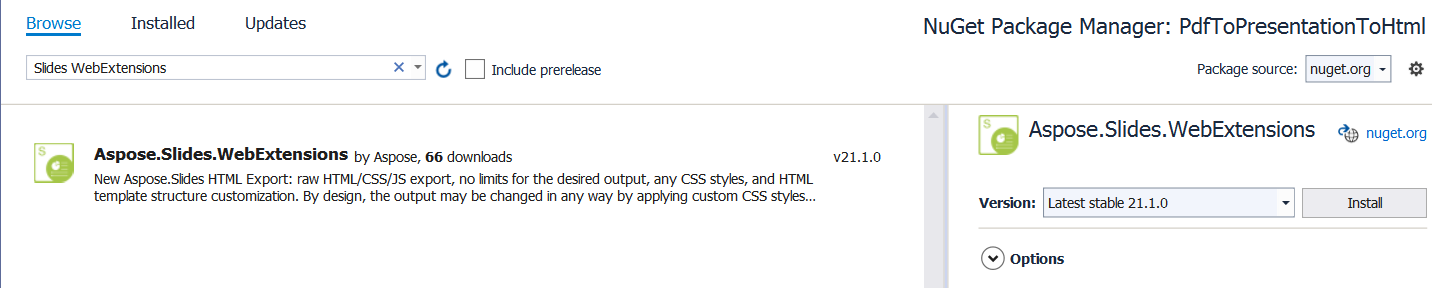
建立一個 PdfToPresentationToHtml 專案,並加入 Aspose.Slides.WebExtensions NuGet 套件(此套件會同時將 Aspose.Slides 作為相依性加入):
我們先匯入 PDF 文件,該文件將具備動畫效果並匯出為 HTML 簡報:
using (Presentation pres = new Presentation())
{
    pres.Slides.RemoveAt(0);
    pres.Slides.AddFromPdf("sample.pdf");
}
現在,我們可以設定動畫投影片過渡(每張投影片對應匯入的 PDF 頁面)。範例 PDF 文件共有 9 張投影片。讓我們為每張投影片加入過渡效果(於 HTML 預覽時示範):
pres.Slides[0].SlideShowTransition.Type = TransitionType.Fade;
pres.Slides[1].SlideShowTransition.Type = TransitionType.RandomBar;
pres.Slides[2].SlideShowTransition.Type = TransitionType.Cover;
pres.Slides[3].SlideShowTransition.Type = TransitionType.Dissolve;
pres.Slides[4].SlideShowTransition.Type = TransitionType.Switch;
pres.Slides[5].SlideShowTransition.Type = TransitionType.Pan;
pres.Slides[6].SlideShowTransition.Type = TransitionType.Ferris;
pres.Slides[7].SlideShowTransition.Type = TransitionType.Pull;
pres.Slides[8].SlideShowTransition.Type = TransitionType.Plus;
最後,使用 WebDocument 並將 AnimateTransitions 屬性設為 true,將其匯出為 HTML:
WebDocumentOptions options = new WebDocumentOptions
{
    TemplateEngine = new RazorTemplateEngine(),
    OutputSaver = new FileOutputSaver(),
    AnimateTransitions = true
};

WebDocument document = pres.ToSinglePageWebDocument(options, "templates\\single-page", "animated-pdf");
document.Save();
完整原始碼範例:
using (Presentation pres = new Presentation())
{
    pres.Slides.RemoveAt(0);
    pres.Slides.AddFromPdf("sample.pdf");

    pres.Slides[0].SlideShowTransition.Type = TransitionType.Fade;
    pres.Slides[1].SlideShowTransition.Type = TransitionType.RandomBar;
    pres.Slides[2].SlideShowTransition.Type = TransitionType.Cover;
    pres.Slides[3].SlideShowTransition.Type = TransitionType.Dissolve;
    pres.Slides[4].SlideShowTransition.Type = TransitionType.Switch;
    pres.Slides[5].SlideShowTransition.Type = TransitionType.Pan;
    pres.Slides[6].SlideShowTransition.Type = TransitionType.Ferris;
    pres.Slides[7].SlideShowTransition.Type = TransitionType.Pull;
    pres.Slides[8].SlideShowTransition.Type = TransitionType.Plus;

    WebDocumentOptions options = new WebDocumentOptions
    {
        TemplateEngine = new RazorTemplateEngine(),
        OutputSaver = new FileOutputSaver(),
        AnimateTransitions = true
    };

    WebDocument document = pres.ToSinglePageWebDocument(options, "templates\\single-page", "animated-pdf");
    document.Save();
}
以上即為從 PDF 文件產生具動畫頁面過渡的 HTML 所需的全部步驟。