
使用 Node.js 在演示文稿中创建 3D 效果
概述
Aspose.Slides for Node.js via Java 可以创建、编辑、保留并渲染 PowerPoint 风格的形状和文本的 3D 格式化。本篇文章涵盖旋转、拉伸、斜角、照明、材质、渐变或图片填充以及 3D 文本等 3D 效果。
Note
本文讨论的是 PowerPoint 形状和文本的 3D 格式化效果。不涉及插入或编辑独立的 3D 模型文件。当您将幻灯片导出为图像、PDF 或 HTML 时,Aspose.Slides 会将这些 3D 效果渲染到导出的 2D 输出中。3D 格式化概念
使用 Shape.getThreeDFormat 方法对形状应用 3D 格式化。该方法返回 ThreeDFormat,用于控制该形状的 3D 场景。
对于文本,使用 TextFrameFormat.getThreeDFormat 方法。这会对文本框而不是形状本体应用 3D 格式化。
最重要的 API 成员如下:
| API 成员 | 控制内容 | 使用时机 |
|---|---|---|
| getCamera | 视点、预设相机类型、旋转、缩放和透视。 | 在 3D 空间中旋转对象,或匹配 PowerPoint 的 3D 旋转预设。 |
| getLightRig | 光照预设、方向和光照旋转。 | 改变 3D 表面上高光和阴影的显示方式。 |
| getMaterial 和 setMaterial | 表面材质,例如平面、哑光、塑料或金属。 | 使相同的几何体看起来更平坦、柔软、光亮或金属感。 |
| getExtrusionHeight 和 setExtrusionHeight | 形状从正面向后延伸的距离。 | 将平面形状变为可见的厚 3D 对象。 |
| getExtrusionColor | 拉伸侧面的颜色。 | 使深度可见,或将侧面颜色与正面填充相匹配。 |
| getDepth 和 setDepth | PowerPoint 3D 格式化使用的额外 3D 深度。 | 对形状或文本的深度进行微调,尤其是与斜角和材质设置一起使用时。 |
| getBevelTop 和 getBevelBottom | 正面和背面凸起或圆润的边缘。 | 为形状添加柔和或模制的边缘,而不是尖锐的平面。 |
| getContourColor, getContourWidth 和 setContourWidth | 3D 对象的轮廓线。 | 在渲染输出中强调对象的边界。 |
创建 3D 形状
形状在看起来真实的 3D 之前通常需要以下四类设置:
- 相机设置,因为默认的正视图可能隐藏拉伸效果。
- 光照设置,因为光照使面和侧可读。
- 材质设置,因为表面影响光线的渲染方式。
- 拉伸或深度设置,因为平面形状需要厚度。
以下示例创建一个矩形,在其正面添加文本,并应用 3D 格式化。相机旋转值以度为单位,拉伸高度为 100 点。示例将幻灯片渲染为 PNG 图像(尺寸为默认的两倍),并将演示文稿保存为 PPTX。
const aspose = { slides: require("aspose.slides.via.java") };
const java = require("java");

const imageScale = 2;

const presentation = new aspose.slides.Presentation();
try {
    const slide = presentation.getSlides().get_Item(0);

    const shape = slide.getShapes().addAutoShape(aspose.slides.ShapeType.Rectangle, 200, 150, 200, 200);

    shape.getTextFrame().setText("3D");
    shape.getTextFrame().getParagraphs().get_Item(0).getParagraphFormat().getDefaultPortionFormat().setFontHeight(64);

    shape.getFillFormat().setFillType(java.newByte(aspose.slides.FillType.Solid));
    const fillColor = java.newInstanceSync("java.awt.Color", 100, 149, 237);
    shape.getFillFormat().getSolidFillColor().setColor(fillColor);

    shape.getThreeDFormat().getCamera().setCameraType(aspose.slides.CameraPresetType.OrthographicFront);
    shape.getThreeDFormat().getCamera().setRotation(20, 30, 40);
    shape.getThreeDFormat().getLightRig().setLightType(aspose.slides.LightRigPresetType.Flat);
    shape.getThreeDFormat().getLightRig().setDirection(aspose.slides.LightingDirection.Top);
    shape.getThreeDFormat().setMaterial(aspose.slides.MaterialPresetType.Flat);
    shape.getThreeDFormat().setExtrusionHeight(100);
    shape.getThreeDFormat().getExtrusionColor().setColor(java.getStaticFieldValue("java.awt.Color", "BLUE"));

    const thumbnail = slide.getImage(imageScale, imageScale);
    try {
        thumbnail.save("shape_3d.png", aspose.slides.ImageFormat.Png);
    } finally {
        thumbnail.dispose();
    }

    presentation.save("shape_3d.pptx", aspose.slides.SaveFormat.Pptx);
} finally {
    presentation.dispose();
}
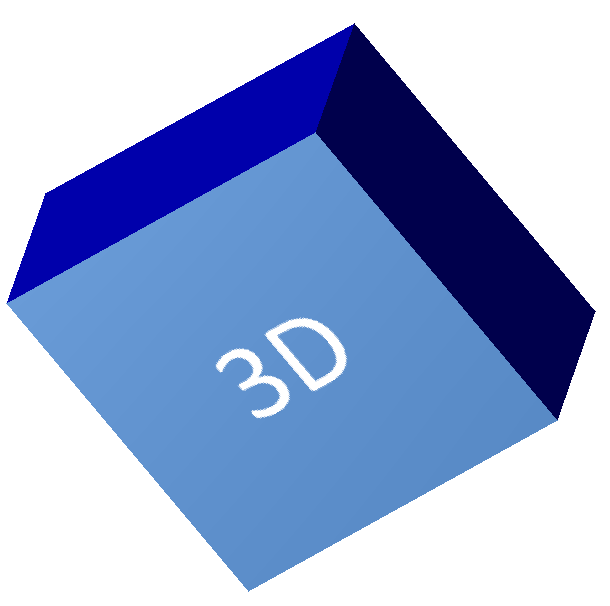
渲染后的幻灯片图像显示矩形为一个厚实的 3D 块:
使用相机旋转形状
在 PowerPoint 中,3D 旋转通过 “3‑D 旋转” 面板配置。X、Y、Z 旋转值对应于通过相机 API 设置的旋转。

在 Aspose.Slides 中,通过 ThreeDFormat.getCamera 访问相机。以下示例创建一个矩形,选择正交正视图,并将其 X、Y、Z 旋转分别设为 20、30、40 度。它在内存中配置形状而不保存文件:
const aspose = { slides: require("aspose.slides.via.java") };

const presentation = new aspose.slides.Presentation();
try {
    const slide = presentation.getSlides().get_Item(0);

    const shape = slide.getShapes().addAutoShape(aspose.slides.ShapeType.Rectangle, 200, 150, 200, 200);

    shape.getThreeDFormat().getCamera().setCameraType(aspose.slides.CameraPresetType.OrthographicFront);
    shape.getThreeDFormat().getCamera().setRotation(20, 30, 40);
} finally {
    presentation.dispose();
}
当需要改变观看者看到对象的方式时使用相机。它不会改变幻灯片上 2D 形状的几何形状,只会改变 PowerPoint 和 Aspose.Slides 渲染时使用的 3D 视点。
添加拉伸和深度
拉伸通过在正面后方延伸形状,使其看起来更厚。PowerPoint 中的深度控制决定可见厚度,颜色控制决定侧面的颜色。

使用 ThreeDFormat.setExtrusionHeight 设置厚度,使用 ThreeDFormat.getExtrusionColor 获取侧面颜色。以下示例为矩形设置 100 点的紫色侧面拉伸,并旋转相机以展示其厚度。它在内存中配置形状而不保存文件:
const aspose = { slides: require("aspose.slides.via.java") };
const java = require("java");

const presentation = new aspose.slides.Presentation();
try {
    const slide = presentation.getSlides().get_Item(0);

    const shape = slide.getShapes().addAutoShape(aspose.slides.ShapeType.Rectangle, 200, 150, 200, 200);

    const extrusionColor = java.newInstanceSync("java.awt.Color", 128, 0, 128);

    shape.getThreeDFormat().getCamera().setCameraType(aspose.slides.CameraPresetType.OrthographicFront);
    shape.getThreeDFormat().getCamera().setRotation(20, 30, 40);
    shape.getThreeDFormat().getLightRig().setLightType(aspose.slides.LightRigPresetType.Flat);
    shape.getThreeDFormat().getLightRig().setDirection(aspose.slides.LightingDirection.Top);
    shape.getThreeDFormat().setMaterial(aspose.slides.MaterialPresetType.Flat);
    shape.getThreeDFormat().setExtrusionHeight(100);
    shape.getThreeDFormat().getExtrusionColor().setColor(extrusionColor);
} finally {
    presentation.dispose();
}
ThreeDFormat.setDepth 方法设置 3D 形状的深度。setExtrusionHeight 方法控制拉伸效果的高度,如本例所示。
在 3D 效果中使用渐变或图片填充
3D 格式化独立于形状填充。您可以对正面使用纯色、渐变、图案或图片填充,同时使用相同的相机、光照、材质和拉伸设置。
以下示例对正面应用蓝到橙的渐变,对 150 点的拉伸侧面使用深橙色。渐变在 0% 和 100% 处停止,表示渐变的起始和结束。相机旋转值以度为单位。幻灯片渲染为 PNG 图像(尺寸为默认的两倍):
const aspose = { slides: require("aspose.slides.via.java") };
const java = require("java");

const imageScale = 2;

const presentation = new aspose.slides.Presentation();
try {
    const slide = presentation.getSlides().get_Item(0);

    const shape = slide.getShapes().addAutoShape(aspose.slides.ShapeType.Rectangle, 200, 150, 250, 250);

    shape.getTextFrame().setText("3D Gradient");
    shape.getTextFrame().getParagraphs().get_Item(0).getParagraphFormat().getDefaultPortionFormat().setFontHeight(64);

    shape.getFillFormat().setFillType(java.newByte(aspose.slides.FillType.Gradient));
    shape.getFillFormat().getGradientFormat().getGradientStops().add(0, java.getStaticFieldValue("java.awt.Color", "BLUE"));
    const orangeColor = java.newInstanceSync("java.awt.Color", 255, 165, 0);
    shape.getFillFormat().getGradientFormat().getGradientStops().add(100, orangeColor);

    shape.getThreeDFormat().getCamera().setCameraType(aspose.slides.CameraPresetType.OrthographicFront);
    shape.getThreeDFormat().getCamera().setRotation(10, 20, 30);
    shape.getThreeDFormat().getLightRig().setLightType(aspose.slides.LightRigPresetType.Flat);
    shape.getThreeDFormat().getLightRig().setDirection(aspose.slides.LightingDirection.Top);
    shape.getThreeDFormat().setMaterial(aspose.slides.MaterialPresetType.Flat);
    const extrusionColor = java.newInstanceSync("java.awt.Color", 255, 140, 0);
    shape.getThreeDFormat().setExtrusionHeight(150);
    shape.getThreeDFormat().getExtrusionColor().setColor(extrusionColor);

    const thumbnail = slide.getImage(imageScale, imageScale);
    try {
        thumbnail.save("gradient_3d.png", aspose.slides.ImageFormat.Png);
    } finally {
        thumbnail.dispose();
    }
} finally {
    presentation.dispose();
}
渲染的结果在正面保留渐变,并单独渲染拉伸:

若要使用图片填充,请将图像添加到演示文稿并将其分配给形状填充。以下示例假设工作目录中已有名为 “image.jpg” 的文件。它将图片拉伸以填满矩形,应用 150 点的拉伸,并以度为单位设置相机旋转。它在内存中配置形状而不保存或渲染文件:
const aspose = { slides: require("aspose.slides.via.java") };
const java = require("java");

const presentation = new aspose.slides.Presentation();
try {
    const slide = presentation.getSlides().get_Item(0);

    const shape = slide.getShapes().addAutoShape(aspose.slides.ShapeType.Rectangle, 200, 150, 250, 250);

    const sourceImage = aspose.slides.Images.fromFile("image.jpg");
    let image;
    try {
        image = presentation.getImages().addImage(sourceImage);
    } finally {
        sourceImage.dispose();
    }

    shape.getFillFormat().setFillType(java.newByte(aspose.slides.FillType.Picture));
    shape.getFillFormat().getPictureFillFormat().getPicture().setImage(image);
    shape.getFillFormat().getPictureFillFormat().setPictureFillMode(aspose.slides.PictureFillMode.Stretch);

    const extrusionColor = java.newInstanceSync("java.awt.Color", 255, 140, 0);
    shape.getThreeDFormat().getCamera().setCameraType(aspose.slides.CameraPresetType.OrthographicFront);
    shape.getThreeDFormat().getCamera().setRotation(10, 20, 30);
    shape.getThreeDFormat().getLightRig().setLightType(aspose.slides.LightRigPresetType.Flat);
    shape.getThreeDFormat().getLightRig().setDirection(aspose.slides.LightingDirection.Top);
    shape.getThreeDFormat().setMaterial(aspose.slides.MaterialPresetType.Flat);
    shape.getThreeDFormat().setExtrusionHeight(150);
    shape.getThreeDFormat().getExtrusionColor().setColor(extrusionColor);
} finally {
    presentation.dispose();
}
图片在正面渲染,拉伸作为 3D 侧面渲染:

对文本应用 3D 格式化
形状的 3D 格式化影响形状本体;文本的 3D 格式化影响文本框。这对于需要对字母本身进行拉伸、材质、照明和相机设置的 WordArt 类效果非常有用。
以下示例创建带有橙白网格图案的文本,应用向上拱形,并通过 TextFrameFormat.getThreeDFormat 配置 3D 设置。拉伸高度和深度以点为单位,光照旋转以度为单位。形状填充和轮廓被隐藏,仅保留文本可见。示例将 PNG 图像渲染为默认幻灯片尺寸的两倍,并将演示文稿保存为 PPTX:
const aspose = { slides: require("aspose.slides.via.java") };
const java = require("java");

const imageScale = 2;

const presentation = new aspose.slides.Presentation();
try {
    const slide = presentation.getSlides().get_Item(0);

    const shape = slide.getShapes().addAutoShape(aspose.slides.ShapeType.Rectangle, 200, 150, 250, 250);

    shape.getFillFormat().setFillType(java.newByte(aspose.slides.FillType.NoFill));
    shape.getLineFormat().getFillFormat().setFillType(java.newByte(aspose.slides.FillType.NoFill));
    shape.getTextFrame().setText("3D Text");

    const portion = shape.getTextFrame().getParagraphs().get_Item(0).getPortions().get_Item(0);
    portion.getPortionFormat().getFillFormat().setFillType(java.newByte(aspose.slides.FillType.Pattern));
    const patternColor = java.newInstanceSync("java.awt.Color", 255, 140, 0);
    portion.getPortionFormat().getFillFormat().getPatternFormat().getForeColor().setColor(patternColor);
    portion.getPortionFormat().getFillFormat().getPatternFormat().getBackColor().setColor(java.getStaticFieldValue("java.awt.Color", "WHITE"));
    portion.getPortionFormat().getFillFormat().getPatternFormat().setPatternStyle(java.newByte(aspose.slides.PatternStyle.LargeGrid));

    shape.getTextFrame().getParagraphs().get_Item(0).getParagraphFormat().getDefaultPortionFormat().setFontHeight(128);

    const textFrameFormat = shape.getTextFrame().getTextFrameFormat();
    textFrameFormat.setTransform(java.newByte(aspose.slides.TextShapeType.ArchUp));
    textFrameFormat.getThreeDFormat().setExtrusionHeight(3.5);
    textFrameFormat.getThreeDFormat().setDepth(3);
    textFrameFormat.getThreeDFormat().setMaterial(aspose.slides.MaterialPresetType.Plastic);
    textFrameFormat.getThreeDFormat().getLightRig().setDirection(aspose.slides.LightingDirection.Top);
    textFrameFormat.getThreeDFormat().getLightRig().setLightType(aspose.slides.LightRigPresetType.Balanced);
    textFrameFormat.getThreeDFormat().getLightRig().setRotation(0, 0, 40);
    textFrameFormat.getThreeDFormat().getCamera().setCameraType(aspose.slides.CameraPresetType.PerspectiveContrastingRightFacing);

    const thumbnail = slide.getImage(imageScale, imageScale);
    try {
        thumbnail.save("text_3d.png", aspose.slides.ImageFormat.Png);
    } finally {
        thumbnail.dispose();
    }

    presentation.save("text_3d.pptx", aspose.slides.SaveFormat.Pptx);
} finally {
    presentation.dispose();
}
文本被渲染为弧形、拉伸的 3D 字母:

在 3D 形状上保持文本平面
要在保持形状 3D 外观的同时保持文本可读,请通过 TextFrame.getTextFrameFormat 调用 TextFrameFormat.setKeepTextFlat。当值为 true 时,文本保持在 3D 场景之外;为 false 时,文本参与场景并遵循其 3D 方向。
此设置不会移除形状的 3D 格式化:其相机、光照、材质和拉伸仍通过 Shape.getThreeDFormat 配置。它也不同于普通旋转。Shape.setRotation 在幻灯片平面上旋转形状,而 TextFrameFormat.setRotationAngle 控制文本在其边框内的自定义旋转。保持文本在 3D 场景之外并不会重置这两个角度。
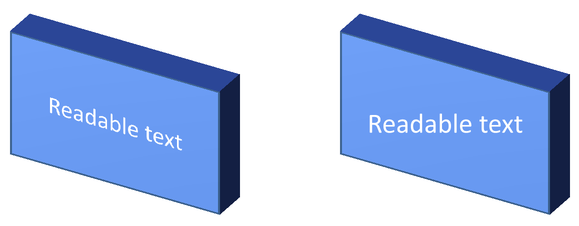
以下完整示例创建一个带文本的蓝色矩形,并在原始旁边克隆它。两者具有相同的 3D 格式化,仅文本设置不同:左侧为 false,右侧为 true。相机角度以度为单位,拉伸高度为 40 点。示例将演示文稿保存为 PPTX,并将比较幻灯片渲染为 PNG(尺寸为默认的两倍)。
const aspose = { slides: require("aspose.slides.via.java") };
const java = require("java");

const presentation = new aspose.slides.Presentation();
try {
    const slide = presentation.getSlides().get_Item(0);

    const shape = slide.getShapes().addAutoShape(aspose.slides.ShapeType.Rectangle, 70, 160, 240, 140);

    shape.getTextFrame().setText("Readable text");
    shape.getTextFrame().getParagraphs().get_Item(0).getParagraphFormat().getDefaultPortionFormat().setFontHeight(28);
    shape.getTextFrame().getParagraphs().get_Item(0).getParagraphFormat().setAlignment(java.newByte(aspose.slides.TextAlignment.Center));
    shape.getTextFrame().getTextFrameFormat().setAnchoringType(java.newByte(aspose.slides.TextAnchorType.Center));
    shape.getFillFormat().setFillType(java.newByte(aspose.slides.FillType.Solid));
    const fillColor = java.newInstanceSync("java.awt.Color", 100, 149, 237);
    shape.getFillFormat().getSolidFillColor().setColor(fillColor);

    shape.getThreeDFormat().getCamera().setCameraType(aspose.slides.CameraPresetType.OrthographicFront);
    shape.getThreeDFormat().getCamera().setRotation(30, 30, 0);
    shape.getThreeDFormat().getLightRig().setLightType(aspose.slides.LightRigPresetType.Flat);
    shape.getThreeDFormat().getLightRig().setDirection(aspose.slides.LightingDirection.Top);
    shape.getThreeDFormat().setMaterial(aspose.slides.MaterialPresetType.Flat);
    shape.getThreeDFormat().setExtrusionHeight(40);
    const extrusionColor = java.newInstanceSync("java.awt.Color", 65, 105, 225);
    shape.getThreeDFormat().getExtrusionColor().setColor(extrusionColor);
    shape.getTextFrame().getTextFrameFormat().setKeepTextFlat(false);

    const flatTextShape = slide.getShapes().addClone(shape, 400, 160);
    flatTextShape.getTextFrame().getTextFrameFormat().setKeepTextFlat(true);

    presentation.save("keep_text_flat.pptx", aspose.slides.SaveFormat.Pptx);
    const image = slide.getImage(2, 2);
    try {
        image.save("keep_text_flat.png", aspose.slides.ImageFormat.Png);
    } finally {
        image.dispose();
    }
} finally {
    presentation.dispose();
}
左侧文本随 3D 方向变化,右侧文本保持平面且更易阅读。两个矩形在可见拉伸和 3D 方向上保持一致。
导出和渲染行为
Aspose.Slides 在保存为 PPTX 等 PowerPoint 格式时会保留 3D 格式化。渲染或导出为固定布局格式时,3D 场景会被光栅化或绘制为 2D 结果。这适用于将幻灯片渲染为 PNG、导出为 PDF、导出为 HTML,或生成用于 video conversion 的帧。
请记住以下要点:
- 导出的图像和 PDF 不是交互式的。导出后观众无法旋转对象。
- 最终外观取决于相机、光照、材质、拉伸、填充和幻灯片缩放的组合。
- 如果需要检查继承或主题基础的格式化值,请读取 effective shape properties。
- 某些输出格式无法存储可编辑的 PowerPoint 3D 格式化。在这些格式中,视觉结果是渲染后的,而不是可编辑的 3D 设置。
常见问题
Aspose.Slides 能创建交互式 3D 演示文稿吗?
Aspose.Slides 创建并渲染 PowerPoint 形状和文本的 3D 效果。它不会使导出的图像、PDF 或 HTML 页面成为观众可旋转的交互式 3D 场景。在 PPTX 中,3D 格式化在 PowerPoint 支持的情况下仍保持可编辑。
3D 模型与 3D 效果有什么区别?
3D 模型是插入到演示文稿中的独立 3D 对象。3D 效果是对普通 PowerPoint 形状或文本应用的格式化,如旋转、拉伸、斜角、照明和材质。本文仅讨论 3D 效果。
可见的 3D 形状需要哪些设置?
最低要求是设置相机旋转并且设置拉伸或深度。实践中,还应设置光照装置和材质,以便渲染出的面具有清晰的高光和阴影。
我可以同时对形状和文本应用 3D 效果吗?
可以。对形状本体使用 Shape.getThreeDFormat,对文本使用 TextFrameFormat.getThreeDFormat。
导出为图像、PDF、HTML 或视频帧时会出现 3D 效果吗?
会。Aspose.Slides 在生成幻灯片图像、PDF 输出、HTML 输出以及用于视频转换的帧时会渲染 3D 效果。导出的内容包含渲染后的外观,而不是可编辑的 3D 对象。
我能读取继承和主题设置后最终的 3D 值吗?
可以。使用在 Shape Effective Properties 中描述的有效格式化 API,读取最终的相机、光照、斜角等 3D 值。