
สร้างเอฟเฟกต์ 3D ในการนำเสนอด้วย Node.js
ภาพรวม
Aspose.Slides for Node.js via Java สามารถสร้าง แก้ไข เก็บรักษา และเรนเดอร์การจัดรูปแบบ 3D แบบ PowerPoint สำหรับรูปทรงและข้อความได้ บทความนี้ครอบคลุมเอฟเฟกต์ 3D เช่น การหมุน การดันออก การตัดมุม การจัดแสง วัสดุ การไล่สีหรือการเติมรูปภาพ และข้อความ 3D
Note
บทความนี้เกี่ยวกับเอฟเฟกต์การจัดรูปแบบ 3D บนรูปทรงและข้อความของ PowerPoint ไม่ได้เกี่ยวกับการแทรกหรือแก้ไขไฟล์โมเดล 3D แยกต่างหาก เมื่อคุณส่งออกสไลด์เป็นภาพ, PDF หรือ HTML, Aspose.Slides จะเรนเดอร์เอฟเฟกต์ 3D เหล่านั้นไปยังผลลัพธ์ 2D ที่ส่งออกแนวคิดการจัดรูปแบบ 3D
ใช้เมธอด Shape.getThreeDFormat เพื่อใช้การจัดรูปแบบ 3D กับรูปทรง เมธอดนี้คืนค่า ThreeDFormat, ซึ่งควบคุมฉาก 3D สำหรับรูปทรงนั้น
สำหรับข้อความ ให้ใช้เมธอด TextFrameFormat.getThreeDFormat วิธีนี้จะใช้การจัดรูปแบบ 3D กับกรอบข้อความแทนที่เนื้อหารูปทรง
สมาชิก API ที่สำคัญที่สุดคือ:
| สมาชิก API | สิ่งที่ควบคุม | ครั้งที่ใช้ |
|---|---|---|
| getCamera | จุดมอง, ประเภทกล้องตั้งล่วงหน้า, การหมุน, การซูม, และเพอร์สเปคทีฟ. | หมุนวัตถุในอวกาศ 3D หรือจับคู่กับการตั้งค่าการหมุน 3D ของ PowerPoint ที่กำหนดล่วงหน้า. |
| getLightRig | การตั้งค่าแสงล่วงหน้า, ทิศทาง, และการหมุนแสง. | เปลี่ยนวิธีที่ไฮไลท์และเงาปรากฏบนพื้นผิว 3D. |
| getMaterial and setMaterial | วัสดุผิวหน้าต่าง ๆ เช่น แบน, แมท, พลาสติก หรือ โลหะ. | ทำให้รูปทรงเดียวกันดูแบนขึ้น, นุ่มขึ้น, แก้วเงา หรือเป็นโลหะ. |
| getExtrusionHeight and setExtrusionHeight | ระยะที่รูปทรงยืดออกไปข้างหลังจากหน้าตรงของมัน. | เปลี่ยนรูปทรงแบนให้เป็นวัตถุ 3D ที่หนาเห็นได้. |
| getExtrusionColor | สีของด้านที่ดันออก. | ทำให้ความลึกมองเห็นได้หรือปรับสีด้านให้ตรงกับสีเติมหน้า. |
| getDepth and setDepth | ความลึก 3D เพิ่มเติมที่ PowerPoint ใช้ในการจัดรูปแบบ 3D. | ปรับความลึกอย่างละเอียดสำหรับรูปทรงหรือข้อความ โดยเฉพาะเมื่อใช้ร่วมกับการตั้งค่าบีเวลและวัสดุ. |
| getBevelTop and getBevelBottom | ขอบที่ยกขึ้นหรือโค้งมนบนหน้าตรงและด้านหลัง. | เพิ่มขอบที่อ่อนหรือหล่อเป็นรูปแทนหน้าตรงแหลม. |
| getContourColor, getContourWidth, and setContourWidth | โครงร่างรอบวัตถุ 3D. | เน้นขอบวัตถุในผลลัพธ์ที่เรนเดอร์. |
สร้างรูปทรง 3D
รูปทรงมักต้องการการตั้งค่าสี่ประเภทก่อนที่จะดูเหมือน 3D อย่างน่าเชื่อถือ:
- การตั้งค่ากล้อง เพราะมุมมองหน้าเริ่มต้นอาจซ่อนการดันออก.
- การตั้งค่าแสง เพราะแสงทำให้ใบหน้าและด้านมองเห็นได้ชัดเจน.
- การตั้งค่าวัสดุ เพราะพื้นผิวส่งผลต่อการแสดงแสง.
- การตั้งค่าการดันออกหรือความลึก เพราะรูปทรงแบนต้องการความหนา.
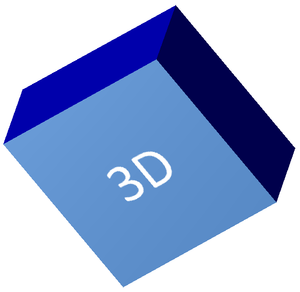
ตัวอย่างต่อไปนี้สร้างสี่เหลี่ยม, เพิ่มข้อความบนหน้าตรง, และใช้การจัดรูปแบบ 3D ค่าองศาการหมุนกล้องอยู่ในหน่วยองศา และความสูงการดันออกเป็น 100 points ตัวอย่างนี้เรนเดอร์สไลด์เป็นภาพ PNG เพิ่มขนาดเป็นสองเท่าของมิติเริ่มต้นและบันทึกงานนำเสนอเป็น PPTX
const aspose = { slides: require("aspose.slides.via.java") };
const java = require("java");

const imageScale = 2;

const presentation = new aspose.slides.Presentation();
try {
    const slide = presentation.getSlides().get_Item(0);

    const shape = slide.getShapes().addAutoShape(aspose.slides.ShapeType.Rectangle, 200, 150, 200, 200);

    shape.getTextFrame().setText("3D");
    shape.getTextFrame().getParagraphs().get_Item(0).getParagraphFormat().getDefaultPortionFormat().setFontHeight(64);

    shape.getFillFormat().setFillType(java.newByte(aspose.slides.FillType.Solid));
    const fillColor = java.newInstanceSync("java.awt.Color", 100, 149, 237);
    shape.getFillFormat().getSolidFillColor().setColor(fillColor);

    shape.getThreeDFormat().getCamera().setCameraType(aspose.slides.CameraPresetType.OrthographicFront);
    shape.getThreeDFormat().getCamera().setRotation(20, 30, 40);
    shape.getThreeDFormat().getLightRig().setLightType(aspose.slides.LightRigPresetType.Flat);
    shape.getThreeDFormat().getLightRig().setDirection(aspose.slides.LightingDirection.Top);
    shape.getThreeDFormat().setMaterial(aspose.slides.MaterialPresetType.Flat);
    shape.getThreeDFormat().setExtrusionHeight(100);
    shape.getThreeDFormat().getExtrusionColor().setColor(java.getStaticFieldValue("java.awt.Color", "BLUE"));

    const thumbnail = slide.getImage(imageScale, imageScale);
    try {
        thumbnail.save("shape_3d.png", aspose.slides.ImageFormat.Png);
    } finally {
        thumbnail.dispose();
    }

    presentation.save("shape_3d.pptx", aspose.slides.SaveFormat.Pptx);
} finally {
    presentation.dispose();
}
ภาพที่เรนเดอร์แสดงสี่เหลี่ยมเป็นบล็อก 3D หนา:
หมุนรูปทรงด้วยกล้อง
ใน PowerPoint การหมุน 3D ตั้งค่าผ่านแผง 3‑D Rotation ค่าการหมุน X, Y, และ Z สอดคล้องกับการหมุนที่คุณตั้งค่าผ่าน API ของกล้อง
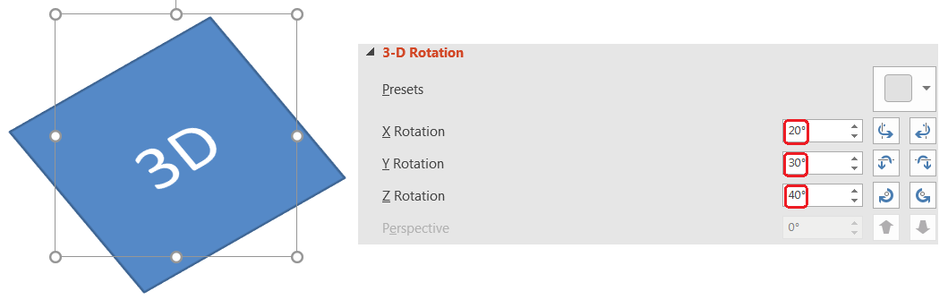
ใน Aspose.Slides เข้าถึงกล้องผ่าน ThreeDFormat.getCamera ตัวอย่างนี้สร้างสี่เหลี่ยม, เลือกมุมมองหน้าแบบออร์โธกราฟิก, และตั้งค่าการหมุน X, Y, Z เป็น 20, 30, 40 องศาตามลำดับ โดยกำหนดรูปทรงในหน่วยความจำโดยไม่บันทึกไฟล์:
const aspose = { slides: require("aspose.slides.via.java") };

const presentation = new aspose.slides.Presentation();
try {
    const slide = presentation.getSlides().get_Item(0);

    const shape = slide.getShapes().addAutoShape(aspose.slides.ShapeType.Rectangle, 200, 150, 200, 200);

    shape.getThreeDFormat().getCamera().setCameraType(aspose.slides.CameraPresetType.OrthographicFront);
    shape.getThreeDFormat().getCamera().setRotation(20, 30, 40);
} finally {
    presentation.dispose();
}
ใช้กล้องเมื่อคุณต้องการเปลี่ยนวิธีที่ผู้ชมเห็นวัตถุ มันไม่เปลี่ยนรูปทรง 2D ใบบนสไลด์ แต่เปลี่ยนจุดมอง 3D ที่ PowerPoint และ Aspose.Slides ใช้เมื่อเรนเดอร์
เพิ่มการดันออกและความลึก
การดันออกทำให้รูปทรงดูหนาโดยขยายไปด้านหลังของหน้าตรง ใน PowerPoint การควบคุมความลึกตั้งค่าความหนาที่มองเห็นได้และการควบคุมสีตั้งค่าสีของด้านข้าง
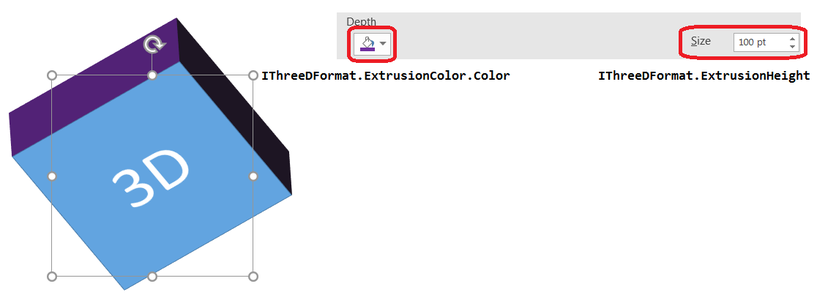
ใช้ ThreeDFormat.setExtrusionHeight เพื่อตั้งค่าความหนาและ ThreeDFormat.getExtrusionColor เพื่อเข้าถึงสีด้าน ตัวอย่างนี้ให้สี่เหลี่ยมดันออก 100 points ด้วยด้านสีม่วงและหมุนกล้องเพื่อเปิดเผยความหนา มันกำหนดรูปทรงในหน่วยความจำโดยไม่บันทึกไฟล์:
const aspose = { slides: require("aspose.slides.via.java") };
const java = require("java");

const presentation = new aspose.slides.Presentation();
try {
    const slide = presentation.getSlides().get_Item(0);

    const shape = slide.getShapes().addAutoShape(aspose.slides.ShapeType.Rectangle, 200, 150, 200, 200);

    const extrusionColor = java.newInstanceSync("java.awt.Color", 128, 0, 128);

    shape.getThreeDFormat().getCamera().setCameraType(aspose.slides.CameraPresetType.OrthographicFront);
    shape.getThreeDFormat().getCamera().setRotation(20, 30, 40);
    shape.getThreeDFormat().getLightRig().setLightType(aspose.slides.LightRigPresetType.Flat);
    shape.getThreeDFormat().getLightRig().setDirection(aspose.slides.LightingDirection.Top);
    shape.getThreeDFormat().setMaterial(aspose.slides.MaterialPresetType.Flat);
    shape.getThreeDFormat().setExtrusionHeight(100);
    shape.getThreeDFormat().getExtrusionColor().setColor(extrusionColor);
} finally {
    presentation.dispose();
}
เมธอด ThreeDFormat.setDepth ตั้งค่าความลึกของรูปทรง 3D เมธอด setExtrusionHeight ควบคุมความสูงของเอฟเฟกต์การดันออกตามที่แสดงในตัวอย่างนี้
ใช้การไล่สีหรือการเติมรูปภาพกับเอฟเฟกต์ 3D
การจัดรูปแบบ 3D ไม่ขึ้นกับการเติมรูปทรง คุณสามารถเติมสีทึบ, การไล่สี, ลายหรือรูปภาพบนหน้าตรงและยังคงใช้กล้อง, แสง, วัสดุและการตั้งค่าการดันออกเดียวกัน
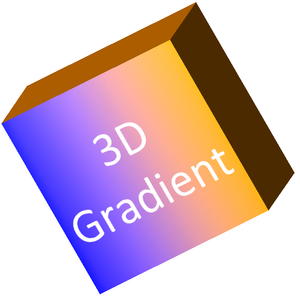
ตัวอย่างนี้ใช้การไล่สีจากสีน้ำเงินไปส้มบนหน้าตรงและสีส้มเข้มบนการดันออก 150 points การหยุดไล่สีที่ตำแหน่ง 0 และ 100 แสดงจุดเริ่มต้นและสิ้นสุดของการไล่สี ค่าการหมุนกล้องอยู่ในหน่วยองศา สไลด์ถูกเรนเดอร์เป็นภาพ PNG เพิ่มขนาดเป็นสองเท่าของมิติเริ่มต้น:
const aspose = { slides: require("aspose.slides.via.java") };
const java = require("java");

const imageScale = 2;

const presentation = new aspose.slides.Presentation();
try {
    const slide = presentation.getSlides().get_Item(0);

    const shape = slide.getShapes().addAutoShape(aspose.slides.ShapeType.Rectangle, 200, 150, 250, 250);

    shape.getTextFrame().setText("3D Gradient");
    shape.getTextFrame().getParagraphs().get_Item(0).getParagraphFormat().getDefaultPortionFormat().setFontHeight(64);

    shape.getFillFormat().setFillType(java.newByte(aspose.slides.FillType.Gradient));
    shape.getFillFormat().getGradientFormat().getGradientStops().add(0, java.getStaticFieldValue("java.awt.Color", "BLUE"));
    const orangeColor = java.newInstanceSync("java.awt.Color", 255, 165, 0);
    shape.getFillFormat().getGradientFormat().getGradientStops().add(100, orangeColor);

    shape.getThreeDFormat().getCamera().setCameraType(aspose.slides.CameraPresetType.OrthographicFront);
    shape.getThreeDFormat().getCamera().setRotation(10, 20, 30);
    shape.getThreeDFormat().getLightRig().setLightType(aspose.slides.LightRigPresetType.Flat);
    shape.getThreeDFormat().getLightRig().setDirection(aspose.slides.LightingDirection.Top);
    shape.getThreeDFormat().setMaterial(aspose.slides.MaterialPresetType.Flat);
    const extrusionColor = java.newInstanceSync("java.awt.Color", 255, 140, 0);
    shape.getThreeDFormat().setExtrusionHeight(150);
    shape.getThreeDFormat().getExtrusionColor().setColor(extrusionColor);

    const thumbnail = slide.getImage(imageScale, imageScale);
    try {
        thumbnail.save("gradient_3d.png", aspose.slides.ImageFormat.Png);
    } finally {
        thumbnail.dispose();
    }
} finally {
    presentation.dispose();
}
ผลลัพธ์ที่เรนเดอร์คงการไล่สีบนหน้าตรงและเรนเดอร์การดันออกแยกกัน:
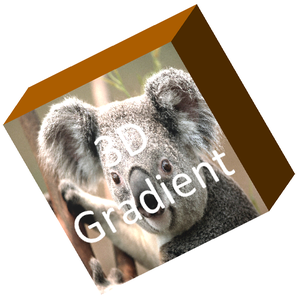
หากต้องการใช้การเติมรูปภาพ ให้เพิ่มภาพเข้าไปในงานนำเสนอและกำหนดให้เป็นการเติมรูปทรง ตัวอย่างนี้ต้องการไฟล์ชื่อ “image.jpg” อยู่ในไดเรกทอรีทำงาน มันยืดรูปภาพให้เต็มสี่เหลี่ยม, ใช้การดันออก 150 points, และตั้งค่าการหมุนกล้องเป็นองศา มันกำหนดรูปทรงในหน่วยความจำโดยไม่บันทึกหรือเรนเดอร์ไฟล์:
const aspose = { slides: require("aspose.slides.via.java") };
const java = require("java");

const presentation = new aspose.slides.Presentation();
try {
    const slide = presentation.getSlides().get_Item(0);

    const shape = slide.getShapes().addAutoShape(aspose.slides.ShapeType.Rectangle, 200, 150, 250, 250);

    const sourceImage = aspose.slides.Images.fromFile("image.jpg");
    let image;
    try {
        image = presentation.getImages().addImage(sourceImage);
    } finally {
        sourceImage.dispose();
    }

    shape.getFillFormat().setFillType(java.newByte(aspose.slides.FillType.Picture));
    shape.getFillFormat().getPictureFillFormat().getPicture().setImage(image);
    shape.getFillFormat().getPictureFillFormat().setPictureFillMode(aspose.slides.PictureFillMode.Stretch);

    const extrusionColor = java.newInstanceSync("java.awt.Color", 255, 140, 0);
    shape.getThreeDFormat().getCamera().setCameraType(aspose.slides.CameraPresetType.OrthographicFront);
    shape.getThreeDFormat().getCamera().setRotation(10, 20, 30);
    shape.getThreeDFormat().getLightRig().setLightType(aspose.slides.LightRigPresetType.Flat);
    shape.getThreeDFormat().getLightRig().setDirection(aspose.slides.LightingDirection.Top);
    shape.getThreeDFormat().setMaterial(aspose.slides.MaterialPresetType.Flat);
    shape.getThreeDFormat().setExtrusionHeight(150);
    shape.getThreeDFormat().getExtrusionColor().setColor(extrusionColor);
} finally {
    presentation.dispose();
}
รูปภาพถูกเรนเดอร์บนหน้าตรงในขณะที่การดันออกแสดงเป็นพื้นผิวด้าน 3D:
ใช้การจัดรูปแบบ 3D กับข้อความ
การจัดรูปแบบ 3D ของรูปทรงมีผลต่อเนื้อหารูปทรง การจัดรูปแบบ 3D ของข้อความมีผลต่อกรอบข้อความ สิ่งนี้มีประโยชน์สำหรับเอฟเฟกต์แบบ WordArt ที่ต้องการให้ตัวอักษรเองมีการดันออก, วัสดุ, การจัดแสงและการตั้งค่ากล้อง
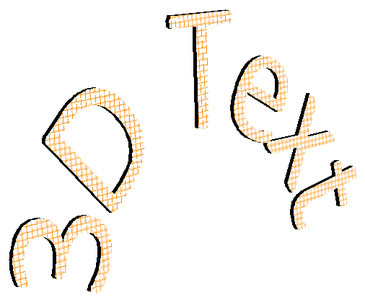
ตัวอย่างต่อไปนี้สร้างข้อความด้วยลายกริดสีส้ม-ขาว, ใช้การโค้งขึ้น, และกำหนดการตั้งค่า 3D ผ่าน TextFrameFormat.getThreeDFormat ความสูงการดันออกและความลึกอยู่ในหน่วย points, การหมุนแสงอยู่ในหน่วยองศา การเติมรูปทรงและคอนทัวร์ถูกซ่อนเพื่อให้เห็นเฉพาะข้อความ ตัวอย่างนี้เรนเดอร์ภาพ PNG ที่สองเท่าของมิติสไลด์เริ่มต้นและบันทึกงานนำเสนอเป็น PPTX:
const aspose = { slides: require("aspose.slides.via.java") };
const java = require("java");

const imageScale = 2;

const presentation = new aspose.slides.Presentation();
try {
    const slide = presentation.getSlides().get_Item(0);

    const shape = slide.getShapes().addAutoShape(aspose.slides.ShapeType.Rectangle, 200, 150, 250, 250);

    shape.getFillFormat().setFillType(java.newByte(aspose.slides.FillType.NoFill));
    shape.getLineFormat().getFillFormat().setFillType(java.newByte(aspose.slides.FillType.NoFill));
    shape.getTextFrame().setText("3D Text");

    const portion = shape.getTextFrame().getParagraphs().get_Item(0).getPortions().get_Item(0);
    portion.getPortionFormat().getFillFormat().setFillType(java.newByte(aspose.slides.FillType.Pattern));
    const patternColor = java.newInstanceSync("java.awt.Color", 255, 140, 0);
    portion.getPortionFormat().getFillFormat().getPatternFormat().getForeColor().setColor(patternColor);
    portion.getPortionFormat().getFillFormat().getPatternFormat().getBackColor().setColor(java.getStaticFieldValue("java.awt.Color", "WHITE"));
    portion.getPortionFormat().getFillFormat().getPatternFormat().setPatternStyle(java.newByte(aspose.slides.PatternStyle.LargeGrid));

    shape.getTextFrame().getParagraphs().get_Item(0).getParagraphFormat().getDefaultPortionFormat().setFontHeight(128);

    const textFrameFormat = shape.getTextFrame().getTextFrameFormat();
    textFrameFormat.setTransform(java.newByte(aspose.slides.TextShapeType.ArchUp));
    textFrameFormat.getThreeDFormat().setExtrusionHeight(3.5);
    textFrameFormat.getThreeDFormat().setDepth(3);
    textFrameFormat.getThreeDFormat().setMaterial(aspose.slides.MaterialPresetType.Plastic);
    textFrameFormat.getThreeDFormat().getLightRig().setDirection(aspose.slides.LightingDirection.Top);
    textFrameFormat.getThreeDFormat().getLightRig().setLightType(aspose.slides.LightRigPresetType.Balanced);
    textFrameFormat.getThreeDFormat().getLightRig().setRotation(0, 0, 40);
    textFrameFormat.getThreeDFormat().getCamera().setCameraType(aspose.slides.CameraPresetType.PerspectiveContrastingRightFacing);

    const thumbnail = slide.getImage(imageScale, imageScale);
    try {
        thumbnail.save("text_3d.png", aspose.slides.ImageFormat.Png);
    } finally {
        thumbnail.dispose();
    }

    presentation.save("text_3d.pptx", aspose.slides.SaveFormat.Pptx);
} finally {
    presentation.dispose();
}
ข้อความถูกเรนเดอร์เป็นตัวอักษร 3D โค้ง, ดันออก:
ทำให้ข้อความแบนบนรูปทรง 3D
เพื่อให้ข้อความอ่านง่ายขณะที่ยังคงรูปลักษณ์ 3D ของรูปทรง ให้เรียก TextFrameFormat.setKeepTextFlat ผ่าน TextFrame.getTextFrameFormat เมื่อค่าเป็น true ข้อความจะอยู่นอกฉาก 3D เมื่อเป็น false ข้อความจะเข้าร่วมในฉากและปฏิบัติตามการหมุน 3D
การตั้งค่านี้ไม่ได้ลบการจัดรูปแบบ 3D ของรูปทรง: กล้อง, แสง, วัสดุและการดันออกยังคงกำหนดผ่าน Shape.getThreeDFormat นอกจากนี้ยังแตกต่างจากการหมุนทั่วไป Shape.setRotation หมุนรูปทรงในระนาบสไลด์ ขณะที่ TextFrameFormat.setRotationAngle ควบคุมการหมุนข้อความภายในกรอบของมัน การเก็บข้อความให้อยู่นอกฉาก 3D ไม่ได้รีเซ็ตมุมเหล่านั้น
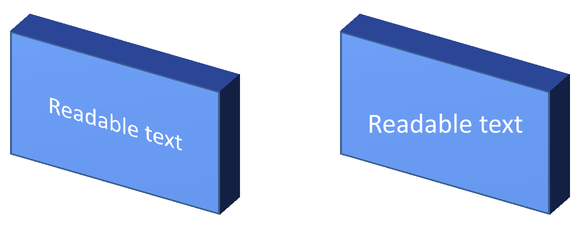
ตัวอย่างต่อไปนี้สร้างสี่เหลี่ยมสีน้ำเงินพร้อมข้อความและทำสำเนาไว้ข้างๆ ทั้งสองรูปทรงมีการจัดรูปแบบ 3D เหมือนกัน; เพียงค่าการตั้งค่าข้อความต่างกัน: false ด้านซ้ายและ true ด้านขวา มุมกล้องเป็นองศาและความสูงการดันออกเป็น 40 points ตัวอย่างบันทึกงานนำเสนอเป็น PPTX และเรนเดอร์สไลด์เปรียบเทียบเป็น PNG ที่สองเท่าของมิติเริ่มต้น
const aspose = { slides: require("aspose.slides.via.java") };
const java = require("java");

const presentation = new aspose.slides.Presentation();
try {
    const slide = presentation.getSlides().get_Item(0);

    const shape = slide.getShapes().addAutoShape(aspose.slides.ShapeType.Rectangle, 70, 160, 240, 140);

    shape.getTextFrame().setText("Readable text");
    shape.getTextFrame().getParagraphs().get_Item(0).getParagraphFormat().getDefaultPortionFormat().setFontHeight(28);
    shape.getTextFrame().getParagraphs().get_Item(0).getParagraphFormat().setAlignment(java.newByte(aspose.slides.TextAlignment.Center));
    shape.getTextFrame().getTextFrameFormat().setAnchoringType(java.newByte(aspose.slides.TextAnchorType.Center));
    shape.getFillFormat().setFillType(java.newByte(aspose.slides.FillType.Solid));
    const fillColor = java.newInstanceSync("java.awt.Color", 100, 149, 237);
    shape.getFillFormat().getSolidFillColor().setColor(fillColor);

    shape.getThreeDFormat().getCamera().setCameraType(aspose.slides.CameraPresetType.OrthographicFront);
    shape.getThreeDFormat().getCamera().setRotation(30, 30, 0);
    shape.getThreeDFormat().getLightRig().setLightType(aspose.slides.LightRigPresetType.Flat);
    shape.getThreeDFormat().getLightRig().setDirection(aspose.slides.LightingDirection.Top);
    shape.getThreeDFormat().setMaterial(aspose.slides.MaterialPresetType.Flat);
    shape.getThreeDFormat().setExtrusionHeight(40);
    const extrusionColor = java.newInstanceSync("java.awt.Color", 65, 105, 225);
    shape.getThreeDFormat().getExtrusionColor().setColor(extrusionColor);
    shape.getTextFrame().getTextFrameFormat().setKeepTextFlat(false);

    const flatTextShape = slide.getShapes().addClone(shape, 400, 160);
    flatTextShape.getTextFrame().getTextFrameFormat().setKeepTextFlat(true);

    presentation.save("keep_text_flat.pptx", aspose.slides.SaveFormat.Pptx);
    const image = slide.getImage(2, 2);
    try {
        image.save("keep_text_flat.png", aspose.slides.ImageFormat.Png);
    } finally {
        image.dispose();
    }
} finally {
    presentation.dispose();
}
ด้านซ้ายข้อความตามการหมุน 3D ด้านขวาข้อความแบนและอ่านง่ายกว่า ทั้งสองสี่เหลี่ยมคงการดันออกและการหมุน 3D ที่มองเห็นได้
พฤติกรรมการส่งออกและการเรนเดอร์
Aspose.Slides คงการจัดรูปแบบ 3D ขณะบันทึกเป็นรูปแบบ PowerPoint เช่น PPTX เมื่อเรนเดอร์หรือส่งออกเป็นรูปแบบแบบคงที่ ฉาก 3D จะถูกแรสเตอร์หรือวาดลงในผลลัพธ์เป็น 2D นี้ใช้เมื่อคุณเรนเดอร์สไลด์เป็น PNG, ส่งออกเป็น PDF, ส่งออกเป็น HTML, หรือสร้างเฟรมสำหรับ video conversion
ควรจำจุดต่อไปนี้:
- รูปภาพและ PDF ที่ส่งออกไม่มีความโต้ตอบ วัตถุไม่สามารถหมุนได้โดยผู้ชมหลังการส่งออก
- ลักษณะที่สุดท้ายขึ้นอยู่กับการผสมผสานของกล้อง, แสง, วัสดุ, การดันออก, การเติมและการสเกลสไลด์
- หากต้องการตรวจสอบค่าการจัดรูปแบบที่สืบทอดหรือจากธีม ให้อ่าน effective shape properties
- รูปแบบผลลัพธ์บางประเภทไม่สามารถเก็บการจัดรูปแบบ 3D ของ PowerPoint ที่แก้ไขได้ ในรูปแบบเหล่านั้น ผลลัพธ์ที่มองเห็นจะถูกเรนเดอร์แทนที่จะถูกเก็บเป็นการตั้งค่า 3D ที่แก้ไขได้
คำถามที่พบบ่อย
Aspose.Slides สามารถสร้างงานนำเสนอ 3D ที่โต้ตอบได้หรือไม่?
Aspose.Slides สร้างและเรนเดอร์เอฟเฟกต์ 3D ของ PowerPoint สำหรับรูปทรงและข้อความ ไม่ทำให้ภาพ, PDF หรือหน้า HTML ที่ส่งออกเป็นฉาก 3D ที่ผู้ชมสามารถหมุนได้ ใน PPTX การจัดรูปแบบ 3D ยังคงแก้ไขได้ใน PowerPoint หากรูปแบบนั้นสนับสนุน
ความแตกต่างระหว่างโมเดล 3D กับเอฟเฟกต์ 3D คืออะไร?
โมเดล 3D เป็นวัตถุ 3D แยกที่แทรกเข้าไปในงานนำเสนอ ส่วนเอฟเฟกต์ 3D คือการจัดรูปแบบที่ใช้กับรูปทรงหรือข้อความทั่วไปของ PowerPoint เช่น การหมุน, การดันออก, การตัดมุม, แสงและวัสดุ บทความนี้ครอบคลุมเอฟเฟกต์ 3D
ต้องตั้งค่าอะไรบ้างเพื่อให้รูปทรง 3D มองเห็นได้?
อย่างน้อยต้องตั้งค่าการหมุนกล้องและอย่างใดอย่างหนึ่งระหว่างการดันออกหรือความลึก โดยปกติยังควรตั้งค่าแสงและวัสดุเพื่อให้ด้านที่เรนเดอร์มีไฮไลท์และเงาชัดเจน
ฉันสามารถใช้เอฟเฟกต์ 3D กับรูปทรงและข้อความได้หรือไม่?
ได้ ใช้ Shape.getThreeDFormat สำหรับเนื้อหารูปทรงและ TextFrameFormat.getThreeDFormat สำหรับข้อความ
เอฟเฟกต์ 3D จะปรากฏเมื่อส่งออกเป็นภาพ, PDF, HTML หรือเฟรมวิดีโอหรือไม่?
ใช่ Aspose.Slides เรนเดอร์เอฟเฟกต์ 3D เมื่อสร้างภาพสไลด์, PDF, HTML และเฟรมที่ใช้สำหรับการแปลงวิดีโอ ผลลัพธ์ที่ส่งออกจะมีลักษณะที่เรนเดอร์ ไม่ใช่วัตถุ 3D ที่แก้ไขได้
ฉันสามารถอ่านค่าต่าง ๆ ของ 3D หลังจากการสืบทอดและการตั้งค่าธีมได้หรือไม่?
ได้ ใช้ API การจัดรูปแบบที่มีประสิทธิภาพที่อธิบายใน Shape Effective Properties เพื่ออ่านค่ากล้อง, แสง, บีเวลและค่าที่เกี่ยวข้องกับ 3D สุดท้าย