Python で PDF ファイルをマージする
Contents
[
Hide
]
Python で複数の PDF ファイルを単一の PDF にマージまたは結合する方法
PDFファイルの結合は、ユーザーの間で非常に一般的な質問です。これは、複数のPDFファイルを1つのドキュメントとして共有または保存したい場合に便利です。
PDF ファイルを結合すると、文書を整理したり、PC に保存するためのスペースを確保したり、複数の PDF ファイルを 1 つの文書に結合して他のユーザーと共有したりするのに役立ちます。
.NET経由でPythonでPDFをマージすることは、サードパーティのライブラリを使用しないと簡単な作業ではありません。 この記事では、.NET 経由で Aspose.PDF for Python を使用して、複数の PDF ファイルを 1 つの PDF ドキュメントに結合する方法を説明します。
Python と DOM を使用して PDF ファイルを結合する
2 つの PDF ファイルを連結するには:
- 新しい文書を作成します。
- PDF ファイルの結合
- 結合した文書を保存する
複数の PDF 文書を 1 つのファイルに結合:
import sys
import aspose.pdf as ap
from os import path


def merge_two_documents(infile1, infile2, outfile):
    document1 = ap.Document(infile1)
    document2 = ap.Document(infile2)
    document1.pages.add(document2.pages)
    document1.save(outfile)
ある PDF から別の PDF へのページ範囲の追加
Aspose.PDF for Python を使用して、ソース PDF ドキュメントからターゲットの PDF ドキュメントに特定の範囲のページをコピーして追加します。
- Document クラスを使用して PDF ファイルを開きます。
- ソース文書にページがあるかどうかを確認します。
- ページ範囲を検証してください。
- 開始ページが終了ページより大きい場合は、操作をスキップしてください。
- ページ範囲を繰り返し処理します。
- 宛先文書にページを追加します。
import sys
import aspose.pdf as ap
from os import path


def _append_page_range(source_document, destination_document, start_page, end_page):
    total_pages = len(source_document.pages)
    if total_pages == 0:
        return

    start = max(1, start_page)
    end = min(end_page, total_pages)
    if start > end:
        return

    for page_number in range(start, end + 1):
        destination_document.pages.add(source_document.pages[page_number])
複数の PDF ドキュメントを 1 つに結合
このコードスニペットでは、複数の PDF ファイルを 1 つの文書に結合する方法を説明しています。
- 空の出力ドキュメントを作成します。
- 入力ファイルを繰り返し処理します。
- 各ソースドキュメントをロードします。
- ページ範囲を決定します。
- 出力文書にページを追加します。
- すべての文書で同じ手順を繰り返します。
- 結合した PDF を保存します。
import sys
import aspose.pdf as ap
from os import path


def merge_multiple_documents(input_files, outfile):
    output_document = ap.Document()

    for input_file in input_files:
        source_document = ap.Document(input_file)
        _append_page_range(
            source_document, output_document, 1, len(source_document.pages)
        )

    output_document.save(outfile)
複数の PDF から選択したページ範囲を結合
- ソース PDF ドキュメントをロードします。
- 出力ドキュメントを作成します。
- 各文書のページ範囲を定義します。
- 最初の文書からページを追加します。
- 2 番目の文書からページを追加します。
- ページを希望の順序で結合します。
- 結合した PDF を保存します。
import sys
import aspose.pdf as ap
from os import path


def merge_selected_page_ranges(infile1, infile2, outfile):
    document1 = ap.Document(infile1)
    document2 = ap.Document(infile2)
    output_document = ap.Document()

    _append_page_range(document1, output_document, 1, 2)
    _append_page_range(document2, output_document, 2, 3)

    output_document.save(outfile)
ある PDF を別の PDF の特定の位置に挿入
- ベースをロードしてドキュメントを挿入します。
- 出力ドキュメントを作成します。
- ベース文書の合計ページ数を決定します。
- 挿入インデックスを検証します。
- 挿入ポイントの前にページを追加します。
- 挿入文書のすべてのページを追加します。
- ベース文書から残りのページを追加します。
- 結果の PDF を保存します。
import sys
import aspose.pdf as ap
from os import path


def merge_insert_document_at_position(infile1, infile2, insert_after_page, outfile):
    base_document = ap.Document(infile1)
    insert_document = ap.Document(infile2)
    output_document = ap.Document()

    base_total_pages = len(base_document.pages)
    insert_index = max(0, min(insert_after_page, base_total_pages))

    _append_page_range(base_document, output_document, 1, insert_index)
    _append_page_range(insert_document, output_document, 1, len(insert_document.pages))
    _append_page_range(
        base_document, output_document, insert_index + 1, base_total_pages
    )

    output_document.save(outfile)
ページを入れ替えて PDF を結合する
この例は、Aspose.PDF for Python を使用してページを交互に表示することで 2 つの PDF ドキュメントを結合する方法を示しています。
- 入力 PDF ドキュメントをロードします。
- 出力ドキュメントを作成します。
- 各文書のページ数を取得します。
- 最大ページ数を計算します。
- ページ番号を繰り返し処理します。
- ページを交互に追加します。
- 不均等なページ数を処理します。
- 結合した PDF を保存します。
import sys
import aspose.pdf as ap
from os import path


def merge_alternating_pages(infile1, infile2, outfile):
    document1 = ap.Document(infile1)
    document2 = ap.Document(infile2)
    output_document = ap.Document()

    document1_pages = len(document1.pages)
    document2_pages = len(document2.pages)
    max_pages = max(document1_pages, document2_pages)

    for page_number in range(1, max_pages + 1):
        if page_number <= document1_pages:
            output_document.pages.add(document1.pages[page_number])
        if page_number <= document2_pages:
            output_document.pages.add(document2.pages[page_number])

    output_document.save(outfile)
PDF をセクション区切り文字とブックマークで結合
Aspose.PDF for Python を使用して、構造化されたセクションとナビゲーションブックマークを使用して、複数の PDF ドキュメントを 1 つのファイルに結合します。
- 出力ドキュメントを作成します。
- 入力ファイルを繰り返し処理します。
- ソースドキュメントをロードします。
- セパレータページを追加します。
- セクションブックマークを作成します。
- ソース文書ページを追加します。
- 最初のコンテンツページを追跡します。
- ネストされたコンテンツブックマークを追加します (オプション)。
- すべての文書で同じ手順を繰り返します。
- 結合した PDF を保存します。
import sys
import aspose.pdf as ap
from os import path


def merge_with_section_separators_and_bookmarks(input_files, outfile):
    output_document = ap.Document()

    for section_index, input_file in enumerate(input_files, start=1):
        source_document = ap.Document(input_file)
        source_page_count = len(source_document.pages)

        separator_page = output_document.pages.add()
        separator_page.paragraphs.add(
            ap.text.TextFragment(
                f"Section {section_index}: {path.basename(input_file)}"
            )
        )

        section_bookmark = ap.OutlineItemCollection(output_document.outlines)
        section_bookmark.title = f"Section {section_index}"
        section_bookmark.action = ap.annotations.GoToAction(separator_page)
        output_document.outlines.append(section_bookmark)

        first_content_page_number = len(output_document.pages) + 1
        _append_page_range(source_document, output_document, 1, source_page_count)

        if source_page_count > 0 and first_content_page_number <= len(
            output_document.pages
        ):
            content_bookmark = ap.OutlineItemCollection(output_document.outlines)
            content_bookmark.title = f"Section {section_index} Content"
            content_bookmark.action = ap.annotations.GoToAction(
                output_document.pages[first_content_page_number]
            )
            section_bookmark.append(content_bookmark)

    output_document.save(outfile)
ライブサンプル
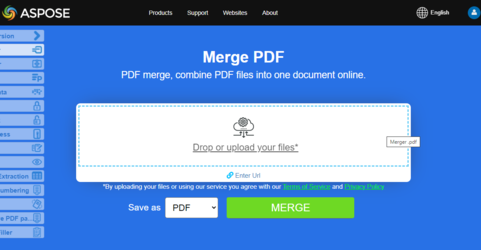
Aspose.PDF 合併 は、プレゼンテーションのマージ機能がどのように機能するかを調べることができるオンラインの無料ウェブアプリケーションです。