
Manage Bulleted and Numbered Lists in Presentations on Android
Overview
Aspose.Slides for Android via Java lets you create and format bulleted and numbered lists in PowerPoint and OpenDocument presentations. A list item is a paragraph whose bullet settings are controlled through its paragraph format.
Use the IParagraph.getParagraphFormat method to access paragraph-level list settings. The main entry point is IParagraphFormat.getBullet, which returns an IBulletFormat object. With this object, you can set the bullet type, symbol, picture, color, size, numbering style, and starting number.
This article shows how to:
- create a bulleted list with a custom symbol
- create a picture bullet
- create a multilevel list by setting paragraph depth
- create a numbered list
- inspect and change list formatting in an existing presentation
Create a Bulleted List
To create a bulleted list, add paragraphs to an ITextFrame and set IBulletFormat.setType to BulletType.Symbol. You can then set IBulletFormat.setChar, IBulletFormat.getColor, and IBulletFormat.setHeight to control the bullet appearance.
The following Java code demonstrates how to create a bulleted list in a slide:
import com.aspose.slides.*;
import java.awt.Color;

Presentation presentation = new Presentation();
try {
    ISlide slide = presentation.getSlides().get_Item(0);
    IAutoShape autoShape = slide.getShapes().addAutoShape(ShapeType.Rectangle, 20, 20, 200, 50);

    ITextFrame textFrame = autoShape.getTextFrame();
    textFrame.getParagraphs().clear();

    Color bulletColor = new Color(205, 92, 92);

    Paragraph paragraph1 = new Paragraph();
    paragraph1.getParagraphFormat().getBullet().setType(BulletType.Symbol);
    paragraph1.getParagraphFormat().getBullet().setChar('*');
    paragraph1.getParagraphFormat().setIndent(15);
    paragraph1.getParagraphFormat().getBullet().setBulletHardColor(NullableBool.True);
    paragraph1.getParagraphFormat().getBullet().getColor().setColor(bulletColor);
    paragraph1.getParagraphFormat().getBullet().setHeight(100);
    paragraph1.setText("The first paragraph");
    textFrame.getParagraphs().add(paragraph1);

    Paragraph paragraph2 = new Paragraph();
    paragraph2.getParagraphFormat().getBullet().setType(BulletType.Symbol);
    paragraph2.getParagraphFormat().getBullet().setChar('*');
    paragraph2.getParagraphFormat().setIndent(15);
    paragraph2.getParagraphFormat().getBullet().setBulletHardColor(NullableBool.True);
    paragraph2.getParagraphFormat().getBullet().getColor().setColor(bulletColor);
    paragraph2.getParagraphFormat().getBullet().setHeight(100);
    paragraph2.setText("The second paragraph");
    textFrame.getParagraphs().add(paragraph2);

    presentation.save("symbol_bullets.pptx", SaveFormat.Pptx);
} finally {
    presentation.dispose();
}
The result:

Create a Numbered List
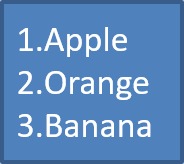
Use numbered lists when the order of items matters. Set IBulletFormat.setType to BulletType.Numbered. You can also choose a numbering format with IBulletFormat.setNumberedBulletStyle or set IBulletFormat.setNumberedBulletStartWith when the list should start from a value other than 1.
The following Java code shows how to create a numbered list in a slide:
import com.aspose.slides.*;

Presentation presentation = new Presentation();
try {
    ISlide slide = presentation.getSlides().get_Item(0);
    IAutoShape autoShape = slide.getShapes().addAutoShape(ShapeType.Rectangle, 20, 20, 90, 80);

    ITextFrame textFrame = autoShape.getTextFrame();
    textFrame.getParagraphs().clear();

    Paragraph paragraph1 = new Paragraph();
    paragraph1.getParagraphFormat().getBullet().setType(BulletType.Numbered);
    paragraph1.setText("Apple");
    textFrame.getParagraphs().add(paragraph1);

    Paragraph paragraph2 = new Paragraph();
    paragraph2.getParagraphFormat().getBullet().setType(BulletType.Numbered);
    paragraph2.setText("Orange");
    textFrame.getParagraphs().add(paragraph2);

    Paragraph paragraph3 = new Paragraph();
    paragraph3.getParagraphFormat().getBullet().setType(BulletType.Numbered);
    paragraph3.setText("Banana");
    textFrame.getParagraphs().add(paragraph3);

    presentation.save("numbered_bullets.pptx", SaveFormat.Pptx);
} finally {
    presentation.dispose();
}
The result:
Create a Picture Bullet
Aspose.Slides allows you to replace a regular bullet symbol with an image. Picture bullets work best with simple images that remain readable at a small size, such as icons or small transparent PNG files.
Ideally, if you plan to replace the regular bullet symbol with an image, it’s best to choose a simple graphic with a transparent background. Such images work well as custom bullet symbols.
Keep in mind that the image will be scaled down to a very small size. For that reason, we strongly recommend selecting an image that remains clear and visually effective when used as a bullet in a list.
To create a picture bullet, add an image to Presentation.getImages and assign the returned IPPImage object to IBulletFormat.getPicture. Set IBulletFormat.setType to BulletType.Picture before assigning the image.
Let’s say we have an “image.png”:

The following Java code shows how to create picture bullets in a slide:
import com.aspose.slides.*;

Presentation presentation = new Presentation();
try {
    ISlide slide = presentation.getSlides().get_Item(0);
    IAutoShape autoShape = slide.getShapes().addAutoShape(ShapeType.Rectangle, 20, 20, 200, 50);

    ITextFrame textFrame = autoShape.getTextFrame();
    textFrame.getParagraphs().clear();

    IPPImage bulletImage = presentation.getImages().addImage(Images.fromFile("image.png"));

    Paragraph paragraph1 = new Paragraph();
    paragraph1.getParagraphFormat().getBullet().setType(BulletType.Picture);
    paragraph1.getParagraphFormat().getBullet().getPicture().setImage(bulletImage);
    paragraph1.getParagraphFormat().setIndent(15);
    paragraph1.getParagraphFormat().getBullet().setHeight(100);
    paragraph1.setText("The first paragraph");
    textFrame.getParagraphs().add(paragraph1);

    Paragraph paragraph2 = new Paragraph();
    paragraph2.getParagraphFormat().getBullet().setType(BulletType.Picture);
    paragraph2.getParagraphFormat().getBullet().getPicture().setImage(bulletImage);
    paragraph2.getParagraphFormat().setIndent(15);
    paragraph2.getParagraphFormat().getBullet().setHeight(100);
    paragraph2.setText("The second paragraph");
    textFrame.getParagraphs().add(paragraph2);

    presentation.save("picture_bullets.pptx", SaveFormat.Pptx);
} finally {
    presentation.dispose();
}
The result:

Create a Multilevel List
Use IParagraphFormat.setDepth to place list items on different levels. Level 0 is the top level, level 1 is nested below it, and so on.
The following Java code shows how to create a multilevel list:
import com.aspose.slides.*;

Presentation presentation = new Presentation();
try {
    ISlide slide = presentation.getSlides().get_Item(0);
    IAutoShape autoShape = slide.getShapes().addAutoShape(ShapeType.Rectangle, 20, 20, 260, 110);

    ITextFrame textFrame = autoShape.getTextFrame();
    textFrame.getParagraphs().clear();

    Paragraph paragraph1 = new Paragraph();
    paragraph1.getParagraphFormat().setDepth((short) 0);
    paragraph1.setText("My text - Depth 0");
    textFrame.getParagraphs().add(paragraph1);

    Paragraph paragraph2 = new Paragraph();
    paragraph2.getParagraphFormat().setDepth((short) 1);
    paragraph2.setText("My text - Depth 1");
    textFrame.getParagraphs().add(paragraph2);

    Paragraph paragraph3 = new Paragraph();
    paragraph3.getParagraphFormat().setDepth((short) 2);
    paragraph3.setText("My text - Depth 2");
    textFrame.getParagraphs().add(paragraph3);

    Paragraph paragraph4 = new Paragraph();
    paragraph4.getParagraphFormat().setDepth((short) 3);
    paragraph4.setText("My text - Depth 3");
    textFrame.getParagraphs().add(paragraph4);

    presentation.save("multilevel_bullets.pptx", SaveFormat.Pptx);
} finally {
    presentation.dispose();
}
The result:

Change an Existing List
To change list formatting in an existing presentation, access the target paragraph and update its IParagraphFormat.getBullet settings. The same methods used to create lists can be used to inspect or modify lists loaded from a PPT, PPTX, or ODP file.
The following Java code changes the first paragraph in a text frame to use a numbered list style:
import com.aspose.slides.*;

Presentation presentation = new Presentation("input.pptx");
try {
    ISlide slide = presentation.getSlides().get_Item(0);
    IAutoShape autoShape = (IAutoShape) slide.getShapes().get_Item(0);
    IParagraph paragraph = autoShape.getTextFrame().getParagraphs().get_Item(0);

    paragraph.getParagraphFormat().getBullet().setType(BulletType.Numbered);
    paragraph.getParagraphFormat().getBullet().setNumberedBulletStyle(NumberedBulletStyle.BulletRomanUCPeriod);
    paragraph.getParagraphFormat().getBullet().setNumberedBulletStartWith((short) 1);
    paragraph.getParagraphFormat().setMarginLeft(30);
    paragraph.getParagraphFormat().setIndent(-20);

    presentation.save("updated_list.pptx", SaveFormat.Pptx);
} finally {
    presentation.dispose();
}
FAQ
Can bulleted and numbered lists be exported to PDF or images?
Yes. Aspose.Slides preserves list formatting when the target format supports the corresponding text layout and bullet features.
Can I edit lists in existing presentations?
Yes. Load the presentation, access the target paragraph, inspect or update its IParagraphFormat.getBullet settings, and save the presentation.
Can lists contain non-Latin text?
Yes. List item text can contain Unicode characters, so you can create lists in multilingual presentations. Make sure the fonts used in the presentation support the characters you need.