
在 Android 上管理簡報中的項目符號與編號清單
概覽
Aspose.Slides for Android via Java 讓您在 PowerPoint 與 OpenDocument 簡報中建立與格式化項目符號與編號清單。清單項目是一個段落,其項目符號設定透過段落格式來控制。
使用 IParagraph.getParagraphFormat 方法存取段落層級的清單設定。主要進入點是 IParagraphFormat.getBullet,它會傳回一個 IBulletFormat 物件。透過此物件,您可以設定項目符號類型、符號、圖片、顏色、大小、編號樣式與起始編號。
本文說明如何:
- 建立具有自訂符號的項目符號清單
- 建立圖片項目符號
- 透過設定段落深度建立多層次清單
- 建立編號清單
- 檢查並變更現有簡報中的清單格式
建立項目符號清單
若要建立項目符號清單,將段落加入 ITextFrame 並將 IBulletFormat.setType 設為 BulletType.Symbol。之後可使用 IBulletFormat.setChar、IBulletFormat.getColor 與 IBulletFormat.setHeight 來控制項目符號外觀。
以下 Java 程式碼示範如何在投影片中建立項目符號清單:
Presentation presentation = new Presentation();
try {
    ISlide slide = presentation.getSlides().get_Item(0);
    IAutoShape autoShape = slide.getShapes().addAutoShape(ShapeType.Rectangle, 20, 20, 200, 50);

    ITextFrame textFrame = autoShape.getTextFrame();
    textFrame.getParagraphs().clear();

    Paragraph paragraph1 = new Paragraph();
    paragraph1.getParagraphFormat().getBullet().setType(BulletType.Symbol);
    paragraph1.getParagraphFormat().getBullet().setChar('*');
    paragraph1.getParagraphFormat().setIndent(15);
    paragraph1.getParagraphFormat().getBullet().setBulletHardColor(NullableBool.True);
    paragraph1.getParagraphFormat().getBullet().getColor().setColor(Color.RED);
    paragraph1.getParagraphFormat().getBullet().setHeight(100);
    paragraph1.setText("The first paragraph");
    textFrame.getParagraphs().add(paragraph1);

    Paragraph paragraph2 = new Paragraph();
    paragraph2.getParagraphFormat().getBullet().setType(BulletType.Symbol);
    paragraph2.getParagraphFormat().getBullet().setChar('*');
    paragraph2.getParagraphFormat().setIndent(15);
    paragraph2.getParagraphFormat().getBullet().setBulletHardColor(NullableBool.True);
    paragraph2.getParagraphFormat().getBullet().getColor().setColor(Color.RED);
    paragraph2.getParagraphFormat().getBullet().setHeight(100);
    paragraph2.setText("The second paragraph");
    textFrame.getParagraphs().add(paragraph2);

    presentation.save("symbol_bullets.pptx", SaveFormat.Pptx);
} finally {
    presentation.dispose();
}
結果:

建立編號清單
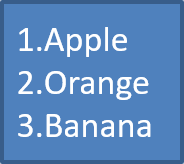
當項目的順序很重要時使用編號清單。將 IBulletFormat.setType 設為 BulletType.Numbered。您也可以使用 IBulletFormat.setNumberedBulletStyle 來選擇編號格式,或在清單需要從 1 之外的值開始時使用 IBulletFormat.setNumberedBulletStartWith。
以下 Java 程式碼示範如何在投影片中建立編號清單:
Presentation presentation = new Presentation();
try {
    ISlide slide = presentation.getSlides().get_Item(0);
    IAutoShape autoShape = slide.getShapes().addAutoShape(ShapeType.Rectangle, 20, 20, 90, 80);

    ITextFrame textFrame = autoShape.getTextFrame();
    textFrame.getParagraphs().clear();

    Paragraph paragraph1 = new Paragraph();
    paragraph1.getParagraphFormat().getBullet().setType(BulletType.Numbered);
    paragraph1.setText("Apple");
    textFrame.getParagraphs().add(paragraph1);

    Paragraph paragraph2 = new Paragraph();
    paragraph2.getParagraphFormat().getBullet().setType(BulletType.Numbered);
    paragraph2.setText("Orange");
    textFrame.getParagraphs().add(paragraph2);

    Paragraph paragraph3 = new Paragraph();
    paragraph3.getParagraphFormat().getBullet().setType(BulletType.Numbered);
    paragraph3.setText("Banana");
    textFrame.getParagraphs().add(paragraph3);

    presentation.save("numbered_bullets.pptx", SaveFormat.Pptx);
} finally {
    presentation.dispose();
}
結果:
建立圖片項目符號
Aspose.Slides 允許您將一般的項目符號符號取代為圖片。圖片項目符號最適合使用簡單且在小尺寸仍具可讀性的影像,如圖示或小型透明 PNG 檔案。
若要建立圖片項目符號,將影像加入 Presentation.getImages 並將傳回的 IPPImage 物件指定給 IBulletFormat.getPicture。在指派影像之前,先將 IBulletFormat.setType 設為 BulletType.Picture。
假設我們有一個 “image.png”:

以下 Java 程式碼示範如何在投影片中建立圖片項目符號:
Presentation presentation = new Presentation();
try {
    ISlide slide = presentation.getSlides().get_Item(0);
    IAutoShape autoShape = slide.getShapes().addAutoShape(ShapeType.Rectangle, 20, 20, 200, 50);

    ITextFrame textFrame = autoShape.getTextFrame();
    textFrame.getParagraphs().clear();

    IPPImage bulletImage = presentation.getImages().addImage(Images.fromFile("image.png"));

    Paragraph paragraph1 = new Paragraph();
    paragraph1.getParagraphFormat().getBullet().setType(BulletType.Picture);
    paragraph1.getParagraphFormat().getBullet().getPicture().setImage(bulletImage);
    paragraph1.getParagraphFormat().setIndent(15);
    paragraph1.getParagraphFormat().getBullet().setHeight(100);
    paragraph1.setText("The first paragraph");
    textFrame.getParagraphs().add(paragraph1);

    Paragraph paragraph2 = new Paragraph();
    paragraph2.getParagraphFormat().getBullet().setType(BulletType.Picture);
    paragraph2.getParagraphFormat().getBullet().getPicture().setImage(bulletImage);
    paragraph2.getParagraphFormat().setIndent(15);
    paragraph2.getParagraphFormat().getBullet().setHeight(100);
    paragraph2.setText("The second paragraph");
    textFrame.getParagraphs().add(paragraph2);

    presentation.save("picture_bullets.pptx", SaveFormat.Pptx);
} finally {
    presentation.dispose();
}
結果:

建立多層次清單
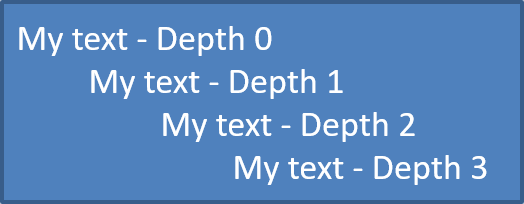
使用 IParagraphFormat.setDepth 可將清單項目放置在不同層級。層級 0 為最上層,層級 1 為其下的子層,依此類推。
以下 Java 程式碼示範如何建立多層次項目符號清單:
Presentation presentation = new Presentation();
try {
    ISlide slide = presentation.getSlides().get_Item(0);
    IAutoShape autoShape = slide.getShapes().addAutoShape(ShapeType.Rectangle, 20, 20, 260, 110);

    ITextFrame textFrame = autoShape.getTextFrame();
    textFrame.getParagraphs().clear();

    Paragraph paragraph1 = new Paragraph();
    paragraph1.getParagraphFormat().setDepth((short) 0);
    paragraph1.setText("My text - Depth 0");
    textFrame.getParagraphs().add(paragraph1);

    Paragraph paragraph2 = new Paragraph();
    paragraph2.getParagraphFormat().setDepth((short) 1);
    paragraph2.setText("My text - Depth 1");
    textFrame.getParagraphs().add(paragraph2);

    Paragraph paragraph3 = new Paragraph();
    paragraph3.getParagraphFormat().setDepth((short) 2);
    paragraph3.setText("My text - Depth 2");
    textFrame.getParagraphs().add(paragraph3);

    Paragraph paragraph4 = new Paragraph();
    paragraph4.getParagraphFormat().setDepth((short) 3);
    paragraph4.setText("My text - Depth 3");
    textFrame.getParagraphs().add(paragraph4);

    presentation.save("multilevel_bullets.pptx", SaveFormat.Pptx);
} finally {
    presentation.dispose();
}
結果:
變更現有清單
若要變更現有簡報中的清單格式,存取目標段落並更新其 IParagraphFormat.getBullet 設定。建立清單時使用的相同方法亦可用於檢查或修改從 PPT、PPTX 或 ODP 檔載入的清單。
以下 Java 程式碼將文字框中的第一個段落改為使用編號清單樣式:
Presentation presentation = new Presentation("input.pptx");
try {
    ISlide slide = presentation.getSlides().get_Item(0);
    IAutoShape autoShape = (IAutoShape) slide.getShapes().get_Item(0);
    IParagraph paragraph = autoShape.getTextFrame().getParagraphs().get_Item(0);

    paragraph.getParagraphFormat().getBullet().setType(BulletType.Numbered);
    paragraph.getParagraphFormat().getBullet().setNumberedBulletStyle(NumberedBulletStyle.BulletRomanUCPeriod);
    paragraph.getParagraphFormat().getBullet().setNumberedBulletStartWith((short) 1);
    paragraph.getParagraphFormat().setMarginLeft(30);
    paragraph.getParagraphFormat().setIndent(-20);

    presentation.save("updated_list.pptx", SaveFormat.Pptx);
} finally {
    presentation.dispose();
}
常見問題
項目符號和編號清單可以匯出為 PDF 或影像嗎?
可以。當目標格式支援相應的文字佈局與項目符號功能時,Aspose.Slides 會保留清單格式。
我可以編輯現有簡報中的清單嗎?
可以。載入簡報、存取目標段落、檢查或更新其 [IParagraphFormat.getBullet] 設定,然後儲存簡報。
清單可以包含非拉丁文字嗎?
可以。清單項目文字可以包含 Unicode 字元,您可以在多語言簡報中建立清單。請確保簡報使用的字型支援所需的字元。