
Quản lý danh sách có dấu đầu dòng và có số trong bản trình chiếu trên Android
Tổng quan
Aspose.Slides cho Android thông qua Java cho phép bạn tạo và định dạng các danh sách có dấu đầu dòng và có số trong các bản trình chiếu PowerPoint và OpenDocument. Một mục danh sách là một đoạn văn mà cài đặt dấu đầu dòng được kiểm soát thông qua định dạng đoạn văn của nó.
Sử dụng phương thức IParagraph.getParagraphFormat để truy cập cài đặt danh sách ở mức đoạn văn. Điểm vào chính là IParagraphFormat.getBullet, trả về một đối tượng IBulletFormat . Với đối tượng này, bạn có thể đặt loại dấu đầu dòng, ký hiệu, hình ảnh, màu sắc, kích thước, kiểu đánh số và số bắt đầu.
Bài viết này cho thấy cách:
- tạo danh sách có dấu đầu dòng với ký hiệu tùy chỉnh
- tạo dấu đầu dòng hình ảnh
- tạo danh sách đa cấp bằng cách đặt độ sâu đoạn văn
- tạo danh sách có số
- kiểm tra và thay đổi định dạng danh sách trong một bản trình chiếu hiện có
Tạo danh sách có dấu đầu dòng
Để tạo danh sách có dấu đầu dòng, thêm các đoạn văn vào một ITextFrame và đặt IBulletFormat.setType thành BulletType.Symbol. Sau đó bạn có thể đặt IBulletFormat.setChar, IBulletFormat.getColor, và IBulletFormat.setHeight để kiểm soát diện mạo của dấu đầu dòng.
Mã Java sau đây minh họa cách tạo danh sách có dấu đầu dòng trong một slide:
Presentation presentation = new Presentation();
try {
    ISlide slide = presentation.getSlides().get_Item(0);
    IAutoShape autoShape = slide.getShapes().addAutoShape(ShapeType.Rectangle, 20, 20, 200, 50);

    ITextFrame textFrame = autoShape.getTextFrame();
    textFrame.getParagraphs().clear();

    Paragraph paragraph1 = new Paragraph();
    paragraph1.getParagraphFormat().getBullet().setType(BulletType.Symbol);
    paragraph1.getParagraphFormat().getBullet().setChar('*');
    paragraph1.getParagraphFormat().setIndent(15);
    paragraph1.getParagraphFormat().getBullet().setBulletHardColor(NullableBool.True);
    paragraph1.getParagraphFormat().getBullet().getColor().setColor(Color.RED);
    paragraph1.getParagraphFormat().getBullet().setHeight(100);
    paragraph1.setText("The first paragraph");
    textFrame.getParagraphs().add(paragraph1);

    Paragraph paragraph2 = new Paragraph();
    paragraph2.getParagraphFormat().getBullet().setType(BulletType.Symbol);
    paragraph2.getParagraphFormat().getBullet().setChar('*');
    paragraph2.getParagraphFormat().setIndent(15);
    paragraph2.getParagraphFormat().getBullet().setBulletHardColor(NullableBool.True);
    paragraph2.getParagraphFormat().getBullet().getColor().setColor(Color.RED);
    paragraph2.getParagraphFormat().getBullet().setHeight(100);
    paragraph2.setText("The second paragraph");
    textFrame.getParagraphs().add(paragraph2);

    presentation.save("symbol_bullets.pptx", SaveFormat.Pptx);
} finally {
    presentation.dispose();
}
Kết quả:

Tạo danh sách có số
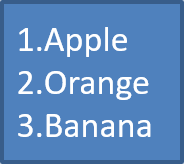
Sử dụng danh sách có số khi thứ tự của các mục quan trọng. Đặt IBulletFormat.setType thành BulletType.Numbered. Bạn cũng có thể chọn định dạng đánh số bằng IBulletFormat.setNumberedBulletStyle hoặc đặt IBulletFormat.setNumberedBulletStartWith khi danh sách nên bắt đầu từ một giá trị khác 1.
Mã Java sau đây cho thấy cách tạo danh sách có số trong một slide:
Presentation presentation = new Presentation();
try {
    ISlide slide = presentation.getSlides().get_Item(0);
    IAutoShape autoShape = slide.getShapes().addAutoShape(ShapeType.Rectangle, 20, 20, 90, 80);

    ITextFrame textFrame = autoShape.getTextFrame();
    textFrame.getParagraphs().clear();

    Paragraph paragraph1 = new Paragraph();
    paragraph1.getParagraphFormat().getBullet().setType(BulletType.Numbered);
    paragraph1.setText("Apple");
    textFrame.getParagraphs().add(paragraph1);

    Paragraph paragraph2 = new Paragraph();
    paragraph2.getParagraphFormat().getBullet().setType(BulletType.Numbered);
    paragraph2.setText("Orange");
    textFrame.getParagraphs().add(paragraph2);

    Paragraph paragraph3 = new Paragraph();
    paragraph3.getParagraphFormat().getBullet().setType(BulletType.Numbered);
    paragraph3.setText("Banana");
    textFrame.getParagraphs().add(paragraph3);

    presentation.save("numbered_bullets.pptx", SaveFormat.Pptx);
} finally {
    presentation.dispose();
}
Kết quả:
Tạo dấu đầu dòng hình ảnh
Aspose.Slides cho phép bạn thay thế ký hiệu dấu đầu dòng thông thường bằng một hình ảnh. Dấu đầu dòng hình ảnh hoạt động tốt nhất với các hình ảnh đơn giản vẫn có thể đọc được ở kích thước nhỏ, chẳng hạn như biểu tượng hoặc các tệp PNG trong suốt nhỏ.
Tốt nhất, nếu bạn định thay thế ký hiệu dấu đầu dòng thông thường bằng một hình ảnh, bạn nên chọn một đồ họa đơn giản với nền trong suốt. Những hình ảnh như vậy hoạt động tốt như các ký hiệu dấu đầu dòng tùy chỉnh.
Lưu ý rằng hình ảnh sẽ được thu nhỏ xuống một kích thước rất nhỏ. Vì lý do này, chúng tôi mạnh mẽ khuyến nghị chọn một hình ảnh vẫn rõ ràng và hiệu quả về mặt hình ảnh khi được sử dụng làm dấu đầu dòng trong danh sách.
Để tạo dấu đầu dòng hình ảnh, thêm một hình ảnh vào Presentation.getImages và gán đối tượng IPPImage trả về cho IBulletFormat.getPicture. Đặt IBulletFormat.setType thành BulletType.Picture trước khi gán hình ảnh.
Giả sử chúng ta có một “image.png”:

Mã Java sau đây cho thấy cách tạo dấu đầu dòng hình ảnh trong một slide:
Presentation presentation = new Presentation();
try {
    ISlide slide = presentation.getSlides().get_Item(0);
    IAutoShape autoShape = slide.getShapes().addAutoShape(ShapeType.Rectangle, 20, 20, 200, 50);

    ITextFrame textFrame = autoShape.getTextFrame();
    textFrame.getParagraphs().clear();

    IPPImage bulletImage = presentation.getImages().addImage(Images.fromFile("image.png"));

    Paragraph paragraph1 = new Paragraph();
    paragraph1.getParagraphFormat().getBullet().setType(BulletType.Picture);
    paragraph1.getParagraphFormat().getBullet().getPicture().setImage(bulletImage);
    paragraph1.getParagraphFormat().setIndent(15);
    paragraph1.getParagraphFormat().getBullet().setHeight(100);
    paragraph1.setText("The first paragraph");
    textFrame.getParagraphs().add(paragraph1);

    Paragraph paragraph2 = new Paragraph();
    paragraph2.getParagraphFormat().getBullet().setType(BulletType.Picture);
    paragraph2.getParagraphFormat().getBullet().getPicture().setImage(bulletImage);
    paragraph2.getParagraphFormat().setIndent(15);
    paragraph2.getParagraphFormat().getBullet().setHeight(100);
    paragraph2.setText("The second paragraph");
    textFrame.getParagraphs().add(paragraph2);

    presentation.save("picture_bullets.pptx", SaveFormat.Pptx);
} finally {
    presentation.dispose();
}
Kết quả:

Tạo danh sách đa cấp
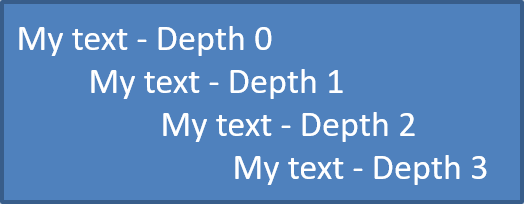
Sử dụng IParagraphFormat.setDepth để đặt các mục danh sách ở các cấp độ khác nhau. Cấp độ 0 là cấp cao nhất, cấp độ 1 là cấp lồng bên dưới, và cứ như vậy.
Mã Java sau đây cho thấy cách tạo danh sách có dấu đầu dòng đa cấp:
Presentation presentation = new Presentation();
try {
    ISlide slide = presentation.getSlides().get_Item(0);
    IAutoShape autoShape = slide.getShapes().addAutoShape(ShapeType.Rectangle, 20, 20, 260, 110);

    ITextFrame textFrame = autoShape.getTextFrame();
    textFrame.getParagraphs().clear();

    Paragraph paragraph1 = new Paragraph();
    paragraph1.getParagraphFormat().setDepth((short) 0);
    paragraph1.setText("My text - Depth 0");
    textFrame.getParagraphs().add(paragraph1);

    Paragraph paragraph2 = new Paragraph();
    paragraph2.getParagraphFormat().setDepth((short) 1);
    paragraph2.setText("My text - Depth 1");
    textFrame.getParagraphs().add(paragraph2);

    Paragraph paragraph3 = new Paragraph();
    paragraph3.getParagraphFormat().setDepth((short) 2);
    paragraph3.setText("My text - Depth 2");
    textFrame.getParagraphs().add(paragraph3);

    Paragraph paragraph4 = new Paragraph();
    paragraph4.getParagraphFormat().setDepth((short) 3);
    paragraph4.setText("My text - Depth 3");
    textFrame.getParagraphs().add(paragraph4);

    presentation.save("multilevel_bullets.pptx", SaveFormat.Pptx);
} finally {
    presentation.dispose();
}
Kết quả:
Thay đổi danh sách hiện có
Để thay đổi định dạng danh sách trong một bản trình chiếu hiện có, truy cập đoạn văn mục tiêu và cập nhật cài đặt IParagraphFormat.getBullet của nó. Các phương thức tương tự được sử dụng để tạo danh sách cũng có thể được dùng để kiểm tra hoặc sửa đổi danh sách được tải từ tệp PPT, PPTX hoặc ODP.
Mã Java sau đây thay đổi đoạn văn đầu tiên trong một khung văn bản để sử dụng kiểu danh sách có số:
Presentation presentation = new Presentation("input.pptx");
try {
    ISlide slide = presentation.getSlides().get_Item(0);
    IAutoShape autoShape = (IAutoShape) slide.getShapes().get_Item(0);
    IParagraph paragraph = autoShape.getTextFrame().getParagraphs().get_Item(0);

    paragraph.getParagraphFormat().getBullet().setType(BulletType.Numbered);
    paragraph.getParagraphFormat().getBullet().setNumberedBulletStyle(NumberedBulletStyle.BulletRomanUCPeriod);
    paragraph.getParagraphFormat().getBullet().setNumberedBulletStartWith((short) 1);
    paragraph.getParagraphFormat().setMarginLeft(30);
    paragraph.getParagraphFormat().setIndent(-20);

    presentation.save("updated_list.pptx", SaveFormat.Pptx);
} finally {
    presentation.dispose();
}
FAQ
Liệu danh sách có dấu đầu dòng và danh sách có số có thể được xuất ra PDF hoặc hình ảnh không?
Có. Aspose.Slides giữ nguyên định dạng danh sách khi định dạng đích hỗ trợ bố cục văn bản và các tính năng dấu đầu dòng tương ứng.
Tôi có thể chỉnh sửa danh sách trong các bản trình chiếu hiện có không?
Có. Tải bản trình chiếu, truy cập đoạn văn mục tiêu, kiểm tra hoặc cập nhật cài đặt IParagraphFormat.getBullet của nó, và lưu bản trình chiếu.
Danh sách có thể chứa văn bản không phải tiếng La-tinh không?
Có. Văn bản của mục danh sách có thể chứa ký tự Unicode, vì vậy bạn có thể tạo danh sách trong các bản trình chiếu đa ngôn ngữ. Đảm bảo các phông chữ được sử dụng trong bản trình chiếu hỗ trợ các ký tự bạn cần.