
إدارة فقرات نص PowerPoint على Android
نظرة عامة
تمثل Aspose.Slides للـ Android عبر Java النص كهيراركية من إطارات النص، الفقرات، والجزئيات:
- ITextFrame يمثل حاوية النص داخل الشكل ويتيح الوصول إلى مجموعة الفقرات الخاصة به.
- IParagraph يمثل فقرة واحدة في إطار النص ويتيح الوصول إلى جزئياتها وتنسيق مستوى الفقرة.
- IPortion يمثل قطعة نصية داخل الفقرة. يمكن لكل جزئية أن تحتوي على نصها وتنسيق الأحرف الخاص بها.
وبالتالي يمكن للفقرة أن تحتوي نصًا بخطوط، ألوان، أحجام، وتنسيقات أخرى مختلفة باستخدام عدة جزئيات.
إنشاء وتنسيق الفقرات
أنشئ فقرات في إطار النص الخاص بالشكل واستخدم الجزئيات لتنسيق قطع النص الفردية. يوضح هذا القسم كيفية دمج عدة جزئيات داخل كل فقرة وتطبيق ألوان، أحجام خطوط، وأنماط مختلفة.
إنشاء فقرات مع عدة جزئيات
المثال التالي للـ Android عبر Java ينشئ ثلاث فقرات، كل منها يحتوي على ثلاث قطع نصية في المجموعة التي تُرجعها IParagraph.getPortions. يعيد استخدام الفقرة الافتراضية والجزئية الفارغة، ثم يضيف الفقرات والجزئيات المتبقية. يتم تطبيق التنسيق عبر IPortion.getPortionFormat: الجزئية الأولى في كل فقرة حمراء، عريضة، و15 نقطة؛ الثانية زرقاء، مائلة، و18 نقطة. تحتفظ الجزئية الثالثة بتنسيقها الافتراضي:
import com.aspose.slides.*;
import android.graphics.Color;

Presentation presentation = new Presentation();
try {
    ISlide slide = presentation.getSlides().get_Item(0);

    IAutoShape shape = slide.getShapes().addAutoShape(ShapeType.Rectangle, 50, 150, 300, 150);
    ITextFrame textFrame = shape.getTextFrame();

    IParagraph firstParagraph = textFrame.getParagraphs().get_Item(0);
    firstParagraph.getPortions().add(new Portion());
    firstParagraph.getPortions().add(new Portion());

    IParagraph secondParagraph = new Paragraph();
    secondParagraph.getPortions().add(new Portion());
    secondParagraph.getPortions().add(new Portion());
    secondParagraph.getPortions().add(new Portion());
    textFrame.getParagraphs().add(secondParagraph);

    IParagraph thirdParagraph = new Paragraph();
    thirdParagraph.getPortions().add(new Portion());
    thirdParagraph.getPortions().add(new Portion());
    thirdParagraph.getPortions().add(new Portion());
    textFrame.getParagraphs().add(thirdParagraph);

    int paragraphCount = textFrame.getParagraphs().getCount();
    for (int paragraphIndex = 0; paragraphIndex < paragraphCount; paragraphIndex++) {
        IParagraph paragraph = textFrame.getParagraphs().get_Item(paragraphIndex);
        int portionCount = paragraph.getPortions().getCount();
        for (int portionIndex = 0; portionIndex < portionCount; portionIndex++) {
            IPortion portion = paragraph.getPortions().get_Item(portionIndex);
            portion.setText("Portion " + (paragraphIndex + 1) + "." + (portionIndex + 1));

            if (portionIndex == 0) {
                portion.getPortionFormat().getFillFormat().setFillType(FillType.Solid);
                portion.getPortionFormat().getFillFormat().getSolidFillColor().setColor(Color.RED);
                portion.getPortionFormat().setFontBold(NullableBool.True);
                portion.getPortionFormat().setFontHeight(15);
            } else if (portionIndex == 1) {
                portion.getPortionFormat().getFillFormat().setFillType(FillType.Solid);
                portion.getPortionFormat().getFillFormat().getSolidFillColor().setColor(Color.BLUE);
                portion.getPortionFormat().setFontItalic(NullableBool.True);
                portion.getPortionFormat().setFontHeight(18);
            }
        }
    }

    presentation.save("paragraphs_with_portions.pptx", SaveFormat.Pptx);
} finally {
    presentation.dispose();
}
إنشاء قوائم نقطية ورقمية
نظّم نص الفقرات في قوائم باستخدام رموز، أرقام، أو صور مخصصة. تغطي الأمثلة في هذا القسم تنسيق النقاط، القوائم متعددة المستويات، وأرقام البدء المخصصة.
إنشاء قائمة نقطية أو رقمية
تجعل النقاط والترقيم العناصر ذات الصلة أسهل في القراءة. في Aspose.Slides، يتم تعريف إعدادات القائمة عبر IBulletFormat.
يضيف هذا المثال للـ Android عبر Java نقطة رمزية وعنصر مرقم إلى نفس إطار النص. يحدد IBulletFormat.setType نوع النقطة، بينما يزود IBulletFormat.setChar الرمز وIBulletFormat.setNumberedBulletStyle نمط الترقيم. يستخدم العنصران نقاطًا سوداء بارتفاع 100٪ ومسافة إزاحة الفقرة 25 نقطة:
import com.aspose.slides.*;
import android.graphics.Color;

Presentation presentation = new Presentation();
try {
    ISlide slide = presentation.getSlides().get_Item(0);

    IAutoShape shape = slide.getShapes().addAutoShape(ShapeType.Rectangle, 200, 200, 400, 200);
    ITextFrame textFrame = shape.getTextFrame();
    textFrame.getParagraphs().clear();

    Paragraph symbolParagraph = new Paragraph();
    symbolParagraph.setText("Welcome to Aspose.Slides");
    symbolParagraph.getParagraphFormat().getBullet().setType(BulletType.Symbol);
    symbolParagraph.getParagraphFormat().getBullet().setChar((char) 0x2022);
    symbolParagraph.getParagraphFormat().setIndent(25);
    symbolParagraph.getParagraphFormat().getBullet().getColor().setColorType(ColorType.RGB);
    symbolParagraph.getParagraphFormat().getBullet().getColor().setColor(Color.BLACK);
    symbolParagraph.getParagraphFormat().getBullet().setBulletHardColor(NullableBool.True);
    symbolParagraph.getParagraphFormat().getBullet().setHeight(100);
    textFrame.getParagraphs().add(symbolParagraph);

    Paragraph numberedParagraph = new Paragraph();
    numberedParagraph.setText("This is a numbered item");
    numberedParagraph.getParagraphFormat().getBullet().setType(BulletType.Numbered);
    numberedParagraph.getParagraphFormat().getBullet().setNumberedBulletStyle(NumberedBulletStyle.BulletCircleNumWDBlackPlain);
    numberedParagraph.getParagraphFormat().setIndent(25);
    numberedParagraph.getParagraphFormat().getBullet().getColor().setColorType(ColorType.RGB);
    numberedParagraph.getParagraphFormat().getBullet().getColor().setColor(Color.BLACK);
    numberedParagraph.getParagraphFormat().getBullet().setBulletHardColor(NullableBool.True);
    numberedParagraph.getParagraphFormat().getBullet().setHeight(100);
    textFrame.getParagraphs().add(numberedParagraph);

    presentation.save("bulleted_and_numbered_list.pptx", SaveFormat.Pptx);
} finally {
    presentation.dispose();
}
استخدام نقاط صورة
تتيح لك نقاط الصورة استخدام صورة مخصصة بدلاً من رمز أو رقم.
يضيف هذا المثال للـ Android عبر Java صورة إلى مجموعة صور العرض كـ IPPImage ويستخدمها كنقطة فقرة. يستدعي IBulletFormat.setType لاستخدام نقطة صورة ويعيّن الصورة عبر IBulletFormat.getPicture. يتم ضبط IBulletFormat.setHeight على 100٪ لتحديد حجم النقطة نسبةً إلى نص الفقرة:
import com.aspose.slides.*;

Presentation presentation = new Presentation();
try {
    ISlide slide = presentation.getSlides().get_Item(0);

    IImage bulletImage = Images.fromFile("bullets.png");
    IPPImage presentationImage;
    try {
        presentationImage = presentation.getImages().addImage(bulletImage);
    } finally {
        bulletImage.dispose();
    }

    IAutoShape shape = slide.getShapes().addAutoShape(ShapeType.Rectangle, 200, 200, 400, 200);
    ITextFrame textFrame = shape.getTextFrame();
    textFrame.getParagraphs().clear();

    Paragraph paragraph = new Paragraph();
    paragraph.setText("Welcome to Aspose.Slides");
    paragraph.getParagraphFormat().getBullet().setType(BulletType.Picture);
    paragraph.getParagraphFormat().getBullet().getPicture().setImage(presentationImage);
    paragraph.getParagraphFormat().getBullet().setHeight(100);
    textFrame.getParagraphs().add(paragraph);

    presentation.save("picture_bullet.pptx", SaveFormat.Pptx);
    presentation.save("picture_bullet.ppt", SaveFormat.Ppt);
} finally {
    presentation.dispose();
}
إنشاء قائمة متعددة المستويات
عيّن IParagraphFormat.setDepth لتسيير الفقرات في مستويات مختلفة من القائمة. المستوى العلوي له عمق 0.
هذا المثال للـ Android عبر Java يعيّن قيم IParagraphFormat.setDepth من 0 إلى 3 لأربع فقرات، مكوّنًا هيراركية داخل إطار نص واحد. تستخدم كل فقرة نقطة رمز، مع IBulletFormat.setChar يتناوب بين نقطة دائرية وواصلة لتمييز المستويات المتجاورة:
import com.aspose.slides.*;
import android.graphics.Color;

Presentation presentation = new Presentation();
try {
    ISlide slide = presentation.getSlides().get_Item(0);

    IAutoShape shape = slide.getShapes().addAutoShape(ShapeType.Rectangle, 200, 200, 400, 200);
    ITextFrame textFrame = shape.getTextFrame();
    textFrame.getParagraphs().clear();

    IParagraph firstParagraph = new Paragraph();
    firstParagraph.setText("Content");
    firstParagraph.getParagraphFormat().getBullet().setType(BulletType.Symbol);
    firstParagraph.getParagraphFormat().getBullet().setChar((char) 0x2022);
    firstParagraph.getParagraphFormat().getDefaultPortionFormat().getFillFormat().setFillType(FillType.Solid);
    firstParagraph.getParagraphFormat().getDefaultPortionFormat().getFillFormat().getSolidFillColor().setColor(Color.BLACK);
    firstParagraph.getParagraphFormat().setDepth((short) 0);

    IParagraph secondParagraph = new Paragraph();
    secondParagraph.setText("Second level");
    secondParagraph.getParagraphFormat().getBullet().setType(BulletType.Symbol);
    secondParagraph.getParagraphFormat().getBullet().setChar('-');
    secondParagraph.getParagraphFormat().getDefaultPortionFormat().getFillFormat().setFillType(FillType.Solid);
    secondParagraph.getParagraphFormat().getDefaultPortionFormat().getFillFormat().getSolidFillColor().setColor(Color.BLACK);
    secondParagraph.getParagraphFormat().setDepth((short) 1);

    IParagraph thirdParagraph = new Paragraph();
    thirdParagraph.setText("Third level");
    thirdParagraph.getParagraphFormat().getBullet().setType(BulletType.Symbol);
    thirdParagraph.getParagraphFormat().getBullet().setChar((char) 0x2022);
    thirdParagraph.getParagraphFormat().getDefaultPortionFormat().getFillFormat().setFillType(FillType.Solid);
    thirdParagraph.getParagraphFormat().getDefaultPortionFormat().getFillFormat().getSolidFillColor().setColor(Color.BLACK);
    thirdParagraph.getParagraphFormat().setDepth((short) 2);

    IParagraph fourthParagraph = new Paragraph();
    fourthParagraph.setText("Fourth level");
    fourthParagraph.getParagraphFormat().getBullet().setType(BulletType.Symbol);
    fourthParagraph.getParagraphFormat().getBullet().setChar('-');
    fourthParagraph.getParagraphFormat().getDefaultPortionFormat().getFillFormat().setFillType(FillType.Solid);
    fourthParagraph.getParagraphFormat().getDefaultPortionFormat().getFillFormat().getSolidFillColor().setColor(Color.BLACK);
    fourthParagraph.getParagraphFormat().setDepth((short) 3);

    textFrame.getParagraphs().add(firstParagraph);
    textFrame.getParagraphs().add(secondParagraph);
    textFrame.getParagraphs().add(thirdParagraph);
    textFrame.getParagraphs().add(fourthParagraph);

    presentation.save("multilevel_list.pptx", SaveFormat.Pptx);
} finally {
    presentation.dispose();
}
بدء عناصر القائمة الرقمية بقيم مخصصة
استخدم IBulletFormat.setNumberedBulletStartWith لتعيين الرقم الأول المعروض لفقرة مرقّمة.
هذا المثال للـ Android عبر Java يعيّن IBulletFormat.setType لاستخدام الترقيم لثلاث فقرات ويعيّن قيم IBulletFormat.setNumberedBulletStartWith بـ 2، 3، و7. تم تكوين القيمة الابتدائية بشكل منفصل لكل فقرة، مما يسمح بتخطي الأرقام المعروضة:
import com.aspose.slides.*;

Presentation presentation = new Presentation();
try {
    ISlide slide = presentation.getSlides().get_Item(0);

    IAutoShape shape = slide.getShapes().addAutoShape(ShapeType.Rectangle, 200, 200, 400, 200);
    ITextFrame textFrame = shape.getTextFrame();
    textFrame.getParagraphs().clear();

    Paragraph firstParagraph = new Paragraph();
    firstParagraph.setText("Start at 2");
    firstParagraph.getParagraphFormat().getBullet().setType(BulletType.Numbered);
    firstParagraph.getParagraphFormat().getBullet().setNumberedBulletStartWith((short) 2);
    textFrame.getParagraphs().add(firstParagraph);

    Paragraph secondParagraph = new Paragraph();
    secondParagraph.setText("Start at 3");
    secondParagraph.getParagraphFormat().getBullet().setType(BulletType.Numbered);
    secondParagraph.getParagraphFormat().getBullet().setNumberedBulletStartWith((short) 3);
    textFrame.getParagraphs().add(secondParagraph);

    Paragraph thirdParagraph = new Paragraph();
    thirdParagraph.setText("Start at 7");
    thirdParagraph.getParagraphFormat().getBullet().setType(BulletType.Numbered);
    thirdParagraph.getParagraphFormat().getBullet().setNumberedBulletStartWith((short) 7);
    textFrame.getParagraphs().add(thirdParagraph);

    presentation.save("custom_numbered_list.pptx", SaveFormat.Pptx);
} finally {
    presentation.dispose();
}
التحكم في تخطيط الفقرة وخصائص النهاية
ضبط هوامش الفقرة وإزاحات السطر للتحكم في موضع السطر الأول والأسطر الملتفة. يمكنك أيضًا تنسيق علامة نهاية الفقرة بشكل منفصل عن جزئيات النص الظاهرة.
تعيين إزاحة السطر الأول
استخدم طريقة IParagraphFormat.setIndent للتحكم في إزاحة السطر الأول للفقرة. هذه الإعدادات تحرك السطر الأول فقط نسبةً إلى هامش الفقرة الأيسر. القيمة الموجبة تحرك السطر الأول إلى اليمين، بينما تبقى الأسطر المتبقية محاذاة مع جسم الفقرة.
استخدم IParagraphFormat.setMarginLeft عندما تحتاج إلى تحريك الفقرة بأكملها. استخدم IParagraphFormat.setIndent عندما تحتاج إلى تحريك السطر الأول فقط.
يعطي المثال التالي ثلاث فقرات نفس قيمة IParagraphFormat.setMarginLeft بـ 20 نقطة وقيم IParagraphFormat.setIndent بـ 0، 20، و40 نقطة. تبدأ الأسطر الأولى بإزاحات متزايدة، بينما تحتفظ الأسطر الملتفة بهامش اليسار نفسه:
import com.aspose.slides.*;
import android.graphics.Color;

Presentation presentation = new Presentation();
try {
    ISlide slide = presentation.getSlides().get_Item(0);

    IAutoShape shape = slide.getShapes().addAutoShape(ShapeType.Rectangle, 50, 50, 420, 220);
    shape.getFillFormat().setFillType(FillType.NoFill);
    shape.getLineFormat().getFillFormat().setFillType(FillType.Solid);
    shape.getLineFormat().getFillFormat().getSolidFillColor().setColor(Color.GRAY);

    ITextFrame textFrame = shape.getTextFrame();
    textFrame.getTextFrameFormat().setAutofitType(TextAutofitType.Shape);
    textFrame.getParagraphs().clear();

    Paragraph firstParagraph = new Paragraph();
    firstParagraph.setText("No first-line indent. Wrapped lines start at the same position as the first line.");
    firstParagraph.getParagraphFormat().getDefaultPortionFormat().getFillFormat().setFillType(FillType.Solid);
    firstParagraph.getParagraphFormat().getDefaultPortionFormat().getFillFormat().getSolidFillColor().setColor(Color.BLACK);
    firstParagraph.getParagraphFormat().setMarginLeft(20f);
    firstParagraph.getParagraphFormat().setIndent(0f);

    Paragraph secondParagraph = new Paragraph();
    secondParagraph.setText("First-line indent of 20 points. The first line moves to the right, while wrapped lines remain aligned to the paragraph body.");
    secondParagraph.getParagraphFormat().getDefaultPortionFormat().getFillFormat().setFillType(FillType.Solid);
    secondParagraph.getParagraphFormat().getDefaultPortionFormat().getFillFormat().getSolidFillColor().setColor(Color.BLACK);
    secondParagraph.getParagraphFormat().setMarginLeft(20f);
    secondParagraph.getParagraphFormat().setIndent(20f);

    Paragraph thirdParagraph = new Paragraph();
    thirdParagraph.setText("First-line indent of 40 points. This paragraph shows a larger first-line offset to make the effect easier to see.");
    thirdParagraph.getParagraphFormat().getDefaultPortionFormat().getFillFormat().setFillType(FillType.Solid);
    thirdParagraph.getParagraphFormat().getDefaultPortionFormat().getFillFormat().getSolidFillColor().setColor(Color.BLACK);
    thirdParagraph.getParagraphFormat().setMarginLeft(20f);
    thirdParagraph.getParagraphFormat().setIndent(40f);

    textFrame.getParagraphs().add(firstParagraph);
    textFrame.getParagraphs().add(secondParagraph);
    textFrame.getParagraphs().add(thirdParagraph);

    presentation.save("paragraph_indent.pptx", SaveFormat.Pptx);
} finally {
    presentation.dispose();
}
النتيجة:

تعيين إزاحة معلقة
الإزاحة المعلقة هي تخطيط فقرة يبدأ به السطر الأول إلى اليسار من الأسطر المتبقية. في Aspose.Slides، يمكنك إنشاء هذا التأثير باستخدام خاصية IParagraphFormat.setIndent. عيّن Indent إلى قيمة سالبة لتحريك السطر الأول إلى اليسار نسبةً إلى جسم الفقرة.
عمليًا، يحدد IParagraphFormat.setMarginLeft موضع جسم الفقرة الأيسر، وتحدد IParagraphFormat.setIndent موضع السطر الأول نسبةً إلى ذلك الهامش. لإنشاء إزاحة معلقة، عيّن قيمة MarginLeft موجبة وقيمة Indent سالبة.
هذا التنسيق مفيد للببليوغرافيا، المراجع، مداخل القاموس، وغيرها من الفقرات التي يجب أن تكون الأسطر الملتفة محاذية تحت جسم الفقرة وليس تحت الحرف الأول للسطر الأول.
يربط المثال التالي للـ Android عبر Java قيم IParagraphFormat.setMarginLeft بـ 40 و60 نقطة مع قيم IParagraphFormat.setIndent بـ -20 و-30 نقطة. في كل فقرة، يبدأ السطر الأول إلى اليسار من الأسطر الملتفة؛ الفقرة الثانية لها إزاحة معلقة أعمق:
import com.aspose.slides.*;
import android.graphics.Color;

Presentation presentation = new Presentation();
try {
    ISlide slide = presentation.getSlides().get_Item(0);

    IAutoShape shape = slide.getShapes().addAutoShape(ShapeType.Rectangle, 50, 50, 420, 220);
    shape.getFillFormat().setFillType(FillType.NoFill);
    shape.getLineFormat().getFillFormat().setFillType(FillType.Solid);
    shape.getLineFormat().getFillFormat().getSolidFillColor().setColor(Color.GRAY);

    ITextFrame textFrame = shape.getTextFrame();
    textFrame.getTextFrameFormat().setAutofitType(TextAutofitType.Shape);
    textFrame.getParagraphs().clear();

    Paragraph firstParagraph = new Paragraph();
    firstParagraph.setText("A hanging indent is created by combining a positive left margin with a negative indent. The first line starts to the left, while wrapped lines align with the paragraph body.");
    firstParagraph.getParagraphFormat().getDefaultPortionFormat().getFillFormat().setFillType(FillType.Solid);
    firstParagraph.getParagraphFormat().getDefaultPortionFormat().getFillFormat().getSolidFillColor().setColor(Color.BLACK);
    firstParagraph.getParagraphFormat().setMarginLeft(40f);
    firstParagraph.getParagraphFormat().setIndent(-20f);

    Paragraph secondParagraph = new Paragraph();
    secondParagraph.setText("This second example uses a deeper hanging indent so the difference between the first line and the wrapped lines is easier to compare.");
    secondParagraph.getParagraphFormat().getDefaultPortionFormat().getFillFormat().setFillType(FillType.Solid);
    secondParagraph.getParagraphFormat().getDefaultPortionFormat().getFillFormat().getSolidFillColor().setColor(Color.BLACK);
    secondParagraph.getParagraphFormat().setMarginLeft(60f);
    secondParagraph.getParagraphFormat().setIndent(-30f);

    textFrame.getParagraphs().add(firstParagraph);
    textFrame.getParagraphs().add(secondParagraph);

    presentation.save("hanging_indent.pptx", SaveFormat.Pptx);
} finally {
    presentation.dispose();
}
النتيجة:

تعيين خصائص تشغيل نهاية الفقرة
طريقة IParagraph.setEndParagraphPortionFormat تتحكم في تنسيق علامة نهاية الفقرة. ينشئ المثال التالي كائنًا من PortionFormat مع تعيين IBasePortionFormat.setFontHeight إلى 48 نقطة وIBasePortionFormat.setLatinFont إلى Times New Roman. يعيّن هذا التنسيق إلى علامة نهاية الفقرة الثانية، مع ترك جزئيات النص الظاهرة دون تغيير:
import com.aspose.slides.*;

Presentation presentation = new Presentation("Test.pptx");
try {
    ISlide slide = presentation.getSlides().get_Item(0);

    IAutoShape shape = slide.getShapes().addAutoShape(ShapeType.Rectangle, 10, 10, 200, 250);
    ITextFrame textFrame = shape.getTextFrame();
    textFrame.getParagraphs().clear();

    Paragraph firstParagraph = new Paragraph();
    firstParagraph.getPortions().add(new Portion("Sample text"));

    Paragraph secondParagraph = new Paragraph();
    secondParagraph.getPortions().add(new Portion("Sample text 2"));

    PortionFormat endParagraphFormat = new PortionFormat();
    endParagraphFormat.setFontHeight(48);
    endParagraphFormat.setLatinFont(new FontData("Times New Roman"));
    secondParagraph.setEndParagraphPortionFormat(endParagraphFormat);

    textFrame.getParagraphs().add(firstParagraph);
    textFrame.getParagraphs().add(secondParagraph);

    presentation.save("end_paragraph_format.pptx", SaveFormat.Pptx);
} finally {
    presentation.dispose();
}
عدد الأسطر المُرسَمة
للقواعد المتعلقة باللف التلقائي وعلامات الترقيم في نهايات الأسطر، راجع Control Line Breaking وControl Hanging Punctuation.
استخدم IParagraph.getLinesCount لحساب عدد الأسطر التي تحتلها الفقرة بعد تخطيط النص، بما في ذلك اللف التلقائي. هذا مفيد عند فحص طول النص وتخطيطه في قوالب العروض.
الفقرة هي عنصر واحد في ITextFrame.getParagraphs، ويمكن أن تحتل عدة أسطر مُرسَمة. كسر سطر صريح داخل الفقرة يُنشئ سطرًا جديدًا دون إنشاء فقرة أخرى. اللف التلقائي يُنشئ أسطرًا بناءً على العرض المتاح دون إدراج فواصل أسطر صريحة في النص. لذلك لا يعطي عدّ الفقرات أو أحرف كسر السطر عدد الأسطر المُرسَمة.
ينشئ المثال التالي شكل نص، يحصي أسطره، يضيق الشكل، ثم يستبدل النص بسلسلة أقصر. يُمكّن اللف عبر ITextFrameFormat.setWrapText ويُعطّل الضبط التلقائي عبر ITextFrameFormat.setAutofitType بحيث يتحكم عرض الشكل في اللف دون تصغير النص أو تعديل حجم الشكل تلقائيًا. كل قياس يستخدم IParagraph.getLinesCount. أبعاد الشكل بالنقاط. أخيرًا، يضيف المثال فقرة أخرى ويجمع عدد الأسطر عبر إطار النص.
import com.aspose.slides.*;

Presentation presentation = new Presentation();
try {
    ISlide slide = presentation.getSlides().get_Item(0);

    IAutoShape shape = slide.getShapes().addAutoShape(ShapeType.Rectangle, 50, 50, 400, 200);
    ITextFrame textFrame = shape.getTextFrame();
    textFrame.getTextFrameFormat().setWrapText(NullableBool.True);
    textFrame.getTextFrameFormat().setAutofitType(TextAutofitType.None);

    IParagraph paragraph = textFrame.getParagraphs().get_Item(0);
    paragraph.getParagraphFormat().getDefaultPortionFormat().setFontHeight(20);
    paragraph.setText("This text demonstrates how automatic wrapping changes the number of rendered lines.");
    System.out.println("Original width: " + paragraph.getLinesCount());

    shape.setWidth(150);
    System.out.println("Narrower shape: " + paragraph.getLinesCount());

    paragraph.setText("Short text.");
    System.out.println("Shorter text: " + paragraph.getLinesCount());

    Paragraph secondParagraph = new Paragraph();
    secondParagraph.setText("Another paragraph.");
    secondParagraph.getParagraphFormat().getDefaultPortionFormat().setFontHeight(20);
    textFrame.getParagraphs().add(secondParagraph);

    int totalLineCount = 0;
    for (IParagraph currentParagraph : textFrame.getParagraphs()) {
        totalLineCount += currentParagraph.getLinesCount();
    }
    System.out.println("Total lines in the text frame: " + totalLineCount);
} finally {
    presentation.dispose();
}
مع هذا النص وهذه الأبعاد، يؤدي تضييق الشكل إلى زيادة عدد الأسطر، بينما يقلل استبدال النص بالسلسلة القصيرة من العدد. قد تختلف الأعداد الدقيقة حسب توفر الخطوط والاستبدال، حجم الخط، الهوامش، الإزاحة، اللف، وإعدادات الضبط التلقائي. استخدم الخطوط وإعدادات التخطيط المقصودة للبيئة المستهدفة عند فحص القالب.
عدد الأسطر وحده لا يحدّد ما إذا كان النص سيتجاوز حاويته. الارتفاع المتاح، ارتفاع الأسطر، التباعد بين الفقرات والأسطر، وسلوك الضبط التلقائي مهم أيضًا؛ حتى سطر واحد قد يتجاوز العرض المتاح عندما يكون اللف معطّلًا.
استيراد وتصدير محتوى الفقرة
استخدم HTML لإدخال النص إلى عرض تقديمي أو لتصدير الفقرات الحالية لاستخدامها خارجه. يوضح هذا القسم أيضًا كيفية رسم الفقرات الفردية كصور، بما في ذلك الفقرات داخل خلايا الجداول.
استيراد نص HTML إلى الفقرات
استخدم ParagraphCollection.addFromHtml لتحويل تعليمات HTML إلى فقرات وجزئيات داخل إطار النص.
هذا المثال للـ Android عبر Java يقرأ HTML من ملف ويمرّر العلامات إلى ParagraphCollection.addFromHtml. يزيل الفقرة الافتراضية لإطار النص بحيث يحتوي الإطار فقط على المحتوى المستورد. يترك الشكل المستطيل هامشًا قدره 10 نقاط على كل جانب من الشريحة:
import com.aspose.slides.*;
import java.io.IOException;
import java.nio.charset.StandardCharsets;
import java.nio.file.Files;
import java.nio.file.Paths;

Presentation presentation = new Presentation();
try {
    ISlide slide = presentation.getSlides().get_Item(0);

    float shapeWidth = (float) presentation.getSlideSize().getSize().getWidth() - 20;
    float shapeHeight = (float) presentation.getSlideSize().getSize().getHeight() - 20;
    IAutoShape shape = slide.getShapes().addAutoShape(ShapeType.Rectangle, 10, 10, shapeWidth, shapeHeight);
    shape.getFillFormat().setFillType(FillType.NoFill);
    shape.getTextFrame().getParagraphs().clear();

    try {
        byte[] htmlBytes = Files.readAllBytes(Paths.get("file.html"));
        String html = new String(htmlBytes, StandardCharsets.UTF_8);
        shape.getTextFrame().getParagraphs().addFromHtml(html);
        presentation.save("html_text.pptx", SaveFormat.Pptx);
    } catch (IOException exception) {
        System.out.println("The HTML file could not be read: " + exception.getMessage());
    }
} finally {
    presentation.dispose();
}
تصدير نص الفقرة إلى HTML
استخدم ParagraphCollection.exportToHtml لتصدير نطاق محدد من الفقرات كـ HTML. عند إعادة sử dụng نص العرض على موقع ويب، قد ترغب في حفظ التأكيد المحلي دون نقل خط العرض أو حجمه أو أنماط مربعات النص. عيّن TextToHtmlConversionOptions.setTextInheritanceLimit للتحكم في مدى اتباع المصدّر لوراثة التنسيق.
حمّل العرض التوضيحي وضعه في دليل عمل التطبيق. الشريحة الأولى تحتوي على شكل نص واحد بالنص “Inherited text; explicit red 18pt”. يستخدم الإدخال عدة مستويات تنسيق عمدًا:
- النمط النصي الافتراضي للعرض يزود بخط Calibri وحجم 28 نقطة.
- نمط النص من المستوى الأول لإطار النص يزود بلون أزرق ومائل.
- الفقرة تحدد نصًا عريضًا صراحة.
- الجزئية الثانية، “explicit red 18pt”، تحدد لونًا أحمر وحجمًا 18 نقطة صراحة.
مثال كامل التالي يصدر نفس الفقرات ثلاث مرات. يمرّر TextToHtmlConversionOptions إلى طريقة التصدير ويكتب كل نتيجة كملف HTML UTF-8 منفصل:
import com.aspose.slides.*;
import java.io.IOException;
import java.nio.charset.StandardCharsets;
import java.nio.file.Files;
import java.nio.file.Paths;

Presentation presentation = new Presentation("text-inheritance.pptx");
try {
    IShape shape = presentation.getSlides().get_Item(0).getShapes().get_Item(0);

    if (shape instanceof IAutoShape) {
        IAutoShape textShape = (IAutoShape) shape;
        ITextFrame textFrame = textShape.getTextFrame();
        if (textFrame != null) {
            IParagraphCollection paragraphs = textFrame.getParagraphs();

            int[] modes = { TextInheritanceLimit.All, TextInheritanceLimit.TextBox, TextInheritanceLimit.ParagraphOnly };
            String[] fileNames = { "All.html", "TextBox.html", "ParagraphOnly.html" };

            for (int i = 0; i < modes.length; i++) {
                TextToHtmlConversionOptions options = new TextToHtmlConversionOptions();
                options.setTextInheritanceLimit(modes[i]);

                String html = paragraphs.exportToHtml(0, paragraphs.getCount(), options);
                byte[] htmlBytes = html.getBytes(StandardCharsets.UTF_8);
                try {
                    Files.write(Paths.get(fileNames[i]), htmlBytes);
                } catch (IOException exception) {
                    System.out.println("The HTML file could not be written: " + exception.getMessage());
                }
            }
        } else {
            System.out.println("The first shape does not contain a text frame.");
        }
    } else {
        System.out.println("The first shape is not a text shape.");
    }
} finally {
    presentation.dispose();
}
يحتوي HTML المُولد على CSS التالي للجزئية الأولى، “Inherited text; “. يوضح الجدول الإعلانات ذات الصلة؛ تم إهمال الخصائص المولدة الأخرى للتوضيح.
| المخرج | CSS ذي الصلة للجزئية الأولى | المظهر |
|---|---|---|
All.html |
font-family:'Calibri'; font-size:28pt; color:#0000ff; font-style:italic; font-weight:bold |
نص أزرق، عريض، مائل بحجم 28 نقطة في Calibri، إذا كان الخط متوفرًا. |
TextBox.html |
color:#0000ff; font-style:italic; font-weight:bold |
نص أزرق، عريض، مائل؛ يزود الصفحة أو المتصفح المحيط بخط العائلة والحجم. |
ParagraphOnly.html |
font-weight:bold |
نص عريض؛ يزود الصفحة أو المتصفح المحيط بخط العائلة، الحجم، اللون، ونمط المائل. |
تحتفظ الجزئية الثانية بـ color:#ff0000، font-size:18pt، وfont-weight:bold في جميع المخرجات الثلاث. كما تحتفظ بالمائل في All وTextBox، لكن ليس في ParagraphOnly. لذلك لا يؤدي تقييد الوراثة إلى إزالة التنسيق المعين صراحةً لفقرة أو جزئية.
افتح الملفات في نفس المتصفح للمقارنة. في الوضعين المقيدين، تُحل الخصائص CSS المفقودة بواسطة أنماط الصفحة الوجهة أو إعدادات المتصفح الافتراضية، لذا يعتمد المظهر النهائي على مكان استخدام HTML.
رسم فقرة كصورة
IParagraph.getImage يرسم فقرة فردية مباشرة ويُعيد كائنًا من نوع IImage. احفظ النتيجة في ملف أو تدفق باستخدام IImage.save. لا تحتاج إلى رسم الشكل الحاوي أو قص bitmap يدويًا.
IParagraph.getImage قد يُعيد null إذا تعذر العثور على الفقرة في مجموعتها الأصلية، أو لا توجد حدود رسم صالحة، أو لا يمكن رسمها. تحقق من النتيجة قبل حفظها وتخلص من الصورة المُرجعة بعد الاستخدام.
رسم فقرة بالمقاس الافتراضي
يستخدم المثال عرضًا به شريحة واحدة حيث الشكل الأول هو مربع نص يحتوي على ثلاث فقرات.
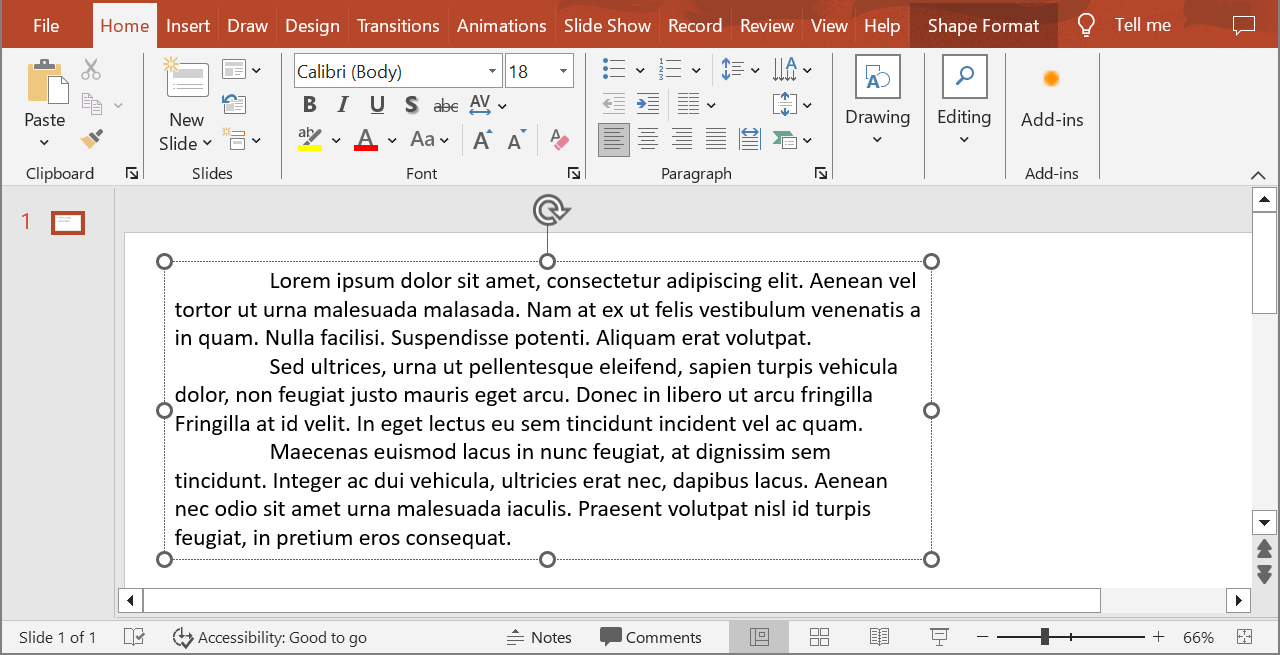
يختار المثال التالي الفقرة الثانية عند الفهرس 1 ويستدعي IParagraph.getImage دون معلمات مقياس. يتحقق من احتواء الشكل على الفقرة المطلوبة وأن الرسم يُعيد صورة قبل استدعاء IImage.save لحفظها بصيغة PNG. يحرّك الكتلة finally الصورة بعد الاستخدام.
import com.aspose.slides.*;

Presentation presentation = new Presentation("sample.pptx");
try {
    IShape shape = presentation.getSlides().get_Item(0).getShapes().get_Item(0);

    if (shape instanceof IAutoShape) {
        IAutoShape textShape = (IAutoShape) shape;
        ITextFrame textFrame = textShape.getTextFrame();
        if (textFrame != null && textFrame.getParagraphs().getCount() > 1) {
            IParagraph paragraph = textFrame.getParagraphs().get_Item(1);
            IImage paragraphImage = paragraph.getImage();

            if (paragraphImage != null) {
                try {
                    paragraphImage.save("paragraph.png", ImageFormat.Png);
                } finally {
                    paragraphImage.dispose();
                }
            } else {
                System.out.println("The paragraph could not be rendered.");
            }
        } else {
            System.out.println("The expected paragraph was not found.");
        }
    } else {
        System.out.println("The first shape is not a text shape.");
    }
} finally {
    presentation.dispose();
}
النتيجة:

رسم فقرة في خلية جدول مع مقياس
استخدم نسخة IParagraph.getImage التي تقبل معلمات float scaleX وfloat scaleY لتعيين عوامل المقياس الأفقي والعمودي. ينشئ المثال جدولًا، يرسم الفقرة في خليةه الأولى بمضاعفة العرض والارتفاع الافتراضيين، ويحفظ النتيجة كصورة PNG.
import com.aspose.slides.*;

float scaleX = 2f;
float scaleY = 2f;

Presentation presentation = new Presentation();
try {
    ISlide slide = presentation.getSlides().get_Item(0);

    ITable table = slide.getShapes().addTable(50, 50, new double[] { 300 }, new double[] { 80 });
    IParagraph paragraph = table.get_Item(0, 0).getTextFrame().getParagraphs().get_Item(0);
    paragraph.setText("Text in a table cell");

    IImage paragraphImage = paragraph.getImage(scaleX, scaleY);
    if (paragraphImage != null) {
        try {
            paragraphImage.save("table_paragraph.png", ImageFormat.Png);
        } finally {
            paragraphImage.dispose();
        }
    } else {
        System.out.println("The paragraph could not be rendered.");
    }
} finally {
    presentation.dispose();
}
عامل المقياس 1 يبقي ذلك المحور بحجمه البكسلي الافتراضي. على سبيل المثال، 2 لكلا العاملين ينتج صورة عرضها وارتفاعها تقريبًا ضعف الأبعاد الافتراضية، ما يساوي أربعة أضعاف عدد البكسلات. العوامل الأكبر تنتج نصًا أكثر وضوحًا للتكبير أو الإخراج عالي الدقة، لكنها تزيد أيضًا من استهلاك الذاكرة وحجم الملف. القيم الأقل من 1 تنتج صورًا أصغر بتفاصيل أقل. استخدم عوامل متماثلة للحفاظ على نسبة أبعاد الفقرة؛ العوامل الأفقية والرأسية المختلفة تمدد المخرج بشكل مستقل.
ما زال رسم الشكل بالكامل عبر IShape.getImage مفيدًا عندما يجب أن يتضمن الناتج تعبئة الشكل أو حدوده أو سياقه البصري الآخر. للحصول على صورة فقرة فقط، استخدم IParagraph.getImage.
الأسئلة المتداولة
هل يمكنني تعطيل التفاف السطر بالكامل داخل إطار النص؟
نعم. عيّن ITextFrameFormat.setWrapText لتعطيل اللف بحيث لا تنكسر الأسطر عند حواف إطار النص.
كيف يمكنني الحصول على الحدود الدقيقة للفقرة المحددة داخل الشريحة؟
استخدم IParagraph.getRect لاسترجاع مستطيل الحدود للفقرة. يوفر IPortion.getRect حدود الجزئية الفردية.
أين يتم التحكم في محاذاة الفقرة (يسار، يمين، وسط، أو تعديل)؟
IParagraphFormat.setAlignment هو إعداد على مستوى الفقرة ويُطبق على الفقرة بالكامل بغض النظر عن تنسيق الجزئيات الفردية.
للمحاذاة العمودية للجزئيات ذات أحجام الخط المختلفة داخل كل سطر، راجع Align Fonts Within a Line.
هل يمكنني تعيين لغة التدقيق لجزء من الفقرة؟
نعم. عيّن IBasePortionFormat.setLanguageId للجزئيات الفردية، بحيث يمكن أن تحتوي الفقرة على نص بعدة لغات.