
إنشاء وتطبيق تأثيرات WordArt على Android
نظرة عامة
تتيح تأثيرات WordArt تنسيق النص باستخدام التعبئات، الخطوط الخارجية، الظلال، الانعكاسات، التوهج، التحولات، وتنسيق ثلاثي الأبعاد. يشرح هذا المقال كيفية إنشاء وتخصيص هذه التأثيرات في عروض PowerPoint باستخدام Aspose.Slides for Android via Java، دون الحاجة إلى تثبيت Microsoft Office.
إنشاء قالب WordArt بسيط وتطبيقه على النص
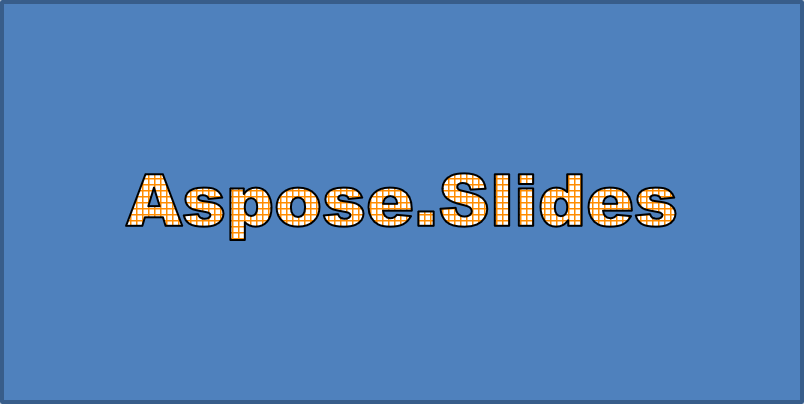
تبني الأمثلة التالية نمط WordArt بسيط عن طريق ضبط النص، الخط، تعبئة النمط، والحد الخارجي.
كل مثال ينشئ عرضًا تقديميًا جديدًا ويضيف مستطيلًا إلى الشريحة الأولى؛ لا يلزم ملف إدخال. يضبط المثال الأول النص إلى “Aspose.Slides”. يتم قياس موضع الشكل وأبعاده بالنقاط:
import com.aspose.slides.*;

Presentation presentation = new Presentation();
try {
    ISlide slide = presentation.getSlides().get_Item(0);

    IAutoShape autoShape = slide.getShapes().addAutoShape(ShapeType.Rectangle, 20, 20, 400, 200);
    ITextFrame textFrame = autoShape.getTextFrame();

    IPortion portion = textFrame.getParagraphs().get_Item(0).getPortions().get_Item(0);
    portion.setText("Aspose.Slides");
} finally {
    presentation.dispose();
}
اضبط الخط إلى Arial Black بحجم 36 نقطة لجعل التنسيق أكثر وضوحًا:
import com.aspose.slides.*;

Presentation presentation = new Presentation();
try {
    ISlide slide = presentation.getSlides().get_Item(0);

    IAutoShape autoShape = slide.getShapes().addAutoShape(ShapeType.Rectangle, 20, 20, 400, 200);

    IPortion portion = autoShape.getTextFrame().getParagraphs().get_Item(0).getPortions().get_Item(0);
    portion.setText("Aspose.Slides");
    FontData font = new FontData("Arial Black");
    portion.getPortionFormat().setLatinFont(font);
    portion.getPortionFormat().setFontHeight(36);
} finally {
    presentation.dispose();
}
طبّق نمط SmallGrid بلون برتقالي داكن في المقدمة وخلفية بيضاء، ثم أضف حدًا خارجيًا نصيًا أسود بعرض نقطة واحدة:
import com.aspose.slides.*;
import android.graphics.Color;

Presentation presentation = new Presentation();
try {
    ISlide slide = presentation.getSlides().get_Item(0);

    IAutoShape autoShape = slide.getShapes().addAutoShape(ShapeType.Rectangle, 20, 20, 400, 200);

    IPortion portion = autoShape.getTextFrame().getParagraphs().get_Item(0).getPortions().get_Item(0);
    portion.setText("Aspose.Slides");
    FontData font = new FontData("Arial Black");
    portion.getPortionFormat().setLatinFont(font);
    portion.getPortionFormat().setFontHeight(36);

    portion.getPortionFormat().getFillFormat().setFillType(FillType.Pattern);
    int darkOrange = Color.rgb(255, 140, 0);
    portion.getPortionFormat().getFillFormat().getPatternFormat().getForeColor().setColor(darkOrange);
    portion.getPortionFormat().getFillFormat().getPatternFormat().getBackColor().setColor(Color.WHITE);
    portion.getPortionFormat().getFillFormat().getPatternFormat().setPatternStyle(PatternStyle.SmallGrid);

    portion.getPortionFormat().getLineFormat().setWidth(1);
    portion.getPortionFormat().getLineFormat().getFillFormat().setFillType(FillType.Solid);
    portion.getPortionFormat().getLineFormat().getFillFormat().getSolidFillColor().setColor(Color.BLACK);
} finally {
    presentation.dispose();
}
النص الناتج:
تطبيق تأثيرات WordArt الأخرى
توضح الأمثلة التالية كيفية تطبيق الظلال، الانعكاسات، التوهج، التحولات، وتأثيرات الثلاثي الأبعاد على النص.
تطبيق تأثيرات الظل الخارجي
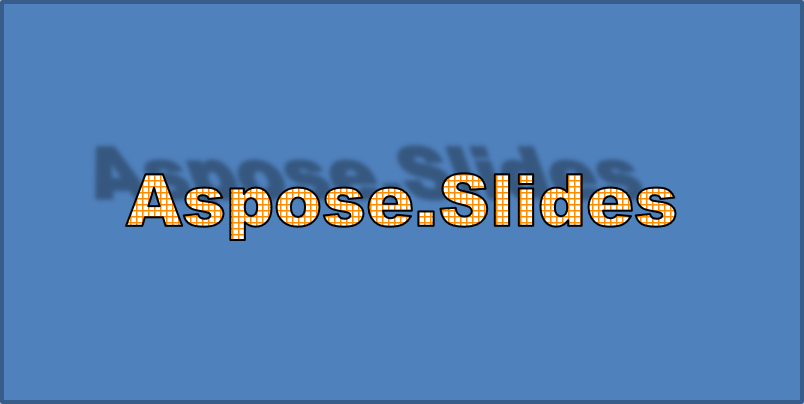
يضيف الظل الخارجي عمقًا بوضع ظل خلف النص. يمكنك تخصيص لونه، اتجاهه، مسافته، نصف قطر التشويش، المقياس، والانحراف.
هذا المثال يستدعي enableOuterShadowEffect ويحدد ظلًا أسود بنصف قطر تشويش 4 نقاط، اتجاه 230 درجة، ومسافة 30 نقطة. قيم المقياس 100 تحافظ على حجم الظل، بينما يميل الانحراف الأفقي الظل بزاوية 20 درجة. يحدد التحويل الألفا شفافيته إلى 32%:
import com.aspose.slides.*;
import android.graphics.Color;

Presentation presentation = new Presentation();
try {
    ISlide slide = presentation.getSlides().get_Item(0);

    IAutoShape autoShape = slide.getShapes().addAutoShape(ShapeType.Rectangle, 20, 20, 400, 200);

    IPortion portion = autoShape.getTextFrame().getParagraphs().get_Item(0).getPortions().get_Item(0);
    portion.setText("Aspose.Slides");
    FontData font = new FontData("Arial Black");
    portion.getPortionFormat().setLatinFont(font);
    portion.getPortionFormat().setFontHeight(36);

    portion.getPortionFormat().getEffectFormat().enableOuterShadowEffect();
    portion.getPortionFormat().getEffectFormat().getOuterShadowEffect().getShadowColor().setColor(Color.BLACK);
    portion.getPortionFormat().getEffectFormat().getOuterShadowEffect().setScaleHorizontal(100);
    portion.getPortionFormat().getEffectFormat().getOuterShadowEffect().setScaleVertical(100);
    portion.getPortionFormat().getEffectFormat().getOuterShadowEffect().setBlurRadius(4);
    portion.getPortionFormat().getEffectFormat().getOuterShadowEffect().setDirection(230);
    portion.getPortionFormat().getEffectFormat().getOuterShadowEffect().setDistance(30);
    portion.getPortionFormat().getEffectFormat().getOuterShadowEffect().setSkewHorizontal(20);
    portion.getPortionFormat().getEffectFormat().getOuterShadowEffect().setSkewVertical(0);
    portion.getPortionFormat().getEffectFormat().getOuterShadowEffect().getShadowColor().getColorTransform().add(ColorTransformOperation.SetAlpha, 0.32f);
} finally {
    presentation.dispose();
}
النص الناتج:
Note
- عند استخدام الظلال الخارجية والمسبقة معًا، يتم تطبيق الظل الخارجي فقط.
- إذا تم استخدام الظلال الخارجية والداخلية في آنٍ واحد، يعتمد التأثير الناتج على إصدار PowerPoint. على سبيل المثال، في PowerPoint 2013 يتضاعف التأثير، بينما في PowerPoint 2007 يُطبق الظل الخارجي فقط.
تطبيق تأثيرات الانعكاس
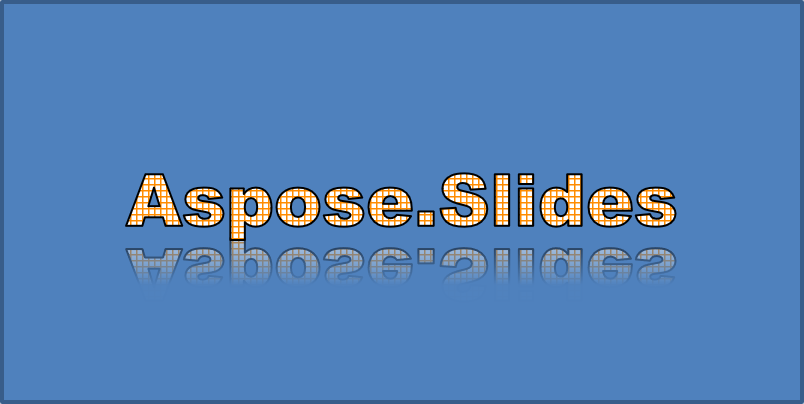
ينشئ الانعكاس نسخةً مرآةً من النص. عدّل موقعه، مقياسه، تشويشه، وشفافيته للتحكم في مظهره.
هذا المثال يستدعي enableReflectionEffect ويقلب الانعكاس عموديًا بمقياس -100٪. يستخدم نصف قطر تشويش 0.5 نقطة ومسافة 4.72 نقطة. تنخفض الشفافية من 60٪ إلى 0.9٪ بين الموضعين 0٪ و60٪ على طول الانعكاس:
import com.aspose.slides.*;

Presentation presentation = new Presentation();
try {
    ISlide slide = presentation.getSlides().get_Item(0);

    IAutoShape autoShape = slide.getShapes().addAutoShape(ShapeType.Rectangle, 20, 20, 400, 200);

    IPortion portion = autoShape.getTextFrame().getParagraphs().get_Item(0).getPortions().get_Item(0);
    portion.setText("Aspose.Slides");
    FontData font = new FontData("Arial Black");
    portion.getPortionFormat().setLatinFont(font);
    portion.getPortionFormat().setFontHeight(36);

    portion.getPortionFormat().getEffectFormat().enableReflectionEffect();
    portion.getPortionFormat().getEffectFormat().getReflectionEffect().setBlurRadius(0.5);
    portion.getPortionFormat().getEffectFormat().getReflectionEffect().setDistance(4.72);
    portion.getPortionFormat().getEffectFormat().getReflectionEffect().setStartPosAlpha(0f);
    portion.getPortionFormat().getEffectFormat().getReflectionEffect().setEndPosAlpha(60f);
    portion.getPortionFormat().getEffectFormat().getReflectionEffect().setDirection(90);
    portion.getPortionFormat().getEffectFormat().getReflectionEffect().setScaleHorizontal(100);
    portion.getPortionFormat().getEffectFormat().getReflectionEffect().setScaleVertical(-100);
    portion.getPortionFormat().getEffectFormat().getReflectionEffect().setStartReflectionOpacity(60f);
    portion.getPortionFormat().getEffectFormat().getReflectionEffect().setEndReflectionOpacity(0.9f);
    portion.getPortionFormat().getEffectFormat().getReflectionEffect().setRectangleAlign(RectangleAlignment.BottomLeft);
} finally {
    presentation.dispose();
}
النص الناتج:
تطبيق تأثيرات التوهج
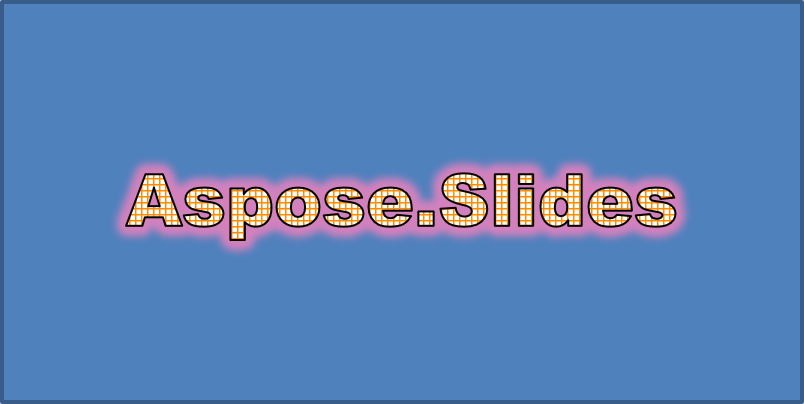
يضيف التوهج حدًا خارجيًا ملونًا ناعمًا حول النص. عدّل لونه، شفافيته، ونصف قطره للتحكم في التأثير.
هذا المثال يستدعي enableGlowEffect ويطبق توهجًا أحمر بشفافية 54٪ ونصف قطر 7 نقاط:
import com.aspose.slides.*;
import android.graphics.Color;

Presentation presentation = new Presentation();
try {
    ISlide slide = presentation.getSlides().get_Item(0);

    IAutoShape autoShape = slide.getShapes().addAutoShape(ShapeType.Rectangle, 20, 20, 400, 200);

    IPortion portion = autoShape.getTextFrame().getParagraphs().get_Item(0).getPortions().get_Item(0);
    portion.setText("Aspose.Slides");
    FontData font = new FontData("Arial Black");
    portion.getPortionFormat().setLatinFont(font);
    portion.getPortionFormat().setFontHeight(36);

    portion.getPortionFormat().getEffectFormat().enableGlowEffect();
    portion.getPortionFormat().getEffectFormat().getGlowEffect().getColor().setColor(Color.RED);
    portion.getPortionFormat().getEffectFormat().getGlowEffect().getColor().getColorTransform().add(ColorTransformOperation.SetAlpha, 0.54f);
    portion.getPortionFormat().getEffectFormat().getGlowEffect().setRadius(7);
} finally {
    presentation.dispose();
}
النص الناتج:
تطبيق تحويلات WordArt
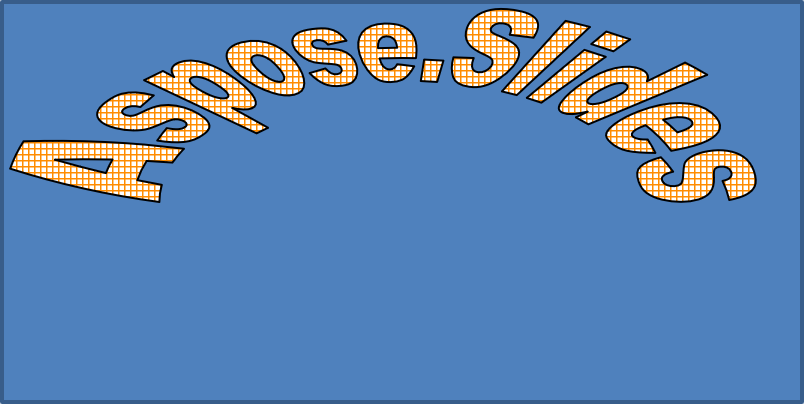
تحويلات WordArt تنحني أو تمتد أو تشوه كتلة النص.
اضبط setTransform إلى ArchUpPour لتقويس إطار النص بالكامل إلى الأعلى:
import com.aspose.slides.*;

Presentation presentation = new Presentation();
try {
    ISlide slide = presentation.getSlides().get_Item(0);

    IAutoShape autoShape = slide.getShapes().addAutoShape(ShapeType.Rectangle, 20, 20, 400, 200);

    ITextFrame textFrame = autoShape.getTextFrame();
    textFrame.setText("Aspose.Slides");
    textFrame.getTextFrameFormat().setTransform(TextShapeType.ArchUpPour);
} finally {
    presentation.dispose();
}
النص الناتج:
Note
توفر Aspose.Slides for Android via Java مجموعة من أنواع التحويل المسبقة التعريف.تطبيق تأثيرات ثلاثية الأبعاد على الأشكال والنص
يمكنك تطبيق تأثيرات ثلاثية الأبعاد على الشكل أو على نصه. تتحكم الحواف، البثق، الإضاءة، وإعدادات الكاميرا في المظهر النهائي.
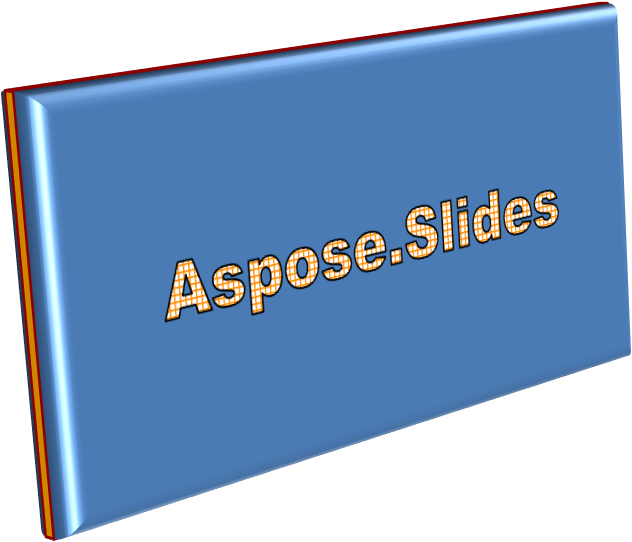
يستخدم المثال التالي ThreeDFormat لإضافة حواف دائرية، بثق برتقالي، وتحديد داكن أحمر للمستطيل. تُقاس أبعاد الحافة، ارتفاع البثق، عرض التحديد، والعمق بالنقاط. يحدد مادة بلاستيكية، إضاءة متوازنة تدور 40 درجة حول المحور Z، وكاميرا منظور مظهره:
import com.aspose.slides.*;
import android.graphics.Color;

Presentation presentation = new Presentation();
try {
    ISlide slide = presentation.getSlides().get_Item(0);

    IAutoShape autoShape = slide.getShapes().addAutoShape(ShapeType.Rectangle, 20, 20, 400, 200);
    autoShape.getTextFrame().setText("Aspose.Slides");

    autoShape.getThreeDFormat().getBevelBottom().setBevelType(BevelPresetType.Circle);
    autoShape.getThreeDFormat().getBevelBottom().setHeight(10.5);
    autoShape.getThreeDFormat().getBevelBottom().setWidth(10.5);

    autoShape.getThreeDFormat().getBevelTop().setBevelType(BevelPresetType.Circle);
    autoShape.getThreeDFormat().getBevelTop().setHeight(12.5);
    autoShape.getThreeDFormat().getBevelTop().setWidth(11);

    int orange = Color.rgb(255, 165, 0);
    autoShape.getThreeDFormat().getExtrusionColor().setColor(orange);
    autoShape.getThreeDFormat().setExtrusionHeight(6);

    int darkRed = Color.rgb(139, 0, 0);
    autoShape.getThreeDFormat().getContourColor().setColor(darkRed);
    autoShape.getThreeDFormat().setContourWidth(1.5);

    autoShape.getThreeDFormat().setDepth(3);

    autoShape.getThreeDFormat().setMaterial(MaterialPresetType.Plastic);

    autoShape.getThreeDFormat().getLightRig().setDirection(LightingDirection.Top);
    autoShape.getThreeDFormat().getLightRig().setLightType(LightRigPresetType.Balanced);
    autoShape.getThreeDFormat().getLightRig().setRotation(0, 0, 40);

    autoShape.getThreeDFormat().getCamera().setCameraType(CameraPresetType.PerspectiveContrastingRightFacing);
} finally {
    presentation.dispose();
}
الشكل الناتج:
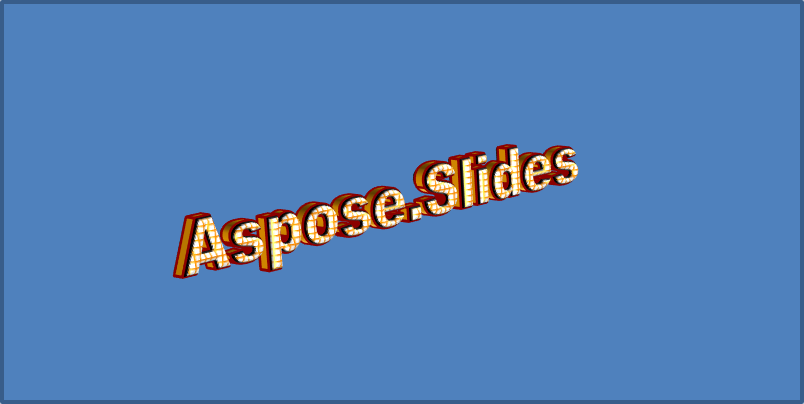
يطبق هذا المثال تنسيقًا ثلاثيًا أبعادًا مشابهًا على النص عبر TextFrameFormat.getThreeDFormat. تشكّل الحافات الصغيرة حواف الأحرف، بينما يمنح البثق والإضاءة النص عمقًا:
import com.aspose.slides.*;
import android.graphics.Color;

Presentation presentation = new Presentation();
try {
    ISlide slide = presentation.getSlides().get_Item(0);

    IAutoShape autoShape = slide.getShapes().addAutoShape(ShapeType.Rectangle, 20, 20, 400, 200);
    ITextFrame textFrame = autoShape.getTextFrame();
    textFrame.setText("Aspose.Slides");

    textFrame.getTextFrameFormat().getThreeDFormat().getBevelBottom().setBevelType(BevelPresetType.Circle);
    textFrame.getTextFrameFormat().getThreeDFormat().getBevelBottom().setHeight(3.5);
    textFrame.getTextFrameFormat().getThreeDFormat().getBevelBottom().setWidth(3.5);

    textFrame.getTextFrameFormat().getThreeDFormat().getBevelTop().setBevelType(BevelPresetType.Circle);
    textFrame.getTextFrameFormat().getThreeDFormat().getBevelTop().setHeight(4);
    textFrame.getTextFrameFormat().getThreeDFormat().getBevelTop().setWidth(4);

    int orange = Color.rgb(255, 165, 0);
    textFrame.getTextFrameFormat().getThreeDFormat().getExtrusionColor().setColor(orange);
    textFrame.getTextFrameFormat().getThreeDFormat().setExtrusionHeight(6);

    int darkRed = Color.rgb(139, 0, 0);
    textFrame.getTextFrameFormat().getThreeDFormat().getContourColor().setColor(darkRed);
    textFrame.getTextFrameFormat().getThreeDFormat().setContourWidth(1.5);

    textFrame.getTextFrameFormat().getThreeDFormat().setDepth(3);

    textFrame.getTextFrameFormat().getThreeDFormat().setMaterial(MaterialPresetType.Plastic);

    textFrame.getTextFrameFormat().getThreeDFormat().getLightRig().setDirection(LightingDirection.Top);
    textFrame.getTextFrameFormat().getThreeDFormat().getLightRig().setLightType(LightRigPresetType.Balanced);
    textFrame.getTextFrameFormat().getThreeDFormat().getLightRig().setRotation(0, 0, 40);

    textFrame.getTextFrameFormat().getThreeDFormat().getCamera().setCameraType(CameraPresetType.PerspectiveContrastingRightFacing);
} finally {
    presentation.dispose();
}
النص الناتج:
Note
يخضع تطبيق تأثيرات الثلاثي الأبعاد على النص أو أشكاله — وتفاعل هذه التأثيرات — لقواعد محددة. خذ في الاعتبار مشهدًا يحتوي على النص والشكل الذي يحتويه. يتضمن تأثير الثلاثي الأبعاد تمثيلًا ثلاثيًا للمجسم والمشهد الذي يُوضَع فيه.
- إذا تم تعيين مشهد لكل من الشكل والنص، تُعطى أولوية لمشهد الشكل وتُهمل مشهد النص.
- إذا كان الشكل لا يمتلك مشهداً خاصًا لكنه يحتوي على تمثيل ثلاثي الأبعاد، يُستخدم مشهد النص.
- إذا لم يكن للشكل أي تأثير ثلاثي الأبعاد، يُعامل كمسطح، ويُطبق التأثير الثلاثي الأبعاد على النص فقط.
تُرتبط هذه السلوكيات بالطرق ThreeDFormat.getLightRig وThreeDFormat.getCamera.
للحفاظ على النص مسطحًا وقابلًا للقراءة مع الاحتفاظ بتنسيق الشكل الثلاثي الأبعاد، راجع Keep Text Flat on a 3D Shape للمقارنة بين الإعدادين ومثال Java كامل.
الأسئلة المتداولة
هل يمكنني استخدام تأثيرات WordArt مع خطوط أو نصوص مختلفة (مثل العربية، الصينية)؟
نعم، يدعم Aspose.Slides for Android via Java Unicode ويعمل مع جميع الخطوط والنصوص الرئيسية. يمكن تطبيق تأثيرات WordArt مثل الظل، التعبئة، والحد الخارجي بغض النظر عن اللغة، رغم أن توفر الخطوط وعرضها قد يعتمد على خطوط النظام.
هل يمكنني تطبيق تأثيرات WordArt على عناصر شريحة القالب (master)؟
نعم، يمكنك تطبيق تأثيرات WordArt على الأشكال في شرائح القالب، بما في ذلك عناصر العنواوين النائبة، التذييل، أو النص الخلفي. ستنعكس التغييرات التي تجريها على تخطيط القالب على جميع الشرائح المرتبطة.
هل تؤثر تأثيرات WordArt على حجم ملف العرض التقديمي؟
تؤثر قليلًا. قد تزيد تأثيرات WordArt مثل الظلال، التوهج، وتعبئات التدرج من حجم الملف قليلًا بسبب إضافة بيانات تنسيق، لكن الفارق عادة ما يكون ضئيلًا.
هل يمكنني معاينة نتيجة تأثيرات WordArt دون حفظ العرض التقديمي؟
نعم، يمكنك تصيير الشرائح التي تحتوي على WordArt إلى صور (مثل PNG، JPEG) باستخدام ISlide.getImage، أو تصيير الأشكال الفردية باستخدام IShape.getImage. يتيح لك ذلك معاينة النتيجة في الذاكرة أو على الشاشة قبل حفظ أو تصدير العرض الكامل.