
在 Android 上管理 PowerPoint 文本段落
概述
Aspose.Slides for Android via Java 将文本表示为文本框、段落和文本段的层次结构:
- ITextFrame 表示形状中的文本容器,并提供对其段落集合的访问。
- IParagraph 表示文本框中的一个段落,并提供对其文本段和段落级格式的访问。
- IPortion 表示段落内的一个文本运行。每个文本段可以拥有自己的文本和字符级格式。
因此,一个段落可以通过使用多个文本段来包含不同字体、颜色、大小和其他格式的文本。
创建和格式化段落
在形状的文本框中创建段落,并使用文本段来格式化各个文本运行。本节展示了如何在每个段落中组合多个文本段,并应用不同的颜色、字体大小和样式。
创建包含多个文本段的段落
下面的 Android via Java 示例创建了三个段落,每个段落在通过 IParagraph.getPortions 返回的集合中包含三个文本运行。它复用默认段落及其空文本段,然后添加其余段落和文本段。格式通过 IPortion.getPortionFormat 应用:每个段落的第一个文本段为红色、粗体、15 点;第二个为蓝色、斜体、18 点。第三个文本段保持默认格式:
import com.aspose.slides.*;
import android.graphics.Color;

Presentation presentation = new Presentation();
try {
    ISlide slide = presentation.getSlides().get_Item(0);

    IAutoShape shape = slide.getShapes().addAutoShape(ShapeType.Rectangle, 50, 150, 300, 150);
    ITextFrame textFrame = shape.getTextFrame();

    IParagraph firstParagraph = textFrame.getParagraphs().get_Item(0);
    firstParagraph.getPortions().add(new Portion());
    firstParagraph.getPortions().add(new Portion());

    IParagraph secondParagraph = new Paragraph();
    secondParagraph.getPortions().add(new Portion());
    secondParagraph.getPortions().add(new Portion());
    secondParagraph.getPortions().add(new Portion());
    textFrame.getParagraphs().add(secondParagraph);

    IParagraph thirdParagraph = new Paragraph();
    thirdParagraph.getPortions().add(new Portion());
    thirdParagraph.getPortions().add(new Portion());
    thirdParagraph.getPortions().add(new Portion());
    textFrame.getParagraphs().add(thirdParagraph);

    int paragraphCount = textFrame.getParagraphs().getCount();
    for (int paragraphIndex = 0; paragraphIndex < paragraphCount; paragraphIndex++) {
        IParagraph paragraph = textFrame.getParagraphs().get_Item(paragraphIndex);
        int portionCount = paragraph.getPortions().getCount();
        for (int portionIndex = 0; portionIndex < portionCount; portionIndex++) {
            IPortion portion = paragraph.getPortions().get_Item(portionIndex);
            portion.setText("Portion " + (paragraphIndex + 1) + "." + (portionIndex + 1));

            if (portionIndex == 0) {
                portion.getPortionFormat().getFillFormat().setFillType(FillType.Solid);
                portion.getPortionFormat().getFillFormat().getSolidFillColor().setColor(Color.RED);
                portion.getPortionFormat().setFontBold(NullableBool.True);
                portion.getPortionFormat().setFontHeight(15);
            } else if (portionIndex == 1) {
                portion.getPortionFormat().getFillFormat().setFillType(FillType.Solid);
                portion.getPortionFormat().getFillFormat().getSolidFillColor().setColor(Color.BLUE);
                portion.getPortionFormat().setFontItalic(NullableBool.True);
                portion.getPortionFormat().setFontHeight(18);
            }
        }
    }

    presentation.save("paragraphs_with_portions.pptx", SaveFormat.Pptx);
} finally {
    presentation.dispose();
}
创建项目符号和编号列表
使用符号、数字或自定义图像将段落文本组织为列表。本节示例涵盖项目符号格式、多级列表以及自定义起始编号。
创建项目符号或编号列表
项目符号和编号使相关项目更易于浏览。在 Aspose.Slides 中,列表设置通过 IBulletFormat 定义。
此 Android via Java 示例在同一文本框中添加了符号项目符号和编号项。IBulletFormat.setType 选择项目符号类型,而 IBulletFormat.setChar 提供符号,IBulletFormat.setNumberedBulletStyle 选择编号样式。两项均使用黑色项目符号,高度为 100%,段落缩进为 25 点:
import com.aspose.slides.*;
import android.graphics.Color;

Presentation presentation = new Presentation();
try {
    ISlide slide = presentation.getSlides().get_Item(0);

    IAutoShape shape = slide.getShapes().addAutoShape(ShapeType.Rectangle, 200, 200, 400, 200);
    ITextFrame textFrame = shape.getTextFrame();
    textFrame.getParagraphs().clear();

    Paragraph symbolParagraph = new Paragraph();
    symbolParagraph.setText("Welcome to Aspose.Slides");
    symbolParagraph.getParagraphFormat().getBullet().setType(BulletType.Symbol);
    symbolParagraph.getParagraphFormat().getBullet().setChar((char) 0x2022);
    symbolParagraph.getParagraphFormat().setIndent(25);
    symbolParagraph.getParagraphFormat().getBullet().getColor().setColorType(ColorType.RGB);
    symbolParagraph.getParagraphFormat().getBullet().getColor().setColor(Color.BLACK);
    symbolParagraph.getParagraphFormat().getBullet().setBulletHardColor(NullableBool.True);
    symbolParagraph.getParagraphFormat().getBullet().setHeight(100);
    textFrame.getParagraphs().add(symbolParagraph);

    Paragraph numberedParagraph = new Paragraph();
    numberedParagraph.setText("This is a numbered item");
    numberedParagraph.getParagraphFormat().getBullet().setType(BulletType.Numbered);
    numberedParagraph.getParagraphFormat().getBullet().setNumberedBulletStyle(NumberedBulletStyle.BulletCircleNumWDBlackPlain);
    numberedParagraph.getParagraphFormat().setIndent(25);
    numberedParagraph.getParagraphFormat().getBullet().getColor().setColorType(ColorType.RGB);
    numberedParagraph.getParagraphFormat().getBullet().getColor().setColor(Color.BLACK);
    numberedParagraph.getParagraphFormat().getBullet().setBulletHardColor(NullableBool.True);
    numberedParagraph.getParagraphFormat().getBullet().setHeight(100);
    textFrame.getParagraphs().add(numberedParagraph);

    presentation.save("bulleted_and_numbered_list.pptx", SaveFormat.Pptx);
} finally {
    presentation.dispose();
}
使用图片项目符号
图片项目符号允许使用自定义图像代替符号或数字。
此 Android via Java 示例将图像作为 IPPImage 添加到演示文稿的图像集合,并将其用作段落项目符号。它调用 IBulletFormat.setType 使用图片项目符号,并通过 IBulletFormat.getPicture 分配图像。IBulletFormat.setHeight 设置为 100% 以相对于段落文本尺寸调整项目符号:
import com.aspose.slides.*;

Presentation presentation = new Presentation();
try {
    ISlide slide = presentation.getSlides().get_Item(0);

    IImage bulletImage = Images.fromFile("bullets.png");
    IPPImage presentationImage;
    try {
        presentationImage = presentation.getImages().addImage(bulletImage);
    } finally {
        bulletImage.dispose();
    }

    IAutoShape shape = slide.getShapes().addAutoShape(ShapeType.Rectangle, 200, 200, 400, 200);
    ITextFrame textFrame = shape.getTextFrame();
    textFrame.getParagraphs().clear();

    Paragraph paragraph = new Paragraph();
    paragraph.setText("Welcome to Aspose.Slides");
    paragraph.getParagraphFormat().getBullet().setType(BulletType.Picture);
    paragraph.getParagraphFormat().getBullet().getPicture().setImage(presentationImage);
    paragraph.getParagraphFormat().getBullet().setHeight(100);
    textFrame.getParagraphs().add(paragraph);

    presentation.save("picture_bullet.pptx", SaveFormat.Pptx);
    presentation.save("picture_bullet.ppt", SaveFormat.Ppt);
} finally {
    presentation.dispose();
}
创建多级列表
将 IParagraphFormat.setDepth 设置为不同深度,以在列表中放置不同层级的段落。顶层深度为 0。
此 Android via Java 示例为四个段落分别赋予 0 到 3 的 IParagraphFormat.setDepth 值,在同一文本框内创建层次结构。每个段落使用符号项目符号,使用 IBulletFormat.setChar 在圆形项目符号和连字符之间交替,以区分相邻层级:
import com.aspose.slides.*;
import android.graphics.Color;

Presentation presentation = new Presentation();
try {
    ISlide slide = presentation.getSlides().get_Item(0);

    IAutoShape shape = slide.getShapes().addAutoShape(ShapeType.Rectangle, 200, 200, 400, 200);
    ITextFrame textFrame = shape.getTextFrame();
    textFrame.getParagraphs().clear();

    IParagraph firstParagraph = new Paragraph();
    firstParagraph.setText("Content");
    firstParagraph.getParagraphFormat().getBullet().setType(BulletType.Symbol);
    firstParagraph.getParagraphFormat().getBullet().setChar((char) 0x2022);
    firstParagraph.getParagraphFormat().getDefaultPortionFormat().getFillFormat().setFillType(FillType.Solid);
    firstParagraph.getParagraphFormat().getDefaultPortionFormat().getFillFormat().getSolidFillColor().setColor(Color.BLACK);
    firstParagraph.getParagraphFormat().setDepth((short) 0);

    IParagraph secondParagraph = new Paragraph();
    secondParagraph.setText("Second level");
    secondParagraph.getParagraphFormat().getBullet().setType(BulletType.Symbol);
    secondParagraph.getParagraphFormat().getBullet().setChar('-');
    secondParagraph.getParagraphFormat().getDefaultPortionFormat().getFillFormat().setFillType(FillType.Solid);
    secondParagraph.getParagraphFormat().getDefaultPortionFormat().getFillFormat().getSolidFillColor().setColor(Color.BLACK);
    secondParagraph.getParagraphFormat().setDepth((short) 1);

    IParagraph thirdParagraph = new Paragraph();
    thirdParagraph.setText("Third level");
    thirdParagraph.getParagraphFormat().getBullet().setType(BulletType.Symbol);
    thirdParagraph.getParagraphFormat().getBullet().setChar((char) 0x2022);
    thirdParagraph.getParagraphFormat().getDefaultPortionFormat().getFillFormat().setFillType(FillType.Solid);
    thirdParagraph.getParagraphFormat().getDefaultPortionFormat().getFillFormat().getSolidFillColor().setColor(Color.BLACK);
    thirdParagraph.getParagraphFormat().setDepth((short) 2);

    IParagraph fourthParagraph = new Paragraph();
    fourthParagraph.setText("Fourth level");
    fourthParagraph.getParagraphFormat().getBullet().setType(BulletType.Symbol);
    fourthParagraph.getParagraphFormat().getBullet().setChar('-');
    fourthParagraph.getParagraphFormat().getDefaultPortionFormat().getFillFormat().setFillType(FillType.Solid);
    fourthParagraph.getParagraphFormat().getDefaultPortionFormat().getFillFormat().getSolidFillColor().setColor(Color.BLACK);
    fourthParagraph.getParagraphFormat().setDepth((short) 3);

    textFrame.getParagraphs().add(firstParagraph);
    textFrame.getParagraphs().add(secondParagraph);
    textFrame.getParagraphs().add(thirdParagraph);
    textFrame.getParagraphs().add(fourthParagraph);

    presentation.save("multilevel_list.pptx", SaveFormat.Pptx);
} finally {
    presentation.dispose();
}
从自定义数值开始编号列表项
使用 IBulletFormat.setNumberedBulletStartWith 设置编号段落的起始数字。
此 Android via Java 示例将 IBulletFormat.setType 设为编号,并为三个段落分别赋予 2、3、7 的 IBulletFormat.setNumberedBulletStartWith 值。每个段落的起始数字单独配置,允许跳过数字:
import com.aspose.slides.*;

Presentation presentation = new Presentation();
try {
    ISlide slide = presentation.getSlides().get_Item(0);

    IAutoShape shape = slide.getShapes().addAutoShape(ShapeType.Rectangle, 200, 200, 400, 200);
    ITextFrame textFrame = shape.getTextFrame();
    textFrame.getParagraphs().clear();

    Paragraph firstParagraph = new Paragraph();
    firstParagraph.setText("Start at 2");
    firstParagraph.getParagraphFormat().getBullet().setType(BulletType.Numbered);
    firstParagraph.getParagraphFormat().getBullet().setNumberedBulletStartWith((short) 2);
    textFrame.getParagraphs().add(firstParagraph);

    Paragraph secondParagraph = new Paragraph();
    secondParagraph.setText("Start at 3");
    secondParagraph.getParagraphFormat().getBullet().setType(BulletType.Numbered);
    secondParagraph.getParagraphFormat().getBullet().setNumberedBulletStartWith((short) 3);
    textFrame.getParagraphs().add(secondParagraph);

    Paragraph thirdParagraph = new Paragraph();
    thirdParagraph.setText("Start at 7");
    thirdParagraph.getParagraphFormat().getBullet().setType(BulletType.Numbered);
    thirdParagraph.getParagraphFormat().getBullet().setNumberedBulletStartWith((short) 7);
    textFrame.getParagraphs().add(thirdParagraph);

    presentation.save("custom_numbered_list.pptx", SaveFormat.Pptx);
} finally {
    presentation.dispose();
}
控制段落布局和结束属性
调整段落边距和缩进以控制首行和换行行的位置。您还可以单独格式化段落结束标记,而不影响可见的文本段。
设置首行缩进
使用 IParagraphFormat.setIndent 方法控制段落的首行缩进。此设置仅移动首行相对于段落左边距的位置。正值将首行向右移动,而其余行保持与段落正文对齐。
需要整体移动段落时使用 IParagraphFormat.setMarginLeft。需要仅移动首行时使用 IParagraphFormat.setIndent。
下面的示例为三个段落设置相同的 IParagraphFormat.setMarginLeft 为 20 点,且 IParagraphFormat.setIndent 分别为 0、20、40 点。首行起始偏移逐步增大,而换行行保持相同的左边距:
import com.aspose.slides.*;
import android.graphics.Color;

Presentation presentation = new Presentation();
try {
    ISlide slide = presentation.getSlides().get_Item(0);

    IAutoShape shape = slide.getShapes().addAutoShape(ShapeType.Rectangle, 50, 50, 420, 220);
    shape.getFillFormat().setFillType(FillType.NoFill);
    shape.getLineFormat().getFillFormat().setFillType(FillType.Solid);
    shape.getLineFormat().getFillFormat().getSolidFillColor().setColor(Color.GRAY);

    ITextFrame textFrame = shape.getTextFrame();
    textFrame.getTextFrameFormat().setAutofitType(TextAutofitType.Shape);
    textFrame.getParagraphs().clear();

    Paragraph firstParagraph = new Paragraph();
    firstParagraph.setText("No first-line indent. Wrapped lines start at the same position as the first line.");
    firstParagraph.getParagraphFormat().getDefaultPortionFormat().getFillFormat().setFillType(FillType.Solid);
    firstParagraph.getParagraphFormat().getDefaultPortionFormat().getFillFormat().getSolidFillColor().setColor(Color.BLACK);
    firstParagraph.getParagraphFormat().setMarginLeft(20f);
    firstParagraph.getParagraphFormat().setIndent(0f);

    Paragraph secondParagraph = new Paragraph();
    secondParagraph.setText("First-line indent of 20 points. The first line moves to the right, while wrapped lines remain aligned to the paragraph body.");
    secondParagraph.getParagraphFormat().getDefaultPortionFormat().getFillFormat().setFillType(FillType.Solid);
    secondParagraph.getParagraphFormat().getDefaultPortionFormat().getFillFormat().getSolidFillColor().setColor(Color.BLACK);
    secondParagraph.getParagraphFormat().setMarginLeft(20f);
    secondParagraph.getParagraphFormat().setIndent(20f);

    Paragraph thirdParagraph = new Paragraph();
    thirdParagraph.setText("First-line indent of 40 points. This paragraph shows a larger first-line offset to make the effect easier to see.");
    thirdParagraph.getParagraphFormat().getDefaultPortionFormat().getFillFormat().setFillType(FillType.Solid);
    thirdParagraph.getParagraphFormat().getDefaultPortionFormat().getFillFormat().getSolidFillColor().setColor(Color.BLACK);
    thirdParagraph.getParagraphFormat().setMarginLeft(20f);
    thirdParagraph.getParagraphFormat().setIndent(40f);

    textFrame.getParagraphs().add(firstParagraph);
    textFrame.getParagraphs().add(secondParagraph);
    textFrame.getParagraphs().add(thirdParagraph);

    presentation.save("paragraph_indent.pptx", SaveFormat.Pptx);
} finally {
    presentation.dispose();
}
结果:

设置悬挂缩进
悬挂缩进是一种段落布局,首行位于其余行的左侧。在 Aspose.Slides 中,可通过 IParagraphFormat.setIndent 属性实现。将 Indent 设置为负值可将首行相对于段落正文向左移动。
实际操作中,IParagraphFormat.setMarginLeft 定义段落正文的左侧位置,IParagraphFormat.setIndent 定义首行相对于该边距的位置。要创建悬挂缩进,需将 MarginLeft 设为正值,Indent 设为负值。
此格式在参考文献、词汇表条目以及其他需要换行行对齐到段落正文而非首字符的段落中非常有用。
以下 Android via Java 示例将 IParagraphFormat.setMarginLeft 分别设为 40 和 60 点,配合 IParagraphFormat.setIndent 设为 -20 和 -30 点。每个段落的首行均位于换行行左侧;第二段落的悬挂缩进更深:
import com.aspose.slides.*;
import android.graphics.Color;

Presentation presentation = new Presentation();
try {
    ISlide slide = presentation.getSlides().get_Item(0);

    IAutoShape shape = slide.getShapes().addAutoShape(ShapeType.Rectangle, 50, 50, 420, 220);
    shape.getFillFormat().setFillType(FillType.NoFill);
    shape.getLineFormat().getFillFormat().setFillType(FillType.Solid);
    shape.getLineFormat().getFillFormat().getSolidFillColor().setColor(Color.GRAY);

    ITextFrame textFrame = shape.getTextFrame();
    textFrame.getTextFrameFormat().setAutofitType(TextAutofitType.Shape);
    textFrame.getParagraphs().clear();

    Paragraph firstParagraph = new Paragraph();
    firstParagraph.setText("A hanging indent is created by combining a positive left margin with a negative indent. The first line starts to the left, while wrapped lines align with the paragraph body.");
    firstParagraph.getParagraphFormat().getDefaultPortionFormat().getFillFormat().setFillType(FillType.Solid);
    firstParagraph.getParagraphFormat().getDefaultPortionFormat().getFillFormat().getSolidFillColor().setColor(Color.BLACK);
    firstParagraph.getParagraphFormat().setMarginLeft(40f);
    firstParagraph.getParagraphFormat().setIndent(-20f);

    Paragraph secondParagraph = new Paragraph();
    secondParagraph.setText("This second example uses a deeper hanging indent so the difference between the first line and the wrapped lines is easier to compare.");
    secondParagraph.getParagraphFormat().getDefaultPortionFormat().getFillFormat().setFillType(FillType.Solid);
    secondParagraph.getParagraphFormat().getDefaultPortionFormat().getFillFormat().getSolidFillColor().setColor(Color.BLACK);
    secondParagraph.getParagraphFormat().setMarginLeft(60f);
    secondParagraph.getParagraphFormat().setIndent(-30f);

    textFrame.getParagraphs().add(firstParagraph);
    textFrame.getParagraphs().add(secondParagraph);

    presentation.save("hanging_indent.pptx", SaveFormat.Pptx);
} finally {
    presentation.dispose();
}
结果:

设置段落结束运行属性
IParagraph.setEndParagraphPortionFormat 方法控制段落结束标记的格式。下面的示例创建一个 PortionFormat ,其 IBasePortionFormat.setFontHeight 为 48 点,且 IBasePortionFormat.setLatinFont 为 Times New Roman。将此格式分配给第二段落的结束标记,保持可见文本段不变:
import com.aspose.slides.*;

Presentation presentation = new Presentation("Test.pptx");
try {
    ISlide slide = presentation.getSlides().get_Item(0);

    IAutoShape shape = slide.getShapes().addAutoShape(ShapeType.Rectangle, 10, 10, 200, 250);
    ITextFrame textFrame = shape.getTextFrame();
    textFrame.getParagraphs().clear();

    Paragraph firstParagraph = new Paragraph();
    firstParagraph.getPortions().add(new Portion("Sample text"));

    Paragraph secondParagraph = new Paragraph();
    secondParagraph.getPortions().add(new Portion("Sample text 2"));

    PortionFormat endParagraphFormat = new PortionFormat();
    endParagraphFormat.setFontHeight(48);
    endParagraphFormat.setLatinFont(new FontData("Times New Roman"));
    secondParagraph.setEndParagraphPortionFormat(endParagraphFormat);

    textFrame.getParagraphs().add(firstParagraph);
    textFrame.getParagraphs().add(secondParagraph);

    presentation.save("end_paragraph_format.pptx", SaveFormat.Pptx);
} finally {
    presentation.dispose();
}
统计渲染的行数
有关影响自动换行和行尾标点的段落规则,请参阅 Control Line Breaking 和 Control Hanging Punctuation。
使用 IParagraph.getLinesCount 可统计段落在文本布局后占用的行数,包括自动换行。这在检查演示文稿模板中的文本长度和布局时非常有用。
段落是 ITextFrame.getParagraphs 中的一个项目,可能占用多行渲染的行。段落内部的显式换行会强制换行但不创建新段落。自动换行根据可用宽度生成行,而不在文本中插入显式换行字符。因此,仅统计段落或换行字符并不能得到渲染的行数。
下面的示例创建一个文本形状,统计其行数,缩窄形状后再次统计,然后用更短的字符串替换文本。示例通过 ITextFrameFormat.setWrapText 启用换行,并通过 ITextFrameFormat.setAutofitType 禁用自动适应,以便形状宽度控制换行而不会自动缩小文本或调整形状大小。每次测量均使用 IParagraph.getLinesCount。形状尺寸使用点表示。最后,示例添加另一段落并汇总整个文本框的行数。
import com.aspose.slides.*;

Presentation presentation = new Presentation();
try {
    ISlide slide = presentation.getSlides().get_Item(0);

    IAutoShape shape = slide.getShapes().addAutoShape(ShapeType.Rectangle, 50, 50, 400, 200);
    ITextFrame textFrame = shape.getTextFrame();
    textFrame.getTextFrameFormat().setWrapText(NullableBool.True);
    textFrame.getTextFrameFormat().setAutofitType(TextAutofitType.None);

    IParagraph paragraph = textFrame.getParagraphs().get_Item(0);
    paragraph.getParagraphFormat().getDefaultPortionFormat().setFontHeight(20);
    paragraph.setText("This text demonstrates how automatic wrapping changes the number of rendered lines.");
    System.out.println("Original width: " + paragraph.getLinesCount());

    shape.setWidth(150);
    System.out.println("Narrower shape: " + paragraph.getLinesCount());

    paragraph.setText("Short text.");
    System.out.println("Shorter text: " + paragraph.getLinesCount());

    Paragraph secondParagraph = new Paragraph();
    secondParagraph.setText("Another paragraph.");
    secondParagraph.getParagraphFormat().getDefaultPortionFormat().setFontHeight(20);
    textFrame.getParagraphs().add(secondParagraph);

    int totalLineCount = 0;
    for (IParagraph currentParagraph : textFrame.getParagraphs()) {
        totalLineCount += currentParagraph.getLinesCount();
    }
    System.out.println("Total lines in the text frame: " + totalLineCount);
} finally {
    presentation.dispose();
}
使用此文本和这些尺寸时,缩窄形状会增加行数,而用短字符串替换文本会减少行数。确切的计数可能因字体可用性及替代、字体大小、边距、缩进、换行和自动适应设置而异;请在检查模板时使用目标环境的字体和布局设置。
仅凭行数并不能判断文本是否溢出容器。可用高度、行高、段落和行间距以及自动适应行为也会影响;即使是单行,在禁用换行时也可能超出可用宽度。
导入和导出段落内容
使用 HTML 将文本导入演示文稿,或将现有段落导出以供外部使用。本节还展示了如何将单个段落渲染为图像,包括表格单元格中的段落。
将 HTML 文本导入段落
使用 ParagraphCollection.addFromHtml 将 HTML 标记转换为文本框中的段落和文本段。
此 Android via Java 示例从文件读取 HTML 并将标记传递给 ParagraphCollection.addFromHtml。它清除文本框的默认段落,以便框中仅包含导入的内容。矩形形状在幻灯片每侧留下 10 点的边距:
import com.aspose.slides.*;
import java.io.IOException;
import java.nio.charset.StandardCharsets;
import java.nio.file.Files;
import java.nio.file.Paths;

Presentation presentation = new Presentation();
try {
    ISlide slide = presentation.getSlides().get_Item(0);

    float shapeWidth = (float) presentation.getSlideSize().getSize().getWidth() - 20;
    float shapeHeight = (float) presentation.getSlideSize().getSize().getHeight() - 20;
    IAutoShape shape = slide.getShapes().addAutoShape(ShapeType.Rectangle, 10, 10, shapeWidth, shapeHeight);
    shape.getFillFormat().setFillType(FillType.NoFill);
    shape.getTextFrame().getParagraphs().clear();

    try {
        byte[] htmlBytes = Files.readAllBytes(Paths.get("file.html"));
        String html = new String(htmlBytes, StandardCharsets.UTF_8);
        shape.getTextFrame().getParagraphs().addFromHtml(html);
        presentation.save("html_text.pptx", SaveFormat.Pptx);
    } catch (IOException exception) {
        System.out.println("The HTML file could not be read: " + exception.getMessage());
    }
} finally {
    presentation.dispose();
}
将段落文本导出为 HTML
使用 ParagraphCollection.exportToHtml 将选定范围的段落导出为 HTML。当在网站上重复使用演示文稿文本时,您可能希望保留本地的强调效果,而不携带演示文稿的字体、大小或文本框样式。通过设置 TextToHtmlConversionOptions.setTextInheritanceLimit 来控制导出器遵循格式继承的深度。
下载 示例演示文稿 并将其放置在应用程序的工作目录中。其第一张幻灯片包含一个文本形状,文本为 “Inherited text; explicit red 18pt”。输入特意使用了多个格式层级:
- 演示文稿的默认文本样式提供 Calibri 字体,大小为 28 pt。
- 文本框的一级文本样式提供蓝色文字和斜体。
- 段落显式设置为粗体。
- 第二个文本段 “explicit red 18pt” 显式设置为红色文字,大小为 18 pt。
下面的完整示例将相同的段落导出三次。它将 TextToHtmlConversionOptions 传递给导出方法,并将每个结果分别写入独立的 UTF-8 HTML 文件:
import com.aspose.slides.*;
import java.io.IOException;
import java.nio.charset.StandardCharsets;
import java.nio.file.Files;
import java.nio.file.Paths;

Presentation presentation = new Presentation("text-inheritance.pptx");
try {
    IShape shape = presentation.getSlides().get_Item(0).getShapes().get_Item(0);

    if (shape instanceof IAutoShape) {
        IAutoShape textShape = (IAutoShape) shape;
        ITextFrame textFrame = textShape.getTextFrame();
        if (textFrame != null) {
            IParagraphCollection paragraphs = textFrame.getParagraphs();

            int[] modes = { TextInheritanceLimit.All, TextInheritanceLimit.TextBox, TextInheritanceLimit.ParagraphOnly };
            String[] fileNames = { "All.html", "TextBox.html", "ParagraphOnly.html" };

            for (int i = 0; i < modes.length; i++) {
                TextToHtmlConversionOptions options = new TextToHtmlConversionOptions();
                options.setTextInheritanceLimit(modes[i]);

                String html = paragraphs.exportToHtml(0, paragraphs.getCount(), options);
                byte[] htmlBytes = html.getBytes(StandardCharsets.UTF_8);
                try {
                    Files.write(Paths.get(fileNames[i]), htmlBytes);
                } catch (IOException exception) {
                    System.out.println("The HTML file could not be written: " + exception.getMessage());
                }
            }
        } else {
            System.out.println("The first shape does not contain a text frame.");
        }
    } else {
        System.out.println("The first shape is not a text shape.");
    }
} finally {
    presentation.dispose();
}
生成的 HTML 包含以下针对第一文本段 “Inherited text; ” 的 CSS。表格列出了相关声明,其他生成的属性为简洁起见被省略。
| 输出 | 第一部分的相关 CSS | 外观 |
|---|---|---|
All.html |
font-family:'Calibri'; font-size:28pt; color:#0000ff; font-style:italic; font-weight:bold |
蓝色、粗体、斜体文本,字号 28pt,使用 Calibri(如果可用)。 |
TextBox.html |
color:#0000ff; font-style:italic; font-weight:bold |
蓝色、粗体、斜体文本;字体族和大小由页面或浏览器提供。 |
ParagraphOnly.html |
font-weight:bold |
粗体文本;字体族、大小、颜色和斜体由页面或浏览器提供。 |
第二个文本段在所有三种输出中均保留 color:#ff0000、font-size:18pt 和 font-weight:bold。它在 All 和 TextBox 中仍保留斜体,但在 ParagraphOnly 中不保留。限制继承因此不会移除显式分配给段落或文本段的格式。
在同一浏览器中打开文件进行比较。在两种受限模式下,省略的 CSS 属性将由目标页面的样式或浏览器默认值解析,因此最终外观取决于 HTML 使用的环境。
将段落渲染为图像
IParagraph.getImage 直接渲染单个段落并返回 IImage。使用 IImage.save 将结果保存为文件或流。无需渲染包含的形状或手动裁剪位图。
如果段落在其父集合中未找到、没有有效的渲染边界或无法渲染, IParagraph.getImage 可能返回 null。在保存之前检查结果,并在使用后释放返回的图像。
以默认比例渲染段落
该示例使用包含一张幻灯片的演示文稿,第一形状为包含三个段落的文本框。
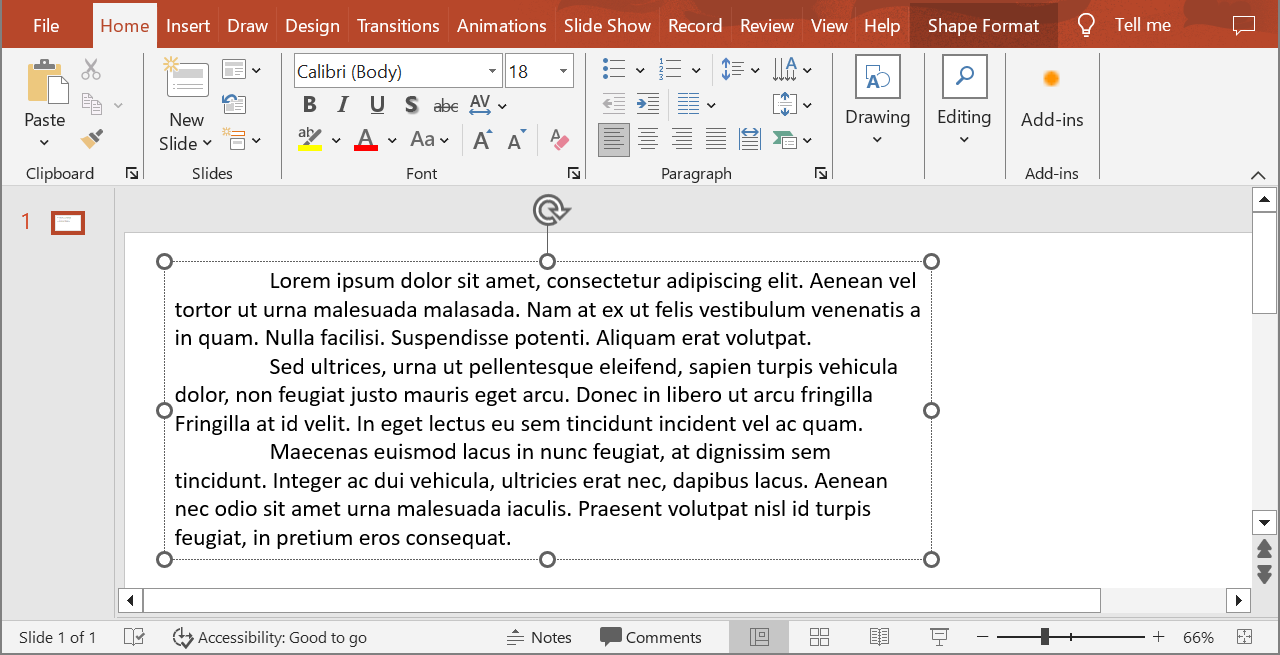
下面的示例在索引为 1 的位置选择第二段落,并在不传递比例参数的情况下调用 IParagraph.getImage。它检查形状是否包含所需段落,并在渲染返回图像后调用 IImage.save 将其以 PNG 格式保存。finally 块在使用后释放图像。
import com.aspose.slides.*;

Presentation presentation = new Presentation("sample.pptx");
try {
    IShape shape = presentation.getSlides().get_Item(0).getShapes().get_Item(0);

    if (shape instanceof IAutoShape) {
        IAutoShape textShape = (IAutoShape) shape;
        ITextFrame textFrame = textShape.getTextFrame();
        if (textFrame != null && textFrame.getParagraphs().getCount() > 1) {
            IParagraph paragraph = textFrame.getParagraphs().get_Item(1);
            IImage paragraphImage = paragraph.getImage();

            if (paragraphImage != null) {
                try {
                    paragraphImage.save("paragraph.png", ImageFormat.Png);
                } finally {
                    paragraphImage.dispose();
                }
            } else {
                System.out.println("The paragraph could not be rendered.");
            }
        } else {
            System.out.println("The expected paragraph was not found.");
        }
    } else {
        System.out.println("The first shape is not a text shape.");
    }
} finally {
    presentation.dispose();
}
结果:

在表格单元格中使用缩放渲染段落
使用接受 float scaleX 和 float scaleY 参数的 IParagraph.getImage 重载,以设置水平和垂直缩放因子。下面的示例创建一个表格,在其第一个单元格中以默认宽高的两倍渲染段落,并将结果保存为 PNG 图像。
import com.aspose.slides.*;

float scaleX = 2f;
float scaleY = 2f;

Presentation presentation = new Presentation();
try {
    ISlide slide = presentation.getSlides().get_Item(0);

    ITable table = slide.getShapes().addTable(50, 50, new double[] { 300 }, new double[] { 80 });
    IParagraph paragraph = table.get_Item(0, 0).getTextFrame().getParagraphs().get_Item(0);
    paragraph.setText("Text in a table cell");

    IImage paragraphImage = paragraph.getImage(scaleX, scaleY);
    if (paragraphImage != null) {
        try {
            paragraphImage.save("table_paragraph.png", ImageFormat.Png);
        } finally {
            paragraphImage.dispose();
        }
    } else {
        System.out.println("The paragraph could not be rendered.");
    }
} finally {
    presentation.dispose();
}
缩放因子为 1 时保持该轴的默认像素大小。例如,两个因子均为 2 时,图像的宽度和高度约为默认尺寸的两倍,像素数量约为四倍。较大的因子通常可在放大或高分辨率输出时产生更清晰的文字,但也会增加内存使用和文件大小。因子小于 1 会生成更小、细节更少的图像。使用相等的因子可保持段落的宽高比;不同的水平和垂直因子会独立拉伸输出。
在需要包含形状填充、边框或其他视觉上下文的输出时,使用 IShape.getImage 渲染整个形状仍然有用。对于仅段落图像,请使用 IParagraph.getImage。
常见问题解答
我可以完全禁用文本框内的换行吗?
可以。将 ITextFrameFormat.setWrapText 设为禁用换行,以便行不在文本框边缘断开。
如何获取特定段落在幻灯片上的精确边界?
使用 IParagraph.getRect 获取段落的边界矩形。IPortion.getRect 提供单个文本段的边界。
段落对齐方式(左、右、居中或两端对齐)在哪里控制?
IParagraphFormat.setAlignment 是段落级设置,适用于整个段落,而不受单独文本段格式的影响。
要在每行内部垂直对齐不同字体大小的文本段,请参阅 Align Fonts Within a Line。
我可以为段落的一部分设置校对语言吗?
可以。为单独的文本段设置 IBasePortionFormat.setLanguageId,即可在同一段落中包含多语言文本。