
Agregar ecuaciones matemáticas a presentaciones de PowerPoint en Android
Visión general
PowerPoint almacena las ecuaciones como Office Math Markup Language (OMML). Con Aspose.Slides for Android via Java, puedes crear el mismo tipo de contenido matemático de forma programática: fracciones, radicales, funciones, límites, operadores n‑arios, matrices, arreglos y bloques matemáticos con formato.
En PowerPoint, los usuarios normalmente añaden ecuaciones desde Insertar > Ecuación:
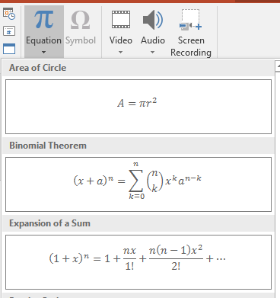
El resultado es texto matemático editable en la diapositiva:

Aspose.Slides construye ese texto matemático a través de tres objetos principales:
- Una forma matemática, creada con addMathShape, es la forma que contiene la ecuación.
- MathPortion almacena el contenido matemático dentro del marco de texto de la forma.
- MathParagraph contiene uno o más objetos MathBlock.
La mayoría de los ejemplos a continuación usan MathematicalText y los métodos fluidos de IMathElement para que el código sea breve y legible.
Para escenarios de exportación a MathML, consulta Exportar ecuaciones matemáticas desde presentaciones en Android.
Crear una ecuación
Este ejemplo crea una forma matemática y añade el teorema de Pitágoras:
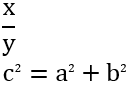
Presentation presentation = new Presentation();
try {
    ISlide slide = presentation.getSlides().get_Item(0);

    IAutoShape mathShape = slide.getShapes().addMathShape(20, 20, 700, 120);
    IMathParagraph mathParagraph = ((MathPortion) mathShape.getTextFrame().getParagraphs()
            .get_Item(0).getPortions().get_Item(0)).getMathParagraph();

    IMathBlock equation = new MathematicalText("c")
            .setSuperscript("2")
            .join("=")
            .join(new MathematicalText("a").setSuperscript("2"))
            .join("+")
            .join(new MathematicalText("b").setSuperscript("2"));

    mathParagraph.add(equation);

    presentation.save("pythagorean-theorem.pptx", SaveFormat.Pptx);
} finally {
    presentation.dispose();
}
addMathShape crea una forma que ya contiene un párrafo matemático. Acceda al primer MathPortion, obtenga su MathParagraph y añada bloques matemáticos o elementos matemáticos a él.
Añadir fracciones
Utiliza divide para crear una fracción. Puedes elegir un estilo de fracción con MathFractionTypes.

Presentation presentation = new Presentation();
try {
    ISlide slide = presentation.getSlides().get_Item(0);

    IAutoShape mathShape = slide.getShapes().addMathShape(20, 20, 700, 100);
    IMathParagraph mathParagraph = ((MathPortion) mathShape.getTextFrame().getParagraphs()
            .get_Item(0).getPortions().get_Item(0)).getMathParagraph();

    IMathFraction fraction = new MathematicalText("1")
            .divide("x", MathFractionTypes.Skewed);

    mathParagraph.add(new MathBlock(fraction));

    presentation.save("fraction.pptx", SaveFormat.Pptx);
} finally {
    presentation.dispose();
}
Para una fracción apilada, usa MathFractionTypes.Bar:
IMathFraction stackedFraction = new MathematicalText("x + 1").divide("y - 1", MathFractionTypes.Bar);
Añadir radicales
Utiliza radical para crear una raíz cuadrada, cúbica u otra raíz. El elemento actual se convierte en la base y el argumento en el grado.

Presentation presentation = new Presentation();
try {
    ISlide slide = presentation.getSlides().get_Item(0);

    IAutoShape mathShape = slide.getShapes().addMathShape(20, 20, 700, 100);
    IMathParagraph mathParagraph = ((MathPortion) mathShape.getTextFrame().getParagraphs()
            .get_Item(0).getPortions().get_Item(0)).getMathParagraph();

    IMathRadical radical = new MathematicalText("x")
            .radical("n");

    mathParagraph.add(new MathBlock(radical));

    presentation.save("radical.pptx", SaveFormat.Pptx);
} finally {
    presentation.dispose();
}
Añadir funciones y límites
Utiliza asArgumentOfFunction o function para funciones como sin(x), log(x) o nombres de funciones personalizados. Para límites, coloca lim en un MathLimit o usa setLowerLimit.

Presentation presentation = new Presentation();
try {
    ISlide slide = presentation.getSlides().get_Item(0);

    IAutoShape mathShape = slide.getShapes().addMathShape(20, 20, 700, 100);
    IMathParagraph mathParagraph = ((MathPortion) mathShape.getTextFrame().getParagraphs()
            .get_Item(0).getPortions().get_Item(0)).getMathParagraph();

    IMathFunction limit = new MathematicalText("lim")
            .setLowerLimit("x→∞")
            .function("x");

    mathParagraph.add(new MathBlock(limit));

    presentation.save("functions-and-limits.pptx", SaveFormat.Pptx);
} finally {
    presentation.dispose();
}
Para un nombre de función personalizado, haz que el nombre de la función sea el elemento actual:
IMathFunction customFunction = new MathematicalText("f").function("x + 1");
Añadir operadores n‑arios e integrales
Utiliza nary para sumas, uniones, intersecciones y otros operadores grandes. Utiliza integral para integrales. Ambos métodos permiten establecer límites inferior y superior.
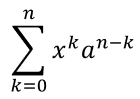
Presentation presentation = new Presentation();
try {
    ISlide slide = presentation.getSlides().get_Item(0);

    IAutoShape mathShape = slide.getShapes().addMathShape(20, 20, 700, 120);
    IMathParagraph mathParagraph = ((MathPortion) mathShape.getTextFrame().getParagraphs()
            .get_Item(0).getPortions().get_Item(0)).getMathParagraph();

    IMathBlock summationBase = new MathematicalText("x")
            .setSuperscript("k")
            .join(new MathematicalText("a").setSuperscript("n-k"));

    IMathNaryOperator summation = summationBase.nary(MathNaryOperatorTypes.Summation, "k=0", "n");

    mathParagraph.add(new MathBlock(summation));

    presentation.save("nary-operators.pptx", SaveFormat.Pptx);
} finally {
    presentation.dispose();
}
Los operadores n‑arios son para operadores grandes con límites opcionales. Los operadores simples como +, - y = suelen añadirse como MathematicalText y unirse a la expresión.
Para una integral, usa integral:
IMathBlock integralBase = new MathematicalText("x").join(new MathematicalText("dx").toBox());
IMathNaryOperator integral = integralBase.integral(MathIntegralTypes.Simple, "0", "1");
Añadir matrices
Utiliza MathMatrix para filas y columnas. Las matrices no incluyen corchetes por defecto, así que encierra la matriz cuando necesites paréntesis, corchetes o llaves.
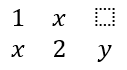
Presentation presentation = new Presentation();
try {
    ISlide slide = presentation.getSlides().get_Item(0);

    IAutoShape mathShape = slide.getShapes().addMathShape(20, 20, 700, 120);
    IMathParagraph mathParagraph = ((MathPortion) mathShape.getTextFrame().getParagraphs()
            .get_Item(0).getPortions().get_Item(0)).getMathParagraph();

    MathMatrix matrix = new MathMatrix(2, 3);
    matrix.set_Item(0, 0, new MathematicalText("1"));
    matrix.set_Item(0, 1, new MathematicalText("x"));
    matrix.set_Item(1, 0, new MathematicalText("x"));
    matrix.set_Item(1, 1, new MathematicalText("2"));
    matrix.set_Item(1, 2, new MathematicalText("y"));

    mathParagraph.add(new MathBlock(matrix));

    presentation.save("matrix.pptx", SaveFormat.Pptx);
} finally {
    presentation.dispose();
}
Añadir arreglos de ecuaciones
Utiliza toMathArray cuando necesites ecuaciones alineadas o una pila vertical de expresiones.

Presentation presentation = new Presentation();
try {
    ISlide slide = presentation.getSlides().get_Item(0);

    IAutoShape mathShape = slide.getShapes().addMathShape(20, 20, 700, 140);
    IMathParagraph mathParagraph = ((MathPortion) mathShape.getTextFrame().getParagraphs()
            .get_Item(0).getPortions().get_Item(0)).getMathParagraph();

    IMathArray equationArray = new MathematicalText("x")
            .join("y")
            .toMathArray();

    mathParagraph.add(new MathBlock(equationArray));

    presentation.save("equation-array.pptx", SaveFormat.Pptx);
} finally {
    presentation.dispose();
}
Añadir funciones trigonométricas
Utiliza asArgumentOfFunction cuando el argumento sea el elemento actual y el nombre de la función sea conocido.

Presentation presentation = new Presentation();
try {
    ISlide slide = presentation.getSlides().get_Item(0);

    IAutoShape mathShape = slide.getShapes().addMathShape(20, 20, 700, 100);
    IMathParagraph mathParagraph = ((MathPortion) mathShape.getTextFrame().getParagraphs()
            .get_Item(0).getPortions().get_Item(0)).getMathParagraph();

    IMathFunction cosine = new MathematicalText("2x")
            .asArgumentOfFunction(MathFunctionsOfOneArgument.Cos);

    mathParagraph.add(new MathBlock(cosine));

    presentation.save("trigonometric-function.pptx", SaveFormat.Pptx);
} finally {
    presentation.dispose();
}
Añadir subíndices y superíndices
Utiliza los ayudantes de subíndice y superíndice para índices y potencias. Cuando los índices deben aparecer en el lado izquierdo de la base, usa setSubSuperscriptOnTheLeft.

Presentation presentation = new Presentation();
try {
    ISlide slide = presentation.getSlides().get_Item(0);

    IAutoShape mathShape = slide.getShapes().addMathShape(20, 20, 700, 100);
    IMathParagraph mathParagraph = ((MathPortion) mathShape.getTextFrame().getParagraphs()
            .get_Item(0).getPortions().get_Item(0)).getMathParagraph();

    IMathLeftSubSuperscriptElement scripts = new MathematicalText("Y")
            .setSubSuperscriptOnTheLeft("1", "n");

    mathParagraph.add(new MathBlock(scripts));

    presentation.save("subscript-superscript.pptx", SaveFormat.Pptx);
} finally {
    presentation.dispose();
}
Añadir delimitadores
Utiliza enclose para colocar una expresión dentro de delimitadores. También puedes establecer un carácter separador para expresiones delimitadas que contengan varios elementos.

Presentation presentation = new Presentation();
try {
    ISlide slide = presentation.getSlides().get_Item(0);

    IAutoShape mathShape = slide.getShapes().addMathShape(20, 20, 700, 100);
    IMathParagraph mathParagraph = ((MathPortion) mathShape.getTextFrame().getParagraphs()
            .get_Item(0).getPortions().get_Item(0)).getMathParagraph();

    IMathDelimiter delimiter = new MathematicalText("x")
            .join("y")
            .join("z")
            .enclose('<', '>');
    delimiter.setSeparatorCharacter('|');

    mathParagraph.add(new MathBlock(delimiter));

    presentation.save("delimiters.pptx", SaveFormat.Pptx);
} finally {
    presentation.dispose();
}
Añadir un cuadro con borde
Utiliza toBorderBox cuando la ecuación misma debe estar enmarcada.
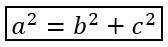
Presentation presentation = new Presentation();
try {
    ISlide slide = presentation.getSlides().get_Item(0);

    IAutoShape mathShape = slide.getShapes().addMathShape(20, 20, 700, 100);
    IMathParagraph mathParagraph = ((MathPortion) mathShape.getTextFrame().getParagraphs()
            .get_Item(0).getPortions().get_Item(0)).getMathParagraph();

    IMathBorderBox boxedEquation = new MathematicalText("a")
            .setSuperscript("2")
            .join("=")
            .join(new MathematicalText("b").setSuperscript("2"))
            .join("+")
            .join(new MathematicalText("c").setSuperscript("2"))
            .toBorderBox();

    mathParagraph.add(new MathBlock(boxedEquation));

    presentation.save("border-box.pptx", SaveFormat.Pptx);
} finally {
    presentation.dispose();
}
Agrupar términos
Utiliza group para colocar un carácter de agrupación encima o debajo de una expresión. Añade un límite para etiquetar los términos agrupados.

Presentation presentation = new Presentation();
try {
    ISlide slide = presentation.getSlides().get_Item(0);

    IAutoShape mathShape = slide.getShapes().addMathShape(20, 20, 700, 120);
    IMathParagraph mathParagraph = ((MathPortion) mathShape.getTextFrame().getParagraphs()
            .get_Item(0).getPortions().get_Item(0)).getMathParagraph();

    IMathLimit grouped = new MathematicalText("x + y")
            .group('\u23DF', MathTopBotPositions.Bottom, MathTopBotPositions.Top)
            .setLowerLimit("any text");

    mathParagraph.add(new MathBlock(grouped));

    presentation.save("grouped-terms.pptx", SaveFormat.Pptx);
} finally {
    presentation.dispose();
}
Dar formato a los elementos matemáticos
Utiliza los ayudantes de formato solo donde clarifiquen la fórmula. Por ejemplo, overbar coloca una barra sobre un elemento matemático.

Presentation presentation = new Presentation();
try {
    ISlide slide = presentation.getSlides().get_Item(0);

    IAutoShape mathShape = slide.getShapes().addMathShape(20, 20, 700, 100);
    IMathParagraph mathParagraph = ((MathPortion) mathShape.getTextFrame().getParagraphs()
            .get_Item(0).getPortions().get_Item(0)).getMathParagraph();

    IMathBar overbar = new MathematicalText("ABC").overbar();

    mathParagraph.add(new MathBlock(overbar));

    presentation.save("overbar.pptx", SaveFormat.Pptx);
} finally {
    presentation.dispose();
}
Referencia rápida
| Tarea | API principal |
|---|---|
| Crear texto matemático | MathematicalText |
| Combinar elementos | IMathElement.join |
| Crear fracciones | IMathElement.divide |
| Añadir superíndice o subíndice | setSuperscript, setSubscript |
| Añadir funciones | function, asArgumentOfFunction |
| Añadir radicales | IMathElement.radical |
| Añadir límites | setLowerLimit, setUpperLimit |
| Añadir scripts del lado izquierdo | setSubSuperscriptOnTheLeft |
| Añadir sumas e integrales | nary, integral |
| Añadir matrices | MathMatrix |
| Añadir arreglos de ecuaciones | toMathArray |
| Añadir delimitadores | enclose |
| Añadir barras y bordes | overbar, toBorderBox |
| Agrupar términos | group |
Preguntas frecuentes
¿Puedo editar una ecuación existente de PowerPoint?
Sí. Abre la presentación, localiza la forma que contiene un MathPortion, obtén su MathParagraph y actualiza los bloques matemáticos en ese párrafo.
¿Se guardan las ecuaciones como matemáticas editables de PowerPoint?
Sí. Al guardar en PPTX, Aspose.Slides escribe la ecuación como contenido matemático de Office editable.
¿Puedo exportar ecuaciones a LaTeX?
Sí. Obtén el IMathParagraph de su IMathPortion y llama a IMathParagraph.toLatex para exportarlo directamente. Para un ejemplo completo, consulta Exportar ecuaciones matemáticas desde presentaciones en Android vía Java.