
在 Android 上於 PowerPoint 簡報中加入數學方程式
概觀
PowerPoint 會將方程式儲存為 Office Math Markup Language (OMML)。使用 Aspose.Slides for Android via Java,您可以以程式方式建立相同類型的數學內容:分數、根號、函式、極限、N 元運算子、矩陣、陣列與格式化的數學區塊。
在 PowerPoint 中,使用者通常從 Insert > Equation 新增方程式:
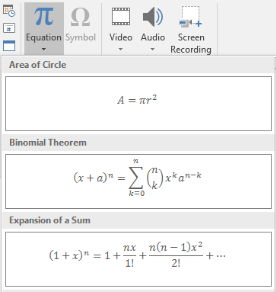
結果會在投影片上呈現可編輯的數學文字:

Aspose.Slides 透過三個主要物件建立這些數學文字:
- 以 addMathShape 建立的數學圖形,是包含方程式的圖形。
- MathPortion 在圖形的文字框內儲存數學內容。
- MathParagraph 包含一個或多個 MathBlock 物件。
以下大多數範例使用 MathematicalText 與 IMathElement 的串流方法,以保證程式碼簡潔易讀。
若需 MathML 匯出情境,請參考 Export Math Equations from Presentations on Android。
建立方程式
此範例建立一個數學圖形並加入畢氏定理:
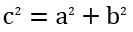
Presentation presentation = new Presentation();
try {
    ISlide slide = presentation.getSlides().get_Item(0);

    IAutoShape mathShape = slide.getShapes().addMathShape(20, 20, 700, 120);
    IMathParagraph mathParagraph = ((MathPortion) mathShape.getTextFrame().getParagraphs()
            .get_Item(0).getPortions().get_Item(0)).getMathParagraph();

    IMathBlock equation = new MathematicalText("c")
            .setSuperscript("2")
            .join("=")
            .join(new MathematicalText("a").setSuperscript("2"))
            .join("+")
            .join(new MathematicalText("b").setSuperscript("2"));

    mathParagraph.add(equation);

    presentation.save("pythagorean-theorem.pptx", SaveFormat.Pptx);
} finally {
    presentation.dispose();
}
addMathShape 建立的圖形已包含一個數學段落。存取首個 MathPortion,取得其 MathParagraph,即可加入數學區塊或數學元素。
加入分數
使用 divide 來建立分數。您可以使用 MathFractionTypes 選擇分數樣式。

Presentation presentation = new Presentation();
try {
    ISlide slide = presentation.getSlides().get_Item(0);

    IAutoShape mathShape = slide.getShapes().addMathShape(20, 20, 700, 100);
    IMathParagraph mathParagraph = ((MathPortion) mathShape.getTextFrame().getParagraphs()
            .get_Item(0).getPortions().get_Item(0)).getMathParagraph();

    IMathFraction fraction = new MathematicalText("1")
            .divide("x", MathFractionTypes.Skewed);

    mathParagraph.add(new MathBlock(fraction));

    presentation.save("fraction.pptx", SaveFormat.Pptx);
} finally {
    presentation.dispose();
}
若要堆疊式分數,使用 MathFractionTypes.Bar:
IMathFraction stackedFraction = new MathematicalText("x + 1").divide("y - 1", MathFractionTypes.Bar);
加入根號
使用 radical 來建立平方根、立方根或其他根號。當前元素成為底數,參數則為指數。

Presentation presentation = new Presentation();
try {
    ISlide slide = presentation.getSlides().get_Item(0);

    IAutoShape mathShape = slide.getShapes().addMathShape(20, 20, 700, 100);
    IMathParagraph mathParagraph = ((MathPortion) mathShape.getTextFrame().getParagraphs()
            .get_Item(0).getPortions().get_Item(0)).getMathParagraph();

    IMathRadical radical = new MathematicalText("x")
            .radical("n");

    mathParagraph.add(new MathBlock(radical));

    presentation.save("radical.pptx", SaveFormat.Pptx);
} finally {
    presentation.dispose();
}
加入函式與極限
使用 asArgumentOfFunction 或 function 來建立 sin(x)、log(x) 或自訂函式名稱等函式。對於極限,將 lim 放入 MathLimit 或使用 setLowerLimit。

Presentation presentation = new Presentation();
try {
    ISlide slide = presentation.getSlides().get_Item(0);

    IAutoShape mathShape = slide.getShapes().addMathShape(20, 20, 700, 100);
    IMathParagraph mathParagraph = ((MathPortion) mathShape.getTextFrame().getParagraphs()
            .get_Item(0).getPortions().get_Item(0)).getMathParagraph();

    IMathFunction limit = new MathematicalText("lim")
            .setLowerLimit("x→∞")
            .function("x");

    mathParagraph.add(new MathBlock(limit));

    presentation.save("functions-and-limits.pptx", SaveFormat.Pptx);
} finally {
    presentation.dispose();
}
若要自訂函式名稱,將函式名稱設為當前元素:
IMathFunction customFunction = new MathematicalText("f").function("x + 1");
加入 N 元運算子與積分
使用 nary 來建立求和、聯集、交集等大型運算子。使用 integral 來建立積分。兩者皆可設定上下限。
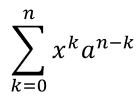
Presentation presentation = new Presentation();
try {
    ISlide slide = presentation.getSlides().get_Item(0);

    IAutoShape mathShape = slide.getShapes().addMathShape(20, 20, 700, 120);
    IMathParagraph mathParagraph = ((MathPortion) mathShape.getTextFrame().getParagraphs()
            .get_Item(0).getPortions().get_Item(0)).getMathParagraph();

    IMathBlock summationBase = new MathematicalText("x")
            .setSuperscript("k")
            .join(new MathematicalText("a").setSuperscript("n-k"));

    IMathNaryOperator summation = summationBase.nary(MathNaryOperatorTypes.Summation, "k=0", "n");

    mathParagraph.add(new MathBlock(summation));

    presentation.save("nary-operators.pptx", SaveFormat.Pptx);
} finally {
    presentation.dispose();
}
N 元運算子適用於可附帶上下限的大型運算子。像 +、-、= 等簡單運算子通常以 MathematicalText 加入並串接到表達式中。
若要加入積分,使用 integral:
IMathBlock integralBase = new MathematicalText("x").join(new MathematicalText("dx").toBox());
IMathNaryOperator integral = integralBase.integral(MathIntegralTypes.Simple, "0", "1");
加入矩陣
使用 MathMatrix 來定義行與列。矩陣預設不會包含括號,若需括弧、方括號或大括號,請自行將矩陣包起來。
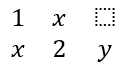
Presentation presentation = new Presentation();
try {
    ISlide slide = presentation.getSlides().get_Item(0);

    IAutoShape mathShape = slide.getShapes().addMathShape(20, 20, 700, 120);
    IMathParagraph mathParagraph = ((MathPortion) mathShape.getTextFrame().getParagraphs()
            .get_Item(0).getPortions().get_Item(0)).getMathParagraph();

    MathMatrix matrix = new MathMatrix(2, 3);
    matrix.set_Item(0, 0, new MathematicalText("1"));
    matrix.set_Item(0, 1, new MathematicalText("x"));
    matrix.set_Item(1, 0, new MathematicalText("x"));
    matrix.set_Item(1, 1, new MathematicalText("2"));
    matrix.set_Item(1, 2, new MathematicalText("y"));

    mathParagraph.add(new MathBlock(matrix));

    presentation.save("matrix.pptx", SaveFormat.Pptx);
} finally {
    presentation.dispose();
}
加入方程式陣列
需要對齊的方程式或垂直堆疊的表達式時,使用 toMathArray。

Presentation presentation = new Presentation();
try {
    ISlide slide = presentation.getSlides().get_Item(0);

    IAutoShape mathShape = slide.getShapes().addMathShape(20, 20, 700, 140);
    IMathParagraph mathParagraph = ((MathPortion) mathShape.getTextFrame().getParagraphs()
            .get_Item(0).getPortions().get_Item(0)).getMathParagraph();

    IMathArray equationArray = new MathematicalText("x")
            .join("y")
            .toMathArray();

    mathParagraph.add(new MathBlock(equationArray));

    presentation.save("equation-array.pptx", SaveFormat.Pptx);
} finally {
    presentation.dispose();
}
加入三角函式
當參數是當前元素且函式名稱已知時,使用 asArgumentOfFunction。

Presentation presentation = new Presentation();
try {
    ISlide slide = presentation.getSlides().get_Item(0);

    IAutoShape mathShape = slide.getShapes().addMathShape(20, 20, 700, 100);
    IMathParagraph mathParagraph = ((MathPortion) mathShape.getTextFrame().getParagraphs()
            .get_Item(0).getPortions().get_Item(0)).getMathParagraph();

    IMathFunction cosine = new MathematicalText("2x")
            .asArgumentOfFunction(MathFunctionsOfOneArgument.Cos);

    mathParagraph.add(new MathBlock(cosine));

    presentation.save("trigonometric-function.pptx", SaveFormat.Pptx);
} finally {
    presentation.dispose();
}
加入下標與上標
使用下標與上標輔助方法來加入索引與次方。若索引必須顯示在基底左側,使用 setSubSuperscriptOnTheLeft。

Presentation presentation = new Presentation();
try {
    ISlide slide = presentation.getSlides().get_Item(0);

    IAutoShape mathShape = slide.getShapes().addMathShape(20, 20, 700, 100);
    IMathParagraph mathParagraph = ((MathPortion) mathShape.getTextFrame().getParagraphs()
            .get_Item(0).getPortions().get_Item(0)).getMathParagraph();

    IMathLeftSubSuperscriptElement scripts = new MathematicalText("Y")
            .setSubSuperscriptOnTheLeft("1", "n");

    mathParagraph.add(new MathBlock(scripts));

    presentation.save("subscript-superscript.pptx", SaveFormat.Pptx);
} finally {
    presentation.dispose();
}
加入分隔符號
使用 enclose 將表達式置於分隔符號內。亦可設定分隔字元,以便在同一分隔符號內包含多個元素。

Presentation presentation = new Presentation();
try {
    ISlide slide = presentation.getSlides().get_Item(0);

    IAutoShape mathShape = slide.getShapes().addMathShape(20, 20, 700, 100);
    IMathParagraph mathParagraph = ((MathPortion) mathShape.getTextFrame().getParagraphs()
            .get_Item(0).getPortions().get_Item(0)).getMathParagraph();

    IMathDelimiter delimiter = new MathematicalText("x")
            .join("y")
            .join("z")
            .enclose('<', '>');
    delimiter.setSeparatorCharacter('|');

    mathParagraph.add(new MathBlock(delimiter));

    presentation.save("delimiters.pptx", SaveFormat.Pptx);
} finally {
    presentation.dispose();
}
加入框線盒子
使用 toBorderBox 讓整個方程式被框住。
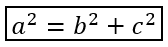
Presentation presentation = new Presentation();
try {
    ISlide slide = presentation.getSlides().get_Item(0);

    IAutoShape mathShape = slide.getShapes().addMathShape(20, 20, 700, 100);
    IMathParagraph mathParagraph = ((MathPortion) mathShape.getTextFrame().getParagraphs()
            .get_Item(0).getPortions().get_Item(0)).getMathParagraph();

    IMathBorderBox boxedEquation = new MathematicalText("a")
            .setSuperscript("2")
            .join("=")
            .join(new MathematicalText("b").setSuperscript("2"))
            .join("+")
            .join(new MathematicalText("c").setSuperscript("2"))
            .toBorderBox();

    mathParagraph.add(new MathBlock(boxedEquation));

    presentation.save("border-box.pptx", SaveFormat.Pptx);
} finally {
    presentation.dispose();
}
分組項目
使用 group 在表達式上方或下方放置分組符號。可加入限制以標示分組的項目。

Presentation presentation = new Presentation();
try {
    ISlide slide = presentation.getSlides().get_Item(0);

    IAutoShape mathShape = slide.getShapes().addMathShape(20, 20, 700, 120);
    IMathParagraph mathParagraph = ((MathPortion) mathShape.getTextFrame().getParagraphs()
            .get_Item(0).getPortions().get_Item(0)).getMathParagraph();

    IMathLimit grouped = new MathematicalText("x + y")
            .group('\u23DF', MathTopBotPositions.Bottom, MathTopBotPositions.Top)
            .setLowerLimit("any text");

    mathParagraph.add(new MathBlock(grouped));

    presentation.save("grouped-terms.pptx", SaveFormat.Pptx);
} finally {
    presentation.dispose();
}
格式化數學元素
僅在有助於說明公式時才使用格式化輔助方法。例如,overbar 會在數學元素上方加上一條橫線。

Presentation presentation = new Presentation();
try {
    ISlide slide = presentation.getSlides().get_Item(0);

    IAutoShape mathShape = slide.getShapes().addMathShape(20, 20, 700, 100);
    IMathParagraph mathParagraph = ((MathPortion) mathShape.getTextFrame().getParagraphs()
            .get_Item(0).getPortions().get_Item(0)).getMathParagraph();

    IMathBar overbar = new MathematicalText("ABC").overbar();

    mathParagraph.add(new MathBlock(overbar));

    presentation.save("overbar.pptx", SaveFormat.Pptx);
} finally {
    presentation.dispose();
}
快速參考
| 任務 | 主要 API |
|---|---|
| 建立數學文字 | MathematicalText |
| 組合元素 | IMathElement.join |
| 建立分數 | IMathElement.divide |
| 加入上標或下標 | setSuperscript, setSubscript |
| 加入函式 | function, asArgumentOfFunction |
| 加入根號 | IMathElement.radical |
| 加入極限 | setLowerLimit, setUpperLimit |
| 加入左側腳本 | setSubSuperscriptOnTheLeft |
| 加入求和與積分 | nary, integral |
| 加入矩陣 | MathMatrix |
| 加入方程式陣列 | toMathArray |
| 加入分隔符號 | enclose |
| 加入橫線與框線 | overbar, toBorderBox |
| 分組項目 | group |
常見問題
我可以編輯現有的 PowerPoint 方程式嗎?
可以。開啟簡報後,找到包含 MathPortion 的圖形,取得其 MathParagraph,即可更新該段落中的數學區塊。
方程式會儲存為可編輯的 PowerPoint 數學嗎?
會。儲存為 PPTX 時,Aspose.Slides 會將方程式寫入可編輯的 Office 數學內容。
我可以將方程式匯出為 LaTeX 嗎?
可以。從其 IMathPortion 取得 IMathParagraph,然後呼叫 IMathParagraph.toLatex 直接匯出。完整範例請參考 Export Math Equations from Presentations in Android via Java。