
เพิ่มสมการคณิตศาสตร์ในงานนำเสนอ PowerPoint บน Android
ภาพรวม
PowerPoint เก็บสมการเป็น Office Math Markup Language (OMML). ด้วย Aspose.Slides for Android via Java คุณสามารถสร้างเนื้อหาคณิตศาสตร์แบบเดียวกันโดยเขียนโปรแกรมได้: เศษส่วน, ราก, ฟังก์ชัน, ขีดจำกัด, ตัวดำเนินการ N-ary, เมทริกซ์, อาร์เรย์, และบล็อกคณิตศาสตร์ที่จัดรูปแบบ
ใน PowerPoint ผู้ใช้มักจะเพิ่มสมการจาก Insert > Equation:
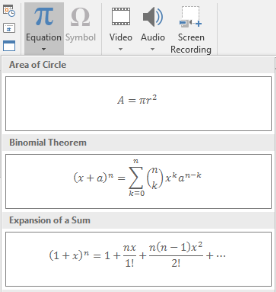
ผลลัพธ์คือข้อความคณิตศาสตร์ที่สามารถแก้ไขได้บนสไลด์:

Aspose.Slides สร้างข้อความคณิตศาสตร์นั้นผ่านสามอ็อบเจ็กต์หลัก:
- รูปคณิตศาสตร์หนึ่งรูป, สร้างด้วย addMathShape, เป็นรูปที่บรรจุสมการ
- MathPortion เก็บเนื้อหาคณิตศาสตร์ภายในกรอบข้อความของรูป
- MathParagraph มีหนึ่งหรือหลายอ็อบเจ็กต์ MathBlock
ตัวอย่างส่วนใหญ่ด้านล่างใช้ MathematicalText และเมธอด fluent จาก IMathElement เพื่อลดความยาวและทำให้โค้ดอ่านง่าย
สำหรับสถานการณ์การส่งออก MathML ดูที่ Export Math Equations from Presentations on Android.
สร้างสมการ
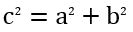
ตัวอย่างนี้สร้างรูปคณิตศาสตร์และเพิ่มทฤษฎีพีทากอรัส:
Presentation presentation = new Presentation();
try {
    ISlide slide = presentation.getSlides().get_Item(0);

    IAutoShape mathShape = slide.getShapes().addMathShape(20, 20, 700, 120);
    IMathParagraph mathParagraph = ((MathPortion) mathShape.getTextFrame().getParagraphs()
            .get_Item(0).getPortions().get_Item(0)).getMathParagraph();

    IMathBlock equation = new MathematicalText("c")
            .setSuperscript("2")
            .join("=")
            .join(new MathematicalText("a").setSuperscript("2"))
            .join("+")
            .join(new MathematicalText("b").setSuperscript("2"));

    mathParagraph.add(equation);

    presentation.save("pythagorean-theorem.pptx", SaveFormat.Pptx);
} finally {
    presentation.dispose();
}
addMathShape สร้างรูปที่มี MathParagraph อยู่แล้ว เข้าถึง MathPortion ตัวแรก, รับ MathParagraph ของมัน, แล้วเพิ่ม MathBlock หรือ MathElement ลงไป
เพิ่มเศษส่วน
ใช้ divide เพื่อสร้างเศษส่วน คุณสามารถเลือกสไตล์ของเศษส่วนด้วย MathFractionTypes

Presentation presentation = new Presentation();
try {
    ISlide slide = presentation.getSlides().get_Item(0);

    IAutoShape mathShape = slide.getShapes().addMathShape(20, 20, 700, 100);
    IMathParagraph mathParagraph = ((MathPortion) mathShape.getTextFrame().getParagraphs()
            .get_Item(0).getPortions().get_Item(0)).getMathParagraph();

    IMathFraction fraction = new MathematicalText("1")
            .divide("x", MathFractionTypes.Skewed);

    mathParagraph.add(new MathBlock(fraction));

    presentation.save("fraction.pptx", SaveFormat.Pptx);
} finally {
    presentation.dispose();
}
สำหรับเศษส่วนแบบซ้อนกัน ให้ใช้ MathFractionTypes.Bar:
IMathFraction stackedFraction = new MathematicalText("x + 1").divide("y - 1", MathFractionTypes.Bar);
เพิ่มราก
ใช้ radical เพื่อสร้างรากที่สอง, รากที่สาม หรือรากอื่น ๆ ส่วนประกอบปัจจุบันจะกลายเป็นฐานและอากรูเมนท์จะเป็นระดับ

Presentation presentation = new Presentation();
try {
    ISlide slide = presentation.getSlides().get_Item(0);

    IAutoShape mathShape = slide.getShapes().addMathShape(20, 20, 700, 100);
    IMathParagraph mathParagraph = ((MathPortion) mathShape.getTextFrame().getParagraphs()
            .get_Item(0).getPortions().get_Item(0)).getMathParagraph();

    IMathRadical radical = new MathematicalText("x")
            .radical("n");

    mathParagraph.add(new MathBlock(radical));

    presentation.save("radical.pptx", SaveFormat.Pptx);
} finally {
    presentation.dispose();
}
เพิ่มฟังก์ชันและขีดจำกัด
ใช้ asArgumentOfFunction หรือ function สำหรับฟังก์ชันเช่น sin(x), log(x) หรือชื่อฟังก์ชันที่กำหนดเอง สำหรับขีดจำกัด ให้ใส่ lim ใน MathLimit หรือใช้ setLowerLimit

Presentation presentation = new Presentation();
try {
    ISlide slide = presentation.getSlides().get_Item(0);

    IAutoShape mathShape = slide.getShapes().addMathShape(20, 20, 700, 100);
    IMathParagraph mathParagraph = ((MathPortion) mathShape.getTextFrame().getParagraphs()
            .get_Item(0).getPortions().get_Item(0)).getMathParagraph();

    IMathFunction limit = new MathematicalText("lim")
            .setLowerLimit("x→∞")
            .function("x");

    mathParagraph.add(new MathBlock(limit));

    presentation.save("functions-and-limits.pptx", SaveFormat.Pptx);
} finally {
    presentation.dispose();
}
สำหรับชื่อฟังก์ชันที่กำหนดเอง ให้ทำให้ชื่อฟังก์ชันเป็นส่วนประกอบปัจจุบัน:
IMathFunction customFunction = new MathematicalText("f").function("x + 1");
เพิ่มตัวดำเนินการ N-ary และอินทิกรัล
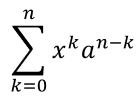
ใช้ nary สำหรับผลบวก, ยูเนียน, อินเตอร์เซกชัน และตัวดำเนินการใหญ่ ๆ ตัวอื่น ใช้ integral สำหรับอินทิกรัล ทั้งสองเมธอดอนุญาตให้ตั้งขีดจำกัดล่างและบน
Presentation presentation = new Presentation();
try {
    ISlide slide = presentation.getSlides().get_Item(0);

    IAutoShape mathShape = slide.getShapes().addMathShape(20, 20, 700, 120);
    IMathParagraph mathParagraph = ((MathPortion) mathShape.getTextFrame().getParagraphs()
            .get_Item(0).getPortions().get_Item(0)).getMathParagraph();

    IMathBlock summationBase = new MathematicalText("x")
            .setSuperscript("k")
            .join(new MathematicalText("a").setSuperscript("n-k"));

    IMathNaryOperator summation = summationBase.nary(MathNaryOperatorTypes.Summation, "k=0", "n");

    mathParagraph.add(new MathBlock(summation));

    presentation.save("nary-operators.pptx", SaveFormat.Pptx);
} finally {
    presentation.dispose();
}
ตัวดำเนินการ N-ary ใช้สำหรับตัวดำเนินการใหญ่ที่มีขีดจำกัดเสริม ตัวดำเนินการง่ายเช่น +, -, และ = มักจะเพิ่มเป็น MathematicalText แล้วเชื่อมต่อเข้ากับนิพจน์
สำหรับอินทิกรัล ให้ใช้ integral:
IMathBlock integralBase = new MathematicalText("x").join(new MathematicalText("dx").toBox());
IMathNaryOperator integral = integralBase.integral(MathIntegralTypes.Simple, "0", "1");
เพิ่มเมทริกซ์
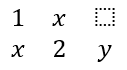
ใช้ MathMatrix สำหรับแถวและคอลัมน์ เมทริกซ์โดยปกติจะไม่มีวงเล็บจึงต้องล้อมเมทริกซ์ด้วยวงเล็บ, กงหรือตัญญูเมื่อจำเป็น
Presentation presentation = new Presentation();
try {
    ISlide slide = presentation.getSlides().get_Item(0);

    IAutoShape mathShape = slide.getShapes().addMathShape(20, 20, 700, 120);
    IMathParagraph mathParagraph = ((MathPortion) mathShape.getTextFrame().getParagraphs()
            .get_Item(0).getPortions().get_Item(0)).getMathParagraph();

    MathMatrix matrix = new MathMatrix(2, 3);
    matrix.set_Item(0, 0, new MathematicalText("1"));
    matrix.set_Item(0, 1, new MathematicalText("x"));
    matrix.set_Item(1, 0, new MathematicalText("x"));
    matrix.set_Item(1, 1, new MathematicalText("2"));
    matrix.set_Item(1, 2, new MathematicalText("y"));

    mathParagraph.add(new MathBlock(matrix));

    presentation.save("matrix.pptx", SaveFormat.Pptx);
} finally {
    presentation.dispose();
}
เพิ่มอาร์เรย์สมการ
ใช้ toMathArray เมื่อคุณต้องการสมการที่จัดแนวกันหรือสแต็กแนวตั้งของนิพจน์

Presentation presentation = new Presentation();
try {
    ISlide slide = presentation.getSlides().get_Item(0);

    IAutoShape mathShape = slide.getShapes().addMathShape(20, 20, 700, 140);
    IMathParagraph mathParagraph = ((MathPortion) mathShape.getTextFrame().getParagraphs()
            .get_Item(0).getPortions().get_Item(0)).getMathParagraph();

    IMathArray equationArray = new MathematicalText("x")
            .join("y")
            .toMathArray();

    mathParagraph.add(new MathBlock(equationArray));

    presentation.save("equation-array.pptx", SaveFormat.Pptx);
} finally {
    presentation.dispose();
}
เพิ่มฟังก์ชันตรีโกณมิติ
ใช้ asArgumentOfFunction เมื่ออาร์กิวเมนต์เป็นส่วนประกอบปัจจุบันและชื่อฟังก์ชันทราบแล้ว

Presentation presentation = new Presentation();
try {
    ISlide slide = presentation.getSlides().get_Item(0);

    IAutoShape mathShape = slide.getShapes().addMathShape(20, 20, 700, 100);
    IMathParagraph mathParagraph = ((MathPortion) mathShape.getTextFrame().getParagraphs()
            .get_Item(0).getPortions().get_Item(0)).getMathParagraph();

    IMathFunction cosine = new MathematicalText("2x")
            .asArgumentOfFunction(MathFunctionsOfOneArgument.Cos);

    mathParagraph.add(new MathBlock(cosine));

    presentation.save("trigonometric-function.pptx", SaveFormat.Pptx);
} finally {
    presentation.dispose();
}
เพิ่มตัวห้อยและตัวบน
ใช้ตัวช่วยสำหรับตัวห้อยและตัวบนสำหรับดัชนีและกำลัง เมื่อดัชนีต้องแสดงทางด้านซ้ายของฐาน ให้ใช้ setSubSuperscriptOnTheLeft

Presentation presentation = new Presentation();
try {
    ISlide slide = presentation.getSlides().get_Item(0);

    IAutoShape mathShape = slide.getShapes().addMathShape(20, 20, 700, 100);
    IMathParagraph mathParagraph = ((MathPortion) mathShape.getTextFrame().getParagraphs()
            .get_Item(0).getPortions().get_Item(0)).getMathParagraph();

    IMathLeftSubSuperscriptElement scripts = new MathematicalText("Y")
            .setSubSuperscriptOnTheLeft("1", "n");

    mathParagraph.add(new MathBlock(scripts));

    presentation.save("subscript-superscript.pptx", SaveFormat.Pptx);
} finally {
    presentation.dispose();
}
เพิ่มเครื่องหมายจำกัด
ใช้ enclose เพื่อนำนิพจน์ใส่ภายในเครื่องหมายจำกัด คุณยังสามารถตั้งอักขระคั่นสำหรับนิพจน์ที่มีหลายส่วนได้

Presentation presentation = new Presentation();
try {
    ISlide slide = presentation.getSlides().get_Item(0);

    IAutoShape mathShape = slide.getShapes().addMathShape(20, 20, 700, 100);
    IMathParagraph mathParagraph = ((MathPortion) mathShape.getTextFrame().getParagraphs()
            .get_Item(0).getPortions().get_Item(0)).getMathParagraph();

    IMathDelimiter delimiter = new MathematicalText("x")
            .join("y")
            .join("z")
            .enclose('<', '>');
    delimiter.setSeparatorCharacter('|');

    mathParagraph.add(new MathBlock(delimiter));

    presentation.save("delimiters.pptx", SaveFormat.Pptx);
} finally {
    presentation.dispose();
}
เพิ่มกล่องกรอบ
ใช้ toBorderBox เมื่อสมการเองควรมีกรอบ
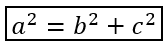
Presentation presentation = new Presentation();
try {
    ISlide slide = presentation.getSlides().get_Item(0);

    IAutoShape mathShape = slide.getShapes().addMathShape(20, 20, 700, 100);
    IMathParagraph mathParagraph = ((MathPortion) mathShape.getTextFrame().getParagraphs()
            .get_Item(0).getPortions().get_Item(0)).getMathParagraph();

    IMathBorderBox boxedEquation = new MathematicalText("a")
            .setSuperscript("2")
            .join("=")
            .join(new MathematicalText("b").setSuperscript("2"))
            .join("+")
            .join(new MathematicalText("c").setSuperscript("2"))
            .toBorderBox();

    mathParagraph.add(new MathBlock(boxedEquation));

    presentation.save("border-box.pptx", SaveFormat.Pptx);
} finally {
    presentation.dispose();
}
จัดกลุ่มเทอม
ใช้ group เพื่อวางอักขระการจัดกลุ่มเหนือหรือใต้สมการ เพิ่มขีดจำกัดเพื่อเป็นป้ายกำกับให้เทอมที่จัดกลุ่ม

Presentation presentation = new Presentation();
try {
    ISlide slide = presentation.getSlides().get_Item(0);

    IAutoShape mathShape = slide.getShapes().addMathShape(20, 20, 700, 120);
    IMathParagraph mathParagraph = ((MathPortion) mathShape.getTextFrame().getParagraphs()
            .get_Item(0).getPortions().get_Item(0)).getMathParagraph();

    IMathLimit grouped = new MathematicalText("x + y")
            .group('\u23DF', MathTopBotPositions.Bottom, MathTopBotPositions.Top)
            .setLowerLimit("any text");

    mathParagraph.add(new MathBlock(grouped));

    presentation.save("grouped-terms.pptx", SaveFormat.Pptx);
} finally {
    presentation.dispose();
}
จัดรูปแบบองค์ประกอบคณิตศาสตร์
ใช้ตัวช่วยการจัดรูปแบบเฉพาะเมื่อจำเป็นต้องทำให้สูตรชัดเจน ตัวอย่างเช่น overbar จะวางเส้นบาร์เหนือองค์ประกอบคณิตศาสตร์
![นิพจน์คณิตศาสตร์ ABC ที่มีเส้นบาร์เหนือ] (powerpoint-math-equations_14.png)
Presentation presentation = new Presentation();
try {
    ISlide slide = presentation.getSlides().get_Item(0);

    IAutoShape mathShape = slide.getShapes().addMathShape(20, 20, 700, 100);
    IMathParagraph mathParagraph = ((MathPortion) mathShape.getTextFrame().getParagraphs()
            .get_Item(0).getPortions().get_Item(0)).getMathParagraph();

    IMathBar overbar = new MathematicalText("ABC").overbar();

    mathParagraph.add(new MathBlock(overbar));

    presentation.save("overbar.pptx", SaveFormat.Pptx);
} finally {
    presentation.dispose();
}
อ้างอิงอย่างรวดเร็ว
| งาน | API หลัก |
|---|---|
| สร้างข้อความคณิตศาสตร์ | MathematicalText |
| รวมองค์ประกอบ | IMathElement.join |
| สร้างเศษส่วน | IMathElement.divide |
| เพิ่มตัวบนหรือตัวห้อย | setSuperscript, setSubscript |
| เพิ่มฟังก์ชัน | function, asArgumentOfFunction |
| เพิ่มราก | IMathElement.radical |
| เพิ่มขีดจำกัด | setLowerLimit, setUpperLimit |
| เพิ่มสคริปต์ด้านซ้าย | setSubSuperscriptOnTheLeft |
| เพิ่มผลบวกและอินทิกรัล | nary, integral |
| เพิ่มเมทริกซ์ | MathMatrix |
| เพิ่มอาร์เรย์สมการ | toMathArray |
| เพิ่มตัวคั่น | enclose |
| เพิ่มเส้นบาร์และกรอบ | overbar, toBorderBox |
| จัดกลุ่มเทอม | group |
คำถามที่พบบ่อย
ฉันสามารถแก้ไขสมการ PowerPoint ที่มีอยู่ได้หรือไม่?
ได้. เปิดงานพรีเซนเทชัน, ค้นหารูปที่มี MathPortion, รับ MathParagraph ของมัน, แล้วอัปเดต MathBlock ในย่อหน้านั้น
สมการถูกบันทึกเป็นคณิตศาสตร์ PowerPoint ที่แก้ไขได้หรือไม่?
ได้. เมื่อบันทึกเป็น PPTX, Aspose.Slides จะเขียนสมการเป็นเนื้อหา Office Math ที่สามารถแก้ไขได้
ฉันสามารถส่งออกสมการเป็น LaTeX ได้หรือไม่?
ได้. รับ IMathParagraph ของสมการจาก IMathPortion, แล้วเรียก IMathParagraph.toLatex เพื่อส่งออกโดยตรง สำหรับตัวอย่างเต็ม ให้ดูที่ Export Math Equations from Presentations in Android via Java.