
Android에서 PowerPoint 프레젠테이션에 수학 방정식 추가
개요
PowerPoint는 수식을 Office Math Markup Language(OMML) 형식으로 저장합니다. Aspose.Slides for Android via Java를 사용하면 분수, 근호, 함수, 극한, N-ary 연산자, 행렬, 배열 및 서식이 지정된 수식 블록과 같은 수학 콘텐츠를 프로그래밍 방식으로 동일하게 만들 수 있습니다.
PowerPoint에서 사용자는 일반적으로 Insert > Equation을 선택하여 수식을 추가합니다.
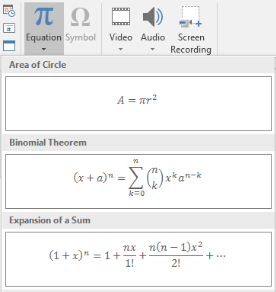
그 결과 슬라이드에 편집 가능한 수식 텍스트가 나타납니다.

Aspose.Slides는 세 가지 주요 객체를 통해 해당 수식 텍스트를 구성합니다.
- 수식 도형은 addMathShape으로 생성되며, 수식을 포함하는 도형입니다.
- MathPortion은 도형 텍스트 프레임 안에 수식 콘텐츠를 저장합니다.
- MathParagraph은 하나 이상의 MathBlock 객체를 포함합니다.
아래 대부분의 예제는 MathematicalText와 IMathElement의 fluent 메서드를 사용하여 코드를 간결하고 읽기 쉽게 유지합니다.
MathML 내보내기 시나리오에 대해서는 Export Math Equations from Presentations on Android를 참조하세요.
수식 만들기
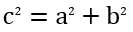
이 예제는 수식 도형을 만들고 피타고라스 정리를 추가합니다.
Presentation presentation = new Presentation();
try {
    ISlide slide = presentation.getSlides().get_Item(0);

    IAutoShape mathShape = slide.getShapes().addMathShape(20, 20, 700, 120);
    IMathParagraph mathParagraph = ((MathPortion) mathShape.getTextFrame().getParagraphs()
            .get_Item(0).getPortions().get_Item(0)).getMathParagraph();

    IMathBlock equation = new MathematicalText("c")
            .setSuperscript("2")
            .join("=")
            .join(new MathematicalText("a").setSuperscript("2"))
            .join("+")
            .join(new MathematicalText("b").setSuperscript("2"));

    mathParagraph.add(equation);

    presentation.save("pythagorean-theorem.pptx", SaveFormat.Pptx);
} finally {
    presentation.dispose();
}
addMathShape은 이미 수식 단락을 포함하는 도형을 생성합니다. 첫 번째 MathPortion에 접근하고, 해당 MathParagraph를 가져와 수식 블록이나 수식 요소를 추가합니다.
분수 추가
divide를 사용하여 분수를 만듭니다. 분수 스타일은 MathFractionTypes로 선택할 수 있습니다.

Presentation presentation = new Presentation();
try {
    ISlide slide = presentation.getSlides().get_Item(0);

    IAutoShape mathShape = slide.getShapes().addMathShape(20, 20, 700, 100);
    IMathParagraph mathParagraph = ((MathPortion) mathShape.getTextFrame().getParagraphs()
            .get_Item(0).getPortions().get_Item(0)).getMathParagraph();

    IMathFraction fraction = new MathematicalText("1")
            .divide("x", MathFractionTypes.Skewed);

    mathParagraph.add(new MathBlock(fraction));

    presentation.save("fraction.pptx", SaveFormat.Pptx);
} finally {
    presentation.dispose();
}
중첩된 분수를 위해서는 MathFractionTypes.Bar를 사용합니다:
IMathFraction stackedFraction = new MathematicalText("x + 1").divide("y - 1", MathFractionTypes.Bar);
근호 추가
square root, cube root 또는 기타 근호를 만들려면 radical을 사용합니다. 현재 요소가 기반(base)이 되고, 인수가 차수(degree)가 됩니다.

Presentation presentation = new Presentation();
try {
    ISlide slide = presentation.getSlides().get_Item(0);

    IAutoShape mathShape = slide.getShapes().addMathShape(20, 20, 700, 100);
    IMathParagraph mathParagraph = ((MathPortion) mathShape.getTextFrame().getParagraphs()
            .get_Item(0).getPortions().get_Item(0)).getMathParagraph();

    IMathRadical radical = new MathematicalText("x")
            .radical("n");

    mathParagraph.add(new MathBlock(radical));

    presentation.save("radical.pptx", SaveFormat.Pptx);
} finally {
    presentation.dispose();
}
함수와 극한 추가
asArgumentOfFunction 또는 function을 사용하여 sin(x), log(x)와 같은 함수 또는 사용자 정의 함수 이름을 만들 수 있습니다. 극한을 표시하려면 MathLimit에 lim을 넣거나 setLowerLimit을 사용합니다.

Presentation presentation = new Presentation();
try {
    ISlide slide = presentation.getSlides().get_Item(0);

    IAutoShape mathShape = slide.getShapes().addMathShape(20, 20, 700, 100);
    IMathParagraph mathParagraph = ((MathPortion) mathShape.getTextFrame().getParagraphs()
            .get_Item(0).getPortions().get_Item(0)).getMathParagraph();

    IMathFunction limit = new MathematicalText("lim")
            .setLowerLimit("x→∞")
            .function("x");

    mathParagraph.add(new MathBlock(limit));

    presentation.save("functions-and-limits.pptx", SaveFormat.Pptx);
} finally {
    presentation.dispose();
}
사용자 정의 함수 이름을 지정하려면 현재 요소를 함수 이름으로 만듭니다:
IMathFunction customFunction = new MathematicalText("f").function("x + 1");
N-ary 연산자와 적분 추가
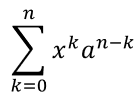
합계, 합집합, 교집합 및 기타 대형 연산자를 위해 nary를 사용합니다. 적분을 위해서는 integral을 사용합니다. 두 메서드 모두 하한과 상한을 설정할 수 있습니다.
Presentation presentation = new Presentation();
try {
    ISlide slide = presentation.getSlides().get_Item(0);

    IAutoShape mathShape = slide.getShapes().addMathShape(20, 20, 700, 120);
    IMathParagraph mathParagraph = ((MathPortion) mathShape.getTextFrame().getParagraphs()
            .get_Item(0).getPortions().get_Item(0)).getMathParagraph();

    IMathBlock summationBase = new MathematicalText("x")
            .setSuperscript("k")
            .join(new MathematicalText("a").setSuperscript("n-k"));

    IMathNaryOperator summation = summationBase.nary(MathNaryOperatorTypes.Summation, "k=0", "n");

    mathParagraph.add(new MathBlock(summation));

    presentation.save("nary-operators.pptx", SaveFormat.Pptx);
} finally {
    presentation.dispose();
}
N-ary 연산자는 선택적 한계가 있는 대형 연산자에 사용됩니다. +, -, =와 같은 간단한 연산자는 보통 MathematicalText로 추가하고 식에 결합합니다.
적분을 추가하려면 integral을 사용합니다:
IMathBlock integralBase = new MathematicalText("x").join(new MathematicalText("dx").toBox());
IMathNaryOperator integral = integralBase.integral(MathIntegralTypes.Simple, "0", "1");
행렬 추가
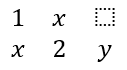
행과 열을 정의하려면 MathMatrix를 사용합니다. 행렬은 기본적으로 괄호가 포함되지 않으므로 필요에 따라 괄호, 대괄호 또는 중괄호로 감싸야 합니다.
Presentation presentation = new Presentation();
try {
    ISlide slide = presentation.getSlides().get_Item(0);

    IAutoShape mathShape = slide.getShapes().addMathShape(20, 20, 700, 120);
    IMathParagraph mathParagraph = ((MathPortion) mathShape.getTextFrame().getParagraphs()
            .get_Item(0).getPortions().get_Item(0)).getMathParagraph();

    MathMatrix matrix = new MathMatrix(2, 3);
    matrix.set_Item(0, 0, new MathematicalText("1"));
    matrix.set_Item(0, 1, new MathematicalText("x"));
    matrix.set_Item(1, 0, new MathematicalText("x"));
    matrix.set_Item(1, 1, new MathematicalText("2"));
    matrix.set_Item(1, 2, new MathematicalText("y"));

    mathParagraph.add(new MathBlock(matrix));

    presentation.save("matrix.pptx", SaveFormat.Pptx);
} finally {
    presentation.dispose();
}
수식 배열 추가
정렬된 수식이나 수직으로 쌓인 식이 필요할 때 toMathArray를 사용합니다.

Presentation presentation = new Presentation();
try {
    ISlide slide = presentation.getSlides().get_Item(0);

    IAutoShape mathShape = slide.getShapes().addMathShape(20, 20, 700, 140);
    IMathParagraph mathParagraph = ((MathPortion) mathShape.getTextFrame().getParagraphs()
            .get_Item(0).getPortions().get_Item(0)).getMathParagraph();

    IMathArray equationArray = new MathematicalText("x")
            .join("y")
            .toMathArray();

    mathParagraph.add(new MathBlock(equationArray));

    presentation.save("equation-array.pptx", SaveFormat.Pptx);
} finally {
    presentation.dispose();
}
삼각 함수 추가
인수가 현재 요소이고 함수 이름이 알려져 있는 경우 asArgumentOfFunction을 사용합니다.

Presentation presentation = new Presentation();
try {
    ISlide slide = presentation.getSlides().get_Item(0);

    IAutoShape mathShape = slide.getShapes().addMathShape(20, 20, 700, 100);
    IMathParagraph mathParagraph = ((MathPortion) mathShape.getTextFrame().getParagraphs()
            .get_Item(0).getPortions().get_Item(0)).getMathParagraph();

    IMathFunction cosine = new MathematicalText("2x")
            .asArgumentOfFunction(MathFunctionsOfOneArgument.Cos);

    mathParagraph.add(new MathBlock(cosine));

    presentation.save("trigonometric-function.pptx", SaveFormat.Pptx);
} finally {
    presentation.dispose();
}
첨자와 위첨자 추가
인덱스와 거듭제곱을 위해 첨자와 위첨자 도우미를 사용합니다. 인덱스를 기본 요소의 왼쪽에 배치해야 할 경우 setSubSuperscriptOnTheLeft를 사용합니다.

Presentation presentation = new Presentation();
try {
    ISlide slide = presentation.getSlides().get_Item(0);

    IAutoShape mathShape = slide.getShapes().addMathShape(20, 20, 700, 100);
    IMathParagraph mathParagraph = ((MathPortion) mathShape.getTextFrame().getParagraphs()
            .get_Item(0).getPortions().get_Item(0)).getMathParagraph();

    IMathLeftSubSuperscriptElement scripts = new MathematicalText("Y")
            .setSubSuperscriptOnTheLeft("1", "n");

    mathParagraph.add(new MathBlock(scripts));

    presentation.save("subscript-superscript.pptx", SaveFormat.Pptx);
} finally {
    presentation.dispose();
}
구분자 추가
enclose를 사용하여 식을 구분자 안에 넣습니다. 여러 요소를 포함하는 구분자 식에는 구분자 문자도 설정할 수 있습니다.

Presentation presentation = new Presentation();
try {
    ISlide slide = presentation.getSlides().get_Item(0);

    IAutoShape mathShape = slide.getShapes().addMathShape(20, 20, 700, 100);
    IMathParagraph mathParagraph = ((MathPortion) mathShape.getTextFrame().getParagraphs()
            .get_Item(0).getPortions().get_Item(0)).getMathParagraph();

    IMathDelimiter delimiter = new MathematicalText("x")
            .join("y")
            .join("z")
            .enclose('<', '>');
    delimiter.setSeparatorCharacter('|');

    mathParagraph.add(new MathBlock(delimiter));

    presentation.save("delimiters.pptx", SaveFormat.Pptx);
} finally {
    presentation.dispose();
}
테두리 상자 추가
수식 자체를 테두리로 둘러야 할 경우 toBorderBox를 사용합니다.
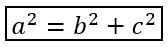
Presentation presentation = new Presentation();
try {
    ISlide slide = presentation.getSlides().get_Item(0);

    IAutoShape mathShape = slide.getShapes().addMathShape(20, 20, 700, 100);
    IMathParagraph mathParagraph = ((MathPortion) mathShape.getTextFrame().getParagraphs()
            .get_Item(0).getPortions().get_Item(0)).getMathParagraph();

    IMathBorderBox boxedEquation = new MathematicalText("a")
            .setSuperscript("2")
            .join("=")
            .join(new MathematicalText("b").setSuperscript("2"))
            .join("+")
            .join(new MathematicalText("c").setSuperscript("2"))
            .toBorderBox();

    mathParagraph.add(new MathBlock(boxedEquation));

    presentation.save("border-box.pptx", SaveFormat.Pptx);
} finally {
    presentation.dispose();
}
용어 그룹화
group을 사용하여 식 위나 아래에 그룹화 문자를 배치합니다. 그룹화된 용어에 라벨을 붙이려면 제한(lim)을 추가합니다.

Presentation presentation = new Presentation();
try {
    ISlide slide = presentation.getSlides().get_Item(0);

    IAutoShape mathShape = slide.getShapes().addMathShape(20, 20, 700, 120);
    IMathParagraph mathParagraph = ((MathPortion) mathShape.getTextFrame().getParagraphs()
            .get_Item(0).getPortions().get_Item(0)).getMathParagraph();

    IMathLimit grouped = new MathematicalText("x + y")
            .group('\u23DF', MathTopBotPositions.Bottom, MathTopBotPositions.Top)
            .setLowerLimit("any text");

    mathParagraph.add(new MathBlock(grouped));

    presentation.save("grouped-terms.pptx", SaveFormat.Pptx);
} finally {
    presentation.dispose();
}
수식 요소 서식 지정
공식의 가독성을 높일 때만 서식 도우미를 사용합니다. 예를 들어 overbar는 수식 요소 위에 바를 추가합니다.

Presentation presentation = new Presentation();
try {
    ISlide slide = presentation.getSlides().get_Item(0);

    IAutoShape mathShape = slide.getShapes().addMathShape(20, 20, 700, 100);
    IMathParagraph mathParagraph = ((MathPortion) mathShape.getTextFrame().getParagraphs()
            .get_Item(0).getPortions().get_Item(0)).getMathParagraph();

    IMathBar overbar = new MathematicalText("ABC").overbar();

    mathParagraph.add(new MathBlock(overbar));

    presentation.save("overbar.pptx", SaveFormat.Pptx);
} finally {
    presentation.dispose();
}
빠른 참조
| 작업 | 주요 API |
|---|---|
| 수식 텍스트 만들기 | MathematicalText |
| 요소 결합 | IMathElement.join |
| 분수 만들기 | IMathElement.divide |
| 위첨자 또는 첨자 추가 | setSuperscript, setSubscript |
| 함수 추가 | function, asArgumentOfFunction |
| 근호 추가 | IMathElement.radical |
| 극한 추가 | setLowerLimit, setUpperLimit |
| 왼쪽 첨자/위첨자 추가 | setSubSuperscriptOnTheLeft |
| 합계와 적분 추가 | nary, integral |
| 행렬 추가 | MathMatrix |
| 수식 배열 추가 | toMathArray |
| 구분자 추가 | enclose |
| 바와 테두리 추가 | overbar, toBorderBox |
| 용어 그룹화 | group |
FAQ
기존 PowerPoint 수식을 편집할 수 있나요?
네. 프레젠테이션을 열고 MathPortion을 포함하는 도형을 찾은 뒤, 해당 MathParagraph를 가져와 그 단락의 수식 블록을 업데이트하면 됩니다.
수식이 편집 가능한 PowerPoint 수식으로 저장되나요?
네. PPTX로 저장하면 Aspose.Slides는 수식을 편집 가능한 Office 수식 콘텐츠로 기록합니다.
수식을 LaTeX로 내보낼 수 있나요?
네. 수식의 IMathParagraph을 해당 IMathPortion에서 가져온 뒤, IMathParagraph.toLatex을 호출하면 직접 내보낼 수 있습니다. 완전한 예제는 Export Math Equations from Presentations in Android via Java를 참고하세요.