
قالببندی متن ارائه در جاوا
نمای کلی
این مقاله نشان میدهد که چگونه متن را در ارائههای PowerPoint و OpenDocument با استفاده از Aspose.Slides for Java قالببندی کنید. این مقاله به رنگهای پسزمینه، شفافیت، فاصله بین حروف، ویژگیهای قلم، چرخش، فاصله بین پاراگرافها، رفتار autofit، لنگر متن، توقفهای تاب، و تنظیمات زبان میپردازد.
مگر آنکه خلاف آن ذکر شود، مثالها از sample.pptx استفاده میکنند. اولین شکل در اسلاید اول یک جعبه متن است و اولین پاراگراف آن حاوی متنی است که در زیر نشان داده شده است. هر دو ایندکس اسلاید و شکل از صفر شروع میشوند. مثالهایی که بخشهای ضخیم (bold) را انتخاب میکنند، از قالببندی مؤثر استفاده میکنند، از جمله قالببندی ضخیم ارثبرده:

برای یافتن و برجستهسازی متن بهصورت دقیق یا مطابقتهای عبارت منظم، به جستجو و جایگزینی متن مراجعه کنید.
تنظیم رنگ پسزمینه متن
از IParagraphFormat.getDefaultPortionFormat برای تنظیم رنگ برجسته پیشفرض یک پاراگراف استفاده کنید، یا از IBasePortionFormat.getHighlightColor برای بخشهای متنی جداگانه استفاده کنید.
مثال زیر یک برجستهرنگ خاکستری روشن را بهعنوان پیشفرض برای اولین پاراگراف تنظیم میکند. رنگهای برجسته صریح در بخشهای فردی بر این پیشفرض اولویت دارند:
import com.aspose.slides.*;
import java.awt.Color;

Presentation presentation = new Presentation("sample.pptx");
try {
    ISlide slide = presentation.getSlides().get_Item(0);

    IAutoShape autoShape = (IAutoShape)slide.getShapes().get_Item(0);
    IParagraph paragraph = autoShape.getTextFrame().getParagraphs().get_Item(0);

    // رنگ برجسته را برای کل پاراگراف تنظیم کنید.
    paragraph.getParagraphFormat().getDefaultPortionFormat().getHighlightColor().setColor(Color.LIGHT_GRAY);

    presentation.save("gray_paragraph.pptx", SaveFormat.Pptx);
} finally {
    presentation.dispose();
}
نتیجه:

مثال کد زیر نشان میدهد که چگونه رنگ پسزمینه را برای بخشهای متنی با قلم ضخیم تنظیم کنید:
import com.aspose.slides.*;
import java.awt.Color;

Presentation presentation = new Presentation("sample.pptx");
try {
    ISlide slide = presentation.getSlides().get_Item(0);

    IAutoShape autoShape = (IAutoShape)slide.getShapes().get_Item(0);
    IParagraph paragraph = autoShape.getTextFrame().getParagraphs().get_Item(0);

    for (IPortion portion : paragraph.getPortions()) {
        if (portion.getPortionFormat().getEffective().getFontBold()) {
            // رنگ برجسته را برای بخش متنی تنظیم کنید.
            portion.getPortionFormat().getHighlightColor().setColor(Color.LIGHT_GRAY);
        }
    }

    presentation.save("gray_text_portions.pptx", SaveFormat.Pptx);
} finally {
    presentation.dispose();
}
نتیجه:

همترازی پاراگرافهای متن
از IParagraphFormat.setAlignment برای تنظیم همترازی پاراگراف درون یک چارچوب متن استفاده کنید. مقدار میتواند وسط، چپترازبندی، راستترازبندی، تراز شده (justified) و غیره باشد.
مثال زیر نشان میدهد که چگونه پاراگراف را به مرکز تراز کنید:
import com.aspose.slides.*;
Presentation presentation = new Presentation("sample.pptx");
try {
ISlide slide = presentation.getSlides().get_Item(0);
IAutoShape autoShape = (IAutoShape)slide.getShapes().get_Item(0);
IParagraph paragraph = autoShape.getTextFrame().getParagraphs().get_Item(0);
// همترازی پاراگراف را به مرکز تنظیم کنید.
paragraph.getParagraphFormat().setAlignment(TextAlignment.Center);
presentation.save("aligned_paragraph.pptx", SaveFormat.Pptx);
} finally {
presentation.dispose();
}
نتیجه:

همترازی قلمها درون یک خط
از IParagraphFormat.setFontAlignment برای تراز عمودی بخشهای متنی با اندازههای قلم مختلف درون یک خط استفاده کنید. این تنظیم برای کل پاراگراف اعمال میشود و همترازی را در هر یک از خطوط آن کنترل میکند.
مثال خودمحافظ زیر چهار جعبه متن برچسبدار در یک اسلاید ایجاد میکند. هر پاراگراف همان متن را در اندازههای ۱۸، ۳۶ و ۵۴ پوینت دارد، با تراز قلم متفاوت. از Arial استفاده میکند، autofit و شکستن خطوط را غیرفعال میکند و چارچوبهای متن را به اندازه کافی بزرگ نگه میدارد تا یک خط را بسپارد.
import com.aspose.slides.*;
import java.awt.Color;

Presentation presentation = new Presentation();
try {
    ISlide slide = presentation.getSlides().get_Item(0);

    int[] alignments = { FontAlignment.Baseline, FontAlignment.Top, FontAlignment.Center, FontAlignment.Bottom };
    String[] alignmentNames = { "Baseline", "Top", "Center", "Bottom" };
    float[] fontSizes = { 18f, 36f, 54f };

    for (int i = 0; i < alignments.length; i++) {
        IAutoShape shape = slide.getShapes().addAutoShape(ShapeType.Rectangle, 30, 20 + i * 130, 660, 120);
        shape.getFillFormat().setFillType(FillType.NoFill);
        shape.getLineFormat().getFillFormat().setFillType(FillType.NoFill);

        ITextFrame textFrame = shape.getTextFrame();
        textFrame.getTextFrameFormat().setAnchoringType(TextAnchorType.Top);
        textFrame.getTextFrameFormat().setAutofitType(TextAutofitType.None);
        textFrame.getTextFrameFormat().setWrapText(NullableBool.False);

        IParagraph label = textFrame.getParagraphs().get_Item(0);
        label.setText(alignmentNames[i]);
        label.getParagraphFormat().setAlignment(TextAlignment.Left);
        label.getParagraphFormat().getDefaultPortionFormat().setFontHeight(14);
        label.getParagraphFormat().getDefaultPortionFormat().setLatinFont(new FontData("Arial"));
        label.getParagraphFormat().getDefaultPortionFormat().getFillFormat().setFillType(FillType.Solid);
        label.getParagraphFormat().getDefaultPortionFormat().getFillFormat().getSolidFillColor().setColor(Color.GRAY);

        Paragraph paragraph = new Paragraph();
        paragraph.getParagraphFormat().setFontAlignment(alignments[i]);
        paragraph.getParagraphFormat().setAlignment(TextAlignment.Left);
        paragraph.getParagraphFormat().getDefaultPortionFormat().setLatinFont(new FontData("Arial"));
        paragraph.getParagraphFormat().getDefaultPortionFormat().getFillFormat().setFillType(FillType.Solid);
        paragraph.getParagraphFormat().getDefaultPortionFormat().getFillFormat().getSolidFillColor().setColor(Color.BLACK);

        for (float fontSize : fontSizes) {
            Portion portion = new Portion("Ag ");
            portion.getPortionFormat().setFontHeight(fontSize);
            paragraph.getPortions().add(portion);
        }

        textFrame.getParagraphs().add(paragraph);
    }

    presentation.save("font_alignment.pptx", SaveFormat.Pptx);
} finally {
    presentation.dispose();
}
نتیجه:
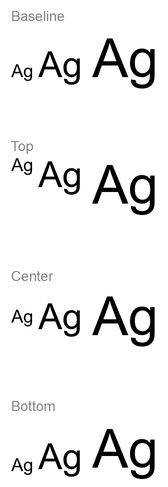
تراز قلم از متریکهای قلم استفاده میکند، بنابراین لبههای قابل مشاهده حروف جداگانه لزوماً دقیقاً همسطح نیستند. مثال شامل یک حرف بزرگ و یک حروف پایهای (descender) است تا تفاوت بین تراز پایه و پایین را نشان دهد. در دسترس بودن قلم و جایگزینی، کاراکترهای استفادهشده و تفاوت در اندازههای قلم بر نتیجه تأثیر میگذارند. ابعاد چارچوب، حاشیهها، فاصله خطوط، بسته شدن و autofit نیز بر طرحبندی اثر دارند؛ هنگام مقایسهٔ حالتها از همان قلمها و تنظیمات طرحبندی استفاده کنید.
این تنظیم با IParagraphFormat.setAlignment که همترازی افقی پاراگراف را کنترل میکند، و ITextFrameFormat.setAnchoringType که بلوک متن را عمودی درون شکل موقعیت میدهد، متفاوت است. قالببندی فوقنویس و زیرنویس از طریق IBasePortionFormat.setEscapement بهجای تنظیم تراز قلم برای خطوط پاراگراف، بخشهای جداگانه را نسبت به پایه جابهجا میکند.
تنظیم شفافیت برای متن
شفافیت متن از طریق مؤلفهٔ آلفای رنگی که به IBasePortionFormat.getFillFormat اختصاص داده میشود، کنترل میگردد. در مثالهای زیر، alpha = 50 مقدار آلفای ARGB در مقیاس ۰–۲۵۵ است، نه درصد شفافیت.
مثال کد زیر نشان میدهد که چگونه شفافیت را به کل پاراگراف اعمال کنید:
import com.aspose.slides.*;
import java.awt.Color;

int alpha = 50;

Presentation presentation = new Presentation("sample.pptx");
try {
    ISlide slide = presentation.getSlides().get_Item(0);

    IAutoShape autoShape = (IAutoShape)slide.getShapes().get_Item(0);
    IParagraph paragraph = autoShape.getTextFrame().getParagraphs().get_Item(0);

    // رنگ پر کردن متن را به رنگ شفاف تنظیم کنید.
    paragraph.getParagraphFormat().getDefaultPortionFormat().getFillFormat().setFillType(FillType.Solid);
    paragraph.getParagraphFormat().getDefaultPortionFormat().getFillFormat().getSolidFillColor().setColor(new Color(0, 0, 0, alpha));

    presentation.save("transparent_paragraph.pptx", SaveFormat.Pptx);
} finally {
    presentation.dispose();
}
نتیجه:

مثال زیر نشان میدهد که چگونه شفافیت را به بخشهای متنی با قلم ضخیم اعمال کنید:
import com.aspose.slides.*;
import java.awt.Color;

int alpha = 50;

Presentation presentation = new Presentation("sample.pptx");
try {
    ISlide slide = presentation.getSlides().get_Item(0);

    IAutoShape autoShape = (IAutoShape)slide.getShapes().get_Item(0);
    IParagraph paragraph = autoShape.getTextFrame().getParagraphs().get_Item(0);

    for (IPortion portion : paragraph.getPortions()) {
        if (portion.getPortionFormat().getEffective().getFontBold()) {
            // شفافیت بخش متن را تنظیم کنید.
            portion.getPortionFormat().getFillFormat().setFillType(FillType.Solid);
            portion.getPortionFormat().getFillFormat().getSolidFillColor().setColor(new Color(0, 0, 0, alpha));
        }
    }

    presentation.save("transparent_text_portions.pptx", SaveFormat.Pptx);
} finally {
    presentation.dispose();
}
نتیجه:

تنظیم فاصله بین حروف برای متن
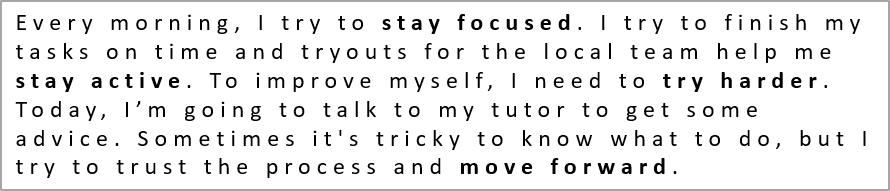
از IBasePortionFormat.setSpacing برای گسترش یا فشردن فاصله بین حروف در یک جعبه متن استفاده کنید. مثالها ۳ پوینت فاصله اضافه میکنند؛ مقادیر منفی متن را فشرده میکند.
کد زیر نشان میدهد که چگونه فاصلهٔ حروف را در کل پاراگراف گسترش دهید:
import com.aspose.slides.*;
Presentation presentation = new Presentation("sample.pptx");
try {
ISlide slide = presentation.getSlides().get_Item(0);
IAutoShape autoShape = (IAutoShape)slide.getShapes().get_Item(0);
IParagraph paragraph = autoShape.getTextFrame().getParagraphs().get_Item(0);
// نکته: برای فشردهسازی فاصله بین حروف از مقادیر منفی استفاده کنید.
paragraph.getParagraphFormat().getDefaultPortionFormat().setSpacing(3); // فاصله بین حروف را افزایش دهید.
presentation.save("character_spacing_in_paragraph.pptx", SaveFormat.Pptx);
} finally {
presentation.dispose();
}
نتیجه:
مثال کد زیر نشان میدهد که چگونه فاصلهٔ حروف را در بخشهای متنی با قلم ضخیم گسترش دهید:
import com.aspose.slides.*;
Presentation presentation = new Presentation("sample.pptx");
try {
ISlide slide = presentation.getSlides().get_Item(0);
IAutoShape autoShape = (IAutoShape)slide.getShapes().get_Item(0);
IParagraph paragraph = autoShape.getTextFrame().getParagraphs().get_Item(0);
for (IPortion portion : paragraph.getPortions()) {
if (portion.getPortionFormat().getEffective().getFontBold()) {
// نکته: برای فشردهسازی فاصله بین حروف از مقادیر منفی استفاده کنید.
portion.getPortionFormat().setSpacing(3); // فاصله بین حروف را افزایش دهید.
}
}
presentation.save("character_spacing_in_text_portions.pptx", SaveFormat.Pptx);
} finally {
presentation.dispose();
}
نتیجه:

غیرفعالسازی کرنینگ برای قلمهای خاص
در برخی موارد، متنی که توسط Aspose.Slides رندر میشود، ممکن است کمی فشردهتر از همان متن در PowerPoint ظاهر شود. این میتواند به این دلیل باشد که PowerPoint ممکن است دادههای کرنینگ برای برخی قلمها را نادیده بگیرد، حتی اگر قلم حاوی اطلاعات کرنینگ معتبر باشد و کرنینگ در تنظیمات PowerPoint فعال باشد.
برای نزدیکتر شدن خروجی رندر شده به PowerPoint در این موارد، میتوانید کرنینگ برای بخشهای متنی که از قلم مؤثر استفاده میکنند، غیرفعال کنید. مقدار IBasePortionFormat.setKerningMinimalSize را بزرگتر از اندازه واقعی قلم تنظیم کنید. این مثال به «presentation.pptx» که شامل یک جعبه متن به عنوان اولین شکل در اسلاید اول است، نیاز دارد. نامهای قلم مؤثر، از جمله قلمهای ارثبرده، بررسی میشود و آستانهٔ ۱۰۰ پوینت برای بخشهایی که از Roboto استفاده میکنند تنظیم میشود؛ این کار کرنینگ را برای بخشهای مطابقتدار با اندازهٔ قلم زیر ۱۰۰ پوینت غیرفعال میکند:
import com.aspose.slides.*;

Presentation presentation = new Presentation("presentation.pptx");
try {
    ISlide slide = presentation.getSlides().get_Item(0);

    IAutoShape autoShape = (IAutoShape)slide.getShapes().get_Item(0);
    String targetFont = "Roboto";

    for (IParagraph paragraph : autoShape.getTextFrame().getParagraphs()) {
        for (IPortion portion : paragraph.getPortions()) {
            IPortionFormatEffectiveData portionFormat = portion.getPortionFormat().getEffective();

            if ((portionFormat.getLatinFont() != null &&
                 portionFormat.getLatinFont().getFontName().equals(targetFont)) ||
                (portionFormat.getEastAsianFont() != null &&
                 portionFormat.getEastAsianFont().getFontName().equals(targetFont)) ||
                (portionFormat.getComplexScriptFont() != null &&
                 portionFormat.getComplexScriptFont().getFontName().equals(targetFont))) {
                portion.getPortionFormat().setKerningMinimalSize(100);
            }
        }
    }

    presentation.save("output.pptx", SaveFormat.Pptx);
} finally {
    presentation.dispose();
}
برای متنی که زیر آستانه است، این تنظیم از کرنینگ جلوگیری میکند و میتواند به همترازی رندر Aspose.Slides با خروجی بصری PowerPoint برای قلمهای تحت تأثیر این رفتار خاص PowerPoint کمک کند.
مدیریت ویژگیهای قلم متن
ویژگیهای قلم میتوانند در سطح پاراگراف از طریق IParagraphFormat.getDefaultPortionFormat یا در بخشهای جداگانه از طریق IPortionFormat تنظیم شوند.
مثال زیر قلم پیشفرض اولین پاراگراف را به ۱۲ پوینت Times New Roman با قالببندی ضخیم، ایتالیک و زیرخط نقطهدار تنظیم میکند. قالببندی صریح در بخشهای جداگانه بر این پیشفرضها اولویت دارد:
import com.aspose.slides.*;
Presentation presentation = new Presentation("sample.pptx");
try {
ISlide slide = presentation.getSlides().get_Item(0);
IAutoShape autoShape = (IAutoShape)slide.getShapes().get_Item(0);
IParagraph paragraph = autoShape.getTextFrame().getParagraphs().get_Item(0);
// تنظیم ویژگیهای قلم برای پاراگراف.
paragraph.getParagraphFormat().getDefaultPortionFormat().setFontHeight(12);
paragraph.getParagraphFormat().getDefaultPortionFormat().setFontBold(NullableBool.True);
paragraph.getParagraphFormat().getDefaultPortionFormat().setFontItalic(NullableBool.True);
paragraph.getParagraphFormat().getDefaultPortionFormat().setFontUnderline(TextUnderlineType.Dotted);
paragraph.getParagraphFormat().getDefaultPortionFormat().setLatinFont(new FontData("Times New Roman"));
presentation.save("font_properties_for_paragraph.pptx", SaveFormat.Pptx);
} finally {
presentation.dispose();
}
نتیجه:

مثال زیر ۱۳ پوینت Times New Roman، قالببندی ایتالیک و زیرخط نقطهدار را به بخشهایی که قالببندی مؤثرشان ضخیم است اعمال میکند:
import com.aspose.slides.*;
Presentation presentation = new Presentation("sample.pptx");
try {
ISlide slide = presentation.getSlides().get_Item(0);
IAutoShape autoShape = (IAutoShape)slide.getShapes().get_Item(0);
IParagraph paragraph = autoShape.getTextFrame().getParagraphs().get_Item(0);
for (IPortion portion : paragraph.getPortions()) {
if (portion.getPortionFormat().getEffective().getFontBold()) {
// تنظیم ویژگیهای قلم برای بخش متنی.
portion.getPortionFormat().setFontHeight(13);
portion.getPortionFormat().setFontItalic(NullableBool.True);
portion.getPortionFormat().setFontUnderline(TextUnderlineType.Dotted);
portion.getPortionFormat().setLatinFont(new FontData("Times New Roman"));
}
}
presentation.save("font_properties_for_text_portions.pptx", SaveFormat.Pptx);
} finally {
presentation.dispose();
}
نتیجه:

تنظیم چرخش متن
از ITextFrameFormat.setTextVerticalType برای تنظیم جهت پیش تعریفشدهٔ متن درون یک شکل استفاده کنید.
کد زیر جهت متن در شکل را به TextVerticalType.Vertical270 تنظیم میکند که متن را ۹۰ درجه پادساعتگرد میچرخاند:
import com.aspose.slides.*;

Presentation presentation = new Presentation("sample.pptx");
try {
    ISlide slide = presentation.getSlides().get_Item(0);

    IAutoShape autoShape = (IAutoShape)slide.getShapes().get_Item(0);
    autoShape.getTextFrame().getTextFrameFormat().setTextVerticalType(TextVerticalType.Vertical270);

    presentation.save("text_rotation.pptx", SaveFormat.Pptx);
} finally {
    presentation.dispose();
}
نتیجه:

تنظیم چرخش سفارشی برای چارچوبهای متن
از ITextFrameFormat.setRotationAngle برای تنظیم زاویهٔ چرخش سفارشی یک ITextFrame استفاده کنید.
کد زیر چارچوب متن را درون شکل ۳ درجه ساعتگرد میچرخاند:
import com.aspose.slides.*;

Presentation presentation = new Presentation("sample.pptx");
try {
    ISlide slide = presentation.getSlides().get_Item(0);

    IAutoShape autoShape = (IAutoShape)slide.getShapes().get_Item(0);
    autoShape.getTextFrame().getTextFrameFormat().setRotationAngle(3);

    presentation.save("custom_text_rotation.pptx", SaveFormat.Pptx);
} finally {
    presentation.dispose();
}
نتیجه:

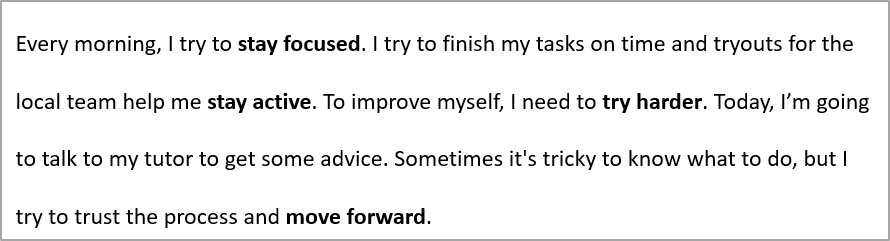
تنظیم فاصله بین خطوط پاراگرافها
Aspose.Slides متدهای IParagraphFormat.setSpaceAfter، IParagraphFormat.setSpaceBefore و IParagraphFormat.setSpaceWithin را برای کنترل فاصلهٔ پاراگراف فراهم میکند. این ویژگیها به صورت زیر استفاده میشوند:
- برای مشخص کردن فاصلهٔ خط بهعنوان درصدی از ارتفاع خط، مقدار مثبت استفاده کنید.
- برای مشخص کردن فاصلهٔ خط به پوینت، مقدار منفی استفاده کنید.
مثال زیر فاصلهٔ داخل اولین پاراگراف را به ۲۰۰٪ ارتفاع خط (دوبل اسپیس) تنظیم میکند:
import com.aspose.slides.*;

Presentation presentation = new Presentation("sample.pptx");
try {
    ISlide slide = presentation.getSlides().get_Item(0);

    IAutoShape autoShape = (IAutoShape)slide.getShapes().get_Item(0);

    IParagraph paragraph = autoShape.getTextFrame().getParagraphs().get_Item(0);
    paragraph.getParagraphFormat().setSpaceWithin(200);

    presentation.save("line_spacing.pptx", SaveFormat.Pptx);
} finally {
    presentation.dispose();
}
نتیجه:
کنترل شکستن خطوط
قواعد شکستن خطوط پاراگراف در بلوکهای متنی باریک و ارائههایی که متن لاتین و آسیای شرقی را ترکیب میکنند، مفید هستند. متدهای زیر متعلق به IParagraphFormat هستند، بنابراین به کل پاراگراف اعمال میشوند:
- setLatinLineBreak قواعد شکستن خطوط لاتین را کنترل میکند. در متن ترکیبی، تغییر آن میتواند جایگاهی که متن و علائم نقطهگذاری آسیای شرقی مجاور بههم میپیوندد را نیز تغییر دهد.
- setEastAsianLineBreak قواعد شکستن خطوط آسیای شرقی را کنترل میکند، شامل محدودیتهای کاراکترها در ابتدا و انتهای خط.
این قواعد جایگزین ITextFrameFormat.setWrapText که بسته شدن خودکار را درون یک چارچوب متن فعال میسازد، نمیشوند. آنها هنگام بسته شدن بر چینش تأثیر میگذارند؛ کاراکترهای شکستن خط را وارد نمیکنند. یک شکست خط صریح یک خط جدید را درون پاراگراف ایجاد میکند، صرفنظر از عرض موجود.
مثال خودمحافظ زیر یک بلوک متنی باریک شامل متن چینی و لاتین ایجاد میکند. هر دو گزینهٔ شکستن خط را بهطور صریح تنظیم میکند و «line_breaking.pptx» را ذخیره میکند. برای آزمایش هر قاعده، مقدار مربوطه را تغییر دهید در حالی که تنظیمات دیگر ثابت میمانند. مثال از ۲۴ پوینت Arial و SimSun با عرض چارچوب ۱۶۰ پوینت و حاشیهٔ افقی صفر استفاده میکند. ITextFrameFormat.setAutofitType با TextAutofitType.None صدا زده میشود تا اندازهٔ متن و ابعاد چارچوب ثابت بمانند.
import com.aspose.slides.*;
import java.awt.Color;

Presentation presentation = new Presentation();
try {
    ISlide slide = presentation.getSlides().get_Item(0);

    IAutoShape shape = slide.getShapes().addAutoShape(ShapeType.Rectangle, 50, 50, 160, 300);
    shape.getFillFormat().setFillType(FillType.NoFill);

    ITextFrame textFrame = shape.getTextFrame();
    textFrame.getTextFrameFormat().setWrapText(NullableBool.True);
    textFrame.getTextFrameFormat().setAutofitType(TextAutofitType.None);
    textFrame.getTextFrameFormat().setMarginLeft(0);
    textFrame.getTextFrameFormat().setMarginRight(0);

    IParagraph paragraph = textFrame.getParagraphs().get_Item(0);
    paragraph.setText("中文排版测试,PowerPoint 中文演示。");

    IParagraphFormat format = paragraph.getParagraphFormat();
    format.setAlignment(TextAlignment.Left);
    format.getDefaultPortionFormat().setFontHeight(24);
    FontData latinFont = new FontData("Arial");
    format.getDefaultPortionFormat().setLatinFont(latinFont);
    FontData eastAsianFont = new FontData("SimSun");
    format.getDefaultPortionFormat().setEastAsianFont(eastAsianFont);
    format.getDefaultPortionFormat().getFillFormat().setFillType(FillType.Solid);
    format.getDefaultPortionFormat().getFillFormat().getSolidFillColor().setColor(Color.BLACK);
    format.setLatinLineBreak(NullableBool.False);
    format.setEastAsianLineBreak(NullableBool.True);

    presentation.save("line_breaking.pptx", SaveFormat.Pptx);
} finally {
    presentation.dispose();
}
کنترل نقطهگذاری معلق
IParagraphFormat.setHangingPunctuation به علامتگذاریهای واجد شرایط امکان میدهد تا از لبهٔ راست خط متنی فراتر بروند بهجای این که در خط بعدی قرار گیرند. این تنظیم برای تمام پاراگراف اعمال میشود و متفاوت از تورفتگی معلق است.
مثال خودمحافظ زیر نقطهگذاری معلق را در یک چارچوب متن ۱۰۰ پوینتعرضی فعال میکند و «hanging_punctuation.pptx» را ذخیره میکند. با ۲۴ پوینت Arial و حاشیهٔ افقی صفر، نقطهٔ نهایی پس از «sentence» میماند و از لبهٔ راست متن فراتر میرود. برای مقایسه مقدار را به NullableBool.False تنظیم کنید: با این تنظیمات، نقطه در خطی جداگانه قرار میگیرد. بسته شدن فعال و autofit غیرفعال است تا عرض موجود ثابت بماند.
import com.aspose.slides.*;
import java.awt.Color;

Presentation presentation = new Presentation();
try {
    ISlide slide = presentation.getSlides().get_Item(0);

    IAutoShape shape = slide.getShapes().addAutoShape(ShapeType.Rectangle, 50, 50, 100, 200);
    shape.getFillFormat().setFillType(FillType.NoFill);

    ITextFrame textFrame = shape.getTextFrame();
    textFrame.getTextFrameFormat().setWrapText(NullableBool.True);
    textFrame.getTextFrameFormat().setAutofitType(TextAutofitType.None);
    textFrame.getTextFrameFormat().setMarginLeft(0);
    textFrame.getTextFrameFormat().setMarginRight(0);

    IParagraph paragraph = textFrame.getParagraphs().get_Item(0);
    paragraph.setText("Simple text, next sentence.");

    IParagraphFormat format = paragraph.getParagraphFormat();
    format.setAlignment(TextAlignment.Left);
    format.getDefaultPortionFormat().setFontHeight(24);
    FontData latinFont = new FontData("Arial");
    format.getDefaultPortionFormat().setLatinFont(latinFont);
    format.getDefaultPortionFormat().getFillFormat().setFillType(FillType.Solid);
    format.getDefaultPortionFormat().getFillFormat().getSolidFillColor().setColor(Color.BLACK);
    format.setHangingPunctuation(NullableBool.True);

    presentation.save("hanging_punctuation.pptx", SaveFormat.Pptx);
} finally {
    presentation.dispose();
}
هر علامت نقطهگذاریای نمیتواند معلق باشد. شرایط قلم و طرحبندی توضیح داده شده در بالا نیز برای این مقایسه اعمال میشود: تغییر قلم، عرض موجود، حاشیهها یا تنظیمات autofit میتواند اختلاف قابل مشاهده را از بین ببرد.
تنظیم نوع Autofit برای چارچوبهای متن
ITextFrameFormat.setAutofitType تعیین میکند که متن هنگام عبور از مرزهای کانتینر خود چگونه رفتار کند. از آن برای کنترل اینکه آیا متن کوچک میشود، سرریز میشود یا بهطور خودکار شکل را تغییر اندازه میدهد، استفاده کنید. مثال زیر شکل را طوری تنظیم میکند که برای متن خود اندازهاش را تغییر دهد و نتیجه را در «autofit_type.pptx» ذخیره میکند.
import com.aspose.slides.*;

Presentation presentation = new Presentation("sample.pptx");
try {
    ISlide slide = presentation.getSlides().get_Item(0);

    IAutoShape autoShape = (IAutoShape)slide.getShapes().get_Item(0);
    autoShape.getTextFrame().getTextFrameFormat().setAutofitType(TextAutofitType.Shape);

    presentation.save("autofit_type.pptx", SaveFormat.Pptx);
} finally {
    presentation.dispose();
}
برای شمارش خطوط پس از بسته شدن خودکار و مشاهدهٔ نحوهٔ تغییر نتیجه با عرض متن یا شکل، به Count Rendered Lines مراجعه کنید. شمارش خطوط بهتنهایی نشان نمیدهد که متن از کانتینرش سرریز شده است یا خیر.
تنظیم لنگر چارچوبهای متن
ITextFrameFormat.setAnchoringType نحوهٔ موقعیتگذاری عمودی متن درون یک شکل را تعریف میکند، برای مثال در بالا، وسط یا پایین. مثال زیر متن را به پایین اولین شکل لنگر میدهد و نتیجه را در «text_anchor.pptx» ذخیره میکند.
import com.aspose.slides.*;

Presentation presentation = new Presentation("sample.pptx");
try {
    ISlide slide = presentation.getSlides().get_Item(0);

    IAutoShape autoShape = (IAutoShape)slide.getShapes().get_Item(0);
    autoShape.getTextFrame().getTextFrameFormat().setAnchoringType(TextAnchorType.Bottom);

    presentation.save("text_anchor.pptx", SaveFormat.Pptx);
} finally {
    presentation.dispose();
}
تنظیم تببندی متن
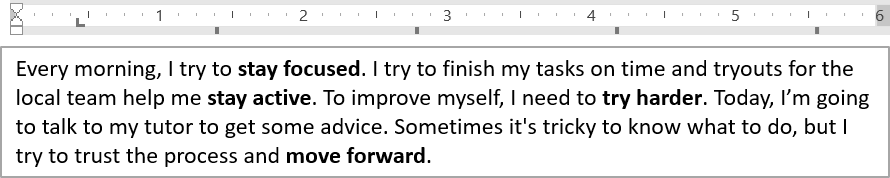
از IParagraphFormat.setDefaultTabSize و IParagraphFormat.getTabs برای پیکربندی توقفهای تب در یک پاراگراف استفاده کنید. مثال زیر فاصلهٔ پیشفرض تب را به ۱۰۰ پوینت تنظیم میکند و توقف تب چپترازبندی شدهای در ۳۰ پوینت اضافه میکند. این تنظیمات بر متنی که شامل کاراکترهای تب است تأثیر میگذارد.
import com.aspose.slides.*;

Presentation presentation = new Presentation("sample.pptx");
try {
    ISlide slide = presentation.getSlides().get_Item(0);

    IAutoShape autoShape = (IAutoShape)slide.getShapes().get_Item(0);

    IParagraph paragraph = autoShape.getTextFrame().getParagraphs().get_Item(0);
    paragraph.getParagraphFormat().setDefaultTabSize(100);
    paragraph.getParagraphFormat().getTabs().add(30, TabAlignment.Left);

    presentation.save("paragraph_tabs.pptx", SaveFormat.Pptx);
} finally {
    presentation.dispose();
}
نتیجه:
تنظیم زبان بررسی نوشتاری
Aspose.Slides متد IBasePortionFormat.setLanguageId را فراهم میکند که به شما امکان میدهد زبان بررسی نوشتاری را برای یک بخش متنی تنظیم کنید. زبان بررسی نوشتاری زبان مورد استفاده برای بررسی املا و دستور زبان در PowerPoint را تعیین میکند.
مثال زیر به «presentation.pptx» که شامل یک جعبه متن به عنوان اولین شکل در اسلاید اول است و حداقل یک پاراگراف دارد، نیاز دارد. محتویات اولین پاراگراف را با «1。» جایگزین میکند، SimSun را به عنوان قلم آن تنظیم میکند و زبان بررسی نوشتاری چینی ساده (zh-CN) را اختصاص میدهد. نتیجه در «proofing_language.pptx» ذخیره میشود:
import com.aspose.slides.*;

Presentation presentation = new Presentation("presentation.pptx");
try {
    ISlide slide = presentation.getSlides().get_Item(0);
    IAutoShape autoShape = (IAutoShape)slide.getShapes().get_Item(0);

    IParagraph paragraph = autoShape.getTextFrame().getParagraphs().get_Item(0);
    paragraph.getPortions().clear();

    FontData font = new FontData("SimSun");

    Portion textPortion = new Portion();
    textPortion.getPortionFormat().setComplexScriptFont(font);
    textPortion.getPortionFormat().setEastAsianFont(font);
    textPortion.getPortionFormat().setLatinFont(font);

    // شناسه زبان بررسی نوشتاری را تنظیم کنید.
    textPortion.getPortionFormat().setLanguageId("zh-CN");

    textPortion.setText("1。");
    paragraph.getPortions().add(textPortion);

    presentation.save("proofing_language.pptx", SaveFormat.Pptx);
} finally {
    presentation.dispose();
}
تنظیم زبان پیشفرض
از LoadOptions.setDefaultTextLanguage برای تعریف زبان پیشفرض متنی که هنگام بارگذاری یا ایجاد یک ارائه ساخته میشود، استفاده کنید. مثال زیر ارائهای ایجاد میکند که زبان پیشفرض متن آن انگلیسی ایالات متحده است، یک جعبه متن اضافه میکند و برای اولین بخش متن آن en-US را چاپ میکند.
import com.aspose.slides.*;

LoadOptions loadOptions = new LoadOptions();
loadOptions.setDefaultTextLanguage("en-US");

Presentation presentation = new Presentation(loadOptions);
try {
    ISlide slide = presentation.getSlides().get_Item(0);

    // یک شکل مستطیلی جدید با متن اضافه کنید.
    IAutoShape shape = slide.getShapes().addAutoShape(ShapeType.Rectangle, 20, 20, 150, 50);
    shape.getTextFrame().setText("Sample text");

    // زبان اولین بخش را بررسی کنید.
    IPortion portion = shape.getTextFrame().getParagraphs().get_Item(0).getPortions().get_Item(0);
    System.out.println(portion.getPortionFormat().getLanguageId());
} finally {
    presentation.dispose();
}
تنظیم سبک متن پیشفرض
برای اعمال قالببندی پیشفرض متن در سطح ارائه، از IPresentation.getDefaultTextStyle استفاده کنید.
مثال زیر قلم ۱۴ پوینت ضخیم را بهعنوان پیشفرض برای پاراگرافهای سطح بالا در یک ارائه جدید تنظیم میکند و آن را در «default_text_style.pptx» ذخیره مینماید. متن میتواند این پیشفرضها را به ارث ببرد مگر این که قالببندی خاصتری آنها را لغو کند.
import com.aspose.slides.*;

Presentation presentation = new Presentation();
try {
    // دریافت فرمت پاراگراف سطح بالا.
    IParagraphFormat paragraphFormat = presentation.getDefaultTextStyle().getLevel(0);

    if (paragraphFormat != null) {
        paragraphFormat.getDefaultPortionFormat().setFontHeight(14);
        paragraphFormat.getDefaultPortionFormat().setFontBold(NullableBool.True);
    }

    presentation.save("default_text_style.pptx", SaveFormat.Pptx);
} finally {
    presentation.dispose();
}
استخراج متن با اثر تمام حروف بزرگ
در PowerPoint، اعمال All Caps بر قلم باعث میشود متن در اسلاید با حروف بزرگ نشان داده شود حتی اگر بهصورت حروف کوچک تایپ شده باشد. هنگام دریافت چنین بخشی از متن با Aspose.Slides، کتابخانه دقیقاً همان متنی را که وارد شده برمیگرداند. برای تطبیق با متن نمایشدادهشده، TextCapType را بررسی کنید و زمانی که مقدار All است، رشتهٔ برگرداندهشده را به حروف بزرگ تبدیل کنید.
این مثال به «sample2.pptx» که شامل یک جعبه متن به عنوان اولین شکل در اسلاید اول است، نیاز دارد. اولین پاراگراف آن بخش اول شامل «Hello, Aspose!» با اثر All Caps اعمالشده است، همانگونه که در زیر نشان داده شده است.

مثال کد زیر نشان میدهد که چگونه متن با اثر All Caps اعمالشده را استخراج کنید:
import com.aspose.slides.*;

Presentation presentation = new Presentation("sample2.pptx");
try {
    ISlide slide = presentation.getSlides().get_Item(0);

    IAutoShape autoShape = (IAutoShape)slide.getShapes().get_Item(0);
    IPortion textPortion = autoShape.getTextFrame().getParagraphs().get_Item(0).getPortions().get_Item(0);

    System.out.println("Original text: " + textPortion.getText());

    IPortionFormatEffectiveData textFormat = textPortion.getPortionFormat().getEffective();
    if (textFormat.getTextCapType() == TextCapType.All) {
        String text = textPortion.getText().toUpperCase();
        System.out.println("All-Caps effect: " + text);
    }
} finally {
    presentation.dispose();
}
خروجی:
Original text: Hello, Aspose!
All-Caps effect: HELLO, ASPOSE!
سوالات متداول
چگونه میتوان متن را در یک جدول در اسلاید اصلاح کرد؟
برای اصلاح متن در یک جدول در اسلاید، از ITable استفاده کنید. از طریق ICell.getTextFrame به هر سلول دسترسی پیدا کنید و قالببندی پاراگراف را با IParagraph.getParagraphFormat بهروزرسانی کنید.
چگونه میتوان رنگ گرادیان را به متن در یک اسلاید PowerPoint اعمال کرد؟
برای اعمال رنگ گرادیان به متن، از IBasePortionFormat.getFillFormat استفاده کنید. IFillFormat.setFillType را به FillType.Gradient تنظیم کنید و نقاط توقف، جهت و شفافیت گرادیان را پیکربندی کنید.