
مدیریت تمهای ارائه در جاوا اسکریپت
مقدمه
یک تم ارائه مجموعهای هماهنگ از رنگها، قلمها، سبکهای پسزمینه، پرکنندهها، خطوط و افکتها را تعریف میکند. اشیاء آگاه از تم به جای ذخیرهٔ هر ویژگی بصری به صورت مقدار ثابت، به این تعریفهای مشترک ارجاع میدهند، بنابراین تغییر تم میتواند تعداد زیادی از اشیاء را بهطور همزمان بهروز کند.
در Aspose.Slides، تم سطح ارائه از طریق Presentation.getMasterTheme در دسترس است. یک ارائه میتواند بازنویسیهای تم را در سطوح پایینتر نیز داشته باشد. یک مستر میتواند تم ارائه را از طریق MasterThemeManager.getOverrideTheme بازنویسی کند، در حالی که یک لایه یا یک اسلاید منفرد میتواند تم ارثبری خود را از طریق BaseOverrideThemeManager.getOverrideTheme بازنویسی کند. بهصورت عملی، تم مؤثر برای یک اسلاید از طریق این زنجیره وراثت حل میشود: تم ارائه، بازنویسی مستر، بازنویسی لایه و بازنویسی اسلاید.
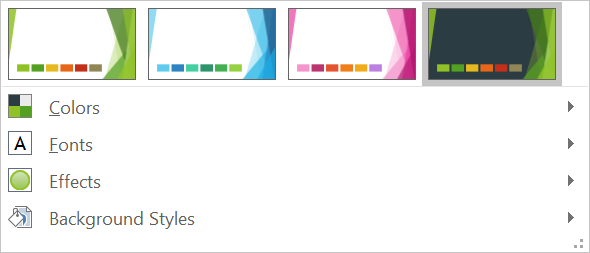
بخشهای زیر رایجترین گردشکارهای تم را نشان میدهند: بازرسی یک تم، تغییر رنگها و قلمها، کپی یا اعمال تم، بهروزرسانی سبکهای پسزمینه و افکت، و خواندن مقادیر مؤثر پس از حل وراثت و بازنویسیها.
بازرسی یک تم
شیء MasterTheme طرح رنگ، طرح قلم و طرح فرمت تم را از طریق MasterTheme.getColorScheme، MasterTheme.getFontScheme، و MasterTheme.getFormatScheme در دسترس میکند. بازرسی این مجموعهها پیش از تغییرشان بهویژه وقتی ارائه از منبع خارجی میآید مفید است، زیرا تعداد و محتوای ورودیهای سبک میتواند متفاوت باشد.
مثال زیر ویژگیهای اصلی تم را میخواند و گزارش میدهد که چند سبک پسزمینه، پرکننده، خط و افکت در تم ذخیره شدهاند:
const aspose = {};
aspose.slides = require("aspose.slides.via.java");

const presentation = new aspose.slides.Presentation("input.pptx");
try {
    const theme = presentation.getMasterTheme();
    console.log("Theme name: " + theme.getName());
    console.log("Accent 1: " + theme.getColorScheme().getAccent1().getColor());
    console.log("Major Latin font: " + theme.getFontScheme().getMajor().getLatinFont().getFontName());
    console.log("Minor Latin font: " + theme.getFontScheme().getMinor().getLatinFont().getFontName());
    console.log("Background fill styles: " + theme.getFormatScheme().getBackgroundFillStyles().size());
    console.log("Fill styles: " + theme.getFormatScheme().getFillStyles().size());
    console.log("Line styles: " + theme.getFormatScheme().getLineStyles().size());
    console.log("Effect styles: " + theme.getFormatScheme().getEffectStyles().size());
} finally {
    presentation.dispose();
}
اگر فایلی چند مستر داشته باشد، فرض نکنید که هر اسلاید همان تم مؤثر را دارد. مستری که به اسلاید مربوط است را بازرسی کنید و از گردشکار تم مؤثر نشاندادهشده در ادامهٔ این مقاله استفاده کنید وقتی بازنویسیهای لایه یا اسلاید ممکن است وجود داشته باشند.
تغییر رنگهای تم
پرکنندهها، خطوط و متنهای آگاه از تم میتوانند به یک رنگ منطقی از شمارشگر SchemeColor ارجاع دهند. هنگامی که ورودی متناظر در ColorScheme را تغییر میدهید، تمام اشیائی که هنوز به آن رنگ تم ارجاع میدهند، نسبت به مقدار جدید حل میشوند. اشیائی که از یک رنگ RGB مستقیم استفاده میکنند توسط بهروزرسانی رنگ تم تغییر نمیکنند.
مثال انتها‑به‑انتها زیر یک شکل ایجاد میکند که از Accent4 استفاده میکند، رنگ Accent4 تم را به قرمز تغییر میدهد، ارائه را ذخیره میکند، دوباره باز میکند و رنگ پرکنندهٔ مؤثر را چاپ میکند:
const aspose = {};
aspose.slides = require("aspose.slides.via.java");
const java = require("java");

const presentation = new aspose.slides.Presentation();
try {
    const slide = presentation.getSlides().get_Item(0);
    const shape = slide.getShapes().addAutoShape(aspose.slides.ShapeType.Rectangle, 10, 10, 100, 100);
    shape.getFillFormat().setFillType(java.newByte(aspose.slides.FillType.Solid));
    shape.getFillFormat().getSolidFillColor().setSchemeColor(aspose.slides.SchemeColor.Accent4);
    presentation.getMasterTheme().getColorScheme().getAccent4().setColor(java.getStaticFieldValue("java.awt.Color", "RED"));
    presentation.save("theme-color.pptx", aspose.slides.SaveFormat.Pptx);
} finally {
    presentation.dispose();
}

const savedPresentation = new aspose.slides.Presentation("theme-color.pptx");
try {
    const savedSlide = savedPresentation.getSlides().get_Item(0);
    const savedShape = savedSlide.getShapes().get_Item(0);
    const effectiveFill = savedShape.getFillFormat().getEffective();
    console.log("Effective fill color: " + effectiveFill.getSolidFillColor());
} finally {
    savedPresentation.dispose();
}
چون مستطیل همچنان به Accent4 لینک دارد، رنگ قابل مشاهدهٔ آن پس از تغییر تم به قرمز میشود. اگر رنگ طرح را به یک رنگ مستقیم روی شکل جایگزین کنید، تغییرات بعدی Accent4 دیگر بر آن پرکننده تأثیری نخواهد داشت.
استفاده از رنگها از پالت اضافی
PowerPoint با اعمال تبدیلهای رنگی، انواع روشنتر و تاریکتر را از یک رنگ تم استخراج میکند. Aspose.Slides این تبدیلها را از طریق شمارشگر ColorTransformOperation در دسترس میگذارد.
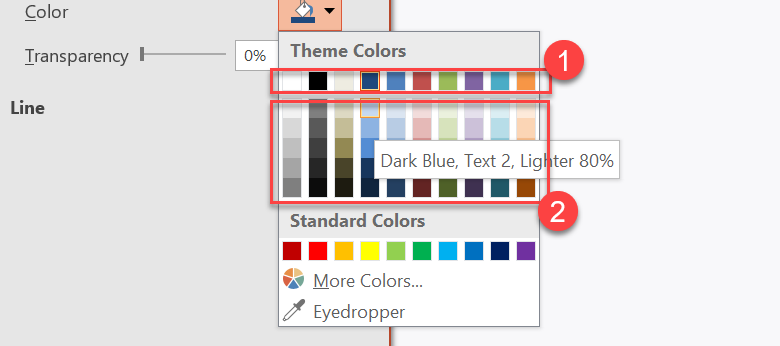
1 - رنگهای اصلی تم.
2 - گونههای روشنتر و تیرهتر تولید شده از رنگهای اصلی تم.
مثال زیر شش مستطیل بر پایهٔ Accent4 ایجاد میکند، به پنج مورد از آنها تبدیل روشنایی اعمال میکند و نتیجه را ذخیره مینماید:
const aspose = {};
aspose.slides = require("aspose.slides.via.java");
const java = require("java");

const presentation = new aspose.slides.Presentation();
try {
    const slide = presentation.getSlides().get_Item(0);

    const shape1 = slide.getShapes().addAutoShape(aspose.slides.ShapeType.Rectangle, 10, 10, 50, 50);
    shape1.getFillFormat().setFillType(java.newByte(aspose.slides.FillType.Solid));
    shape1.getFillFormat().getSolidFillColor().setSchemeColor(aspose.slides.SchemeColor.Accent4);

    const shape2 = slide.getShapes().addAutoShape(aspose.slides.ShapeType.Rectangle, 10, 70, 50, 50);
    shape2.getFillFormat().setFillType(java.newByte(aspose.slides.FillType.Solid));
    shape2.getFillFormat().getSolidFillColor().setSchemeColor(aspose.slides.SchemeColor.Accent4);
    shape2.getFillFormat().getSolidFillColor().getColorTransform().add(aspose.slides.ColorTransformOperation.MultiplyLuminance, java.newFloat(0.2));
    shape2.getFillFormat().getSolidFillColor().getColorTransform().add(aspose.slides.ColorTransformOperation.AddLuminance, java.newFloat(0.8));

    const shape3 = slide.getShapes().addAutoShape(aspose.slides.ShapeType.Rectangle, 10, 130, 50, 50);
    shape3.getFillFormat().setFillType(java.newByte(aspose.slides.FillType.Solid));
    shape3.getFillFormat().getSolidFillColor().setSchemeColor(aspose.slides.SchemeColor.Accent4);
    shape3.getFillFormat().getSolidFillColor().getColorTransform().add(aspose.slides.ColorTransformOperation.MultiplyLuminance, java.newFloat(0.4));
    shape3.getFillFormat().getSolidFillColor().getColorTransform().add(aspose.slides.ColorTransformOperation.AddLuminance, java.newFloat(0.6));

    const shape4 = slide.getShapes().addAutoShape(aspose.slides.ShapeType.Rectangle, 10, 190, 50, 50);
    shape4.getFillFormat().setFillType(java.newByte(aspose.slides.FillType.Solid));
    shape4.getFillFormat().getSolidFillColor().setSchemeColor(aspose.slides.SchemeColor.Accent4);
    shape4.getFillFormat().getSolidFillColor().getColorTransform().add(aspose.slides.ColorTransformOperation.MultiplyLuminance, java.newFloat(0.6));
    shape4.getFillFormat().getSolidFillColor().getColorTransform().add(aspose.slides.ColorTransformOperation.AddLuminance, java.newFloat(0.4));

    const shape5 = slide.getShapes().addAutoShape(aspose.slides.ShapeType.Rectangle, 10, 250, 50, 50);
    shape5.getFillFormat().setFillType(java.newByte(aspose.slides.FillType.Solid));
    shape5.getFillFormat().getSolidFillColor().setSchemeColor(aspose.slides.SchemeColor.Accent4);
    shape5.getFillFormat().getSolidFillColor().getColorTransform().add(aspose.slides.ColorTransformOperation.MultiplyLuminance, java.newFloat(0.75));

    const shape6 = slide.getShapes().addAutoShape(aspose.slides.ShapeType.Rectangle, 10, 310, 50, 50);
    shape6.getFillFormat().setFillType(java.newByte(aspose.slides.FillType.Solid));
    shape6.getFillFormat().getSolidFillColor().setSchemeColor(aspose.slides.SchemeColor.Accent4);
    shape6.getFillFormat().getSolidFillColor().getColorTransform().add(aspose.slides.ColorTransformOperation.MultiplyLuminance, java.newFloat(0.5));

    presentation.save("theme-color-palette.pptx", aspose.slides.SaveFormat.Pptx);
} finally {
    presentation.dispose();
}
این گونهها همچنان بر پایهٔ رنگ تم باقی میمانند. اگر Accent4 بعداً تغییر کند، رنگهای تبدیلشده بر پایهٔ مقدار جدید Accent4 مجدداً محاسبه میشوند.
نقشهبرداری مقادیر SchemeColor به شکافهای ColorScheme
شمارشگر SchemeColor از Text1، Background1، Text2 و Background2 استفاده میکند، در حالی که ColorScheme همان شکافهای تم را به عنوان Dark1، Light1، Dark2 و Light2 نشان میدهد. نگاشت ثابت است:
Text1=Dark1Background1=Light1Text2=Dark2Background2=Light2
اینها نامهای جایگزین برای همان شکافهای تم هستند؛ مقادیری که بهصورت دینامیک از یک شکل به شکل دیگر تبدیل میشوند نیستند.
تغییر قلمهای تم
یک طرح قلم تم شامل مجموعهٔ قلم اصلی برای عناوین و مجموعهٔ قلم فرعی برای متن بدنه است. روشهای FontScheme.getMajor و FontScheme.getMinor این مجموعهها را در دسترس میگذارند.
شناسههای قلم تم سازگار با PowerPoint میتوانند در قالببندی متن استفاده شوند:
+mn-lt- Body Font Latin (Minor Latin Font)+mj-lt- Heading Font Latin (Major Latin Font)+mn-ea- Body Font East Asian (Minor East Asian Font)+mj-ea- Heading Font East Asian (Major East Asian Font)
مثال زیر یک عنوان ایجاد میکند که از قلم لاتین اصلی تم استفاده میکند و یک خط بدنه که از قلم لاتین فرعی تم استفاده میکند. سپس قلمهای تم را تغییر میدهد و نتیجه را ذخیره میکند:
const aspose = {};
aspose.slides = require("aspose.slides.via.java");

const presentation = new aspose.slides.Presentation();
try {
    const slide = presentation.getSlides().get_Item(0);

    const heading = slide.getShapes().addAutoShape(aspose.slides.ShapeType.Rectangle, 40, 40, 500, 60);
    heading.getTextFrame().setText("Theme heading");
    heading.getTextFrame().getParagraphs().get_Item(0).getPortions().get_Item(0).getPortionFormat().setLatinFont(new aspose.slides.FontData("+mj-lt"));

    const body = slide.getShapes().addAutoShape(aspose.slides.ShapeType.Rectangle, 40, 120, 500, 60);
    body.getTextFrame().setText("Theme body text");
    body.getTextFrame().getParagraphs().get_Item(0).getPortions().get_Item(0).getPortionFormat().setLatinFont(new aspose.slides.FontData("+mn-lt"));

    presentation.getMasterTheme().getFontScheme().getMajor().setLatinFont(new aspose.slides.FontData("Aptos Display"));
    presentation.getMasterTheme().getFontScheme().getMinor().setLatinFont(new aspose.slides.FontData("Arial"));
    presentation.save("theme-fonts.pptx", aspose.slides.SaveFormat.Pptx);
} finally {
    presentation.dispose();
}
عنوان از قلم اصلی پیروی میکند و متن بدنه از قلم فرعی پیروی میکند. متنی که دارای نام قلم صریح به جای شناسهٔ تم باشد، بهصورت خودکار زمانی که طرح قلم تم تغییر میکند، سوئیچ نخواهد شد.
مجموعههای قلم اصلی و فرعی میتوانند شامل نگاشتهای قلم برای سیستمهای نوشتاری متفاوتی مانند سیریلیک، عربی، ژاپنی، گرجی و ثانا نیز باشند. برای بازرسی، افزودن، جایگزینی یا حذف این نگاشتها، به فونتهای تم مخصوص اسکریپت مراجعه کنید.
نکته
برای اطلاعات بیشتر درباره قلمهای ارائه، به PowerPoint Fonts مراجعه کنید.کپی یا اعمال تم
گردشکارهای زیر مشکلات مختلف مرتبط با تم را حل میکنند.
اعمال تم خارجی به اسلایدهای وابسته به مستر
از MasterSlide.applyExternalThemeToDependingSlides زمانی که یک فایل تم PowerPoint (.thmx) دارید و میخواهید تمام اسلایدهایی که به مستر خاصی وابستهاند را بازطراحی کنید، استفاده کنید. مستر مورد نظر را از مجموعهٔ Presentation.getMasters که توسط MasterSlideCollection نشان داده میشود، انتخاب کنید و مسیر فایل تم را به متد پاس دهید.
این متد عملیات زیر را انجام میدهد:
- یک اسلاید مستر جدید بر پایهٔ مستر انتخابشده ایجاد میکند.
- تم خارجی را به مستر جدید اعمال میکند.
- مستر جدید را به تمام اسلایدهایی که پیشتر به مستر انتخابشده وابسته بودند، اختصاص میدهد.
- مستر جدید MasterSlide را برمیگرداند.
مثال زیر تم خارجی را بر اسلایدهایی که به اولین مستر وابستهاند اعمال میکند و ارائه را ذخیره مینماید:
const aspose = {};
aspose.slides = require("aspose.slides.via.java");

const presentation = new aspose.slides.Presentation("presentation.pptx");
try {
    const selectedMaster = presentation.getMasters().get_Item(0);
    const themedMaster = selectedMaster.applyExternalThemeToDependingSlides("corporate-theme.thmx");

    console.log("Created master: " + themedMaster.getName());
    presentation.save("presentation-with-external-theme.pptx", aspose.slides.SaveFormat.Pptx);
} finally {
    presentation.dispose();
}
یک تم نامعتبر، خراب یا پشتیبانی‑نشده میتواند باعث PptxReadException شود. مسیرهای ارائهشده توسط کاربر را اعتبارسنجی کنید، خطاهای دسترسی به سیستم فایل را مدیریت کنید و فقط پس از اعمال موفقیتآمیز تم، ارائه را ذخیره کنید.
تنها اسلایدهایی که به مستر انتخابشده وابسته بودند بازاختصاص میشوند. اسلایدهای مرتبط با سایر مسترها مسترها و تمهای موجود خود را حفظ میکنند. رنگها، قلمها، پرکنندهها، خطوط، پسزمینهها و افکتهای آگاه از تم نسبت به تم خارجی حل میشوند. رنگها، قلمها، پرکنندهها و قالببندی صریحی که بهصورت مستقیم اختصاص داده شدهاند ممکن است بدون تغییر بمانند. بازنویسیهای سطح لایه و اسلاید نیز میتوانند بر مقادیر ارثبریشده از مستر جدید اولویت داشته باشند.
تم ممکن است به قلمهایی ارجاع بدهد که در محیط اجرا موجود نیستند. برای رندرینگ و خروجی سازگار، قلمهای مورد نیاز را نصب کنید، از طریق منابع قلم سفارشی فراهم کنید یا جایگزینی قلم را پیکربندی کنید.
این یک گردشکار مستقیم سطح مستر است: متد مسیر فایل .thmx را میپذیرد و نیازی به ایجاد دستی بازنویسیهای سطح اسلاید یا لایه نیست.
اعمال تمهای خارجی مختلف در ارائه چند مستر
زمانی که مستر مربوطه از پیش شناخته نشده است، آن را از یک اسلاید نماینده از طریق Slide.getLayoutSlide و LayoutSlide.getMasterSlide به دست آورید. قبل از اعمال هر تمی، مراجع مسترهای اصلی را ذخیره کنید زیرا هر فراخوانی یک مستر دیگر در ارائه ایجاد میکند.
مثال زیر اسلایدهای دو بخش را برای یافتن مسترهایشان استفاده میکند و یک تم خارجی متفاوت را به هر گروه اعمال مینماید:
const aspose = {};
aspose.slides = require("aspose.slides.via.java");

const presentation = new aspose.slides.Presentation("multi-master-presentation.pptx");
try {
    if (presentation.getSlides().size() < 5) {
        console.log("The presentation does not contain the expected representative slides.");
    } else {
        const firstGroupMaster = presentation.getSlides().get_Item(0).getLayoutSlide().getMasterSlide();
        const secondGroupMaster = presentation.getSlides().get_Item(4).getLayoutSlide().getMasterSlide();

        if (firstGroupMaster.getSlideId() === secondGroupMaster.getSlideId()) {
            console.log("The representative slides use the same master.");
        } else {
            const firstThemedMaster = firstGroupMaster.applyExternalThemeToDependingSlides("blue-theme.thmx");
            const secondThemedMaster = secondGroupMaster.applyExternalThemeToDependingSlides("green-theme.thmx");

            console.log("First themed master: " + firstThemedMaster.getName());
            console.log("Second themed master: " + secondThemedMaster.getName());
            presentation.save("multi-master-with-external-themes.pptx", aspose.slides.SaveFormat.Pptx);
        }
    }
} finally {
    presentation.dispose();
}
فراخوانی اول فقط اسلایدهایی که به firstGroupMaster وابستهاند را تحت تأثیر قرار میدهد و فراخوانی دوم فقط اسلایدهایی که به secondGroupMaster وابستهاند را تحت تأثیر قرار میدهد. اسلایدهای متعلق به هر مستر دیگری بازطراحی نمیشوند.
حفظ تم منبع هنگام جابهجایی اسلایدها
اگر میخواهید یک اسلاید را به ارائهٔ دیگری منتقل کنید و طراحی اصلی آن را حفظ کنید، مستر منبع را با استفاده از MasterSlideCollection.addClone به ارائه هدف اضافه کنید، سپس اسلاید را با SlideCollection.addClone و مستر کلونشده کپی کنید. این کار مستر، لایههای آن و تم مرتبط را بهصورت یکپارچه منتقل مینماید.
const aspose = {};
aspose.slides = require("aspose.slides.via.java");

const source = new aspose.slides.Presentation("source-theme.pptx");
try {
    const target = new aspose.slides.Presentation("target.pptx");
    try {
        const sourceSlide = source.getSlides().get_Item(0);
        const clonedMaster = target.getMasters().addClone(sourceSlide.getLayoutSlide().getMasterSlide());
        target.getSlides().addClone(sourceSlide, clonedMaster, true);
        target.save("theme-preserved.pptx", aspose.slides.SaveFormat.Pptx);
    } finally {
        target.dispose();
    }
} finally {
    source.dispose();
}
این روش ترجیحی است وقتی اسلاید منبع باید در مقصد همان ظاهر را داشته باشد. فقط کپی محتوا بر روی مستری نامرتبط میتواند رنگهای مبتنی بر تم، قلمها، پسزمینهها و افکتها را تغییر دهد.
اعمال مقادیر تم به یک اسلاید موجود
اگر اسلاید هدف باید بر روی مستر و لایهٔ جاری خود بماند، یک بازنویسی سطح اسلاید از تم منبع مقداردهی اولیه کنید. متدهای OverrideTheme.initColorSchemeFrom، OverrideTheme.initFontSchemeFrom، و OverrideTheme.initFormatSchemeFrom سه مؤلفهٔ اصلی تم را به بازنویسی کپی میکنند.
const aspose = {};
aspose.slides = require("aspose.slides.via.java");

const source = new aspose.slides.Presentation("source-theme.pptx");
try {
    const target = new aspose.slides.Presentation("target.pptx");
    try {
        const sourceTheme = source.getMasterTheme();
        const targetSlide = target.getSlides().get_Item(0);
        const overrideTheme = targetSlide.getThemeManager().getOverrideTheme();
        overrideTheme.initColorSchemeFrom(sourceTheme.getColorScheme());
        overrideTheme.initFontSchemeFrom(sourceTheme.getFontScheme());
        overrideTheme.initFormatSchemeFrom(sourceTheme.getFormatScheme());
        target.save("theme-applied-to-slide.pptx", aspose.slides.SaveFormat.Pptx);
    } finally {
        target.dispose();
    }
} finally {
    source.dispose();
}
این کار تم استفادهشده توسط آن اسلاید را بدون تغییر تم ارثبریشده توسط اسلایدهای دیگر تغییر میدهد. برای حذف بازنویسی محلی و بازگشت به مقادیر ارثبریشده، OverrideTheme.clear را فراخوانی کنید.
اعمال بازنویسی تم به یک لایه
یک بازنویسی سطح لایه بر اسلایدهایی که از آن لایه استفاده میکنند اعمال میشود، مگر اینکه اسلاید خاصی بازنویسی خودش را داشته باشد. همان متدهای مقداردهی اولیه میتوانند از طریق LayoutSlideThemeManager استفاده شوند:
const aspose = {};
aspose.slides = require("aspose.slides.via.java");

const source = new aspose.slides.Presentation("source-theme.pptx");
try {
    const target = new aspose.slides.Presentation("target.pptx");
    try {
        const sourceTheme = source.getMasterTheme();
        const targetSlide = target.getSlides().get_Item(0);
        const overrideTheme = targetSlide.getLayoutSlide().getThemeManager().getOverrideTheme();
        overrideTheme.initColorSchemeFrom(sourceTheme.getColorScheme());
        overrideTheme.initFontSchemeFrom(sourceTheme.getFontScheme());
        overrideTheme.initFormatSchemeFrom(sourceTheme.getFormatScheme());
        target.save("theme-applied-to-layout.pptx", aspose.slides.SaveFormat.Pptx);
    } finally {
        target.dispose();
    }
} finally {
    source.dispose();
}
از تم سطح مستر یا ارائه استفاده کنید وقتی بسیاری از لایهها و اسلایدها باید همان طرح پایه را بهاشتراک بگذارند؛ از بازنویسی لایه وقتی یک خانواده لایه نیاز به استایل متفاوتی دارد؛ و از بازنویسی اسلاید فقط برای استثناهای واقعی. بازنویسیهای بیش از حد سطح اسلاید، اعمال تغییرات جهانی تم را در آینده پیشبینیپذیرتر میکند.
بهروزرسانی سبکهای پسزمینه تم
پرکنندههای پسزمینهٔ تم در FormatScheme.getBackgroundFillStyles ذخیره میشوند. PowerPoint میتواند گزینههای پسزمینه بیشتری در رابط کاربری خود نشان دهد نسبت به تعداد تعریفهای پرکننده فیزیکی موجود در این مجموعه، زیرا UI میتواند پرکنندههای تم را با رنگهای تم و سایر مراجع سبک ترکیب کند.
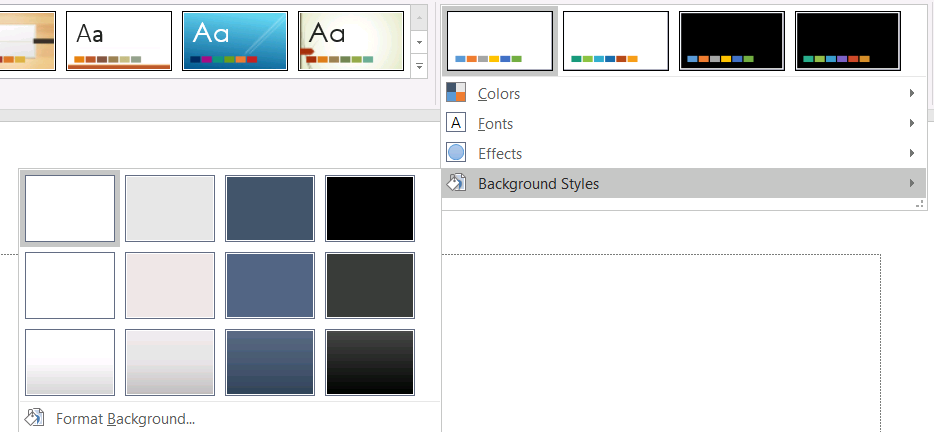
قبل از استفاده از یک سبک پسزمینه، مجموعه ذخیرهشده و Background.getStyleIndex فعلی را بررسی کنید. یک شاخص سبک برابر با 0 به معنای عدم وجود پرکنندهٔ تم است؛ مقادیر مثبت به مراجع سبک پسزمینهٔ تم اشاره دارند. این متفاوت از ایندکسگذاری مستقیم مجموعهٔ JavaScript است که در آن 0 به اولین مورد ذخیرهشده اشاره میکند. فرض نکنید که هر ارائه تعداد یکسانی از سبکهای پرکنندهٔ پسزمینه دارد.
مثال زیر تعداد پرکنندهٔ پسزمینهٔ موجود را گزارش میکند، یک مرجع پسزمینهٔ تم را به اولین مستر اختصاص میدهد و ارائه را ذخیره میکند:
const aspose = {};
aspose.slides = require("aspose.slides.via.java");
const java = require("java");

const presentation = new aspose.slides.Presentation("input.pptx");
try {
    const backgroundStyles = presentation.getMasterTheme().getFormatScheme().getBackgroundFillStyles();
    console.log("Background fill styles: " + backgroundStyles.size());
    if (backgroundStyles.size() === 0) {
        throw new Error("The presentation theme does not contain background fill styles.");
    }

    const masterSlide = presentation.getMasters().get_Item(0);
    masterSlide.getBackground().setType(java.newByte(aspose.slides.BackgroundType.Themed));
    masterSlide.getBackground().setStyleIndex(1);
    presentation.save("theme-background.pptx", aspose.slides.SaveFormat.Pptx);
} finally {
    presentation.dispose();
}
نتیجهٔ قابل مشاهده به ورودی تمی که توسط مستر ارجاع داده میشود و هر بازنویسی پسزمینهای در سطح لایه یا اسلاید بستگی دارد. اگر یک اسلاید پسزمینهٔ خود را داشته باشد، تغییر فقط پسزمینهٔ مستر ممکن است آن اسلاید را تغییر ندهد. برای دانستن پسزمینهٔ نهایی پس از اعمال وراثت، از Background.getEffective استفاده کنید.
هشدار
شاخص سبک را بهعنوان یک ایندکس صفر‑پایه مجموعه درنظر نگرفته و از استفادهٔ سختکد کردن یک شماره سبک از یک فایل و فرض داشتن همان ظاهر در فایل دیگر خودداری کنید؛ تعاریف سبک تم بهصورت خاص به ارائه وابستهاند.نکته
برای قالببندی مستقیم پسزمینه و وراثت پسزمینه، به Presentation Background مراجعه کنید.بهروزرسانی افکتهای تم
یک طرح فرمت تم شامل مجموعههای جداگانهٔ پرکننده، خط و افکت است که از طریق FormatScheme.getFillStyles، FormatScheme.getLineStyles، و FormatScheme.getEffectStyles در دسترس هستند. تمهای معمولی Office اغلب شامل سه ورودی اصلی سبک هستند که بهصورت بصری به فرمتهای جزئی، متوسط و شدید مطابقت دارند، اما کد باید هر مجموعه را بازرسی کند بهجای فرض تعداد ثابت.

هنگامی که این مجموعهها را در JavaScript دسترسی مییابید، ایندکس مجموعه صفر‑پایه است: ایندکس 0 اولین سبک ذخیرهشده و ایندکس 2 سومین است. ایندکسهای ارجاع‑سبک یک شکل مفهومی جداگانه است که از طریق ShapeStyle در دسترس است. تغییر یک سبک تم بر شکلهایی که به آن سبک ارجاع میدهند تأثیر میگذارد؛ شکلهایی که قالببندی مستقیم دارند ممکن است بدون تغییر بمانند.
مثال زیر بررسی میکند که ورودیهای سبک مورد نیاز وجود دارند، اولین سبک خط را تغییر میدهد، سومین سبک پرکننده را تغییر میدهد، یک سایه بیرونی را در سومین سبک افکت فعال میکند و نتیجه را ذخیره میکند:
const aspose = {};
aspose.slides = require("aspose.slides.via.java");
const java = require("java");

const presentation = new aspose.slides.Presentation("Subtle_Moderate_Intense.pptx");
try {
    const formatScheme = presentation.getMasterTheme().getFormatScheme();
    if (formatScheme.getLineStyles().size() < 1 || formatScheme.getFillStyles().size() < 3 || formatScheme.getEffectStyles().size() < 3) {
        throw new Error("The theme does not contain the style entries required by this example.");
    }

    formatScheme.getLineStyles().get_Item(0).getFillFormat().setFillType(java.newByte(aspose.slides.FillType.Solid));
    formatScheme.getLineStyles().get_Item(0).getFillFormat().getSolidFillColor().setColor(java.getStaticFieldValue("java.awt.Color", "RED"));
    formatScheme.getFillStyles().get_Item(2).setFillType(java.newByte(aspose.slides.FillType.Solid));
    formatScheme.getFillStyles().get_Item(2).getSolidFillColor().setColor(java.newInstanceSync("java.awt.Color", 34, 139, 34));
    const effectFormat = formatScheme.getEffectStyles().get_Item(2).getEffectFormat();
    effectFormat.enableOuterShadowEffect();
    effectFormat.getOuterShadowEffect().setDistance(10);
    presentation.save("theme-effects.pptx", aspose.slides.SaveFormat.Pptx);
} finally {
    presentation.dispose();
}
برای شکلهایی که به این شکافها ارجاع میدهند، اولین سبک خط تم به قرمز تبدیل میشود، سومین سبک پرکننده تم به سبز جنگلی محکم تبدیل میشود و سومین سبک افکت یک سایهٔ بیرونی با فاصلهٔ ۱۰ پوینت دریافت میکند. نتیجهٔ بصری دقیق همچنان به این که هر شکل به کدام شکافهای سبک ارجاع میدهد و آیا قالببندی مستقیم بر تم اولویت دارد یا نه بستگی دارد.

تعیین اینکه آیا پرکنندهٔ ثابت مؤثر از رنگ تم استفاده میکند
یک پرکننده میتواند بهصورت مستقیم روی شیء ذخیره شود یا از یک پاراگراف، لایه، مستر، سبک تم یا سطح قالببندی دیگر وراثت بگیرد. برای حل این سلسله مراتب به یک snapshot غیرقابل تغییر از پرکنندهٔ مؤثر، متد FillFormat.getEffective را فراخوانی کنید. ابتدا مقدار getFillType آن را بررسی کنید. فقط زمانی که مقدار FillType.Solid باشد باید ویژگیهای پرکنندهٔ ثابت را بخوانید.
برای یک پرکنندهٔ ثابت، getSolidFillColor مقدار نهایی RGB رندر شده پس از وراثت، جستجوی تم و اعمال تبدیلهای رنگی را برمیگرداند. متد getSolidFillSchemeColor شکاف منطقی SchemeColor مرتبط مانند Text1 یا Accent6 را برمیگرداند. مقدار SchemeColor.NotDefined به این معنی است که پرکنندهٔ ثابت مؤثر بر پایهٔ یک رنگ طرح تعریف نشده است. در یک گردشکار که پرکنندهها یا رنگهای تم یا رنگهای RGB مستقیم هستند، این مقدار یک پرکنندهٔ RGB مستقیم را شناسایی میکند.
از مقدار محلی تنها ColorFormat.getSchemeColor برای طبقهبندی پرکننده استفاده نکنید. برای مثال، بخشی از متن ممکن است رنگ طرح محلی تعریفشده نداشته باشد، بنابراین مقدار محلی آن NotDefined است، در حالی که پرکنندهٔ مؤثر آن یک رنگ تم را وراثت میکند و به Text1 یا Accent6 حل میشود. برعکس، getSolidFillSchemeColor به شما میگوید کدام شکاف منطقی تم رنگ نهایی را تولید کرده است، اما این که آن شکاف از کجا (شیء، پاراگراف، لایه، مستر یا سطح دیگر) آمده است، را نشان نمیدهد.
مثال زیر یک ارائه بارگذاری میکند، هم پرکنندههای شکل و هم پرکنندههای بخشهای متن را بررسی میکند، هر مقدار RGB نهایی و رنگ طرح مرتبط را چاپ میکند و پرکنندههای ثابت را که پیرو تغییرات رنگ تم نخواهند بود، علامتگذاری میکند:
const aspose = {};
aspose.slides = require("aspose.slides.via.java");
const java = require("java");

function toHexColor(color) {
    const red = color.getRed().toString(16).padStart(2, "0");
    const green = color.getGreen().toString(16).padStart(2, "0");
    const blue = color.getBlue().toString(16).padStart(2, "0");
    return `#${red}${green}${blue}`.toUpperCase();
}

function auditFill(objectName, localFill) {
    const effectiveFill = localFill.getEffective();

    if (effectiveFill.getFillType() !== aspose.slides.FillType.Solid) {
        console.log(objectName + ": fill type = " + effectiveFill.getFillType() + "; not a solid fill.");
        return;
    }

    const rgb = effectiveFill.getSolidFillColor();
    const effectiveSchemeColor = effectiveFill.getSolidFillSchemeColor();
    const localSchemeColor = localFill.getSolidFillColor().getSchemeColor();

    console.log(objectName + ": RGB = " + toHexColor(rgb));
    console.log(objectName + ": local scheme = " + localSchemeColor + ", effective scheme = " + effectiveSchemeColor);

    if (effectiveSchemeColor === aspose.slides.SchemeColor.NotDefined) {
        console.log(objectName + ": direct RGB or another non-scheme fill; audit as theme-independent.");
    } else {
        console.log(objectName + ": theme-dependent through " + effectiveSchemeColor + ".");
    }
}

const presentation = new aspose.slides.Presentation("input.pptx");
try {
    const slideCount = presentation.getSlides().size();
    for (let slideIndex = 0; slideIndex < slideCount; slideIndex++) {
        const slide = presentation.getSlides().get_Item(slideIndex);

        const shapeCount = slide.getShapes().size();
        for (let shapeIndex = 0; shapeIndex < shapeCount; shapeIndex++) {
            const shape = slide.getShapes().get_Item(shapeIndex);
            const shapeName = "Slide " + (slideIndex + 1) + ", shape " + (shapeIndex + 1);
            auditFill(shapeName, shape.getFillFormat());

            if (java.instanceOf(shape, "com.aspose.slides.IAutoShape")) {
                const paragraphCount = shape.getTextFrame().getParagraphs().getCount();
                for (let paragraphIndex = 0; paragraphIndex < paragraphCount; paragraphIndex++) {
                    const paragraph = shape.getTextFrame().getParagraphs().get_Item(paragraphIndex);

                    const portionCount = paragraph.getPortions().getCount();
                    for (let portionIndex = 0; portionIndex < portionCount; portionIndex++) {
                        const portion = paragraph.getPortions().get_Item(portionIndex);
                        const portionName = shapeName + ", paragraph " + (paragraphIndex + 1) + ", portion " + (portionIndex + 1);
                        auditFill(portionName, portion.getPortionFormat().getFillFormat());
                    }
                }
            }
        }
    }
} finally {
    presentation.dispose();
}
شاخهٔ NotDefined فهرستی از پرکنندههای ثابت که به تغییرات در شکافهای رنگ تم واکنش نشان نمیدهند، ارائه میدهد. هنگام نیاز به پیروی یک ارائه از یک پالت برند جدید، این اشیاء را مرور کنید. مقدار RGB گزارششده هنوز ظاهر فعلی را نشان میدهد، در حالی که مقدار طرح توضیح میدهد که آیا این ظاهر به تم متصل است یا خیر.
اشیاء قالببندی مؤثر snapshots هستند. پس از تغییر تم ارائه، یک بازنویسی تم یا هر قالببندی وراثتی، دوباره getEffective را فراخوانی کنید و قبل از مقایسه یا گزارش رنگها، شیء پرکنندهٔ مؤثر جدیدی بخوانید.
خواندن مقادیر مؤثر تم
اشیاء تم خام به شما میگویند که در یک سطح خاص چه چیزی تعریف شده است. مقادیر مؤثر به شما میگویند که یک اسلاید یا شکل پس از حل وراثت و بازنویسیهای محلی دقیقاً چه چیزی استفاده میکند. برای یک اسلاید، متد BaseOverrideThemeManager.createThemeEffective را فراخوانید. برای یک پسزمینه، از Background.getEffective استفاده کنید و برای یک پرکننده، از FillFormat.getEffective استفاده کنید.
مثال زیر تم مؤثر، پسزمینه و اولین پرکنندهٔ شکل را از یک اسلاید میخواند:
const aspose = {};
aspose.slides = require("aspose.slides.via.java");

const presentation = new aspose.slides.Presentation("input.pptx");
try {
    const slide = presentation.getSlides().get_Item(0);
    const effectiveTheme = slide.getThemeManager().createThemeEffective();
    const effectiveBackground = slide.getBackground().getEffective();
    console.log("Effective major Latin font: " + effectiveTheme.getFontScheme().getMajor().getLatinFont().getFontName());
    console.log("Effective minor Latin font: " + effectiveTheme.getFontScheme().getMinor().getLatinFont().getFontName());
    console.log("Effective background fill type: " + effectiveBackground.getFillFormat().getFillType());
    if (slide.getShapes().size() > 0) {
        const effectiveFill = slide.getShapes().get_Item(0).getFillFormat().getEffective();
        console.log("First shape effective fill type: " + effectiveFill.getFillType());
        if (effectiveFill.getFillType() === aspose.slides.FillType.Solid) {
            console.log("First shape effective fill color: " + effectiveFill.getSolidFillColor());
        }
    }
} finally {
    presentation.dispose();
}
از دادههای مؤثر برای تشخیص رندر، اعتبارسنجی و مقایسهها استفاده کنید. اگر فقط Presentation.getMasterTheme را بازرسی کنید، ممکن است بازنویسیهای مستر، لایه، اسلاید یا شکل که ظاهر نهایی را تغییر میدهند، از دست بدهید.
سوالات متداول
آیا اعمال تم خارجی بر همه اسلایدهای ارائه تأثیر میگذارد؟
خیر. MasterSlide.applyExternalThemeToDependingSlides فقط اسلایدهایی را که به مستر انتخابشده وابستهاند، بازاختصاص میدهد. اسلایدهایی که از مسترهای دیگر استفاده میکنند تمهای موجود خود را حفظ میکنند.
آیا میتوانم تم را به یک اسلاید منفرد اعمال کنم بدون اینکه مستر را تغییر دهم؟
بله. از SlideThemeManager اسلاید استفاده کنید و تم بازنویسیشدهٔ آن را مقداردهی اولیه کنید. این تغییر بهصورت محلی به آن اسلاید محدود میشود؛ اسلایدهای دیگر همچنان تمهای موجود خود را وراثت میکنند.
امنترین راه برای انتقال تم از یک ارائه به ارائهٔ دیگر چیست؟
هنگام جابهجایی یک اسلاید و حفظ ظاهر منبع، مستر منبع را به مقصد کلون کنید و سپس اسلاید را با آن مستر با استفاده از MasterSlideCollection.addClone و SlideCollection.addClone کلون کنید. این کار مستر، لایهها و تم را بهصورت یکپارچه نگه میدارد.
چگونه میتوانم مقادیر مؤثر را پس از وراثت و بازنویسیها مشاهده کنم؟
برای یک اسلاید یا تم لایه از BaseOverrideThemeManager.createThemeEffective استفاده کنید و برای اشیاء فرمت مانند Background.getEffective و FillFormat.getEffective از متدهای دادههای مؤثر مربوطه استفاده کنید. این APIها مقادیر حلشده پس از اعمال وراثت و بازنویسیها را برمیگردانند.