
Gestire i temi delle presentazioni in JavaScript
Introduzione
Un tema di presentazione definisce un set coordinato di colori, caratteri, stili di sfondo, riempimenti, linee ed effetti. Gli oggetti sensibili al tema fanno riferimento a queste definizioni condivise invece di memorizzare ogni proprietà visiva come valore fisso, così una modifica del tema può aggiornare molti oggetti contemporaneamente.
In Aspose.Slides, il tema a livello di presentazione è disponibile tramite Presentation.getMasterTheme. Una presentazione può anche contenere sovrascritture del tema a livelli inferiori. Un master può sovrascrivere il tema della presentazione tramite MasterThemeManager.getOverrideTheme, mentre un layout o una singola diapositiva può sovrascrivere il tema ereditato tramite BaseOverrideThemeManager.getOverrideTheme. In pratica, il tema effettivo per una diapositiva viene risolto attraverso questa catena di ereditarietà: tema della presentazione, sovrascrittura del master, sovrascrittura del layout e sovrascrittura della diapositiva.
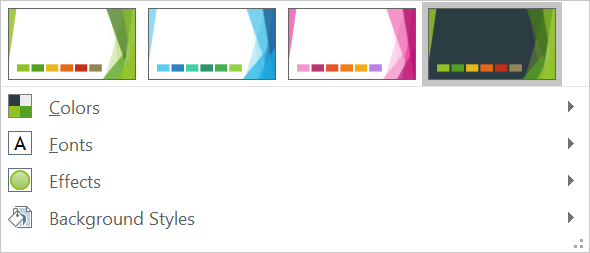
Le sezioni seguenti mostrano i flussi di lavoro più comuni sui temi: ispezionare un tema, modificare colori e caratteri, copiare o applicare un tema, aggiornare gli stili di sfondo ed effetti, e leggere i valori effettivi dopo che ereditarietà e sovrascritture sono state risolte.
Ispezionare un Tema
L’oggetto MasterTheme espone lo schema di colori, lo schema di caratteri e lo schema di formattazione del tema tramite MasterTheme.getColorScheme, MasterTheme.getFontScheme e MasterTheme.getFormatScheme. Ispezionare queste collezioni prima di modificarle è particolarmente utile quando una presentazione proviene da una fonte esterna, poiché il numero e il contenuto delle voci di stile possono variare.
L’esempio seguente legge le proprietà principali del tema e riporta quante voci di stile di sfondo, riempimento, linea ed effetto sono memorizzate nel tema:
const aspose = {};
aspose.slides = require("aspose.slides.via.java");

const presentation = new aspose.slides.Presentation("input.pptx");
try {
    const theme = presentation.getMasterTheme();
    console.log("Theme name: " + theme.getName());
    console.log("Accent 1: " + theme.getColorScheme().getAccent1().getColor());
    console.log("Major Latin font: " + theme.getFontScheme().getMajor().getLatinFont().getFontName());
    console.log("Minor Latin font: " + theme.getFontScheme().getMinor().getLatinFont().getFontName());
    console.log("Background fill styles: " + theme.getFormatScheme().getBackgroundFillStyles().size());
    console.log("Fill styles: " + theme.getFormatScheme().getFillStyles().size());
    console.log("Line styles: " + theme.getFormatScheme().getLineStyles().size());
    console.log("Effect styles: " + theme.getFormatScheme().getEffectStyles().size());
} finally {
    presentation.dispose();
}
Se un file utilizza più master, non dare per scontato che ogni diapositiva abbia lo stesso tema effettivo. Ispeziona il master associato alla diapositiva e utilizza il flusso di lavoro sul tema effettivo mostrato più avanti in questo articolo quando potrebbero essere presenti sovrascritture a livello di layout o diapositiva.
Modificare i Colori del Tema
I riempimenti, le linee e il testo sensibili al tema possono fare riferimento a un colore logico dell’enumerazione SchemeColor. Quando si modifica la voce corrispondente nello ColorScheme, tutti gli oggetti che ancora fanno riferimento a quel colore del tema vengono risolti rispetto al nuovo valore. Gli oggetti che usano un colore RGB diretto non vengono modificati da un aggiornamento del colore del tema.
L’esempio end‑to‑end seguente crea una forma che utilizza Accent4, cambia il colore Accent4 del tema in rosso, salva la presentazione, la riapre e stampa il colore di riempimento effettivo:
const aspose = {};
aspose.slides = require("aspose.slides.via.java");
const java = require("java");

const presentation = new aspose.slides.Presentation();
try {
    const slide = presentation.getSlides().get_Item(0);
    const shape = slide.getShapes().addAutoShape(aspose.slides.ShapeType.Rectangle, 10, 10, 100, 100);
    shape.getFillFormat().setFillType(java.newByte(aspose.slides.FillType.Solid));
    shape.getFillFormat().getSolidFillColor().setSchemeColor(aspose.slides.SchemeColor.Accent4);
    presentation.getMasterTheme().getColorScheme().getAccent4().setColor(java.getStaticFieldValue("java.awt.Color", "RED"));
    presentation.save("theme-color.pptx", aspose.slides.SaveFormat.Pptx);
} finally {
    presentation.dispose();
}

const savedPresentation = new aspose.slides.Presentation("theme-color.pptx");
try {
    const savedSlide = savedPresentation.getSlides().get_Item(0);
    const savedShape = savedSlide.getShapes().get_Item(0);
    const effectiveFill = savedShape.getFillFormat().getEffective();
    console.log("Effective fill color: " + effectiveFill.getSolidFillColor());
} finally {
    savedPresentation.dispose();
}
Poiché il rettangolo rimane collegato a Accent4, il suo colore visibile diventa rosso dopo la modifica del tema. Se si sostituisce il colore dello schema con un colore diretto sulla forma, le modifiche successive a Accent4 non influenzeranno più quel riempimento.
Utilizzare i Colori della Palette Aggiuntiva
PowerPoint genera varianti più chiare e più scure di un colore del tema applicando trasformazioni di colore. Aspose.Slides espone queste trasformazioni tramite l’enumerazione ColorTransformOperation.
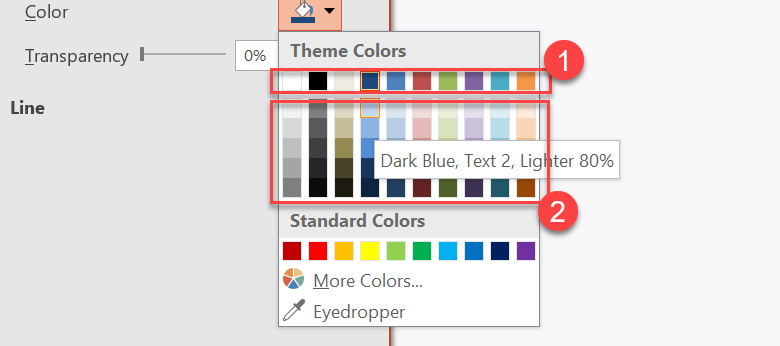
1 – Colori principali del tema.
2 – Varianti più chiare e più scure prodotte dai colori principali del tema.
L’esempio seguente crea sei rettangoli basati su Accent4, applica trasformazioni di luminanza a cinque di essi e salva il risultato:
const aspose = {};
aspose.slides = require("aspose.slides.via.java");
const java = require("java");

const presentation = new aspose.slides.Presentation();
try {
    const slide = presentation.getSlides().get_Item(0);

    const shape1 = slide.getShapes().addAutoShape(aspose.slides.ShapeType.Rectangle, 10, 10, 50, 50);
    shape1.getFillFormat().setFillType(java.newByte(aspose.slides.FillType.Solid));
    shape1.getFillFormat().getSolidFillColor().setSchemeColor(aspose.slides.SchemeColor.Accent4);

    const shape2 = slide.getShapes().addAutoShape(aspose.slides.ShapeType.Rectangle, 10, 70, 50, 50);
    shape2.getFillFormat().setFillType(java.newByte(aspose.slides.FillType.Solid));
    shape2.getFillFormat().getSolidFillColor().setSchemeColor(aspose.slides.SchemeColor.Accent4);
    shape2.getFillFormat().getSolidFillColor().getColorTransform().add(aspose.slides.ColorTransformOperation.MultiplyLuminance, java.newFloat(0.2));
    shape2.getFillFormat().getSolidFillColor().getColorTransform().add(aspose.slides.ColorTransformOperation.AddLuminance, java.newFloat(0.8));

    const shape3 = slide.getShapes().addAutoShape(aspose.slides.ShapeType.Rectangle, 10, 130, 50, 50);
    shape3.getFillFormat().setFillType(java.newByte(aspose.slides.FillType.Solid));
    shape3.getFillFormat().getSolidFillColor().setSchemeColor(aspose.slides.SchemeColor.Accent4);
    shape3.getFillFormat().getSolidFillColor().getColorTransform().add(aspose.slides.ColorTransformOperation.MultiplyLuminance, java.newFloat(0.4));
    shape3.getFillFormat().getSolidFillColor().getColorTransform().add(aspose.slides.ColorTransformOperation.AddLuminance, java.newFloat(0.6));

    const shape4 = slide.getShapes().addAutoShape(aspose.slides.ShapeType.Rectangle, 10, 190, 50, 50);
    shape4.getFillFormat().setFillType(java.newByte(aspose.slides.FillType.Solid));
    shape4.getFillFormat().getSolidFillColor().setSchemeColor(aspose.slides.SchemeColor.Accent4);
    shape4.getFillFormat().getSolidFillColor().getColorTransform().add(aspose.slides.ColorTransformOperation.MultiplyLuminance, java.newFloat(0.6));
    shape4.getFillFormat().getSolidFillColor().getColorTransform().add(aspose.slides.ColorTransformOperation.AddLuminance, java.newFloat(0.4));

    const shape5 = slide.getShapes().addAutoShape(aspose.slides.ShapeType.Rectangle, 10, 250, 50, 50);
    shape5.getFillFormat().setFillType(java.newByte(aspose.slides.FillType.Solid));
    shape5.getFillFormat().getSolidFillColor().setSchemeColor(aspose.slides.SchemeColor.Accent4);
    shape5.getFillFormat().getSolidFillColor().getColorTransform().add(aspose.slides.ColorTransformOperation.MultiplyLuminance, java.newFloat(0.75));

    const shape6 = slide.getShapes().addAutoShape(aspose.slides.ShapeType.Rectangle, 10, 310, 50, 50);
    shape6.getFillFormat().setFillType(java.newByte(aspose.slides.FillType.Solid));
    shape6.getFillFormat().getSolidFillColor().setSchemeColor(aspose.slides.SchemeColor.Accent4);
    shape6.getFillFormat().getSolidFillColor().getColorTransform().add(aspose.slides.ColorTransformOperation.MultiplyLuminance, java.newFloat(0.5));

    presentation.save("theme-color-palette.pptx", aspose.slides.SaveFormat.Pptx);
} finally {
    presentation.dispose();
}
Queste varianti rimangono basate sul colore del tema. Se Accent4 cambia in seguito, i colori trasformati vengono ricalcolati dal nuovo valore di Accent4.
Mappare i Valori di SchemeColor negli Slot di ColorScheme
L’enumerazione SchemeColor utilizza Text1, Background1, Text2 e Background2, mentre lo ColorScheme espone gli stessi slot del tema come Dark1, Light1, Dark2 e Light2. La mappatura è fissa:
Text1=Dark1Background1=Light1Text2=Dark2Background2=Light2
Si tratta di nomi alternativi per gli stessi slot del tema; non sono valori convertiti dinamicamente da una forma all’altra.
Modificare i Caratteri del Tema
Uno schema di caratteri del tema contiene un set di caratteri principale per i titoli e un set secondario per il corpo del testo. I metodi FontScheme.getMajor e FontScheme.getMinor espongono tali set.
Gli identificatori di caratteri del tema compatibili con PowerPoint possono essere usati nella formattazione del testo:
+mn-lt– Carattere del corpo Latin (Minor Latin Font)+mj-lt– Carattere del titolo Latin (Major Latin Font)+mn-ea– Carattere del corpo East Asian (Minor East Asian Font)+mj-ea– Carattere del titolo East Asian (Major East Asian Font)
L’esempio seguente crea un titolo che utilizza il carattere Latin maggiore del tema e una riga di corpo che utilizza il carattere Latin minore del tema. Quindi modifica i caratteri del tema e salva il risultato:
const aspose = {};
aspose.slides = require("aspose.slides.via.java");

const presentation = new aspose.slides.Presentation();
try {
    const slide = presentation.getSlides().get_Item(0);

    const heading = slide.getShapes().addAutoShape(aspose.slides.ShapeType.Rectangle, 40, 40, 500, 60);
    heading.getTextFrame().setText("Theme heading");
    heading.getTextFrame().getParagraphs().get_Item(0).getPortions().get_Item(0).getPortionFormat().setLatinFont(new aspose.slides.FontData("+mj-lt"));

    const body = slide.getShapes().addAutoShape(aspose.slides.ShapeType.Rectangle, 40, 120, 500, 60);
    body.getTextFrame().setText("Theme body text");
    body.getTextFrame().getParagraphs().get_Item(0).getPortions().get_Item(0).getPortionFormat().setLatinFont(new aspose.slides.FontData("+mn-lt"));

    presentation.getMasterTheme().getFontScheme().getMajor().setLatinFont(new aspose.slides.FontData("Aptos Display"));
    presentation.getMasterTheme().getFontScheme().getMinor().setLatinFont(new aspose.slides.FontData("Arial"));
    presentation.save("theme-fonts.pptx", aspose.slides.SaveFormat.Pptx);
} finally {
    presentation.dispose();
}
Il titolo segue il carattere maggiore e il testo del corpo segue il carattere minore. Il testo che ha un nome di carattere esplicito anziché un identificatore di tema non cambierà automaticamente quando lo schema di caratteri del tema viene modificato.
Le raccolte di caratteri maggiore e minore possono anche contenere mappature di caratteri per sistemi di scrittura individuali, come cirillico, arabo, giapponese, georgiano e thaana. Per ispezionare, aggiungere, sostituire o rimuovere queste mappature, vedere Script-Specific Theme Fonts.
Tip
Per ulteriori informazioni sui caratteri delle presentazioni, consultare PowerPoint Fonts.Copiare o Applicare un Tema
I flussi di lavoro seguenti risolvono diversi problemi legati al tema.
Applicare un Tema Esterno alle Diapositive Dipendenti da un Master
Usare MasterSlide.applyExternalThemeToDependingSlides quando si dispone di un file tema PowerPoint (.thmx) e si vuole ridisegnare ogni diapositiva che dipende da un master specifico. Selezionare il master dalla collezione Presentation.getMasters, rappresentata da MasterSlideCollection, e passare il percorso del file tema al metodo.
Il metodo esegue le seguenti operazioni:
- Crea un nuovo master slide basato sul master selezionato.
- Applica il tema esterno al nuovo master.
- Assegna il nuovo master a tutte le diapositive che in precedenza dipendevano dal master selezionato.
- Restituisce il nuovo MasterSlide.
L’esempio seguente applica un tema esterno alle diapositive che dipendono dal primo master e salva la presentazione:
const aspose = {};
aspose.slides = require("aspose.slides.via.java");

const presentation = new aspose.slides.Presentation("presentation.pptx");
try {
    const selectedMaster = presentation.getMasters().get_Item(0);
    const themedMaster = selectedMaster.applyExternalThemeToDependingSlides("corporate-theme.thmx");

    console.log("Created master: " + themedMaster.getName());
    presentation.save("presentation-with-external-theme.pptx", aspose.slides.SaveFormat.Pptx);
} finally {
    presentation.dispose();
}
Un tema non valido, corrotto o non supportato può causare PptxReadException. Convalidare i percorsi forniti dagli utenti, gestire gli errori di accesso al file system e salvare la presentazione solo dopo che il tema è stato applicato con successo.
Solo le diapositive che dipendevano dal master selezionato vengono riassegnate. Le diapositive associate ad altri master mantengono i loro master e temi esistenti. I colori, i caratteri, i riempimenti, le linee, gli sfondi e gli effetti sensibili al tema vengono risolti rispetto al tema esterno. I formati assegnati direttamente (colori, caratteri, riempimenti, ecc.) potrebbero rimanere invariati. Le sovrascritture a livello di layout e diapositiva possono anche prevalere sui valori ereditati dal nuovo master.
Il tema può fare riferimento a caratteri non disponibili nell’ambiente di runtime. Per una resa coerente ed esportazione, installare i caratteri richiesti, fornirli tramite custom font sources, o configurare la font substitution.
Questo è un flusso di lavoro diretto a livello di master: il metodo accetta un percorso a un file .thmx e non richiede la creazione manuale di sovrascritture di tema a livello di layout o diapositiva.
Applicare Temi Esterni Differenti in una Presentazione con Più Master
Quando il master rilevante non è noto in anticipo, ottenerlo da una diapositiva rappresentativa attraverso Slide.getLayoutSlide e LayoutSlide.getMasterSlide. Conservare i riferimenti ai master originali prima di applicare qualsiasi tema, poiché ogni chiamata crea un altro master nella presentazione.
L’esempio seguente usa diapositive di due sezioni per individuare i loro master e applica un tema esterno diverso a ciascun gruppo:
const aspose = {};
aspose.slides = require("aspose.slides.via.java");

const presentation = new aspose.slides.Presentation("multi-master-presentation.pptx");
try {
    if (presentation.getSlides().size() < 5) {
        console.log("The presentation does not contain the expected representative slides.");
    } else {
        const firstGroupMaster = presentation.getSlides().get_Item(0).getLayoutSlide().getMasterSlide();
        const secondGroupMaster = presentation.getSlides().get_Item(4).getLayoutSlide().getMasterSlide();

        if (firstGroupMaster.getSlideId() === secondGroupMaster.getSlideId()) {
            console.log("The representative slides use the same master.");
        } else {
            const firstThemedMaster = firstGroupMaster.applyExternalThemeToDependingSlides("blue-theme.thmx");
            const secondThemedMaster = secondGroupMaster.applyExternalThemeToDependingSlides("green-theme.thmx");

            console.log("First themed master: " + firstThemedMaster.getName());
            console.log("Second themed master: " + secondThemedMaster.getName());
            presentation.save("multi-master-with-external-themes.pptx", aspose.slides.SaveFormat.Pptx);
        }
    }
} finally {
    presentation.dispose();
}
La prima chiamata influisce solo sulle diapositive che dipendevano da firstGroupMaster, e la seconda solo su quelle che dipendevano da secondGroupMaster. Le diapositive appartenenti a qualsiasi altro master non vengono ridisegnate.
Preservare il Tema di Origine Quando Si Spostano Diapositive
Se si desidera spostare una diapositiva in un’altra presentazione preservandone il design originale, clonare il master di origine nella presentazione di destinazione con MasterSlideCollection.addClone, quindi clonare la diapositiva con SlideCollection.addClone e il master clonato. In questo modo il master, i suoi layout e il tema associato vengono trasferiti insieme.
const aspose = {};
aspose.slides = require("aspose.slides.via.java");

const source = new aspose.slides.Presentation("source-theme.pptx");
try {
    const target = new aspose.slides.Presentation("target.pptx");
    try {
        const sourceSlide = source.getSlides().get_Item(0);
        const clonedMaster = target.getMasters().addClone(sourceSlide.getLayoutSlide().getMasterSlide());
        target.getSlides().addClone(sourceSlide, clonedMaster, true);
        target.save("theme-preserved.pptx", aspose.slides.SaveFormat.Pptx);
    } finally {
        target.dispose();
    }
} finally {
    source.dispose();
}
Questo è il flusso di lavoro consigliato quando la diapositiva di origine deve apparire identica nella destinazione. Clonare semplicemente il contenuto su un master di destinazione non correlato può modificare colori, caratteri, sfondi ed effetti guidati dal tema.
Applicare Valori del Tema a una Diapositiva Esistente
Se la diapositiva di destinazione deve rimanere sul master e layout attuali, inizializzare una sovrascrittura a livello di diapositiva dal tema di origine. I metodi OverrideTheme.initColorSchemeFrom, OverrideTheme.initFontSchemeFrom e OverrideTheme.initFormatSchemeFrom copiano i tre componenti principali del tema nella sovrascrittura.
const aspose = {};
aspose.slides = require("aspose.slides.via.java");

const source = new aspose.slides.Presentation("source-theme.pptx");
try {
    const target = new aspose.slides.Presentation("target.pptx");
    try {
        const sourceTheme = source.getMasterTheme();
        const targetSlide = target.getSlides().get_Item(0);
        const overrideTheme = targetSlide.getThemeManager().getOverrideTheme();
        overrideTheme.initColorSchemeFrom(sourceTheme.getColorScheme());
        overrideTheme.initFontSchemeFrom(sourceTheme.getFontScheme());
        overrideTheme.initFormatSchemeFrom(sourceTheme.getFormatScheme());
        target.save("theme-applied-to-slide.pptx", aspose.slides.SaveFormat.Pptx);
    } finally {
        target.dispose();
    }
} finally {
    source.dispose();
}
Questo cambia il tema usato da quella diapositiva senza alterare il tema ereditato dalle altre diapositive. Per rimuovere la sovrascrittura locale e tornare ai valori ereditati, chiamare OverrideTheme.clear.
Applicare una Sovrascrittura di Tema a un Layout
Una sovrascrittura a livello di layout si applica alle diapositive che usano quel layout, a meno che una diapositiva specifica non abbia una sua sovrascrittura. Gli stessi metodi di inizializzazione possono essere usati tramite il LayoutSlideThemeManager:
const aspose = {};
aspose.slides = require("aspose.slides.via.java");

const source = new aspose.slides.Presentation("source-theme.pptx");
try {
    const target = new aspose.slides.Presentation("target.pptx");
    try {
        const sourceTheme = source.getMasterTheme();
        const targetSlide = target.getSlides().get_Item(0);
        const overrideTheme = targetSlide.getLayoutSlide().getThemeManager().getOverrideTheme();
        overrideTheme.initColorSchemeFrom(sourceTheme.getColorScheme());
        overrideTheme.initFontSchemeFrom(sourceTheme.getFontScheme());
        overrideTheme.initFormatSchemeFrom(sourceTheme.getFormatScheme());
        target.save("theme-applied-to-layout.pptx", aspose.slides.SaveFormat.Pptx);
    } finally {
        target.dispose();
    }
} finally {
    source.dispose();
}
Usare un tema a livello di master o presentazione quando molti layout e diapositive devono condividere lo stesso design di base, una sovrascrittura di layout quando una famiglia di layout necessita di uno stile diverso, e una sovrascrittura di diapositiva solo per vere eccezioni. Un eccesso di sovrascritture a livello di diapositiva rende più difficile prevedere i cambiamenti globali del tema in futuro.
Aggiornare gli Stili di Sfondo del Tema
I riempimenti di sfondo del tema sono memorizzati in FormatScheme.getBackgroundFillStyles. PowerPoint può presentare più scelte di sfondo nella sua interfaccia rispetto al numero di definizioni di riempimento effettivamente memorizzate in questa collezione, perché l’interfaccia può combinare riempimenti di tema con colori di tema e altre referenze di stile.
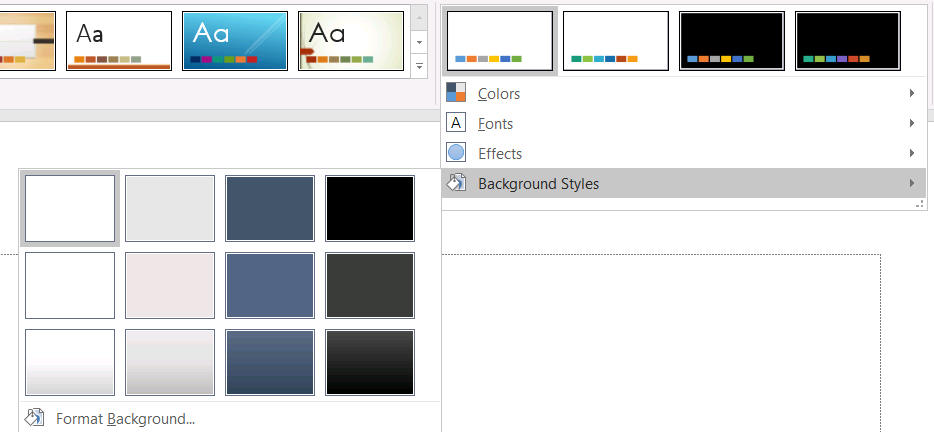
Prima di utilizzare uno stile di sfondo, ispezionare la collezione memorizzata e il valore corrente di Background.getStyleIndex. Un indice di stile pari a 0 indica nessun riempimento tematico; valori positivi sono referenze di stile di sfondo tematico. Questo è diverso dall’indicizzare direttamente la collezione JavaScript, dove l’indice 0 indica il primo elemento memorizzato. Non presumere che ogni presentazione contenga lo stesso numero di stili di riempimento di sfondo.
L’esempio seguente riporta il conteggio dei riempimenti di sfondo disponibili, assegna una referenza di sfondo tematico al primo master e salva la presentazione:
const aspose = {};
aspose.slides = require("aspose.slides.via.java");
const java = require("java");

const presentation = new aspose.slides.Presentation("input.pptx");
try {
    const backgroundStyles = presentation.getMasterTheme().getFormatScheme().getBackgroundFillStyles();
    console.log("Background fill styles: " + backgroundStyles.size());
    if (backgroundStyles.size() === 0) {
        throw new Error("The presentation theme does not contain background fill styles.");
    }

    const masterSlide = presentation.getMasters().get_Item(0);
    masterSlide.getBackground().setType(java.newByte(aspose.slides.BackgroundType.Themed));
    masterSlide.getBackground().setStyleIndex(1);
    presentation.save("theme-background.pptx", aspose.slides.SaveFormat.Pptx);
} finally {
    presentation.dispose();
}
Il risultato visivo dipende dall’elemento del tema referenziato dal master e da eventuali sovrascritture di sfondo a livello di layout o diapositiva. Se una diapositiva usa il proprio sfondo, modificare solo lo sfondo del master potrebbe non influenzare quella diapositiva. Usare Background.getEffective quando è necessario conoscere lo sfondo finale dopo l’applicazione dell’ereditarietà.
Warning
Non trattare l’indice di stile come indice zero‑based di una collezione. Evita anche di codificare un numero di stile da un file e presumere che abbia lo stesso aspetto in un altro file; le definizioni di stile del tema sono specifiche della presentazione.Tip
Per la formattazione diretta dello sfondo e l’ereditarietà dello sfondo, vedere Presentation Background.Aggiornare gli Effetti del Tema
Uno schema di formattazione del tema contiene collezioni separate di riempimento, linea ed effetti, esposte tramite FormatScheme.getFillStyles, FormatScheme.getLineStyles e FormatScheme.getEffectStyles. I temi tipici di Office spesso contengono tre voci di stile principali che corrispondono visivamente a formattazioni sottili, moderate e intense, ma il codice dovrebbe ispezionare ogni collezione invece di presumere un conteggio fisso.

Quando si accede a queste collezioni in JavaScript, l’indice della collezione è zero‑based: l’indice 0 è il primo stile memorizzato e l’indice 2 è il terzo. Gli indici di referenza di stile di una forma sono un concetto separato, esposto tramite ShapeStyle. Modificare uno stile di tema influisce sulle forme che lo referenziano; le forme con formattazione diretta potrebbero rimanere invariate.
L’esempio seguente verifica che le voci di stile richieste esistano, modifica il primo stile di linea, il terzo stile di riempimento, abilita un’ombra esterna nel terzo stile di effetto e salva il risultato:
const aspose = {};
aspose.slides = require("aspose.slides.via.java");
const java = require("java");

const presentation = new aspose.slides.Presentation("Subtle_Moderate_Intense.pptx");
try {
    const formatScheme = presentation.getMasterTheme().getFormatScheme();
    if (formatScheme.getLineStyles().size() < 1 || formatScheme.getFillStyles().size() < 3 || formatScheme.getEffectStyles().size() < 3) {
        throw new Error("The theme does not contain the style entries required by this example.");
    }

    formatScheme.getLineStyles().get_Item(0).getFillFormat().setFillType(java.newByte(aspose.slides.FillType.Solid));
    formatScheme.getLineStyles().get_Item(0).getFillFormat().getSolidFillColor().setColor(java.getStaticFieldValue("java.awt.Color", "RED"));
    formatScheme.getFillStyles().get_Item(2).setFillType(java.newByte(aspose.slides.FillType.Solid));
    formatScheme.getFillStyles().get_Item(2).getSolidFillColor().setColor(java.newInstanceSync("java.awt.Color", 34, 139, 34));
    const effectFormat = formatScheme.getEffectStyles().get_Item(2).getEffectFormat();
    effectFormat.enableOuterShadowEffect();
    effectFormat.getOuterShadowEffect().setDistance(10);
    presentation.save("theme-effects.pptx", aspose.slides.SaveFormat.Pptx);
} finally {
    presentation.dispose();
}
Per le forme che referenziano questi slot, il primo stile di linea del tema diventa rosso, il terzo stile di riempimento del tema diventa verde foresta opaco e il terzo stile di effetto ottiene un’ombra esterna con una distanza di 10 punti. Il risultato visivo esatto dipende comunque da quali slot di stile ogni forma referenzia e se la formattazione diretta sovrascrive il tema.

Determinare se un Riempimento Solido Effettivo Usa un Colore del Tema
Un riempimento può essere memorizzato direttamente su un oggetto o ereditato da un paragrafo, layout, master, stile di tema o altro livello di formattazione. Chiamare FillFormat.getEffective per risolvere quella gerarchia in un’istantanea immutabile del riempimento effettivo. Prima controllare il valore getFillType. Solo quando è FillType.Solid si dovrebbero leggere le proprietà del riempimento solido.
Per un riempimento solido, getSolidFillColor restituisce il valore RGB finale renderizzato dopo l’ereditarietà, la ricerca nel tema e le trasformazioni di colore. Il metodo getSolidFillSchemeColor restituisce lo slot logico corrispondente di SchemeColor, ad esempio Text1 o Accent6. Un valore SchemeColor.NotDefined indica che il riempimento solido effettivo non è basato su un colore di schema. In un flusso di lavoro dove i riempimenti sono o colori di tema o colori RGB diretti, questo valore identifica un riempimento RGB diretto.
Non utilizzare il valore locale ColorFormat.getSchemeColor da solo per classificare un riempimento. Per esempio, una porzione di testo può non avere un colore di schema definito localmente, quindi il suo valore locale è NotDefined, mentre il suo riempimento effettivo eredita un colore di tema e risolve a Text1 o Accent6. Al contrario, getSolidFillSchemeColor indica quale slot logico del tema ha prodotto il colore effettivo, ma non dice se quello slot provenga dall’oggetto, dal paragrafo, dal layout, dal master o da un altro livello della gerarchia.
L’esempio seguente carica una presentazione, registra sia i riempimenti delle forme sia i riempimenti delle porzioni di testo, stampa ogni valore RGB finale e il colore di schema associato, e segnala i riempimenti solidi che non seguiranno le modifiche ai colori del tema:
const aspose = {};
aspose.slides = require("aspose.slides.via.java");
const java = require("java");

function toHexColor(color) {
    const red = color.getRed().toString(16).padStart(2, "0");
    const green = color.getGreen().toString(16).padStart(2, "0");
    const blue = color.getBlue().toString(16).padStart(2, "0");
    return `#${red}${green}${blue}`.toUpperCase();
}

function auditFill(objectName, localFill) {
    const effectiveFill = localFill.getEffective();

    if (effectiveFill.getFillType() !== aspose.slides.FillType.Solid) {
        console.log(objectName + ": fill type = " + effectiveFill.getFillType() + "; not a solid fill.");
        return;
    }

    const rgb = effectiveFill.getSolidFillColor();
    const effectiveSchemeColor = effectiveFill.getSolidFillSchemeColor();
    const localSchemeColor = localFill.getSolidFillColor().getSchemeColor();

    console.log(objectName + ": RGB = " + toHexColor(rgb));
    console.log(objectName + ": local scheme = " + localSchemeColor + ", effective scheme = " + effectiveSchemeColor);

    if (effectiveSchemeColor === aspose.slides.SchemeColor.NotDefined) {
        console.log(objectName + ": direct RGB or another non-scheme fill; audit as theme-independent.");
    } else {
        console.log(objectName + ": theme-dependent through " + effectiveSchemeColor + ".");
    }
}

const presentation = new aspose.slides.Presentation("input.pptx");
try {
    const slideCount = presentation.getSlides().size();
    for (let slideIndex = 0; slideIndex < slideCount; slideIndex++) {
        const slide = presentation.getSlides().get_Item(slideIndex);

        const shapeCount = slide.getShapes().size();
        for (let shapeIndex = 0; shapeIndex < shapeCount; shapeIndex++) {
            const shape = slide.getShapes().get_Item(shapeIndex);
            const shapeName = "Slide " + (slideIndex + 1) + ", shape " + (shapeIndex + 1);
            auditFill(shapeName, shape.getFillFormat());

            if (java.instanceOf(shape, "com.aspose.slides.IAutoShape")) {
                const paragraphCount = shape.getTextFrame().getParagraphs().getCount();
                for (let paragraphIndex = 0; paragraphIndex < paragraphCount; paragraphIndex++) {
                    const paragraph = shape.getTextFrame().getParagraphs().get_Item(paragraphIndex);

                    const portionCount = paragraph.getPortions().getCount();
                    for (let portionIndex = 0; portionIndex < portionCount; portionIndex++) {
                        const portion = paragraph.getPortions().get_Item(portionIndex);
                        const portionName = shapeName + ", paragraph " + (paragraphIndex + 1) + ", portion " + (portionIndex + 1);
                        auditFill(portionName, portion.getPortionFormat().getFillFormat());
                    }
                }
            }
        }
    }
} finally {
    presentation.dispose();
}
Il ramo NotDefined fornisce un elenco di audit dei riempimenti solidi che non risponderanno alle variazioni degli slot di colore del tema. Rivedere quegli oggetti quando una presentazione deve aderire a una nuova palette di brand. Il valore RGB riportato mostra ancora l’aspetto corrente, mentre il valore di schema spiega se quell’aspetto è collegato al tema.
Gli oggetti di formato effettivo sono istantanee. Dopo aver modificato il tema della presentazione, una sovrascrittura di tema o qualsiasi formattazione ereditata, chiamare nuovamente getEffective e leggere un nuovo oggetto di riempimento effettivo prima di confrontare o riportare i colori.
Leggere i Valori Effettivi del Tema
Gli oggetti tema grezzi indicano cosa è definito a un particolare livello. I valori effettivi indicano cosa una diapositiva o una forma utilizza realmente dopo che ereditarietà e sovrascritture locali sono state risolte. Per una diapositiva, chiamare BaseOverrideThemeManager.createThemeEffective. Per uno sfondo, usare Background.getEffective, e per un riempimento, usare FillFormat.getEffective.
L’esempio seguente legge il tema effettivo, lo sfondo e il riempimento della prima forma da una diapositiva:
const aspose = {};
aspose.slides = require("aspose.slides.via.java");

const presentation = new aspose.slides.Presentation("input.pptx");
try {
    const slide = presentation.getSlides().get_Item(0);
    const effectiveTheme = slide.getThemeManager().createThemeEffective();
    const effectiveBackground = slide.getBackground().getEffective();
    console.log("Effective major Latin font: " + effectiveTheme.getFontScheme().getMajor().getLatinFont().getFontName());
    console.log("Effective minor Latin font: " + effectiveTheme.getFontScheme().getMinor().getLatinFont().getFontName());
    console.log("Effective background fill type: " + effectiveBackground.getFillFormat().getFillType());
    if (slide.getShapes().size() > 0) {
        const effectiveFill = slide.getShapes().get_Item(0).getFillFormat().getEffective();
        console.log("First shape effective fill type: " + effectiveFill.getFillType());
        if (effectiveFill.getFillType() === aspose.slides.FillType.Solid) {
            console.log("First shape effective fill color: " + effectiveFill.getSolidFillColor());
        }
    }
} finally {
    presentation.dispose();
}
Usare i dati effettivi per diagnosi di rendering, convalida e confronti. Se si ispeziona solo Presentation.getMasterTheme, si possono perdere master, layout, sovrascritture di diapositiva o di forma che cambiano l’aspetto finale.
FAQ
L’applicazione di un tema esterno influisce su tutte le diapositive della presentazione?
No. MasterSlide.applyExternalThemeToDependingSlides riassegna solo le diapositive che dipendono dal master selezionato. Le diapositive che usano altri master mantengono i loro temi esistenti.
Posso applicare un tema a una singola diapositiva senza cambiare il master?
Sì. Utilizzare il SlideThemeManager della diapositiva e inizializzare il suo tema di sovrascrittura. La modifica rimane locale a quella diapositiva; le altre diapositive continuano a ereditare i loro temi attuali.
Qual è il modo più sicuro per trasferire un tema da una presentazione all’altra?
Quando si sposta una diapositiva preservandone l’aspetto di origine, clonare il master di origine nella destinazione e clonare la diapositiva con quel master usando MasterSlideCollection.addClone e SlideCollection.addClone. Questo mantiene insieme master, layout e tema.
Come posso vedere i valori effettivi dopo ereditarietà e sovrascritture?
Usare BaseOverrideThemeManager.createThemeEffective per un tema di diapositiva o layout e i relativi metodi di dati effettivi per oggetti di formato come Background.getEffective e FillFormat.getEffective. Queste API restituiscono i valori risolti dopo l’applicazione di ereditarietà e sovrascritture.