
JavaScript でプレゼンテーション テーマを管理する
概要
プレゼンテーションのテーマは、色、フォント、背景スタイル、塗り、線、効果という調整されたセットを定義します。テーマ対応オブジェクトは、各ビジュアルプロパティを固定値として格納するのではなく、これらの共有定義を参照するため、テーマの変更により多数のオブジェクトを一度に更新できます。
Aspose.Slides では、プレゼンテーション レベルのテーマは Presentation.getMasterTheme で取得できます。プレゼンテーションには下位レベルでテーマ上書きが含まれることもあります。マスターは MasterThemeManager.getOverrideTheme を介してプレゼンテーションテーマを上書きでき、レイアウトや個々のスライドは BaseOverrideThemeManager.getOverrideTheme を介して継承されたテーマを上書きできます。実際には、スライドの有効テーマは次の継承チェーンで解決されます:プレゼンテーションテーマ、マスター上書き、レイアウト上書き、スライド上書き。

以下のセクションでは、最も一般的なテーマ操作ワークフローを示します。テーマの検査、色とフォントの変更、テーマのコピーまたは適用、背景と効果スタイルの更新、継承と上書きが解決された後の有効値の取得です。
テーマの検査
MasterTheme オブジェクトは、MasterTheme.getColorScheme、MasterTheme.getFontScheme、MasterTheme.getFormatScheme を通じてテーマのカラースキーム、フォントスキーム、フォーマットスキームを公開します。変更前にこれらのコレクションを検査することは、外部ソースから取得したプレゼンテーションの場合、スタイルエントリの数や内容が異なる可能性があるため特に有用です。
次の例はメインテーマのプロパティを読み取り、テーマに格納されている背景、塗り、線、効果スタイルの数を報告します。
const aspose = {};
aspose.slides = require("aspose.slides.via.java");

const presentation = new aspose.slides.Presentation("input.pptx");
try {
    const theme = presentation.getMasterTheme();
    console.log("Theme name: " + theme.getName());
    console.log("Accent 1: " + theme.getColorScheme().getAccent1().getColor());
    console.log("Major Latin font: " + theme.getFontScheme().getMajor().getLatinFont().getFontName());
    console.log("Minor Latin font: " + theme.getFontScheme().getMinor().getLatinFont().getFontName());
    console.log("Background fill styles: " + theme.getFormatScheme().getBackgroundFillStyles().size());
    console.log("Fill styles: " + theme.getFormatScheme().getFillStyles().size());
    console.log("Line styles: " + theme.getFormatScheme().getLineStyles().size());
    console.log("Effect styles: " + theme.getFormatScheme().getEffectStyles().size());
} finally {
    presentation.dispose();
}
ファイルが複数のマスターを使用している場合、すべてのスライドが同じ有効テーマを持つとは限りません。スライドに関連付けられたマスターを検査し、レイアウトまたはスライドの上書きが存在する可能性がある場合は、後述の有効テーマワークフローを使用してください。
テーマ色の変更
テーマ対応の塗り、線、テキストは SchemeColor 列挙体の論理色を参照できます。ColorScheme の該当エントリを変更すると、そのテーマ色を参照し続けているすべてのオブジェクトが新しい値に解決されます。直接 RGB 色を使用しているオブジェクトはテーマ色の更新の影響を受けません。
次のエンドツーエンドの例は、Accent4 を使用したシェイプを作成し、テーマの Accent4 色を赤に変更し、プレゼンテーションを保存して再度開き、最終的な塗りの色を出力します。
const aspose = {};
aspose.slides = require("aspose.slides.via.java");
const java = require("java");

const presentation = new aspose.slides.Presentation();
try {
    const slide = presentation.getSlides().get_Item(0);
    const shape = slide.getShapes().addAutoShape(aspose.slides.ShapeType.Rectangle, 10, 10, 100, 100);
    shape.getFillFormat().setFillType(java.newByte(aspose.slides.FillType.Solid));
    shape.getFillFormat().getSolidFillColor().setSchemeColor(aspose.slides.SchemeColor.Accent4);
    presentation.getMasterTheme().getColorScheme().getAccent4().setColor(java.getStaticFieldValue("java.awt.Color", "RED"));
    presentation.save("theme-color.pptx", aspose.slides.SaveFormat.Pptx);
} finally {
    presentation.dispose();
}

const savedPresentation = new aspose.slides.Presentation("theme-color.pptx");
try {
    const savedSlide = savedPresentation.getSlides().get_Item(0);
    const savedShape = savedSlide.getShapes().get_Item(0);
    const effectiveFill = savedShape.getFillFormat().getEffective();
    console.log("Effective fill color: " + effectiveFill.getSolidFillColor());
} finally {
    savedPresentation.dispose();
}
矩形は Accent4 にリンクされたままであるため、テーマが変更されると表示色が赤になります。シェイプ上でスキームカラーを直接の色に置き換えると、以降の Accent4 の変更はその塗りに影響しなくなります。
追加パレットから色を使用する
PowerPoint はテーマカラーに対してカラー変換を適用し、明るいバリエーションや暗いバリエーションを生成します。Aspose.Slides はこれらの変換を ColorTransformOperation 列挙体で公開しています。

1 – メインテーマカラー。
2 – メインテーマカラーから生成された明るい・暗いバリエーション。
次の例は Accent4 を基にした 6 つの矩形を作成し、そのうち 5 つに輝度変換を適用して結果を保存します。
const aspose = {};
aspose.slides = require("aspose.slides.via.java");
const java = require("java");

const presentation = new aspose.slides.Presentation();
try {
    const slide = presentation.getSlides().get_Item(0);

    const shape1 = slide.getShapes().addAutoShape(aspose.slides.ShapeType.Rectangle, 10, 10, 50, 50);
    shape1.getFillFormat().setFillType(java.newByte(aspose.slides.FillType.Solid));
    shape1.getFillFormat().getSolidFillColor().setSchemeColor(aspose.slides.SchemeColor.Accent4);

    const shape2 = slide.getShapes().addAutoShape(aspose.slides.ShapeType.Rectangle, 10, 70, 50, 50);
    shape2.getFillFormat().setFillType(java.newByte(aspose.slides.FillType.Solid));
    shape2.getFillFormat().getSolidFillColor().setSchemeColor(aspose.slides.SchemeColor.Accent4);
    shape2.getFillFormat().getSolidFillColor().getColorTransform().add(aspose.slides.ColorTransformOperation.MultiplyLuminance, java.newFloat(0.2));
    shape2.getFillFormat().getSolidFillColor().getColorTransform().add(aspose.slides.ColorTransformOperation.AddLuminance, java.newFloat(0.8));

    const shape3 = slide.getShapes().addAutoShape(aspose.slides.ShapeType.Rectangle, 10, 130, 50, 50);
    shape3.getFillFormat().setFillType(java.newByte(aspose.slides.FillType.Solid));
    shape3.getFillFormat().getSolidFillColor().setSchemeColor(aspose.slides.SchemeColor.Accent4);
    shape3.getFillFormat().getSolidFillColor().getColorTransform().add(aspose.slides.ColorTransformOperation.MultiplyLuminance, java.newFloat(0.4));
    shape3.getFillFormat().getSolidFillColor().getColorTransform().add(aspose.slides.ColorTransformOperation.AddLuminance, java.newFloat(0.6));

    const shape4 = slide.getShapes().addAutoShape(aspose.slides.ShapeType.Rectangle, 10, 190, 50, 50);
    shape4.getFillFormat().setFillType(java.newByte(aspose.slides.FillType.Solid));
    shape4.getFillFormat().getSolidFillColor().setSchemeColor(aspose.slides.SchemeColor.Accent4);
    shape4.getFillFormat().getSolidFillColor().getColorTransform().add(aspose.slides.ColorTransformOperation.MultiplyLuminance, java.newFloat(0.6));
    shape4.getFillFormat().getSolidFillColor().getColorTransform().add(aspose.slides.ColorTransformOperation.AddLuminance, java.newFloat(0.4));

    const shape5 = slide.getShapes().addAutoShape(aspose.slides.ShapeType.Rectangle, 10, 250, 50, 50);
    shape5.getFillFormat().setFillType(java.newByte(aspose.slides.FillType.Solid));
    shape5.getFillFormat().getSolidFillColor().setSchemeColor(aspose.slides.SchemeColor.Accent4);
    shape5.getFillFormat().getSolidFillColor().getColorTransform().add(aspose.slides.ColorTransformOperation.MultiplyLuminance, java.newFloat(0.75));

    const shape6 = slide.getShapes().addAutoShape(aspose.slides.ShapeType.Rectangle, 10, 310, 50, 50);
    shape6.getFillFormat().setFillType(java.newByte(aspose.slides.FillType.Solid));
    shape6.getFillFormat().getSolidFillColor().setSchemeColor(aspose.slides.SchemeColor.Accent4);
    shape6.getFillFormat().getSolidFillColor().getColorTransform().add(aspose.slides.ColorTransformOperation.MultiplyLuminance, java.newFloat(0.5));

    presentation.save("theme-color-palette.pptx", aspose.slides.SaveFormat.Pptx);
} finally {
    presentation.dispose();
}
これらのバリエーションはテーマカラーに基づいたままです。後で Accent4 が変更されると、変換された色は新しい Accent4 の値から再計算されます。
SchemeColor 値を ColorScheme スロットにマッピングする
SchemeColor 列挙体は Text1、Background1、Text2、Background2 を使用し、ColorScheme は同じテーマスロットを Dark1、Light1、Dark2、Light2 として公開します。マッピングは固定です。
Text1=Dark1Background1=Light1Text2=Dark2Background2=Light2
これらは同じテーマスロットの別名であり、動的に変換される値ではありません。
テーマフォントの変更
テーマフォントスキームは見出し用のメジャーフォントセットと本文用のマイナーフォントセットを含みます。FontScheme.getMajor と FontScheme.getMinor メソッドでそれらのセットを取得できます。
PowerPoint 互換のテーマフォント識別子はテキスト書式設定で使用できます。
+mn-lt– 本文フォント ラテン (Minor Latin Font)+mj-lt– 見出しフォント ラテン (Major Latin Font)+mn-ea– 本文フォント 東アジア (Minor East Asian Font)+mj-ea– 見出しフォント 東アジア (Major East Asian Font)
次の例は、メジャー ラテンテーマフォントを使用した見出しと、マイナー ラテンテーマフォントを使用した本文行を作成し、テーマフォントを変更して結果を保存します。
const aspose = {};
aspose.slides = require("aspose.slides.via.java");

const presentation = new aspose.slides.Presentation();
try {
    const slide = presentation.getSlides().get_Item(0);

    const heading = slide.getShapes().addAutoShape(aspose.slides.ShapeType.Rectangle, 40, 40, 500, 60);
    heading.getTextFrame().setText("Theme heading");
    heading.getTextFrame().getParagraphs().get_Item(0).getPortions().get_Item(0).getPortionFormat().setLatinFont(new aspose.slides.FontData("+mj-lt"));

    const body = slide.getShapes().addAutoShape(aspose.slides.ShapeType.Rectangle, 40, 120, 500, 60);
    body.getTextFrame().setText("Theme body text");
    body.getTextFrame().getParagraphs().get_Item(0).getPortions().get_Item(0).getPortionFormat().setLatinFont(new aspose.slides.FontData("+mn-lt"));

    presentation.getMasterTheme().getFontScheme().getMajor().setLatinFont(new aspose.slides.FontData("Aptos Display"));
    presentation.getMasterTheme().getFontScheme().getMinor().setLatinFont(new aspose.slides.FontData("Arial"));
    presentation.save("theme-fonts.pptx", aspose.slides.SaveFormat.Pptx);
} finally {
    presentation.dispose();
}
見出しはメジャーフォントに、本文はマイナーフォントに従います。テーマ識別子ではなく明示的にフォント名が指定されているテキストは、テーマフォントスキームが変更されても自動的に切り替わりません。
メジャーおよびマイナーのフォントコレクションには、キリル文字、アラビア文字、日本語、ジョージア文字、タナ文字など、個別の表記システム向けのマッピングも含めることができます。これらのマッピングの検査、追加、置換、削除については、Script-Specific Theme Fonts を参照してください。
Tip
プレゼンテーションフォントの詳細については、PowerPoint Fonts をご覧ください。テーマのコピーまたは適用
以下のワークフローは、テーマに関するさまざまな課題を解決します。
外部テーマを特定マスターの依存スライドに適用する
PowerPoint テーマ ファイル (.thmx) があり、特定のマスターに依存するすべてのスライドのスタイルを変更したい場合は、MasterSlide.applyExternalThemeToDependingSlides を使用します。対象マスターは Presentation.getMasters コレクション ( MasterSlideCollection ) から取得し、メソッドにテーマ ファイルのパスを渡します。
メソッドは次の操作を実行します。
- 選択したマスターを基に新しいマスター スライドを作成します。
- 外部テーマを新しいマスターに適用します。
- 以前は選択したマスターに依存していたすべてのスライドに新しいマスターを割り当てます。
- 新しく作成された MasterSlide を返します。
次の例は、最初のマスターに依存するスライドに外部テーマを適用し、プレゼンテーションを保存します。
const aspose = {};
aspose.slides = require("aspose.slides.via.java");

const presentation = new aspose.slides.Presentation("presentation.pptx");
try {
    const selectedMaster = presentation.getMasters().get_Item(0);
    const themedMaster = selectedMaster.applyExternalThemeToDependingSlides("corporate-theme.thmx");

    console.log("Created master: " + themedMaster.getName());
    presentation.save("presentation-with-external-theme.pptx", aspose.slides.SaveFormat.Pptx);
} finally {
    presentation.dispose();
}
無効、破損、またはサポートされていないテーマは PptxReadException をスローする可能性があります。ユーザーが指定したパスは検証し、ファイルシステムへのアクセス失敗を処理し、テーマの適用が成功した後にのみプレゼンテーションを保存してください。
選択したマスターに依存していたスライドだけが再割り当てされます。他のマスターに関連付けられたスライドは既存のマスターとテーマを保持します。テーマ対応の色、フォント、塗り、線、背景、効果は外部テーマに対して解決されますが、直接指定された色やフォント、塗りなどの明示的書式は変更されないままになることがあります。レイアウトレベルやスライドレベルの上書きは、新しいマスターから継承された値よりも優先される可能性があります。
テーマが実行環境に存在しないフォントを参照することがあります。一貫したレンダリングとエクスポートのために、必要なフォントをインストールするか、カスタム フォント ソース を通じて提供するか、フォント置換 を構成してください。
これはマスター レベルの直接ワークフローです。メソッドは .thmx ファイルへのパスを受け取り、スライドレベルやレイアウトレベルのテーマ上書きを手動で作成する必要はありません。
マルチマスター プレゼンテーションで異なる外部テーマを適用する
対象マスターが事前に分からない場合は、Slide.getLayoutSlide と LayoutSlide.getMasterSlide を使用して代表スライドから取得します。テーマを適用する前に元のマスター参照を保存しておきます。各呼び出しはプレゼンテーションに新しいマスターを作成します。
次の例は 2 つのセクションのスライドからマスターを特定し、各グループに異なる外部テーマを適用します。
const aspose = {};
aspose.slides = require("aspose.slides.via.java");

const presentation = new aspose.slides.Presentation("multi-master-presentation.pptx");
try {
    if (presentation.getSlides().size() < 5) {
        console.log("The presentation does not contain the expected representative slides.");
    } else {
        const firstGroupMaster = presentation.getSlides().get_Item(0).getLayoutSlide().getMasterSlide();
        const secondGroupMaster = presentation.getSlides().get_Item(4).getLayoutSlide().getMasterSlide();

        if (firstGroupMaster.getSlideId() === secondGroupMaster.getSlideId()) {
            console.log("The representative slides use the same master.");
        } else {
            const firstThemedMaster = firstGroupMaster.applyExternalThemeToDependingSlides("blue-theme.thmx");
            const secondThemedMaster = secondGroupMaster.applyExternalThemeToDependingSlides("green-theme.thmx");

            console.log("First themed master: " + firstThemedMaster.getName());
            console.log("Second themed master: " + secondThemedMaster.getName());
            presentation.save("multi-master-with-external-themes.pptx", aspose.slides.SaveFormat.Pptx);
        }
    }
} finally {
    presentation.dispose();
}
最初の呼び出しは firstGroupMaster に依存するスライドだけに影響し、2 回目の呼び出しは secondGroupMaster に依存するスライドだけに影響します。他のマスターに属するスライドは再スタイル化されません。
スライド移動時に元のテーマを保持する
スライドを別のプレゼンテーションに移動し、元のデザインを保持したい場合は、MasterSlideCollection.addClone でソースマスターをターゲット プレゼンテーションにクローンし、続いて SlideCollection.addClone でスライドとクローンしたマスターをクローンします。これにより、マスター、レイアウト、および関連テーマが一緒にコピーされます。
const aspose = {};
aspose.slides = require("aspose.slides.via.java");

const source = new aspose.slides.Presentation("source-theme.pptx");
try {
    const target = new aspose.slides.Presentation("target.pptx");
    try {
        const sourceSlide = source.getSlides().get_Item(0);
        const clonedMaster = target.getMasters().addClone(sourceSlide.getLayoutSlide().getMasterSlide());
        target.getSlides().addClone(sourceSlide, clonedMaster, true);
        target.save("theme-preserved.pptx", aspose.slides.SaveFormat.Pptx);
    } finally {
        target.dispose();
    }
} finally {
    source.dispose();
}
この方法は、ソース スライドが宛先でも同一に見えることが求められる場合の推奨ワークフローです。無関係な宛先マスターにコンテンツだけをクローンすると、テーマ駆動の色、フォント、背景、効果が変わってしまうことがあります。
既存スライドにテーマ値を適用する
対象スライドを現在のマスターとレイアウトに留めたまま、ソーステーマからスライドレベルの上書きを初期化します。OverrideTheme.initColorSchemeFrom、OverrideTheme.initFontSchemeFrom、OverrideTheme.initFormatSchemeFrom メソッドが 3 つの主要テーマコンポーネントを上書きにコピーします。
const aspose = {};
aspose.slides = require("aspose.slides.via.java");

const source = new aspose.slides.Presentation("source-theme.pptx");
try {
    const target = new aspose.slides.Presentation("target.pptx");
    try {
        const sourceTheme = source.getMasterTheme();
        const targetSlide = target.getSlides().get_Item(0);
        const overrideTheme = targetSlide.getThemeManager().getOverrideTheme();
        overrideTheme.initColorSchemeFrom(sourceTheme.getColorScheme());
        overrideTheme.initFontSchemeFrom(sourceTheme.getFontScheme());
        overrideTheme.initFormatSchemeFrom(sourceTheme.getFormatScheme());
        target.save("theme-applied-to-slide.pptx", aspose.slides.SaveFormat.Pptx);
    } finally {
        target.dispose();
    }
} finally {
    source.dispose();
}
これにより、他のスライドが継承しているテーマは変更せずに、そのスライドだけのテーマを変更できます。ローカル上書きを削除して継承値に戻すには、OverrideTheme.clear を呼び出します。
レイアウトにテーマ上書きを適用する
レイアウトレベルの上書きは、そのレイアウトを使用するスライドすべてに適用されます(個別スライドに独自の上書きがない限り)。同じ初期化メソッドは LayoutSlideThemeManager を介して使用できます。
const aspose = {};
aspose.slides = require("aspose.slides.via.java");

const source = new aspose.slides.Presentation("source-theme.pptx");
try {
    const target = new aspose.slides.Presentation("target.pptx");
    try {
        const sourceTheme = source.getMasterTheme();
        const targetSlide = target.getSlides().get_Item(0);
        const overrideTheme = targetSlide.getLayoutSlide().getThemeManager().getOverrideTheme();
        overrideTheme.initColorSchemeFrom(sourceTheme.getColorScheme());
        overrideTheme.initFontSchemeFrom(sourceTheme.getFontScheme());
        overrideTheme.initFormatSchemeFrom(sourceTheme.getFormatScheme());
        target.save("theme-applied-to-layout.pptx", aspose.slides.SaveFormat.Pptx);
    } finally {
        target.dispose();
    }
} finally {
    source.dispose();
}
多くのレイアウトやスライドが同一の基本デザインを共有すべき場合はマスターまたはプレゼンテーションレベルのテーマを使用し、特定のレイアウト ファミリーが別スタイルを必要とする場合はレイアウト上書きを、真の例外のみにはスライド上書きを使用してください。過剰なスライドレベル上書きは、後の全体テーマ変更を予測しにくくします。
テーマ背景スタイルの更新
テーマの背景塗りは FormatScheme.getBackgroundFillStyles に格納されています。PowerPoint の UI は、このコレクションに実際に格納されている塗り定義の数以上の背景オプションを提示でき、テーマ塗りとテーマカラーや他のスタイル参照を組み合わせて表示します。
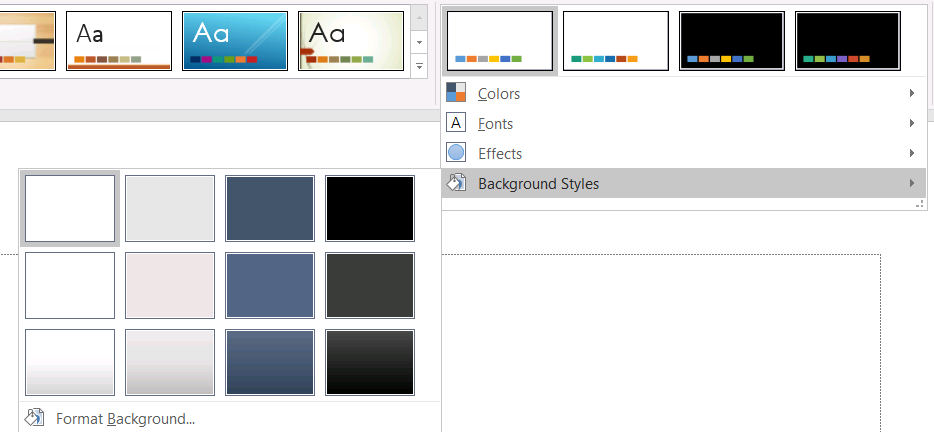
背景スタイルを使用する前に、格納されたコレクションと現在の Background.getStyleIndex を確認してください。インデックス 0 はテーマ塗りなしを意味し、正の値はテーマ背景スタイル参照です。これは JavaScript コレクションを直接インデックスする場合の 0 が最初の項目になるのとは異なります。すべてのプレゼンテーションが同じ数の背景塗りスタイルを持つとは限らないことに注意してください。
次の例は利用可能な背景塗り数を報告し、最初のマスターにテーマ背景参照を割り当て、プレゼンテーションを保存します。
const aspose = {};
aspose.slides = require("aspose.slides.via.java");
const java = require("java");

const presentation = new aspose.slides.Presentation("input.pptx");
try {
    const backgroundStyles = presentation.getMasterTheme().getFormatScheme().getBackgroundFillStyles();
    console.log("Background fill styles: " + backgroundStyles.size());
    if (backgroundStyles.size() === 0) {
        throw new Error("The presentation theme does not contain background fill styles.");
    }

    const masterSlide = presentation.getMasters().get_Item(0);
    masterSlide.getBackground().setType(java.newByte(aspose.slides.BackgroundType.Themed));
    masterSlide.getBackground().setStyleIndex(1);
    presentation.save("theme-background.pptx", aspose.slides.SaveFormat.Pptx);
} finally {
    presentation.dispose();
}
最終的な表示結果は、マスターが参照しているテーマエントリと、レイアウトやスライドレベルでの背景上書きの有無に依存します。スライドが独自の背景を使用している場合、マスター背景だけを変更してもそのスライドは変わりません。継承後の最終背景が必要なときは、Background.getEffective を使用してください。
Warning
スタイルインデックスはゼロベースのコレクションインデックスとして扱わないでください。また、あるファイルでのスタイル番号をハードコードして別ファイルでも同じ外観になると期待しないでください。テーマスタイル定義はプレゼンテーション固有です。Tip
直接の背景書式設定と背景の継承については、Presentation Background を参照してください。テーマ効果の更新
テーマのフォーマットスキームは、FormatScheme.getFillStyles、FormatScheme.getLineStyles、FormatScheme.getEffectStyles を通じて公開される塗り、線、効果スタイルの個別コレクションを含みます。一般的な Office テーマは、微妙、標準、強調という 3 つの主要スタイルエントリを持つことが多いですが、コード側では固定カウントを前提にせず、各コレクションを検査してください。

JavaScript でこれらのコレクションにアクセスする場合、コレクションインデックスはゼロベースです:インデックス 0 が最初のスタイル、インデックス 2 が 3 番目のスタイルです。シェイプの style-reference インデックスは別概念で、ShapeStyle で公開されています。テーマスタイルを変更すると、そのテーマスタイルを参照しているシェイプに影響しますが、直接書式設定されたシェイプは変更されません。
次の例は必要なスタイルエントリが存在することを確認し、最初の線スタイルを変更し、3 番目の塗りスタイルを変更し、3 番目の効果スタイルに外側のシャドウ(距離 10 ポイント)を有効にして結果を保存します。
const aspose = {};
aspose.slides = require("aspose.slides.via.java");
const java = require("java");

const presentation = new aspose.slides.Presentation("Subtle_Moderate_Intense.pptx");
try {
    const formatScheme = presentation.getMasterTheme().getFormatScheme();
    if (formatScheme.getLineStyles().size() < 1 || formatScheme.getFillStyles().size() < 3 || formatScheme.getEffectStyles().size() < 3) {
        throw new Error("The theme does not contain the style entries required by this example.");
    }

    formatScheme.getLineStyles().get_Item(0).getFillFormat().setFillType(java.newByte(aspose.slides.FillType.Solid));
    formatScheme.getLineStyles().get_Item(0).getFillFormat().getSolidFillColor().setColor(java.getStaticFieldValue("java.awt.Color", "RED"));
    formatScheme.getFillStyles().get_Item(2).setFillType(java.newByte(aspose.slides.FillType.Solid));
    formatScheme.getFillStyles().get_Item(2).getSolidFillColor().setColor(java.newInstanceSync("java.awt.Color", 34, 139, 34));
    const effectFormat = formatScheme.getEffectStyles().get_Item(2).getEffectFormat();
    effectFormat.enableOuterShadowEffect();
    effectFormat.getOuterShadowEffect().setDistance(10);
    presentation.save("theme-effects.pptx", aspose.slides.SaveFormat.Pptx);
} finally {
    presentation.dispose();
}
これらのスロットを参照するシェイプに対しては、最初のテーマ線スタイルが赤に、3 番目のテーマ塗りスタイルが濃い森林緑に、3 番目の効果スタイルが外側シャドウを持つようになります。最終的なビジュアルは各シェイプがどのスロットを参照しているか、直接書式設定がテーマを上書きしているかによって変わります。

有効な単色塗りがテーマカラーを使用しているか判定する
塗りはオブジェクトに直接格納されるか、段落、レイアウト、マスター、テーマスタイル、または別の書式レベルから継承されます。FillFormat.getEffective を呼び出して、その階層を不変の有効塗りスナップショットに解決します。まず getFillType の値を確認し、FillType.Solid の場合のみ単色塗りプロパティを読み取ります。
単色塗りの場合、getSolidFillColor は継承、テーマ参照、カラー変換が適用された後の最終 RGB 値を返します。getSolidFillSchemeColor は対応する論理 SchemeColor スロット(例:Text1、Accent6)を返します。SchemeColor.NotDefined は、有効単色塗りがスキームカラーに基づいていないことを意味します。テーマカラーまたは直接 RGB カラーのいずれかのみを使用するワークフローでは、この値が直接 RGB 塗りを識別します。
ローカルの ColorFormat.getSchemeColor のみで塗りを分類しないでください。たとえば、テキストの一部にローカルでスキームカラーが定義されていない場合は NotDefined ですが、実際の有効塗りはテーマカラーを継承し Text1 や Accent6 に解決されます。逆に、getSolidFillSchemeColor は有効色を生成した論理テーマスロットを示しますが、そのスロットがどのレベル(オブジェクト、段落、レイアウト、マスターなど)から来たかは示しません。
次の例はプレゼンテーションを読み込み、シェイプ塗りとテキスト部分塗りの両方を監査し、最終的な RGB 値と関連スキームカラーを出力し、テーマカラーの変更に追従しない単色塗りをフラグします。
const aspose = {};
aspose.slides = require("aspose.slides.via.java");
const java = require("java");

function toHexColor(color) {
    const red = color.getRed().toString(16).padStart(2, "0");
    const green = color.getGreen().toString(16).padStart(2, "0");
    const blue = color.getBlue().toString(16).padStart(2, "0");
    return `#${red}${green}${blue}`.toUpperCase();
}

function auditFill(objectName, localFill) {
    const effectiveFill = localFill.getEffective();

    if (effectiveFill.getFillType() !== aspose.slides.FillType.Solid) {
        console.log(objectName + ": fill type = " + effectiveFill.getFillType() + "; not a solid fill.");
        return;
    }

    const rgb = effectiveFill.getSolidFillColor();
    const effectiveSchemeColor = effectiveFill.getSolidFillSchemeColor();
    const localSchemeColor = localFill.getSolidFillColor().getSchemeColor();

    console.log(objectName + ": RGB = " + toHexColor(rgb));
    console.log(objectName + ": local scheme = " + localSchemeColor + ", effective scheme = " + effectiveSchemeColor);

    if (effectiveSchemeColor === aspose.slides.SchemeColor.NotDefined) {
        console.log(objectName + ": direct RGB or another non-scheme fill; audit as theme-independent.");
    } else {
        console.log(objectName + ": theme-dependent through " + effectiveSchemeColor + ".");
    }
}

const presentation = new aspose.slides.Presentation("input.pptx");
try {
    const slideCount = presentation.getSlides().size();
    for (let slideIndex = 0; slideIndex < slideCount; slideIndex++) {
        const slide = presentation.getSlides().get_Item(slideIndex);

        const shapeCount = slide.getShapes().size();
        for (let shapeIndex = 0; shapeIndex < shapeCount; shapeIndex++) {
            const shape = slide.getShapes().get_Item(shapeIndex);
            const shapeName = "Slide " + (slideIndex + 1) + ", shape " + (shapeIndex + 1);
            auditFill(shapeName, shape.getFillFormat());

            if (java.instanceOf(shape, "com.aspose.slides.IAutoShape")) {
                const paragraphCount = shape.getTextFrame().getParagraphs().getCount();
                for (let paragraphIndex = 0; paragraphIndex < paragraphCount; paragraphIndex++) {
                    const paragraph = shape.getTextFrame().getParagraphs().get_Item(paragraphIndex);

                    const portionCount = paragraph.getPortions().getCount();
                    for (let portionIndex = 0; portionIndex < portionCount; portionIndex++) {
                        const portion = paragraph.getPortions().get_Item(portionIndex);
                        const portionName = shapeName + ", paragraph " + (paragraphIndex + 1) + ", portion " + (portionIndex + 1);
                        auditFill(portionName, portion.getPortionFormat().getFillFormat());
                    }
                }
            }
        }
    }
} finally {
    presentation.dispose();
}
NotDefined の枝は、テーマカラー スロットの変更に反応しない単色塗りの監査リストを提供します。新しいブランド パレットに合わせてプレゼンテーションを調整する際にこれらのオブジェクトを確認してください。報告された RGB 値は現在の外観を示し、スキーム値はその外観がテーマに接続されているかどうかを説明します。
有効書式オブジェクトはスナップショットです。プレゼンテーションテーマ、テーマ上書き、または任意の継承書式を変更した後は、再度 getEffective を呼び出して新しい有効塗りオブジェクトを取得してから比較または報告してください。
有効テーマ値の取得
生のテーマオブジェクトは特定レベルで定義されている内容を示します。有効値は継承とローカル上書きが解決された後、スライドやシェイプが実際に使用している内容を示します。スライドの場合は BaseOverrideThemeManager.createThemeEffective を呼び出します。背景については Background.getEffective、塗りについては FillFormat.getEffective を使用します。
次の例はスライドから有効テーマ、背景、最初のシェイプ塗りを読み取ります。
const aspose = {};
aspose.slides = require("aspose.slides.via.java");

const presentation = new aspose.slides.Presentation("input.pptx");
try {
    const slide = presentation.getSlides().get_Item(0);
    const effectiveTheme = slide.getThemeManager().createThemeEffective();
    const effectiveBackground = slide.getBackground().getEffective();
    console.log("Effective major Latin font: " + effectiveTheme.getFontScheme().getMajor().getLatinFont().getFontName());
    console.log("Effective minor Latin font: " + effectiveTheme.getFontScheme().getMinor().getLatinFont().getFontName());
    console.log("Effective background fill type: " + effectiveBackground.getFillFormat().getFillType());
    if (slide.getShapes().size() > 0) {
        const effectiveFill = slide.getShapes().get_Item(0).getFillFormat().getEffective();
        console.log("First shape effective fill type: " + effectiveFill.getFillType());
        if (effectiveFill.getFillType() === aspose.slides.FillType.Solid) {
            console.log("First shape effective fill color: " + effectiveFill.getSolidFillColor());
        }
    }
} finally {
    presentation.dispose();
}
有効データはレンダリング診断、検証、比較に使用してください。Presentation.getMasterTheme だけを検査すると、マスター、レイアウト、スライド、シェイプの上書きで最終外観が変わっているケースを見逃す可能性があります。
FAQ
外部テーマを適用するとプレゼンテーションのすべてのスライドに影響しますか?
いいえ。MasterSlide.applyExternalThemeToDependingSlides は、選択したマスターに依存するスライドだけを再割り当てします。他のマスターを使用しているスライドは既存のテーマを保持します。
マスターを変更せずに単一スライドにテーマを適用できますか?
はい。スライドの SlideThemeManager を使用し、上書きテーマを初期化します。変更はそのスライドにローカルに留まり、他のスライドは既存のテーマを継承し続けます。
テーマを別のプレゼンテーションに安全に持ち込む方法は何ですか?
スライドを移動して元の外観を保持する場合、MasterSlideCollection.addClone でソースマスターを宛先にクローンし、SlideCollection.addClone でそのマスターを使用してスライドをクローンします。これによりマスター、レイアウト、テーマが一緒に保持されます。
継承と上書きの後の有効値はどのように確認できますか?
スライドまたはレイアウトのテーマについては BaseOverrideThemeManager.createThemeEffective を使用し、Background.getEffective や FillFormat.getEffective などのフォーマットオブジェクトの対応する有効データメソッドを使用してください。これらの API は継承と上書きが適用された後の解決済み値を返します。