
จัดการธีมการนำเสนอใน JavaScript
Introduction
ธีมของงานนำเสนอกำหนดชุดสี, ฟอนต์, รูปแบบพื้นหลัง, การเติม, เส้นและเอฟเฟกต์ที่ประสานกัน. วัตถุที่รับรู้ธีมจะอ้างอิงคำนิยามที่ใช้ร่วมกันเหล่านี้แทนการจัดเก็บคุณสมบัติดีไซน์แต่ละอย่างเป็นค่าคงที่, ดังนั้นการเปลี่ยนธีมสามารถอัปเดตวัตถุมากมายได้พร้อมกัน.
ใน Aspose.Slides, ธีมระดับการนำเสนอสามารถเข้าถึงได้ผ่านPresentation.getMasterTheme. งานนำเสนอยังสามารถมีการแทนที่ธีมในระดับที่ต่ำกว่าได้. มาสเตอร์สามารถแทนที่ธีมของงานนำเสนอผ่านMasterThemeManager.getOverrideTheme, ในขณะที่เลย์เอาท์หรือสไลด์เดี่ยวสามารถแทนที่ธีมที่สืบทอดมาผ่านBaseOverrideThemeManager.getOverrideTheme. โดยปฏิบัติ, ธีมที่แท้จริงของสไลด์จะถูกกำหนดผ่านสายการสืบทอดนี้: ธีมของงานนำเสนอ, การแทนที่ของมาสเตอร์, การแทนที่ของเลย์เอาท์, และการแทนที่ของสไลด์.
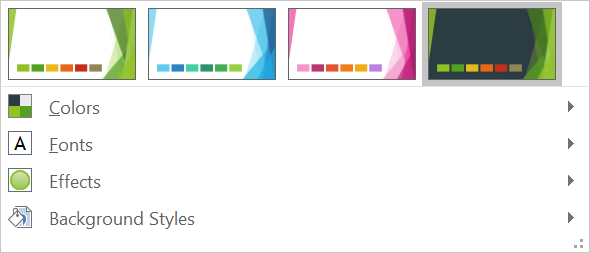
ส่วนต่อไปนี้แสดงขั้นตอนการทำงานกับธีมที่พบบ่อยที่สุด: ตรวจสอบธีม, เปลี่ยนสีและฟอนต์, คัดลอกหรือใช้ธีม, อัพเดตสไตล์พื้นหลังและเอฟเฟกต์, และอ่านค่าที่แท้จริงหลังจากสืบทอดและการแทนที่ได้รับการแก้ไข.
Inspect a Theme
วัตถุMasterTheme เปิดเผยโครงสร้างสีของธีม, โครงสร้างฟอนต์, และโครงสร้างรูปแบบผ่านMasterTheme.getColorScheme,MasterTheme.getFontScheme,และMasterTheme.getFormatScheme. การตรวจสอบคอลเลกชันเหล่านี้ก่อนทำการเปลี่ยนแปลงมีประโยชน์เป็นพิเศษเมื่อไฟล์งานนำเข้ามาจากแหล่งภายนอก เพราะจำนวนและเนื้อหาของรายการสไตล์อาจแตกต่างกัน.
ตัวอย่างต่อไปนี้อ่านคุณสมบัติหลักของธีมและรายงานจำนวนสไตล์พื้นหลัง, การเติม, เส้น, และเอฟเฟกต์ที่จัดเก็บในธีม:
const aspose = {};
aspose.slides = require("aspose.slides.via.java");

const presentation = new aspose.slides.Presentation("input.pptx");
try {
    const theme = presentation.getMasterTheme();
    console.log("Theme name: " + theme.getName());
    console.log("Accent 1: " + theme.getColorScheme().getAccent1().getColor());
    console.log("Major Latin font: " + theme.getFontScheme().getMajor().getLatinFont().getFontName());
    console.log("Minor Latin font: " + theme.getFontScheme().getMinor().getLatinFont().getFontName());
    console.log("Background fill styles: " + theme.getFormatScheme().getBackgroundFillStyles().size());
    console.log("Fill styles: " + theme.getFormatScheme().getFillStyles().size());
    console.log("Line styles: " + theme.getFormatScheme().getLineStyles().size());
    console.log("Effect styles: " + theme.getFormatScheme().getEffectStyles().size());
} finally {
    presentation.dispose();
}
หากไฟล์ใช้มาสเตอร์หลายอัน, อย่าถือว่าทุกสไลด์มีธีมที่แท้จริงเดียวกัน. ตรวจสอบมาสเตอร์ที่เชื่อมกับสไลด์, แล้วใช้ขั้นตอนการทำงานกับธีมที่แท้จริงที่แสดงต่อไปนี้เมื่ออาจมีการแทนที่ของเลย์เอาท์หรือสไลด์.
Change Theme Colors
การเติม, เส้น, และข้อความที่รับรู้ธีมสามารถอ้างอิงสีเชิงตรรกะจาก enumerationSchemeColor ได้. เมื่อคุณเปลี่ยนรายการที่สอดคล้องในColorScheme, ทุกวัตถุที่ยังอ้างอิงสีธีมนั้นจะถูกประมวลผลกับค่าที่ใหม่. วัตถุที่ใช้สี RGB โดยตรงจะไม่ถูกเปลี่ยนแปลงโดยการอัปเดตสีธีม.
ตัวอย่างต่อไปนี้สร้างรูปทรงที่ใช้ Accent4, เปลี่ยนสี Accent4 ของธีมเป็นสีแดง, บันทึกงานนำเสนอ, เปิดใหม่, แล้วพิมพ์สีการเติมที่แท้จริง:
const aspose = {};
aspose.slides = require("aspose.slides.via.java");
const java = require("java");

const presentation = new aspose.slides.Presentation();
try {
    const slide = presentation.getSlides().get_Item(0);
    const shape = slide.getShapes().addAutoShape(aspose.slides.ShapeType.Rectangle, 10, 10, 100, 100);
    shape.getFillFormat().setFillType(java.newByte(aspose.slides.FillType.Solid));
    shape.getFillFormat().getSolidFillColor().setSchemeColor(aspose.slides.SchemeColor.Accent4);
    presentation.getMasterTheme().getColorScheme().getAccent4().setColor(java.getStaticFieldValue("java.awt.Color", "RED"));
    presentation.save("theme-color.pptx", aspose.slides.SaveFormat.Pptx);
} finally {
    presentation.dispose();
}

const savedPresentation = new aspose.slides.Presentation("theme-color.pptx");
try {
    const savedSlide = savedPresentation.getSlides().get_Item(0);
    const savedShape = savedSlide.getShapes().get_Item(0);
    const effectiveFill = savedShape.getFillFormat().getEffective();
    console.log("Effective fill color: " + effectiveFill.getSolidFillColor());
} finally {
    savedPresentation.dispose();
}
เนื่องจากสี่เหลี่ยมยังคงเชื่อมโยงกับ Accent4, สีที่มองเห็นจะกลายเป็นสีแดงหลังจากธีมถูกเปลี่ยน. หากคุณแทนที่สีสกีมด้วยสีตรงบนรูปทรง, การเปลี่ยน Accent4 ต่อไปจะไม่ส่งผลต่อการเติมนั้นอีกต่อไป.
Use Colors from the Additional Palette
PowerPoint สร้างสีที่อ่อนกว่าและเข้มกว่าโดยการแปลงสีจากสีธีม. Aspose.Slides เปิดเผยการแปลงเหล่านี้ผ่าน enumerationColorTransformOperation.
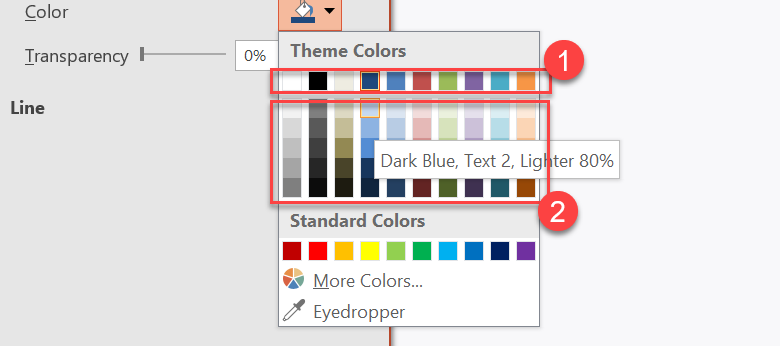
1 - สีธีมหลัก.
2 - สีอ่อนและสีเข้มที่ผลิตจากสีธีมหลัก.
ตัวอย่างต่อไปนี้สร้างสี่เหลี่ยมหกลูกที่อิงจาก Accent4, ใช้การแปลงความสว่างกับห้าตัว, และบันทึกผลลัพธ์:
const aspose = {};
aspose.slides = require("aspose.slides.via.java");
const java = require("java");

const presentation = new aspose.slides.Presentation();
try {
    const slide = presentation.getSlides().get_Item(0);

    const shape1 = slide.getShapes().addAutoShape(aspose.slides.ShapeType.Rectangle, 10, 10, 50, 50);
    shape1.getFillFormat().setFillType(java.newByte(aspose.slides.FillType.Solid));
    shape1.getFillFormat().getSolidFillColor().setSchemeColor(aspose.slides.SchemeColor.Accent4);

    const shape2 = slide.getShapes().addAutoShape(aspose.slides.ShapeType.Rectangle, 10, 70, 50, 50);
    shape2.getFillFormat().setFillType(java.newByte(aspose.slides.FillType.Solid));
    shape2.getFillFormat().getSolidFillColor().setSchemeColor(aspose.slides.SchemeColor.Accent4);
    shape2.getFillFormat().getSolidFillColor().getColorTransform().add(aspose.slides.ColorTransformOperation.MultiplyLuminance, java.newFloat(0.2));
    shape2.getFillFormat().getSolidFillColor().getColorTransform().add(aspose.slides.ColorTransformOperation.AddLuminance, java.newFloat(0.8));

    const shape3 = slide.getShapes().addAutoShape(aspose.slides.ShapeType.Rectangle, 10, 130, 50, 50);
    shape3.getFillFormat().setFillType(java.newByte(aspose.slides.FillType.Solid));
    shape3.getFillFormat().getSolidFillColor().setSchemeColor(aspose.slides.SchemeColor.Accent4);
    shape3.getFillFormat().getSolidFillColor().getColorTransform().add(aspose.slides.ColorTransformOperation.MultiplyLuminance, java.newFloat(0.4));
    shape3.getFillFormat().getSolidFillColor().getColorTransform().add(aspose.slides.ColorTransformOperation.AddLuminance, java.newFloat(0.6));

    const shape4 = slide.getShapes().addAutoShape(aspose.slides.ShapeType.Rectangle, 10, 190, 50, 50);
    shape4.getFillFormat().setFillType(java.newByte(aspose.slides.FillType.Solid));
    shape4.getFillFormat().getSolidFillColor().setSchemeColor(aspose.slides.SchemeColor.Accent4);
    shape4.getFillFormat().getSolidFillColor().getColorTransform().add(aspose.slides.ColorTransformOperation.MultiplyLuminance, java.newFloat(0.6));
    shape4.getFillFormat().getSolidFillColor().getColorTransform().add(aspose.slides.ColorTransformOperation.AddLuminance, java.newFloat(0.4));

    const shape5 = slide.getShapes().addAutoShape(aspose.slides.ShapeType.Rectangle, 10, 250, 50, 50);
    shape5.getFillFormat().setFillType(java.newByte(aspose.slides.FillType.Solid));
    shape5.getFillFormat().getSolidFillColor().setSchemeColor(aspose.slides.SchemeColor.Accent4);
    shape5.getFillFormat().getSolidFillColor().getColorTransform().add(aspose.slides.ColorTransformOperation.MultiplyLuminance, java.newFloat(0.75));

    const shape6 = slide.getShapes().addAutoShape(aspose.slides.ShapeType.Rectangle, 10, 310, 50, 50);
    shape6.getFillFormat().setFillType(java.newByte(aspose.slides.FillType.Solid));
    shape6.getFillFormat().getSolidFillColor().setSchemeColor(aspose.slides.SchemeColor.Accent4);
    shape6.getFillFormat().getSolidFillColor().getColorTransform().add(aspose.slides.ColorTransformOperation.MultiplyLuminance, java.newFloat(0.5));

    presentation.save("theme-color-palette.pptx", aspose.slides.SaveFormat.Pptx);
} finally {
    presentation.dispose();
}
ตัวแปรเหล่านี้ยังคงอิงจากสีธีม. หาก Accent4 เปลี่ยนในภายหลัง, สีที่แปลงแล้วจะถูกคำนวนใหม่จากค่า Accent4 ใหม่.
Map SchemeColor Values to ColorScheme Slots
enumerationSchemeColor ใช้ Text1, Background1, Text2, และ Background2, ในขณะที่ColorScheme แสดงช่องธีมเดียวกันเป็น Dark1, Light1, Dark2, และ Light2. การแมพนี้คงที่:
Text1=Dark1Background1=Light1Text2=Dark2Background2=Light2
เหล่านี้เป็นชื่อแทนของช่องธีมเดียวกัน; ไม่ได้เป็นค่าที่แปลงแบบไดนามิกจากรูปแบบหนึ่งเป็นอีกรูปแบบหนึ่ง.
Change Theme Fonts
โครงสร้างฟอนต์ของธีมประกอบด้วยชุดฟอนต์หลักสำหรับหัวเรื่องและชุดฟอนต์รองสำหรับเนื้อหา. วิธีการFontScheme.getMajorและFontScheme.getMinorเปิดเผยชุดเหล่านี้.
ตัวระบุฟอนต์ธีมที่เข้ากันกับ PowerPoint สามารถใช้ในการจัดรูปแบบข้อความได้:
+mn-lt- ฟอนต์ตัวอักษรหลัก Latin (ฟอนต์ Latin รอง)+mj-lt- ฟอนต์หัวเรื่อง Latin (ฟอนต์ Latin หลัก)+mn-ea- ฟอนต์ตัวอักษรหลัก East Asian (ฟอนต์ East Asian รอง)+mj-ea- ฟอนต์หัวเรื่อง East Asian (ฟอนต์ East Asian หลัก)
ตัวอย่างต่อไปนี้สร้างหัวเรื่องหนึ่งที่ใช้ฟอนต์ Latin หลักของธีมและบรรทัดเนื้อหาหนึ่งที่ใช้ฟอนต์ Latin รองของธีม. จากนั้นเปลี่ยนฟอนต์ของธีมและบันทึกผลลัพธ์:
const aspose = {};
aspose.slides = require("aspose.slides.via.java");

const presentation = new aspose.slides.Presentation();
try {
    const slide = presentation.getSlides().get_Item(0);

    const heading = slide.getShapes().addAutoShape(aspose.slides.ShapeType.Rectangle, 40, 40, 500, 60);
    heading.getTextFrame().setText("Theme heading");
    heading.getTextFrame().getParagraphs().get_Item(0).getPortions().get_Item(0).getPortionFormat().setLatinFont(new aspose.slides.FontData("+mj-lt"));

    const body = slide.getShapes().addAutoShape(aspose.slides.ShapeType.Rectangle, 40, 120, 500, 60);
    body.getTextFrame().setText("Theme body text");
    body.getTextFrame().getParagraphs().get_Item(0).getPortions().get_Item(0).getPortionFormat().setLatinFont(new aspose.slides.FontData("+mn-lt"));

    presentation.getMasterTheme().getFontScheme().getMajor().setLatinFont(new aspose.slides.FontData("Aptos Display"));
    presentation.getMasterTheme().getFontScheme().getMinor().setLatinFont(new aspose.slides.FontData("Arial"));
    presentation.save("theme-fonts.pptx", aspose.slides.SaveFormat.Pptx);
} finally {
    presentation.dispose();
}
หัวเรื่องจะใช้ฟอนต์หลักและข้อความเนื้อหาจะใช้ฟอนต์รอง. ข้อความที่มีชื่อฟอนต์ระบุโดยตรงแทนอักษรธีมจะไม่สลับอัตโนมัติเมื่อโครงสร้างฟอนต์ธีมเปลี่ยน.
ชุดฟอนต์หลักและรองยังสามารถบรรจุการแมพฟอนต์สำหรับระบบเขียนที่แตกต่างกัน, เช่น Cyrillic, Arabic, Japanese, Georgian, และ Thaana. เพื่อดู, เพิ่ม, แทนที่, หรือเอาการแมพเหล่านี้ออก, ดูScript-Specific Theme Fonts.
เคล็ดลับ
สำหรับข้อมูลเพิ่มเติมเกี่ยวกับฟอนต์ในงานนำเสนอ, ดูPowerPoint Fonts.Copy or Apply a Theme
ขั้นตอนต่อไปนี้แก้ปัญหาเรื่องธีมที่แตกต่างกัน.
Apply an External Theme to a Master’s Dependent Slides
ใช้MasterSlide.applyExternalThemeToDependingSlidesเมื่อคุณมีไฟล์ธีม PowerPoint (.thmx) และต้องการปรับสไตล์สไลด์ทั้งหมดที่ขึ้นกับมาสเตอร์เฉพาะ. เลือกมาสเตอร์จากคอลเลกชันPresentation.getMastersที่แสดงโดยMasterSlideCollection, แล้วส่งพาธไฟล์ธีมให้เมธอด.
เมธอดทำงานดังต่อไปนี้:
- สร้างมาสเตอร์สไลด์ใหม่บนพื้นมาสเตอร์ที่เลือก.
- ใช้ธีมภายนอกกับมาสเตอร์ใหม่.
- กำหนดมาสเตอร์ใหม่ให้กับสไลด์ทั้งหมดที่เคยขึ้นกับมาสเตอร์ที่เลือก.
- คืนค่าMasterSlideที่สร้างใหม่.
ตัวอย่างต่อไปนี้ใช้ธีมภายนอกกับสไลด์ที่ขึ้นกับมาสเตอร์ตัวแรกและบันทึกงานนำเสนอ:
const aspose = {};
aspose.slides = require("aspose.slides.via.java");

const presentation = new aspose.slides.Presentation("presentation.pptx");
try {
    const selectedMaster = presentation.getMasters().get_Item(0);
    const themedMaster = selectedMaster.applyExternalThemeToDependingSlides("corporate-theme.thmx");

    console.log("Created master: " + themedMaster.getName());
    presentation.save("presentation-with-external-theme.pptx", aspose.slides.SaveFormat.Pptx);
} finally {
    presentation.dispose();
}
ธีมที่ไม่ถูกต้อง, เสียหาย, หรือไม่รองรับอาจทำให้เกิดPptxReadException. ตรวจสอบพาธที่ผู้ใช้ป้อน, จัดการข้อผิดพลาดการเข้าถึงไฟล์ระบบ, และบันทึกงานนำเสนอเฉพาะเมือธีมถูกใช้สำเร็จ.
เฉพาะสไลด์ที่ขึ้นกับมาสเตอร์ที่เลือกเท่านั้นที่ถูกกำหนดใหม่. สไลด์ที่เชื่อมกับมาสเตอร์อื่นจะคงมาสเตอร์และธีมเดิม. สี, ฟอนต์, การเติม, เส้น, พื้นหลัง, และเอฟเฟกต์ที่รับรู้ธีมจะถูกประมวลผลกับธีมภายนอก. สี, ฟอนต์, การเติม, และการจัดรูปแบบที่กำหนดโดยตรงอาจคงเดิม. การแทนที่ระดับเลย์เอาท์และสไลด์ยังอาจมีลำดับความสำคัญเหนือค่าที่สืบทอดจากมาสเตอร์ใหม่.
ธีมอาจอ้างอิงฟอนต์ที่ไม่มีในสภาพแวดล้อมรันไทม์. เพื่อให้การเรนเดอร์และการส่งออกสม่ำเสมอ, ให้ติดตั้งฟอนต์ที่จำเป็น, จัดหาไฟล์ผ่านcustom font sources, หรือกำหนดค่าfont substitution.
นี่เป็นขั้นตอนระดับมาสเตอร์โดยตรง: เมธอดรับพาธไฟล์ .thmx และไม่ได้ต้องสร้างการแทนที่ธีมระดับสไลด์หรือเลย์เอาท์ด้วยตนเอง.
Apply Different External Themes in a Multi-Master Presentation
เมื่อมาสเตอร์ที่เกี่ยวข้องไม่ทราบล่วงหน้า, ให้ดึงมาสเตอร์จากสไลด์ตัวแทนผ่านSlide.getLayoutSlideและLayoutSlide.getMasterSlide. เก็บอ้างอิงมาสเตอร์ต้นฉบับไว้ก่อนทำการใช้ธีมใด ๆ เพราะแต่ละครั้งที่เรียกจะสร้างมาสเตอร์ใหม่ในงานนำเสนอ.
ตัวอย่างต่อไปนี้ใช้สไลด์จากสองส่วนเพื่อหามาสเตอร์ของพวกมันและใช้ธีมภายนอกที่ต่างกันกับแต่ละกลุ่ม:
const aspose = {};
aspose.slides = require("aspose.slides.via.java");

const presentation = new aspose.slides.Presentation("multi-master-presentation.pptx");
try {
    if (presentation.getSlides().size() < 5) {
        console.log("The presentation does not contain the expected representative slides.");
    } else {
        const firstGroupMaster = presentation.getSlides().get_Item(0).getLayoutSlide().getMasterSlide();
        const secondGroupMaster = presentation.getSlides().get_Item(4).getLayoutSlide().getMasterSlide();

        if (firstGroupMaster.getSlideId() === secondGroupMaster.getSlideId()) {
            console.log("The representative slides use the same master.");
        } else {
            const firstThemedMaster = firstGroupMaster.applyExternalThemeToDependingSlides("blue-theme.thmx");
            const secondThemedMaster = secondGroupMaster.applyExternalThemeToDependingSlides("green-theme.thmx");

            console.log("First themed master: " + firstThemedMaster.getName());
            console.log("Second themed master: " + secondThemedMaster.getName());
            presentation.save("multi-master-with-external-themes.pptx", aspose.slides.SaveFormat.Pptx);
        }
    }
} finally {
    presentation.dispose();
}
การเรียกแรกมีผลต่อสไลด์ที่ขึ้นกับ firstGroupMaster เท่านั้น, ส่วนการเรียกที่สองมีผลต่อสไลด์ที่ขึ้นกับ secondGroupMaster เท่านั้น. สไลด์ที่เชื่อมกับมาสเตอร์อื่นจะไม่ถูกปรับสไตล์ใหม่.
Preserve a Source Theme When Moving Slides
หากต้องการย้ายสไลด์ไปยังงานนำเสนออื่นและคงการออกแบบเดิม, ให้โคลนมาสเตอร์ต้นฉบับไปยังงานนำหมายโดยใช้MasterSlideCollection.addClone, แล้วโคลนสไลด์ด้วยSlideCollection.addCloneและมาสเตอร์ที่โคลนไว้. วิธีนี้จะพิมพ์มาสเตอร์, เลย์เอาท์, และธีมที่เกี่ยวข้องทั้งหมดไปด้วย.
const aspose = {};
aspose.slides = require("aspose.slides.via.java");

const source = new aspose.slides.Presentation("source-theme.pptx");
try {
    const target = new aspose.slides.Presentation("target.pptx");
    try {
        const sourceSlide = source.getSlides().get_Item(0);
        const clonedMaster = target.getMasters().addClone(sourceSlide.getLayoutSlide().getMasterSlide());
        target.getSlides().addClone(sourceSlide, clonedMaster, true);
        target.save("theme-preserved.pptx", aspose.slides.SaveFormat.Pptx);
    } finally {
        target.dispose();
    }
} finally {
    source.dispose();
}
นี่เป็นขั้นตอนที่แนะนำเมือสไลด์ต้นฉบับต้องดูเหมือนกันในปลายทาง. การโคลนเนื้อหาไปยังมาสเตอร์ปลายทางที่ไม่เกี่ยวข้องอาจทำให้สี, ฟอนต์, พื้นหลัง, และเอฟเฟกต์ที่ขับโดยธีมเปลี่ยนแปลง.
Apply Theme Values to an Existing Slide
หากสไลด์เป้าหมายต้องคงอยู่บนมาสเตอร์และเลย์เอาท์ปัจจุบัน, เริ่มการแทนที่ระดับสไลด์จากธีมต้นทาง. เมธอดOverrideTheme.initColorSchemeFrom,OverrideTheme.initFontSchemeFrom,และOverrideTheme.initFormatSchemeFromคัดลอกสามองค์ประกอบหลักของธีมเข้าสู่การแทนที่.
const aspose = {};
aspose.slides = require("aspose.slides.via.java");

const source = new aspose.slides.Presentation("source-theme.pptx");
try {
    const target = new aspose.slides.Presentation("target.pptx");
    try {
        const sourceTheme = source.getMasterTheme();
        const targetSlide = target.getSlides().get_Item(0);
        const overrideTheme = targetSlide.getThemeManager().getOverrideTheme();
        overrideTheme.initColorSchemeFrom(sourceTheme.getColorScheme());
        overrideTheme.initFontSchemeFrom(sourceTheme.getFontScheme());
        overrideTheme.initFormatSchemeFrom(sourceTheme.getFormatScheme());
        target.save("theme-applied-to-slide.pptx", aspose.slides.SaveFormat.Pptx);
    } finally {
        target.dispose();
    }
} finally {
    source.dispose();
}
วิธีนี้เปลี่ยนธีมที่สไลด์ใช้โดยไม่กระทบธีมที่สืบทอดโดยสไลด์อื่น. เพื่อเอาการแทนที่ในระดับท้องถิ่นออกและคืนค่าเป็นค่าที่สืบทอด, เรียกOverrideTheme.clear.
Apply a Theme Override to a Layout
การแทนที่ระดับเลย์เอาท์ใช้กับสไลด์ที่ใช้เลย์เอาท์นั้น, ยกเว้นสไลด์ที่มีการแทนที่ของตนเอง. วิธีการเริ่มต้นเดียวกันสามารถใช้ผ่านLayoutSlideThemeManager:
const aspose = {};
aspose.slides = require("aspose.slides.via.java");

const source = new aspose.slides.Presentation("source-theme.pptx");
try {
    const target = new aspose.slides.Presentation("target.pptx");
    try {
        const sourceTheme = source.getMasterTheme();
        const targetSlide = target.getSlides().get_Item(0);
        const overrideTheme = targetSlide.getLayoutSlide().getThemeManager().getOverrideTheme();
        overrideTheme.initColorSchemeFrom(sourceTheme.getColorScheme());
        overrideTheme.initFontSchemeFrom(sourceTheme.getFontScheme());
        overrideTheme.initFormatSchemeFrom(sourceTheme.getFormatScheme());
        target.save("theme-applied-to-layout.pptx", aspose.slides.SaveFormat.Pptx);
    } finally {
        target.dispose();
    }
} finally {
    source.dispose();
}
ใช้ธีมระดับมาสเตอร์หรือระดับงานนำเสนอเมือหลายเลย์เอาท์และสไลด์ต้องแชร์การออกแบบฐานเดียวกัน, ใช้การแทนที่ระดับเลย์เอาท์เมือกลุ่มเลย์เอาท์หนึ่งต้องการสไตล์ที่ต่างกัน, และใช้การแทนที่ระดับสไลด์เฉพาะสำหรับกรณีพิเศษเท่านั้น. การมีการแทนที่ระดับสไลด์มากเกินไปทำให้การเปลี่ยนธีมทั่วโลกในภายหลังคาดเดาได้ยาก.
Update Theme Background Styles
สไตล์การเติมพื้นหลังของธีมจัดเก็บในFormatScheme.getBackgroundFillStyles. PowerPoint สามารถแสดงตัวเลือกพื้นหลังมากกว่าใน UI กว่าจำนวนการกำหนดการเติมที่จัดเก็บจริงในคอลเลกชันนี้ เพราะ UI สามารถรวมการเติมธีมกับสีธีมและการอ้างอิงสไตล์อื่น ๆ.
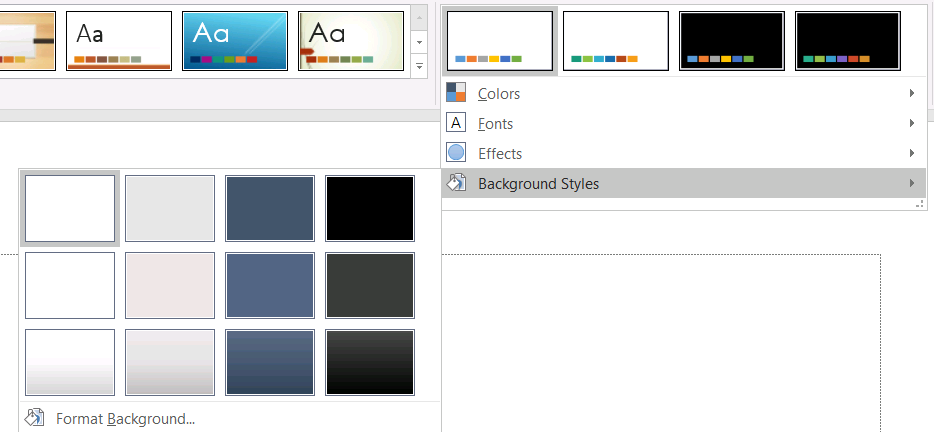
ก่อนใช้สไตล์พื้นหลัง, ตรวจสอบคอลเลกชันที่จัดเก็บและค่าBackground.getStyleIndex. ดัชนีสไตล์ 0 หมายถึงไม่มีการเติมตามธีม; ค่าบวกเป็นการอ้างอิงสไตล์พื้นหลังของธีม. สิ่งนี้ต่างจากการอ้างอิงดัชนีของคอลเลกชัน JavaScript โดยตรง, ที่ดัชนี 0 หมายถึงรายการแรกที่จัดเก็บ. อย่าถือว่าทุกงานนำเสนอมีจำนวนสไตล์การเติมพื้นหลังเท่ากัน.
ตัวอย่างต่อไปนี้รายงานจำนวนการเติมพื้นหลังที่มี, กำหนดการอ้างอิงพื้นหลังตามธีมให้กับมาสเตอร์แรก, และบันทึกงานนำเสนอ:
const aspose = {};
aspose.slides = require("aspose.slides.via.java");
const java = require("java");

const presentation = new aspose.slides.Presentation("input.pptx");
try {
    const backgroundStyles = presentation.getMasterTheme().getFormatScheme().getBackgroundFillStyles();
    console.log("Background fill styles: " + backgroundStyles.size());
    if (backgroundStyles.size() === 0) {
        throw new Error("The presentation theme does not contain background fill styles.");
    }

    const masterSlide = presentation.getMasters().get_Item(0);
    masterSlide.getBackground().setType(java.newByte(aspose.slides.BackgroundType.Themed));
    masterSlide.getBackground().setStyleIndex(1);
    presentation.save("theme-background.pptx", aspose.slides.SaveFormat.Pptx);
} finally {
    presentation.dispose();
}
ผลลัพธ์ที่มองเห็นขึ้นอยู่กับรายการธีมที่มาสเตอร์อ้างอิงและการแทนที่พื้นหลังที่เลย์เอาท์หรือระดับสไลด์. หากสไลด์ใช้พื้นหลังของตนเอง, การเปลี่ยนเฉพาะพื้นหลังของมาสเตอร์อาจไม่กระทบสไลด์นั้น. ใช้Background.getEffectiveเมือคุณต้องการทราบพื้นหลังสุดท้ายหลังจากการสืบทอดถูกนำไปใช้.
คำเตือน
อย่าปฏิบัติดัชนีสไตล์เป็นดัชนีคอลเลกชันที่เริ่มจากศูนย์. อีกทั้งหลีกเลี่ยงการกำหนดค่าดัชนีสไตล์จากไฟล์หนึ่งแล้วถือว่าปรากฏเดียวกันในไฟล์อื่น; คำจำกัดความสไตล์ของธีมเป็นแบบจำเพาะตามงานนำเสนอ.เคล็ดลับ
สำหรับการฟอร์แมตพื้นหลังโดยตรงและการสืบทอดพื้นหลัง, ดูPresentation Background.Update Theme Effects
โครงสร้างรูปแบบของธีมมีคอลเลกชันการเติม, เส้น, และเอฟเฟกต์แยกกันที่เปิดเผยผ่านFormatScheme.getFillStyles,FormatScheme.getLineStyles,และFormatScheme.getEffectStyles. ธีม Office ปกติมักมีรายการสไตล์หลักสามรายการที่สอดคล้องกับการจัดรูปแบบที่ละเอียด, ปานกลาง, และเข้ม, แต่โค้ดควรตรวจสอบแต่ละคอลเลกชันแทนการสันนิษฐานจำนวนคงที่.

เมื่อเข้าถึงคอลเลกชันเหล่านี้ใน JavaScript, ดัชนีคอลเลกชันเริ่มจากศูนย์: ดัชนี 0 คือสไตล์ที่จัดเก็บเป็นรายการแรกและดัชนี 2 คือรายการที่สาม. ดัชนีอ้างอิงสไตล์ของรูปทรงเป็นแนวคิดแยกต่างหาก, เปิดเผยผ่านShapeStyle. การแก้ไขสไตล์ธีมจะส่งผลต่อรูปทรงที่อ้างอิงสไตล์ธีมนั้น; รูปทรงที่มีการฟอร์แมตโดยตรงอาจคงเดิม.
ตัวอย่างต่อไปนี้ตรวจสอบว่ามีรายการสไตล์ที่จำเป็นหรือไม่, เปลี่ยนสไตล์เส้นแรก, เปลี่ยนสไตล์เติมที่สาม, เปิดเงานอกในสไตล์เอฟเฟกต์ที่สาม, และบันทึกผลลัพธ์:
const aspose = {};
aspose.slides = require("aspose.slides.via.java");
const java = require("java");

const presentation = new aspose.slides.Presentation("Subtle_Moderate_Intense.pptx");
try {
    const formatScheme = presentation.getMasterTheme().getFormatScheme();
    if (formatScheme.getLineStyles().size() < 1 || formatScheme.getFillStyles().size() < 3 || formatScheme.getEffectStyles().size() < 3) {
        throw new Error("The theme does not contain the style entries required by this example.");
    }

    formatScheme.getLineStyles().get_Item(0).getFillFormat().setFillType(java.newByte(aspose.slides.FillType.Solid));
    formatScheme.getLineStyles().get_Item(0).getFillFormat().getSolidFillColor().setColor(java.getStaticFieldValue("java.awt.Color", "RED"));
    formatScheme.getFillStyles().get_Item(2).setFillType(java.newByte(aspose.slides.FillType.Solid));
    formatScheme.getFillStyles().get_Item(2).getSolidFillColor().setColor(java.newInstanceSync("java.awt.Color", 34, 139, 34));
    const effectFormat = formatScheme.getEffectStyles().get_Item(2).getEffectFormat();
    effectFormat.enableOuterShadowEffect();
    effectFormat.getOuterShadowEffect().setDistance(10);
    presentation.save("theme-effects.pptx", aspose.slides.SaveFormat.Pptx);
} finally {
    presentation.dispose();
}
สำหรับรูปทรงที่อ้างอิงช่องเหล่านี้, สไตล์เส้นธีมแรกจะกลายเป็นสีแดง, สไตล์เติมธีมที่สามจะเป็นสีเขียวป่าเข้ม, และสไตล์เอฟเฟกต์ที่สามจะเพิ่มเงานอกด้วยระยะ 10 จุด. ผลลัพธ์ภาพที่แน่นอนยังคงขึ้นกับว่ารูปทรงอ้างอิงช่องสไตล์ใดและการฟอร์แมตโดยตรงอาจทับซ้อนธีมหรือไม่.

Determine Whether an Effective Solid Fill Uses a Theme Color
การเติมอาจจัดเก็บโดยตรงบนวัตถุหรือสืบทอดจากย่อหน้า, เลย์เอาท์, มาสเตอร์, ธีมสไตล์, หรือระดับการฟอร์แมตอื่น. เรียกFillFormat.getEffectiveเพื่อแปลงลำดับชั้นนั้นเป็นสแนปช็อตการเติมที่ไม่เปลี่ยนแปลง. ตรวจสอบค่าของ getFillType ก่อน. เฉพาะเมื่อเป็น FillType.Solid จึงอ่านคุณสมบัติการเติมแบบของแข็งได้.
สำหรับการเติมแบบของแข็ง, getSolidFillColor คืนค่า RGB ที่เรนเดอร์สุดท้ายหลังจากสืบทอด, การค้นหาธีม, และการแปลงสี. เมธอด getSolidFillSchemeColor คืนช่องSchemeColorเชิงตรรกะที่สอดคล้อง, เช่น Text1 หรือ Accent6. ค่า SchemeColor.NotDefined หมายถึงการเติมของแข็งที่แท้จริงไม่ได้อิงจากสีสกีม. ในขั้นตอนที่การเติมเป็นสีธีมหรือสี RGB โดยตรง, ค่านี้บ่งบอกว่าการเติมเป็นสี RGB โดยตรง.
อย่าใช้ค่าColorFormat.getSchemeColorในระดับท้องถิ่นเพียงอย่างเดียวเพื่อจำแนกการเติม. ตัวอย่างเช่น, ส่วนข้อความอาจไม่มีสีสกีมที่กำหนดในระดับท้องถิ่น, ทำให้ค่าท้องถิ่นเป็น NotDefined, ขณะที่การเติมที่แท้จริงสืบทอดสีธีมและสอดคล้องกับ Text1 หรือ Accent6. ในทางกลับกัน, getSolidFillSchemeColor บอกว่าช่องธีมเชิงตรรกะใดที่สร้างสีที่แท้จริง, แต่ไม่ได้บอกว่าช่องนั้นมาจากวัตถุ, ย่อหน้า, เลย์เอาท์, มาสเตอร์ หรือระดับอื่นของลำดับชั้นฟอร์แมต.
ตัวอย่างต่อไปนี้โหลดงานนำเสนอ, ตรวจสอบการเติมของรูปทรงและส่วนข้อความ, พิมพ์ค่า RGB สุดท้ายและสีสกีมที่เกี่ยวข้อง, และทำเครื่องหมายการเติมแบบของแข็งที่ไม่ติดตามการเปลี่ยนแปลงสีธีม:
const aspose = {};
aspose.slides = require("aspose.slides.via.java");
const java = require("java");

function toHexColor(color) {
    const red = color.getRed().toString(16).padStart(2, "0");
    const green = color.getGreen().toString(16).padStart(2, "0");
    const blue = color.getBlue().toString(16).padStart(2, "0");
    return `#${red}${green}${blue}`.toUpperCase();
}

function auditFill(objectName, localFill) {
    const effectiveFill = localFill.getEffective();

    if (effectiveFill.getFillType() !== aspose.slides.FillType.Solid) {
        console.log(objectName + ": fill type = " + effectiveFill.getFillType() + "; not a solid fill.");
        return;
    }

    const rgb = effectiveFill.getSolidFillColor();
    const effectiveSchemeColor = effectiveFill.getSolidFillSchemeColor();
    const localSchemeColor = localFill.getSolidFillColor().getSchemeColor();

    console.log(objectName + ": RGB = " + toHexColor(rgb));
    console.log(objectName + ": local scheme = " + localSchemeColor + ", effective scheme = " + effectiveSchemeColor);

    if (effectiveSchemeColor === aspose.slides.SchemeColor.NotDefined) {
        console.log(objectName + ": direct RGB or another non-scheme fill; audit as theme-independent.");
    } else {
        console.log(objectName + ": theme-dependent through " + effectiveSchemeColor + ".");
    }
}

const presentation = new aspose.slides.Presentation("input.pptx");
try {
    const slideCount = presentation.getSlides().size();
    for (let slideIndex = 0; slideIndex < slideCount; slideIndex++) {
        const slide = presentation.getSlides().get_Item(slideIndex);

        const shapeCount = slide.getShapes().size();
        for (let shapeIndex = 0; shapeIndex < shapeCount; shapeIndex++) {
            const shape = slide.getShapes().get_Item(shapeIndex);
            const shapeName = "Slide " + (slideIndex + 1) + ", shape " + (shapeIndex + 1);
            auditFill(shapeName, shape.getFillFormat());

            if (java.instanceOf(shape, "com.aspose.slides.IAutoShape")) {
                const paragraphCount = shape.getTextFrame().getParagraphs().getCount();
                for (let paragraphIndex = 0; paragraphIndex < paragraphCount; paragraphIndex++) {
                    const paragraph = shape.getTextFrame().getParagraphs().get_Item(paragraphIndex);

                    const portionCount = paragraph.getPortions().getCount();
                    for (let portionIndex = 0; portionIndex < portionCount; portionIndex++) {
                        const portion = paragraph.getPortions().get_Item(portionIndex);
                        const portionName = shapeName + ", paragraph " + (paragraphIndex + 1) + ", portion " + (portionIndex + 1);
                        auditFill(portionName, portion.getPortionFormat().getFillFormat());
                    }
                }
            }
        }
    }
} finally {
    presentation.dispose();
}
สาขา NotDefined ให้รายชื่อการเติมแบบของแข็งที่ไม่ตอบสนองต่อการเปลี่ยนแปลงในช่องสีธีม. ตรวจสอบวัตถุเหล่านี้เมื่อการนำเสนอจำเป็นต้องปฏิบัติตามพาเลตแบรนด์ใหม่. ค่า RGB ที่รายงานยังแสดงลักษณะปัจจุบัน, ส่วนค่าช่องสีอธิบายว่าลักษณะนั้นเชื่อมต่อกับธีมหรือไม่.
วัตถุฟอร์แมตที่เป็นผลลัพธ์เป็นสแนปช็อต. หลังจากเปลี่ยนธีมของงานนำเสนอ, การแทนที่ธีม, หรือการฟอร์แมตที่สืบทอด, เรียก getEffective อีกครั้งและอ่านวัตถุการเติมที่แท้จริงใหม่ก่อนเปรียบเทียบหรือรายงานสี.
Read Effective Theme Values
วัตถุธีมดิบบอกคุณว่ามีการกำหนดอะไรไว้ที่ระดับใด. ค่าที่แท้จริงบอกว่าผลลัพธ์ที่สไลด์หรือรูปทรงใช้จริงหลังจากสืบทอดและการแทนที่ในระดับท้องถิ่นได้รับการแก้ไข. สำหรับสไลด์, เรียกBaseOverrideThemeManager.createThemeEffective. สำหรับพื้นหลัง, ใช้Background.getEffective, และสำหรับการเติม, ใช้FillFormat.getEffective.
ตัวอย่างต่อไปนี้อ่านธีมที่แท้จริง, พื้นหลัง, และการเติมรูปทรงแรกจากสไลด์:
const aspose = {};
aspose.slides = require("aspose.slides.via.java");

const presentation = new aspose.slides.Presentation("input.pptx");
try {
    const slide = presentation.getSlides().get_Item(0);
    const effectiveTheme = slide.getThemeManager().createThemeEffective();
    const effectiveBackground = slide.getBackground().getEffective();
    console.log("Effective major Latin font: " + effectiveTheme.getFontScheme().getMajor().getLatinFont().getFontName());
    console.log("Effective minor Latin font: " + effectiveTheme.getFontScheme().getMinor().getLatinFont().getFontName());
    console.log("Effective background fill type: " + effectiveBackground.getFillFormat().getFillType());
    if (slide.getShapes().size() > 0) {
        const effectiveFill = slide.getShapes().get_Item(0).getFillFormat().getEffective();
        console.log("First shape effective fill type: " + effectiveFill.getFillType());
        if (effectiveFill.getFillType() === aspose.slides.FillType.Solid) {
            console.log("First shape effective fill color: " + effectiveFill.getSolidFillColor());
        }
    }
} finally {
    presentation.dispose();
}
ใช้ข้อมูลที่แท้จริงสำหรับการวินิจฉัยการเรนเดอร์, การตรวจสอบ, และการเปรียบเทียบ. หากคุณตรวจสอบเฉพาะPresentation.getMasterTheme, คุณอาจพลาดมาสเตอร์, เลย์เอาท์, สไลด์, หรือการแทนที่รูปทรงที่เปลี่ยนลักษณะสุดท้าย.
FAQ
Does applying an external theme affect every slide in the presentation?
ไม่. MasterSlide.applyExternalThemeToDependingSlides จะกำหนดใหม่เฉพาะสไลด์ที่ขึ้นกับมาสเตอร์ที่เลือก. สไลด์ที่ใช้มาสเตอร์อื่นคงธีมเดิมไว้.
Can I apply a theme to a single slide without changing the master?
ได้. ใช้SlideThemeManagerของสไลด์และเริ่มต้นธีมแทนที่ของสไลด์. การเปลี่ยนแปลงจะอยู่ภายในสไลด์นั้นเท่านั้น; สไลด์อื่นจะยังคงสืบทอดธีมที่มีอยู่.
What is the safest way to carry a theme from one presentation to another?
เมือย้ายสไลด์และคงลักษณะต้นฉบับ, โคลนมาสเตอร์ต้นทางไปยังปลายทางและโคลนสไลด์ด้วยมาสเตอร์นั้นโดยใช้MasterSlideCollection.addCloneและSlideCollection.addClone. วิธีนี้ทำให้มาสเตอร์, เลย์เอาท์, และธีมอยู่ด้วยกัน.
How can I see the effective values after inheritance and overrides?
ใช้BaseOverrideThemeManager.createThemeEffectiveสำหรับสไลด์หรือธีมเลย์เอาท์และเมธอดข้อมูลที่แท้จริงที่สอดคล้องสำหรับวัตถุรูปแบบเช่นBackground.getEffectiveและFillFormat.getEffective. API เหล่านี้คืนค่าที่ได้จากการสืบทอดและการแทนที่ที่ได้ประมวลผลแล้ว.