
जावा में प्रस्तुति थीमों को प्रबंधित करें
परिचय
एक प्रस्तुति थीम रंगों, फ़ॉन्ट, पृष्ठभूमि शैलियों, फ़िल, रेखाओं और प्रभावों का समन्वित सेट परिभाषित करती है। थीम‑सचेत वस्तुएँ इन साझा परिभाषाओं को संदर्भित करती हैं, न कि प्रत्येक दृश्य गुण को स्थिर मान के रूप में संग्रहीत करती हैं, इसलिए थीम परिवर्तन कई वस्तुओं को एक साथ अपडेट कर सकता है।
Aspose.Slides में, प्रस्तुति‑स्तर की थीम को Presentation.getMasterTheme के माध्यम से प्राप्त किया जा सकता है। एक प्रस्तुति में नीचे स्तरों पर थीम ओवरराइड भी हो सकते हैं। एक मास्टर MasterThemeManager.getOverrideTheme के माध्यम से प्रस्तुति थीम को ओवरराइड कर सकता है, जबकि लेआउट या व्यक्तिगत स्लाइड अपनी विरासत में मिली थीम को BaseOverrideThemeManager.getOverrideTheme के द्वारा ओवरराइड कर सकते हैं। व्यवहार में, किसी स्लाइड के लिए प्रभावी थीम इस विरासत श्रृंखला के माध्यम से निर्धारित होती है: प्रस्तुति थीम, मास्टर ओवरराइड, लेआउट ओवरराइड, और स्लाइड ओवरराइड।
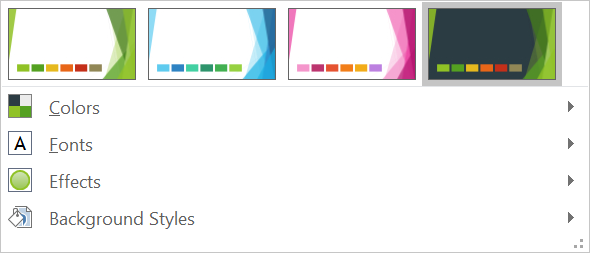
नीचे के अनुभाग सबसे सामान्य थीम वर्कफ़्लो दिखाते हैं: थीम का निरीक्षण, रंग और फ़ॉन्ट बदलना, थीम कॉपी या लागू करना, पृष्ठभूमि और प्रभाव शैलियों को अपडेट करना, तथा विरासत और ओवरराइड्स के बाद प्रभावी मानों को पढ़ना।
थीम का निरीक्षण
MasterTheme ऑब्जेक्ट थीम की कलर स्कीम, फ़ॉन्ट स्कीम, और फ़ॉर्मेट स्कीम को क्रमशः MasterTheme.getColorScheme, MasterTheme.getFontScheme, और MasterTheme.getFormatScheme के माध्यम से उजागर करता है। इन्हें बदलने से पहले इन संग्रहों का निरीक्षण करना विशेष रूप से उपयोगी होता है जब प्रस्तुति बाहरी स्रोत से आती है, क्योंकि शैली प्रविष्टर की संख्या और सामग्री भिन्न हो सकती है।
निम्न उदाहरण मुख्य थीम गुणों को पढ़ता है और रिपोर्ट करता है कि थीम में कितनी पृष्ठभूमि, फ़िल, रेखा, और प्रभाव शैलियां संग्रहीत हैं:
import com.aspose.slides.*;

Presentation presentation = new Presentation("input.pptx");
try {
    IMasterTheme theme = presentation.getMasterTheme();
    System.out.println("Theme name: " + theme.getName());
    System.out.println("Accent 1: " + theme.getColorScheme().getAccent1().getColor());
    System.out.println("Major Latin font: " + theme.getFontScheme().getMajor().getLatinFont().getFontName());
    System.out.println("Minor Latin font: " + theme.getFontScheme().getMinor().getLatinFont().getFontName());
    System.out.println("Background fill styles: " + theme.getFormatScheme().getBackgroundFillStyles().size());
    System.out.println("Fill styles: " + theme.getFormatScheme().getFillStyles().size());
    System.out.println("Line styles: " + theme.getFormatScheme().getLineStyles().size());
    System.out.println("Effect styles: " + theme.getFormatScheme().getEffectStyles().size());
} finally {
    presentation.dispose();
}
यदि कोई फ़ाइल कई मास्टर उपयोग करती है, तो यह न मानें कि प्रत्येक स्लाइड की प्रभावी थीम समान है। स्लाइड से जुड़ा मास्टर निरीक्षण करें, और तब प्रभावी‑थीम वर्कफ़्लो का उपयोग करें जो इस लेख में बाद में दिखाया गया है, जब लेआउट या स्लाइड ओवरराइड मौजूद हो सकते हैं।
थीम के रंग बदलना
थीम‑सचेत फ़िल, रेखा और टेक्स्ट SchemeColor enumeration से लॉजिकल रंग को संदर्भित कर सकते हैं। जब आप IColorScheme में संबंधित प्रविष्टि बदलते हैं, तो सभी वस्तुएँ जो अभी भी उस थीम रंग को संदर्भित करती हैं, नई मान के विरुद्ध हल हो जाती हैं। सीधे RGB रंग उपयोग करने वाली वस्तुएँ थीम‑रंग अपडेट द्वारा नहीं बदली जातीं।
निम्न पूर्ण उदाहरण एक ऐसा आकार बनाता है जो Accent4 का उपयोग करता है, थीम के Accent4 रंग को लाल में बदलता है, प्रस्तुति को सहेजता है, उसे पुनः खोलता है, और प्रभावी फ़िल रंग को प्रिंट करता है:
import com.aspose.slides.*;
import java.awt.Color;

Presentation presentation = new Presentation();
try {
    ISlide slide = presentation.getSlides().get_Item(0);
    IAutoShape shape = slide.getShapes().addAutoShape(ShapeType.Rectangle, 10, 10, 100, 100);
    shape.getFillFormat().setFillType(FillType.Solid);
    shape.getFillFormat().getSolidFillColor().setSchemeColor(SchemeColor.Accent4);
    presentation.getMasterTheme().getColorScheme().getAccent4().setColor(Color.RED);
    presentation.save("theme-color.pptx", SaveFormat.Pptx);
} finally {
    presentation.dispose();
}

Presentation savedPresentation = new Presentation("theme-color.pptx");
try {
    ISlide savedSlide = savedPresentation.getSlides().get_Item(0);
    IShape savedShape = savedSlide.getShapes().get_Item(0);
    IFillFormatEffectiveData effectiveFill = savedShape.getFillFormat().getEffective();
    System.out.println("Effective fill color: " + effectiveFill.getSolidFillColor());
} finally {
    savedPresentation.dispose();
}
चूँकि आयत Accent4 से जुड़ी रहती है, थीम बदलने के बाद उसका दिखाया गया रंग लाल हो जाता है। यदि आप आकार पर स्कीम रंग को सीधे रंग से प्रतिस्थापित करते हैं, तो बाद में Accent4 में परिवर्तन उस फ़िल को प्रभावित नहीं करेंगे।
अतिरिक्त पैलेट से रंग उपयोग करना
PowerPoint थीम रंग से हल्के व गहरे वैरिएंट उत्पन्न करता है, जिससे रंग रूपांतरण लागू होते हैं। Aspose.Slides इन रूपांतरणों को ColorTransformOperation enumeration के माध्यम से उजागर करता है।
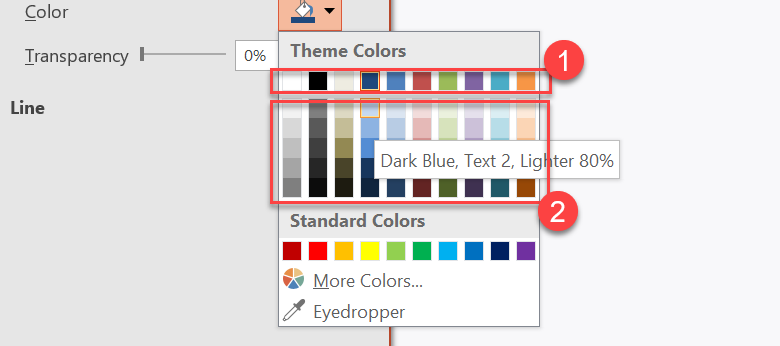
1 - मुख्य थीम रंग।
2 - मुख्य थीम रंगों से उत्पन्न हल्के व गहरे वैरिएंट।
निम्न उदाहरण Accent4 के आधार पर छह आयतें बनाता है, उनमें से पाँच पर ल्यूमिनेंस रूपांतरण लागू करता है, और परिणाम सहेजता है:
import com.aspose.slides.*;

Presentation presentation = new Presentation();
try {
    ISlide slide = presentation.getSlides().get_Item(0);

    IShape shape1 = slide.getShapes().addAutoShape(ShapeType.Rectangle, 10, 10, 50, 50);
    shape1.getFillFormat().setFillType(FillType.Solid);
    shape1.getFillFormat().getSolidFillColor().setSchemeColor(SchemeColor.Accent4);

    IShape shape2 = slide.getShapes().addAutoShape(ShapeType.Rectangle, 10, 70, 50, 50);
    shape2.getFillFormat().setFillType(FillType.Solid);
    shape2.getFillFormat().getSolidFillColor().setSchemeColor(SchemeColor.Accent4);
    shape2.getFillFormat().getSolidFillColor().getColorTransform().add(ColorTransformOperation.MultiplyLuminance, 0.2f);
    shape2.getFillFormat().getSolidFillColor().getColorTransform().add(ColorTransformOperation.AddLuminance, 0.8f);

    IShape shape3 = slide.getShapes().addAutoShape(ShapeType.Rectangle, 10, 130, 50, 50);
    shape3.getFillFormat().setFillType(FillType.Solid);
    shape3.getFillFormat().getSolidFillColor().setSchemeColor(SchemeColor.Accent4);
    shape3.getFillFormat().getSolidFillColor().getColorTransform().add(ColorTransformOperation.MultiplyLuminance, 0.4f);
    shape3.getFillFormat().getSolidFillColor().getColorTransform().add(ColorTransformOperation.AddLuminance, 0.6f);

    IShape shape4 = slide.getShapes().addAutoShape(ShapeType.Rectangle, 10, 190, 50, 50);
    shape4.getFillFormat().setFillType(FillType.Solid);
    shape4.getFillFormat().getSolidFillColor().setSchemeColor(SchemeColor.Accent4);
    shape4.getFillFormat().getSolidFillColor().getColorTransform().add(ColorTransformOperation.MultiplyLuminance, 0.6f);
    shape4.getFillFormat().getSolidFillColor().getColorTransform().add(ColorTransformOperation.AddLuminance, 0.4f);

    IShape shape5 = slide.getShapes().addAutoShape(ShapeType.Rectangle, 10, 250, 50, 50);
    shape5.getFillFormat().setFillType(FillType.Solid);
    shape5.getFillFormat().getSolidFillColor().setSchemeColor(SchemeColor.Accent4);
    shape5.getFillFormat().getSolidFillColor().getColorTransform().add(ColorTransformOperation.MultiplyLuminance, 0.75f);

    IShape shape6 = slide.getShapes().addAutoShape(ShapeType.Rectangle, 10, 310, 50, 50);
    shape6.getFillFormat().setFillType(FillType.Solid);
    shape6.getFillFormat().getSolidFillColor().setSchemeColor(SchemeColor.Accent4);
    shape6.getFillFormat().getSolidFillColor().getColorTransform().add(ColorTransformOperation.MultiplyLuminance, 0.5f);

    presentation.save("theme-color-palette.pptx", SaveFormat.Pptx);
} finally {
    presentation.dispose();
}
ये वैरिएंट थीम रंग पर आधारित रहते हैं। यदि बाद में Accent4 बदलता है, तो रूपांतरित रंग नए Accent4 मान से पुनः गणना किए जाते हैं।
SchemeColor मानों को IColorScheme स्लॉट्स में मानचित्रित करना
SchemeColor enumeration Text1, Background1, Text2, और Background2 का उपयोग करती है, जबकि IColorScheme वही थीम स्लॉट Dark1, Light1, Dark2, और Light2 के रूप में उजागर करता है। मैपिंग स्थिर है:
Text1=Dark1Background1=Light1Text2=Dark2Background2=Light2
ये एक ही थीम स्लॉट के वैकल्पिक नाम हैं; ये किसी रूप में गतिशील रूपांतरण नहीं हैं।
थीम के फ़ॉन्ट बदलना
एक थीम फ़ॉन्ट स्कीम में शीर्षकों के लिए प्रमुख फ़ॉन्ट सेट और बॉडी टेक्स्ट के लिए लघु फ़ॉन्ट सेट होता है। IFontScheme.getMajor और IFontScheme.getMinor मेथड्स इन सेटों को उजागर करते हैं।
PowerPoint‑अनुकूल थीम फ़ॉन्ट पहचानकर्ता टेक्स्ट फ़ॉर्मेटिंग में उपयोग किए जा सकते हैं:
+mn‑lt- बॉडी फ़ॉन्ट लैटिन (Minor Latin Font)+mj‑lt- हेडिंग फ़ॉन्ट लैटिन (Major Latin Font)+mn‑ea- बॉडी फ़ॉन्ट ईस्ट एशियन (Minor East Asian Font)+mj‑ea- हेडिंग फ़ॉन्ट ईस्ट एशियन (Major East Asian Font)
निम्न उदाहरण एक हेडिंग बनाता है जो प्रमुख लैटिन थीम फ़ॉन्ट का उपयोग करता है और एक बॉडी लाइन बनाता है जो लघु लैटिन थीम फ़ॉन्ट का उपयोग करती है। फिर यह थीम फ़ॉन्ट बदलता है और परिणाम सहेजता है:
import com.aspose.slides.*;

Presentation presentation = new Presentation();
try {
    ISlide slide = presentation.getSlides().get_Item(0);

    IAutoShape heading = slide.getShapes().addAutoShape(ShapeType.Rectangle, 40, 40, 500, 60);
    heading.getTextFrame().setText("Theme heading");
    heading.getTextFrame().getParagraphs().get_Item(0).getPortions().get_Item(0).getPortionFormat().setLatinFont(new FontData("+mj-lt"));

    IAutoShape body = slide.getShapes().addAutoShape(ShapeType.Rectangle, 40, 120, 500, 60);
    body.getTextFrame().setText("Theme body text");
    body.getTextFrame().getParagraphs().get_Item(0).getPortions().get_Item(0).getPortionFormat().setLatinFont(new FontData("+mn-lt"));

    presentation.getMasterTheme().getFontScheme().getMajor().setLatinFont(new FontData("Aptos Display"));
    presentation.getMasterTheme().getFontScheme().getMinor().setLatinFont(new FontData("Arial"));
    presentation.save("theme-fonts.pptx", SaveFormat.Pptx);
} finally {
    presentation.dispose();
}
हेडिंग प्रमुख फ़ॉन्ट का अनुसरण करती है और बॉडी टेक्स्ट लघु फ़ॉन्ट का। टेक्स्ट जिसमें स्पष्ट फ़ॉन्ट नाम है (थीम पहचानकर्ता नहीं), थीम फ़ॉन्ट स्कीम बदलने पर स्वचालित रूप से नहीं बदलता।
प्रमुख और लघु फ़ॉन्ट संग्रह में व्यक्तिगत लेखन प्रणाली (जैसे Cyrillic, Arabic, Japanese, Georgian, और Thaana) के लिए फ़ॉन्ट मैपिंग भी हो सकती है। इन्हें निरीक्षण, जोड़ने, बदलने या हटाने के लिए देखें Script‑Specific Theme Fonts।
Tip
थीम फ़ॉन्ट के बारे में अधिक जानकारी के लिए देखें PowerPoint Fonts।थीम कॉपी या लागू करना
नीचे के वर्कफ़्लो विभिन्न थीम‑संबंधी समस्याओं को हल करते हैं।
किसी मास्टर के निर्भर स्लाइड्स पर बाहरी थीम लागू करना
जब आपके पास PowerPoint थीम फ़ाइल (.thmx) हो और आप किसी विशिष्ट मास्टर पर निर्भर सभी स्लाइड्स को पुनःशैली देना चाहते हों, तो IMasterSlide.applyExternalThemeToDependingSlides का उपयोग करें। Presentation.getMasters संग्रह (जो IMasterSlideCollection को लागू करता है) से मास्टर चुनें और मेथड को थीम फ़ाइल पथ प्रदान करें।
मेथड निम्न संचालन करता है:
- चयनित मास्टर के आधार पर एक नया मास्टर स्लाइड बनाता है।
- बाहरी थीम को नए मास्टर पर लागू करता है।
- नया मास्टर उन सभी स्लाइड्स को असाइन करता है जो पहले चयनित मास्टर पर निर्भर थीं।
- नया IMasterSlide लौटाता है।
निम्न उदाहरण पहले मास्टर पर निर्भर स्लाइड्स पर बाहरी थीम लागू करता है और प्रस्तुति सहेजता है:
import com.aspose.slides.*;

Presentation presentation = new Presentation("presentation.pptx");
try {
    IMasterSlide selectedMaster = presentation.getMasters().get_Item(0);
    IMasterSlide themedMaster = selectedMaster.applyExternalThemeToDependingSlides("corporate-theme.thmx");

    System.out.println("Created master: " + themedMaster.getName());
    presentation.save("presentation-with-external-theme.pptx", SaveFormat.Pptx);
} finally {
    presentation.dispose();
}
एक अमान्य, दूषित, या असमर्थित थीम से PptxReadException उठ सकता है। उपयोगकर्ताओं द्वारा प्रदान किए गए पथ की वैधता जाँचें, फ़ाइल‑सिस्टम पहुँच त्रुटियों को संभालें, और थीम सफलतापूर्वक लागू होने के बाद ही प्रस्तुति सहेजें।
केवल उन स्लाइड्स को पुनः असाइन किया जाता है जो चयनित मास्टर पर निर्भर थीं। अन्य मास्टरों से जुड़े स्लाइड्स अपने मौजूदा मास्टर और थीम को बरकरार रखती हैं। थीम‑सचेत रंग, फ़ॉन्ट, फ़िल, रेखा, पृष्ठभूमि, और प्रभाव बाहरी थीम के विरुद्ध हल होते हैं। सीधे असाइन किए गए रंग, फ़ॉन्ट, फ़िल और अन्य स्पष्ट फ़ॉर्मेटिंग अपरिवर्तित रह सकती है। लेआउट‑स्तर और स्लाइड‑स्तर ओवरराइड्स नए मास्टर से विरासत में मिली मानों पर भी प्राथमिकता ले सकते हैं।
थीम ऐसे फ़ॉन्ट संदर्भित कर सकती है जो रन‑टाइम पर्यावरण में उपलब्ध नहीं हों। स्थिर रेंडरिंग और निर्यात हेतु आवश्यक फ़ॉन्ट स्थापित करें, उन्हें custom font sources के माध्यम से उपलब्ध कराएँ, या font substitution को कॉन्फ़िगर करें।
यह एक प्रत्यक्ष मास्टर‑स्तर वर्कफ़्लो है: मेथड .thmx फ़ाइल पथ स्वीकार करता है और स्लाइड‑स्तर या लेआउट‑स्तर थीम ओवरराइड्स को मैन्युअली बनाने की आवश्यकता नहीं होती।
बहु‑मास्टर प्रस्तुति में विभिन्न बाहरी थीम लागू करना
जब संबंधित मास्टर पहले से ज्ञात न हो, तो इसे प्रतिनिधि स्लाइड से ISlide.getLayoutSlide और ILayoutSlide.getMasterSlide के माध्यम से प्राप्त करें। थीम लागू करने से पहले मूल मास्टर संदर्भों को सहेजें, क्योंकि प्रत्येक कॉल प्रस्तुति में एक नया मास्टर बनाता है।
निम्न उदाहरण दो अनुभागों की स्लाइड्स का उपयोग करके उनके मास्टर खोजता है और प्रत्येक समूह पर अलग बाहरी थीम लागू करता है:
import com.aspose.slides.*;

Presentation presentation = new Presentation("multi-master-presentation.pptx");
try {
    if (presentation.getSlides().size() < 5) {
        System.out.println("The presentation does not contain the expected representative slides.");
    } else {
        IMasterSlide firstGroupMaster = presentation.getSlides().get_Item(0).getLayoutSlide().getMasterSlide();
        IMasterSlide secondGroupMaster = presentation.getSlides().get_Item(4).getLayoutSlide().getMasterSlide();

        if (firstGroupMaster.getSlideId() == secondGroupMaster.getSlideId()) {
            System.out.println("The representative slides use the same master.");
        } else {
            IMasterSlide firstThemedMaster = firstGroupMaster.applyExternalThemeToDependingSlides("blue-theme.thmx");
            IMasterSlide secondThemedMaster = secondGroupMaster.applyExternalThemeToDependingSlides("green-theme.thmx");

            System.out.println("First themed master: " + firstThemedMaster.getName());
            System.out.println("Second themed master: " + secondThemedMaster.getName());
            presentation.save("multi-master-with-external-themes.pptx", SaveFormat.Pptx);
        }
    }
} finally {
    presentation.dispose();
}
पहली कॉल केवल firstGroupMaster पर निर्भर स्लाइड्स को प्रभावित करती है, और दूसरी कॉल केवल secondGroupMaster पर निर्भर स्लाइड्स को। अन्य किसी मास्टर से जुड़ी स्लाइड्स को पुनःशैली नहीं दी जाती।
स्लाइड्स को स्थानांतरित करते समय स्रोत थीम को संरक्षित करना
यदि आप स्लाइड को किसी अन्य प्रस्तुति में ले जाना चाहते हैं और उसकी मूल डिजाइन को बरकरार रखना चाहते हैं, तो स्रोत मास्टर को लक्ष्य प्रस्तुति में IMasterSlideCollection.addClone द्वारा क्लोन करें, फिर क्लोन किए गए मास्टर के साथ स्लाइड को ISlideCollection.addClone द्वारा क्लोन करें। इस प्रकार मास्टर, उसके लेआउट और संबंधित थीम एक साथ ले जाई जाती है।
import com.aspose.slides.*;

Presentation source = new Presentation("source-theme.pptx");
try {
    Presentation target = new Presentation("target.pptx");
    try {
        ISlide sourceSlide = source.getSlides().get_Item(0);
        IMasterSlide sourceMaster = sourceSlide.getLayoutSlide().getMasterSlide();
        IMasterSlide clonedMaster = target.getMasters().addClone(sourceMaster);
        target.getSlides().addClone(sourceSlide, clonedMaster, true);
        target.save("theme-preserved.pptx", SaveFormat.Pptx);
    } finally {
        target.dispose();
    }
} finally {
    source.dispose();
}
यह वर्कफ़्लो तब पसंदीदा है जब स्रोत स्लाइड को गन्तव्य में समान दिखना जरूरी हो। केवल सामग्री को अनभिज्ञ गन्तव्य मास्टर पर क्लोन करने से थीम‑आधारित रंग, फ़ॉन्ट, पृष्ठभूमि और प्रभाव बदल सकते हैं।
किसी मौजूदा स्लाइड पर थीम मान लागू करना
यदि लक्षित स्लाइड को उसके वर्तमान मास्टर और लेआउट पर ही रखना है, तो स्रोत थीम से स्लाइड‑स्तर ओवरराइड प्रारंभ करें। OverrideTheme.initColorSchemeFrom, OverrideTheme.initFontSchemeFrom, और OverrideTheme.initFormatSchemeFrom मेथड्स तीन मुख्य थीम घटकों को ओवरराइड में कॉपी करते हैं।
import com.aspose.slides.*;

Presentation source = new Presentation("source-theme.pptx");
try {
    Presentation target = new Presentation("target.pptx");
    try {
        ISlide targetSlide = presentation.getSlides().get_Item(0);
        IOverrideTheme overrideTheme = targetSlide.getThemeManager().getOverrideTheme();
        overrideTheme.initColorSchemeFrom(source.getMasterTheme().getColorScheme());
        overrideTheme.initFontSchemeFrom(source.getMasterTheme().getFontScheme());
        overrideTheme.initFormatSchemeFrom(source.getMasterTheme().getFormatScheme());
        target.save("theme-applied-to-slide.pptx", SaveFormat.Pptx);
    } finally {
        target.dispose();
    }
} finally {
    source.dispose();
}
यह अन्य स्लाइड्स द्वारा विरासत में मिली थीम को बदले बिना उस स्लाइड द्वारा उपयोग की जाने वाली थीम को बदलता है। स्थानीय ओवरराइड हटाने और विरासत मानों पर लौटने के लिए OverrideTheme.clear को कॉल करें।
लेआउट पर थीम ओवरराइड लागू करना
लेआउट‑स्तर ओवरराइड उन स्लाइड्स पर लागू होता है जो उस लेआउट का उपयोग करती हैं, सिवाय जब कोई विशेष स्लाइड अपनी स्वयं की ओवरराइड रखती हो। समान प्रारंभिक मेथड्स को LayoutSlideThemeManager के माध्यम से उपयोग किया जा सकता है:
import com.aspose.slides.*;

Presentation source = new Presentation("source-theme.pptx");
try {
    Presentation target = new Presentation("target.pptx");
    try {
        ISlide targetSlide = presentation.getSlides().get_Item(0);
        ILayoutSlide targetLayout = targetSlide.getLayoutSlide();
        IOverrideTheme overrideTheme = targetLayout.getThemeManager().getOverrideTheme();
        overrideTheme.initColorSchemeFrom(source.getMasterTheme().getColorScheme());
        overrideTheme.initFontSchemeFrom(source.getMasterTheme().getFontScheme());
        overrideTheme.initFormatSchemeFrom(source.getMasterTheme().getFormatScheme());
        target.save("theme-applied-to-layout.pptx", SaveFormat.Pptx);
    } finally {
        target.dispose();
    }
} finally {
    source.dispose();
}
जब कई लेआउट और स्लाइड्स को समान बेस डिज़ाइन साझा करना हो तो मास्टर या प्रस्तुति‑स्तर थीम का उपयोग करें, जब केवल एक लेआउट परिवार को भिन्न शैली चाहिए तो लेआउट ओवरराइड, और केवल वास्तविक अपवादों के लिए स्लाइड ओवरराइड। अत्यधिक स्लाइड‑स्तर ओवरराइड्स बाद के वैश्विक थीम परिवर्तन को पूर्वानुमान कठिन बना देते हैं।
थीम पृष्ठभूमि शैलियों को अपडेट करना
थीम की पृष्ठभूमि फ़िलें IFormatScheme.getBackgroundFillStyles में संग्रहीत होती हैं। PowerPoint UI में अधिक पृष्ठभूमि विकल्प दिखा सकता है, क्योंकि UI थीम फ़िल को थीम रंग और अन्य शैली संदर्भों के साथ संयोजित कर सकती है, जबकि संग्रह में केवल निश्चित संख्या में फ़िल परिभाषाएँ संग्रहीत होती हैं।
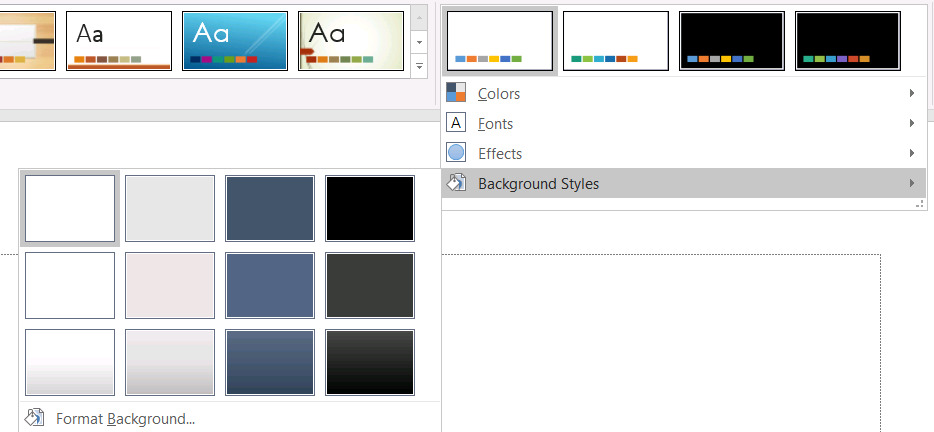
पृष्ठभूमि शैली का उपयोग करने से पहले, संग्रहीत संग्रह और वर्तमान Background.getStyleIndex का निरीक्षण करें। 0 का शैली‑इंडेक्स का मतलब कोई थीम्ड फ़िल नहीं है; सकारात्मक मान थीम पृष्ठभूमि‑शैली संदर्भ होते हैं। यह Java संग्रह को सीधे इंडेक्स करने से भिन्न है, जहाँ get_Item(0) का अर्थ पहला संग्रहीत आइटम है। यह न मानें कि प्रत्येक प्रस्तुति में समान संख्या में पृष्ठभूमि फ़िल शैलियां होती हैं।
निम्न उदाहरण उपलब्ध पृष्ठभूमि फ़िल गणना को रिपोर्ट करता है, पहले मास्टर को थीम्ड पृष्ठभूमि संदर्भ असाइन करता है, और प्रस्तुति सहेजता है:
import com.aspose.slides.*;

Presentation presentation = new Presentation("input.pptx");
try {
    IFillFormatCollection backgroundStyles = presentation.getMasterTheme().getFormatScheme().getBackgroundFillStyles();
    System.out.println("Background fill styles: " + backgroundStyles.size());
    if (backgroundStyles.size() == 0) {
        throw new IllegalStateException("The presentation theme does not contain background fill styles.");
    }

    IMasterSlide masterSlide = presentation.getMasters().get_Item(0);
    masterSlide.getBackground().setType(BackgroundType.Themed);
    masterSlide.getBackground().setStyleIndex(1);
    presentation.save("theme-background.pptx", SaveFormat.Pptx);
} finally {
    presentation.dispose();
}
दिखाया गया परिणाम मास्टर द्वारा संदर्भित थीम प्रविष्टि और लेआउट या स्लाइड‑स्तर किसी भी पृष्ठभूमि ओवरराइड पर निर्भर करता है। यदि स्लाइड अपनी स्वयं की पृष्ठभूमि उपयोग करती है, तो केवल मास्टर पृष्ठभूमि बदलने से वह स्लाइड नहीं बदलेगी। विरासत लागू होने के बाद अंतिम पृष्ठभूमि जानने के लिए Background.getEffective का उपयोग करें।
Warning
शैली‑इंडेक्स को शून्य‑आधारित संग्रह इंडेक्स मानते नहीं हैं। एक फ़ाइल से शैली संख्या हार्ड‑कोड करने और उसे दूसरी फ़ाइल में समान दिखावट मानने से बचें; थीम शैली परिभाषाएँ प्रस्तुति‑विशिष्ट होती हैं।Tip
प्रत्यक्ष पृष्ठभूमि फ़ॉर्मेटिंग और पृष्ठभूमि विरासत के लिए देखें Presentation Background।थीम प्रभावों को अपडेट करना
एक थीम फ़ॉर्मेट स्कीम में अलग‑अलग फ़िल, रेखा और प्रभाव शैली संग्रह होते हैं, जो क्रमशः IFormatScheme.getFillStyles, IFormatScheme.getLineStyles, और IFormatScheme.getEffectStyles के माध्यम से उजागर होते हैं। सामान्य Office थीम में अक्सर तीन प्रमुख शैली प्रविष्टियां होती हैं, जो क्रमशः Subtle, Moderate, और Intense फ़ॉर्मेटिंग को दर्शाती हैं, लेकिन कोड को प्रत्येक संग्रह की जाँच करनी चाहिए, न कि स्थिर गणना मान लेनी चाहिए।

जब आप Java में इन संग्रहों तक पहुंचते हैं, तो संग्रह इंडेक्स शून्य‑आधारित होता है: get_Item(0) पहला संग्रहीत शैली है, get_Item(2) तीसरा। आकार की शैली‑संदर्भ इंडेक्स अलग अवधारणा है, जो IShapeStyle द्वारा उजागर होती है। थीम शैली को संशोधित करने से उन आकारों पर असर पड़ता है जो उस थीम शैली को संदर्भित करते हैं; सीधे फ़ॉर्मेटिंग वाले आकार अपरिवर्तित रह सकते हैं।
निम्न उदाहरण जाँचता है कि आवश्यक शैली प्रविष्टियां मौजूद हैं, पहली रेखा शैली बदलता है, तीसरी फ़िल शैली बदलता है, तीसरी प्रभाव शैली में बाहरी छाया सक्षम करता है, और परिणाम सहेजता है:
import com.aspose.slides.*;
import java.awt.Color;

Presentation presentation = new Presentation("Subtle_Moderate_Intense.pptx");
try {
    IFormatScheme formatScheme = presentation.getMasterTheme().getFormatScheme();
    if (formatScheme.getLineStyles().size() < 1 || formatScheme.getFillStyles().size() < 3 || formatScheme.getEffectStyles().size() < 3) {
        throw new IllegalStateException("The theme does not contain the style entries required by this example.");
    }
    formatScheme.getLineStyles().get_Item(0).getFillFormat().setFillType(FillType.Solid);
    formatScheme.getLineStyles().get_Item(0).getFillFormat().getSolidFillColor().setColor(Color.RED);
    formatScheme.getFillStyles().get_Item(2).setFillType(FillType.Solid);
    formatScheme.getFillStyles().get_Item(2).getSolidFillColor().setColor(new Color(34, 139, 34));
    IEffectFormat effectFormat = formatScheme.getEffectStyles().get_Item(2).getEffectFormat();
    effectFormat.enableOuterShadowEffect();
    effectFormat.getOuterShadowEffect().setDistance(10f);
    presentation.save("theme-effects.pptx", SaveFormat.Pptx);
} finally {
    presentation.dispose();
}
इन स्लॉटों को संदर्भित करने वाले आकारों के लिए, पहली थीम रेखा शैली लाल हो जाती है, तीसरी थीम फ़िल शैली ठोस फ़ॉरेस्ट ग्रीन बन जाती है, और तीसरी प्रभाव शैली में 10 पॉइंट की दूरी वाला बाहरी शॅडो जुड़ जाता है। अंतिम दृश्य परिणाम अभी भी इस पर निर्भर करता है कि कौन सा आकार कौन से स्लॉट को संदर्भित करता है और क्या सीधे फ़ॉर्मेटिंग थीम को ओवरराइड करती है।

निर्धारित करना कि प्रभावी ठोस फ़िल थीम रंग का उपयोग करती है या नहीं
फ़िल सीधे वस्तु पर संग्रहीत हो सकता है या पैराग्राफ, लेआउट, मास्टर, थीम शैली या अन्य फ़ॉर्मेटिंग स्तर से विरासत में मिल सकता है। उस पदानुक्रम को अपरिवर्तनीय IFillFormatEffectiveData में बदलने के लिए IFillFormat.getEffective को कॉल करें। पहले IFillFormatEffectiveData.getFillType जाँचें। केवल जब यह FillType.Solid हो तब ही ठोस‑फ़िल गुण पढ़ें।
ठोस‑फ़िल के लिए, IFillFormatEffectiveData.getSolidFillColor विरासत, थीम लुक‑अप और रंग रूपांतरण लागू होने के बाद अंतिम RGB मान लौटाता है। IFillFormatEffectiveData.getSolidFillSchemeColor संबंधित लॉजिकल SchemeColor स्लॉट (जैसे Text1 या Accent6) लौटाता है। SchemeColor.NotDefined का अर्थ है कि प्रभावी ठोस फ़िल स्कीम रंग पर आधारित नहीं है। ऐसे वर्कफ़्लो में जहाँ फ़िल या तो थीम रंग या सीधे RGB रंग होते हैं, यह मान सीधे RGB फ़िल को पहचानता है।
स्थानीय IColorFormat.getSchemeColor मान केवल ले कर फ़िल को वर्गीकृत न करें। उदाहरण के लिए, टेक्स्ट का कोई स्थानीय स्कीम रंग नहीं हो सकता, इसलिए उसका स्थानीय मान NotDefined होगा, जबकि उसका प्रभावी फ़िल थीम रंग विरासत में लेकर Text1 या Accent6 बन सकता है। दूसरी ओर, getSolidFillSchemeColor बताता है कि कौन सा लॉजिकल थीम स्लॉट प्रभावी रंग उत्पन्न करता है, पर यह नहीं बताता कि वह स्लॉट वस्तु, पैराग्राफ, लेआउट, मास्टर या किसी अन्य स्तर से आया है।
निम्न उदाहरण प्रस्तुति लोड करता है, दोनों आकार फ़िल और टेक्स्ट‑भाग फ़िल का ऑडिट करता है, प्रत्येक अंतिम RGB मान और संबंधित स्कीम रंग को प्रिंट करता है, और उन ठोस फ़िल को चिह्नित करता है जो थीम रंग परिवर्तन को ट्रैक नहीं करेंगे:
import com.aspose.slides.*;
import java.awt.Color;
import java.util.function.BiConsumer;

BiConsumer<String, IFillFormat> auditFill = (objectName, localFill) -> {
    IFillFormatEffectiveData effectiveFill = localFill.getEffective();

    if (effectiveFill.getFillType() != FillType.Solid) {
        System.out.println(objectName + ": fill type = " + effectiveFill.getFillType() + "; not a solid fill.");
        return;
    }

    Color rgb = effectiveFill.getSolidFillColor();
    int effectiveSchemeColor = effectiveFill.getSolidFillSchemeColor();
    int localSchemeColor = localFill.getSolidFillColor().getSchemeColor();

    System.out.printf("%s: RGB = #%02X%02X%02X%n", objectName, rgb.getRed(), rgb.getGreen(), rgb.getBlue());
    System.out.println(objectName + ": local scheme = " + localSchemeColor + ", effective scheme = " + effectiveSchemeColor);

    if (effectiveSchemeColor == SchemeColor.NotDefined) {
        System.out.println(objectName + ": direct RGB or another non-scheme fill; audit as theme-independent.");
    } else {
        System.out.println(objectName + ": theme-dependent through " + effectiveSchemeColor + ".");
    }
};

Presentation presentation = new Presentation("input.pptx");
try {
    int slideCount = presentation.getSlides().size();
    for (int slideIndex = 0; slideIndex < slideCount; slideIndex++) {
        ISlide slide = presentation.getSlides().get_Item(slideIndex);

        int shapeCount = slide.getShapes().size();
        for (int shapeIndex = 0; shapeIndex < shapeCount; shapeIndex++) {
            IShape shape = slide.getShapes().get_Item(shapeIndex);
            String shapeName = "Slide " + (slideIndex + 1) + ", shape " + (shapeIndex + 1);
            auditFill.accept(shapeName, shape.getFillFormat());

            if (shape instanceof IAutoShape) {
                IAutoShape autoShape = (IAutoShape) shape;
                int paragraphCount = autoShape.getTextFrame().getParagraphs().getCount();
                for (int paragraphIndex = 0; paragraphIndex < paragraphCount; paragraphIndex++) {
                    IParagraph paragraph = autoShape.getTextFrame().getParagraphs().get_Item(paragraphIndex);

                    int portionCount = paragraph.getPortions().getCount();
                    for (int portionIndex = 0; portionIndex < portionCount; portionIndex++) {
                        IPortion portion = paragraph.getPortions().get_Item(portionIndex);
                        String portionName = shapeName + ", paragraph " + (paragraphIndex + 1) + ", portion " + (portionIndex + 1);
                        auditFill.accept(portionName, portion.getPortionFormat().getFillFormat());
                    }
                }
            }
        }
    }
} finally {
    presentation.dispose();
}
NotDefined शाखा उन ठोस फ़िल की ऑडिट सूची प्रदान करती है जो थीम रंग स्लॉट्स में परिवर्तन पर प्रतिक्रिया नहीं देंगे। जब प्रस्तुति को नई ब्रांड पैलेट का अनुसरण करना हो, तो इन वस्तुओं की समीक्षा करें। रिपोर्ट किया गया RGB मान अभी भी वर्तमान दिखावट दिखाता है, जबकि स्कीम मान बताता है कि वह दिखावट थीम से जुड़ी है या नहीं।
प्रभावी‑फ़ॉर्मेट वस्तुएँ स्नैपशॉट होती हैं। प्रस्तुति थीम, थीम ओवरराइड या किसी विरासत फ़ॉर्मेटिंग को बदलने के बाद, फिर से getEffective कॉल करें और नई IFillFormatEffectiveData वस्तु पढ़ें, फिर रंगों की तुलना या रिपोर्ट करें।
प्रभावी थीम मान पढ़ना
कच्चे थीम ऑब्जेक्ट केवल उस स्तर पर परिभाषित चीज़ें दिखाते हैं। प्रभावी मान दर्शाते हैं कि स्लाइड या आकार वास्तव में विरासत और स्थानीय ओवरराइड्स के समाधान के बाद क्या उपयोग करता है। स्लाइड के लिए, BaseOverrideThemeManager.createThemeEffective को कॉल करें। पृष्ठभूमि के लिए, Background.getEffective उपयोग करें, और फ़िल के लिए, FillFormat.getEffective।
निम्न उदाहरण स्लाइड से प्रभावी थीम, पृष्ठभूमि और प्रथम आकार फ़िल पढ़ता है:
import com.aspose.slides.*;

Presentation presentation = new Presentation("input.pptx");
try {
    ISlide slide = presentation.getSlides().get_Item(0);
    IThemeEffectiveData effectiveTheme = slide.getThemeManager().createThemeEffective();
    IBackgroundEffectiveData effectiveBackground = slide.getBackground().getEffective();
    System.out.println("Effective major Latin font: " + effectiveTheme.getFontScheme().getMajor().getLatinFont().getFontName());
    System.out.println("Effective minor Latin font: " + effectiveTheme.getFontScheme().getMinor().getLatinFont().getFontName());
    System.out.println("Effective background fill type: " + effectiveBackground.getFillFormat().getFillType());
    if (slide.getShapes().size() > 0) {
        IFillFormatEffectiveData effectiveFill = slide.getShapes().get_Item(0).getFillFormat().getEffective();
        System.out.println("First shape effective fill type: " + effectiveFill.getFillType());
        if (effectiveFill.getFillType() == FillType.Solid) {
            System.out.println("First shape effective fill color: " + effectiveFill.getSolidFillColor());
        }
    }
} finally {
    presentation.dispose();
}
रेंडरिंग डायग्नॉस्टिक्स, वैधता और तुलना के लिए प्रभावी डेटा उपयोग करें। यदि आप केवल Presentation.getMasterTheme को निरीक्षण करते हैं, तो आप मास्टर, लेआउट, स्लाइड या आकार ओवरराइड को चूक सकते हैं जो अंतिम दिखावट बदलते हैं।
अक्सर पूछे जाने वाले प्रश्न
क्या बाहरी थीम लागू करने से प्रस्तुति की सभी स्लाइड्स प्रभावित होती हैं?
नहीं। IMasterSlide.applyExternalThemeToDependingSlides केवल उन स्लाइड्स को पुनः असाइन करता है जो चयनित मास्टर पर निर्भर थीं। अन्य मास्टर का उपयोग करने वाली स्लाइड्स अपने मौजूदा थीम को बरकरार रखती हैं।
क्या मैं मास्टर बदलें बिना किसी एकल स्लाइड पर थीम लागू कर सकता हूँ?
हाँ। स्लाइड के SlideThemeManager का उपयोग करें और उसकी ओवरराइड थीम को प्रारंभ करें। परिवर्तन केवल उसी स्लाइड पर स्थानीय रहता है; अन्य स्लाइड्स अपने मौजूदा थीम को विरासत में लेती रहेंगी।
एक प्रस्तुति से दूसरी में थीम ले जाने का सबसे सुरक्षित तरीका क्या है?
जब आप स्लाइड को ले जा रहे हों और उसकी स्रोत दिखावट को संरक्षित रखना चाहते हों, तो स्रोत मास्टर को गंतव्य में क्लोन करें और फिर उस मास्टर के साथ स्लाइड को IMasterSlideCollection.addClone और ISlideCollection.addClone के द्वारा क्लोन करें। इससे मास्टर, लेआउट और थीम एक साथ रखी जाती हैं।
मैं विरासत और ओवरराइड्स के बाद प्रभावी मान कैसे देख सकता हूँ?
स्लाइड या लेआउट थीम के लिए BaseOverrideThemeManager.createThemeEffective का उपयोग करें और फ़ॉर्मेट ऑब्जेक्ट जैसे Background.getEffective और FillFormat.getEffective के संबंधित प्रभावी‑डेटा मेथड्स को कॉल करें। ये API विरासत और ओवरराइड लागू होने के बाद हल किए गए मान लौटाते हैं।