
在 Java 中管理演示文稿主题
介绍
演示文稿主题定义了一组协调的颜色、字体、背景样式、填充、线条和效果。主题感知对象引用这些共享定义,而不是将每个视觉属性存储为固定值,因此主题更改可以一次性更新许多对象。
在 Aspose.Slides 中,可通过Presentation.getMasterTheme获取演示文稿级别的主题。演示文稿还可以在更低级别包含主题覆盖。母版可以通过MasterThemeManager.getOverrideTheme覆盖演示文稿主题,而布局或单个幻灯片可以通过BaseOverrideThemeManager.getOverrideTheme覆盖其继承的主题。实际上,幻灯片的有效主题通过以下继承链解析:演示文稿主题 → 母版覆盖 → 布局覆盖 → 幻灯片覆盖。
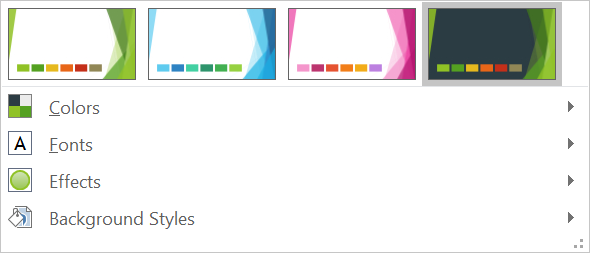
以下章节展示最常见的主题工作流:检查主题、修改颜色和字体、复制或应用主题、更新背景和效果样式,以及在继承和覆盖解析后读取有效值。
检查主题
MasterTheme对象通过MasterTheme.getColorScheme、MasterTheme.getFontScheme和MasterTheme.getFormatScheme公开主题的颜色方案、字体方案和格式方案。在更改之前检查这些集合尤为有用,因为来自外部来源的演示文稿其样式条目的数量和内容可能各不相同。
下面的示例读取主要主题属性,并报告主题中存储的背景、填充、线条和效果样式的数量:
import com.aspose.slides.*;

Presentation presentation = new Presentation("input.pptx");
try {
    IMasterTheme theme = presentation.getMasterTheme();
    System.out.println("Theme name: " + theme.getName());
    System.out.println("Accent 1: " + theme.getColorScheme().getAccent1().getColor());
    System.out.println("Major Latin font: " + theme.getFontScheme().getMajor().getLatinFont().getFontName());
    System.out.println("Minor Latin font: " + theme.getFontScheme().getMinor().getLatinFont().getFontName());
    System.out.println("Background fill styles: " + theme.getFormatScheme().getBackgroundFillStyles().size());
    System.out.println("Fill styles: " + theme.getFormatScheme().getFillStyles().size());
    System.out.println("Line styles: " + theme.getFormatScheme().getLineStyles().size());
    System.out.println("Effect styles: " + theme.getFormatScheme().getEffectStyles().size());
} finally {
    presentation.dispose();
}
如果文件使用了多个母版,请不要假设每个幻灯片都有相同的有效主题。检查与幻灯片关联的母版,并在布局或幻灯片可能存在覆盖时使用本文后面展示的有效主题工作流。
更改主题颜色
主题感知的填充、线条和文本可以引用SchemeColor枚举中的逻辑颜色。当您在IColorScheme中更改相应条目时,所有仍引用该主题颜色的对象都会依据新值重新解析。使用直接 RGB 颜色的对象不会受到主题颜色更新的影响。
下面的端到端示例创建一个使用 Accent4 的形状,将主题的 Accent4 颜色改为红色,保存演示文稿,重新打开并打印有效的填充颜色:
import com.aspose.slides.*;
import java.awt.Color;

Presentation presentation = new Presentation();
try {
    ISlide slide = presentation.getSlides().get_Item(0);
    IAutoShape shape = slide.getShapes().addAutoShape(ShapeType.Rectangle, 10, 10, 100, 100);
    shape.getFillFormat().setFillType(FillType.Solid);
    shape.getFillFormat().getSolidFillColor().setSchemeColor(SchemeColor.Accent4);
    presentation.getMasterTheme().getColorScheme().getAccent4().setColor(Color.RED);
    presentation.save("theme-color.pptx", SaveFormat.Pptx);
} finally {
    presentation.dispose();
}

Presentation savedPresentation = new Presentation("theme-color.pptx");
try {
    ISlide savedSlide = savedPresentation.getSlides().get_Item(0);
    IShape savedShape = savedSlide.getShapes().get_Item(0);
    IFillFormatEffectiveData effectiveFill = savedShape.getFillFormat().getEffective();
    System.out.println("Effective fill color: " + effectiveFill.getSolidFillColor());
} finally {
    savedPresentation.dispose();
}
因为矩形仍链接到 Accent4,主题更改后其可见颜色会变为红色。如果您在形状上将方案颜色替换为直接颜色,则随后对 Accent4 的更改将不再影响该填充。
使用附加调色板中的颜色
PowerPoint 通过对主题颜色应用颜色变换来生成更浅和更深的变体。Aspose.Slides 通过ColorTransformOperation枚举公开这些变换。
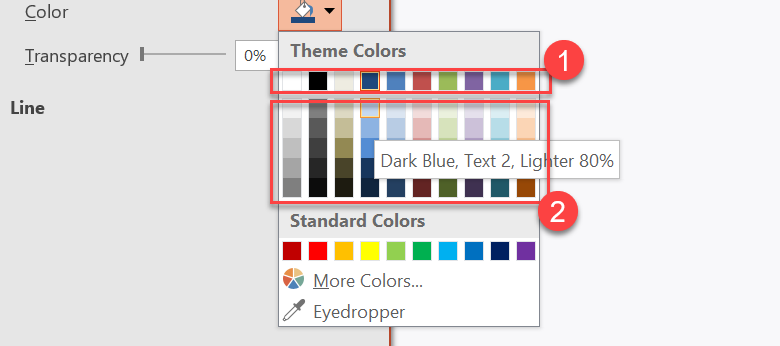
1 – 主主题颜色。
2 – 从主主题颜色生成的更浅和更深的变体。
下面的示例基于 Accent4 创建六个矩形,对其中五个应用亮度变换,并保存结果:
import com.aspose.slides.*;

Presentation presentation = new Presentation();
try {
    ISlide slide = presentation.getSlides().get_Item(0);

    IShape shape1 = slide.getShapes().addAutoShape(ShapeType.Rectangle, 10, 10, 50, 50);
    shape1.getFillFormat().setFillType(FillType.Solid);
    shape1.getFillFormat().getSolidFillColor().setSchemeColor(SchemeColor.Accent4);

    IShape shape2 = slide.getShapes().addAutoShape(ShapeType.Rectangle, 10, 70, 50, 50);
    shape2.getFillFormat().setFillType(FillType.Solid);
    shape2.getFillFormat().getSolidFillColor().setSchemeColor(SchemeColor.Accent4);
    shape2.getFillFormat().getSolidFillColor().getColorTransform().add(ColorTransformOperation.MultiplyLuminance, 0.2f);
    shape2.getFillFormat().getSolidFillColor().getColorTransform().add(ColorTransformOperation.AddLuminance, 0.8f);

    IShape shape3 = slide.getShapes().addAutoShape(ShapeType.Rectangle, 10, 130, 50, 50);
    shape3.getFillFormat().setFillType(FillType.Solid);
    shape3.getFillFormat().getSolidFillColor().setSchemeColor(SchemeColor.Accent4);
    shape3.getFillFormat().getSolidFillColor().getColorTransform().add(ColorTransformOperation.MultiplyLuminance, 0.4f);
    shape3.getFillFormat().getSolidFillColor().getColorTransform().add(ColorTransformOperation.AddLuminance, 0.6f);

    IShape shape4 = slide.getShapes().addAutoShape(ShapeType.Rectangle, 10, 190, 50, 50);
    shape4.getFillFormat().setFillType(FillType.Solid);
    shape4.getFillFormat().getSolidFillColor().setSchemeColor(SchemeColor.Accent4);
    shape4.getFillFormat().getSolidFillColor().getColorTransform().add(ColorTransformOperation.MultiplyLuminance, 0.6f);
    shape4.getFillFormat().getSolidFillColor().getColorTransform().add(ColorTransformOperation.AddLuminance, 0.4f);

    IShape shape5 = slide.getShapes().addAutoShape(ShapeType.Rectangle, 10, 250, 50, 50);
    shape5.getFillFormat().setFillType(FillType.Solid);
    shape5.getFillFormat().getSolidFillColor().setSchemeColor(SchemeColor.Accent4);
    shape5.getFillFormat().getSolidFillColor().getColorTransform().add(ColorTransformOperation.MultiplyLuminance, 0.75f);

    IShape shape6 = slide.getShapes().addAutoShape(ShapeType.Rectangle, 10, 310, 50, 50);
    shape6.getFillFormat().setFillType(FillType.Solid);
    shape6.getFillFormat().getSolidFillColor().setSchemeColor(SchemeColor.Accent4);
    shape6.getFillFormat().getSolidFillColor().getColorTransform().add(ColorTransformOperation.MultiplyLuminance, 0.5f);

    presentation.save("theme-color-palette.pptx", SaveFormat.Pptx);
} finally {
    presentation.dispose();
}
这些变体仍基于主题颜色。如果随后 Accent4 发生变化,转换后的颜色会根据新的 Accent4 值重新计算。
将 SchemeColor 值映射到 IColorScheme 插槽
SchemeColor枚举使用 Text1、Background1、Text2 和 Background2,而IColorScheme将相同的主题插槽公开为 Dark1、Light1、Dark2、Light2。映射固定如下:
Text1=Dark1Background1=Light1Text2=Dark2Background2=Light2
这些是同一主题插槽的别名;它们不是可以相互动态转换的值。
更改主题字体
主题字体方案包含标题的主字体集和正文的次字体集。IFontScheme.getMajor和IFontScheme.getMinor方法公开这些集合。
PowerPoint 兼容的主题字体标识符可用于文本格式化:
+mn-lt– 正文字体拉丁文(Minor Latin Font)+mj-lt– 标题字体拉丁文(Major Latin Font)+mn-ea– 正文字体东亚文(Minor East Asian Font)+mj-ea– 标题字体东亚文(Major East Asian Font)
下面的示例创建一个使用主拉丁主题字体的标题和一个使用次拉丁主题字体的正文行,然后更改主题字体并保存结果:
import com.aspose.slides.*;

Presentation presentation = new Presentation();
try {
    ISlide slide = presentation.getSlides().get_Item(0);

    IAutoShape heading = slide.getShapes().addAutoShape(ShapeType.Rectangle, 40, 40, 500, 60);
    heading.getTextFrame().setText("Theme heading");
    heading.getTextFrame().getParagraphs().get_Item(0).getPortions().get_Item(0).getPortionFormat().setLatinFont(new FontData("+mj-lt"));

    IAutoShape body = slide.getShapes().addAutoShape(ShapeType.Rectangle, 40, 120, 500, 60);
    body.getTextFrame().setText("Theme body text");
    body.getTextFrame().getParagraphs().get_Item(0).getPortions().get_Item(0).getPortionFormat().setLatinFont(new FontData("+mn-lt"));

    presentation.getMasterTheme().getFontScheme().getMajor().setLatinFont(new FontData("Aptos Display"));
    presentation.getMasterTheme().getFontScheme().getMinor().setLatinFont(new FontData("Arial"));
    presentation.save("theme-fonts.pptx", SaveFormat.Pptx);
} finally {
    presentation.dispose();
}
标题遵循主字体,正文遵循次字体。使用显式字体名称而非主题标识符的文本在主题字体方案更改时不会自动切换。
主字体和次字体集合还可以包含针对特定书写系统(如西里尔文、阿拉伯文、日文、格鲁吉亚文和Thaana)的字体映射。要检查、添加、替换或删除这些映射,请参阅脚本特定主题字体。
Tip
有关演示文稿字体的更多信息,请参阅PowerPoint 字体。复制或应用主题
以下工作流解决不同的主题相关问题。
将外部主题应用于依赖某母版的幻灯片
当您拥有 PowerPoint 主题文件(.thmx)并希望重新样式化所有依赖特定母版的幻灯片时,使用IMasterSlide.applyExternalThemeToDependingSlides。从Presentation.getMasters集合(实现了IMasterSlideCollection)中选择母版,并将主题文件路径传递给该方法。
该方法执行以下操作:
- 基于选定的母版创建一个新母版幻灯片。
- 将外部主题应用到新母版。
- 将选定母版之前依赖的所有幻灯片指派给新母版。
- 返回新创建的IMasterSlide。
下面的示例将外部主题应用于依赖第一个母版的幻灯片并保存演示文稿:
import com.aspose.slides.*;

Presentation presentation = new Presentation("presentation.pptx");
try {
    IMasterSlide selectedMaster = presentation.getMasters().get_Item(0);
    IMasterSlide themedMaster = selectedMaster.applyExternalThemeToDependingSlides("corporate-theme.thmx");

    System.out.println("Created master: " + themedMaster.getName());
    presentation.save("presentation-with-external-theme.pptx", SaveFormat.Pptx);
} finally {
    presentation.dispose();
}
无效、损坏或不受支持的主题可能导致PptxReadException。请验证用户提供的路径,处理文件系统访问失败,并仅在主题成功应用后保存演示文稿。
只有依赖选定母版的幻灯片会被重新指派。使用其他母版的幻灯片保留其现有母版和主题。主题感知的颜色、字体、填充、线条、背景和效果会依据外部主题解析;直接分配的颜色、字体、填充等显式格式可能保持不变。布局级和幻灯片级覆盖也可能优先于新母版继承的值。
主题可能引用运行时环境中不存在的字体。为确保一致的渲染和导出,请安装所需字体、通过自定义字体源提供,或配置字体替代。
这是一种直接的母版级工作流:该方法接受 .thmx 文件路径,无需手动创建幻灯片级或布局级主题覆盖。
在多母版演示文稿中应用不同的外部主题
当事先不知道相关母版时,可通过ISlide.getLayoutSlide和ILayoutSlide.getMasterSlide从代表性幻灯片获取母版。在应用任何主题之前存储原始母版引用,因为每次调用都会在演示文稿中创建另一个母版。
下面的示例使用两个章节的幻灯片定位其母版,并对每组应用不同的外部主题:
import com.aspose.slides.*;

Presentation presentation = new Presentation("multi-master-presentation.pptx");
try {
    if (presentation.getSlides().size() < 5) {
        System.out.println("The presentation does not contain the expected representative slides.");
    } else {
        IMasterSlide firstGroupMaster = presentation.getSlides().get_Item(0).getLayoutSlide().getMasterSlide();
        IMasterSlide secondGroupMaster = presentation.getSlides().get_Item(4).getLayoutSlide().getMasterSlide();

        if (firstGroupMaster.getSlideId() == secondGroupMaster.getSlideId()) {
            System.out.println("The representative slides use the same master.");
        } else {
            IMasterSlide firstThemedMaster = firstGroupMaster.applyExternalThemeToDependingSlides("blue-theme.thmx");
            IMasterSlide secondThemedMaster = secondGroupMaster.applyExternalThemeToDependingSlides("green-theme.thmx");

            System.out.println("First themed master: " + firstThemedMaster.getName());
            System.out.println("Second themed master: " + secondThemedMaster.getName());
            presentation.save("multi-master-with-external-themes.pptx", SaveFormat.Pptx);
        }
    }
} finally {
    presentation.dispose();
}
第一次调用仅影响依赖 firstGroupMaster 的幻灯片,第二次调用仅影响依赖 secondGroupMaster 的幻灯片。属于其他母版的幻灯片不会被重新样式化。
在移动幻灯片时保留源主题
如果希望将幻灯片移动到另一演示文稿并保留其原始设计,请使用IMasterSlideCollection.addClone将源母版克隆到目标演示文稿,然后使用ISlideCollection.addClone连同克隆的母版一起克隆幻灯片。这样会将母版、其布局以及关联的主题一起携带。
import com.aspose.slides.*;

Presentation source = new Presentation("source-theme.pptx");
try {
    Presentation target = new Presentation("target.pptx");
    try {
        ISlide sourceSlide = source.getSlides().get_Item(0);
        IMasterSlide sourceMaster = sourceSlide.getLayoutSlide().getMasterSlide();
        IMasterSlide clonedMaster = target.getMasters().addClone(sourceMaster);
        target.getSlides().addClone(sourceSlide, clonedMaster, true);
        target.save("theme-preserved.pptx", SaveFormat.Pptx);
    } finally {
        target.dispose();
    }
} finally {
    source.dispose();
}
在目标演示文稿中需要保持外观一致时,这是首选工作流。仅将内容克隆到不相关的目标母版上可能会导致主题驱动的颜色、字体、背景和效果发生变化。
将主题值应用于现有幻灯片
如果目标幻灯片必须保持其当前母版和布局,请从源主题初始化幻灯片级覆盖。OverrideTheme.initColorSchemeFrom、OverrideTheme.initFontSchemeFrom和OverrideTheme.initFormatSchemeFrom方法将三个主要主题组件复制到覆盖中。
import com.aspose.slides.*;

Presentation source = new Presentation("source-theme.pptx");
try {
    Presentation target = new Presentation("target.pptx");
    try {
        ISlide targetSlide = presentation.getSlides().get_Item(0);
        IOverrideTheme overrideTheme = targetSlide.getThemeManager().getOverrideTheme();
        overrideTheme.initColorSchemeFrom(source.getMasterTheme().getColorScheme());
        overrideTheme.initFontSchemeFrom(source.getMasterTheme().getFontScheme());
        overrideTheme.initFormatSchemeFrom(source.getMasterTheme().getFormatScheme());
        target.save("theme-applied-to-slide.pptx", SaveFormat.Pptx);
    } finally {
        target.dispose();
    }
} finally {
    source.dispose();
}
此操作会更改该幻灯片使用的主题,而不影响其他幻灯片继承的主题。要移除本地覆盖并恢复继承值,请调用OverrideTheme.clear。
将主题覆盖应用于布局
布局级覆盖适用于使用该布局的所有幻灯片,除非特定幻灯片有自己的覆盖。相同的初始化方法可通过LayoutSlideThemeManager使用:
import com.aspose.slides.*;

Presentation source = new Presentation("source-theme.pptx");
try {
    Presentation target = new Presentation("target.pptx");
    try {
        ISlide targetSlide = presentation.getSlides().get_Item(0);
        ILayoutSlide targetLayout = targetSlide.getLayoutSlide();
        IOverrideTheme overrideTheme = targetLayout.getThemeManager().getOverrideTheme();
        overrideTheme.initColorSchemeFrom(source.getMasterTheme().getColorScheme());
        overrideTheme.initFontSchemeFrom(source.getMasterTheme().getFontScheme());
        overrideTheme.initFormatSchemeFrom(source.getMasterTheme().getFormatScheme());
        target.save("theme-applied-to-layout.pptx", SaveFormat.Pptx);
    } finally {
        target.dispose();
    }
} finally {
    source.dispose();
}
当多数布局和幻灯片应共享相同的基础设计时使用母版或演示文稿级主题;当某一布局族需要不同样式时使用布局覆盖;仅在真正的例外情况下使用幻灯片覆盖。过多的幻灯片级覆盖会使后续全局主题更改难以预测。
更新主题背景样式
主题的背景填充存储在IFormatScheme.getBackgroundFillStyles中。PowerPoint 在 UI 中可以呈现比该集合实际存储的填充定义更多的背景选项,因为 UI 可以将主题填充与主题颜色和其他样式引用组合使用。
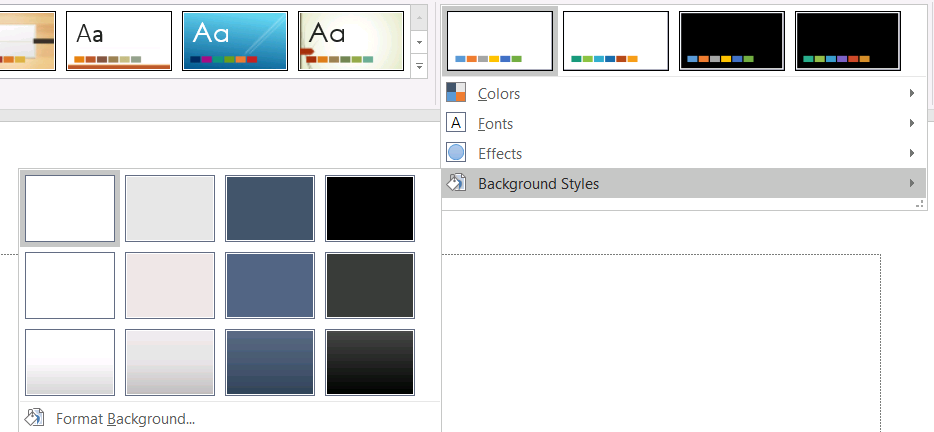
在使用背景样式前,检查存储的集合以及当前的Background.getStyleIndex。0 表示没有主题填充;正数表示主题背景样式引用。这与直接对 Java 集合进行索引不同,get_Item(0) 表示第一项。不要假设每个演示文稿都有相同数量的背景填充样式。
下面的示例报告可用的背景填充计数,将主题化的背景引用分配给第一个母版,并保存演示文稿:
import com.aspose.slides.*;

Presentation presentation = new Presentation("input.pptx");
try {
    IFillFormatCollection backgroundStyles = presentation.getMasterTheme().getFormatScheme().getBackgroundFillStyles();
    System.out.println("Background fill styles: " + backgroundStyles.size());
    if (backgroundStyles.size() == 0) {
        throw new IllegalStateException("The presentation theme does not contain background fill styles.");
    }

    IMasterSlide masterSlide = presentation.getMasters().get_Item(0);
    masterSlide.getBackground().setType(BackgroundType.Themed);
    masterSlide.getBackground().setStyleIndex(1);
    presentation.save("theme-background.pptx", SaveFormat.Pptx);
} finally {
    presentation.dispose();
}
可见结果取决于母版引用的主题条目以及布局或幻灯片级的任何背景覆盖。如果幻灯片使用了自己的背景,仅更改母版背景可能不会影响该幻灯片。需要了解继承后最终背景时,请使用Background.getEffective。
Warning
不要将样式索引视为基于零的集合索引。也避免在一个文件中硬编码样式编号并假设在另一个文件中具有相同外观;主题样式定义是针对特定演示文稿的。Tip
有关直接背景格式化和背景继承,请参阅演示文稿背景。更新主题效果
主题格式方案包含通过IFormatScheme.getFillStyles、IFormatScheme.getLineStyles和IFormatScheme.getEffectStyles公开的独立填充、线条和效果样式集合。典型的 Office 主题通常包含三个主要样式条目,视觉上对应细微、适中和强烈的格式,但代码应检查每个集合,而不是假设固定计数。

在 Java 中访问这些集合时,集合索引是从零开始的:get_Item(0) 为第一项,get_Item(2) 为第三项。形状的样式引用索引是另一个概念,通过IShapeStyle公开。修改主题样式会影响引用该主题样式的形状;直接格式化的形状可能保持不变。
下面的示例检查所需的样式条目是否存在,修改第一条线条样式,修改第三条填充样式,在第三条效果样式中启用外发光并将距离设为 10 磅,然后保存结果:
import com.aspose.slides.*;
import java.awt.Color;

Presentation presentation = new Presentation("Subtle_Moderate_Intense.pptx");
try {
    IFormatScheme formatScheme = presentation.getMasterTheme().getFormatScheme();
    if (formatScheme.getLineStyles().size() < 1 || formatScheme.getFillStyles().size() < 3 || formatScheme.getEffectStyles().size() < 3) {
        throw new IllegalStateException("The theme does not contain the style entries required by this example.");
    }
    formatScheme.getLineStyles().get_Item(0).getFillFormat().setFillType(FillType.Solid);
    formatScheme.getLineStyles().get_Item(0).getFillFormat().getSolidFillColor().setColor(Color.RED);
    formatScheme.getFillStyles().get_Item(2).setFillType(FillType.Solid);
    formatScheme.getFillStyles().get_Item(2).getSolidFillColor().setColor(new Color(34, 139, 34));
    IEffectFormat effectFormat = formatScheme.getEffectStyles().get_Item(2).getEffectFormat();
    effectFormat.enableOuterShadowEffect();
    effectFormat.getOuterShadowEffect().setDistance(10f);
    presentation.save("theme-effects.pptx", SaveFormat.Pptx);
} finally {
    presentation.dispose();
}
对于引用这些插槽的形状,第一条主题线条样式会变为红色,第三条主题填充样式会变为实心森林绿,第三条效果样式会获得距离为 10 点的外部阴影。实际视觉结果仍取决于每个形状引用的样式插槽以及是否有直接格式覆盖主题。

确定有效实心填充是否使用主题颜色
填充可以直接存储在对象上,也可以从段落、布局、母版、主题样式或其他格式层级继承。调用IFillFormat.getEffective可将该层级解析为不可变的IFillFormatEffectiveData。首先检查IFillFormatEffectiveData.getFillType。仅当返回 FillType.Solid 时才读取实心填充属性。
对于实心填充,IFillFormatEffectiveData.getSolidFillColor返回在继承、主题查找和颜色变换后得到的最终渲染 RGB 值。IFillFormatEffectiveData.getSolidFillSchemeColor返回相应的逻辑 SchemeColor 插槽,如 Text1 或 Accent6。SchemeColor.NotDefined 表示有效实心填充不是基于方案颜色。在仅使用主题颜色或直接 RGB 颜色的工作流中,此值标识直接 RGB 填充。
不要仅使用本地IColorFormat.getSchemeColor值来分类填充。例如,文本片段本地可能没有定义方案颜色,其本地值为 NotDefined,但其有效填充继承自主题颜色并解析为 Text1 或 Accent6。相反,getSolidFillSchemeColor 告诉您是哪一个逻辑主题插槽产生了有效颜色,但不说明该插槽来源于对象、段落、布局、母版还是其他层级。
下面的示例加载演示文稿,审计形状填充和文本片段填充,打印每个最终的 RGB 值及其关联的方案颜色,并标记不会随主题颜色变化的实心填充:
import com.aspose.slides.*;
import java.awt.Color;
import java.util.function.BiConsumer;

BiConsumer<String, IFillFormat> auditFill = (objectName, localFill) -> {
    IFillFormatEffectiveData effectiveFill = localFill.getEffective();

    if (effectiveFill.getFillType() != FillType.Solid) {
        System.out.println(objectName + ": fill type = " + effectiveFill.getFillType() + "; not a solid fill.");
        return;
    }

    Color rgb = effectiveFill.getSolidFillColor();
    int effectiveSchemeColor = effectiveFill.getSolidFillSchemeColor();
    int localSchemeColor = localFill.getSolidFillColor().getSchemeColor();

    System.out.printf("%s: RGB = #%02X%02X%02X%n", objectName, rgb.getRed(), rgb.getGreen(), rgb.getBlue());
    System.out.println(objectName + ": local scheme = " + localSchemeColor + ", effective scheme = " + effectiveSchemeColor);

    if (effectiveSchemeColor == SchemeColor.NotDefined) {
        System.out.println(objectName + ": direct RGB or another non-scheme fill; audit as theme-independent.");
    } else {
        System.out.println(objectName + ": theme-dependent through " + effectiveSchemeColor + ".");
    }
};

Presentation presentation = new Presentation("input.pptx");
try {
    int slideCount = presentation.getSlides().size();
    for (int slideIndex = 0; slideIndex < slideCount; slideIndex++) {
        ISlide slide = presentation.getSlides().get_Item(slideIndex);

        int shapeCount = slide.getShapes().size();
        for (int shapeIndex = 0; shapeIndex < shapeCount; shapeIndex++) {
            IShape shape = slide.getShapes().get_Item(shapeIndex);
            String shapeName = "Slide " + (slideIndex + 1) + ", shape " + (shapeIndex + 1);
            auditFill.accept(shapeName, shape.getFillFormat());

            if (shape instanceof IAutoShape) {
                IAutoShape autoShape = (IAutoShape) shape;
                int paragraphCount = autoShape.getTextFrame().getParagraphs().getCount();
                for (int paragraphIndex = 0; paragraphIndex < paragraphCount; paragraphIndex++) {
                    IParagraph paragraph = autoShape.getTextFrame().getParagraphs().get_Item(paragraphIndex);

                    int portionCount = paragraph.getPortions().getCount();
                    for (int portionIndex = 0; portionIndex < portionCount; portionIndex++) {
                        IPortion portion = paragraph.getPortions().get_Item(portionIndex);
                        String portionName = shapeName + ", paragraph " + (paragraphIndex + 1) + ", portion " + (portionIndex + 1);
                        auditFill.accept(portionName, portion.getPortionFormat().getFillFormat());
                    }
                }
            }
        }
    }
} finally {
    presentation.dispose();
}
NotDefined 分支提供了一个审计列表,列出在更换品牌调色板时不会响应主题颜色槽变化的实心填充。审查这些对象以确保演示文稿遵循新品牌配色。报告的 RGB 值仍显示当前外观,而方案值说明该外观是否连接到主题。
有效格式对象是快照。更改演示文稿主题、主题覆盖或任何继承的格式后,重新调用 getEffective 并读取新的 IFillFormatEffectiveData 对象后再进行比较或报告颜色。
读取有效主题值
原始主题对象告诉您在特定层级定义了什么。有效值告诉您在继承和本地覆盖解析后,幻灯片或形状实际使用的内容。对于幻灯片,调用BaseOverrideThemeManager.createThemeEffective。对于背景使用Background.getEffective,对于填充使用FillFormat.getEffective。
下面的示例读取幻灯片的有效主题、背景和第一个形状填充:
import com.aspose.slides.*;

Presentation presentation = new Presentation("input.pptx");
try {
    ISlide slide = presentation.getSlides().get_Item(0);
    IThemeEffectiveData effectiveTheme = slide.getThemeManager().createThemeEffective();
    IBackgroundEffectiveData effectiveBackground = slide.getBackground().getEffective();
    System.out.println("Effective major Latin font: " + effectiveTheme.getFontScheme().getMajor().getLatinFont().getFontName());
    System.out.println("Effective minor Latin font: " + effectiveTheme.getFontScheme().getMinor().getLatinFont().getFontName());
    System.out.println("Effective background fill type: " + effectiveBackground.getFillFormat().getFillType());
    if (slide.getShapes().size() > 0) {
        IFillFormatEffectiveData effectiveFill = slide.getShapes().get_Item(0).getFillFormat().getEffective();
        System.out.println("First shape effective fill type: " + effectiveFill.getFillType());
        if (effectiveFill.getFillType() == FillType.Solid) {
            System.out.println("First shape effective fill color: " + effectiveFill.getSolidFillColor());
        }
    }
} finally {
    presentation.dispose();
}
使用有效数据进行渲染诊断、验证和比较。如果仅检查Presentation.getMasterTheme,可能会错过改变最终外观的母版、布局、幻灯片或形状覆盖。
常见问题
将外部主题应用于演示文稿会影响每一张幻灯片吗?
不会。IMasterSlide.applyExternalThemeToDependingSlides仅重新指派依赖所选母版的幻灯片。使用其他母版的幻灯片保留其现有主题。
我可以在不更改母版的情况下仅对单个幻灯片应用主题吗?
可以。使用该幻灯片的SlideThemeManager并初始化其覆盖主题。更改仅限于该幻灯片,其他幻灯片继续继承其现有主题。
将主题从一个演示文稿迁移到另一个演示文稿的最安全方式是什么?
在移动幻灯片并保留源外观时,使用IMasterSlideCollection.addClone将源母版克隆到目标演示文稿,然后使用ISlideCollection.addClone连同该母版克隆幻灯片。这样可以保持母版、布局和主题一起迁移。
我如何查看继承和覆盖后的有效值?
对于幻灯片或布局主题,使用BaseOverrideThemeManager.createThemeEffective。对于格式对象,如背景和填充,使用相应的 effective‑data 方法Background.getEffective和FillFormat.getEffective。这些 API 返回在继承和覆盖应用后解析得到的值。