
จัดการธีมการนำเสนอใน Java
บทนำ
ธีมการนำเสนอกำหนดชุดสี ฟอนต์ รูปแบบพื้นหลัง การเติมสี เส้น และเอฟเฟกต์ที่ประสานกัน วัตถุที่รับรู้ธีมจะอ้างอิงการกำหนดค่าเหล่านี้แทนที่จะเก็บคุณสมบัติด้านภาพทั้งหมดเป็นค่าคงที่ ดังนั้นการเปลี่ยนธีมจึงสามารถอัปเดตวัตถุหลาย ๆ ตัวพร้อมกันได้
ใน Aspose.Slides ธีมระดับการนำเสนอสามารถเข้าถึงได้ผ่าน Presentation.getMasterTheme. งานนำเสนออาจมีการกำหนดทับธีมในระดับที่ต่ำลงด้วย Master สามารถกำหนดทับธีมของงานนำเสนอได้ผ่าน MasterThemeManager.getOverrideTheme, ส่วน layout หรือสไลด์เดียวสามารถกำหนดทับธีมที่สืบทอดได้ผ่าน BaseOverrideThemeManager.getOverrideTheme. โดยปฏิบัติแล้วธีมที่ใช้จริงสำหรับสไลด์จะถูกแก้ไขตามลำดับการสืบทอดนี้: ธีมงานนำเสนอ → การกำหนดทับระดับมาสเตอร์ → การกำหนดทับระดับเลเอาต์ → การกำหนดทับระดับสไลด์
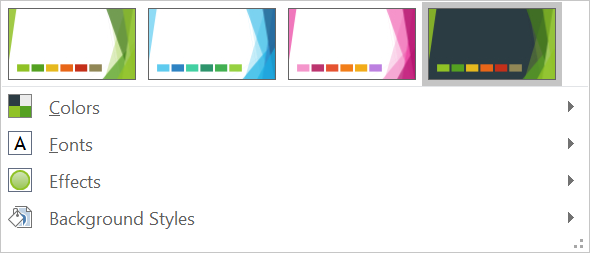
ส่วนต่อไปนี้แสดงเวิร์กโฟลว์ธีมที่พบบ่อยที่สุด: การตรวจสอบธีม, การเปลี่ยนสีและฟอนต์, การคัดลอกหรือใช้ธีม, การอัปเดตรูปแบบพื้นหลังและเอฟเฟกต์, และการอ่านค่าที่มีผลหลังจากการสืบทอดและการกำหนดทับ
ตรวจสอบธีม
อ็อบเจกต์ MasterTheme เปิดเผยสคีมสี, สคีมฟอนต์, และสคีมฟอร์แมตของธีมผ่าน MasterTheme.getColorScheme, MasterTheme.getFontScheme, และ MasterTheme.getFormatScheme. การตรวจสอบคอลเลกชันเหล่านี้ก่อนทำการเปลี่ยนเป็นสิ่งที่มีประโยชน์เป็นพิเศษเมื่อการนำเข้ามาจากแหล่งภายนอก เพราะจำนวนและเนื้อหาของรายการสไตล์อาจแตกต่างกัน
ตัวอย่างต่อไปนี้อ่านคุณสมบัติตัวหลักของธีมและรายงานจำนวนสไตล์พื้นหลัง, เติม, เส้น, และเอฟเฟกต์ที่จัดเก็บในธีม:
import com.aspose.slides.*;

Presentation presentation = new Presentation("input.pptx");
try {
    IMasterTheme theme = presentation.getMasterTheme();
    System.out.println("Theme name: " + theme.getName());
    System.out.println("Accent 1: " + theme.getColorScheme().getAccent1().getColor());
    System.out.println("Major Latin font: " + theme.getFontScheme().getMajor().getLatinFont().getFontName());
    System.out.println("Minor Latin font: " + theme.getFontScheme().getMinor().getLatinFont().getFontName());
    System.out.println("Background fill styles: " + theme.getFormatScheme().getBackgroundFillStyles().size());
    System.out.println("Fill styles: " + theme.getFormatScheme().getFillStyles().size());
    System.out.println("Line styles: " + theme.getFormatScheme().getLineStyles().size());
    System.out.println("Effect styles: " + theme.getFormatScheme().getEffectStyles().size());
} finally {
    presentation.dispose();
}
หากไฟล์ใช้มาสเตอร์หลายตัว อย่าถือว่าทุกสไลด์มีธีมที่มีผลเดียวกัน ตรวจสอบมาสเตอร์ที่เชื่อมโยงกับสไลด์และใช้เวิร์กโฟลว์ธีมที่มีผลตามที่แสดงต่อไปนี้เมื่ออาจมีการกำหนดทับระดับเลเอาต์หรือสไลด์
เปลี่ยนสีของธีม
การเติม, เส้น, และข้อความที่รับรู้ธีมสามารถอ้างอิงสีตรรกะจาก enumeration SchemeColor เมื่อคุณเปลี่ยนรายการที่สอดคล้องใน IColorScheme, วัตถุทั้งหมดที่ยังอ้างอิงสีธีมนั้นจะถูกแก้ไขให้ใช้ค่าที่ใหม่ วัตถุที่ใช้สี RGB โดยตรงจะไม่ถูกเปลี่ยนโดยการอัปเดตสีธีม
ตัวอย่างเต็มรูปแบบต่อไปนี้สร้างรูปร่างที่ใช้ Accent4, เปลี่ยนสี Accent4 ของธีมเป็นสีแดง, บันทึกงานนำเสนอ, เปิดใหม่อีกครั้ง, และพิมพ์สีเติมที่มีผล:
import com.aspose.slides.*;
import java.awt.Color;

Presentation presentation = new Presentation();
try {
    ISlide slide = presentation.getSlides().get_Item(0);
    IAutoShape shape = slide.getShapes().addAutoShape(ShapeType.Rectangle, 10, 10, 100, 100);
    shape.getFillFormat().setFillType(FillType.Solid);
    shape.getFillFormat().getSolidFillColor().setSchemeColor(SchemeColor.Accent4);
    presentation.getMasterTheme().getColorScheme().getAccent4().setColor(Color.RED);
    presentation.save("theme-color.pptx", SaveFormat.Pptx);
} finally {
    presentation.dispose();
}

Presentation savedPresentation = new Presentation("theme-color.pptx");
try {
    ISlide savedSlide = savedPresentation.getSlides().get_Item(0);
    IShape savedShape = savedSlide.getShapes().get_Item(0);
    IFillFormatEffectiveData effectiveFill = savedShape.getFillFormat().getEffective();
    System.out.println("Effective fill color: " + effectiveFill.getSolidFillColor());
} finally {
    savedPresentation.dispose();
}
เนื่องจากสี่เหลี่ยมยังคงเชื่อมโยงกับ Accent4 สีที่แสดงจึงกลายเป็นสีแดงหลังจากธีมถูกเปลี่ยน หากคุณแทนที่สีสคีมด้วยสีโดยตรงบนรูปร่าง การเปลี่ยน Accent4 ต่อไปจะไม่กระทบการเติมนั้น
ใช้สีจากพาเล็ตเพิ่มเติม
PowerPoint สร้างสีที่อ่อนกว่าและเข้มกว่าโดยใช้การแปลงสีจากสีธีม Aspose.Slides เปิดเผยการแปลงเหล่านี้ผ่าน enumeration ColorTransformOperation
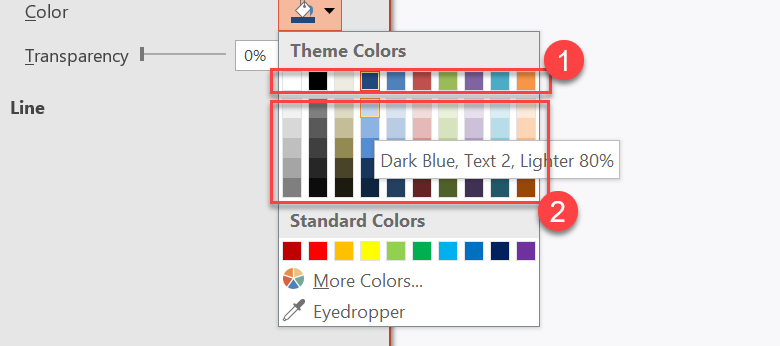
1 - สีธีมหลัก
2 - สีอ่อนและเข้มที่ผลิตจากสีธีมหลัก
ตัวอย่างต่อไปนี้สร้างสี่เหลี่ยมหกรูปโดยอิง Accent4, ใช้การแปลงความสว่างกับห้ารูป, และบันทึกผลลัพธ์:
import com.aspose.slides.*;

Presentation presentation = new Presentation();
try {
    ISlide slide = presentation.getSlides().get_Item(0);

    IShape shape1 = slide.getShapes().addAutoShape(ShapeType.Rectangle, 10, 10, 50, 50);
    shape1.getFillFormat().setFillType(FillType.Solid);
    shape1.getFillFormat().getSolidFillColor().setSchemeColor(SchemeColor.Accent4);

    IShape shape2 = slide.getShapes().addAutoShape(ShapeType.Rectangle, 10, 70, 50, 50);
    shape2.getFillFormat().setFillType(FillType.Solid);
    shape2.getFillFormat().getSolidFillColor().setSchemeColor(SchemeColor.Accent4);
    shape2.getFillFormat().getSolidFillColor().getColorTransform().add(ColorTransformOperation.MultiplyLuminance, 0.2f);
    shape2.getFillFormat().getSolidFillColor().getColorTransform().add(ColorTransformOperation.AddLuminance, 0.8f);

    IShape shape3 = slide.getShapes().addAutoShape(ShapeType.Rectangle, 10, 130, 50, 50);
    shape3.getFillFormat().setFillType(FillType.Solid);
    shape3.getFillFormat().getSolidFillColor().setSchemeColor(SchemeColor.Accent4);
    shape3.getFillFormat().getSolidFillColor().getColorTransform().add(ColorTransformOperation.MultiplyLuminance, 0.4f);
    shape3.getFillFormat().getSolidFillColor().getColorTransform().add(ColorTransformOperation.AddLuminance, 0.6f);

    IShape shape4 = slide.getShapes().addAutoShape(ShapeType.Rectangle, 10, 190, 50, 50);
    shape4.getFillFormat().setFillType(FillType.Solid);
    shape4.getFillFormat().getSolidFillColor().setSchemeColor(SchemeColor.Accent4);
    shape4.getFillFormat().getSolidFillColor().getColorTransform().add(ColorTransformOperation.MultiplyLuminance, 0.6f);
    shape4.getFillFormat().getSolidFillColor().getColorTransform().add(ColorTransformOperation.AddLuminance, 0.4f);

    IShape shape5 = slide.getShapes().addAutoShape(ShapeType.Rectangle, 10, 250, 50, 50);
    shape5.getFillFormat().setFillType(FillType.Solid);
    shape5.getFillFormat().getSolidFillColor().setSchemeColor(SchemeColor.Accent4);
    shape5.getFillFormat().getSolidFillColor().getColorTransform().add(ColorTransformOperation.MultiplyLuminance, 0.75f);

    IShape shape6 = slide.getShapes().addAutoShape(ShapeType.Rectangle, 10, 310, 50, 50);
    shape6.getFillFormat().setFillType(FillType.Solid);
    shape6.getFillFormat().getSolidFillColor().setSchemeColor(SchemeColor.Accent4);
    shape6.getFillFormat().getSolidFillColor().getColorTransform().add(ColorTransformOperation.MultiplyLuminance, 0.5f);

    presentation.save("theme-color-palette.pptx", SaveFormat.Pptx);
} finally {
    presentation.dispose();
}
ตัวแปรเหล่านี้ยังคงอิงจากสีธีม หาก Accent4 เปลี่ยนในภายหลัง สีที่แปลงจะถูกคำนวณใหม่จากค่า Accent4 ที่ใหม่
แมปค่า SchemeColor ไปยังตำแหน่งใน IColorScheme
enumeration SchemeColor ใช้ Text1, Background1, Text2, และ Background2 ในขณะที่ IColorScheme เปิดเผยตำแหน่งธีมเดียวกันเป็น Dark1, Light1, Dark2, และ Light2. การแมปคงที่ดังนี้:
Text1=Dark1Background1=Light1Text2=Dark2Background2=Light2
เหล่านี้เป็นชื่อทางเลือกของตำแหน่งธีมเดียวกัน; ไม่ได้เป็นค่าที่แปลงแบบไดนามิกจากรูปแบบหนึ่งไปยังอีกรูปแบบหนึ่ง
เปลี่ยนฟอนต์ของธีม
สคีมฟอนต์ของธีมประกอบด้วยชุดฟอนต์หลักสำหรับหัวเรื่องและชุดฟอนต์รองสำหรับเนื้อหา ตัวเมธอด IFontScheme.getMajor และ IFontScheme.getMinor เปิดเผยชุดเหล่านั้น
ตัวระบุฟอนต์ธีมที่เข้ากันกับ PowerPoint สามารถใช้ในรูปแบบข้อความได้:
+mn-lt- ฟอนต์ตัวอักษรลาติน (Minor Latin Font)+mj-lt- ฟอนต์หัวเรื่องลาติน (Major Latin Font)+mn-ea- ฟอนต์เอเชียตะวันออก (Minor East Asian Font)+mj-ea- ฟอนต์หัวเรื่องเอเชียตะวันออก (Major East Asian Font)
ตัวอย่างต่อไปนี้สร้างหัวเรื่องหนึ่งที่ใช้ฟอนต์หัวเรื่องลาตินและบรรทัดเนื้อหาเดียวที่ใช้ฟอนต์เนื้อหาลาติน จากนั้นเปลี่ยนฟอนต์ของธีมและบันทึกผลลัพธ์:
import com.aspose.slides.*;

Presentation presentation = new Presentation();
try {
    ISlide slide = presentation.getSlides().get_Item(0);

    IAutoShape heading = slide.getShapes().addAutoShape(ShapeType.Rectangle, 40, 40, 500, 60);
    heading.getTextFrame().setText("Theme heading");
    heading.getTextFrame().getParagraphs().get_Item(0).getPortions().get_Item(0).getPortionFormat().setLatinFont(new FontData("+mj-lt"));

    IAutoShape body = slide.getShapes().addAutoShape(ShapeType.Rectangle, 40, 120, 500, 60);
    body.getTextFrame().setText("Theme body text");
    body.getTextFrame().getParagraphs().get_Item(0).getPortions().get_Item(0).getPortionFormat().setLatinFont(new FontData("+mn-lt"));

    presentation.getMasterTheme().getFontScheme().getMajor().setLatinFont(new FontData("Aptos Display"));
    presentation.getMasterTheme().getFontScheme().getMinor().setLatinFont(new FontData("Arial"));
    presentation.save("theme-fonts.pptx", SaveFormat.Pptx);
} finally {
    presentation.dispose();
}
หัวเรื่องจะตามฟอนต์หลักและข้อความหลักจะตามฟอนต์รอง ข้อความที่ระบุชื่อฟอนต์โดยตรงแทนที่ระบุตัวตนของธีมจะไม่สลับโดยอัตโนมัติเมื่อสคีมฟอนต์ของธีมเปลี่ยน
คอลเลกชันฟอนต์หลักและรองยังอาจมีการแมปฟอนต์สำหรับระบบเขียนแต่ละระบบ เช่น Cyrillic, Arabic, Japanese, Georgian, และ Thaana เพื่อดู, เพิ่ม, แทนที่ หรือเอาออก ให้ดูที่ Script-Specific Theme Fonts
Tip
สำหรับข้อมูลเพิ่มเติมเกี่ยวกับฟอนต์ในงานนำเสนอ ดูที่ PowerPoint Fonts.คัดลอกหรือใช้ธีม
เวิร์กโฟลว์ต่อไปนี้แก้ปัญหาเรื่องธีมที่ต่างกัน
ใช้ธีมภายนอกกับสไลด์ที่ขึ้นอยู่กับมาสเตอร์
ใช้ IMasterSlide.applyExternalThemeToDependingSlides เมื่อคุณมีไฟล์ธีม PowerPoint (.thmx) และต้องการเปลี่ยนสไตล์ทุกสไลด์ที่พึ่งพามาสเตอร์ใดมาสเตอร์หนึ่ง เลือกมาสเตอร์จากคอลเลกชัน Presentation.getMasters ซึ่งเป็นอิมพลีเมนต์ของ IMasterSlideCollection, จากนั้นส่งพาธไฟล์ธีมให้เมธอด
เมธอดทำขั้นตอนต่อไปนี้:
- สร้างมาสเตอร์สไลด์ใหม่จากมาสเตอร์ที่เลือก
- ใช้ธีมภายนอกกับมาสเตอร์ใหม่
- กำหนดมาสเตอร์ใหม่ให้กับสไลด์ทั้งหมดที่เคยพึ่งพามาสเตอร์ที่เลือก
- คืนค่า IMasterSlide ที่เพิ่งสร้างขึ้น
ตัวอย่างต่อไปนี้ใช้ธีมภายนอกกับสไลด์ที่พึ่งพามาสเตอร์แรกและบันทึกงานนำเสนอ:
import com.aspose.slides.*;

Presentation presentation = new Presentation("presentation.pptx");
try {
    IMasterSlide selectedMaster = presentation.getMasters().get_Item(0);
    IMasterSlide themedMaster = selectedMaster.applyExternalThemeToDependingSlides("corporate-theme.thmx");

    System.out.println("Created master: " + themedMaster.getName());
    presentation.save("presentation-with-external-theme.pptx", SaveFormat.Pptx);
} finally {
    presentation.dispose();
}
ธีมที่ไม่ถูกต้อง, เสียหาย, หรือไม่รองรับอาจทำให้เกิด PptxReadException. ตรวจสอบพาธที่ผู้ใช้ส่ง, จัดการข้อผิดพลาดการเข้าถึงไฟล์ระบบ, และบันทึกงานนำเสนอเฉพาะหลังจากธีมประยุกต์สำเร็จ
เฉพาะสไลด์ที่พึ่งพามาสเตอร์ที่เลือกเท่านั้นจะถูกกำหนดใหม่ สไลด์ที่เชื่อมกับมาสเตอร์อื่นจะคงมาสเตอร์และธีมเดิมไว้ สี, ฟอนต์, เติม, เส้น, พื้นหลัง, และเอฟเฟกต์ที่รับรู้ธีมจะอ้างอิงธีมภายนอก สี, ฟอนต์, เติม, และการฟอร์แมตที่กำหนดโดยตรงอาจคงเดิมไว้ การกำหนดทับระดับเลเอาต์หรือสไลด์ยังอาจมีความสำคัญเหนือค่าที่สืบทอดจากมาสเตอร์ใหม่
ธีมอาจอ้างอิงฟอนต์ที่ไม่มีในสภาพแวดล้อมรันไทม์ เพื่อการเรนเดอร์และการส่งออกที่สอดคล้องกัน ให้ติดตั้งฟอนต์ที่จำเป็น, ให้บริการผ่าน custom font sources, หรือกำหนดค่า font substitution
นี่เป็นเวิร์กโฟลว์ระดับมาสเตอร์โดยตรง: เมธอดรับพาธไฟล์ .thmx และไม่ต้องสร้างการกำหนดทับระดับสไลด์หรือเลเอาต์ด้วยตนเอง
ใช้ธีมภายนอกที่แตกต่างกันในงานนำเสนอหลายมาสเตอร์
หากไม่ทราบมาสเตอร์ที่ต้องการล่วงหน้า ให้ดึงมาสเตอร์จากสไลด์ตัวแทนผ่าน ISlide.getLayoutSlide และ ILayoutSlide.getMasterSlide. เก็บอ้างอิงมาสเตอร์เดิมก่อนทำการใช้ธีมใด ๆ เพราะแต่ละครั้งที่เรียกจะสร้างมาสเตอร์ใหม่ในงานนำเสนอ
ตัวอย่างต่อไปนี้ใช้สไลด์จากสองส่วนเพื่อค้นหามาสเตอร์ของพวกเขาและใช้ธีมภายนอกที่แตกต่างกันกับแต่ละกลุ่ม:
import com.aspose.slides.*;

Presentation presentation = new Presentation("multi-master-presentation.pptx");
try {
    if (presentation.getSlides().size() < 5) {
        System.out.println("The presentation does not contain the expected representative slides.");
    } else {
        IMasterSlide firstGroupMaster = presentation.getSlides().get_Item(0).getLayoutSlide().getMasterSlide();
        IMasterSlide secondGroupMaster = presentation.getSlides().get_Item(4).getLayoutSlide().getMasterSlide();

        if (firstGroupMaster.getSlideId() == secondGroupMaster.getSlideId()) {
            System.out.println("The representative slides use the same master.");
        } else {
            IMasterSlide firstThemedMaster = firstGroupMaster.applyExternalThemeToDependingSlides("blue-theme.thmx");
            IMasterSlide secondThemedMaster = secondGroupMaster.applyExternalThemeToDependingSlides("green-theme.thmx");

            System.out.println("First themed master: " + firstThemedMaster.getName());
            System.out.println("Second themed master: " + secondThemedMaster.getName());
            presentation.save("multi-master-with-external-themes.pptx", SaveFormat.Pptx);
        }
    }
} finally {
    presentation.dispose();
}
การเรียกครั้งแรกส่งผลเฉพาะสไลด์ที่พึ่งพา firstGroupMaster, การเรียกครั้งที่สองส่งผลเฉพาะสไลด์ที่พึ่งพา secondGroupMaster. สไลด์ที่เชื่อมกับมาสเตอร์อื่นจะไม่ถูกเปลี่ยนสไตล์
รักษาธีมต้นฉบับเมื่อย้ายสไลด์
หากต้องการย้ายสไลด์ไปยังงานนำเสนออื่นและรักษาการออกแบบเดิม ให้โคลนมาสเตอร์ต้นฉบับเข้าไปในงานนำหน้าโดยใช้ IMasterSlideCollection.addClone, จากนั้นโคลนสไลด์ด้วย ISlideCollection.addClone พร้อมมาสเตอร์ที่โคลนไว้ วิธีนี้จะพิมพ์มาสเตอร์, เลเอาต์, และธีมที่เกี่ยวข้องไปด้วย
import com.aspose.slides.*;

Presentation source = new Presentation("source-theme.pptx");
try {
    Presentation target = new Presentation("target.pptx");
    try {
        ISlide sourceSlide = source.getSlides().get_Item(0);
        IMasterSlide sourceMaster = sourceSlide.getLayoutSlide().getMasterSlide();
        IMasterSlide clonedMaster = target.getMasters().addClone(sourceMaster);
        target.getSlides().addClone(sourceSlide, clonedMaster, true);
        target.save("theme-preserved.pptx", SaveFormat.Pptx);
    } finally {
        target.dispose();
    }
} finally {
    source.dispose();
}
นี่เป็นเวิร์กโฟลว์ที่แนะนำเมื่อสไลด์ต้นฉบับต้องแสดงผลเหมือนเดิมในปลายทาง การโคลนเนื้อหาไปยังมาสเตอร์ปลายทางที่ไม่มีความเกี่ยวข้องอาจทำให้สี, ฟอนต์, พื้นหลัง, และเอฟเฟกต์ที่ขับเคลื่อนโดยธีมเปลี่ยนแปลง
ใช้ค่าธีมกับสไลด์ที่มีอยู่
หากสไลด์เป้าหมายต้องคงอยู่บนมาสเตอร์และเลเอาต์ปัจจุบัน ให้เริ่มต้นการกำหนดทับระดับสไลด์จากธีมต้นฉบับ เมธอด OverrideTheme.initColorSchemeFrom, OverrideTheme.initFontSchemeFrom, และ OverrideTheme.initFormatSchemeFrom คัดลอกส่วนประกอบธีมหลักสามส่วนเข้าสู่การกำหนดทับ
import com.aspose.slides.*;

Presentation source = new Presentation("source-theme.pptx");
try {
    Presentation target = new Presentation("target.pptx");
    try {
        ISlide targetSlide = presentation.getSlides().get_Item(0);
        IOverrideTheme overrideTheme = targetSlide.getThemeManager().getOverrideTheme();
        overrideTheme.initColorSchemeFrom(source.getMasterTheme().getColorScheme());
        overrideTheme.initFontSchemeFrom(source.getMasterTheme().getFontScheme());
        overrideTheme.initFormatSchemeFrom(source.getMasterTheme().getFormatScheme());
        target.save("theme-applied-to-slide.pptx", SaveFormat.Pptx);
    } finally {
        target.dispose();
    }
} finally {
    source.dispose();
}
วิธีนี้เปลี่ยนธีมที่สไลด์ใช้โดยไม่กระทบธีมที่สืบทอดจากสไลด์อื่น ๆ เพื่อเอาการกำหนดทับท้องถิ่นออกและกลับไปใช้ค่าที่สืบทอด ให้เรียก OverrideTheme.clear
กำหนดทับธีมให้กับเลเอาต์
การกำหนดทับระดับเลเอาต์จะส่งผลต่อสไลด์ที่ใช้เลเอาต์นั้น เว้นแต่สไลด์บางอันจะมีการกำหนดทับของตนเอง วิธีการเริ่มต้นเดียวกันสามารถใช้ผ่าน LayoutSlideThemeManager:
import com.aspose.slides.*;

Presentation source = new Presentation("source-theme.pptx");
try {
    Presentation target = new Presentation("target.pptx");
    try {
        ISlide targetSlide = presentation.getSlides().get_Item(0);
        ILayoutSlide targetLayout = targetSlide.getLayoutSlide();
        IOverrideTheme overrideTheme = targetLayout.getThemeManager().getOverrideTheme();
        overrideTheme.initColorSchemeFrom(source.getMasterTheme().getColorScheme());
        overrideTheme.initFontSchemeFrom(source.getMasterTheme().getFontScheme());
        overrideTheme.initFormatSchemeFrom(source.getMasterTheme().getFormatScheme());
        target.save("theme-applied-to-layout.pptx", SaveFormat.Pptx);
    } finally {
        target.dispose();
    }
} finally {
    source.dispose();
}
ใช้ธีมระดับมาสเตอร์หรือระดับงานนำเสนอเมื่อหลายเลเอาต์และสไลด์ต้องการแชร์การออกแบบฐานเดียวกัน ใช้การกำหนดทับระดับเลเอาต์เมื่อกลุ่มเลเอาต์ต้องการสไตล์ที่แตกต่าง และใช้การกำหนดทับระดับสไลด์เฉพาะสำหรับข้อยกเว้นที่แท้จริง การกำหนดทับระดับสไลด์มากเกินไปทำให้การเปลี่ยนธีมทั่วโลกในภายหลังทำนายได้ยาก
อัปเดตรูปแบบพื้นหลังของธีม
การเติมพื้นหลังของธีมถูกจัดเก็บใน IFormatScheme.getBackgroundFillStyles. PowerPoint สามารถแสดงตัวเลือกพื้นหลังได้มากกว่าจำนวนการกำหนดเติมที่จัดเก็บในคอลเลกชันนี้ เนื่องจาก UI สามารถรวมการเติมธีมกับสีธีมและการอ้างอิงสไตล์อื่นได้
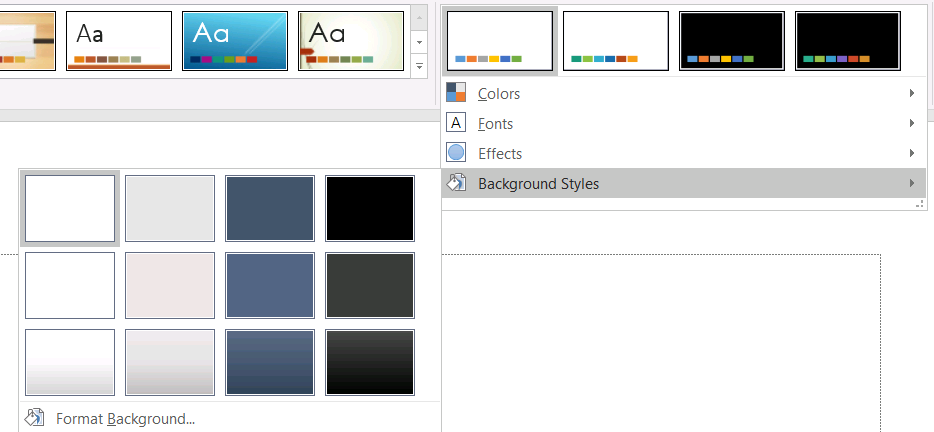
ก่อนใช้รูปแบบพื้นหลัง ให้ตรวจสอบคอลเลกชันที่จัดเก็บและค่า Background.getStyleIndex ปัจจุบัน อินเด็กซ์สไตล์ 0 หมายถึงไม่มีการเติมตามธีม; ค่าบวกเป็นการอ้างอิงสไตล์พื้นหลังของธีม สิ่งนี้ต่างจากการอ้างอิงคอลเลกชัน Java โดยตรงที่ get_Item(0) หมายถึงรายการแรก อย่าถือว่าทุกงานนำเสนอมีจำนวนสไตล์เติมพื้นหลังเท่ากัน
ตัวอย่างต่อไปนี้รายงานจำนวนการเติมพื้นหลังที่มี, กำหนดอ้างอิงพื้นหลังตามธีมให้กับมาสเตอร์แรก, และบันทึกงานนำเสนอ:
import com.aspose.slides.*;

Presentation presentation = new Presentation("input.pptx");
try {
    IFillFormatCollection backgroundStyles = presentation.getMasterTheme().getFormatScheme().getBackgroundFillStyles();
    System.out.println("Background fill styles: " + backgroundStyles.size());
    if (backgroundStyles.size() == 0) {
        throw new IllegalStateException("The presentation theme does not contain background fill styles.");
    }

    IMasterSlide masterSlide = presentation.getMasters().get_Item(0);
    masterSlide.getBackground().setType(BackgroundType.Themed);
    masterSlide.getBackground().setStyleIndex(1);
    presentation.save("theme-background.pptx", SaveFormat.Pptx);
} finally {
    presentation.dispose();
}
ผลลัพธ์ที่มองเห็นขึ้นอยู่กับรายการธีมที่มาสเตอร์อ้างอิงและการกำหนดทับพื้นหลังที่ระดับเลเอาต์หรือสไลด์ หากสไลด์ใช้พื้นหลังของตนเอง การเปลี่ยนพื้นหลังมาสเตอร์อย่างเดียวอาจไม่กระทบสไลด์นั้น ใช้ Background.getEffective เมื่อคุณต้องการรู้พื้นหลังสุดท้ายหลังจากการสืบทอด
Warning
อย่าใช้ค่าอินเด็กซ์สไตล์เป็นอินเด็กซ์ของคอลเลกชันแบบศูนย์‑ฐาน นอกจากนี้หลีกเลี่ยงการฮาร์ดโค้ดหมายเลขสไตล์จากไฟล์หนึ่งและถือว่ามีลักษณะเดียวกันในไฟล์อื่น; คำนิยามสไตล์ของธีมเป็นลักษณะเฉพาะของงานนำเสนอTip
สำหรับการจัดรูปแบบพื้นหลังโดยตรงและการสืบทอดพื้นหลัง ดูที่ Presentation Backgroundอัปเดตเอฟเฟกต์ของธีม
สคีมฟอร์แมตของธีมมีคอลเลกชันการเติม, เส้น, และเอฟเฟกต์แยกกันที่เปิดเผยผ่าน IFormatScheme.getFillStyles, IFormatScheme.getLineStyles, และ IFormatScheme.getEffectStyles. ธีม Office ปกติมักมีสามรายการสไตล์หลักที่สอดคล้องกับการฟอร์แมตแบบ Subtle, Moderate, และ Intense แต่โค้ดควรตรวจสอบแต่ละคอลเลกชันแทนการสมมุติกำหนดจำนวนคงที่

เมื่อเข้าถึงคอลเลกชันเหล่านี้ใน Java อินเด็กซ์ของคอลเลกชันเป็นศูนย์‑ฐาน: get_Item(0) คือสไตล์แรกที่จัดเก็บและ get_Item(2) คือสไตล์ที่สาม อินเด็กซ์อ้างอิงสไตล์ของรูปร่างเป็นแนวคิดแยกต่างหากที่เปิดเผยผ่าน IShapeStyle. การแก้ไขสไตล์ธีมจะกระทบรูปร่างที่อ้างอิงสไตล์นั้น; รูปร่างที่ใช้ฟอร์แมตโดยตรงอาจคงเดิม
ตัวอย่างต่อไปนี้ตรวจสอบว่ามีรายการสไตล์ที่ต้องการหรือไม่, เปลี่ยนสไตล์เส้นแรก, เปลี่ยนสไตล์เติมที่สาม, เปิดเงานอกในสไตล์เอฟเฟกต์ที่สาม, และบันทึกผลลัพธ์:
import com.aspose.slides.*;
import java.awt.Color;

Presentation presentation = new Presentation("Subtle_Moderate_Intense.pptx");
try {
    IFormatScheme formatScheme = presentation.getMasterTheme().getFormatScheme();
    if (formatScheme.getLineStyles().size() < 1 || formatScheme.getFillStyles().size() < 3 || formatScheme.getEffectStyles().size() < 3) {
        throw new IllegalStateException("The theme does not contain the style entries required by this example.");
    }
    formatScheme.getLineStyles().get_Item(0).getFillFormat().setFillType(FillType.Solid);
    formatScheme.getLineStyles().get_Item(0).getFillFormat().getSolidFillColor().setColor(Color.RED);
    formatScheme.getFillStyles().get_Item(2).setFillType(FillType.Solid);
    formatScheme.getFillStyles().get_Item(2).getSolidFillColor().setColor(new Color(34, 139, 34));
    IEffectFormat effectFormat = formatScheme.getEffectStyles().get_Item(2).getEffectFormat();
    effectFormat.enableOuterShadowEffect();
    effectFormat.getOuterShadowEffect().setDistance(10f);
    presentation.save("theme-effects.pptx", SaveFormat.Pptx);
} finally {
    presentation.dispose();
}
สำหรับรูปร่างที่อ้างอิงตำแหน่งเหล่านี้ สไตล์เส้นธีมแรกจะเป็นสีแดง, สไตล์เติมธีมที่สามจะเป็นสีเขียวป่าแบบทึบ, และสไตล์เอฟเฟกต์ที่สามจะมีเงานอกโดยระยะ 10 จุด ผลลัพธ์ภาพที่แน่นอนยังขึ้นกับสไตล์ที่แต่ละรูปร่างอ้างอิงและว่าฟอร์แมตโดยตรงได้ทำการกำหนดทับหรือไม่

ระบุตรวจสอบว่าการเติมแบบทึบที่มีผลใช้สีธีมหรือไม่
การเติมอาจถูกเก็บโดยตรงบนอ็อบเจกต์หรือสืบทอดจากย่อหน้า, เลเอาต์, มาสเตอร์, สไตล์ธีม, หรือระดับฟอร์แมตอื่น ๆ ให้เรียก IFillFormat.getEffective เพื่อแปลงลำดับชั้นนั้นเป็น IFillFormatEffectiveData ค่าที่ไม่เปลี่ยนแล้ว ตรวจสอบ IFillFormatEffectiveData.getFillType ก่อน; เฉพาะเมื่อเป็น FillType.Solid จึงอ่านคุณสมบัติการเติมแบบทึบ
สำหรับการเติมแบบทึบ, IFillFormatEffectiveData.getSolidFillColor คืนค่ RGB ที่เรนเดอร์สุดท้ายหลังการสืบทอด, การค้นหาธีม, และการแปลงสี IFillFormatEffectiveData.getSolidFillSchemeColor คืนตำแหน่ง logical ของ SchemeColor เช่น Text1 หรือ Accent6. ค่า SchemeColor.NotDefined หมายถึงการเติมแบบทึบที่ได้ผลไม่อิงจากสคีมสี ในเวิร์กโฟลว์ที่เติมเป็นธีมสีหรือ RGB โดยตรง ค่านี้บ่งบอกว่าการเติมเป็น RGB โดยตรง
อย่าใช้ค่า IColorFormat.getSchemeColor ท้องถิ่นอย่างเดียวเพื่อตัดสินการเติม ตัวอย่างเช่น ส่วนข้อความอาจไม่มีสคีมสีกำหนดในที่ท้องถิ่น จึงค่า NotDefined, แต่การเติมที่มีผลอาจสืบทอดสีธีมและแปลงเป็น Text1 หรือ Accent6. ในทางกลับกัน getSolidFillSchemeColor บอกว่าตำแหน่งธีมใดสร้างสีที่มีผล, แต่ไม่บอกระดับที่มาของตำแหน่งนั้น (อ็อบเจกต์, ย่อหน้า, เลเอต, มาสเตอร์ ฯลฯ)
ตัวอย่างต่อไปนี้โหลดงานนำเสนอ, ตรวจสอบการเติมของรูปร่างและส่วนข้อความ, พิมพ์ค่า RGB สุดท้ายและสคีมสีที่สัมพันธ์, และทำเครื่องหมายการเติมแบบทึบที่ไม่ติดตามการเปลี่ยนสีธีม:
import com.aspose.slides.*;
import java.awt.Color;
import java.util.function.BiConsumer;

BiConsumer<String, IFillFormat> auditFill = (objectName, localFill) -> {
    IFillFormatEffectiveData effectiveFill = localFill.getEffective();

    if (effectiveFill.getFillType() != FillType.Solid) {
        System.out.println(objectName + ": fill type = " + effectiveFill.getFillType() + "; not a solid fill.");
        return;
    }

    Color rgb = effectiveFill.getSolidFillColor();
    int effectiveSchemeColor = effectiveFill.getSolidFillSchemeColor();
    int localSchemeColor = localFill.getSolidFillColor().getSchemeColor();

    System.out.printf("%s: RGB = #%02X%02X%02X%n", objectName, rgb.getRed(), rgb.getGreen(), rgb.getBlue());
    System.out.println(objectName + ": local scheme = " + localSchemeColor + ", effective scheme = " + effectiveSchemeColor);

    if (effectiveSchemeColor == SchemeColor.NotDefined) {
        System.out.println(objectName + ": direct RGB or another non-scheme fill; audit as theme-independent.");
    } else {
        System.out.println(objectName + ": theme-dependent through " + effectiveSchemeColor + ".");
    }
};

Presentation presentation = new Presentation("input.pptx");
try {
    int slideCount = presentation.getSlides().size();
    for (int slideIndex = 0; slideIndex < slideCount; slideIndex++) {
        ISlide slide = presentation.getSlides().get_Item(slideIndex);

        int shapeCount = slide.getShapes().size();
        for (int shapeIndex = 0; shapeIndex < shapeCount; shapeIndex++) {
            IShape shape = slide.getShapes().get_Item(shapeIndex);
            String shapeName = "Slide " + (slideIndex + 1) + ", shape " + (shapeIndex + 1);
            auditFill.accept(shapeName, shape.getFillFormat());

            if (shape instanceof IAutoShape) {
                IAutoShape autoShape = (IAutoShape) shape;
                int paragraphCount = autoShape.getTextFrame().getParagraphs().getCount();
                for (int paragraphIndex = 0; paragraphIndex < paragraphCount; paragraphIndex++) {
                    IParagraph paragraph = autoShape.getTextFrame().getParagraphs().get_Item(paragraphIndex);

                    int portionCount = paragraph.getPortions().getCount();
                    for (int portionIndex = 0; portionIndex < portionCount; portionIndex++) {
                        IPortion portion = paragraph.getPortions().get_Item(portionIndex);
                        String portionName = shapeName + ", paragraph " + (paragraphIndex + 1) + ", portion " + (portionIndex + 1);
                        auditFill.accept(portionName, portion.getPortionFormat().getFillFormat());
                    }
                }
            }
        }
    }
} finally {
    presentation.dispose();
}
สาขา NotDefined ให้รายการตรวจสอบการเติมแบบทึบที่ไม่ตอบสนองต่อการเปลี่ยนสล็ทสีธีม ตรวจสอบอ็อบเจกต์เหล่านั้นเมื่อการนำเสนอจำเป็นต้องสอดคล้องกับพาเลตต์แบรนด์ใหม่ ค่า RGB ที่รายงานยังแสดงรูปลักษณ์ปัจจุบัน ส่วนสคีมสีอธิบายว่ารูปลักษณ์นั้นเชื่อมต่อกับธีมหรือไม่
อ็อบเจกต์รูปแบบที่มีผลเป็นสแน็ปชอต หลังจากเปลี่ยนธีมงานนำเสนอ, การกำหนดทับธีม, หรือฟอร์แมตที่สืบทอดใด ๆ ให้เรียก getEffective อีกครั้งและอ่านอ็อบเจกต์ IFillFormatEffectiveData ใหม่ก่อนเปรียบเทียบหรือรายงานสี
อ่านค่าธีมที่มีผล
อ็อบเจกต์ธีมดิบบอกว่ามีการกำหนดอะไรที่ระดับใดระดับหนึ่ง ค่าที่มีผลบอกว่าสไลด์หรือรูปร่างใช้อะไรจริงหลังการสืบทอดและการกำหนดทับท้องถิ่น สำหรับสไลด์ ให้เรียก BaseOverrideThemeManager.createThemeEffective. สำหรับพื้นหลัง ใช้ Background.getEffective, และสำหรับการเติมใช้ FillFormat.getEffective
ตัวอย่างต่อไปนี้อ่านธีมที่มีผล, พื้นหลัง, และการเติมของรูปร่างแรกจากสไลด์:
import com.aspose.slides.*;

Presentation presentation = new Presentation("input.pptx");
try {
    ISlide slide = presentation.getSlides().get_Item(0);
    IThemeEffectiveData effectiveTheme = slide.getThemeManager().createThemeEffective();
    IBackgroundEffectiveData effectiveBackground = slide.getBackground().getEffective();
    System.out.println("Effective major Latin font: " + effectiveTheme.getFontScheme().getMajor().getLatinFont().getFontName());
    System.out.println("Effective minor Latin font: " + effectiveTheme.getFontScheme().getMinor().getLatinFont().getFontName());
    System.out.println("Effective background fill type: " + effectiveBackground.getFillFormat().getFillType());
    if (slide.getShapes().size() > 0) {
        IFillFormatEffectiveData effectiveFill = slide.getShapes().get_Item(0).getFillFormat().getEffective();
        System.out.println("First shape effective fill type: " + effectiveFill.getFillType());
        if (effectiveFill.getFillType() == FillType.Solid) {
            System.out.println("First shape effective fill color: " + effectiveFill.getSolidFillColor());
        }
    }
} finally {
    presentation.dispose();
}
ใช้ข้อมูลที่มีผลเพื่อการวินิจฉัยการเรนเดอร์, การตรวจสอบ, และการเปรียบเทียบ หากคุณตรวจสอบเฉพาะ Presentation.getMasterTheme คุณอาจพลาดการกำหนดทับจากมาสเตอร์, เลเอาต์, สไลด์, หรือรูปร่างที่ทำให้รูปลักษณ์สุดท้ายเปลี่ยน
คำถามที่พบบ่อย
การใช้ธีมภายนอกมีผลต่อสไลด์ทุกสไลด์ในงานนำเสนอหรือไม่?
ไม่. IMasterSlide.applyExternalThemeToDependingSlides จะกำหนดใหม่เฉพาะสไลด์ที่พึ่งพามาสเตอร์ที่เลือก สไลด์ที่ใช้มาสเตอร์อื่นคงธีมเดิม
ฉันสามารถใช้ธีมกับสไลด์เดียวโดยไม่เปลี่ยนมาสเตอร์ได้หรือไม่?
ได้. ใช้ SlideThemeManager ของสไลด์และเริ่มต้นธีมกำหนดทับ การเปลี่ยนจะอยู่เฉพาะสไลด์นั้น; สไลด์อื่นยังคงสืบทอดธีมเดิม
วิธีที่ปลอดภัยที่สุดในการย้ายธีมจากงานนำเสนอหนึ่งไปยังอีกงานนำเสนอคืออะไร?
เมื่อย้ายสไลด์และต้องการรักษาลักษณะเดิมของแหล่งข้อมูล ให้โคลนมาสเตอร์ต้นฉบับเข้าไปในปลายทางและโคลนสไลด์พร้อมมาสเตอร์นั้นโดยใช้ IMasterSlideCollection.addClone และ ISlideCollection.addClone. วิธีนี้ทำให้มาสเตอร์, เลเอาต์, และธีมคงอยู่ด้วยกัน
ฉันจะดูค่าที่มีผลหลังการสืบทอดและการกำหนดทับได้อย่างไร?
ใช้ BaseOverrideThemeManager.createThemeEffective สำหรับสไลด์หรือธีมเลเอาต์และเมธอดข้อมูลที่มีผลที่สอดคล้องสำหรับอ็อบเจกต์ฟอร์แมต เช่น Background.getEffective และ FillFormat.getEffective. API เหล่านี้คืนค่าที่แก้ไขแล้วหลังจากการสืบทอดและการกำหนดทับถูกนำมาใช้.