
管理 Java 簡報佈景主題
簡介
簡報佈景主題定義了一組協調的顏色、字型、背景樣式、填滿、線條和效果。具備佈景意識的物件會參照這些共用定義,而不是將每個視覺屬性儲存為固定值,因此變更佈景時可以一次更新許多物件。
在 Aspose.Slides 中,簡報層級的佈景可透過Presentation.getMasterTheme取得。簡報也可能在較低層級包含佈景覆寫。母片可透過MasterThemeManager.getOverrideTheme覆寫簡報佈景,而版面或單一投影片則可透過BaseOverrideThemeManager.getOverrideTheme覆寫其繼承的佈景。實務上,投影片的實際佈景會依此繼承鏈決定:簡報佈景、母片覆寫、版面覆寫、投影片覆寫。
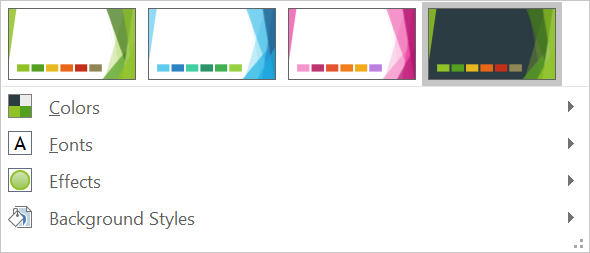
以下章節說明最常見的佈景工作流程:檢查佈景、變更顏色與字型、複製或套用佈景、更新背景與效果樣式,並在繼承與覆寫解析後讀取實際值。
檢查佈景
MasterTheme 物件透過MasterTheme.getColorScheme、MasterTheme.getFontScheme和MasterTheme.getFormatScheme公開佈景的顏色方案、字型方案與格式方案。在變更前先檢查這些集合尤其在簡報來自外部來源時很有用,因為樣式項目的數量與內容可能不同。
以下範例讀取主要佈景屬性,並回報佈景中儲存了多少背景、填滿、線條與效果樣式:
import com.aspose.slides.*;

Presentation presentation = new Presentation("input.pptx");
try {
    IMasterTheme theme = presentation.getMasterTheme();
    System.out.println("Theme name: " + theme.getName());
    System.out.println("Accent 1: " + theme.getColorScheme().getAccent1().getColor());
    System.out.println("Major Latin font: " + theme.getFontScheme().getMajor().getLatinFont().getFontName());
    System.out.println("Minor Latin font: " + theme.getFontScheme().getMinor().getLatinFont().getFontName());
    System.out.println("Background fill styles: " + theme.getFormatScheme().getBackgroundFillStyles().size());
    System.out.println("Fill styles: " + theme.getFormatScheme().getFillStyles().size());
    System.out.println("Line styles: " + theme.getFormatScheme().getLineStyles().size());
    System.out.println("Effect styles: " + theme.getFormatScheme().getEffectStyles().size());
} finally {
    presentation.dispose();
}
如果檔案使用多個母片,請不要假設每張投影片都有相同的實際佈景。檢查與投影片相關的母片,並在版面或投影片可能有覆寫時使用本文稍後說明的實際佈景工作流程。
變更佈景顏色
具備佈景意識的填滿、線條和文字可以參照SchemeColor列舉中的邏輯顏色。當您變更IColorScheme中的對應項目時,所有仍參照該佈景顏色的物件都會以新值重新解析。直接使用 RGB 顏色的物件不會受到佈景顏色更新的影響。
以下端到端範例建立一個使用 Accent4 的圖形,將佈景的 Accent4 顏色改為紅色,儲存簡報,重新開啟後列印實際填滿顏色:
import com.aspose.slides.*;
import java.awt.Color;

Presentation presentation = new Presentation();
try {
    ISlide slide = presentation.getSlides().get_Item(0);
    IAutoShape shape = slide.getShapes().addAutoShape(ShapeType.Rectangle, 10, 10, 100, 100);
    shape.getFillFormat().setFillType(FillType.Solid);
    shape.getFillFormat().getSolidFillColor().setSchemeColor(SchemeColor.Accent4);
    presentation.getMasterTheme().getColorScheme().getAccent4().setColor(Color.RED);
    presentation.save("theme-color.pptx", SaveFormat.Pptx);
} finally {
    presentation.dispose();
}

Presentation savedPresentation = new Presentation("theme-color.pptx");
try {
    ISlide savedSlide = savedPresentation.getSlides().get_Item(0);
    IShape savedShape = savedSlide.getShapes().get_Item(0);
    IFillFormatEffectiveData effectiveFill = savedShape.getFillFormat().getEffective();
    System.out.println("Effective fill color: " + effectiveFill.getSolidFillColor());
} finally {
    savedPresentation.dispose();
}
由於矩形仍連結至 Accent4,佈景變更後其可見顏色會變成紅色。如果您在圖形上將方案顏色替換為直接顏色,之後對 Accent4 的變更將不再影響該填滿。
使用附加調色盤的顏色
PowerPoint 會透過顏色變換從佈景顏色衍生出較亮與較暗的變體。Aspose.Slides 透過ColorTransformOperation列舉公開這些變換。
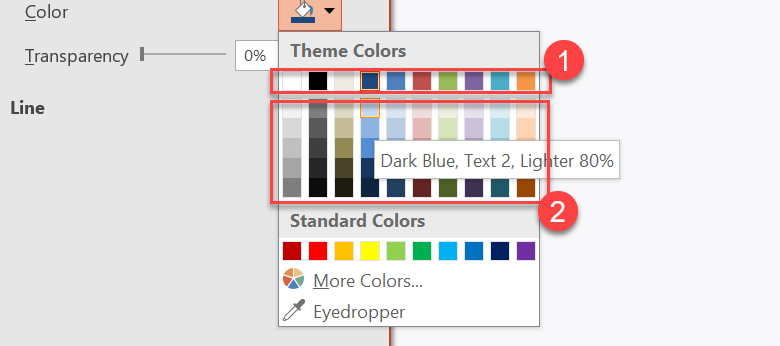
1 - 主要佈景顏色。
2 - 由主要佈景顏色產生的較亮與較暗變體。
以下範例建立六個以 Accent4 為基礎的矩形,對其中五個套用亮度變換,並儲存結果:
import com.aspose.slides.*;

Presentation presentation = new Presentation();
try {
    ISlide slide = presentation.getSlides().get_Item(0);

    IShape shape1 = slide.getShapes().addAutoShape(ShapeType.Rectangle, 10, 10, 50, 50);
    shape1.getFillFormat().setFillType(FillType.Solid);
    shape1.getFillFormat().getSolidFillColor().setSchemeColor(SchemeColor.Accent4);

    IShape shape2 = slide.getShapes().addAutoShape(ShapeType.Rectangle, 10, 70, 50, 50);
    shape2.getFillFormat().setFillType(FillType.Solid);
    shape2.getFillFormat().getSolidFillColor().setSchemeColor(SchemeColor.Accent4);
    shape2.getFillFormat().getSolidFillColor().getColorTransform().add(ColorTransformOperation.MultiplyLuminance, 0.2f);
    shape2.getFillFormat().getSolidFillColor().getColorTransform().add(ColorTransformOperation.AddLuminance, 0.8f);

    IShape shape3 = slide.getShapes().addAutoShape(ShapeType.Rectangle, 10, 130, 50, 50);
    shape3.getFillFormat().setFillType(FillType.Solid);
    shape3.getFillFormat().getSolidFillColor().setSchemeColor(SchemeColor.Accent4);
    shape3.getFillFormat().getSolidFillColor().getColorTransform().add(ColorTransformOperation.MultiplyLuminance, 0.4f);
    shape3.getFillFormat().getSolidFillColor().getColorTransform().add(ColorTransformOperation.AddLuminance, 0.6f);

    IShape shape4 = slide.getShapes().addAutoShape(ShapeType.Rectangle, 10, 190, 50, 50);
    shape4.getFillFormat().setFillType(FillType.Solid);
    shape4.getFillFormat().getSolidFillColor().setSchemeColor(SchemeColor.Accent4);
    shape4.getFillFormat().getSolidFillColor().getColorTransform().add(ColorTransformOperation.MultiplyLuminance, 0.6f);
    shape4.getFillFormat().getSolidFillColor().getColorTransform().add(ColorTransformOperation.AddLuminance, 0.4f);

    IShape shape5 = slide.getShapes().addAutoShape(ShapeType.Rectangle, 10, 250, 50, 50);
    shape5.getFillFormat().setFillType(FillType.Solid);
    shape5.getFillFormat().getSolidFillColor().setSchemeColor(SchemeColor.Accent4);
    shape5.getFillFormat().getSolidFillColor().getColorTransform().add(ColorTransformOperation.MultiplyLuminance, 0.75f);

    IShape shape6 = slide.getShapes().addAutoShape(ShapeType.Rectangle, 10, 310, 50, 50);
    shape6.getFillFormat().setFillType(FillType.Solid);
    shape6.getFillFormat().getSolidFillColor().setSchemeColor(SchemeColor.Accent4);
    shape6.getFillFormat().getSolidFillColor().getColorTransform().add(ColorTransformOperation.MultiplyLuminance, 0.5f);

    presentation.save("theme-color-palette.pptx", SaveFormat.Pptx);
} finally {
    presentation.dispose();
}
這些變體仍以佈景顏色為基礎。若稍後 Accent4 變更,轉換後的顏色會依新 Accent4 值重新計算。
將 SchemeColor 值對映至 IColorScheme 槽位
SchemeColor 列舉使用 Text1、Background1、Text2、Background2,而IColorScheme 則以 Dark1、Light1、Dark2、Light2 方式曝光相同的佈景槽位。對映固定如下:
Text1=Dark1Background1=Light1Text2=Dark2Background2=Light2
這些是相同佈景槽位的別名;它們不是會在執行時相互轉換的值。
變更佈景字型
佈景字型方案包含標題的主要字型集合與內文的輔助字型集合。IFontScheme.getMajor 與 IFontScheme.getMinor 方法會公開這兩套字型。
PowerPoint 相容的佈景字型識別碼可在文字格式化時使用:
+mn-lt- 內文字型 Latin(Minor Latin Font)+mj-lt- 標題字型 Latin(Major Latin Font)+mn-ea- 內文字型 East Asian(Minor East Asian Font)+mj-ea- 標題字型 East Asian(Major East Asian Font)
以下範例建立一個使用主要 Latin 佈景字型的標題以及一行使用輔助 Latin 佈景字型的內文,然後變更佈景字型並儲存結果:
import com.aspose.slides.*;

Presentation presentation = new Presentation();
try {
    ISlide slide = presentation.getSlides().get_Item(0);

    IAutoShape heading = slide.getShapes().addAutoShape(ShapeType.Rectangle, 40, 40, 500, 60);
    heading.getTextFrame().setText("Theme heading");
    heading.getTextFrame().getParagraphs().get_Item(0).getPortions().get_Item(0).getPortionFormat().setLatinFont(new FontData("+mj-lt"));

    IAutoShape body = slide.getShapes().addAutoShape(ShapeType.Rectangle, 40, 120, 500, 60);
    body.getTextFrame().setText("Theme body text");
    body.getTextFrame().getParagraphs().get_Item(0).getPortions().get_Item(0).getPortionFormat().setLatinFont(new FontData("+mn-lt"));

    presentation.getMasterTheme().getFontScheme().getMajor().setLatinFont(new FontData("Aptos Display"));
    presentation.getMasterTheme().getFontScheme().getMinor().setLatinFont(new FontData("Arial"));
    presentation.save("theme-fonts.pptx", SaveFormat.Pptx);
} finally {
    presentation.dispose();
}
標題會遵循主要字型,內文則遵循輔助字型。若文字明確指定字型名稱而非佈景識別碼,則在佈景字型方案變更時不會自動切換。
主要與輔助字型集合也可以為個別書寫系統(如西里爾文、阿拉伯文、日文、喬治亞文與 Thaana)包含字型對映。若需檢查、加入、取代或移除這些對映,請參閱Script-Specific Theme Fonts。
Tip
如需取得更多有關簡報字型的資訊,請參閱PowerPoint Fonts。複製或套用佈景
以下工作流程解決不同的佈景相關問題。
將外部佈景套用至母片相依的投影片
當您有 PowerPoint 佈景檔(.thmx)且想重新樣式化所有相依於特定母片的投影片時,請使用IMasterSlide.applyExternalThemeToDependingSlides。從Presentation.getMasters集合(實作IMasterSlideCollection)選取母片,並將佈景檔路徑傳入方法。
方法執行以下步驟:
- 以選取的母片建立新母片投影片。
- 將外部佈景套用至新母片。
- 將先前相依於選取母片的所有投影片指派給新母片。
- 回傳新建立的IMasterSlide。
以下範例將外部佈景套用至相依於第一個母片的投影片,並儲存簡報:
import com.aspose.slides.*;

Presentation presentation = new Presentation("presentation.pptx");
try {
    IMasterSlide selectedMaster = presentation.getMasters().get_Item(0);
    IMasterSlide themedMaster = selectedMaster.applyExternalThemeToDependingSlides("corporate-theme.thmx");

    System.out.println("Created master: " + themedMaster.getName());
    presentation.save("presentation-with-external-theme.pptx", SaveFormat.Pptx);
} finally {
    presentation.dispose();
}
無效、損毀或不支援的佈景可能拋出PptxReadException。請驗證使用者提供的路徑、處理檔案系統存取失敗,並僅在成功套用佈景後才儲存簡報。
只有相依於所選母片的投影片會被重新指派。屬於其他母片的投影片仍保留其現有母片與佈景。具備佈景意識的顏色、字型、填滿、線條、背景與效果會依外部佈景解析。直接指定的顏色、字型、填滿與其他明確格式化可能保持不變。版面層級與投影片層級的覆寫亦可能優先於新母片繼承的值。
佈景可能參照執行環境中不存在的字型。為確保一致的渲染與匯出,請安裝所需字型、透過custom font sources提供,或設定font substitution。
此為直接的母片層級工作流程:方法接受 .thmx 檔案路徑,且不需手動建立投影片層級或版面層級的佈景覆寫。
在多母片簡報中套用不同的外部佈景
當事先不清楚相關母片時,可透過ISlide.getLayoutSlide與ILayoutSlide.getMasterSlide從代表性投影片取得母片。於套用任何佈景前先儲存原始母片參考,因為每次呼叫都會在簡報中建立另一個母片。
以下範例使用兩個章節的投影片定位其母片,並對每組投影片套用不同的外部佈景:
import com.aspose.slides.*;

Presentation presentation = new Presentation("multi-master-presentation.pptx");
try {
    if (presentation.getSlides().size() < 5) {
        System.out.println("The presentation does not contain the expected representative slides.");
    } else {
        IMasterSlide firstGroupMaster = presentation.getSlides().get_Item(0).getLayoutSlide().getMasterSlide();
        IMasterSlide secondGroupMaster = presentation.getSlides().get_Item(4).getLayoutSlide().getMasterSlide();

        if (firstGroupMaster.getSlideId() == secondGroupMaster.getSlideId()) {
            System.out.println("The representative slides use the same master.");
        } else {
            IMasterSlide firstThemedMaster = firstGroupMaster.applyExternalThemeToDependingSlides("blue-theme.thmx");
            IMasterSlide secondThemedMaster = secondGroupMaster.applyExternalThemeToDependingSlides("green-theme.thmx");

            System.out.println("First themed master: " + firstThemedMaster.getName());
            System.out.println("Second themed master: " + secondThemedMaster.getName());
            presentation.save("multi-master-with-external-themes.pptx", SaveFormat.Pptx);
        }
    }
} finally {
    presentation.dispose();
}
第一次呼叫僅影響相依於 firstGroupMaster 的投影片,第二次呼叫僅影響相依於 secondGroupMaster 的投影片。屬於其他母片的投影片不會被重新樣式化。
在搬移投影片時保留來源佈景
若要將投影片移至另一個簡報且保留原始設計,請使用IMasterSlideCollection.addClone將來源母片複製至目標簡報,接著使用ISlideCollection.addClone與已複製的母片複製投影片。這會同時攜帶母片、其版面及相關佈景。
import com.aspose.slides.*;

Presentation source = new Presentation("source-theme.pptx");
try {
    Presentation target = new Presentation("target.pptx");
    try {
        ISlide sourceSlide = source.getSlides().get_Item(0);
        IMasterSlide sourceMaster = sourceSlide.getLayoutSlide().getMasterSlide();
        IMasterSlide clonedMaster = target.getMasters().addClone(sourceMaster);
        target.getSlides().addClone(sourceSlide, clonedMaster, true);
        target.save("theme-preserved.pptx", SaveFormat.Pptx);
    } finally {
        target.dispose();
    }
} finally {
    source.dispose();
}
當來源投影片必須在目的地保持相同外觀時,這是首選工作流程。單純將內容複製至無關的目標母片可能會改變受佈景控制的顏色、字型、背景與效果。
將佈景值套用至現有投影片
若目標投影片必須保留當前的母片與版面,請從來源佈景初始化投影片層級的覆寫。使用OverrideTheme.initColorSchemeFrom、OverrideTheme.initFontSchemeFrom與OverrideTheme.initFormatSchemeFrom 方法將三個主要佈景元件複製到覆寫中。
import com.aspose.slides.*;

Presentation source = new Presentation("source-theme.pptx");
try {
    Presentation target = new Presentation("target.pptx");
    try {
        ISlide targetSlide = presentation.getSlides().get_Item(0);
        IOverrideTheme overrideTheme = targetSlide.getThemeManager().getOverrideTheme();
        overrideTheme.initColorSchemeFrom(source.getMasterTheme().getColorScheme());
        overrideTheme.initFontSchemeFrom(source.getMasterTheme().getFontScheme());
        overrideTheme.initFormatSchemeFrom(source.getMasterTheme().getFormatScheme());
        target.save("theme-applied-to-slide.pptx", SaveFormat.Pptx);
    } finally {
        target.dispose();
    }
} finally {
    source.dispose();
}
此方式會變更該投影片使用的佈景,但不會影響其他投影片繼承的佈景。若要移除本地覆寫並回到繼承值,請呼叫OverrideTheme.clear。
將佈景覆寫套用至版面
版面層級的覆寫會套用至使用該版面的投影片,除非特定投影片有自己的覆寫。相同的初始化方法可透過LayoutSlideThemeManager 使用:
import com.aspose.slides.*;

Presentation source = new Presentation("source-theme.pptx");
try {
    Presentation target = new Presentation("target.pptx");
    try {
        ISlide targetSlide = presentation.getSlides().get_Item(0);
        ILayoutSlide targetLayout = targetSlide.getLayoutSlide();
        IOverrideTheme overrideTheme = targetLayout.getThemeManager().getOverrideTheme();
        overrideTheme.initColorSchemeFrom(source.getMasterTheme().getColorScheme());
        overrideTheme.initFontSchemeFrom(source.getMasterTheme().getFontScheme());
        overrideTheme.initFormatSchemeFrom(source.getMasterTheme().getFormatScheme());
        target.save("theme-applied-to-layout.pptx", SaveFormat.Pptx);
    } finally {
        target.dispose();
    }
} finally {
    source.dispose();
}
在需要多個版面與投影片共享相同基礎設計時,使用母片或簡報層級佈景;當某一版面族群需要不同樣式時使用版面覆寫;僅在真正的例外情況下才使用投影片覆寫。過度的投影片層級覆寫會使日後的全域佈景變更難以預測。
更新佈景背景樣式
佈景的背景填滿儲存在IFormatScheme.getBackgroundFillStyles。PowerPoint 在 UI 中呈現的背景選項往往比此集合實際儲存的填滿定義更多,因為 UI 可以將佈景填滿與佈景顏色及其他樣式參照結合。
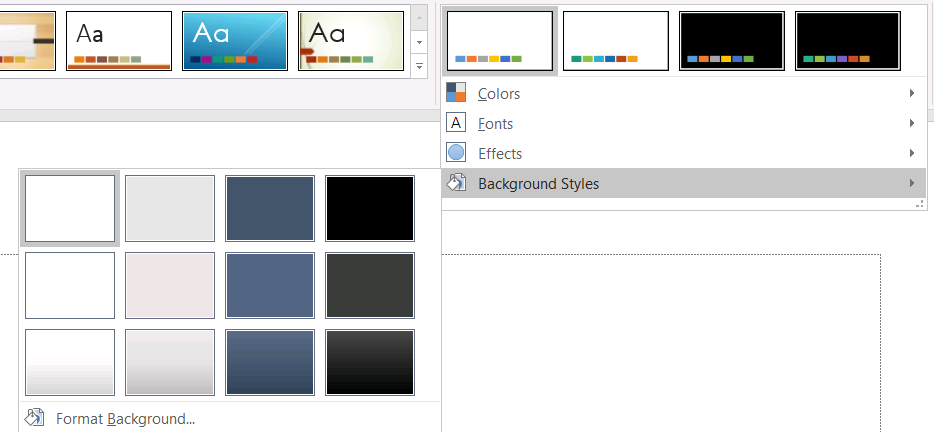
使用背景樣式前,請檢查已儲存的集合以及目前的Background.getStyleIndex。0 表示無佈景填滿;正值則是佈景背景樣式參照。這不同於直接以 Java 集合索引的方式,get_Item(0) 代表第一個儲存項目。請勿假設每個簡報都有相同數量的背景填滿樣式。
以下範例報告可用的背景填滿數量,將佈景背景參照指派給第一個母片,並儲存簡報:
import com.aspose.slides.*;

Presentation presentation = new Presentation("input.pptx");
try {
    IFillFormatCollection backgroundStyles = presentation.getMasterTheme().getFormatScheme().getBackgroundFillStyles();
    System.out.println("Background fill styles: " + backgroundStyles.size());
    if (backgroundStyles.size() == 0) {
        throw new IllegalStateException("The presentation theme does not contain background fill styles.");
    }

    IMasterSlide masterSlide = presentation.getMasters().get_Item(0);
    masterSlide.getBackground().setType(BackgroundType.Themed);
    masterSlide.getBackground().setStyleIndex(1);
    presentation.save("theme-background.pptx", SaveFormat.Pptx);
} finally {
    presentation.dispose();
}
最終顯示結果取決於母片參照的佈景項目以及版面或投影片層級的任何背景覆寫。若投影片使用自己的背景,僅變更母片背景可能不會影響該投影片。需要取得繼承後最終背景時,請使用Background.getEffective。
Warning
請勿將樣式索引當作零基集合索引使用;也避免硬編碼某檔案的樣式編號,並假設在另一檔案中會有相同外觀;佈景樣式定義是依簡報而異的。Tip
如需直接的背景格式設定與背景繼承,請參閱Presentation Background。更新佈景效果
佈景格式方案透過IFormatScheme.getFillStyles、IFormatScheme.getLineStyles與IFormatScheme.getEffectStyles分別公開填滿、線條與效果樣式集合。典型的 Office 佈景通常包含三個主要樣式項目,分別對應微妙、適中與強烈的格式,但程式碼應自行檢查每個集合,而非假設固定數量。

在 Java 中存取這些集合時,集合索引為零基:get_Item(0) 為第一個儲存樣式,get_Item(2) 為第三個。圖形的樣式參照索引用於IShapeStyle,屬於不同概念。修改佈景樣式會影響參照該佈景樣式的圖形;直接格式化的圖形可能保持不變。
以下範例檢查必要的樣式項目是否存在,變更第一個線條樣式、變更第三個填滿樣式、在第三個效果樣式中啟用外部陰影,並儲存結果:
import com.aspose.slides.*;
import java.awt.Color;

Presentation presentation = new Presentation("Subtle_Moderate_Intense.pptx");
try {
    IFormatScheme formatScheme = presentation.getMasterTheme().getFormatScheme();
    if (formatScheme.getLineStyles().size() < 1 || formatScheme.getFillStyles().size() < 3 || formatScheme.getEffectStyles().size() < 3) {
        throw new IllegalStateException("The theme does not contain the style entries required by this example.");
    }
    formatScheme.getLineStyles().get_Item(0).getFillFormat().setFillType(FillType.Solid);
    formatScheme.getLineStyles().get_Item(0).getFillFormat().getSolidFillColor().setColor(Color.RED);
    formatScheme.getFillStyles().get_Item(2).setFillType(FillType.Solid);
    formatScheme.getFillStyles().get_Item(2).getSolidFillColor().setColor(new Color(34, 139, 34));
    IEffectFormat effectFormat = formatScheme.getEffectStyles().get_Item(2).getEffectFormat();
    effectFormat.enableOuterShadowEffect();
    effectFormat.getOuterShadowEffect().setDistance(10f);
    presentation.save("theme-effects.pptx", SaveFormat.Pptx);
} finally {
    presentation.dispose();
}
對於參照這些槽位的圖形,第一個佈景線條樣式會變成紅色,第三個佈景填滿樣式會變成實心森林綠,第三個效果樣式會增添距離 10 點的外部陰影。最終視覺結果仍取決於每個圖形參照的樣式槽位以及是否有直接格式化覆寫佈景。

判斷實際純色填滿是否使用佈景顏色
填滿可以直接儲存在物件上,或從段落、版面、母片、佈景樣式或其他格式層級繼承。呼叫IFillFormat.getEffective可將此階層解析為不可變的IFillFormatEffectiveData。先檢查IFillFormatEffectiveData.getFillType;只有當其為 FillType.Solid 時才讀取純色填滿屬性。
對於純色填滿,IFillFormatEffectiveData.getSolidFillColor 會在繼承、佈景查找及顏色變換後回傳最終渲染的 RGB 值。IFillFormatEffectiveData.getSolidFillSchemeColor 會回傳對應的邏輯 SchemeColor 槽位,如 Text1 或 Accent6。SchemeColor.NotDefined 表示實際純色填滿並非基於方案顏色。於僅在佈景顏色或直接 RGB 顏色之間切換的工作流程中,此值即代表直接 RGB 填滿。
不要僅依賴本地IColorFormat.getSchemeColor 來分類填滿。例如,文字片段可能本地未定義方案顏色,因而本地值為 NotDefined,但其實際填滿繼承自佈景顏色,最終解析為 Text1 或 Accent6。相反地,getSolidFillSchemeColor 告訴您哪個邏輯佈景槽位產生了實際顏色,但不說明該槽位是來自物件、段落、版面、母片或其他層級。
以下範例載入簡報,稽核圖形填滿與文字片段填滿,列印每個最終 RGB 值與相關方案顏色,並標記不會追蹤佈景顏色變更的純色填滿:
import com.aspose.slides.*;
import java.awt.Color;
import java.util.function.BiConsumer;

BiConsumer<String, IFillFormat> auditFill = (objectName, localFill) -> {
    IFillFormatEffectiveData effectiveFill = localFill.getEffective();

    if (effectiveFill.getFillType() != FillType.Solid) {
        System.out.println(objectName + ": fill type = " + effectiveFill.getFillType() + "; not a solid fill.");
        return;
    }

    Color rgb = effectiveFill.getSolidFillColor();
    int effectiveSchemeColor = effectiveFill.getSolidFillSchemeColor();
    int localSchemeColor = localFill.getSolidFillColor().getSchemeColor();

    System.out.printf("%s: RGB = #%02X%02X%02X%n", objectName, rgb.getRed(), rgb.getGreen(), rgb.getBlue());
    System.out.println(objectName + ": local scheme = " + localSchemeColor + ", effective scheme = " + effectiveSchemeColor);

    if (effectiveSchemeColor == SchemeColor.NotDefined) {
        System.out.println(objectName + ": direct RGB or another non-scheme fill; audit as theme-independent.");
    } else {
        System.out.println(objectName + ": theme-dependent through " + effectiveSchemeColor + ".");
    }
};

Presentation presentation = new Presentation("input.pptx");
try {
    int slideCount = presentation.getSlides().size();
    for (int slideIndex = 0; slideIndex < slideCount; slideIndex++) {
        ISlide slide = presentation.getSlides().get_Item(slideIndex);

        int shapeCount = slide.getShapes().size();
        for (int shapeIndex = 0; shapeIndex < shapeCount; shapeIndex++) {
            IShape shape = slide.getShapes().get_Item(shapeIndex);
            String shapeName = "Slide " + (slideIndex + 1) + ", shape " + (shapeIndex + 1);
            auditFill.accept(shapeName, shape.getFillFormat());

            if (shape instanceof IAutoShape) {
                IAutoShape autoShape = (IAutoShape) shape;
                int paragraphCount = autoShape.getTextFrame().getParagraphs().getCount();
                for (int paragraphIndex = 0; paragraphIndex < paragraphCount; paragraphIndex++) {
                    IParagraph paragraph = autoShape.getTextFrame().getParagraphs().get_Item(paragraphIndex);

                    int portionCount = paragraph.getPortions().getCount();
                    for (int portionIndex = 0; portionIndex < portionCount; portionIndex++) {
                        IPortion portion = paragraph.getPortions().get_Item(portionIndex);
                        String portionName = shapeName + ", paragraph " + (paragraphIndex + 1) + ", portion " + (portionIndex + 1);
                        auditFill.accept(portionName, portion.getPortionFormat().getFillFormat());
                    }
                }
            }
        }
    }
} finally {
    presentation.dispose();
}
NotDefined 分支提供了不會因佈景顏色槽位變更而更新的純色填滿稽核清單。於需要遵循新品牌調色板的簡報時檢查這些物件。報告的 RGB 值仍顯示目前外觀,而方案值說明該外觀是否與佈景相連。
實際格式物件是快照。變更簡報佈景、佈景覆寫或任何繼承格式後,請再次呼叫 getEffective,取得新的 IFillFormatEffectiveData 物件,再進行比較或報告。
讀取實際佈景值
原始佈景物件告訴您在特定層級定義了什麼。實際值則告訴您投影片或圖形在繼承與本地覆寫解析後實際使用了什麼。對於投影片,呼叫BaseOverrideThemeManager.createThemeEffective。對於背景,使用Background.getEffective,對於填滿,使用FillFormat.getEffective。
以下範例讀取投影片的實際佈景、背景與第一個圖形的填滿:
import com.aspose.slides.*;

Presentation presentation = new Presentation("input.pptx");
try {
    ISlide slide = presentation.getSlides().get_Item(0);
    IThemeEffectiveData effectiveTheme = slide.getThemeManager().createThemeEffective();
    IBackgroundEffectiveData effectiveBackground = slide.getBackground().getEffective();
    System.out.println("Effective major Latin font: " + effectiveTheme.getFontScheme().getMajor().getLatinFont().getFontName());
    System.out.println("Effective minor Latin font: " + effectiveTheme.getFontScheme().getMinor().getLatinFont().getFontName());
    System.out.println("Effective background fill type: " + effectiveBackground.getFillFormat().getFillType());
    if (slide.getShapes().size() > 0) {
        IFillFormatEffectiveData effectiveFill = slide.getShapes().get_Item(0).getFillFormat().getEffective();
        System.out.println("First shape effective fill type: " + effectiveFill.getFillType());
        if (effectiveFill.getFillType() == FillType.Solid) {
            System.out.println("First shape effective fill color: " + effectiveFill.getSolidFillColor());
        }
    }
} finally {
    presentation.dispose();
}
使用實際資料進行渲染診斷、驗證與比較。如果只檢查Presentation.getMasterTheme,可能會遺漏改變最終外觀的母片、版面、投影片或圖形覆寫。
FAQ
套用外部佈景會影響簡報中的每一張投影片嗎?
不會。IMasterSlide.applyExternalThemeToDependingSlides 只會重新指派相依於所選母片的投影片。使用其他母片的投影片會保留其現有佈景。
我可以在不變更母片的情況下,只對單一投影片套用佈景嗎?
可以。使用投影片的SlideThemeManager 並初始化其覆寫佈景。變更僅局部於該投影片;其他投影片仍繼承現有佈景。
將佈景從一個簡報搬移至另一個簡報的最安全方式是什麼?
在搬移投影片且保留來源外觀時,先用IMasterSlideCollection.addClone將來源母片複製至目的簡報,然後以ISlideCollection.addClone 搭配該母片複製投影片。這樣可同時保留母片、版面與佈景。
如何查看繼承與覆寫後的實際值?
對於投影片或版面佈景,使用BaseOverrideThemeManager.createThemeEffective。對於格式物件,使用對應的實際資料方法,例如Background.getEffective 與FillFormat.getEffective。這些 API 會在繼承與覆寫套用後回傳解析後的值。