
Manage Presentation Ink Objects in Java
Introduction
PowerPoint provides an ink feature that allows you to draw freeform strokes. Ink can be used to highlight other objects, show connections and processes, and draw attention to specific items on a slide.
Aspose.Slides provides the types needed to work with ink objects. For example, the IInk interface represents an ink object on a slide.
Differences between Regular Objects and Ink Objects
Objects on a PowerPoint slide are typically represented by shape objects. In its simplest form, a shape is a container that defines the area of the object itself (its frame) along with properties such as the container size, shape, and background. For more information, see Shape Layout Format.
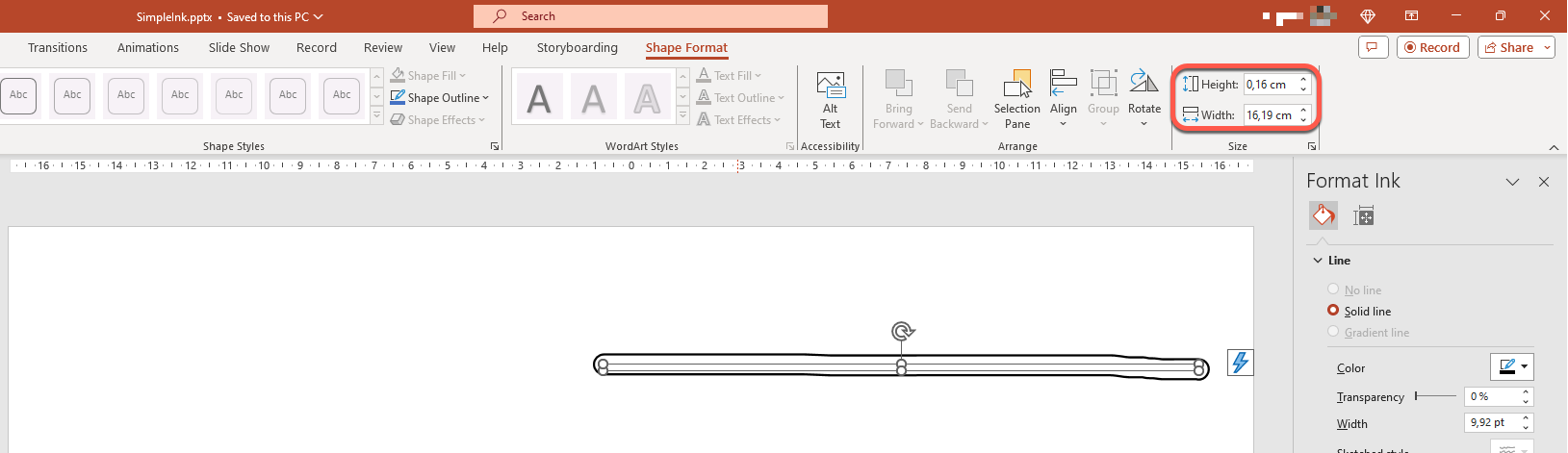
However, when PowerPoint handles an ink object, it ignores all properties of the object frame (container) except its size. The size of the container area is determined by the standard IShape.getWidth and IShape.getHeight methods:
Ink Traces
An ink trace is a basic element used to record the trajectory of a pen as a user writes digital ink. A trace stores a sequence of connected points.
The simplest form of encoding specifies the X and Y coordinates of each sample point. When all connected points are rendered, they produce an image like this:

Brush Properties for Drawing
A brush is used to draw lines that connect the points of an ink trace. The brush has its own color and size, represented by the IInkBrush.getColor and IInkBrush.getSize methods.
Set Ink Brush Color
This Java code shows how to set the color of an ink brush:
import com.aspose.slides.*;
import java.awt.Color;

Presentation presentation = new Presentation("pres.pptx");
try {
    ISlide slide = presentation.getSlides().get_Item(0);
    IInk ink = (IInk) slide.getShapes().get_Item(0);
    IInkBrush brush = ink.getTraces()[0].getBrush();
    brush.setColor(Color.RED);
} finally {
    presentation.dispose();
}
Set Ink Brush Size
This Java code shows how to set the size of an ink brush:
import com.aspose.slides.*;
import java.awt.Dimension;

Presentation presentation = new Presentation("pres.pptx");
try {
    ISlide slide = presentation.getSlides().get_Item(0);
    IInk ink = (IInk) slide.getShapes().get_Item(0);
    IInkBrush brush = ink.getTraces()[0].getBrush();
    Dimension brushSize = new Dimension(5, 10);
    brush.setSize(brushSize);
} finally {
    presentation.dispose();
}
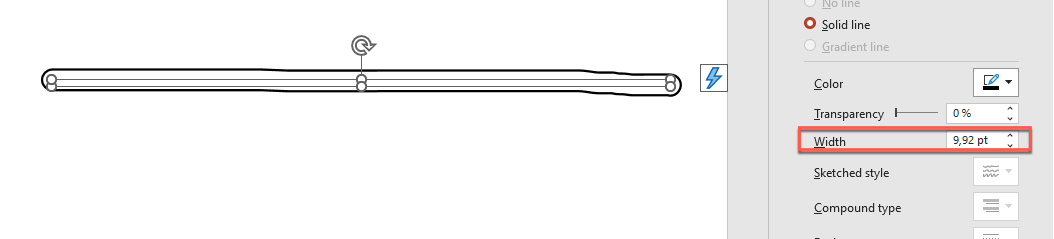
Generally, a brush’s width and height do not match, so PowerPoint does not display the brush size (the corresponding data section is grayed out). When the brush width and height match, PowerPoint displays its size this way:
For clarity, let’s increase the height of the ink object and review the important dimensions:
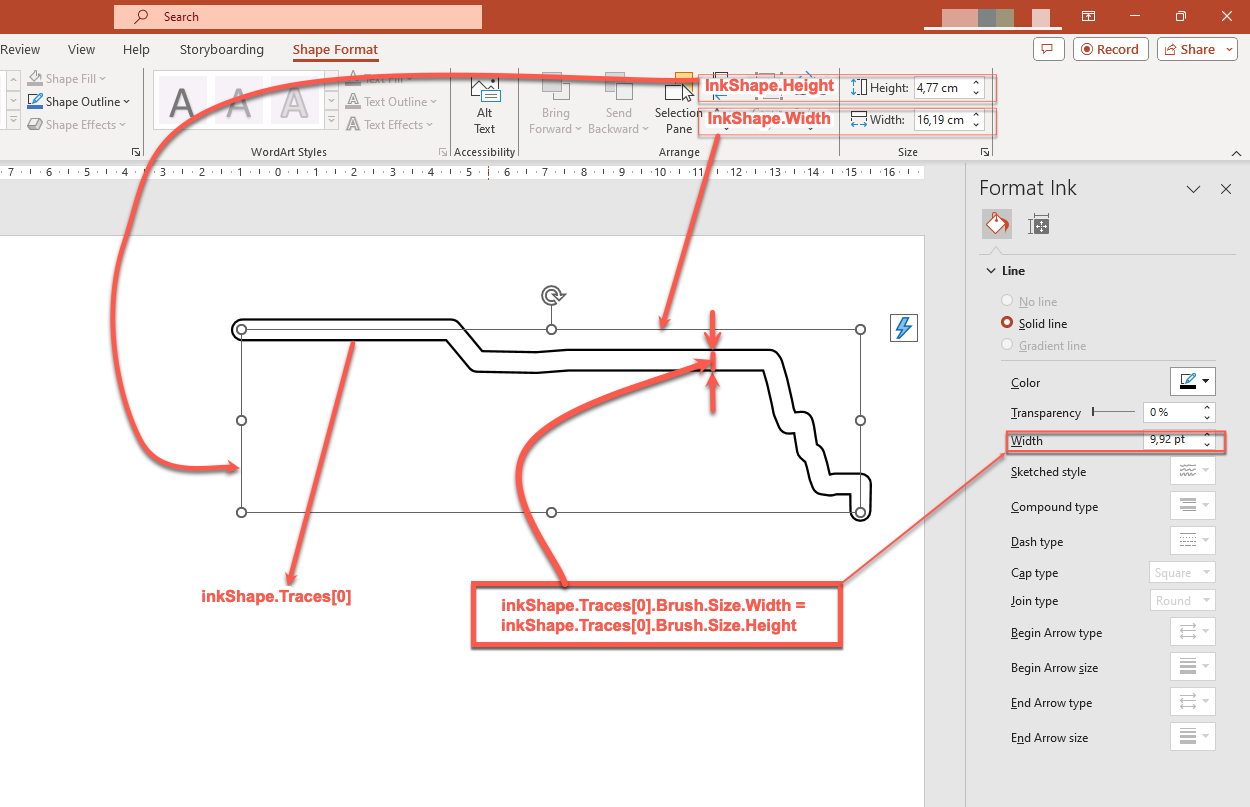
The container (frame) does not account for the size of the brushes—it always assumes that the line thickness is zero (see the previous image).
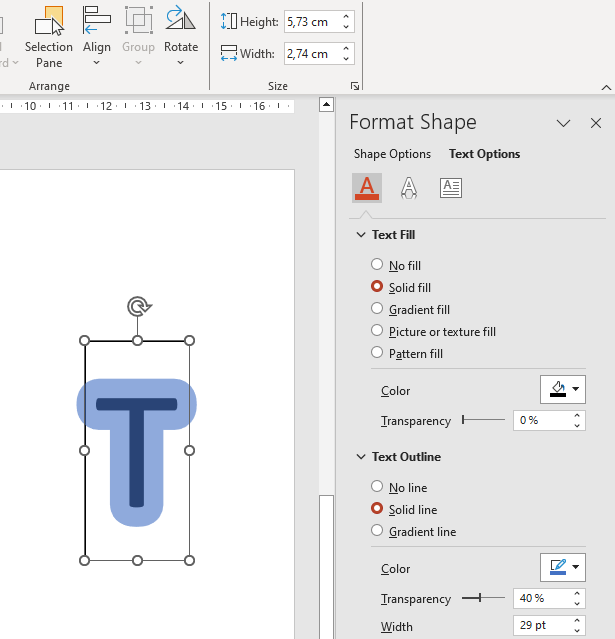
Therefore, to determine the visible area of the entire ink object, the brush size of its traces must be taken into account. Here, the target object (the handwritten text trace) has been scaled to the size of the container (frame). When the size of the container changes, the brush size remains constant, and vice versa.
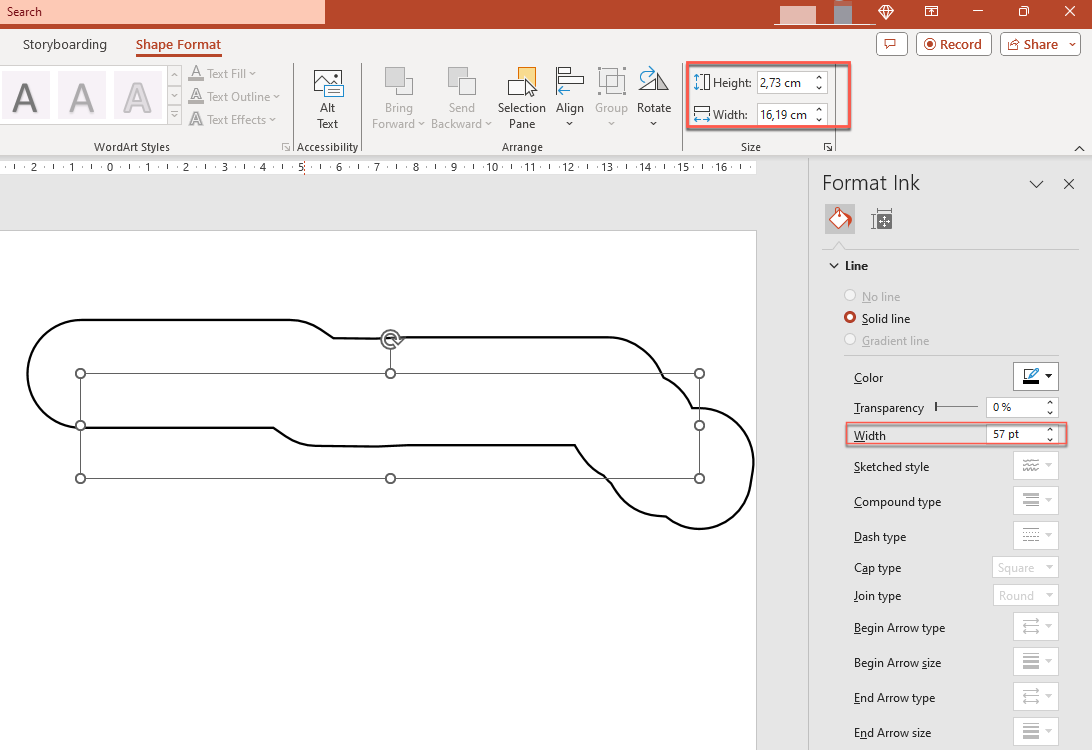
PowerPoint uses similar behavior for text objects:
Control Ink Appearance During Export and Rendering
Aspose.Slides provides the IInkOptions interface to control how ink objects appear in exported or rendered output. You can use its properties to hide ink completely or change how ink brush mask operations are interpreted.
Ink options are available through the export or rendering options for several output types:
| Output | Ink options property |
|---|---|
PdfOptions.getInkOptions |
|
| HTML | HtmlOptions.getInkOptions |
| SVG | SVGOptions.getInkOptions |
| TIFF | TiffOptions.getInkOptions |
| Slide image | RenderingOptions.getInkOptions |
The following IInkOptions methods expose the same two settings:
- IInkOptions.getHideInk determines whether ink objects are included in the output. Its default value is
false. - IInkOptions.getInterpretMaskOpAsOpacity determines whether a mask operation is interpreted as opacity when rendering an ink brush. Its default value is
true; call IInkOptions.setInterpretMaskOpAsOpacity withfalseto use the ROP operation instead.
Hide Ink Objects in PDF Output
By default, ink objects remain visible during export. To create a clean output without handwritten annotations or other ink content, call IInkOptions.setHideInk with true.
The following Java example exports a presentation to PDF while hiding all ink objects:
import com.aspose.slides.*;

Presentation presentation = new Presentation("presentation.pptx");
try {
    PdfOptions pdfOptions = new PdfOptions();
    pdfOptions.getInkOptions().setHideInk(true);

    presentation.save("presentation_without_ink.pdf", SaveFormat.Pdf, pdfOptions);
} finally {
    presentation.dispose();
}
Hide Ink Objects When Rendering a Slide as an Image
To hide ink objects when rendering slides as bitmap images, configure RenderingOptions.getInkOptions and pass the rendering options to ISlide.getImage.
The following Java example renders the first slide as a PNG image without ink objects:
import com.aspose.slides.*;

Presentation presentation = new Presentation("presentation.pptx");
try {
    RenderingOptions renderingOptions = new RenderingOptions();
    renderingOptions.getInkOptions().setHideInk(true);

    ISlide slide = presentation.getSlides().get_Item(0);
    IImage image = slide.getImage(renderingOptions);
    try {
        image.save("slide_without_ink.png", ImageFormat.Png);
    } finally {
        image.dispose();
    }
} finally {
    presentation.dispose();
}
Control Ink Mask Rendering
The IInkOptions.getInterpretMaskOpAsOpacity setting controls how mask operations are interpreted when rendering ink brushes. The default value is true, which uses opacity. To use the ROP operation instead, call IInkOptions.setInterpretMaskOpAsOpacity with false.
The following Java example exports a slide to SVG and uses ROP-based rendering for ink mask operations:
import com.aspose.slides.*;
import java.io.FileOutputStream;
import java.io.IOException;

Presentation presentation = new Presentation("presentation.pptx");
try {
    SVGOptions svgOptions = new SVGOptions();
    svgOptions.getInkOptions().setInterpretMaskOpAsOpacity(false);

    FileOutputStream stream = new FileOutputStream("slide.svg");
    ISlide slide = presentation.getSlides().get_Item(0);
    slide.writeAsSvg(stream, svgOptions);
} finally {
    presentation.dispose();
}
The same setting can be applied through TiffOptions.getInkOptions when exporting a presentation or rendering a slide to TIFF.
Choose Whether to Hide or Preserve Ink
When you need a clean version of an annotated presentation for distribution without review marks, call IInkOptions.setHideInk with true during export.
Leave IInkOptions.getHideInk at its default value of false when ink annotations are part of the intended content, such as review comments, handwritten notes, highlights, or drawings that should remain visible in the exported result. This allows applications to generate separate review and final outputs from the same presentation without modifying the source ink objects.
FAQ
Can I change the color or size of an existing ink stroke?
Yes. Get the trace from IInk.getTraces, then change its IInkTrace.getBrush. Call IInkBrush.setColor or IInkBrush.setSize to change the brush.
Does hiding ink change the source presentation?
No. Calling IInkOptions.setHideInk affects only the rendered or exported result; it does not remove or modify ink objects in the source presentation.
Which export formats support ink options?
You can configure ink options for PDF, HTML, SVG, TIFF, and bitmap slide images through the corresponding export or rendering options shown above.
Further reading
- To read about shapes in general, see the PowerPoint Shapes section.
- For more information on effective values, see Shape Effective Properties.
- For details on PDF export, see Convert PPT and PPTX to PDF.
- For details on HTML export, see Convert PowerPoint Presentations to HTML.
- For details on SVG export, see Render Presentation Slides as SVG Images.
- For details on TIFF export, see Convert PowerPoint Presentations to TIFF.
- For details on slide-to-image rendering, see Convert Presentation Slides to Images.