
.NET에서 프레젠테이션 정보 검색 및 업데이트
개요
Aspose.Slides는 프레젠테이션 형식을 식별하고 전체 프레젠테이션 객체 모델을 생성하지 않고도 문서 메타데이터를 읽을 수 있습니다. 파일을 분류하거나 인벤토리를 구축하거나 프레젠테이션 내용을 로드하고 처리할지 결정하기 전에 속성을 검사해야 할 때 유용합니다.
이 문서는 PresentationFactory와 IPresentationInfo를 사용한 가벼운 검사와 IDocumentProperties를 통한 대상 업데이트를 보여줍니다.
프레젠테이션 형식 확인
이미 로드된 프레젠테이션이 있는 경우, 로드 후 형식 감지를 위해 원본 프레젠테이션 형식 결정을 확인하고 레거시 PPT, PPS, POT 스트림의 제한 사항을 확인하십시오.
PresentationFactory.GetPresentationInfo를 사용하여 Presentation 인스턴스를 만들지 않고 파일을 검사합니다. IPresentationInfo.LoadFormat 속성은 PPTX, PPT, ODP와 같은 감지된 형식을 보고합니다.
using System;
using Aspose.Slides;

var fileNames = new[] { "pres.pptx", "pres.ppt", "pres.odp" };

foreach (var fileName in fileNames)
{
    var presentationInfo = PresentationFactory.Instance.GetPresentationInfo(fileName);
    Console.WriteLine($"{fileName}: {presentationInfo.LoadFormat}");
}
가벼운 프레젠테이션 인벤토리 구축
많은 프레젠테이션 파일을 처리할 때 검증, 인덱싱 또는 문서 관리 시스템을 위한 컴팩트한 인벤토리가 필요할 수 있습니다. 이 경우 PresentationFactory.GetPresentationInfo를 사용하여 IPresentationInfo 객체를 얻고, 이후 IPresentationInfo.ReadDocumentProperties를 호출하여 문서 메타데이터를 읽습니다. 이 방법은 Presentation 인스턴스를 만들지 않으며 전체 프레젠테이션 객체 모델을 탐색할 필요가 없습니다.
IDocumentProperties에서 제공하는 확장 속성은 다음과 같은 인벤토리 값을 제공합니다:
| 속성 | 인벤토리 값 |
|---|---|
| Slides | 슬라이드 총 수. |
| HiddenSlides | 숨김 슬라이드 수. |
| Notes | 노트가 포함된 슬라이드 수. |
| Paragraphs | 가능한 경우 단락 총 수. |
| Words | 단어 총 수. |
| MultimediaClips | 오디오 및 비디오 클립 총 수. |
다음 예제는 이러한 값을 Presentation 객체를 만들지 않고 읽어 컴팩트한 인벤토리를 출력합니다. 또한 HeadingPairs와 TitlesOfParts를 결합하여 폰트, 테마 및 슬라이드 제목과 같은 콘텐츠 그룹을 표시합니다.
using System;
using System.IO;
using Aspose.Slides;

var filePath = "sample.pptx";
var presentationInfo = PresentationFactory.Instance.GetPresentationInfo(filePath);
var documentProperties = presentationInfo.ReadDocumentProperties();

Console.WriteLine($"File: {Path.GetFileName(filePath)}");
Console.WriteLine($"Format: {presentationInfo.LoadFormat}");
Console.WriteLine($"Title: {documentProperties.Title}");
Console.WriteLine($"Author: {documentProperties.Author}");
Console.WriteLine("Statistics:");
Console.WriteLine($"  Slides: {documentProperties.Slides}");
Console.WriteLine($"  Hidden slides: {documentProperties.HiddenSlides}");
Console.WriteLine($"  Slides with notes: {documentProperties.Notes}");
Console.WriteLine($"  Paragraphs: {documentProperties.Paragraphs}");
Console.WriteLine($"  Words: {documentProperties.Words}");
Console.WriteLine($"  Multimedia clips: {documentProperties.MultimediaClips}");

var headingPairs = documentProperties.HeadingPairs ?? Array.Empty<IHeadingPair>();
var titlesOfParts = documentProperties.TitlesOfParts ?? Array.Empty<string>();
var partIndex = 0;

if (headingPairs.Length == 0 || titlesOfParts.Length == 0)
{
    Console.WriteLine("Content groups: not available");
}
else
{
    Console.WriteLine("Content groups:");

    foreach (var headingPair in headingPairs)
    {
        Console.WriteLine($"  {headingPair.Name} ({headingPair.Count})");

        for (var partOffset = 0; partOffset < headingPair.Count && partIndex < titlesOfParts.Length; partOffset++)
        {
            Console.WriteLine($"    - {titlesOfParts[partIndex]}");
            partIndex++;
        }
    }

    if (partIndex < titlesOfParts.Length)
    {
        Console.WriteLine("  Other parts:");

        while (partIndex < titlesOfParts.Length)
        {
            Console.WriteLine($"    - {titlesOfParts[partIndex]}");
            partIndex++;
        }
    }
}
각 IHeadingPair은 그룹 이름과 해당 그룹의 항목 수를 제공합니다. IDocumentProperties.TitlesOfParts는 평평하고 순서가 있는 배열이므로 각 헤딩 페어가 지정한 연속 제목 수만큼 사용합니다.
저장된 메타데이터 및 형식 제한
IPresentationInfo.ReadDocumentProperties가 반환하는 인벤토리 속성은 소스 문서에 존재하는 메타데이터를 반영합니다. Aspose.Slides는 이 호출을 위해 프레젠테이션 객체 모델을 로드하고 순회하여 값을 재계산하지 않습니다. 누락된 속성은 기본값으로 표시되며, 마지막 저장 시 애플리케이션이 문서 속성을 업데이트하지 않은 경우 저장된 값이 오래될 수 있습니다.
- PPTX: 형식은 슬라이드, 노트, 숨김 슬라이드, 단락, 단어 및 멀티미디어 개수와 헤딩 페어·파트 제목에 대한 확장 문서 속성을 제공합니다. 가용성은 문서 작성자가 어떤 속성을 기록했는지에 따라 다릅니다.
- PPT: 바이너리 형식은 해당 문서 요약 속성을 저장할 수 있습니다. 속성이 없거나 작성자가 새로 고치지 않은 경우 Aspose.Slides는 슬라이드에서 계산하지 않고 저장된 값 또는 기본값을 반환합니다.
- ODP: OpenDocument 메타데이터는 페이지, 단락, 단어 수와 같은 일반 문서 통계를 제공하지만 이러한 값은 모든 PowerPoint 전용 확장 속성과 매핑되지 않을 수 있습니다. 숨김 슬라이드, 노트 슬라이드, 멀티미디어, 헤딩‑페어 및 파트‑제목 메타데이터가 없을 수 있으며, 인벤토리 속성은 기본값을 반환할 수 있습니다. 값이 0이거나 빈 배열이라고 해서 해당 콘텐츠가 없다고 단정하지 마십시오.
인벤토리 및 초기 검사를 위해 가벼운 메타데이터 접근 방식을 사용하십시오. 결과가 메모리 내 변경을 반영해야 하거나 실제 프레젠테이션 내용을 검증해야 할 경우 프레젠테이션을 로드하고 실시간 객체 모델을 검사하십시오.
프레젠테이션 속성 업데이트
IPresentationInfo.ReadDocumentProperties가 반환하는 속성은 Presentation 인스턴스를 만들지 않고도 변경할 수 있습니다. 변경은 IPresentationInfo.UpdateDocumentProperties로 적용하고, 이후 IPresentationInfo.WriteBindedPresentation를 사용해 바인딩된 프레젠테이션을 기록합니다.
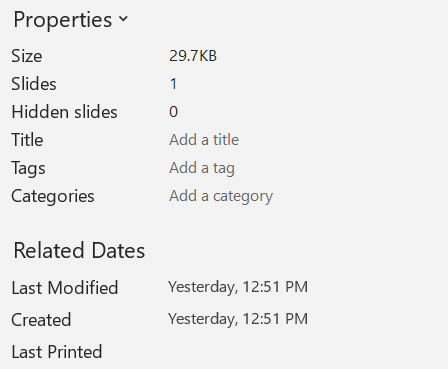
다음 이미지는 원본 문서 속성을 보여줍니다.
다음 예제는 제목과 마지막 저장 시간을 변경하고 결과를 새 파일에 기록합니다:
using System;
using System.IO;
using Aspose.Slides;

var sourceFile = "sample.pptx";
var outputFile = "sample_with_updated_properties.pptx";
var presentationInfo = PresentationFactory.Instance.GetPresentationInfo(sourceFile);
var documentProperties = presentationInfo.ReadDocumentProperties();

documentProperties.Title = "Quarterly sales report";
documentProperties.LastSavedTime = DateTime.UtcNow;

presentationInfo.UpdateDocumentProperties(documentProperties);
using var outputStream = File.Create(outputFile);
presentationInfo.WriteBindedPresentation(outputStream);
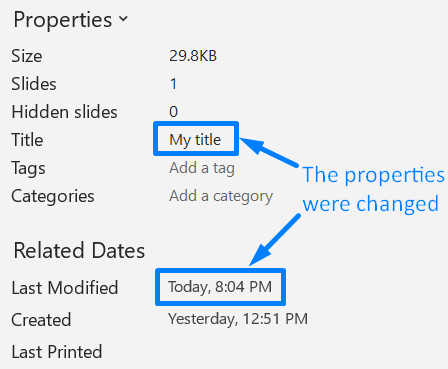
다음 이미지는 업데이트된 문서 속성을 보여줍니다.
유용한 링크
관련 보안 검사 및 보호 설정에 대해서는 다음 문서를 참고하십시오:
FAQ
폰트가 포함되어 있는지 및 어떤 폰트가 포함되어 있는지 어떻게 확인할 수 있나요?
프레젠테이션을 로드하고 Presentation.FontsManager를 사용하십시오. FontsManager.GetEmbeddedFonts를 호출해 포함된 폰트를 얻고, FontsManager.GetFonts를 호출해 프레젠테이션이 사용하는 폰트를 얻습니다. 두 결과를 비교하여 렌더링에 필요하지만 포함되지 않은 폰트를 찾을 수 있습니다.
파일에 숨김 슬라이드가 있는지와 그 개수를 빠르게 확인하려면 어떻게 해야 하나요?
저장된 문서 메타데이터가 충분한 경우 PresentationFactory.GetPresentationInfo와 IPresentationInfo.ReadDocumentProperties를 통해 IDocumentProperties.HiddenSlides를 읽습니다. 이는 가벼운 인벤토리에 적합합니다. 프레젠테이션이 메모리에서 수정되었거나 최신 값을 확인해야 하는 경우 Presentation.Slides를 순회하고 각 슬라이드의 Slide.Hidden 속성을 검사하십시오.
맞춤 슬라이드 크기 및 방향이 사용 중인지, 기본값과 다른지 감지할 수 있나요?
예. 프레젠테이션을 로드하고 Presentation.SlideSize를 읽습니다. ISlideSize.Type, ISlideSize.Size, ISlideSize.Orientation을 검사하여 현재 설정을 예상 프리셋 및 치수와 비교하십시오.
차트가 외부 데이터 소스를 참조하는지 빠르게 확인할 방법이 있나요?
예. 각 Chart를 찾아 ChartData.DataSourceType을 검사합니다. 외부 워크북인 경우 ChartData.ExternalWorkbookPath를 읽어 경로를 확인합니다. 데이터 소스 유형과 경로가 외부 참조를 나타내지만, 대상이 실제로 사용 가능한지는 별도의 리소스 검사가 필요합니다.
렌더링이나 PDF 내보내기를 느리게 할 수 있는 ‘무거운’ 슬라이드를 어떻게 평가할 수 있나요?
단일 복잡도 속성은 없습니다. Presentation.Slides와 각 슬라이드의 IBaseSlide.Shapes 컬렉션을 순회하십시오. 도형 수와 대용량 이미지, 효과, 애니메이션, 멀티미디어 존재 여부를 신호로 활용하고, 대표적인 렌더링 또는 내보내기 시간을 측정한 후 슬라이드를 성능 병목으로 확정하십시오.