
Slide
This article provides a series of examples that demonstrate how to work with slides using Aspose.Slides for Node.js via Java. You’ll learn how to add, access, clone, reorder, and remove slides using the Presentation class.
Each example below includes a brief explanation followed by a code snippet in JavaScript.
Add a Slide
To add a new slide, you must first select a layout. In this example, we use the Blank layout and add an empty slide to the presentation.
var aspose = aspose || {};
aspose.slides = require("aspose.slides.via.java");
const java = require("java");

function addSlide() {
    let presentation = new aspose.slides.Presentation();
    try {
        let layoutType = java.newByte(aspose.slides.SlideLayoutType.Blank);
        let layoutSlide = presentation.getLayoutSlides().getByType(layoutType);
        presentation.getSlides().addEmptySlide(layoutSlide);

        presentation.save("slide.pptx", aspose.slides.SaveFormat.Pptx);
    } finally {
        presentation.dispose();
    }
}
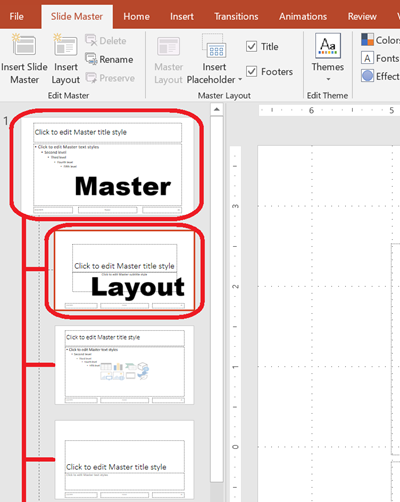
💡 Note: Each slide layout is derived from a master slide, which defines the overall design and placeholder structure. The image below illustrates how master slides and their associated layouts are organized in PowerPoint.
Access Slides by Index
You can access slides using their index. This is useful for iterating through or modifying specific slides.
var aspose = aspose || {};
aspose.slides = require("aspose.slides.via.java");

function accessSlide() {
    let presentation = new aspose.slides.Presentation("slide.pptx");
    try {
        // Access a slide by index.
        let firstSlide = presentation.getSlides().get_Item(0);
    } finally {
        presentation.dispose();
    }
}
Clone a Slide
This example demonstrates how to clone an existing slide. The cloned slide is automatically added to the end of the slide collection.
var aspose = aspose || {};
aspose.slides = require("aspose.slides.via.java");

function cloneSlide() {
    let presentation = new aspose.slides.Presentation();
    try {
        let firstSlide = presentation.getSlides().get_Item(0);
        let clonedSlide = presentation.getSlides().addClone(firstSlide);

        presentation.save("slide_cloned.pptx", aspose.slides.SaveFormat.Pptx);
    } finally {
        presentation.dispose();
    }
}
Reorder Slides
You can change the order of slides by moving one to a new index. In this case, we move a slide to the first position.
var aspose = aspose || {};
aspose.slides = require("aspose.slides.via.java");

function reorderSlide() {
    let presentation = new aspose.slides.Presentation("slide.pptx");
    try {
        // Reorder slides by moving the second slide to the first position.
        let secondSlide = presentation.getSlides().get_Item(1);
        presentation.getSlides().reorder(0, secondSlide);

        presentation.save("slide_reordered.pptx", aspose.slides.SaveFormat.Pptx);
    } finally {
        presentation.dispose();
    }
}
Remove a Slide
To remove a slide, simply reference it and call remove. This example removes the first slide from the “slide.pptx” file created earlier, leaving only the slide that was added.
var aspose = aspose || {};
aspose.slides = require("aspose.slides.via.java");

function removeSlide() {
    let presentation = new aspose.slides.Presentation("slide.pptx");
    try {
        let firstSlide = presentation.getSlides().get_Item(0);
        presentation.getSlides().remove(firstSlide);

        presentation.save("slide_removed.pptx", aspose.slides.SaveFormat.Pptx);
    } finally {
        presentation.dispose();
    }
}