
Customize Presentation Shapes in PHP
Overview
This article explains how to customize presentation shapes in Aspose.Slides by editing shape geometry through edit points and geometry paths. It shows how to work with GeometryPath to modify existing shapes, perform basic path editing operations, add or remove points, and apply updated geometry back to a shape.
It also demonstrates how to create custom and composite shapes, build shapes with curved corners, determine whether a shape geometry is closed, inspect shape elements, and convert Java AWT text outlines into geometry paths.
Change a Shape Using Edit Points
In PowerPoint, you can use Edit Points to modify a square:
- Move a corner inward or outward.
- Adjust the curvature at a point.
- Add new points.
Editing points lets you modify a shape’s outline or use an existing shape as the basis for a new one.
Shape Editing Tips
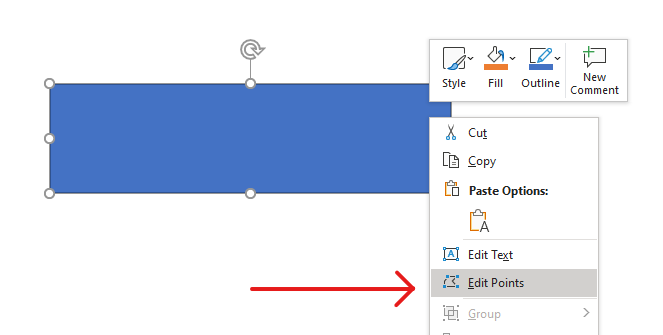
When editing PowerPoint shapes, keep these concepts in mind:
- A shape (or its path) can either be closed or open.
- A shape’s path consists of anchor points connected by segments.
- A segment can be straight or curved. Anchor points and control handles determine its shape.
- Anchor points exist as corner points, straight points, or smooth points:
- At a corner point, adjoining segments can meet at an angle.
- At a smooth point, the two control handles are aligned and equally distant from the anchor point.
- At a straight point, the two control handles are aligned but can be different distances from the anchor point.
- Moving anchor points or adjusting their handles changes the shape’s outline.
To edit PowerPoint shapes through edit points, Aspose.Slides provides the GeometryPath class.
- A GeometryPath instance represents a geometry path of the GeometryShape object.
- To retrieve the GeometryPath from the GeometryShape instance, you can use the GeometryShape::getGeometryPaths method.
- To set the GeometryPath for a shape, you can use these methods: GeometryShape::setGeometryPath for shapes with a single path and GeometryShape::setGeometryPaths for shapes with multiple paths.
- To add segments, you can use the methods under GeometryPath.
- Using the GeometryPath::setStroke and GeometryPath::setFillMode methods, you can set the appearance for a geometry path.
- Using the GeometryPath::getPathData method, you can retrieve the geometry path of a GeometryShape as an array of path segments.
- To access additional shape geometry customization options, you can read a java.awt.Shape through its PathIterator and replay the segments on a GeometryPath.
Simple Editing Operations
Use the following methods to edit a geometry path. Overloads that accept an index insert a segment at that zero-based position in the path’s segment array.
| Operation | Method |
|---|---|
| Append or insert a straight line. | GeometryPath::lineTo |
| Append or insert a cubic Bézier curve with two control points and an endpoint. | GeometryPath::cubicBezierTo |
| Append or insert a quadratic Bézier curve with one control point and an endpoint. | GeometryPath::quadraticBezierTo |
| Append an elliptical arc with the specified dimensions and angles in degrees. | GeometryPath::arcTo |
| Close the current figure by connecting its endpoint to its starting point. | GeometryPath::closeFigure |
| Set the starting point of a figure. | GeometryPath::moveTo |
| Remove a segment at a zero-based index. | GeometryPath::removeAt |
Add Custom Points to a Shape
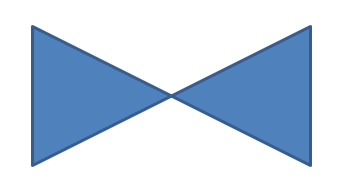
This example inserts two points into a rectangular shape using GeometryPath::lineTo and applies the edited path with GeometryShape::setGeometryPath. The coordinates are local to the shape: both new points are at its center, 100 points from the left and 50 points from the top. Segment indices 1 and 4 place them on the top and bottom edges, pulling those edges inward.
use aspose\slides\Presentation;
use aspose\slides\ShapeType;

$presentation = new Presentation();
try {
    $slide = $presentation->getSlides()->get_Item(0);

    $shape = $slide->getShapes()->addAutoShape(ShapeType::Rectangle, 100, 100, 200, 100);

    $geometryPath = $shape->getGeometryPaths()[0];
    $geometryPath->lineTo(100, 50, 1);
    $geometryPath->lineTo(100, 50, 4);

    $shape->setGeometryPath($geometryPath);
} finally {
    $presentation->dispose();
}
Remove Points from a Shape
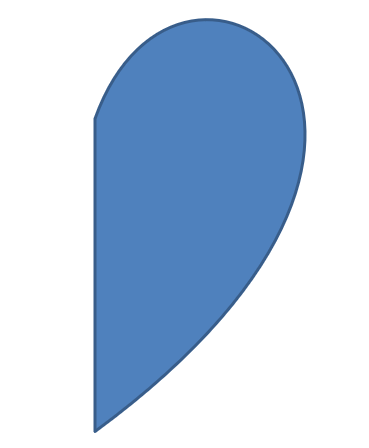
This example changes a heart-shaped outline by removing the segment at zero-based index 2 with GeometryPath::removeAt. Applying the modified path with GeometryShape::setGeometryPath updates the shape’s contour.
use aspose\slides\Presentation;
use aspose\slides\ShapeType;

$presentation = new Presentation();
try {
    $slide = $presentation->getSlides()->get_Item(0);

    $shape = $slide->getShapes()->addAutoShape(ShapeType::Heart, 100, 100, 300, 300);

    $path = $shape->getGeometryPaths()[0];
    $path->removeAt(2);

    $shape->setGeometryPath($path);
} finally {
    $presentation->dispose();
}
Create a Custom Shape
This example builds a five-pointed star with GeometryPath. Alternating outer and inner radii of 100 and 50 points define the tips and indentations; a 72-degree step spaces the five tips evenly. The path is closed with GeometryPath::closeFigure and applied to a rectangular shape using GeometryShape::setGeometryPath, replacing its outline.
use aspose\slides\GeometryPath;
use aspose\slides\Presentation;
use aspose\slides\ShapeType;

$points = [];
$outerRadius = 100;
$innerRadius = 50;
$angleStep = 72;
for ($angle = -90; $angle < 270; $angle += $angleStep) {
    $radians = deg2rad($angle);
    $points[] = [$outerRadius * cos($radians) + $outerRadius, $outerRadius * sin($radians) + $outerRadius];
    $radians = deg2rad($angle + $angleStep / 2);
    $points[] = [$innerRadius * cos($radians) + $outerRadius, $innerRadius * sin($radians) + $outerRadius];
}

$starPath = new GeometryPath();
$starPath->moveTo($points[0][0], $points[0][1]);
for ($i = 1; $i < count($points); $i++) {
    $starPath->lineTo($points[$i][0], $points[$i][1]);
}
$starPath->closeFigure();

$presentation = new Presentation();
try {
    $slide = $presentation->getSlides()->get_Item(0);
    $shape = $slide->getShapes()->addAutoShape(ShapeType::Rectangle, 100, 100, $outerRadius * 2, $outerRadius * 2);
    $shape->setGeometryPath($starPath);
} finally {
    $presentation->dispose();
}

Create a Composite Custom Shape
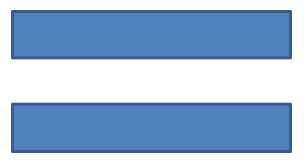
This example defines two closed GeometryPath objects for the top and bottom thirds of a shape. Applying both paths with GeometryShape::setGeometryPaths creates a single composite shape with a gap across its middle third.
use aspose\slides\GeometryPath;
use aspose\slides\Presentation;
use aspose\slides\ShapeType;

$presentation = new Presentation();
try {
    $slide = $presentation->getSlides()->get_Item(0);

    $shape = $slide->getShapes()->addAutoShape(ShapeType::Rectangle, 100, 100, 200, 100);

    $topPath = new GeometryPath();
    $topPath->moveTo(0, 0);
    $topPath->lineTo(java_values($shape->getWidth()), 0);
    $topPath->lineTo(java_values($shape->getWidth()), java_values($shape->getHeight()) / 3);
    $topPath->lineTo(0, java_values($shape->getHeight()) / 3);
    $topPath->closeFigure();

    $bottomPath = new GeometryPath();
    $bottomPath->moveTo(0, java_values($shape->getHeight()) / 3 * 2);
    $bottomPath->lineTo(java_values($shape->getWidth()), java_values($shape->getHeight()) / 3 * 2);
    $bottomPath->lineTo(java_values($shape->getWidth()), java_values($shape->getHeight()));
    $bottomPath->lineTo(0, java_values($shape->getHeight()));
    $bottomPath->closeFigure();

    $shape->setGeometryPaths([$topPath, $bottomPath]);
} finally {
    $presentation->dispose();
}
Create a Custom Shape with Curved Corners
This example combines straight segments with GeometryPath::arcTo to create a shape with inward-curved corners. Each corner size sets the arc’s width and height in points, and the -90-degree sweep draws a counterclockwise quarter ellipse. The completed path is applied with GeometryShape::setGeometryPath, and the presentation is saved in PPTX format.
use aspose\slides\GeometryPath;
use aspose\slides\Point2DFloat;
use aspose\slides\Presentation;
use aspose\slides\SaveFormat;
use aspose\slides\ShapeType;

$shapeX = 20;
$shapeY = 20;
$shapeWidth = 300;
$shapeHeight = 200;

$leftTopSize = 50;
$rightTopSize = 20;
$rightBottomSize = 40;
$leftBottomSize = 10;

$presentation = new Presentation();
try {
    $slide = $presentation->getSlides()->get_Item(0);

    $shape = $slide->getShapes()->addAutoShape(ShapeType::Custom, $shapeX, $shapeY, $shapeWidth, $shapeHeight);

    $topLeft = new Point2DFloat($leftTopSize, 0);
    $topRight = new Point2DFloat($shapeWidth - $rightTopSize, 0);
    $rightBottom = new Point2DFloat($shapeWidth, $shapeHeight - $rightBottomSize);
    $bottomLeft = new Point2DFloat($leftBottomSize, $shapeHeight);
    $leftTop = new Point2DFloat(0, $leftTopSize);

    $geometryPath = new GeometryPath();
    $geometryPath->moveTo($topLeft);
    $geometryPath->lineTo($topRight);
    $geometryPath->arcTo($rightTopSize, $rightTopSize, 180, -90);
    $geometryPath->lineTo($rightBottom);
    $geometryPath->arcTo($rightBottomSize, $rightBottomSize, -90, -90);
    $geometryPath->lineTo($bottomLeft);
    $geometryPath->arcTo($leftBottomSize, $leftBottomSize, 0, -90);
    $geometryPath->lineTo($leftTop);
    $geometryPath->arcTo($leftTopSize, $leftTopSize, 90, -90);
    $geometryPath->closeFigure();

    $shape->setGeometryPath($geometryPath);

    $presentation->save("output.pptx", SaveFormat::Pptx);
} finally {
    $presentation->dispose();
}
Find Out If a Shape Geometry Is Closed
The following helper checks whether every nonempty geometry path ends with a closing segment. It reads GeometryPath::getPathData and compares the final segment’s PathSegment::getPathCommand with PathCommandType::Close. It returns false when there are no nonempty paths. This checks the final command of each path; it does not inspect every subfigure within a path. The example prints true for a rectangle.
use aspose\slides\PathCommandType;
use aspose\slides\Presentation;
use aspose\slides\ShapeType;

function isGeometryClosed($geometryShape)
{
    $hasNonemptyPath = false;
    foreach ($geometryShape->getGeometryPaths() as $geometryPath) {
        $segments = java_values($geometryPath->getPathData());
        if (count($segments) === 0) {
            continue;
        }
        $hasNonemptyPath = true;
        $lastSegment = $segments[count($segments) - 1];
        if (java_values($lastSegment->getPathCommand()) !== PathCommandType::Close) {
            return false;
        }
    }
    return $hasNonemptyPath;
}

$presentation = new Presentation();
try {
    $slide = $presentation->getSlides()->get_Item(0);
    $shape = $slide->getShapes()->addAutoShape(ShapeType::Rectangle, 100, 100, 200, 100);
    $closed = isGeometryClosed($shape);
    echo ($closed ? "true" : "false") . PHP_EOL;
} finally {
    $presentation->dispose();
}
Extract and Inspect Shape Elements
Use GeometryShape::createShapeElements to inspect an existing shape as elements containing path points and point types. Use each returned ShapeElement to retrieve the point and type arrays through getPathPoints and getPathTypes methods. This representation is useful for contour analysis or passing geometry to custom drawing tools.
The example opens input.pptx, finds the first geometry shape directly on the first slide, and prints its path segments. Use a presentation containing a shape with straight and curved segments to see both kinds of output. It does not search inside groups.
use aspose\slides\Presentation;

$presentation = new Presentation("input.pptx");
try {
    $slide = $presentation->getSlides()->get_Item(0);

    $shape = null;
    $shapes = $slide->getShapes();
    for ($shapeIndex = 0; $shapeIndex < java_values($shapes->size()); $shapeIndex++) {
        $candidate = $shapes->get_Item($shapeIndex);
        if (java_instanceof($candidate, java("com.aspose.slides.GeometryShape"))) {
            $shape = $candidate;
            break;
        }
    }

    if ($shape === null) {
        echo "No geometry shape found on the first slide." . PHP_EOL;
    } else {
        foreach ($shape->createShapeElements() as $element) {
            $points = java_values($element->getPathPoints());
            $types = array_values(unpack("C*", java_values($element->getPathTypes())));
            echo "Shape element:" . PHP_EOL;
            for ($i = 0; $i < count($points); $i++) {
                $pointType = $types[$i] & 0x07; // Keep the segment type, excluding flags.
                switch ($pointType) {
                    case 0:
                        echo "Start figure at " . $points[$i] . PHP_EOL;
                        break;
                    case 1:
                        echo "Line to " . $points[$i] . PHP_EOL;
                        break;
                    case 3:
                        echo "Cubic Bezier: controls " . $points[$i] . ", " . $points[$i + 1] . "; end " . $points[$i + 2] . PHP_EOL;
                        $i += 2; // Consume both control points and the endpoint.
                        break;
                }
                if (($types[$i] & 0x80) !== 0) {
                    echo "Close subpath back to its starting point." . PHP_EOL;
                }
            }
        }
    }
} finally {
    $presentation->dispose();
}
The arrays correspond by index: $points[$i] is a point and $types[$i] describes its role. Type 0 starts a figure, and type 1 draws a line from the previous point to the current point. A cubic Bézier segment starts at the previous endpoint and uses three consecutive type-3 entries: two control points followed by the new endpoint. The loop consumes these three entries together and checks the endpoint for closure.
Point types also contain flags. Mask with 0x07 to identify the segment type, and test 0x80 separately to detect a closed subpath. For example, 129 (0x81) means a line endpoint that closes a subpath, and 131 (0x83) means a Bézier endpoint that closes one. The PHP/Java Bridge returns the byte array as a binary string; unpacking it with “C*” produces unsigned byte values. Masking preserves the intended bit values. Comparing the raw value only with 1 or 3 would miss these cases. Other flags, such as dash (0x10) and marker (0x20), do not change the base segment type.
Coordinates and transformations. Points are measured in points (1/72 inch), with X increasing to the right and Y increasing downward. For an ungrouped shape, the extracted coordinates already include the position returned by getX and getY and reflect its current width and height. For example, an unrotated rectangle at (100, 200) with size 120 × 80 has contour bounds (100, 200)–(220, 280). Do not add the shape’s position again. Subtract its X and Y to obtain coordinates relative to its unrotated frame.
The extracted points do not apply the shape’s rotation, returned by getRotation, or horizontal and vertical flips. To reproduce the displayed contour, apply those transformations around the shape’s center. For grouped shapes, also account for the group coordinate mapping and transformations; do not assume that the extracted points are the final rendered slide coordinates or apply a translation or scale twice if it is already reflected in the child’s frame.
Inspection versus editing. Extracted arrays describe the contour; changing them does not update the original shape. Choose this approach when your analysis or drawing code needs point/type arrays. Use getGeometryPaths when you need geometry commands in the shape’s local coordinate system or want to edit its geometry. Apply edited paths through setGeometryPath or setGeometryPaths.
Convert a Java AWT Shape to GeometryPath
This example combines a rectangular outline with text converted to geometry. The outline’s setFillMode method disables its fill. A GlyphVector creates the text outline in a java.awt.Shape. Its PathIterator supplies move, line, quadratic, cubic, and closing segments, which the example replays on a GeometryPath.
The example uses a Java float array so the PHP/Java Bridge retains the coordinates written by the iterator. The text uses a 40-point Arial font. The outline is offset 20 points horizontally and positioned with its visual top 10 points below the shape’s top edge. The text path is filled, while the original rectangle remains an outline. Applying both paths with GeometryShape::setGeometryPaths produces a single shape containing the rectangle and text.
use aspose\slides\GeometryPath;
use aspose\slides\PathFillModeType;
use aspose\slides\Presentation;
use aspose\slides\ShapeType;

$presentation = new Presentation();
try {
    $slide = $presentation->getSlides()->get_Item(0);

    $shape = $slide->getShapes()->addAutoShape(ShapeType::Rectangle, 100, 100, 300, 100);

    $originalPath = $shape->getGeometryPaths()[0];
    $originalPath->setFillMode(PathFillModeType::None);

    $fontClass = java("java.awt.Font");
    $imageClass = java("java.awt.image.BufferedImage");
    $font = new Java("java.awt.Font", "Arial", $fontClass->PLAIN, 40);
    $image = new Java("java.awt.image.BufferedImage", 100, 100, $imageClass->TYPE_INT_ARGB);
    $graphics = $image->createGraphics();
    try {
        $fontContext = $graphics->getFontRenderContext();
        $glyphVector = $font->createGlyphVector($fontContext, "Text in shape");
        $textBounds = $glyphVector->getVisualBounds();
        $baseline = -java_values($textBounds->getY()) + 10;
        $graphicsPath = $glyphVector->getOutline(20.0, $baseline);
    } finally {
        $graphics->dispose();
    }

    $textPath = new GeometryPath();
    $pathIterator = $graphicsPath->getPathIterator(null);
    $iteratorClass = java("java.awt.geom.PathIterator");
    $arrayClass = java("java.lang.reflect.Array");
    $floatClass = java("java.lang.Float");
    $coordinates = $arrayClass->newInstance($floatClass->TYPE, 6);

    while (!java_values($pathIterator->isDone())) {
        $segmentType = java_values($pathIterator->currentSegment($coordinates));
        $points = java_values($coordinates);
        switch ($segmentType) {
            case java_values($iteratorClass->SEG_MOVETO):
                $textPath->moveTo($points[0], $points[1]);
                break;
            case java_values($iteratorClass->SEG_LINETO):
                $textPath->lineTo($points[0], $points[1]);
                break;
            case java_values($iteratorClass->SEG_QUADTO):
                $textPath->quadraticBezierTo($points[0], $points[1], $points[2], $points[3]);
                break;
            case java_values($iteratorClass->SEG_CUBICTO):
                $textPath->cubicBezierTo($points[0], $points[1], $points[2], $points[3], $points[4], $points[5]);
                break;
            case java_values($iteratorClass->SEG_CLOSE):
                $textPath->closeFigure();
                break;
        }
        $pathIterator->next();
    }
    $textPath->setFillMode(PathFillModeType::Normal);
    $shape->setGeometryPaths([$originalPath, $textPath]);
} finally {
    $presentation->dispose();
}

FAQ
What will happen to the fill and outline after replacing the geometry?
The style remains with the shape; only the contour changes. The fill and outline are automatically applied to the new geometry.
How do I correctly rotate a custom shape along with its geometry?
Use the shape’s setRotation method; the geometry rotates with the shape because it’s bound to the shape’s own coordinate system.
Can I convert a custom shape to an image to “lock in” the result?
Yes. Export the required slide area or the shape itself to a raster format; this simplifies further work with complex geometries.