
Convert PowerPoint Presentations to HTML in Python
Overview
Aspose.Slides for Python via .NET can save PowerPoint presentations as HTML without Microsoft PowerPoint. The basic conversion is a single Presentation load and a save call with SaveFormat. Use HtmlOptions when you need to control the exported layout, fonts, images, notes, comments, SVG output, or linked resources.
This guide focuses on practical HTML export scenarios:
- Export a whole presentation or selected slides.
- Generate fixed-layout, responsive, or SVG-based HTML.
- Include speaker notes and comments.
- Control image quality and cropped image data.
- Embed fonts or save font files separately.
- Choose how external resources and media files are written and referenced.
By default, HTML export produces a self-contained HTML document where most resources are embedded. This is convenient for sharing one file, but it can increase output size. For web publishing, consider external resources, lower image DPI, and only embedding fonts that are not reliably available in the target environment.
Convert a Presentation to HTML
To export a presentation to HTML, load it with Presentation and save it with SaveFormat.
import aspose.slides as slides

with slides.Presentation("presentation.pptx") as presentation:
    presentation.save("presentation.html", slides.export.SaveFormat.HTML)
This example writes one HTML file. The with statement disposes the presentation object and releases file handles and rendering resources after export.
Use HtmlOptions
HtmlOptions is the main configuration class for HTML export. Common settings include:
slides_layout_options: adds notes, comments, handouts, or other layout information.html_formatter: changes the HTML document structure or delegates formatting to a controller.slide_image_format: changes how slides are represented, for example as SVG.pictures_compression: controls image DPI and output size.delete_pictures_cropped_areas: keeps or removes cropped image data.svg_responsive_layout: makes exported SVG content adapt to its container.show_hidden_slides: includes hidden slides when required.
The following sections show the most common options separately so you can combine only the ones your workflow needs.
Convert Selected Slides to HTML
The save overload that accepts slide numbers uses 1-based slide positions. The loop below saves every slide to a separate HTML file.
import aspose.slides as slides

with slides.Presentation("presentation.pptx") as presentation:
    slide_count = len(presentation.slides)

    for slide_index in range(slide_count):
        slide_number = slide_index + 1
        slide_numbers = [slide_number]
        html_file_name = "slide-{}.html".format(slide_number)

        presentation.save(html_file_name, slide_numbers, slides.export.SaveFormat.HTML)
Use this pattern when a website or application needs one HTML page per slide. If each slide should have the same layout, create one HtmlOptions instance and pass it to each save call.
Create Responsive HTML
ResponsiveHtmlController provides responsive HTML output through HtmlFormatter. Use it when the exported page should adapt better to browser width.
import aspose.slides as slides

with slides.Presentation("presentation.pptx") as presentation:
    controller = slides.export.ResponsiveHtmlController()
    formatter = slides.export.HtmlFormatter.create_custom_formatter(controller)

    html_options = slides.export.HtmlOptions()
    html_options.html_formatter = formatter

    presentation.save("presentation-responsive.html", slides.export.SaveFormat.HTML, html_options)
For SVG-based responsive layout, set svg_responsive_layout on HtmlOptions. This is useful when the slide content is exported as scalable SVG markup.
import aspose.slides as slides

with slides.Presentation("presentation.pptx") as presentation:
    html_options = slides.export.HtmlOptions()
    html_options.svg_responsive_layout = True

    presentation.save("presentation-svg-responsive.html", slides.export.SaveFormat.HTML, html_options)
Include Speaker Notes and Comments
Use NotesCommentsLayoutingOptions through html_options.slides_layout_options to include speaker notes or comments. Notes and comments are hidden by default unless you choose their positions.
Suppose the source presentation contains speaker notes:
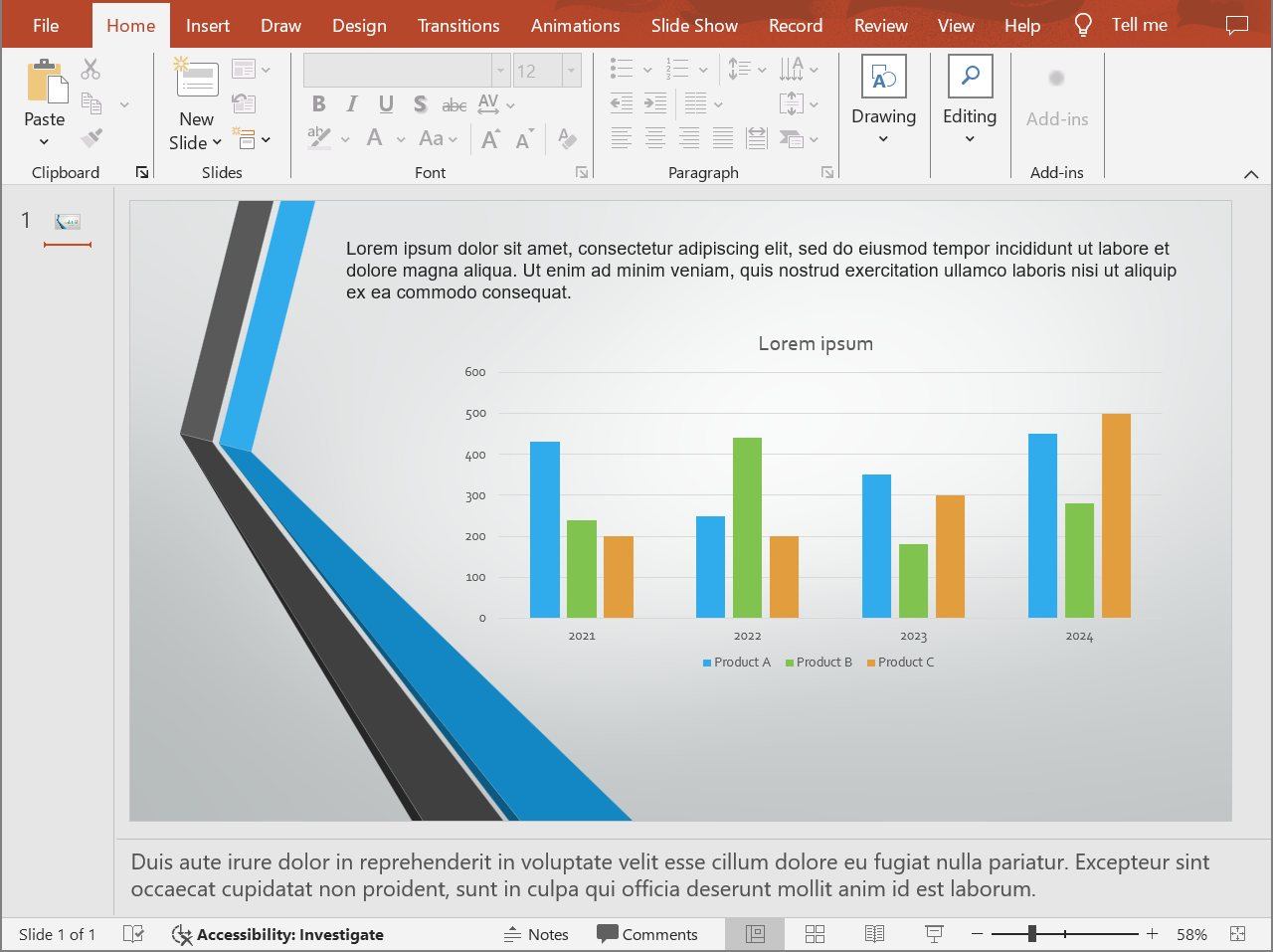
The following code exports the slide content with speaker notes below the slide.
import aspose.slides as slides

with slides.Presentation("presentation.pptx") as presentation:
    layout_options = slides.export.NotesCommentsLayoutingOptions()
    layout_options.notes_position = slides.export.NotesPositions.BOTTOM_FULL

    html_options = slides.export.HtmlOptions()
    html_options.slides_layout_options = layout_options

    presentation.save("presentation-with-notes.html", slides.export.SaveFormat.HTML, html_options)
The exported HTML includes the notes area:
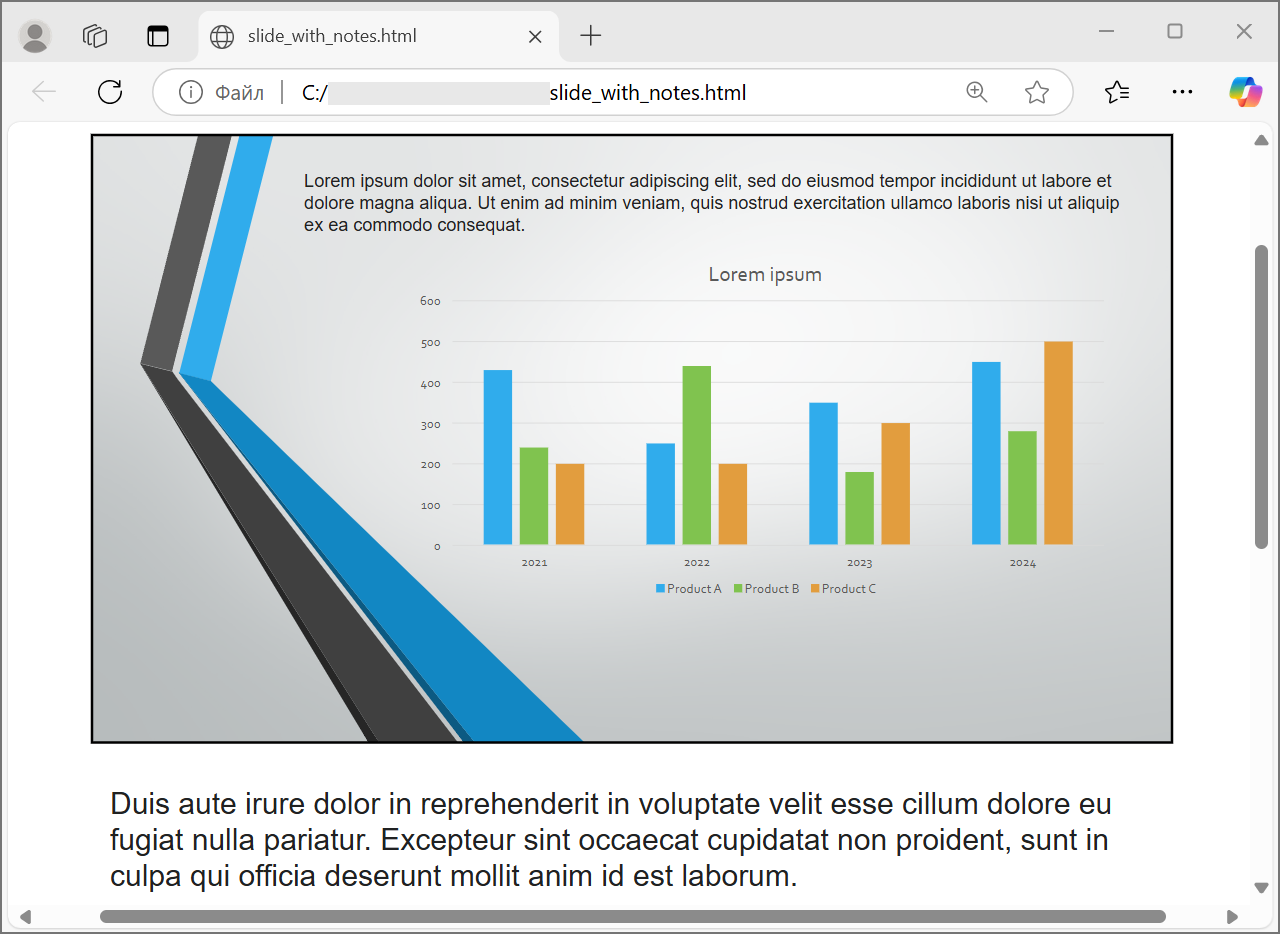
To export comments, set comments_position, for example to CommentsPositions.RIGHT or CommentsPositions.BOTTOM. If you need only comments, omit notes_position. If you need both notes and comments, set both properties.
Control Image Quality and Cropped Areas
HTML export can compress slide images to reduce output size. Set pictures_compression to a value from PicturesCompression when you need higher image quality.
import aspose.slides as slides

with slides.Presentation("presentation.pptx") as presentation:
    html_options = slides.export.HtmlOptions()
    html_options.pictures_compression = slides.export.PicturesCompression.DPI150

    presentation.save("presentation-dpi-150.html", slides.export.SaveFormat.HTML, html_options)
By default, cropped areas of images may be removed from the exported output. Keep cropped data only when users must be able to recover or inspect those hidden image parts. Keeping it can increase the HTML size.
import aspose.slides as slides

with slides.Presentation("presentation.pptx") as presentation:
    html_options = slides.export.HtmlOptions()
    html_options.delete_pictures_cropped_areas = False

    presentation.save("presentation-with-cropped-areas.html", slides.export.SaveFormat.HTML, html_options)
Add CSS
For simple styling, pass a CSS string to HtmlFormatter. This changes the surrounding HTML document while Aspose.Slides continues to render the slide content.
import aspose.slides as slides

with slides.Presentation("presentation.pptx") as presentation:
    css_rules = "body { margin: 0; background: #f7f7f7; } .slide { margin: 24px auto; }"
    formatter = slides.export.HtmlFormatter.create_document_formatter(css_rules, True)

    html_options = slides.export.HtmlOptions()
    html_options.html_formatter = formatter

    presentation.save("presentation-styled.html", slides.export.SaveFormat.HTML, html_options)
For a custom document header, a linked CSS file, or custom markup around slides and shapes, use a custom formatting controller and pass it to HtmlFormatter with create_custom_formatter.
Embed Fonts
If the target environment may not have the presentation fonts installed, embed fonts in the HTML with EmbedAllFontsHtmlController. Embedding improves visual fidelity but increases output size.
import aspose.slides as slides

with slides.Presentation("presentation.pptx") as presentation:
    font_names_to_exclude = ["Arial"]
    font_controller = slides.export.EmbedAllFontsHtmlController(font_names_to_exclude)
    formatter = slides.export.HtmlFormatter.create_custom_formatter(font_controller)

    html_options = slides.export.HtmlOptions()
    html_options.html_formatter = formatter

    presentation.save("presentation-embedded-fonts.html", slides.export.SaveFormat.HTML, html_options)
Exclude a font only when you are confident that the target browsers or systems already provide it. For brand fonts or less common fonts, embedding is usually safer.
Link Font Files Instead of Embedding Them
To reduce the HTML file size, you can write font data to separate WOFF files and add @font-face rules to the HTML. This requires a controller that customizes how font data is written during export. In Python via .NET, implement that controller in a small .NET helper assembly, load it in Python, and pass the helper object to HtmlFormatter with create_custom_formatter.
When you externalize fonts, choose two paths deliberately:
- The file system output directory where generated WOFF files will be written.
- The URL path that will appear in the HTML document and that the browser will use to load those font files.
Keep the HTML file and generated font files together until deployment paths are final. If the files are deployed to another location, make the URL prefix match the deployed URL path.
Save Resources Externally
Self-contained HTML is easy to move around, but embedded Base64 resources can make the file large. If your application needs external image, font, audio, or video files, use a custom link/embed controller and pass it to the HtmlOptions constructor.
When you externalize resources, choose two paths deliberately:
- The file system output path, where your application writes generated images, fonts, audio, or video.
- The URL path, which is what the browser uses from the HTML document to load those files.
For a full image-linking discussion, see Export Presentations to HTML with Externally Linked Images.
Export Media Files
VideoPlayerHtmlController exports video and audio files and writes HTML that can play them in a browser. Its constructor takes:
path: the directory where generated media files will be written.file_name: the HTML file name being generated.base_uri: an absolute URI that describes where the generated files will be published.
The exported HTML links each generated media file by its plain file name (for example, <source src="video0.mp4">), and the browser resolves that name against the location of the HTML document. Point path at the directory that contains the generated HTML file so the links resolve. base_uri must be an absolute URI: build a file:/// URI from the output directory for local preview, or use the absolute URL of the published directory for a deployed application.
import os
from pathlib import Path

import aspose.slides as slides

output_directory = os.path.join(os.getcwd(), "html-output")
os.makedirs(output_directory, exist_ok=True)

html_file_name = "presentation.html"
media_base_uri = Path(output_directory).as_uri() + "/"

with slides.Presentation() as presentation:
    with open("intro.mp4", "rb") as video_stream:
        video = presentation.videos.add_video(
            video_stream,
            slides.LoadingStreamBehavior.READ_STREAM_AND_RELEASE)

    slide = presentation.slides[0]
    slide.shapes.add_video_frame(20, 20, 480, 270, video)

    controller = slides.export.VideoPlayerHtmlController(
        output_directory,
        html_file_name,
        media_base_uri)

    formatter = slides.export.HtmlFormatter.create_custom_formatter(controller)
    svg_options = slides.export.SVGOptions(controller)
    slide_image_format = slides.export.SlideImageFormat.svg(svg_options)

    html_options = slides.export.HtmlOptions(controller)
    html_options.html_formatter = formatter
    html_options.slide_image_format = slide_image_format

    html_file_path = os.path.join(output_directory, html_file_name)
    presentation.save(html_file_path, slides.export.SaveFormat.HTML, html_options)
Use output directories that are unique per export job, especially in server applications. Shared output paths can cause files from different conversions to overwrite each other.
Performance and Resource Management
HTML conversion is a rendering operation, so processing time and memory use depend on slide count, image resolution, fonts, effects, charts, and embedded media. Higher pictures_compression DPI values, embedded fonts, SVG output, and retained cropped image areas can improve fidelity but usually increase output size.
For batch conversion:
- Dispose every Presentation instance promptly.
- Use separate output directories for separate jobs.
- Avoid embedding common fonts unless fidelity requires it.
- Lower image DPI when the HTML is for preview or thumbnails.
- Keep the source presentation, generated HTML, and external resources together until deployment paths are final.
FAQ
Are hyperlinks preserved in HTML output?
Yes. Presentation hyperlinks are exported to HTML and remain clickable when the target URL is valid.
Can I convert presentations to HTML in parallel?
Yes, but do not share one Presentation instance across threads. Process different files with separate presentation instances, separate streams, and separate output directories. See the multithreading guidance for details.
Is a Presentation object thread-safe?
No. A single Presentation instance should be loaded, modified, saved, and disposed on one thread. For parallel work, create an independent instance per thread or process.
Why is the generated HTML file large?
The default export can embed resources directly in the HTML. Embedded fonts, high-DPI images, media, SVG content, and retained cropped image areas also increase size. Use external resources, exclude common fonts from embedding, and lower pictures_compression when smaller output is more important than maximum fidelity.
Why does a PowerPoint font size such as 24 pt appear as 17.999819 pt in HTML?
This can happen because PowerPoint and HTML use different DPI models. PowerPoint stores text sizes in typographic points based on 72 DPI, while HTML layout is based on CSS pixels in a 96 DPI model. When Aspose.Slides exports a presentation to HTML, the font size is translated between these systems, and the conversion may introduce small rounding differences.
These values do not indicate a real visual font-size change. They are only a mathematical side effect of converting text metrics between PowerPoint and HTML.
How should I choose base_uri for media export?
Pass base_uri as an absolute URI; the constructor rejects relative values. For local preview, you can derive it from the output directory with Path(output_directory).as_uri() + "/". For deployment, use the absolute URL of the published directory. Because the exported HTML references generated media by plain file name, path must be the directory that holds the HTML file, and base_uri should describe that same location from the browser’s point of view.
Can I include hidden slides?
Yes. Set show_hidden_slides = True on HtmlOptions when hidden slides must be exported.