
จัดการพื้นหลังของงานนำเสนอบน Android
บทนำ
สีทึบ, การไล่ระดับสี, และรูปภาพเป็นที่นิยมใช้เป็นพื้นหลังของสไลด์ คุณสามารถตั้งค่าพื้นหลังสำหรับ สไลด์ปกติ (สไลด์เดียว) หรือ สไลด์มาสเตอร์ (ใช้กับหลายสไลด์พร้อมกัน)
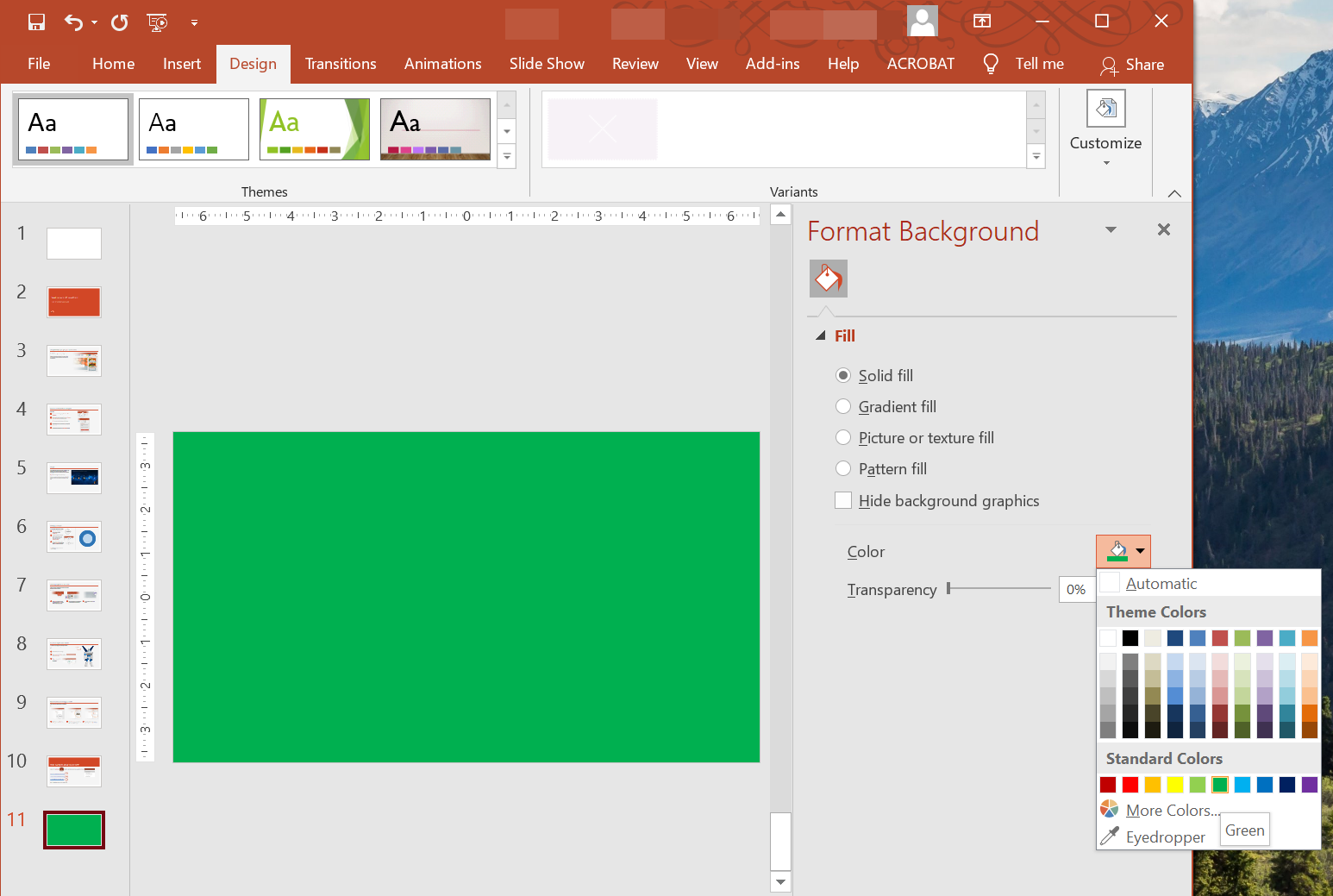
ตั้งค่าสีพื้นหลังแบบทึบสำหรับสไลด์ปกติ
Aspose.Slides ให้คุณตั้งค่าสีทึบเป็นพื้นหลังของสไลด์เฉพาะในงานนำเสนอ — แม้ว่างานนำเสนอจะใช้สไลด์มาสเตอร์ การเปลี่ยนแปลงจะใช้กับสไลด์ที่เลือกเท่านั้น
- สร้างอินสแตนซ์ของคลาส Presentation
- ตั้งค่า BackgroundType ของสไลด์เป็น
OwnBackground - ตั้งค่า FillType ของพื้นหลังสไลด์เป็น
Solid - ใช้เมธอด getSolidFillColor บน FillFormat เพื่อระบุสีพื้นหลังแบบทึบ
- บันทึกงานนำเสนอที่แก้ไขแล้ว
ตัวอย่าง Java ด้านล่างแสดงวิธีตั้งค่าสีทึบสีน้ำเงินเป็นพื้นหลังของสไลด์ปกติ:
// สร้างอินสแตนซ์ของคลาส Presentation.
Presentation presentation = new Presentation();
try {
    ISlide slide = presentation.getSlides().get_Item(0);

    // ตั้งค่าสีพื้นหลังของสไลด์เป็นสีน้ำเงิน.
    slide.getBackground().setType(BackgroundType.OwnBackground);
    slide.getBackground().getFillFormat().setFillType(FillType.Solid);
    slide.getBackground().getFillFormat().getSolidFillColor().setColor(Color.BLUE);

    // บันทึกงานนำเสนอไปยังดิสก์.
    presentation.save("SolidColorBackground.pptx", SaveFormat.Pptx);
} finally {
    presentation.dispose();
}
ตั้งค่าสีพื้นหลังแบบทึบสำหรับสไลด์มาสเตอร์
Aspose.Slides ให้คุณตั้งค่าสีทึบเป็นพื้นหลังของสไลด์มาสเตอร์ในงานนำเสนอ สไลด์มาสเตอร์ทำหน้าที่เป็นเทมเพลตที่ควบคุมการจัดรูปแบบของสไลด์ทั้งหมด ดังนั้นเมื่อคุณเลือกสีทึบสำหรับพื้นหลังของสไลด์มาสเตอร์ มันจะใช้กับสไลด์ทุกสไลด์
- สร้างอินสแตนซ์ของคลาส Presentation
- ตั้งค่า BackgroundType ของสไลด์มาสเตอร์ (ผ่าน
getMasters) เป็นOwnBackground - ตั้งค่า FillType ของพื้นหลังสไลด์มาสเตอร์เป็น
Solid - ใช้เมธอด getSolidFillColor เพื่อระบุสีพื้นหลังแบบทึบ
- บันทึกงานนำเสนอที่แก้ไขแล้ว
ตัวอย่าง Java ด้านล่างแสดงวิธีตั้งสีทึบ (สีเขียว) เป็นพื้นหลังของสไลด์มาสเตอร์:
// สร้างอินสแตนซ์ของคลาส Presentation.
Presentation presentation = new Presentation();
try {
    IMasterSlide masterSlide = presentation.getMasters().get_Item(0);

    // ตั้งค่าสีพื้นหลังของสไลด์มาสเตอร์เป็นสีเขียวป่า.
    masterSlide.getBackground().setType(BackgroundType.OwnBackground);
    masterSlide.getBackground().getFillFormat().setFillType(FillType.Solid);
    masterSlide.getBackground().getFillFormat().getSolidFillColor().setColor(Color.GREEN);

    // บันทึกงานนำเสนอไปยังดิสก์.
    presentation.save("MasterSlideBackground.pptx", SaveFormat.Pptx);
} finally {
    presentation.dispose();
}
ตั้งค่าพื้นหลังแบบไล่ระดับสีสำหรับสไลด์
การไล่ระดับสีเป็นเอฟเฟกต์กราฟิกที่สร้างจากการเปลี่ยนสีอย่างค่อยเป็นค่อยไป เมื่อใช้เป็นพื้นหลังสไลด์ การไล่ระดับสีสามารถทำให้งานนำดูศิลปะและมืออาชีพมากขึ้น Aspose.Slides ให้คุณตั้งค่าสีไล่ระดับเป็นพื้นหลังของสไลด์
- สร้างอินสแทนซ์ของคลาส Presentation
- ตั้งค่า BackgroundType ของสไลด์เป็น
OwnBackground - ตั้งค่า FillType ของพื้นหลังสไลด์เป็น
Gradient - ใช้เมธอด getGradientFormat บน FillFormat เพื่อกำหนดค่าการไล่ระดับสีที่คุณต้องการ
- บันทึกงานนำเสนอที่แก้ไขแล้ว
ตัวอย่าง Java ด้านล่างแสดงวิธีตั้งค่าสีไล่ระดับเป็นพื้นหลังของสไลด์:
// สร้างอินสแตนซ์ของคลาส Presentation.
Presentation presentation = new Presentation();
try {
    ISlide slide = presentation.getSlides().get_Item(0);

    // ใช้เอฟเฟกต์การไล่ระดับสีกับพื้นหลัง.
    slide.getBackground().setType(BackgroundType.OwnBackground);
    slide.getBackground().getFillFormat().setFillType(FillType.Gradient);
    slide.getBackground().getFillFormat().getGradientFormat().setTileFlip(TileFlip.FlipBoth);

    // บันทึกงานนำเสนอไปยังดิสก์.
    presentation.save("GradientBackground.pptx", SaveFormat.Pptx);
} finally {
    presentation.dispose();
}
ตั้งรูปภาพเป็นพื้นหลังสไลด์
นอกจากการเติมสีทึบและไล่ระดับแล้ว Aspose.Slides ยังให้คุณใช้รูปภาพเป็นพื้นหลังสไลด์ได้
- สร้างอินสแทนซ์ของคลาส Presentation
- ตั้งค่า BackgroundType ของสไลด์เป็น
OwnBackground - ตั้งค่า FillType ของพื้นหลังสไลด์เป็น
Picture - โหลดรูปภาพที่คุณต้องการใช้เป็นพื้นหลังสไลด์
- เพิ่มรูปภาพไปยังคอลเลกชันรูปภาพของงานนำเสนอ
- ใช้เมธอด getPictureFillFormat บน FillFormat เพื่อกำหนดรูปภาพเป็นพื้นหลัง
- บันทึกงานนำเสนอที่แก้ไขแล้ว
ตัวอย่าง Java ด้านล่างแสดงวิธีตั้งรูปภาพเป็นพื้นหลังของสไลด์:
// สร้างอินสแตนซ์ของคลาส Presentation.
Presentation presentation = new Presentation();
try {
    ISlide slide = presentation.getSlides().get_Item(0);

    // ตั้งค่าคุณสมบัติของภาพพื้นหลัง.
    slide.getBackground().setType(BackgroundType.OwnBackground);
    slide.getBackground().getFillFormat().setFillType(FillType.Picture);
    slide.getBackground().getFillFormat().getPictureFillFormat().setPictureFillMode(PictureFillMode.Stretch);

    // โหลดภาพ.
    IImage image = Images.fromFile("Tulips.jpg");
    // เพิ่มภาพลงในคอลเลกชันภาพของงานนำเสนอ.
    IPPImage ppImage = presentation.getImages().addImage(image);
    image.dispose();

    slide.getBackground().getFillFormat().getPictureFillFormat().getPicture().setImage(ppImage);

    // บันทึกงานนำเสนอไปยังดิสก์.
    presentation.save("ImageAsBackground.pptx", SaveFormat.Pptx);
} finally {
    presentation.dispose();
}
ตัวอย่างโค้ดต่อไปนี้แสดงวิธีตั้งค่าประเภทการเติมพื้นหลังเป็นภาพที่แผ่กระเบื้องและแก้ไขคุณสมบัติการกระเบื้อง:
Presentation presentation = new Presentation();
try {
    ISlide firstSlide = presentation.getSlides().get_Item(0);

    IBackground background = firstSlide.getBackground();

    background.setType(BackgroundType.OwnBackground);
    background.getFillFormat().setFillType(FillType.Picture);

    IImage newImage = Images.fromFile("image.png");
    IPPImage ppImage = presentation.getImages().addImage(newImage);
    newImage.dispose();

    // ตั้งค่าภาพที่ใช้สำหรับการเติมพื้นหลัง.
    IPictureFillFormat backPictureFillFormat = background.getFillFormat().getPictureFillFormat();
    backPictureFillFormat.getPicture().setImage(ppImage);

    // ตั้งค่าโหมดการเติมภาพเป็นแบบกระเบื้องและปรับคุณสมบัติของกระเบื้อง.
    backPictureFillFormat.setPictureFillMode(PictureFillMode.Tile);
    backPictureFillFormat.setTileOffsetX(15f);
    backPictureFillFormat.setTileOffsetY(15f);
    backPictureFillFormat.setTileScaleX(46f);
    backPictureFillFormat.setTileScaleY(87f);
    backPictureFillFormat.setTileAlignment(RectangleAlignment.Center);
    backPictureFillFormat.setTileFlip(TileFlip.FlipY);

    presentation.save("TileBackground.pptx", SaveFormat.Pptx);
} finally {
    presentation.dispose();
}
ปรับความโปร่งใสของรูปภาพพื้นหลัง
คุณอาจต้องการปรับความโปร่งใสของรูปภาพพื้นหลังสไลด์เพื่อให้เนื้อหาของสไลด์โดดเด่นยิ่งขึ้น ตัวอย่างโค้ด Java ด้านล่างแสดงวิธีเปลี่ยนความโปร่งใสของรูปภาพพื้นหลังสไลด์:
int transparencyValue = 30; // ตัวอย่าง.

// Get the collection of picture transform operations.
IImageTransformOperationCollection imageTransform = slide.getBackground().getFillFormat().getPictureFillFormat().getPicture().getImageTransform();

// Find an existing fixed-percentage transparency effect.
IAlphaModulateFixed transparencyOperation = null;
for (IImageTransformOperation operation : imageTransform) {
    if (operation instanceof IAlphaModulateFixed) {
        transparencyOperation = (IAlphaModulateFixed)operation;
        break;
    }
}

// Set the new transparency value.
if (transparencyOperation == null) {
    imageTransform.addAlphaModulateFixedEffect(100 - transparencyValue);
}
else {
    transparencyOperation.setAmount(100 - transparencyValue);
}
รับค่าพื้นหลังของสไลด์
Aspose.Slides มีอินเทอร์เฟซ IBackgroundEffectiveData สำหรับดึงค่าพื้นหลังที่มีผลของสไลด์ อินเทอร์เฟซนี้เปิดเผย FillFormat และ EffectFormat ที่มีผล
โดยใช้เมธอด getBackground ของคลาส BaseSlide คุณสามารถรับพื้นหลังที่มีผลของสไลด์ได้
ตัวอย่าง Java ด้านล่างแสดงวิธีรับค่าพื้นหลังที่มีผลของสไลด์:
// สร้างอินสแตนซ์ของคลาส Presentation.
Presentation presentation = new Presentation("Sample.pptx");
try {
    ISlide slide = presentation.getSlides().get_Item(0);

    // ดึงพื้นหลังที่มีผลโดยคำนึงถึงมาสเตอร์, เลย์เอาต์, และธีม.
    IBackgroundEffectiveData effBackground = slide.getBackground().getEffective();

    if (effBackground.getFillFormat().getFillType() == FillType.Solid)
        System.out.println("Fill color: " + effBackground.getFillFormat().getSolidFillColor());
    else
        System.out.println("Fill type: " + effBackground.getFillFormat().getFillType());
} finally {
    presentation.dispose();
}
คำถามที่พบบ่อย
ฉันสามารถรีเซ็ตพื้นหลังที่กำหนดเองและกู้คืนพื้นหลังของธีม/เลย์เอาต์ได้หรือไม่?
ใช่. ให้ลบการเติมสีที่กำหนดเองของสไลด์ แล้วพื้นหลังจะถูกสืบทอดใหม่จากสไลด์ layout/master ที่สอดคล้องกัน (เช่น theme background)
จะเกิดอะไรขึ้นกับพื้นหลังหากฉันเปลี่ยนธีมของงานนำเสนอในภายหลัง?
หากสไลด์มีการเติมสีของตนเอง พื้นหลังจะคงเดิม ไม่เปลี่ยนแปลง หากพื้นหลังสืบทอดจาก layout/master จะอัปเดตให้ตรงกับ new theme