
Thêm các Phương trình Toán học vào Bài thuyết trình PowerPoint trong JavaScript
Tổng quan
PowerPoint lưu các công thức dưới dạng Office Math Markup Language (OMML). Với Aspose.Slides cho Node.js via Java, bạn có thể tạo cùng loại nội dung toán học một cách lập trình: phân số, căn bậc, hàm, giới hạn, N-ary operators, ma trận, mảng và các khối toán học định dạng.
Trong PowerPoint, người dùng thường thêm công thức từ Insert > Equation:
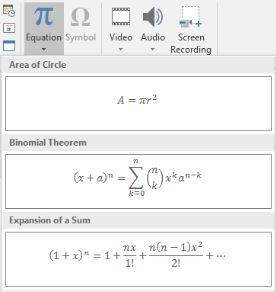
Kết quả là văn bản toán học có thể chỉnh sửa trên slide:

Aspose.Slides xây dựng văn bản toán học đó thông qua ba đối tượng chính:
- Một hình toán học, được tạo bằng addMathShape, là hình chứa công thức.
- MathPortion lưu trữ nội dung toán học trong khung văn bản của hình.
- MathParagraph chứa một hoặc nhiều đối tượng MathBlock.
Hầu hết các ví dụ dưới đây sử dụng MathematicalText và các phương thức fluent từ MathElementBase để giữ cho mã ngắn gọn và dễ đọc.
Đối với các kịch bản xuất MathML, xem Export Math Equations from Presentations in Node.js via Java.
Tạo một công thức
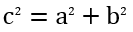
Ví dụ này tạo một hình toán học và thêm định lý Pythagoras:
let presentation = new aspose.slides.Presentation();
try {
    let slide = presentation.getSlides().get_Item(0);

    let mathShape = slide.getShapes().addMathShape(20, 20, 700, 120);
    let mathParagraph = mathShape.getTextFrame().getParagraphs()
            .get_Item(0).getPortions().get_Item(0).getMathParagraph();

    let equation = new aspose.slides.MathematicalText("c")
            .setSuperscript("2")
            .join("=")
            .join(new aspose.slides.MathematicalText("a").setSuperscript("2"))
            .join("+")
            .join(new aspose.slides.MathematicalText("b").setSuperscript("2"));

    mathParagraph.add(equation);

    presentation.save("pythagorean-theorem.pptx", aspose.slides.SaveFormat.Pptx);
} finally {
    presentation.dispose();
}
addMathShape tạo một hình đã chứa sẵn một đoạn toán học. Truy cập MathPortion đầu tiên, lấy MathParagraph của nó, và thêm các khối toán hoặc phần tử toán học vào đó.
Thêm phân số
Sử dụng divide để tạo một phân số. Bạn có thể chọn kiểu phân số với MathFractionTypes.

let presentation = new aspose.slides.Presentation();
try {
    let slide = presentation.getSlides().get_Item(0);

    let mathShape = slide.getShapes().addMathShape(20, 20, 700, 100);
    let mathParagraph = mathShape.getTextFrame().getParagraphs()
            .get_Item(0).getPortions().get_Item(0).getMathParagraph();

    let fraction = new aspose.slides.MathematicalText("1")
            .divide("x", aspose.slides.MathFractionTypes.Skewed);

    mathParagraph.add(new aspose.slides.MathBlock(fraction));

    presentation.save("fraction.pptx", aspose.slides.SaveFormat.Pptx);
} finally {
    presentation.dispose();
}
Đối với phân số xếp chồng, sử dụng MathFractionTypes.Bar:
let stackedFraction = new aspose.slides.MathematicalText("x + 1").divide("y - 1", aspose.slides.MathFractionTypes.Bar);
Thêm căn bậc
Sử dụng radical để tạo căn bậc hai, căn bậc ba hoặc các căn khác. Phần tử hiện tại trở thành cơ số và đối số trở thành độ bậc.

let presentation = new aspose.slides.Presentation();
try {
    let slide = presentation.getSlides().get_Item(0);

    let mathShape = slide.getShapes().addMathShape(20, 20, 700, 100);
    let mathParagraph = mathShape.getTextFrame().getParagraphs()
            .get_Item(0).getPortions().get_Item(0).getMathParagraph();

    let radical = new aspose.slides.MathematicalText("x")
            .radical("n");

    mathParagraph.add(new aspose.slides.MathBlock(radical));

    presentation.save("radical.pptx", aspose.slides.SaveFormat.Pptx);
} finally {
    presentation.dispose();
}
Thêm hàm và giới hạn
Sử dụng asArgumentOfFunction hoặc function cho các hàm như sin(x), log(x), hoặc tên hàm tùy chỉnh. Đối với giới hạn, đặt lim trong một MathLimit hoặc sử dụng setLowerLimit.

let presentation = new aspose.slides.Presentation();
try {
    let slide = presentation.getSlides().get_Item(0);

    let mathShape = slide.getShapes().addMathShape(20, 20, 700, 100);
    let mathParagraph = mathShape.getTextFrame().getParagraphs()
            .get_Item(0).getPortions().get_Item(0).getMathParagraph();

    let limit = new aspose.slides.MathematicalText("lim")
            .setLowerLimit("x\u2192\u221E")
            .function("x");

    mathParagraph.add(new aspose.slides.MathBlock(limit));

    presentation.save("functions-and-limits.pptx", aspose.slides.SaveFormat.Pptx);
} finally {
    presentation.dispose();
}
Đối với tên hàm tùy chỉnh, đặt tên hàm làm phần tử hiện tại:
let customFunction = new aspose.slides.MathematicalText("f").function("x + 1");
Thêm toán tử N-ary và tích phân
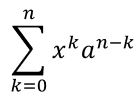
Sử dụng nary cho các phép cộng, hợp, giao và các toán tử lớn khác. Sử dụng integral cho tích phân. Cả hai phương thức cho phép bạn đặt giới hạn dưới và trên.
let presentation = new aspose.slides.Presentation();
try {
    let slide = presentation.getSlides().get_Item(0);

    let mathShape = slide.getShapes().addMathShape(20, 20, 700, 120);
    let mathParagraph = mathShape.getTextFrame().getParagraphs()
            .get_Item(0).getPortions().get_Item(0).getMathParagraph();

    let summationBase = new aspose.slides.MathematicalText("x")
            .setSuperscript("k")
            .join(new aspose.slides.MathematicalText("a").setSuperscript("n-k"));

    let summation = summationBase.nary(aspose.slides.MathNaryOperatorTypes.Summation, "k=0", "n");

    mathParagraph.add(new aspose.slides.MathBlock(summation));

    presentation.save("nary-operators.pptx", aspose.slides.SaveFormat.Pptx);
} finally {
    presentation.dispose();
}
Các toán tử N-ary dành cho các toán tử lớn có thể có giới hạn tùy chọn. Các toán tử đơn giản như +, -, và = thường được thêm dưới dạng MathematicalText và ghép vào biểu thức.
Đối với tích phân, sử dụng integral:
let integralBase = new aspose.slides.MathematicalText("x").join(new aspose.slides.MathematicalText("dx").toBox());
let integral = integralBase.integral(aspose.slides.MathIntegralTypes.Simple, "0", "1");
Thêm ma trận
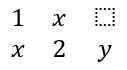
Sử dụng MathMatrix cho các hàng và cột. Ma trận mặc định không có ngoặc, vì vậy hãy bao quanh ma trận khi bạn cần dấu ngoặc tròn, ngoặc vuông hoặc ngoặc nhọn.
let presentation = new aspose.slides.Presentation();
try {
    let slide = presentation.getSlides().get_Item(0);

    let mathShape = slide.getShapes().addMathShape(20, 20, 700, 120);
    let mathParagraph = mathShape.getTextFrame().getParagraphs()
            .get_Item(0).getPortions().get_Item(0).getMathParagraph();

    let matrix = new aspose.slides.MathMatrix(2, 3);
    matrix.set_Item(0, 0, new aspose.slides.MathematicalText("1"));
    matrix.set_Item(0, 1, new aspose.slides.MathematicalText("x"));
    matrix.set_Item(1, 0, new aspose.slides.MathematicalText("x"));
    matrix.set_Item(1, 1, new aspose.slides.MathematicalText("2"));
    matrix.set_Item(1, 2, new aspose.slides.MathematicalText("y"));

    mathParagraph.add(new aspose.slides.MathBlock(matrix));

    presentation.save("matrix.pptx", aspose.slides.SaveFormat.Pptx);
} finally {
    presentation.dispose();
}
Thêm mảng công thức
Sử dụng toMathArray khi bạn cần các công thức căn chỉnh hoặc một chồng dọc các biểu thức.

let presentation = new aspose.slides.Presentation();
try {
    let slide = presentation.getSlides().get_Item(0);

    let mathShape = slide.getShapes().addMathShape(20, 20, 700, 140);
    let mathParagraph = mathShape.getTextFrame().getParagraphs()
            .get_Item(0).getPortions().get_Item(0).getMathParagraph();

    let equationArray = new aspose.slides.MathematicalText("x")
            .join("y")
            .toMathArray();

    mathParagraph.add(new aspose.slides.MathBlock(equationArray));

    presentation.save("equation-array.pptx", aspose.slides.SaveFormat.Pptx);
} finally {
    presentation.dispose();
}
Thêm hàm lượng giác
Sử dụng asArgumentOfFunction khi đối số là phần tử hiện tại và tên hàm đã biết.

let presentation = new aspose.slides.Presentation();
try {
    let slide = presentation.getSlides().get_Item(0);

    let mathShape = slide.getShapes().addMathShape(20, 20, 700, 100);
    let mathParagraph = mathShape.getTextFrame().getParagraphs()
            .get_Item(0).getPortions().get_Item(0).getMathParagraph();

    let cosine = new aspose.slides.MathematicalText("2x")
            .asArgumentOfFunction(aspose.slides.MathFunctionsOfOneArgument.Cos);

    mathParagraph.add(new aspose.slides.MathBlock(cosine));

    presentation.save("trigonometric-function.pptx", aspose.slides.SaveFormat.Pptx);
} finally {
    presentation.dispose();
}
Thêm chỉ số dưới và chỉ số trên
Sử dụng các trợ giúp chỉ số dưới và chỉ số trên cho chỉ mục và lũy thừa. Khi các chỉ số phải xuất hiện ở phía trái của cơ sở, sử dụng setSubSuperscriptOnTheLeft.

let presentation = new aspose.slides.Presentation();
try {
    let slide = presentation.getSlides().get_Item(0);

    let mathShape = slide.getShapes().addMathShape(20, 20, 700, 100);
    let mathParagraph = mathShape.getTextFrame().getParagraphs()
            .get_Item(0).getPortions().get_Item(0).getMathParagraph();

    let scripts = new aspose.slides.MathematicalText("Y")
            .setSubSuperscriptOnTheLeft("1", "n");

    mathParagraph.add(new aspose.slides.MathBlock(scripts));

    presentation.save("subscript-superscript.pptx", aspose.slides.SaveFormat.Pptx);
} finally {
    presentation.dispose();
}
Thêm dấu bao
Sử dụng enclose để bao một biểu thức trong dấu bao. Bạn cũng có thể đặt ký tự phân tách cho các biểu thức dấu bao chứa nhiều phần tử.

let presentation = new aspose.slides.Presentation();
try {
    let slide = presentation.getSlides().get_Item(0);

    let mathShape = slide.getShapes().addMathShape(20, 20, 700, 100);
    let mathParagraph = mathShape.getTextFrame().getParagraphs()
            .get_Item(0).getPortions().get_Item(0).getMathParagraph();

    let delimiter = new aspose.slides.MathematicalText("x")
            .join("y")
            .join("z")
            .enclose(java.newChar('<'), java.newChar('>'));
    delimiter.setSeparatorCharacter(java.newChar('|'));

    mathParagraph.add(new aspose.slides.MathBlock(delimiter));

    presentation.save("delimiters.pptx", aspose.slides.SaveFormat.Pptx);
} finally {
    presentation.dispose();
}
Thêm khung viền
Sử dụng toBorderBox khi công thức cần được đóng khung.
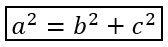
let presentation = new aspose.slides.Presentation();
try {
    let slide = presentation.getSlides().get_Item(0);

    let mathShape = slide.getShapes().addMathShape(20, 20, 700, 100);
    let mathParagraph = mathShape.getTextFrame().getParagraphs()
            .get_Item(0).getPortions().get_Item(0).getMathParagraph();

    let boxedEquation = new aspose.slides.MathematicalText("a")
            .setSuperscript("2")
            .join("=")
            .join(new aspose.slides.MathematicalText("b").setSuperscript("2"))
            .join("+")
            .join(new aspose.slides.MathematicalText("c").setSuperscript("2"))
            .toBorderBox();

    mathParagraph.add(new aspose.slides.MathBlock(boxedEquation));

    presentation.save("border-box.pptx", aspose.slides.SaveFormat.Pptx);
} finally {
    presentation.dispose();
}
Nhóm các thuật ngữ
Sử dụng group để đặt ký tự nhóm phía trên hoặc phía dưới một biểu thức. Thêm giới hạn để gắn nhãn cho các thuật ngữ được nhóm.

let presentation = new aspose.slides.Presentation();
try {
    let slide = presentation.getSlides().get_Item(0);

    let mathShape = slide.getShapes().addMathShape(20, 20, 700, 120);
    let mathParagraph = mathShape.getTextFrame().getParagraphs()
            .get_Item(0).getPortions().get_Item(0).getMathParagraph();

    let grouped = new aspose.slides.MathematicalText("x + y")
            .group(java.newChar('\u23DF'), aspose.slides.MathTopBotPositions.Bottom, aspose.slides.MathTopBotPositions.Top)
            .setLowerLimit("any text");

    mathParagraph.add(new aspose.slides.MathBlock(grouped));

    presentation.save("grouped-terms.pptx", aspose.slides.SaveFormat.Pptx);
} finally {
    presentation.dispose();
}
Định dạng các phần tử toán học
Chỉ sử dụng các trợ giúp định dạng khi chúng làm rõ công thức. Ví dụ, overbar đặt một thanh phía trên một phần tử toán học.

let presentation = new aspose.slides.Presentation();
try {
    let slide = presentation.getSlides().get_Item(0);

    let mathShape = slide.getShapes().addMathShape(20, 20, 700, 100);
    let mathParagraph = mathShape.getTextFrame().getParagraphs()
            .get_Item(0).getPortions().get_Item(0).getMathParagraph();

    let overbar = new aspose.slides.MathematicalText("ABC").overbar();

    mathParagraph.add(new aspose.slides.MathBlock(overbar));

    presentation.save("overbar.pptx", aspose.slides.SaveFormat.Pptx);
} finally {
    presentation.dispose();
}
Tham khảo nhanh
| Task | Main API |
|---|---|
| Tạo văn bản toán học | MathematicalText |
| Kết hợp các phần tử | join |
| Tạo phân số | divide |
| Thêm chỉ số trên hoặc chỉ số dưới | setSuperscript, setSubscript |
| Thêm hàm | function, asArgumentOfFunction |
| Thêm căn bậc | radical |
| Thêm giới hạn | setLowerLimit, setUpperLimit |
| Thêm chỉ số phía trái | setSubSuperscriptOnTheLeft |
| Thêm tổng và tích phân | nary, integral |
| Thêm ma trận | MathMatrix |
| Thêm mảng công thức | toMathArray |
| Thêm dấu bao | enclose |
| Thêm thanh và viền | overbar, toBorderBox |
| Nhóm các thuật ngữ | group |
Câu hỏi thường gặp
Tôi có thể chỉnh sửa một công thức PowerPoint hiện có không?
Có. Mở bản trình chiếu, tìm hình chứa MathPortion, lấy MathParagraph của nó và cập nhật các khối toán trong đoạn đó.
Các công thức có được lưu dưới dạng toán học PowerPoint có thể chỉnh sửa không?
Có. Khi lưu dưới dạng PPTX, Aspose.Slides ghi công thức dưới dạng nội dung toán học Office có thể chỉnh sửa.
Tôi có thể xuất công thức sang LaTeX không?
Có. Lấy MathParagraph của công thức từ MathPortion, và gọi MathParagraph.toLatex để xuất trực tiếp. Đối với một ví dụ đầy đủ, xem Export Math Equations from Presentations in Node.js via Java.