
Add Math Equations to PowerPoint Presentations in JavaScript
Overview
PowerPoint stores equations as Office Math Markup Language (OMML). With Aspose.Slides for Node.js via Java, you can create the same kind of math content programmatically: fractions, radicals, functions, limits, N-ary operators, matrices, arrays, and formatted math blocks.
In PowerPoint, users normally add equations from Insert > Equation:
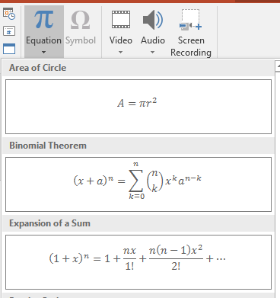
The result is editable math text on the slide:

Aspose.Slides builds that math text through three main objects:
- A math shape, created with addMathShape, is the shape that contains the equation.
- MathPortion stores math content inside the shape text frame.
- MathParagraph contains one or more MathBlock objects.
Most examples below use MathematicalText and the fluent methods from MathElementBase to keep the code short and readable.
For MathML export scenarios, see Export Math Equations from Presentations in Node.js via Java.
Create an Equation
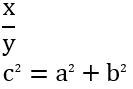
This example creates a math shape and adds the Pythagorean theorem:
var aspose = aspose || {};
aspose.slides = require("aspose.slides.via.java");

let presentation = new aspose.slides.Presentation();
try {
    let slide = presentation.getSlides().get_Item(0);

    let mathShape = slide.getShapes().addMathShape(20, 20, 700, 120);
    let mathParagraph = mathShape.getTextFrame().getParagraphs()
            .get_Item(0).getPortions().get_Item(0).getMathParagraph();

    let equation = new aspose.slides.MathematicalText("c")
            .setSuperscript("2")
            .join("=")
            .join(new aspose.slides.MathematicalText("a").setSuperscript("2"))
            .join("+")
            .join(new aspose.slides.MathematicalText("b").setSuperscript("2"));

    mathParagraph.add(equation);

    presentation.save("pythagorean-theorem.pptx", aspose.slides.SaveFormat.Pptx);
} finally {
    presentation.dispose();
}
addMathShape creates a shape that already contains a math paragraph. Access the first MathPortion, get its MathParagraph, and add math blocks or math elements to it.
Add Fractions
Use divide to create a fraction. You can choose a fraction style with MathFractionTypes.

var aspose = aspose || {};
aspose.slides = require("aspose.slides.via.java");

let presentation = new aspose.slides.Presentation();
try {
    let slide = presentation.getSlides().get_Item(0);

    let mathShape = slide.getShapes().addMathShape(20, 20, 700, 100);
    let mathParagraph = mathShape.getTextFrame().getParagraphs()
            .get_Item(0).getPortions().get_Item(0).getMathParagraph();

    let fraction = new aspose.slides.MathematicalText("1")
            .divide("x", aspose.slides.MathFractionTypes.Skewed);

    mathParagraph.add(new aspose.slides.MathBlock(fraction));

    presentation.save("fraction.pptx", aspose.slides.SaveFormat.Pptx);
} finally {
    presentation.dispose();
}
For a stacked fraction, use MathFractionTypes.Bar:
var aspose = aspose || {};
aspose.slides = require("aspose.slides.via.java");

let stackedFraction = new aspose.slides.MathematicalText("x + 1").divide("y - 1", aspose.slides.MathFractionTypes.Bar);
Add Radicals
Use radical to create a square root, cube root, or other root. The current element becomes the base, and the argument becomes the degree.

var aspose = aspose || {};
aspose.slides = require("aspose.slides.via.java");

let presentation = new aspose.slides.Presentation();
try {
    let slide = presentation.getSlides().get_Item(0);

    let mathShape = slide.getShapes().addMathShape(20, 20, 700, 100);
    let mathParagraph = mathShape.getTextFrame().getParagraphs()
            .get_Item(0).getPortions().get_Item(0).getMathParagraph();

    let radical = new aspose.slides.MathematicalText("x")
            .radical("n");

    mathParagraph.add(new aspose.slides.MathBlock(radical));

    presentation.save("radical.pptx", aspose.slides.SaveFormat.Pptx);
} finally {
    presentation.dispose();
}
Add Functions and Limits
Use asArgumentOfFunction or function for functions such as sin(x), log(x), or custom function names. For limits, put lim in a MathLimit or use setLowerLimit.

var aspose = aspose || {};
aspose.slides = require("aspose.slides.via.java");

let presentation = new aspose.slides.Presentation();
try {
    let slide = presentation.getSlides().get_Item(0);

    let mathShape = slide.getShapes().addMathShape(20, 20, 700, 100);
    let mathParagraph = mathShape.getTextFrame().getParagraphs()
            .get_Item(0).getPortions().get_Item(0).getMathParagraph();

    let limit = new aspose.slides.MathematicalText("lim")
            .setLowerLimit("x\u2192\u221E")
            .function("x");

    mathParagraph.add(new aspose.slides.MathBlock(limit));

    presentation.save("functions-and-limits.pptx", aspose.slides.SaveFormat.Pptx);
} finally {
    presentation.dispose();
}
For a custom function name, make the function name the current element:
var aspose = aspose || {};
aspose.slides = require("aspose.slides.via.java");

let customFunction = new aspose.slides.MathematicalText("f").function("x + 1");
Add N-ary Operators and Integrals
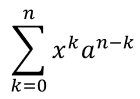
Use nary for summations, unions, intersections, and other large operators. Use integral for integrals. Both methods let you set lower and upper limits.
var aspose = aspose || {};
aspose.slides = require("aspose.slides.via.java");

let presentation = new aspose.slides.Presentation();
try {
    let slide = presentation.getSlides().get_Item(0);

    let mathShape = slide.getShapes().addMathShape(20, 20, 700, 120);
    let mathParagraph = mathShape.getTextFrame().getParagraphs()
            .get_Item(0).getPortions().get_Item(0).getMathParagraph();

    let summationBase = new aspose.slides.MathematicalText("x")
            .setSuperscript("k")
            .join(new aspose.slides.MathematicalText("a").setSuperscript("n-k"));

    let summation = summationBase.nary(aspose.slides.MathNaryOperatorTypes.Summation, "k=0", "n");

    mathParagraph.add(new aspose.slides.MathBlock(summation));

    presentation.save("nary-operators.pptx", aspose.slides.SaveFormat.Pptx);
} finally {
    presentation.dispose();
}
N-ary operators are for large operators with optional limits. Simple operators such as +, -, and = are usually added as MathematicalText and joined into the expression.
For an integral, use integral:
var aspose = aspose || {};
aspose.slides = require("aspose.slides.via.java");

let integralBase = new aspose.slides.MathematicalText("x").join(new aspose.slides.MathematicalText("dx").toBox());
let integral = integralBase.integral(aspose.slides.MathIntegralTypes.Simple, "0", "1");
Add Matrices
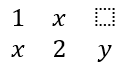
Use MathMatrix for rows and columns. Matrices do not include brackets by default, so enclose the matrix when you need parentheses, brackets, or braces.
var aspose = aspose || {};
aspose.slides = require("aspose.slides.via.java");

let presentation = new aspose.slides.Presentation();
try {
    let slide = presentation.getSlides().get_Item(0);

    let mathShape = slide.getShapes().addMathShape(20, 20, 700, 120);
    let mathParagraph = mathShape.getTextFrame().getParagraphs()
            .get_Item(0).getPortions().get_Item(0).getMathParagraph();

    let matrix = new aspose.slides.MathMatrix(2, 3);
    matrix.set_Item(0, 0, new aspose.slides.MathematicalText("1"));
    matrix.set_Item(0, 1, new aspose.slides.MathematicalText("x"));
    matrix.set_Item(1, 0, new aspose.slides.MathematicalText("x"));
    matrix.set_Item(1, 1, new aspose.slides.MathematicalText("2"));
    matrix.set_Item(1, 2, new aspose.slides.MathematicalText("y"));

    mathParagraph.add(new aspose.slides.MathBlock(matrix));

    presentation.save("matrix.pptx", aspose.slides.SaveFormat.Pptx);
} finally {
    presentation.dispose();
}
Add Equation Arrays
Use toMathArray when you need aligned equations or a vertical stack of expressions.

var aspose = aspose || {};
aspose.slides = require("aspose.slides.via.java");

let presentation = new aspose.slides.Presentation();
try {
    let slide = presentation.getSlides().get_Item(0);

    let mathShape = slide.getShapes().addMathShape(20, 20, 700, 140);
    let mathParagraph = mathShape.getTextFrame().getParagraphs()
            .get_Item(0).getPortions().get_Item(0).getMathParagraph();

    let equationArray = new aspose.slides.MathematicalText("x")
            .join("y")
            .toMathArray();

    mathParagraph.add(new aspose.slides.MathBlock(equationArray));

    presentation.save("equation-array.pptx", aspose.slides.SaveFormat.Pptx);
} finally {
    presentation.dispose();
}
Add Trigonometric Functions
Use asArgumentOfFunction when the argument is the current element and the function name is known.

var aspose = aspose || {};
aspose.slides = require("aspose.slides.via.java");

let presentation = new aspose.slides.Presentation();
try {
    let slide = presentation.getSlides().get_Item(0);

    let mathShape = slide.getShapes().addMathShape(20, 20, 700, 100);
    let mathParagraph = mathShape.getTextFrame().getParagraphs()
            .get_Item(0).getPortions().get_Item(0).getMathParagraph();

    let cosine = new aspose.slides.MathematicalText("2x")
            .asArgumentOfFunction(aspose.slides.MathFunctionsOfOneArgument.Cos);

    mathParagraph.add(new aspose.slides.MathBlock(cosine));

    presentation.save("trigonometric-function.pptx", aspose.slides.SaveFormat.Pptx);
} finally {
    presentation.dispose();
}
Add Subscripts and Superscripts
Use the subscript and superscript helpers for indexes and powers. When the indexes must appear on the left side of the base, use setSubSuperscriptOnTheLeft.

var aspose = aspose || {};
aspose.slides = require("aspose.slides.via.java");

let presentation = new aspose.slides.Presentation();
try {
    let slide = presentation.getSlides().get_Item(0);

    let mathShape = slide.getShapes().addMathShape(20, 20, 700, 100);
    let mathParagraph = mathShape.getTextFrame().getParagraphs()
            .get_Item(0).getPortions().get_Item(0).getMathParagraph();

    let scripts = new aspose.slides.MathematicalText("Y")
            .setSubSuperscriptOnTheLeft("1", "n");

    mathParagraph.add(new aspose.slides.MathBlock(scripts));

    presentation.save("subscript-superscript.pptx", aspose.slides.SaveFormat.Pptx);
} finally {
    presentation.dispose();
}
Add Delimiters
Use enclose to put an expression inside delimiters. You can also set a separator character for delimiter expressions that contain several elements.

var aspose = aspose || {};
aspose.slides = require("aspose.slides.via.java");
const java = require("java");

let presentation = new aspose.slides.Presentation();
try {
    let slide = presentation.getSlides().get_Item(0);

    let mathShape = slide.getShapes().addMathShape(20, 20, 700, 100);
    let mathParagraph = mathShape.getTextFrame().getParagraphs()
            .get_Item(0).getPortions().get_Item(0).getMathParagraph();

    let delimiter = new aspose.slides.MathematicalText("x")
            .join("y")
            .join("z")
            .enclose(java.newChar('<'), java.newChar('>'));
    delimiter.setSeparatorCharacter(java.newChar('|'));

    mathParagraph.add(new aspose.slides.MathBlock(delimiter));

    presentation.save("delimiters.pptx", aspose.slides.SaveFormat.Pptx);
} finally {
    presentation.dispose();
}
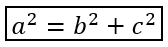
Add a Border Box
Use toBorderBox when the equation itself should be framed.
var aspose = aspose || {};
aspose.slides = require("aspose.slides.via.java");

let presentation = new aspose.slides.Presentation();
try {
    let slide = presentation.getSlides().get_Item(0);

    let mathShape = slide.getShapes().addMathShape(20, 20, 700, 100);
    let mathParagraph = mathShape.getTextFrame().getParagraphs()
            .get_Item(0).getPortions().get_Item(0).getMathParagraph();

    let boxedEquation = new aspose.slides.MathematicalText("a")
            .setSuperscript("2")
            .join("=")
            .join(new aspose.slides.MathematicalText("b").setSuperscript("2"))
            .join("+")
            .join(new aspose.slides.MathematicalText("c").setSuperscript("2"))
            .toBorderBox();

    mathParagraph.add(new aspose.slides.MathBlock(boxedEquation));

    presentation.save("border-box.pptx", aspose.slides.SaveFormat.Pptx);
} finally {
    presentation.dispose();
}
Group Terms
Use group to place a grouping character above or below an expression. Add a limit to label the grouped terms.

var aspose = aspose || {};
aspose.slides = require("aspose.slides.via.java");
const java = require("java");

let presentation = new aspose.slides.Presentation();
try {
    let slide = presentation.getSlides().get_Item(0);

    let mathShape = slide.getShapes().addMathShape(20, 20, 700, 120);
    let mathParagraph = mathShape.getTextFrame().getParagraphs()
            .get_Item(0).getPortions().get_Item(0).getMathParagraph();

    let grouped = new aspose.slides.MathematicalText("x + y")
            .group(java.newChar('\u23DF'), aspose.slides.MathTopBotPositions.Bottom, aspose.slides.MathTopBotPositions.Top)
            .setLowerLimit("any text");

    mathParagraph.add(new aspose.slides.MathBlock(grouped));

    presentation.save("grouped-terms.pptx", aspose.slides.SaveFormat.Pptx);
} finally {
    presentation.dispose();
}
Format Math Elements
Use formatting helpers only where they clarify the formula. For example, overbar places a bar above a math element.

var aspose = aspose || {};
aspose.slides = require("aspose.slides.via.java");

let presentation = new aspose.slides.Presentation();
try {
    let slide = presentation.getSlides().get_Item(0);

    let mathShape = slide.getShapes().addMathShape(20, 20, 700, 100);
    let mathParagraph = mathShape.getTextFrame().getParagraphs()
            .get_Item(0).getPortions().get_Item(0).getMathParagraph();

    let overbar = new aspose.slides.MathematicalText("ABC").overbar();

    mathParagraph.add(new aspose.slides.MathBlock(overbar));

    presentation.save("overbar.pptx", aspose.slides.SaveFormat.Pptx);
} finally {
    presentation.dispose();
}
Quick Reference
| Task | Main API |
|---|---|
| Create math text | MathematicalText |
| Combine elements | join |
| Create fractions | divide |
| Add superscript or subscript | setSuperscript, setSubscript |
| Add functions | function, asArgumentOfFunction |
| Add radicals | radical |
| Add limits | setLowerLimit, setUpperLimit |
| Add left-side scripts | setSubSuperscriptOnTheLeft |
| Add summations and integrals | nary, integral |
| Add matrices | MathMatrix |
| Add equation arrays | toMathArray |
| Add delimiters | enclose |
| Add bars and borders | overbar, toBorderBox |
| Group terms | group |
FAQ
Can I edit an existing PowerPoint equation?
Yes. Open the presentation, find the shape that contains a MathPortion, get its MathParagraph, and update the math blocks in that paragraph.
Are equations saved as editable PowerPoint math?
Yes. When you save to PPTX, Aspose.Slides writes the equation as editable Office math content.
Can I export equations to LaTeX?
Yes. Get the equation’s MathParagraph from its MathPortion, and call MathParagraph.toLatex to export it directly. For a complete example, see Export Math Equations from Presentations in Node.js via Java.